display AUDI TT ROADSTER 2018 Owner's Manual
[x] Cancel search | Manufacturer: AUDI, Model Year: 2018, Model line: TT ROADSTER, Model: AUDI TT ROADSTER 2018Pages: 310, PDF Size: 46.95 MB
Page 87 of 310
Cl 00 .-< N r-N .-< 0 r-Vl 00
the ignition, the LED in the P•1~ button will blink
the next time you switch on the parking system
by shifting into reverse. As long as the error is ac
tive, you can display the error messages in the
second tab of the dr iver information system.
Parking system plus*
If a sensor or speaker is fau lty, t he J;l4 symbol
will appear in front of/behind the vehicle in the Infotainment disp lay. If a rear sensor is faulty,
only obstacles that are in areas
(D and @
¢ page 81, fig. 86 are shown. If a front sensor is
faulty, only obstacles that are in areas ®
and@
are shown .
Drive to an authorized Aud i dea ler or authorized
Aud i Service Facility immediately to have the
malfunct ion corrected.
Parking systems
85
Page 96 of 310
Multi Media Interface
A WARNING
Adjust the volume of the audio system so that signals from outside the vehicle, such as po
lice and fire sirens, can be heard easily at all
times .
(j) Tips
The MMI switches off automatically if the en
gine is not running and the vehicle battery is
low .
MMI operation
Selecting and confirming a function
Fig . 98 Operat ing the control knob
Selecting and confirming a function in a
menu/list
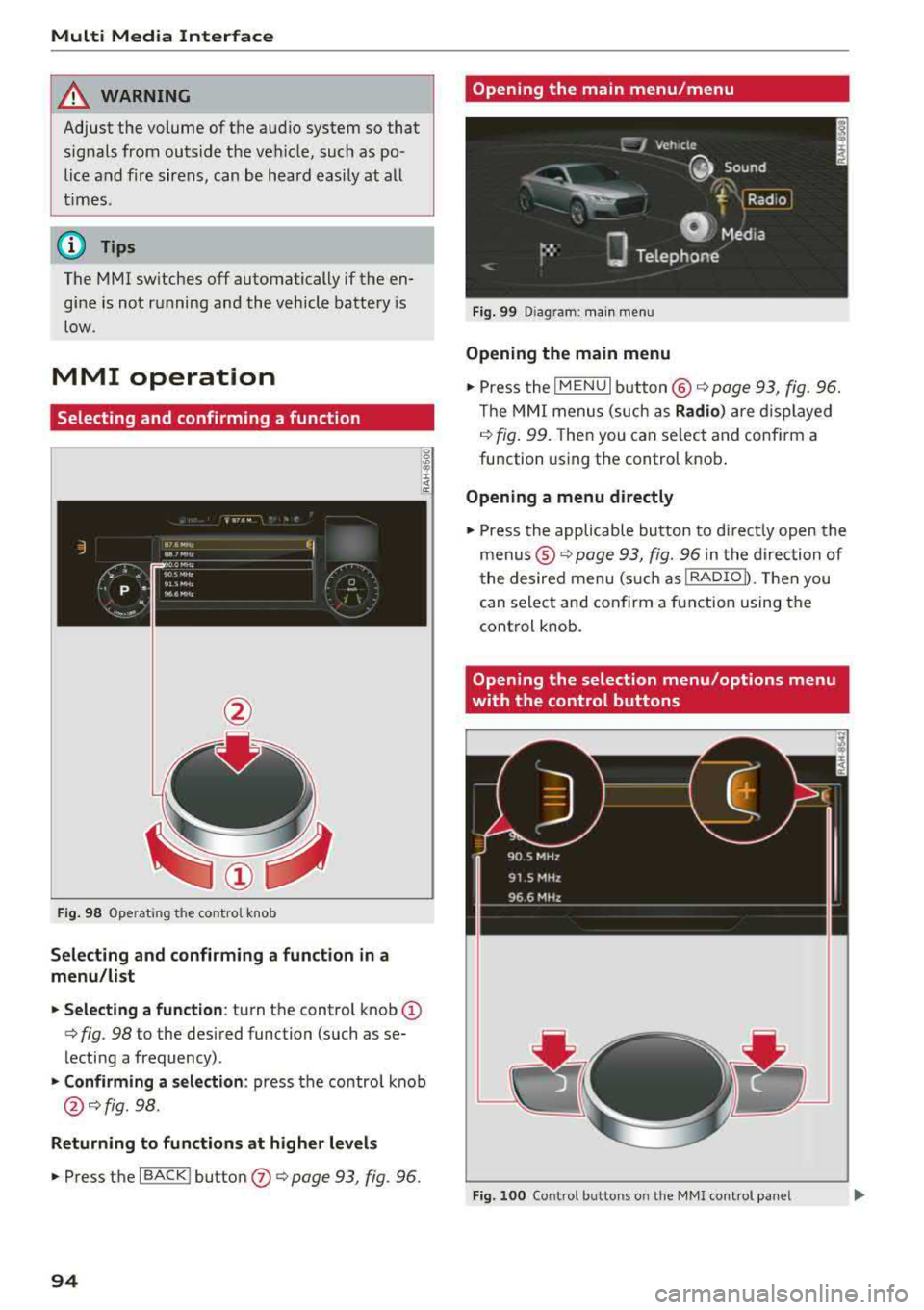
.. Selecting a function : turn the control knob (D
c> fig. 98 to the desired function (such as se
lecting a frequency) .
.. Confirming a selection : press the contro l knob
@ c>fig . 98.
Returning to functions at higher levels
.. Press the I BACK ! button (J) c> page 93, fig. 96.
94
Opening the main menu/menu
Fig. 99 Diagram: main menu
Opening the main menu
.,. Press the I MENU I button @ c> page 93, fig. 96.
Th e MMI menus (such as
Radio) are displayed
c>fig. 99. Then you can select and conf irm a
function using the control knob.
Opening a menu directly
.. Press the applicable button to directly open the
menus ®
c> page 93, fig. 96 in the direction of
the desired menu (such as
!RADIOD. Th en you
can select and confirm a function using the
control knob.
Opening the selection menu/options menu
with the control buttons
Fig. 100 Control butto ns on the MMI cont rol panel
Page 97 of 310
Cl co .... N ,-... N ...... 0 ,-... Vl co
Selection menu: through the selection menu,
you can open additional functions within a men u
i tem (such as
Radio ).
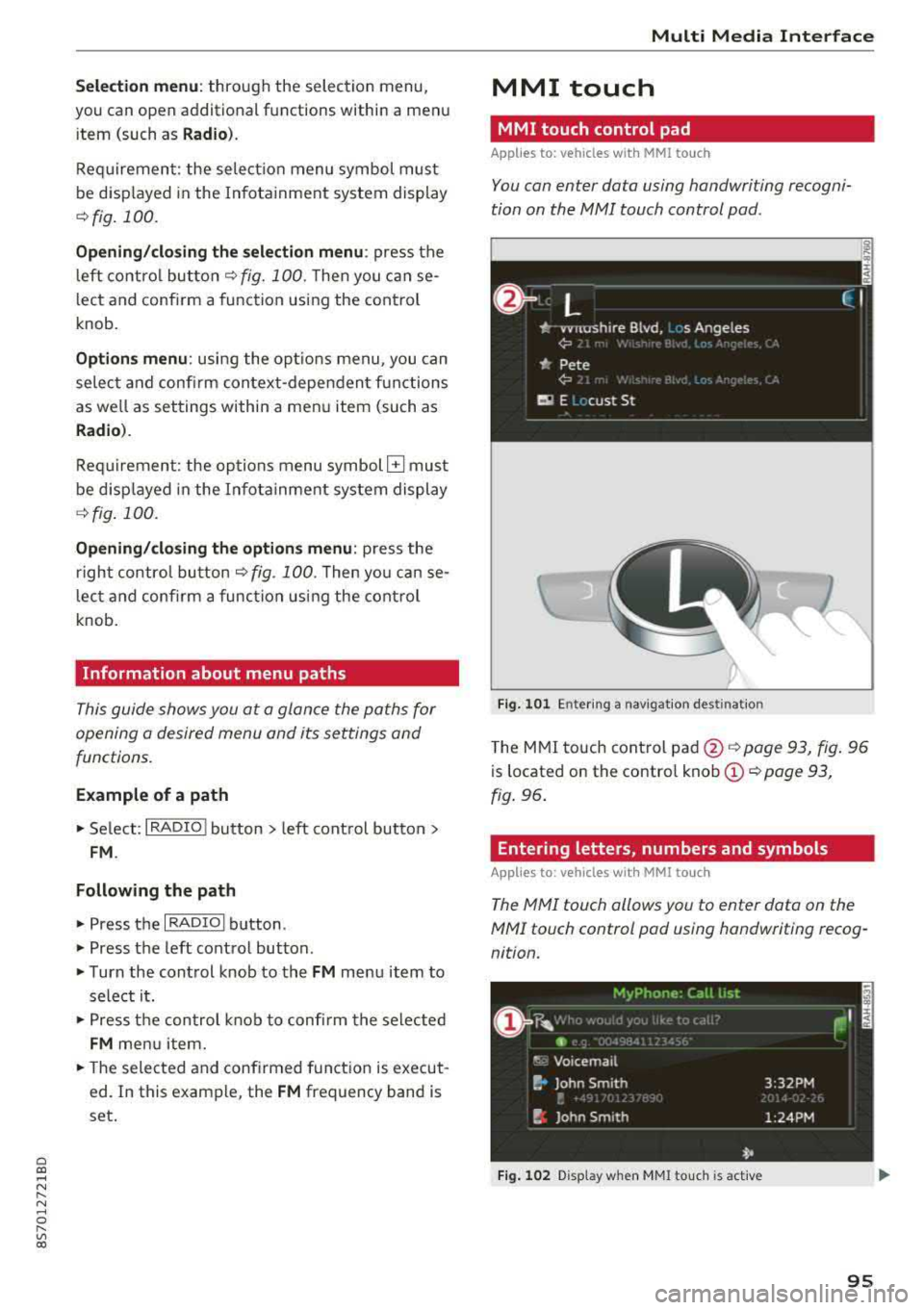
Req uireme nt: the select io n menu symbol mus t
be disp layed in the In fota inment system display
¢ fig . 100 .
Opening /closing the selection menu : press the
l eft contro l bu tton
¢ fig. 100 . Then you c an se
lect and conf irm a function usi ng the control
knob.
Options menu : using the opt io ns menu, you can
se lec t a nd con firm con tex t-depen den t fu nct ions
as we ll as settings within a men u item (such as
Radio ).
Re qui rement : the options menu symbol G must
be disp layed in the In fota inme nt system di splay
¢ fig . 100 .
Opening /closing the options menu : press the
right contr ol
bu tton ¢ fig. 100. Then yo u can se
lec t an d con firm a func tion usi ng the cont rol
knob.
Information about menu paths
T his guide shows you a t a glan ce the path s for
opening a desired menu and its se ttings and
functions.
Example of a path
"' Se lect : I RADIO ! bu tton> left cont rol bu tton>
FM .
Following the path
"'Press th e I RADIO I button .
"' Press the left control button .
"'Turn the con trol knob to the FM menu item to
sele ct i t.
"'P ress th e c ont rol knob to confi rm the se le cte d
FM me nu item .
"'The selected and conf irmed funct ion is execut
ed . In this e xam ple, the
FM frequency band is
set .
Multi Media Inte rface
MMI touch
MMI touch control pad
App lies to: vehicles wi th MMI to uch
You can enter data using handwri ting recogni
tion on the
MMI touch control pad .
Fig . 10 1 En ter ing a nav igatio n destin atio n
The M MI touch cont rol pa d@ ¢ page 93, fig . 96
is located on the contro l kno b (D ¢ page 93,
fig . 96 .
Entering letters, numbers and symbols
App lies to : vehicles wit h MMI to uch
The MMI touch allows you to enter data on the
MMI touch control pad using handwriting recog
nition.
Fig. 102 Disp la y when MMI to uch is act ive
95
Page 98 of 310
Multi Media Interface
Requirement: it must be possible to enter text or
numbers and the
symbol @<=:> fig. 102 must ap
pear in the Infotainment system display.
-Initial entry: write an individua l upper case or
lower case letter or number/symbol on the
MMI touch control pad using your finger . A
symbol that is recognized clearly by the system
is displayed in the Infotainment system display
@ c:::> page 95, fig. 101, confirmed with an audi
ble signal if necessary, and transferred to the
input field.
-Entering spaces : move your finger across the
MMI touch control pad from left to right .
-Deleting characters: move your finger across
the MMI touch control pad from right to left.
-Deleting characters quickly: move your finger
quick ly across the MMI touch control pad from
right to left .
-Selecting the input suggestion : press the con
trol knob .
-Switching directly to the results list: turn the
control knob to the right
- Opening the speller: select the right control
button>
Open speller . Text or numbers are en
tered using the speller
c:::> page 99 .
96
Moving the crosshairs
Applies to: vehicles with MMI touch
l.
Fig. 103 Moving the cro ssha irs
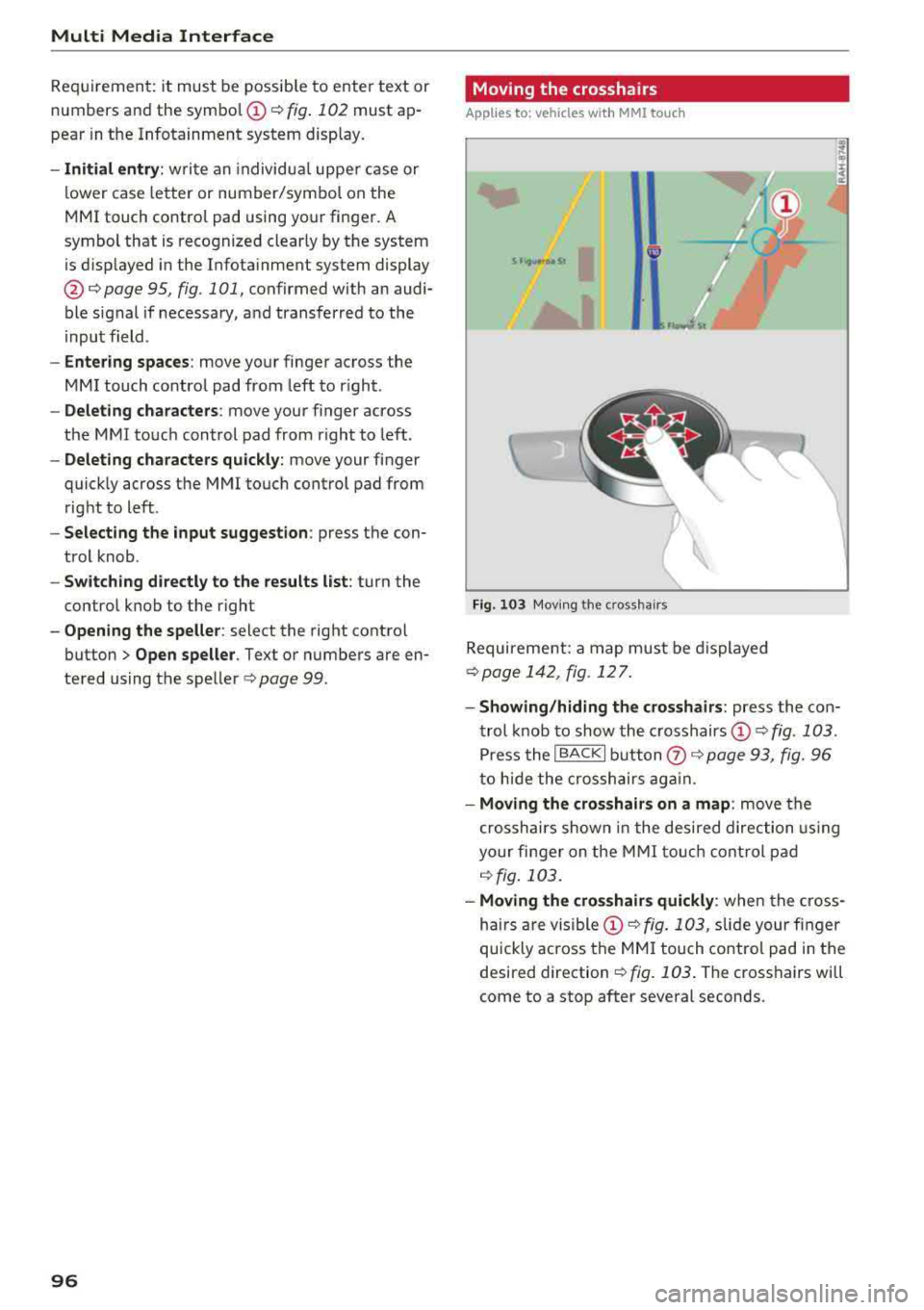
Requirement: a map must be displayed
c:::> page 142, fig. 12 7.
-Showing/hiding the crosshairs: press the con
trol knob to show the crosshairs
©¢fig . 103 .
Press the I BACKI button (!) c:::> page 93, fig. 96
to hide the crosshairs again .
-Moving the crosshairs on a map : move the
crosshairs shown in the desired direction using
your finger on the MMI touch control pad
c:::> fig. 103.
-Moving the crosshairs quickly : when the cross
ha irs are
visible © c:::> fig. 103, slide your finger
quickly ac ross the
MMI touch control pad in the
desired direction
c:::> fig. 103. The crosshairs will
come to a stop after several seconds .
Page 99 of 310
Cl co .... N ,....
N ...... 0 ,....
Vl co
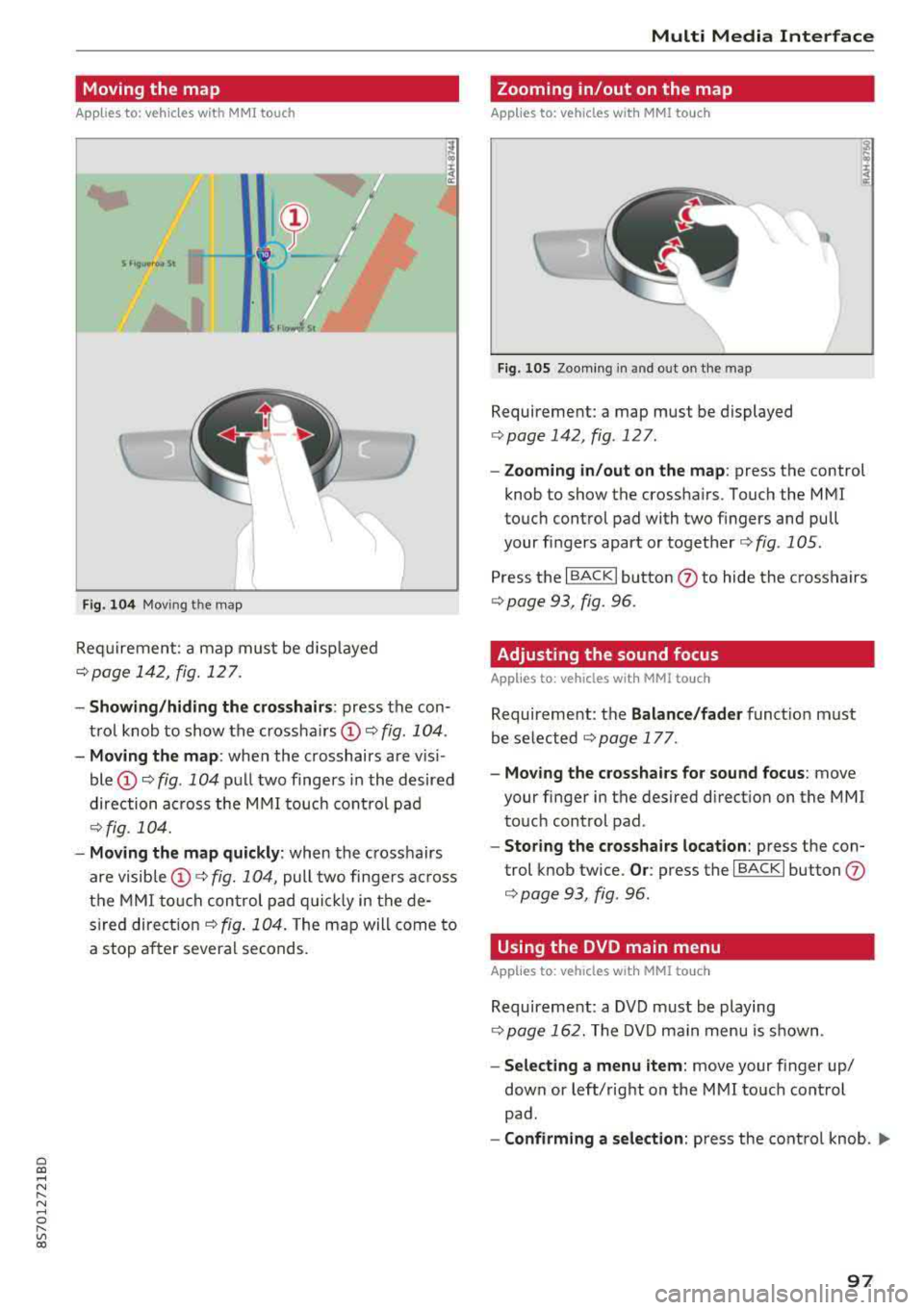
Moving the map
Applies to: vehicles with MMI touch
Fig . 104 Mov ing th e map
Req uirement: a map must be d isp layed
¢ page 142, fig. 127 .
-Showing /hiding the cro sshair s: press the con
t rol knob to show the crossha irs
CD ¢ fig. 104 .
-Moving the map : when the crosshairs are v is i
ble
CD ¢ fig. 104 pull two fingers in the desired
direction ac ross the
M MI touch cont rol pad
¢ fig. 104.
- Moving the map quickly : when the crosshairs
are visible
CD ¢ fig. 10 4, pull two finge rs ac ross
the
M MI to uc h con trol pad q uic kly in the de
s ired
dire ct io n ¢ fig . 104. The ma p will come to
a stop a fter severa l seconds.
Multi Media Inte rface
Zooming in/out on the map
Applies to: vehicles with MMI touch
Fig . 105 Zoo ming in and out o n th e ma p
Requirement: a map must be displayed
¢page 142 , fig. 127 .
-Zooming in /out on the map : press the control
knob to show the crossha irs . Touch the
MMI
touc h cont rol pad with two f ingers and pull
your fi ngers apart or
together ¢ fig. 105 .
Press t he I BA CK I button (J) to hide the crosshairs
¢ page 93, fig. 96.
Adjusting the sound focus
Applies to : vehicles with MMI to uch
Requireme nt: the Balance /fader funct io n must
be se lected
¢ page 177 .
-Moving the crosshairs for sound focus : move
your finger in the desired di rect ion on t he
MMI
to uch control pad .
-Storing the crosshairs location : press the con
trol knob tw ice.
Or : press the I BACK I button (J)
¢ page 93, fig . 96 .
Using the DVD main menu
Applies to : vehicles with MMI touch
Requireme nt: a DVD m ust be playing
¢ page 162. The DV D main menu is s hown .
-Selecting a menu item: move your finger up/
down or left/rig ht on the
M MI touch cont rol
pad .
-Confirming a selection : press the contro l knob . ..,.
97
Page 100 of 310
Multi Media Int erface
(D Tips
The volume of the prompts for the MMI touch
can be adjusted
separate ly ¢ page 178.
Control knob with
joystick function
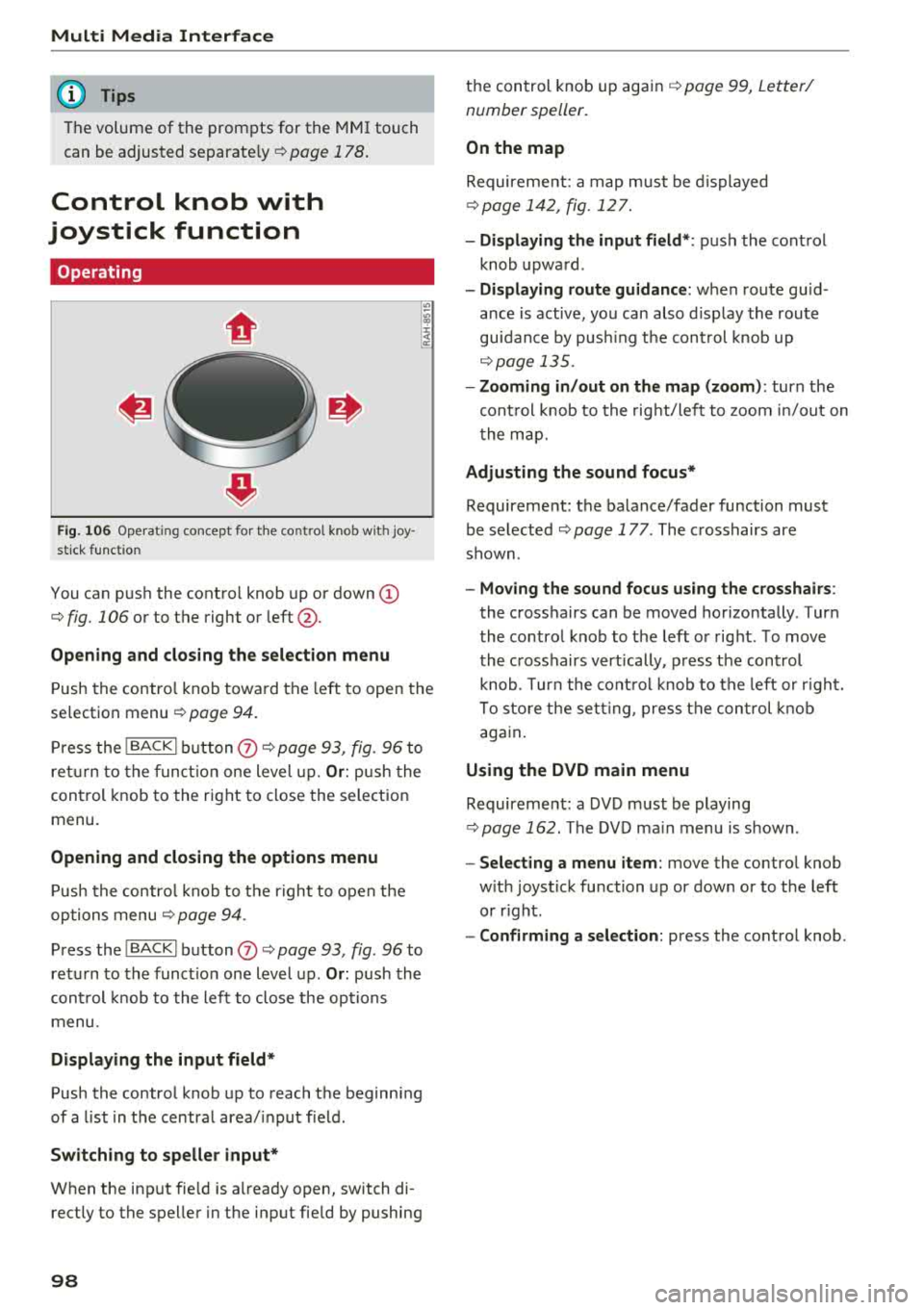
Operating
F ig . 106 Ope rat ing concept fo r th e co ntrol knob w ith joy
s ti ck f unct ion
You can push the contro l knob up or down (D
¢ fig. 106 or to the right or left @.
Opening and closing the selection menu
Push the contro l knob toward the left to open the
selection menu
¢ page 94.
P ress the I BACKI b utton (J) ¢ page 93, fig. 96 to
ret urn to the funct io n one level up.
Or : push the
control knob to the right to close the selection
menu.
Opening and closing the options menu
P ush the contro l knob to t he r ight to open the
options menu
¢ page 94 .
Press the I BACKI button (J) ¢ page 93, fig . 96 to
ret urn to the funct io n one level up .
Or: push the
cont rol knob to the left to close the op tions
menu .
Displaying the input field *
Push the control knob up to reach the beginn ing
of a list in t he central area/ input f ield .
Switching to speller input*
When the inp ut fie ld is a lready open, switch di
rectly to the spelle r in the input fie ld by pushing
98
t h e control knob up again ¢ page 99, Letter/
number speller.
On the map
Requireme nt: a map must be d isplayed
¢ page 142 , fig. 127.
- Di splaying the input field* :
push the control
knob upwa rd .
- Displaying route guidanc e: when route guid
ance is active, you can also d isplay the route
guidance by pus hing t he cont rol knob up
¢ page 135 .
- Zooming in /out on the map (zoom) :
turn the
cont rol knob to the right/le ft to zoom in/out on
t he map.
Adjusting the sound focus*
Requirement: the balance/fader function must
be se lected ¢
page 177 . The crosshairs are
shown .
-Moving the sound focus using the crosshairs :
the crosshairs can be moved horizontally. T ur n
the co ntro l knob to t he left o r right . T o move
the c rosshairs vert ically , p ress the control
knob . Turn the cont ro l knob to the left or r ight.
To sto re the set ting, press the co ntrol knob
aga in .
Using the DVD main menu
Requireme nt: a DVD must be playing
¢ page 162. The DVD ma in menu is s hown .
-Select ing a menu item : move the contro l knob
w ith joys tick function up or down or to the left
or r ight.
- Confirming a selection: press the control knob .
Page 102 of 310
Multi Media Interface
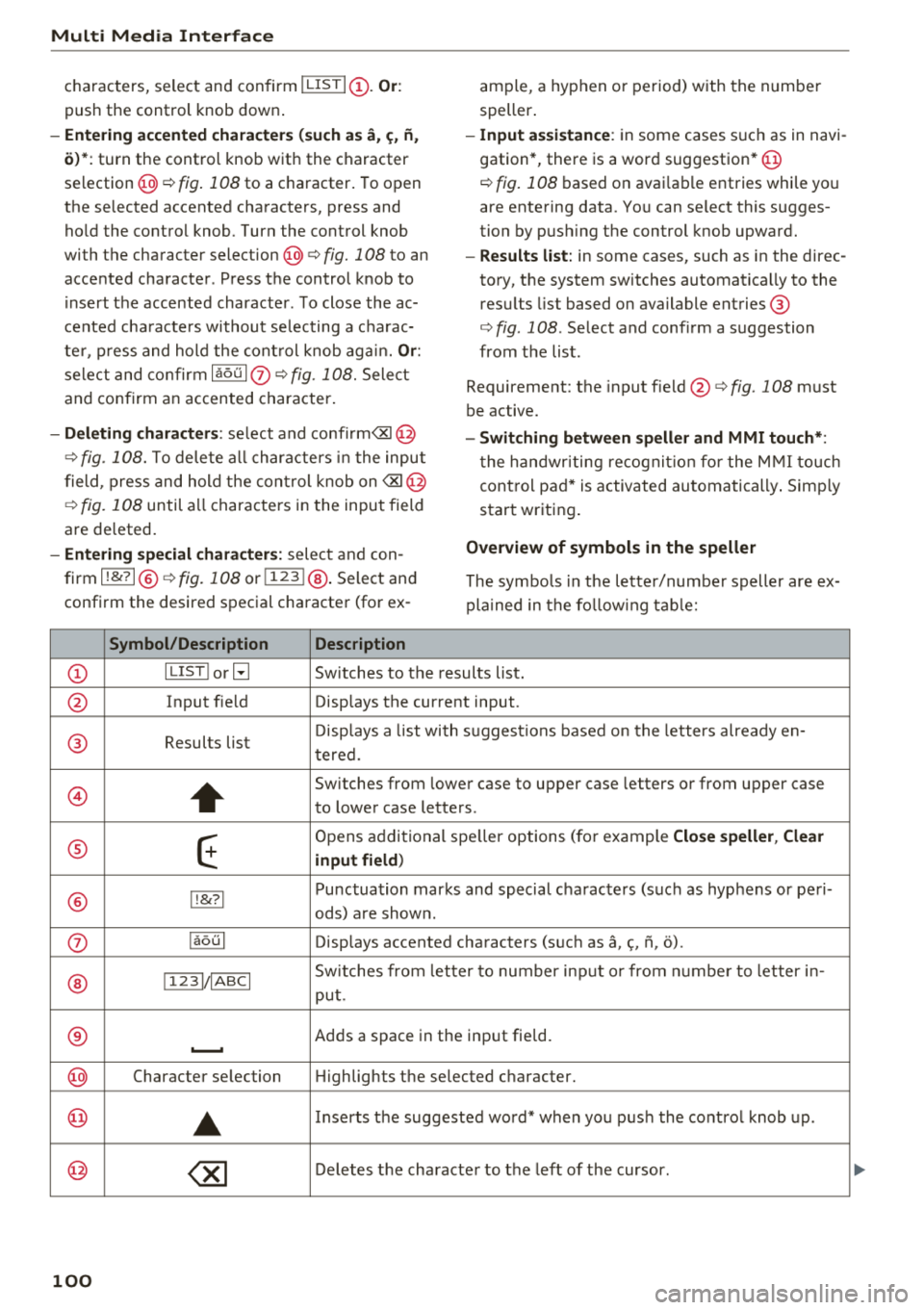
characters, select and confirm I LISTI(!). Or :
push the control knob down .
-Entering accented characters (such as a, ~. ii,
o)*: turn the control knob with the character
selection @¢ fig. 108 to a c haracter . To open
the se lected accented characters, press and
ho ld the control knob. Turn the control knob
with the character
selection @¢ fig. 108 to an
accented character . Press the control knob to
i nsert the accented character. To close the ac
cented cha racte rs without se lecting a c harac
te r, press and hold the control knob again.
Or:
select and confirm laou l(z) ¢fig. 108. Select
and confirm an accented character.
-Deleting characters : select and confi rm
field, press and hold the control knob on
are de leted.
- Entering special characters: select and con
firm
l !&? l@ ¢fig. 108 or !123 !@ . Select and
confirm the desired special character (for ex-
Symbol/Description Description
ample, a hyphen or period) with the number
speller .
-Input assistance : in some cases s uch as in navi
gation*, there is a word suggestion* @
¢
fig. 108 based on avai lable entries while you
are entering data. You can select this sugges
tion by push ing the control knob upward.
-Results list: in some cases, such as in the direc
tory, the system switches automatica lly to the
resu lts list based on available entries @
¢
fig. 108. Select and confirm a suggestion
from the list.
Requirement: the input
field @¢fig. 108 must
be active.
- Switching between speller and MMI touch*:
the handwriting recognition for the MMI touch
control pad* is activated automatically. Simply
start writing .
Overview of symbols in the speller
The symbols in the lette r/numbe r speller are ex
plained in the follo wing table:
CD ILIST lorB Switches to the results list.
@ Input field Displays the current input.
® Results list Displays
a list with suggest ions based on the letters already en-
tered.
@
+
Switches from lower case to upper case letters or from upper case
to lower case letters .
® E
Opens additional speller options (for example Close speller, Clear
input field )
® li&? I Punctuation marks and special characters (such as hyp hens or peri-
ads) a re shown.
0 laoul Displays accented characters (such as a,~, fi, o).
Switches from letter to number input or from number to letter i n-
® !1231/IABCI
put.
® Adds a space in the input fie ld . ..........
@ Character se lection Highlights the selected character.
@ ..
Inserts the suggested word* when you push the control knob up .
@ ~ Deletes the character to the left of the cursor.
100
Page 103 of 310
Cl 00 .-< N r-N .-< 0 r-Vl 00
(D Tips
Accented characters are not available for ev
ery letter .
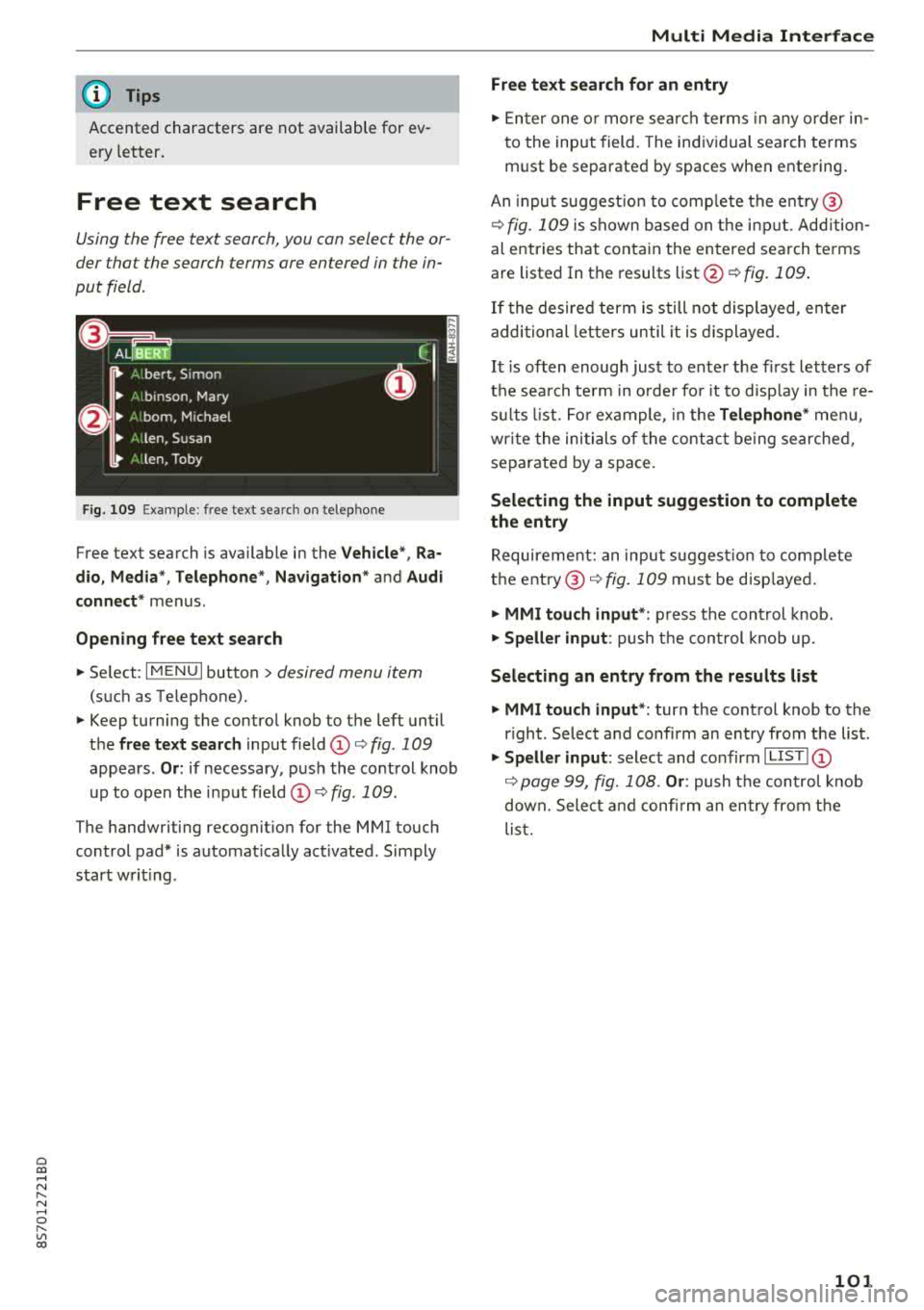
Free text search
Using the free text search, you can select the or
der tha t the search terms are entered in the in
put field .
Fig. 109 Example : free text search on telep hone
Free text search is ava ilable in the Vehicle", Ra
dio, Media* , Telephone *, Navigation *
and Audi
connect*
menus .
Opening free text search
~ Select : IMENUI button> desired menu item
(such as Telephone).
~ Keep turning the control knob to the left until
the
free text search input field CD¢ fig. 109
appears . Or: if necessary , push the control knob
up to open the input fie ld
CD ¢fig . 109.
The handwriting recognit ion for the MMI touch
control pad* is automat ically act ivated . Simply
start wr it ing .
Multi Media Interface
Free text search for an entry
~ Enter one or more search terms in any order in
to the input field . The individual search terms
must be separated by spaces when entering .
An input suggest ion to comp lete the entry @
¢fig. 109 is shown based on the input. Add ition
al entries that contain the entered search terms are listed In the results
list@¢ fig. 109.
If the desired term is still not displayed, enter
additional letters until it is displayed .
It is often enough just to enter the f irst letters of
the search term in o rder fo r it to disp lay in the re
su lts list . For example, in the
Telephone * menu,
wr ite the initials of the contact being searched,
separated by a space.
Selecting the input suggestion to complete
the entry
Requirement: an inpu t sug gest io n to complete
the
entry @¢ fig. 109 must be disp layed .
~ MMI touch input* : press the control knob.
~ Speller input : push the cont rol knob up.
Selecting an entry from the results list
~ MMI touch input* : turn the control knob to the
r ight . Select and confirm an entry from the list .
~ Speller input: select and confirm I LIST! CD
¢ page 99, fig. 108. Or: push t he control knob
down. Select and confirm an entry from the
list.
101
Page 107 of 310
Cl 00 .-< N r-N .-< 0 r-Vl 00
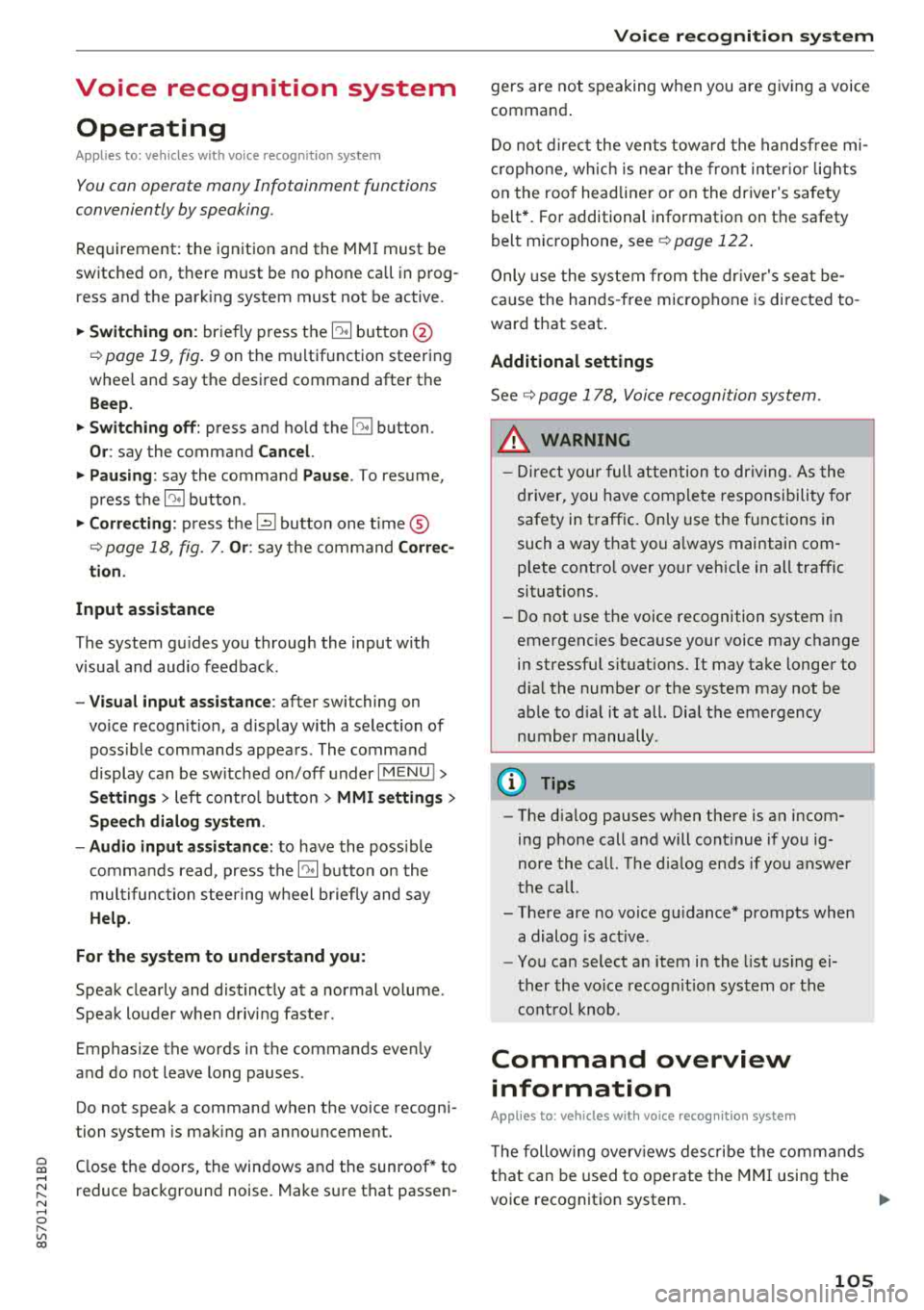
Voice recognition system Operating
Applies to: vehicles with voice recognitio n system
You con operate many Infotainment functions
conveniently by speaking.
Requirement: the ignition and the MM I must be
switched on, there m ust be no phone call in p rog
ress and the park ing system must not be active.
~ Switching on : briefly p ress t h e ~ but ton @
¢page 19, fig . 9 on the multif unction steering
whee l and say th e desi red command after the
Beep .
~ Switching off : press and hold the ~ button .
Or: say the command Cancel.
~ Pausing : say the command Pause . To resume,
press
the~ b utt on .
~ Corr ecting : press t h e ~ button one t ime ®
¢ page 18, fig. 7. Or: say the co mmand Correc
tion .
Input assistance
The system g uides you throug h the input with
v isua l and aud io feedback .
-Visual input assistance : after switching on
vo ice recogn it io n, a display with a se lection of
poss ible commands appears . The command
display can be sw itched on/off under
I M EN U I >
Setting s> left contro l butto n > MMI setting s>
Speech dialog system .
- Audio input assistance:
to have the poss ible
c omma nds read, press t he
10, I bu tton o n the
mul tifunc tion steering w heel b riefly and say
Help.
For the system to understand you:
Speak clearly and dis tinct ly a t a normal vo lume .
Speak lo uder when d riving faste r.
Emphasi ze the words in the commands even ly
a n d do not leave long pauses .
Do not spea k a command when the voice recogni
tion system is m aking an a nno uncement.
C lose the doors, the windows and the sunroof* to
r e duce background noise. Make s ure that passe n-
Voice recognition system
gers are not speaking w hen you are g iv ing a voice
comman d.
D o no t direct the vents towa rd the handsfree mi
c rophone, wh ic h is near the fro nt inter ior lights
on the roof headline r or on the dr iver's safety
belt*. Fo r additional informat io n on th e safety
belt m ic rophone, see
¢ pag e 122 .
Only use the system from the dr ive r's sea t be
ca use the hands -free microphone is di rected to
ward that s eat .
Additional settings
See ¢ page 178, Voice recognition system.
_&. WARNING
- D ir e ct y ou r full a tte ntio n to dr iv in g. A s t he
dr iver, you have com ple te re spon sibility fo r
safety in t raff ic . O nly use the functions in
such a way t hat you a lways maintai n com
p lete contro l over your vehicle in all traffic
situations.
- Do not use t he voice recognition system in
emergencies beca use your voice may change
in st ressfu l s ituations. It may ta ke longe r to
d ia l the number o r th e system may not be
ab le to d ia l it at all. Dia l the emergency
number manually .
(D Tips
-The d ialog pauses w hen the re is a n incom
ing phone call a nd will con tinue if yo u ig
nore the ca ll. The dia log ends if yo u answer
t he ca ll.
- There are no vo ice gu idance* prompts when
a dialog is ac tive .
- Yo u ca n select a n item in the list us ing ei
t her the vo ice recogn ition sys tem o r the
cont ro l knob .
Command overview
information
Applies to: vehicles with voice recognition system
T he following overv iews des crib e the co m man ds
t h at can be used to oper ate the MMI using the
vo ice recognit ion system.
..,.
105
Page 109 of 310
Cl 00 .-< N r-N .-< 0 r-Vl 00
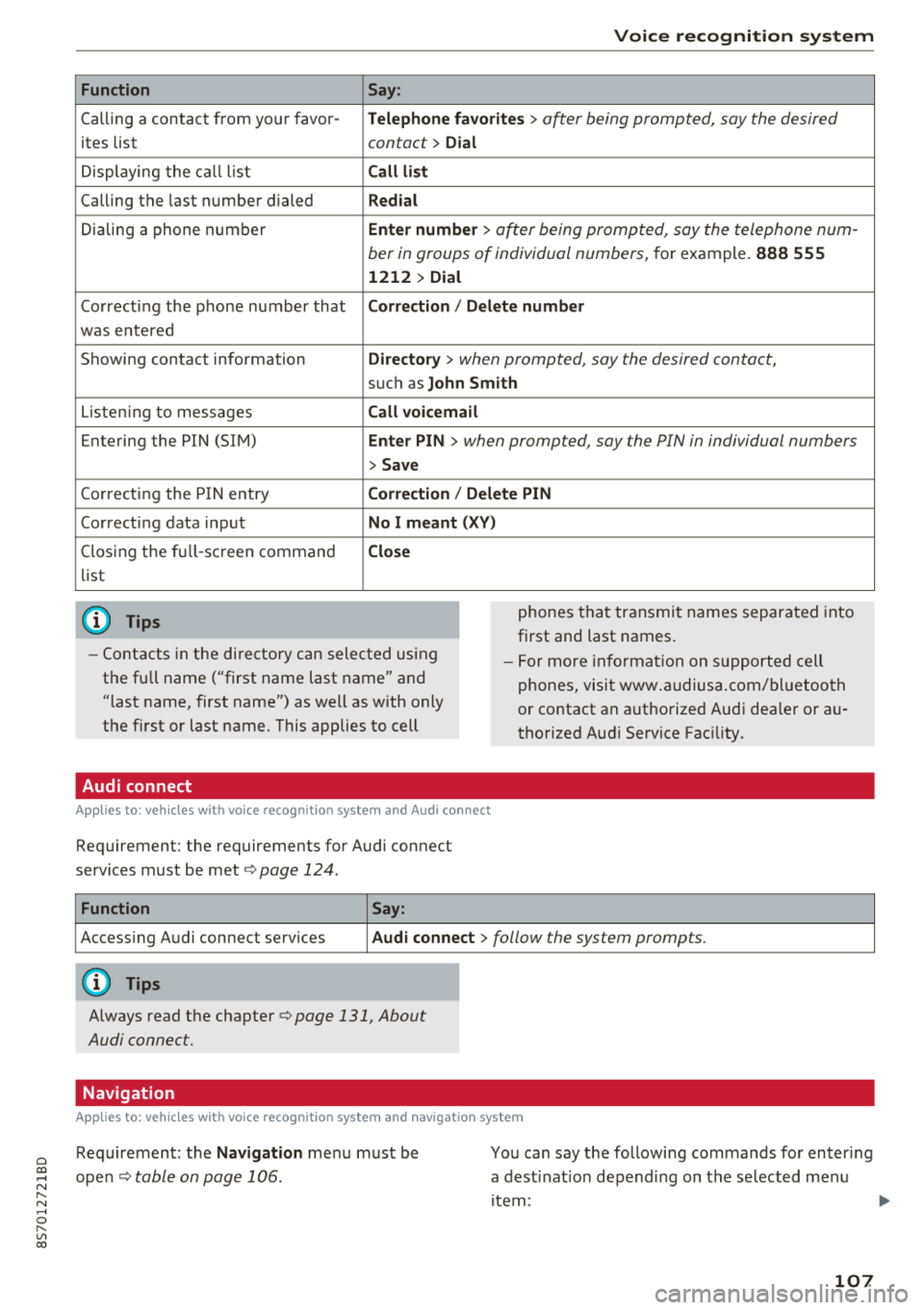
Function
Calling a contact from yo ur favor -
ites list
Displaying the ca ll list
Calling the last number dialed
Dialing a phone num ber
Correcting the p hone number that
was entered
Showing contact information
L iste ning to messages
Entering the PIN (SIM)
C orrecting the P IN entry
Correcting data inp ut
Closing the fu ll- screen command
list
(D Tips
Voice recognition system
Say :
Telephone fa vo rites
> a~er being prompted, say the desired
contact>
D ial
Call li st
Redial
En ter number
> after being prompted, say the telephone num-
ber in groups of individual numbers,
for example. 888 555
1212 > Dial
Correction / Delete number
Directory
> when prompted, say the desired contact,
suc h as John Smith
Call voi cemail
Enter PIN
> · when prompted, say the PIN in individual numbers
> Save
Correction / Delete PIN
No I meant ( XV)
Close
phones tha t transmit names separated into
first and last names.
- Contacts in the directory can selected using
the full name ("first name last name" and
"last name, first name") as well as with only
the first or last name. This applies to cell - F
or more in format ion on s uppo rted cell
phones, visi t www .audiusa.com/ bluetoo th
or contact an a uthorized Audi dea ler or au
thorized Aud i Service Fac ility.
Audi connect
A ppl ies to : ve hicl es w ith vo ice recogni tion sys te m and Audi co nn ect
Requirement: the requirements for Audi connect
services must be met ¢
page 124.
Function Say:
Accessing A udi connect services Aud i connect > follow the system prompts.
(D Tips
Always read the chapte r¢ page 131, About
Audi connect.
Navigation
A pp lies to: ve hicles with vo ice recognition syste m and navigation syste m
Requirement: the Navigation me nu must be
ope n¢
table on page 106 .
You can say the following commands fo r en ter ing
a dest inat ion depending on the se lected me nu
i tem :
107