display AUDI TT ROADSTER 2018 Repair Manual
[x] Cancel search | Manufacturer: AUDI, Model Year: 2018, Model line: TT ROADSTER, Model: AUDI TT ROADSTER 2018Pages: 310, PDF Size: 46.95 MB
Page 156 of 310
Media
Media
Introduction
There are various media d rives and connections
ava ilab le in the MMI. You can play, for example,
au dio/video files f rom the Jukebox * or connect
your mob ile dev ice to the Audi m usic interface *
and operate it through the MMI.
Notes
General
Media and format restrictions :
the MMI (in cl ud
i n g the S D card reade r and the USB storage de
vice co nnect ion *) was tested w ith a var iety of
products and media on the market. However,
there may be cases where ind iv idual devices or
media and audio/video files" may not be recog
n ized, may play o nly w ith restr ictions, o r may no t
p lay a t all.
Digital Rights Management : please note that
the audio/v ideo files are sub ject to copyright pro
tect ion .
The media drives do not p lay f iles that a re pro
tected by OR M and that are ident ified with the
symbo l~ -
Data security : never store im portant data on SD
cards, the Ju kebox*, CDs/DVDs o r mobile devices.
Aud i AG is not responsib le for damaged or lost
fi les and media .
Loading times : th e mo re files/fo lde rs/p lay lists
that a re on a sto rage medium, the longer it will
take to loa d the audio/video* fi les . Audi recom
mends using storage med ia that on ly conta in a u
d io/video files* . T o decrease the t ime it takes to
load audio/v ideo f iles*, crea te subfo lde rs (fo r ex
a m ple, fo r th e a rtist o r album). The loading time
w ill als o incre as e whe n importing fi les.
Additional information : when playing, audio
f il es are automatically displayed with any add i
tional infor mat io n that is s to red (such as the ar
tis t, tra ck and al bum cover).
If this info rm ation is
no t a vai lable on the storage mediu m, t he M MI
w ill check the Gr ace no te metadata d atabase .
154
Howeve r, in some cases, the addi tional informa
tion may not be dis played .
Restri cted functionality : reset the Media set
tings
t o the fac to ry defa ult se ttings i f func tional
i ty is res tric ted
c::> page 1 74.
If func tionali ty is restr icte d, reset the Jukebo x*
to t he fa ctory defa ult se tt in gs
<=:> page 17 4.
Fo r informa tion abo ut the propert ies of s upport
ed med ia and fi le formats, see
<=:>page 168 .
@ Note
Always fo llow the informa tion fo und in c::> @ in
Wi- Fi hotspot on pag e 130.
CD/DVD operation
CD /DVD and format restrictions :
th e f unct iona li
ty o f indivi dual sto rage med ia m ay be limi ted due
to t he v ariety of b lank C Ds/DV Ds av a ila b le and
t h e va rious cap acities. Audio CDs or video DV Ds
with copy p rotection, CDs/DVDs that do not con
fo rm to the standard and mult isess ion CDs may
hav e limit ed playback or may not play at all. A udi
recommends finaliz ing the recording process
whe n creat ing mult isess ion CDs . Mult isess ion is
not supported for DVDs .
Using CDs/DVDs, the CD dr ive or the DVD drive :
to ensure correct, hig h-q ua lity playback and to
prevent damage to the dr ive or disc read ing e r
r ors, always store CDs/DVDs in a protec tive
s leeve and do no t expose them to direct s unligh t.
Do
not u se :
- Damaged, dirty or sc ratched CDs/DVDs
- Single CDs/DVDs with 3 in (8 cm) d iameter
- CD/DVDs that a re not roun d
- CDs/DV Ds w ith labe ls
- Protec tive rings
- Clean ing CDs
Thermal protection switch : CD/DVD playback
may be tempora rily unavailab le if o utside tem
peratures a re ex tremely hot or co ld. A t hermal
pro tect io n sw itch is inst alled t o protec t th e C D/
DVD a nd the laser.
Laser devi ces : lase r devices a re divided i nto safe -
ty classes 1 to 4 in accordance with DI N IE C 76
.,.
Page 158 of 310
Media
CD drive
App lies to: ve hicles w ith a CD drive
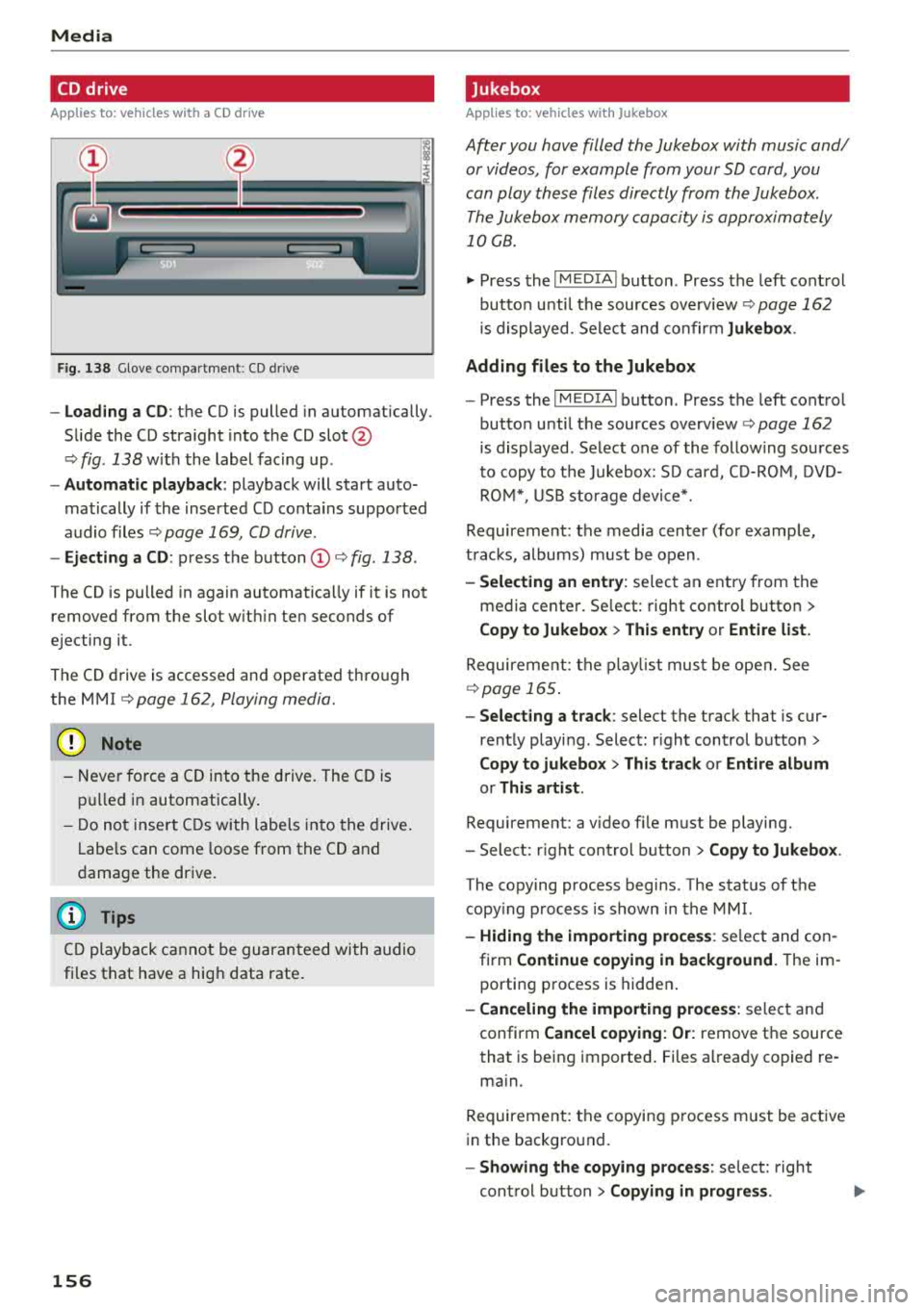
F ig . 138 G love co mpa rt m en t: CD drive
-Loading a CD : th e CD is pulled in a utomatically.
Slide the CD straight into the CD
slot @
c> fig. 138 w it h t he label fac ing up .
- Automatic playback : playback will start auto
matically if the insert ed CD conta ins sup por ted
audio files
c> page 169, CD driv e.
- Ejecting a CD : press the button (D c> fig . 138 .
The CD is pulled in again automatically if it is not
removed from t he slot w ith in ten seconds of
ejecting it.
The CD drive is accessed and operate d thro ugh
the MMI
c> page 162, Playing media.
@ Note
-Neve r force a CD into the d rive . The CD is
pull ed in automatically .
- Do n ot in se rt CDs w ith la bel s i nto the drive .
L a bels can come loo se from t he CD and
d ama ge t he dr ive .
(D Tips
CD playb ack c annot be gu ara nt ee d wi th au dio
fi les t hat have a hig h data rate .
156
Jukebox
Applies to : vehicles wit h Jukebox
After you have filled the Jukebo x with music and/
or videos, for example from your SD card, you
can play th ese fil es dir ectly from the Jukebox .
T he Jukebox memory capa city is approximately
10 GB .
~ Press th e I MEDIA ! button . Press the left cont rol
bu tton u nti l th e sources overv iew
c> pag e 162
is displayed. Se lect and co nfir m Jukebox .
Adding files to the Jukebox
- Press the I MEDIA ! button. Press the left cont ro l
button u nti l th e sources overv iew
c> page 162
is displayed. Select one of the follow ing so urces
t o copy to t he Ju kebox: S D car d, C D-RO M, DVD
R OM *, USB storage devi ce*.
Requireme nt: the media cen ter (for examp le ,
t rac ks , albums) must be o pen .
-Selecting an entry : selec t an e ntry from the
media cente r. Se lect: right contro l butto n >
Copy to Jukebox > This entry or Entire list.
Require ment: the playli st mus t be ope n. See
c>page 165 .
-Selecting a track : select the track that is cur
rent ly playi ng . Select : right control button>
Copy to jukebox > This track or Entire album
or This artist.
Requirement: a v ideo file m ust be playing.
- Sele ct: r ig ht con trol button>
Copy to Jukebox .
The copying process begins. The stat us of t he
copy ing process is shown in the MMI.
- Hiding the importing proce ss : se lect and co n
fi rm
Continue copying in background . The im
porti ng p rocess is hidde n.
-Canceling the importing process : select and
confirm
Cancel copying: Or: remove t he source
that is be in g i mported . Files a lready co pied re
ma in.
Requireme nt: the copyi ng p rocess m ust be act ive
i n the backgro und.
- Showing the copying process : select: right
con trol b utton >
Copying in progress .
Page 159 of 310
Cl 00 .-< N r--N .-< 0 r--Vl 00
When importing, the audio files are automatical
l y sorted into the media center categories based
on the stored addit ional information
¢ page 163. The copied video files are stored in
the media center under the
Videos category.
Playing the Ju kebo x
Requirement: the Jukebox must contain audio/
video fi les
¢ page 156, Adding files to the Juke
box.
The Jukebox is accessed and operated t hrough
the M MI
(D ¢ page 162, fig . 141.
Di splaying Jukebox memory capacity
Select : right control button > Juk ebox m emor y
ca pa city .
Info rmation about the Ju kebox memory
capacity and the numbe r of sto red t racks is dis
p layed .
Deleting tracks from the Jukebox1
)
Requirement: the Jukebox must contain audio/
v ideo fi les.
- Dele ting an en tr y: selec t an entry from the
Jukebox media center . Select: right control but
ton
> D elete from ju kebo x> This entr y or En
tire list .
-The status of the deleting process is shown in
the MMI. Jukebox playback stops during the de let ing p rocess a nd starts again automatically
once the deletion is comp lete .
0 Note
Do not import aud io/video files when the en
g in e is t urned off because this will d rain the
ve hicl e battery.
0) Tips
-Tracks from aud io CDs cannot be impo rted
to the Jukebox for legal reasons.
- Files that have al ready been imported are
automat ica lly recogn ized and cannot be
cop ied to the J ukebox again.
- It is not possib le to play audio/v ideo* files
i n the CD/DVD* dr ive while import ing them.
ll Not in the Playback view .
Media
- T he Jukebox does not provide an expo rt
function due to legal reasons .
- Files or tracks w ithout additional stored in
formation are listed as
Unknown . Audi rec
ommends adding additional information
(such as 103 tags) to audio f iles.
- Reset the Jukebox to the factory default set
tings when selling your
vehicle ¢ page 174 .
Bluetooth audio player
Applies to: vehicles with Bluetooth audio player
With the Bluetooth audio player, you can play
music wirelessly from your Bluetooth-capable
device (such as a cell phone) through the
MMI.
Requirement: the vehicle must be stationary and
the ignit ion must be switched on. The B luetooth
settings w ill open on your mobile device during
the connection setup . The Bluetooth function
and visibility of the MMI
¢ page 175 and mob ile
device must be sw itched on . Th e
Bluetooth audio
playe r¢ page 175 must be sw itched on in the
MM I.
-Conn ect ing a Bluetooth de vice : press the
!M EDIAi button. Press the left control button
until t he sources overv iew is d isp layed. Select
and confirm
Blu etooth audio pla yer®
¢ page 162, fig . 142 .
- If ne cessa ry, select and co nfirm , Not c onn ected
> Conn ect Blu etooth audio pla yer. Th e Blue
tooth device search starts. Fo llow the inst ruc
tions in the MMI.
- Select and confirm the desired Bluetooth de
vice from the list . The MMI generates a PIN for
the connection .
- Select and confirm
Yes.
- Enter the PIN for connect ing on your Bl uetooth
device .
Or: if the PIN is already displayed on
your Bluetooth device, confirm it in the Blue
tooth device and in the MMI. The time a llowed
for entering the PIN is limited to approximately 30 seconds .
The media is started and operated through the mobile device or t he MMI, depending on the de -
vice being used .
.,.
157
Page 160 of 310
Media
(D Tips
-Check for any connection requests on your
Bluetooth device.
- Multiple Bluetooth audio players can be
connected to the MMI, but only one mobile
device can be active.
- Bluetooth protocols AVRCP (1.0/1.3/1.4)
and A2DP are supported.
- Note the volume setting on your Bluetooth
device. Audi recommends setting your mo
bile device to the maximum volume when
using it as a Bluetooth audio player.
- The supported media functions (such as
shuffle) depend on the Bluetooth device be ing used.
- For more information on the supported de
vices, visit www.audiusa.com/bluetooth or
contact an authorized Audi dealer or author
ized Audi Service Facility.
Wi-Fi audio player
App lies to: ve hicles w ith Wi-F i audio playe r
Using the Wi-Fi audio player media source on the
MMI, you can connect and operate your Wi-Fi-ca
pable media player (such as a smartphone) to wirelessly play music from your media player
li
brary. The media player is connected through the
vehicle's Wi-Fi hotspot. A UPnP Server opp or an
integrated UPnPIDLNA server on your media
player is required to access your media player
li
brary.
Requirement: the Wi-Fi function on your media
player must be switched on. The
Audi MMI con
nect
app or a UPnP server app must be installed
on your media player .
Or: you must be using a
media player with an integrated UPnP/DLNA
server .
-Connecting a media player: press the I MEDIA !
button. Press the left control button until the
sources overview
¢ page 162 is displayed . Se
lect and confirm
Wi-Fi audio player 0
¢ page 162, fig . 142.
- If necessary, select and confirm Wi-Fi turned
off> Turn on Wi-Fi
to activate Wi-Fi in the
MMI. Select
Wi-Fi settings, if necessary . Select
158
the same settings on the wireless media player
that are used for the Wi-Fi hotspot.
- Starting the Wi-Fi audio player: start the Audi
MMI connect
app or a UPnP server app. Or: al
low media sharing on your media player.
Operating the media player: the media player is
operated through the MMI.
- Press the left control button repeatedly until
the
Folders menu item appears. Select and con
firm
Folders .
- Playing music from the media player:
select
and confirm
Media center .
Web radio:
see ¢ page 159.
A WARNING
- As the driver, do not allow usage of the Wi
Fi hotspot to distract you from driving, as
this could increase the risk of an accident.
- It is only safe to use tablets, laptops, mo
bile devices and other similar devices when
the vehicle is stationary because, like all
loose objects, they could be thrown around
the inside of the vehicle in a crash and cause
serious injuries. Store these types of devices
securely while driving.
- Do not use any Wi-Fi devices within range of
the airbags while driving . Also read the
warnings in the
chapter¢ page 194.
((D} Note
Always follow the information found in ¢(l} in
Wi-Fi hotspot on page 130.
(D Tips
- The Wi-Fi connection is reconfigured when
inserting or removing the mini SIM card in
the SIM card reader*. There may be a tem
porary interruption in audio playback, de
pending on the media player.
- Always read the chapter¢
page 131, About
Audi connect.
- Please note that a Wi-Fi connection does
not automatically make it possible to use
the Internet. For additional information,
see ¢
page 124.
Page 161 of 310
Cl 00 .-< N r-N .-< 0 r-Vl 00
- To avoid interruptions during playback, de
activate the power saving function on the media playe r or connect it to a charger.
- The loading times for the a udio data depend
on the media p layer used and the number of
files that it contains.
- A maximum of 2,000 entries per directory
are displayed in the MMI.
- Songs down loaded for offline use using mu
sic streaming services are stored on your mobile device (such as a smartphone) and
may be ORM protected. The Wi-Fi audio
player w ill not play ORM protected files.
- Contact an a uthorized Audi dea ler or au
thorized Audi Service Facility for additional i nformat ion on the Wi-Fi audio p layer .
Online media and
Internet radio
Applies to: vehicles with Audi connect
You can playback and operate various online me
dia services and Internet radio using the MMI.
,. Press t he IM EDIA I button. P ress the left control
button until the so urces ove rview
Q page 162,
fig. 142
is d isplayed.
Applies to: using online media and Internet radio
Requirement:
- The
Audi MMI conn ect app must be installed
and open on your mob ile dev ice.
- You must be logged into your my Audi account
i n the
Audi MMI conn ect app and you must
have selected your veh icle .
- The Wi-Fi function on the mobile device and on
the MMI must be switched on .
- If necessary, check in the connection manager
Q page 174 if the mob ile device you connected
is selected under the
MMI connect app (~) .
-The MMI must be connected to the network.
- The symbo l for the
O nline media * source®
Qpage 162, fig . 142 is shown in the MMI.
Applies to: using online media
Addit ional requirement:
- A supported o n line media serv ice m ust be avail
able in your country.
- You must have an account with a supported on
l ine med ia serv ice .
Media
-Depending on t he online media service, you
must install and open an app on your mobile
dev ice .
St arting Onlin e media
- Press the I MEDIA i button. Press the left control
button until the sources overv iew
Q page 162
is displayed .
- Select and confirm an online media serv ice.
Starting Inte rnet radio
- Press the I MEDIA i button. Press the left control
button until the sources overv iew
Q page 162
is displayed .
- Select and confirm
Int ernet r adio . The Internet
radio b rowser or the last stat io n that was play
ing is shown .
-Sel ecting the station : if necessary, select and
confirm a category in the Inte rnet rad io
Bro ws
er >
a station.
Online m edia and Internet radio :: additional op
tion s
-Press the r ight cont rol b utt on.
The following opt ions may be ava ilable, depend
i ng on the information shown (such as the sta
tio n/t rack that is cur re ntly playing):
- Sound setting s: see Q page 177.
-Wi-Fi settings : see Q page 129, Wi-Fi hotspot .
-Conne ction manager : see Qpage 174.
-Add it io na l opt ions may be ava ilable, depend ing
on the active online med ia service or In ter net
radio .
_&. WARNING
= -
-It is only safe to use tablets, laptops, mo
bi le devices and other simi lar devices when
the vehicle is stationary because, like all loose objects, they could be thrown around
the inside of the vehicle in a crash and cause
serio us injuries . Store these types of devices
securely while d riving .
- Do not use any Wi-Fi devices within range of
the airbags while dr iv ing . Also read the
warn ings in the chapter
Q page 194 . ..,.
159
Page 165 of 310
Cl co .... N ,....
N .... 0 ,....
Vl co
®
0
®
such as an MP3 player connected to
the AUX input
Bluetooth audio player*
Wi-Fi audio player* .......... .
Online media*
and Internet radio*
157
158
159
-Playing audio/video files: select a source in the
Media menu > category (such as artists > al
bum
> track) .
-Moving one level up in the folder structure:
press the I BACK I button. Or: select and confirm
Folder up.
- Selecting the previous or next track/chapter
1): press the On/Off knob on the MMI control
panel briefly to the left
l
-Fast-forwarding and rewinding audio/video
files :
press and hold the On/Off knob on the
MMI control panel to the left l
a longer time.
-Pausing or resuming playback: press the On/
Off knob on the MMI control panel briefly.
@ Tips
-You can scroll through long lists quickly by
turning the control knob quickly. The scroll
i ng speed depends on the number of list en
tries.
-For safety reasons, the video image is only
displayed when the vehicle is stationary. On ly the sound from the v ideo plays while driv
i ng .
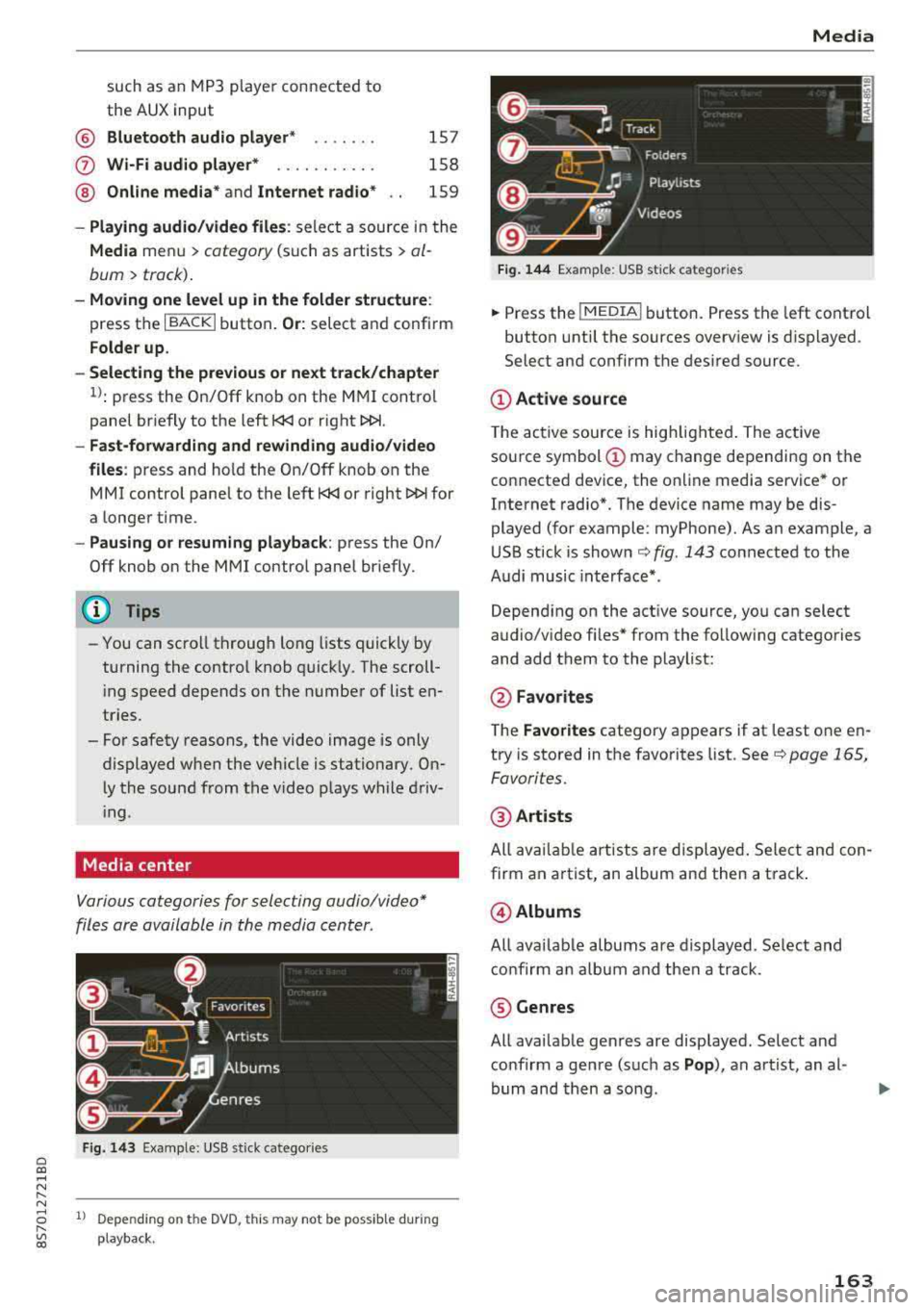
Media center
Various categories for selecting audio/video*
files are available in the media center .
Fig. 143 Example: USB stick catego ries
1l Depe ndi ng o n th e DVD, t his may not be possible during
playba ck .
Media
Fi g. 144 Example: USB stick categories
... Press the I MEDIA! button. Press the left control
button until the sources overview is displayed.
Select and confirm the desired source.
(D Active source
The active source is highlighted . The active
source symbol
(D may change depending on the
connected device, the online media service* or
Internet radio*. The device name may be dis
played (for example: myPhone). As an example, a
USB stick is shown
c:> fig. 143 connected to the
Audi music interface* .
Depending on the active source, you can select
audio/video fi les* from the follow ing categories
and add them to the playlist:
@ Favo rites
The Favorites category appears if at least one en
try is stored in the favorites list. See
c:> page 165,
Favorites.
@ Artists
All available artists are displayed. Select and con
firm an a rtist, an album and then a track .
@Albums
All availab le albums are displayed. Select and
confirm an album and then a track .
® Genres
All available genres are displayed. Select and
confirm a genre (such as
Pop ), an artist, an al
bum and then a song .
163
Page 166 of 310
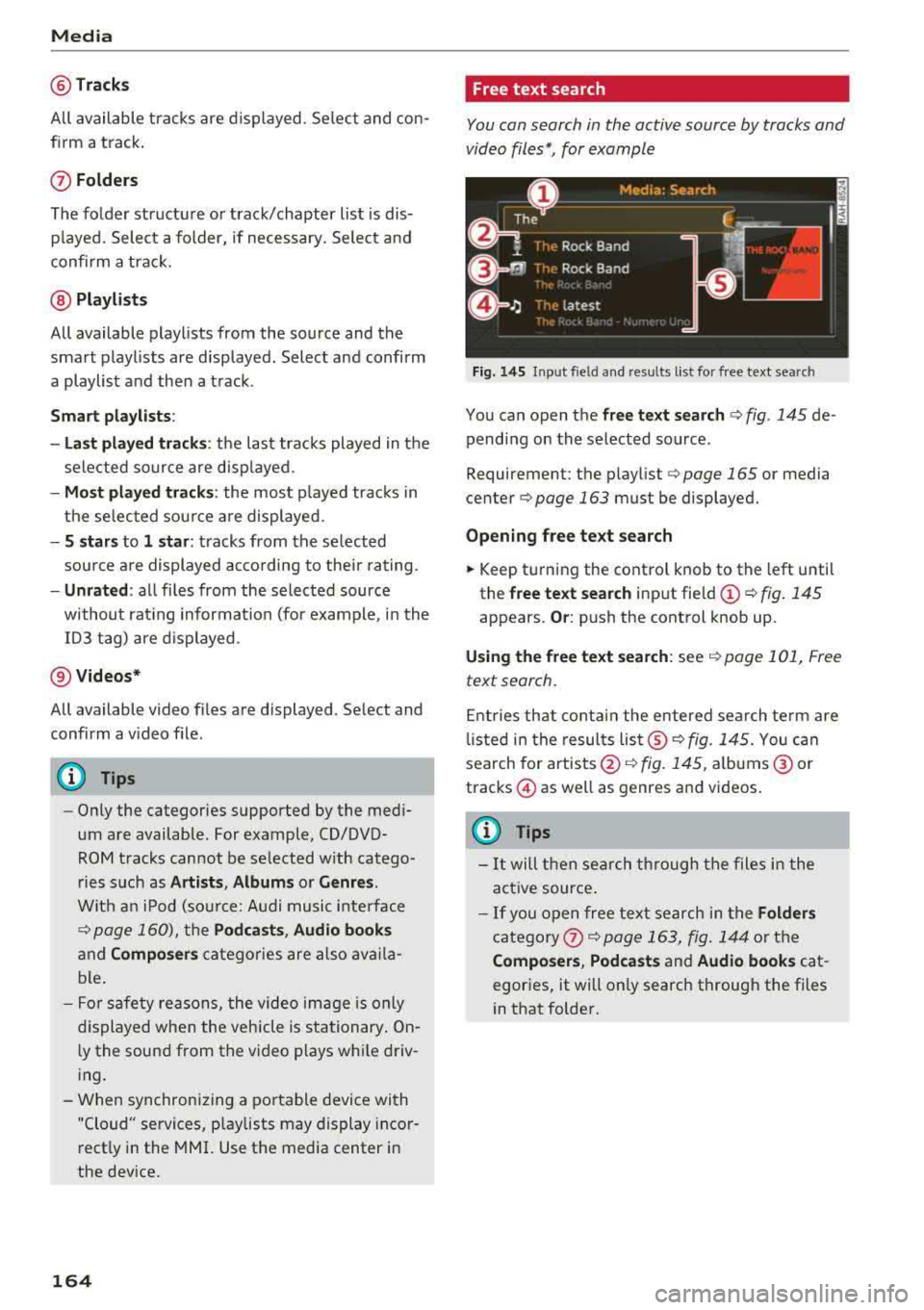
Media
@Tracks
All available tracks are displayed. Se lect and con
f ir m a track.
(J) Folders
The fo lder structu re or track/chapter list is dis
p layed. Select a folder, if necessary. Select and
confirm a track.
@ Playlists
All available playlists from the source and the
smart playlists are displayed. Select and confirm
a playlist and then a track.
Smart playlists :
- Last played tracks :
the last tracks played in the
selected source are disp layed.
- Most played tracks : the most played tracks in
the selected sou rce a re displayed.
- S stars to 1 star : tracks from the se lected
source are displayed acco rding to their rating.
-Unrated : all files from the selected source
without rat ing information (for example, i n the
103 tag) are displayed .
@Videos*
All available video files are displayed . Select and
confirm a v ideo file .
(D Tips
-Only the categories supported by the med i
um are available. For example, CD/DVD
ROM tracks cannot be selected w ith catego
ries such as
Artists , Albums or Genres .
With an iPod (sou rce: Audi music inte rface
¢ page 160), th e Pod casts , Audio books
and Composers categories are also availa
ble.
- For safety reasons, the video image is only
displayed when the vehicle is stationary . On
l y the sound from the video p lays while driv
ing.
- When synchronizing a portable device with
"Cloud" services, p laylists may display incor
rectly in the MMI. Use the media center in
the device.
164
Free text search
You can search in the active source by tracks and
video files*, for example
Fig. 145 Input field and resu lts list for free text searc h
You can open the free text search ¢ fig. 145 de
pending on the selected source .
Requirement: the play list
¢ page 165 or media
cente r
¢page 163 must be displayed.
Opening free text search
.,. Keep turning the control knob to the left until
the
free text search input fie ld (!) ¢ fig. 145
appears. Or: push the control knob up.
Using the free text search: see¢ page 101, Free
text search.
Entries that contain the entered search term are
li sted in the results
list ®¢ fig. 145. You can
search for artists @¢
fig. 145, albums @ or
tracks @as well as genres and videos .
(D Tips
-It will then search through the files i n the
act ive source .
-If you open free text search in the Folders
category 0 ¢ page 163, fig. 144 or the
Composers , Podcasts and Audio books cat
egories, it will only search through the files
in that folder.
Page 167 of 310
Cl 00 .-< N r-N .-< 0 r-Vl 00
Playlist
Fig. 14 6 Example: p lay list
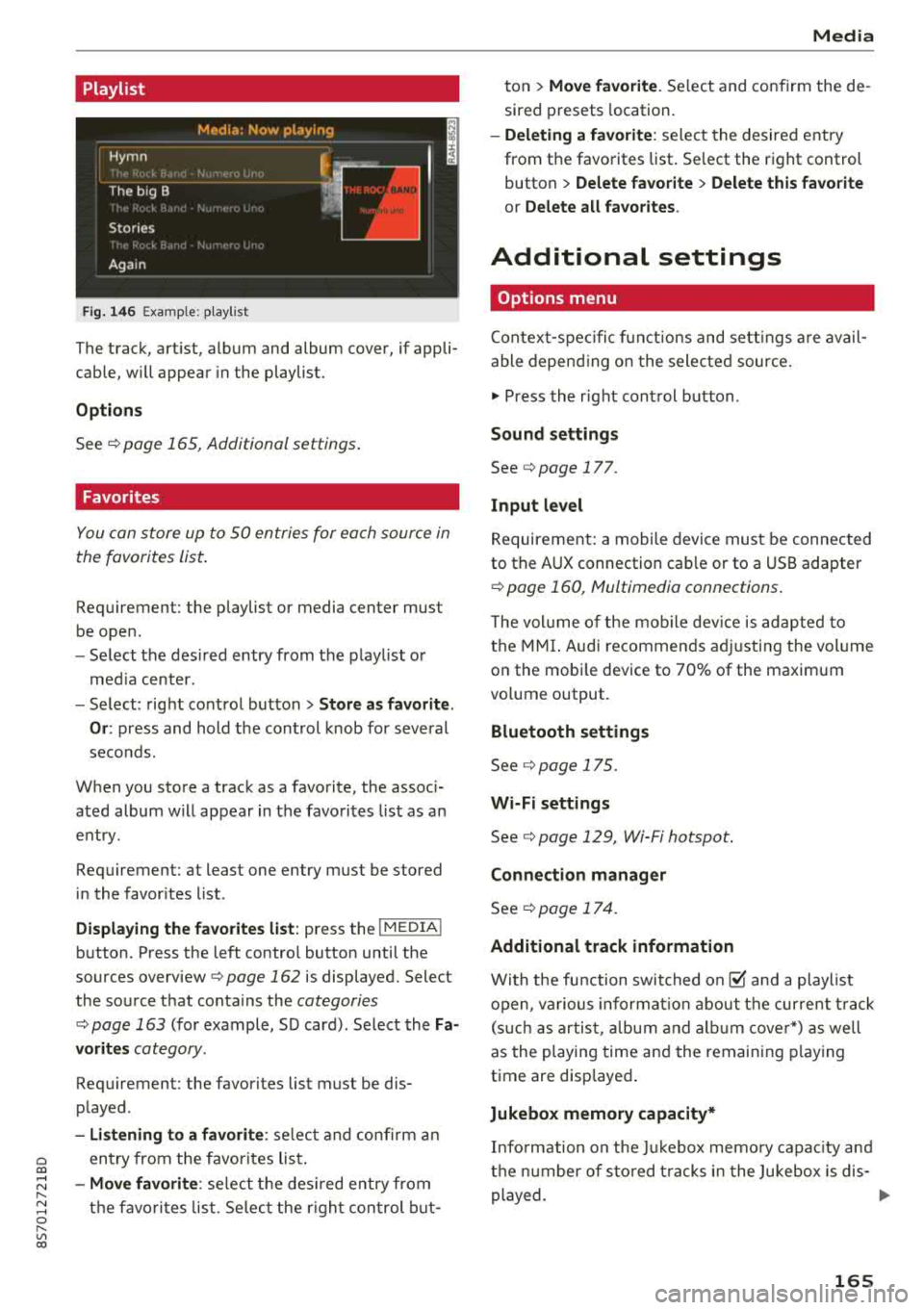
The track, art ist, album and album cover, if appli
cable, will appear in the playlist.
Options
See r:!> page 165, Additional settings .
Favorites
You can store up to 50 entries for each source in
the favorites list.
Requirement: the playlist or media center must
be open .
-Select the des ired entry from the playl ist o r
med ia center.
- Select: right control button
> Store a s favorite.
Or :
press and hold the cont rol knob for several
seco nds.
When you store a track as a favorite, the assoc i
ated album w ill appear in the favorites l ist as an
entry.
Requirement: at least one entry must be stored
in the favor ites list.
Displa ying the fa vorite s list : press the I MEDIA !
button. Press the left contro l button until the
sources
overview ¢ page 162 is displayed. Select
the source that conta ins the
categories
r:!> page 163 (for example, SD card) . Select the Fa
vorit es
category.
Requirement: the favorites list must be dis
p layed.
- Listening to a favorite : select and confirm a n
entry from the favorites lis t.
-Move favorite : select t he des ired entry from
the favo rit es list. Se lec t the r ight con trol b ut-
Media
ton > Mo ve fa vo ri te . Se lect and confirm the de
sired presets location.
- Deleting a f avorit e: select the desired entry
from the favorites list. Se lect the right control
button
> Delete fa vorite > Delete this f avorite
or Delete all fa vorite s.
Additional settings
Options menu
Contex t-spec ific f unct ions and sett ings are avail
able depend ing o n the selected source.
.,. Press the r ight cont rol button .
Sound settings
See¢ page 177.
Input l evel
Requirement: a mobile device must be connected
to the AUX connection cab le or to a USB adapter
r:!> page 160, Multimedia connections.
T he vol ume of the mob ile dev ice is adapted to
the MMI. Audi recommen ds ad justing the vol ume
on the mobi le device to 70% of the maximum
vo lume output.
Bluetooth settings
See r:!> page 175.
Wi-Fi settings
See¢ page 129, Wi-Fi hotspot.
Connection manager
See ¢ page 17 4.
Additional track information
With the fu nction swit ched on@' and a playlist
open, va rious informat io n about the cur rent t rack
(s uch as artist, a lbum and a lb um cover*) as we ll
as the playing time and the remaining p laying
time are displayed .
Jukebox memory capacity*
Info rmation on the Ju kebox memo ry capac ity and
t h e n umber of sto red t racks in the Jukebox is dis-
played.
..,
165
Page 169 of 310
Cl 00 .-< N r-N .-< 0 r-Vl 00
Audio track1)
You can manually set the audio track (language
and audio format). The language and audio
format options depend on the video DVD.
Subtitles1
)
You can set subtitles for playback manually. The
langu ages available depend on the DVD.
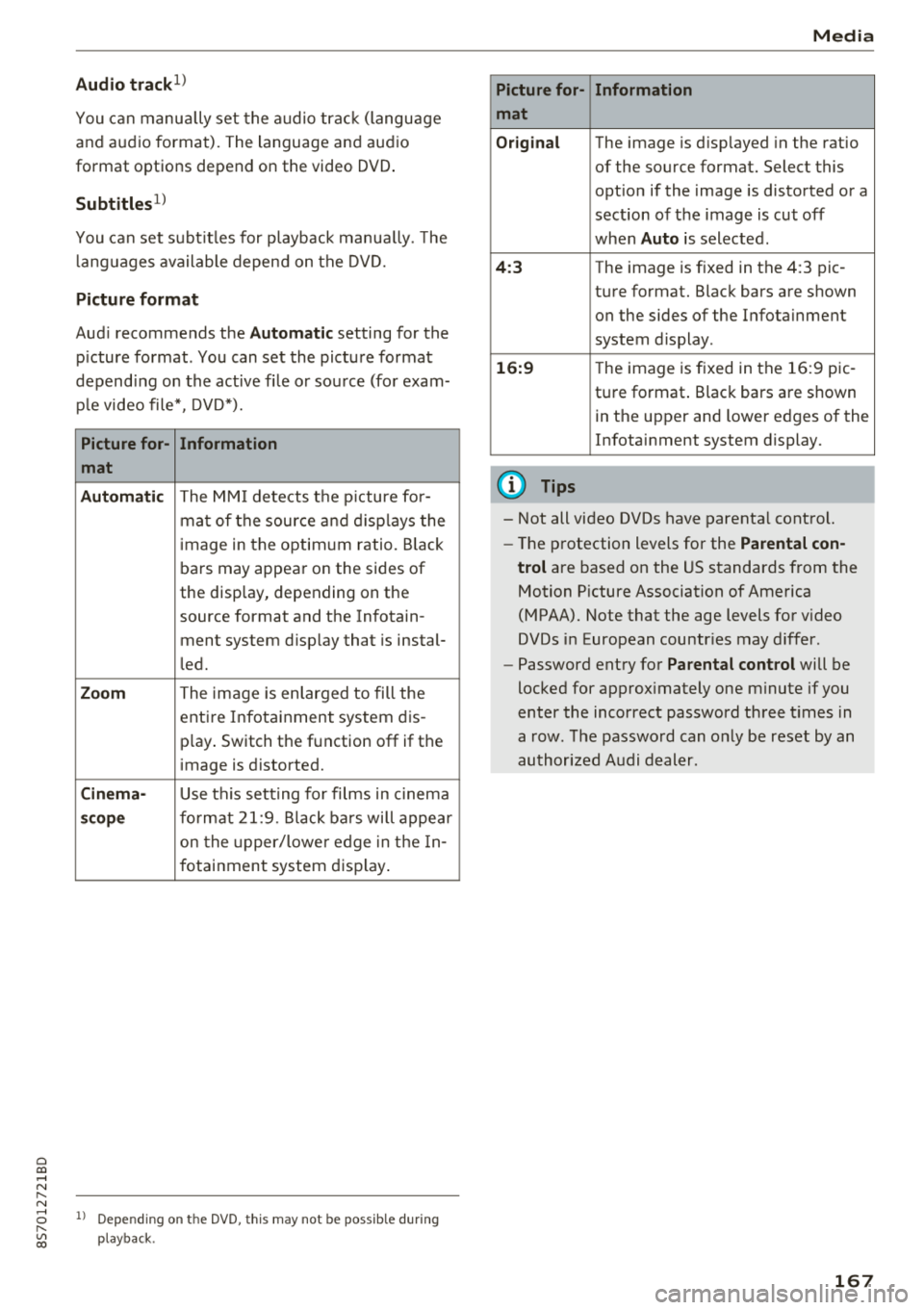
Picture format
Audi recommends the Automatic setting for the
p icture format . You can set the picture format
depending on the active fi le or source (for exam
ple video file*, DVD*).
Picture for-
Information
mat
Automatic
The MMI detects the picture for-
mat of the source and displays the
image in the optimum ratio. Black
bars may appear on the sides of
the display, depending on the
source format and the Infotain -
ment system d isp lay that is instal-
led.
Zoom The image is enlarged to fill the
entire Infotainment system dis-
p lay . Switch the function
off if the
image is distorted.
Cinema-Use th is setting for films in cinema
scope format 21:9. Black bars will appear
on the up per/lower edge in the In-
fotainment system display.
l) Depe ndi ng o n th e DVD, this may not be possib le during
playback.
Media
Picture for- Information
mat
Original
The image is d isp layed in the ratio
of the source format. Select this
opt ion if the image is distorted or a
section of the image is cut
off
when Auto is selected .
4:3 The image is f ixed in the 4:3 pie -
ture format. Black bars are shown on the sides of the Infotainment
system display .
16:9 The image is fixed in the 16:9 pie-
ture format . Black bars are shown
in the upper and lower edges of the
Infotainment system display.
(D Tips
- Not all video DVDs have parental control.
- Th e protection levels for the
Parental con-
trol
are based on the US standards from the
Motion Picture Association of America
(MPAA). Note that the age levels for v ideo
DVDs in European countr ies may differ.
- Password entry for
Parental control will be
locked for approx imately one minute if you
enter the incorrect password three times in
a row. The password can only be reset by an
authorized Audi dealer.
167
Page 170 of 310
Media
Supported media and file formats
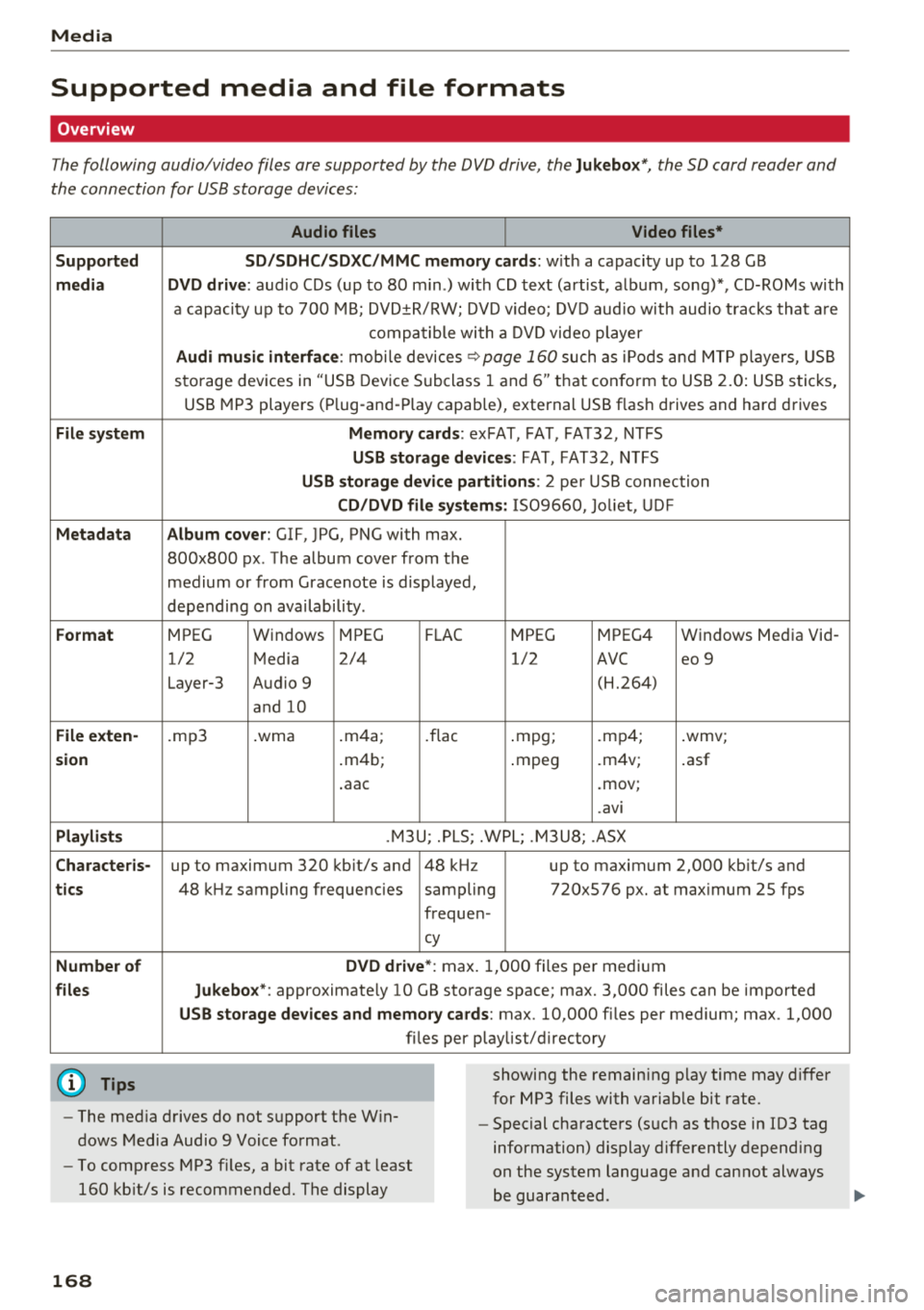
Overview
The following audio/video files are supported by the DVD drive, the Jukebox*, the SO card reader and
the connection for USB storage devices:
Supported
medi a
File system
Metadat a
Format
File e xten-
s ion
Pla ylist s
C haracter is -
ti cs
Numbe r of
file s
(D Tips Audio files
Video files*
S D /S DH C/S DXC/MM C mem 1or y ca rds:
with a capacity up to 128 GB
DVD dri ve : audio CDs (up to 80 m in .) with CD text (artist, album, song)*, CD-ROMs with
a capacity up to 700 MB; DVD±R/RW; DVD v ideo; DVD aud io with audio tracks that a re
compatible with a DV D video player
Audi mu sic interface : mobi le devices ~page 160 such as iPods and MTP players, USB
storage devices in "USB Device Subclass 1 and
6" th at con form to USB 2.0: USB stic ks,
USB MP3 players (P lug-and -P lay cap.ab le), external USB flash drives and hard drives
Memory card s: exFAT, FAT, FAT32, NTFS
USB storage d evices: FAT, FAT32, NTFS
USB storage de vice partiti ons: 2 per USB connection
CD /DVD fil e sy stem s: 1S09660, Jo liet, UD F
Album co ver : GIF, JPG, PNG with max.
800x800 px . The album cover from the
medium or from Gracenote is displayed,
depending on availability .
MPEG Windows MPEG F
LAC
MPEG MPEG4 Windows Media Vid
-
1/2 Media 2/4 1/2
AVC eo 9
Layer-3 Audio 9 (H.264)
and 10
.mp3 .wma .
m4a;
.flac .mpg; .mp4; .wmv;
. m4b;
.mpeg .m4v; .asf
. aac .mov;
. avi
.M3U; .PLS; .WPL; .M3U8; .ASX
up to maximum 320 kb it/s and 48 kHz up to maximum 2,000 kb it/s and
48 k Hz sampling frequencies sampling 720x576 px. at max imum 25 fps
frequen-
cy
DVD drive *: max. 1,000 files per medium
Jukebo x*: approximate ly 10 GB storage space; max. 3,000 files can be imported
USB storage de vices and memo ry card s: max. 10,000 files per medium; max. 1,000
fi les pe r playlist/ directory
showing the remain ing p lay time may differ
for MP3 files with variab le bit rate.
- The med ia drives do not support the W in
dows Media Audio 9 Voice format . -
Special characters (s uch as those in ID3 tag
information) display differently depending
on the system language and cannot always
be guaran teed .
-
To comp ress MP3 f iles, a bit rate of at least
160 kb it/s is recommended. The display
16 8