infotainment AUDI TT ROADSTER 2018 Owner's Manual
[x] Cancel search | Manufacturer: AUDI, Model Year: 2018, Model line: TT ROADSTER, Model: AUDI TT ROADSTER 2018Pages: 310, PDF Size: 46.95 MB
Page 80 of 310
Assistance systems
Messages
App lies to: ve hicles w ith Aud i side ass ist
If th e side assist sw itches off automatically, a
message appears in the Infotainment system dis
p la y.
@j Audi side assist: currently unavailable.
Sensor vision restricted due to surroundings.
See owner's manual
The radar sensor vision is impaired . Do not cover
the area in front of the sensors with bike wheels,
stickers, dirt or other objects. Clean the area in
front of the sensors, if necessary
c:> page 76,
fig . 84 .
@j Audi side assist: currently unavailable.
See owner's manual
Side assist cannot be switched on at th is time be
cause there is a malfunction (for example, the battery charge level may be too low) .
@j Audi side assist: malfunction! Please
contact Service
The system cannot guarantee that it will detect
veh icles correctly and it has switched off . The
sensors have been moved or are faulty. Have the
system checked by an author ized Audi deale r or
authorized Audi Service Facility soon.
Audi drive select (drive
settings)
Introduction
A pp lies to: ve hicles w ith Aud i d rive select
Drive select makes it possible to expe rience d if
fe rent types of vehicle settings in one vehicle.
The driver can select from three modes, Comfort,
Auto and Dynamic , using the
i:l:ta button in the
center console or by using the Infotainment sys
tem . T his allows you to switch between a sporty
and a comfortab le driving mode, for examp le. In
the Indi vidual mode, the settings can be adjust
ed to your personal preferences. This makes it
possible to combine sett ings such as a sporty en
g ine setting w ith light steering.
78
A WARNING
Using Aud i drive select incorrectly can lead to
coll is ions, other accidents and serious inju
ries.
Description
App lies to: vehicles with A udi drive se lect
The veh icle setup in each mode depends on the
vehicle's features.
Engine and automatic transmission
Depending on the mode, the engine and auto
matic transmission respond more quickly or in a
more balanced manner to accelerator pedal
movements.
Suspension control (Audi magnetic ride)*
The suspension control uses sensors to record in
format ion regarding steering movements, brak
i ng and acceleration operations by the driver, as
well as information about the road surface, driv
i ng speed, and load. W ith dr ive se lect, you can
adjust the suspension control to sporty (dynam
ic ), comfortable (comfort) or balanced (auto).
Steering
The power steering adapts . Indirect steering that
moves eas ily as in comfort mode is espec ially
su ited to long drives on a highway . The dynamic
mode provides sporty, direct steering.
Engine sound*
The engine sound adapts to the current mode
and can be subtle to sporty .
(D Tips
In some models, the maximum vehicle speed
can only be reached in the auto and dynamic
modes .
Page 81 of 310
Selecting the driving mode
App lies to: ve hicles with Audi drive select
You can choose between comfort, auto, dynamic
and individual .
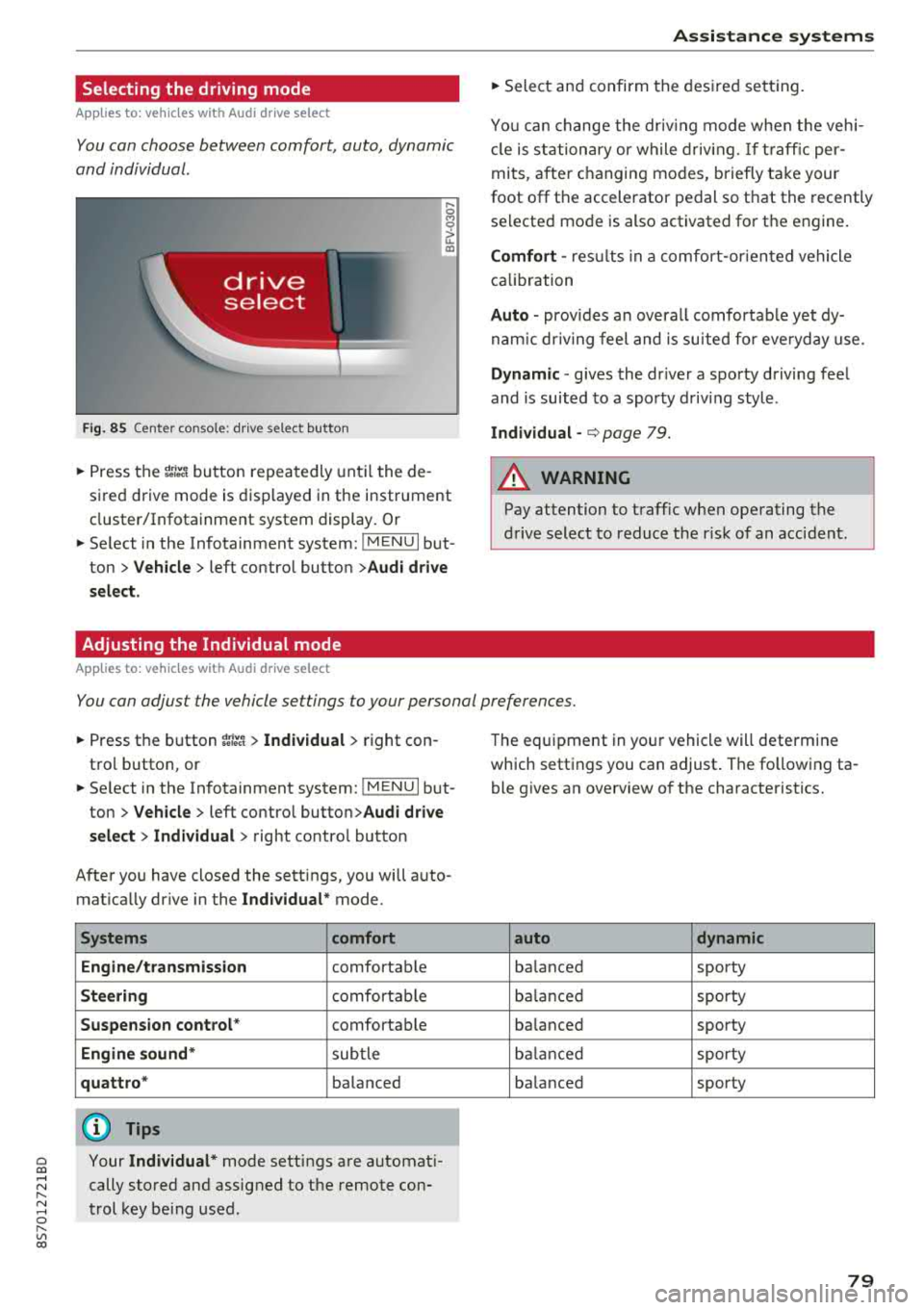
Fig. 85 Center conso le: drive select button
.... 0 M 0
G'. al
.. Press the ~i~ button repeatedly until the de
sired drive mode is displayed in the instrument
cluster/Infotainment system display . Or
.. Se lect in the Infotainment system: !MENUI but
ton >
Vehicle > left contro l button >Audi drive
select.
Adjusting the Individual mode
Applies to: ve hicles with Audi drive select
Assistance systems
.. Select and confirm the desired settin g.
You can change the driv in g mode when the veh i
cl e is stationary or while driving.
If traffic per
mits, after ch anging modes, briefly ta ke your
foot off t he accelerator pedal so that the recently
se lected mode is also activated for the engine.
Comfort -res ults in a comfo rt-orien ted vehicle
calibration
Auto -provides an overa ll comfortab le yet dy
namic driving feel and is suited for everyday use.
Dynamic -gives the driver a sporty driving fee l
and is suited to a spo rty driving style .
Individual -¢ page 79.
A WARNING ...__ -
Pay attention to traffic w hen operating the
drive select to reduce the r isk of an accident .
You can adjust the vehicle settings to your personal preferences .
.. Press the button ~:/:er. > Individual > right con
tro l button, or
.. Se lect in the Infotainment system: !MENUI b ut
ton>
Vehicle > left contro l button> Audi drive
select> Individual >
right contro l button
After you have closed the sett ings, you will a uto
mat ica lly dr ive in the
Individual* mode.
Systems comfort
Engine/transmission
comfortable
Steering comfortable
Suspension control * comfortable
Engine sound* subtle
quattro * balanced
(D Tips
~ Your Individual* mode settings are automat i-
;:::: cally stored and assigned to the remote con-r--
~ trol key being used. 0 r-Vl 00
T he equipment in yo ur vehicle will determine
which settings you can adjust . The fo llowing ta
ble gives an overview of the characteristics.
auto dynamic
balanced sporty
balanced sporty
ba lanced sporty
balanced sporty
ba lanced sporty
79
Page 82 of 310
Parking syste m s
Parking systems
General information
A pplies to: ve hicles w ith rear park in g syste m/pa rk in g system
p lus
Depending on your vehicle 's equipment , various
parking aids will help you when parking and ma
neuvering.
The
r ea r p arki ng sys te m is an aud ible parking a id
that warns you of obstacles
behind the vehicle
¢ page 81.
The parki ng sys te m plu s assists you when park
ing by aud ibly and visually indicating objects de
tected
in front of and behind the veh icle
¢ page 81.
The rea rv iew ca mera shows the area behind the
veh icle in the Infotainment system d isplay . The
lines in the rearv iew camera image he lp you to
pa rk or maneuve r
¢page 82.
_& WARNING
-Always look for traff ic and check the area
around your vehicle by looking at it direct ly
as well. The parking system cannot replace
the driver's attention . The driver is always
responsib le when entering or leaving a park
ing space and during similar maneuvers.
- Please note that some surfaces, such as
clothing, are not detected by the system.
-
- Sensors and cameras have blind spots in
which people and objects cannot be detect
ed . Be especially cautious of small children
and animals.
- The sensors can be displaced by impacts or
damage to the radiator gr ille, bumper,
wheel housing and the underbody . The park
i ng system may be impa ired as a result .
Have an authorized Audi dealer or author
ized Audi Serv ice Facility check their func
t ion.
- Make su re the senso rs a re not obst ructed by
st ickers, depos its or othe r ma ter ia ls.
If they
are, the senso r funct io n could be impai red .
For additiona l information on cleaning, see
¢ page 266 .
80
@ Note
-Some objects are not detected or disp layed
by t he system under certain c ircumstances:
- objects such as barrier cha ins, tra iler draw
bars, vertical po les or fences
- objects above the sensors such as wall ex
tensions
- objects with certain surfaces or structures
such as cha in link fences or powder snow
- If you continue driving closer to a low ob
ject, it may disappear from the sensor range . Note that you will no longer be
wa rned about th is obstacle.
- Keep enough distance from the curb to re
duce the risk of damage to the rims .
(D Tips
-The system may provide a warning even
though there are no obstacles in the cover
age area in some situations, such as :
- certain road surfaces or when there is tall grass
- externa l ultrasonic sources such as from
cleaning vehicles
- in heavy rain, snow, or th ick vehicle ex
h a u st
- We recommend that you practice par king in
a traffic -free location or parking lot to be
come familiar with the system . When doing
this, there shou ld be good light and weath
er conditions.
- You can change the vo lume of the signa ls.
- What appea rs in the disp lay is slight ly de -
layed.
- Th e sensors m ust be kept clean and free of
snow and ice for the parking aid to operate .
Page 85 of 310
Cl co .... N ,....
N ...... 0 ,....
Vl co
General information
Applies to: ve hicles with rearview camera
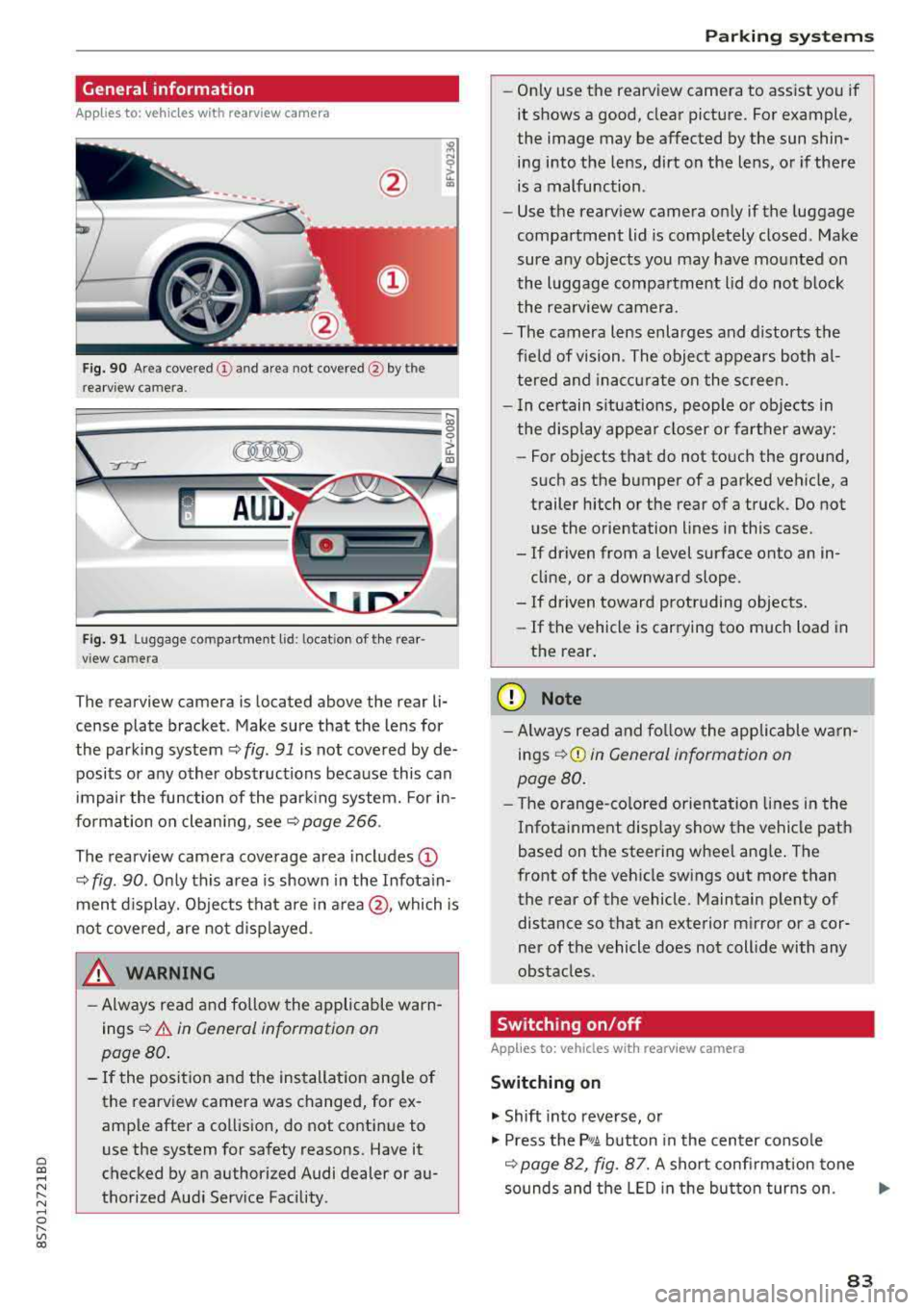
Fig . 90 Area covered (!) and area not covered @ by the
rea rview camera.
:;,
~;..------: :.·~- ---~ _.,- ,.,,.--------g
(Jo00oD ~
Fig. 91 Luggag e compartment lid: locat ion of the rear
view camera
The rearview camera is located above the rear li
cense plate bracket. Make sure that the lens for
the parking system¢
fig. 91 is not covered by de
posits or any other obstructions because this can
impair the function of the parking system. For in
formation on cleaning, see¢
page 266 .
The rearview camera coverage area includes
(D
¢ fig. 90. Only this area is shown in the Infotain
ment display. Objects that are in
area @, which is
not covered, are not displayed.
A WARNING
-Always read and follow the applicable warn
ings ¢
A in General information on
page 80.
- If the position and the installation angle of
the rearv iew camera was changed, for ex
ample after a collision, do not continue to
use the system for safety reasons. Have it
checked by an authorized Audi dealer or au
thorized Audi Service Facility .
Parking systems
-Only use the rearview camera to assist you if
it shows a good, clear picture. For example,
the image may be affected by the sun shin
ing into the lens, dirt on the lens, or if there
is a malfunction.
- Use the rearview camera only if the luggage
compartment lid is completely closed. Make
sure any objects you may have mounted on
the luggage compartment lid do not block
the rearview camera.
- The camera lens enlarges and distorts the
field of vision. The object appears both al
tered and inaccurate on the screen.
- In certain situations, people or objects in
the display appear closer or farther away:
- For objects that do not touch the ground,
such as the bumper of a parked vehicle, a
trailer hitch or the rear of a truck. Do not use the orientation lines in this case.
- If driven from a level surface onto an in cline, or a downward slope .
- If driven toward protruding objects.
- If the vehicle is carrying too much load in
the rear.
(D Note
-Always read and follow the applicable warn
ings
¢ (D in General information on
page 80.
- The orange-colored orientation lines in the
Infotainment display show the vehicle path
based on the steering wheel angle. The
front of the vehicle swings out more than
the rear of the vehicle. Maintain plenty of
distance so that an exterior mirror or a cor
ner of the vehicle does not collide with any
obstacles.
Switching on/off
App lies to : vehicles wi th rearv iew camera
Switching on
.,. Shift into reverse, or
.,. Press the P,q.A button in the center console
¢ page 82, fig. 87. A short confirmation tone
sounds and the LED in the button turns on.
..,.
83
Page 86 of 310
Parking systems
Switching off
~ Drive faster than 6 mph (10 km/h), or
~ Press the P"'il button, or
~ Switch the ignition off .
(D Tips
-The visual display in the left part of the dis
play should help you detect the critical vehi
cle areas .
- You can change the volume of the signals
and the display
¢page 84.
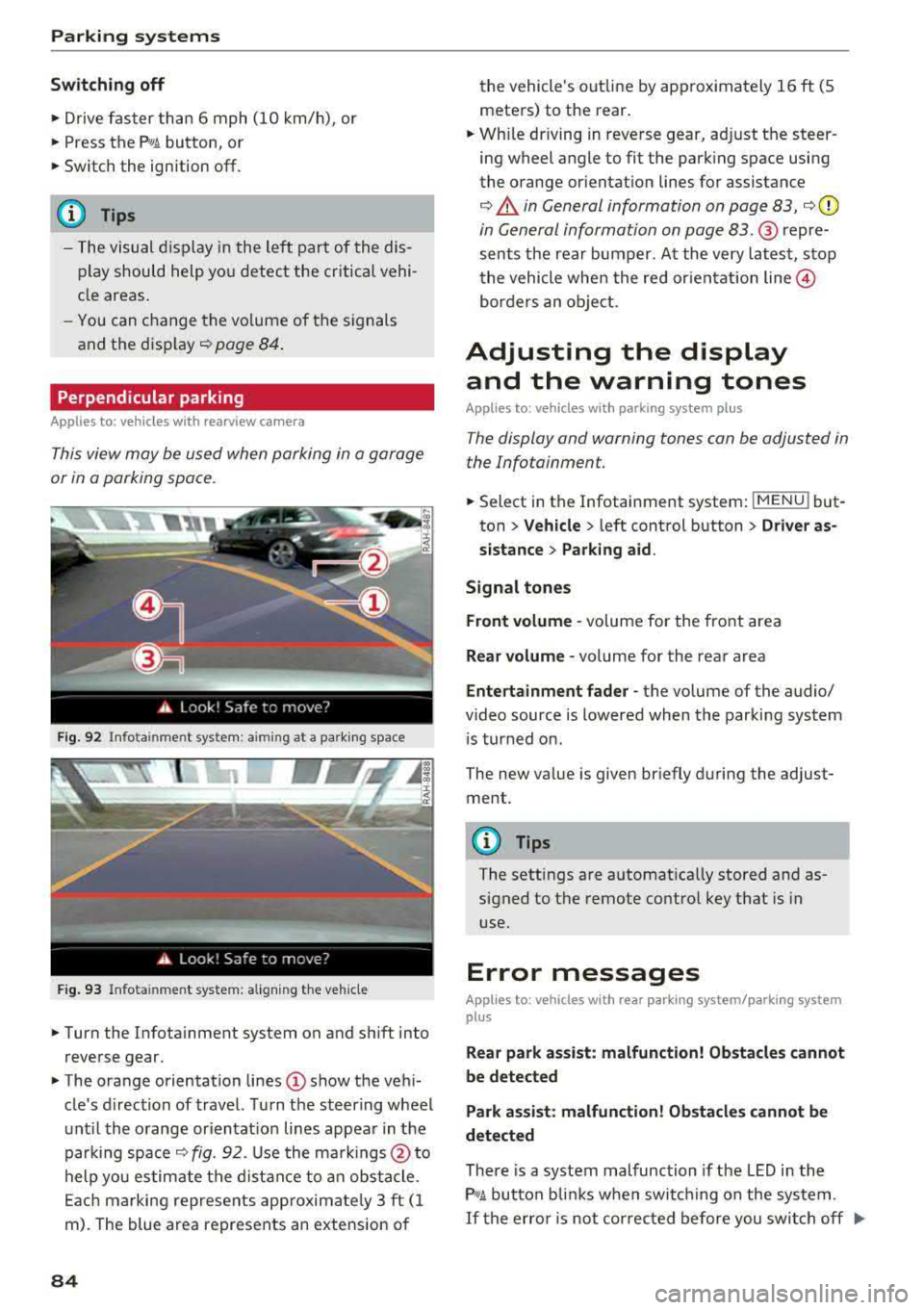
Perpendicular parking
Applies to: vehicles with rearview camera
This view may be used when parking in a garage
or in a parking space.
F ig. 92 Info ta in ment system: a im ing at a park ing space
Fig. 93 Infota inme nt system: aligning the vehicle
~ Turn the Infota inment system on and shift into
reverse gear.
~ The orange orientation lines (D show the vehi
cle's d irection of travel. Turn the steering wheel
until the orange or ientat ion lines appear in the
parking space
¢ fig. 92. Use the markings @to
help you estimate the distance to an obstacle.
Each marking represents app roximate ly 3 ft (1
m). The blue area represents an extension of
84
the vehicle 's out line by approximately 16 ft (5
meters) to the rear.
~ Wh ile driving in reverse gear, adjust the steer
ing wheel angle to fit the parking space using
the orange orientation lines for assistance
¢ .&. in General information on page 83, ¢(D
in General information on page 83. ® repre
sents the rear bumper. At the very latest, stop
the vehicle when the red or ientat ion
line @
borders an object.
Adjusting the display
and the warning tones
Applies to: vehicles with parking system plus
The display and warning tones can be adjusted in
the Infotainment.
~ Select in the Infotainment system : IMENU! but
ton
> Vehicle > left control button > Driver as
sistance> Parking aid.
Signal tones
Front volume -
volume for the front area
Rear volume -volume for the rear area
Entertainment fader -the volume of the audio/
video source is lowered when the parking system
i s turned on.
The new value is given briefly during the adjust ment.
{!) Tips
The settings are automat ically stored and as
signed to the remote control key that is in
use.
Error messages
App lies to: vehicles with rear park ing system/parking system
plus
Rear park assist: malfunction! Obstacles cannot
be detected
Park assist: malfunction! Obstacles cannot be
detected
There is a system malfunction if the LED in the
P'1
1 .ll button blin ks when switc hing on the system .
If the error is not corrected before you switch off Ill-
Page 87 of 310
Cl 00 .-< N r-N .-< 0 r-Vl 00
the ignition, the LED in the P•1~ button will blink
the next time you switch on the parking system
by shifting into reverse. As long as the error is ac
tive, you can display the error messages in the
second tab of the dr iver information system.
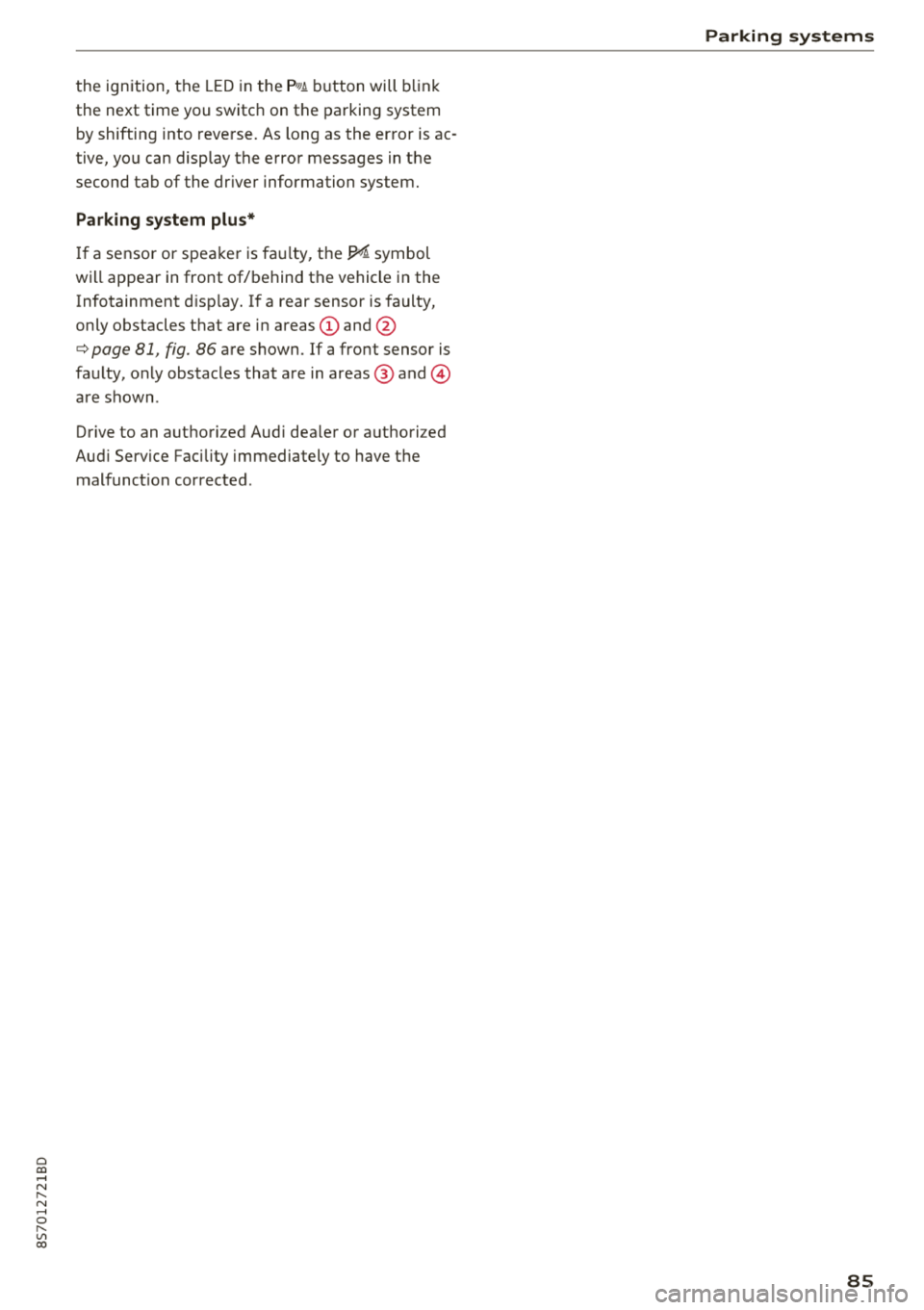
Parking system plus*
If a sensor or speaker is fau lty, t he J;l4 symbol
will appear in front of/behind the vehicle in the Infotainment disp lay. If a rear sensor is faulty,
only obstacles that are in areas
(D and @
¢ page 81, fig. 86 are shown. If a front sensor is
faulty, only obstacles that are in areas ®
and@
are shown .
Drive to an authorized Aud i dea ler or authorized
Aud i Service Facility immediately to have the
malfunct ion corrected.
Parking systems
85
Page 98 of 310
Multi Media Interface
Requirement: it must be possible to enter text or
numbers and the
symbol @<=:> fig. 102 must ap
pear in the Infotainment system display.
-Initial entry: write an individua l upper case or
lower case letter or number/symbol on the
MMI touch control pad using your finger . A
symbol that is recognized clearly by the system
is displayed in the Infotainment system display
@ c:::> page 95, fig. 101, confirmed with an audi
ble signal if necessary, and transferred to the
input field.
-Entering spaces : move your finger across the
MMI touch control pad from left to right .
-Deleting characters: move your finger across
the MMI touch control pad from right to left.
-Deleting characters quickly: move your finger
quick ly across the MMI touch control pad from
right to left .
-Selecting the input suggestion : press the con
trol knob .
-Switching directly to the results list: turn the
control knob to the right
- Opening the speller: select the right control
button>
Open speller . Text or numbers are en
tered using the speller
c:::> page 99 .
96
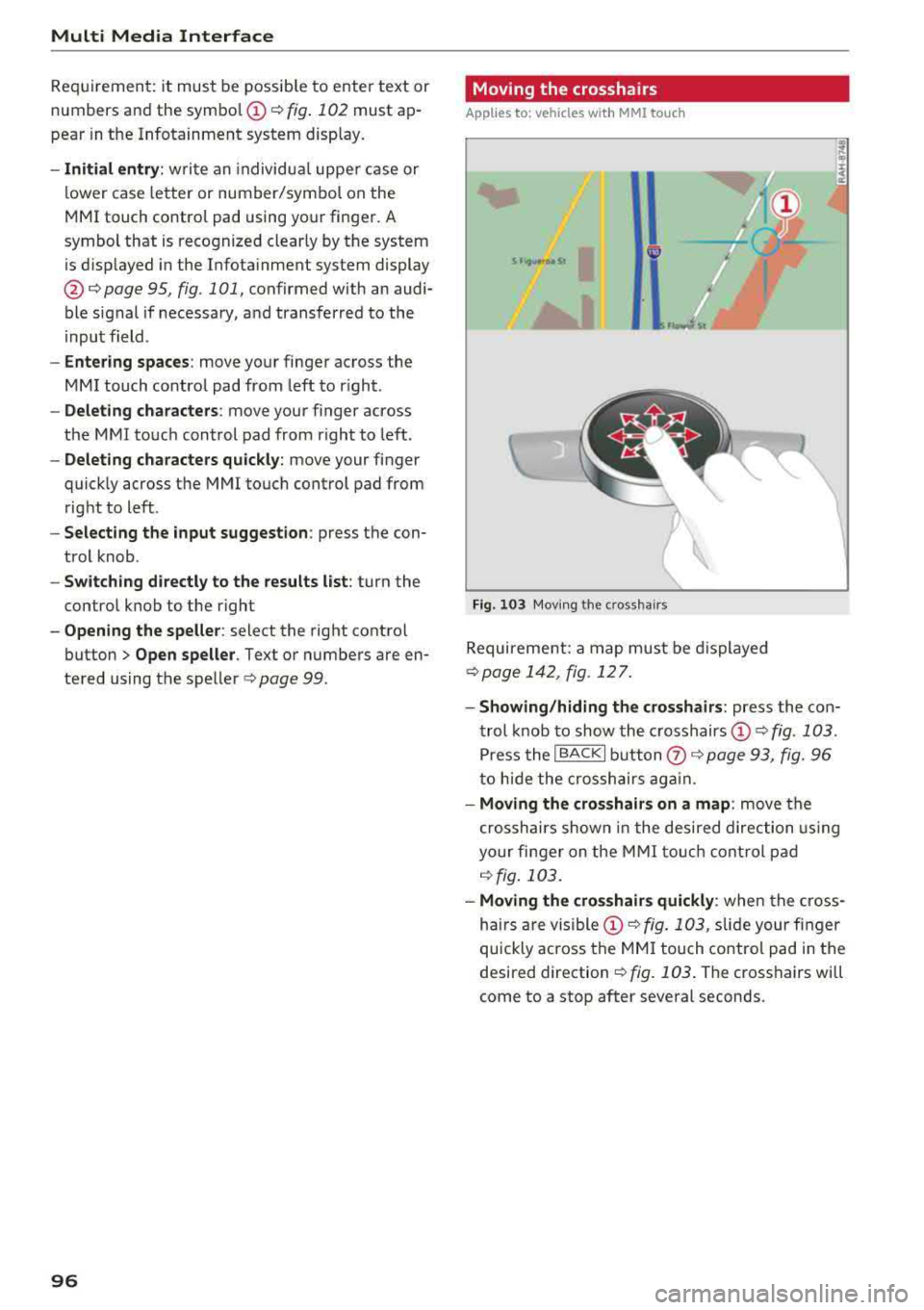
Moving the crosshairs
Applies to: vehicles with MMI touch
l.
Fig. 103 Moving the cro ssha irs
Requirement: a map must be displayed
c:::> page 142, fig. 12 7.
-Showing/hiding the crosshairs: press the con
trol knob to show the crosshairs
©¢fig . 103 .
Press the I BACKI button (!) c:::> page 93, fig. 96
to hide the crosshairs again .
-Moving the crosshairs on a map : move the
crosshairs shown in the desired direction using
your finger on the MMI touch control pad
c:::> fig. 103.
-Moving the crosshairs quickly : when the cross
ha irs are
visible © c:::> fig. 103, slide your finger
quickly ac ross the
MMI touch control pad in the
desired direction
c:::> fig. 103. The crosshairs will
come to a stop after several seconds .
Page 107 of 310
Cl 00 .-< N r-N .-< 0 r-Vl 00
Voice recognition system Operating
Applies to: vehicles with voice recognitio n system
You con operate many Infotainment functions
conveniently by speaking.
Requirement: the ignition and the MM I must be
switched on, there m ust be no phone call in p rog
ress and the park ing system must not be active.
~ Switching on : briefly p ress t h e ~ but ton @
¢page 19, fig . 9 on the multif unction steering
whee l and say th e desi red command after the
Beep .
~ Switching off : press and hold the ~ button .
Or: say the command Cancel.
~ Pausing : say the command Pause . To resume,
press
the~ b utt on .
~ Corr ecting : press t h e ~ button one t ime ®
¢ page 18, fig. 7. Or: say the co mmand Correc
tion .
Input assistance
The system g uides you throug h the input with
v isua l and aud io feedback .
-Visual input assistance : after switching on
vo ice recogn it io n, a display with a se lection of
poss ible commands appears . The command
display can be sw itched on/off under
I M EN U I >
Setting s> left contro l butto n > MMI setting s>
Speech dialog system .
- Audio input assistance:
to have the poss ible
c omma nds read, press t he
10, I bu tton o n the
mul tifunc tion steering w heel b riefly and say
Help.
For the system to understand you:
Speak clearly and dis tinct ly a t a normal vo lume .
Speak lo uder when d riving faste r.
Emphasi ze the words in the commands even ly
a n d do not leave long pauses .
Do not spea k a command when the voice recogni
tion system is m aking an a nno uncement.
C lose the doors, the windows and the sunroof* to
r e duce background noise. Make s ure that passe n-
Voice recognition system
gers are not speaking w hen you are g iv ing a voice
comman d.
D o no t direct the vents towa rd the handsfree mi
c rophone, wh ic h is near the fro nt inter ior lights
on the roof headline r or on the dr iver's safety
belt*. Fo r additional informat io n on th e safety
belt m ic rophone, see
¢ pag e 122 .
Only use the system from the dr ive r's sea t be
ca use the hands -free microphone is di rected to
ward that s eat .
Additional settings
See ¢ page 178, Voice recognition system.
_&. WARNING
- D ir e ct y ou r full a tte ntio n to dr iv in g. A s t he
dr iver, you have com ple te re spon sibility fo r
safety in t raff ic . O nly use the functions in
such a way t hat you a lways maintai n com
p lete contro l over your vehicle in all traffic
situations.
- Do not use t he voice recognition system in
emergencies beca use your voice may change
in st ressfu l s ituations. It may ta ke longe r to
d ia l the number o r th e system may not be
ab le to d ia l it at all. Dia l the emergency
number manually .
(D Tips
-The d ialog pauses w hen the re is a n incom
ing phone call a nd will con tinue if yo u ig
nore the ca ll. The dia log ends if yo u answer
t he ca ll.
- There are no vo ice gu idance* prompts when
a dialog is ac tive .
- Yo u ca n select a n item in the list us ing ei
t her the vo ice recogn ition sys tem o r the
cont ro l knob .
Command overview
information
Applies to: vehicles with voice recognition system
T he following overv iews des crib e the co m man ds
t h at can be used to oper ate the MMI using the
vo ice recognit ion system.
..,.
105
Page 113 of 310
Cl 00 .-< N r-N .-< 0 r-Vl 00
Telephone Introduction
Applies to: vehicles with telephone
To make phone coils in your vehicle using the
MMI, connect your cell phone to the MMI via
Bluetooth.
Handsfree
After you have connected your ce ll phone to the
MMI via Bluetooth, you can use the handsfree
system and operate telephone functions through
your MMI. You can make calls using the antenna
on your cell phone.
A WARNING
-Medical experts warn that cell phones can
interfere w ith the funct ion of pacemakers .
Always ma inta in a m inimum distance of
about 8 inches (20 cm) between the cell
phone antenna and the pacemake r.
-Do not carry the cell phone in a pocket di
rectly over the pacemaker when the phone
is switched on.
-Sw itch the cell phone off immediately if
you suspect it may be interfering w ith the
pacemaker.
-Do not use the voice recognition system*
¢
page 105 in emergencies because your
voice may change in stressful situations. It
may take longer to dial the number or the
system may not be able to dial it at all. Dial
the emergency number manually.
-Switch your cell phone off in areas where
there is a risk of an exp losion. These loca
t ions are not always clearly marked. This
may include gas stations, fuel and chemical
storage facilities or transport vehicles, or lo
cations where fue l vapors (such as propane
or gasoline vapor in vehicles or bui ldings),
chem icals or large quantities of dust parti
cles (such as flour, sawdust or metal) may
be present in the air. Th is also applies to all
ot her locations where you would normally
turn your vehicle engine off.
-The demands of traffic require your full at
tention. Always read the chapter ¢
page 93,
Traffic safety information .
-
Telephone
@ Note
Always fo llow the information found in Q@ in
Wi -Fi hotspot on page 130.
(D Tips
-To learn which Bluetooth connections and
which of the functions in your cell phone are supported, check with your cell phone serv
ice provider or the database for mobile devi
ces at www.aud iusa.com/bluetooth.
-The Bluetooth connection range is limited
to inside the vehicle. It can also be affected
by local condit ions and interference with
other devices .
Setup
Connecting a cell phone using Bluetooth
Applies to: vehicles with telephone
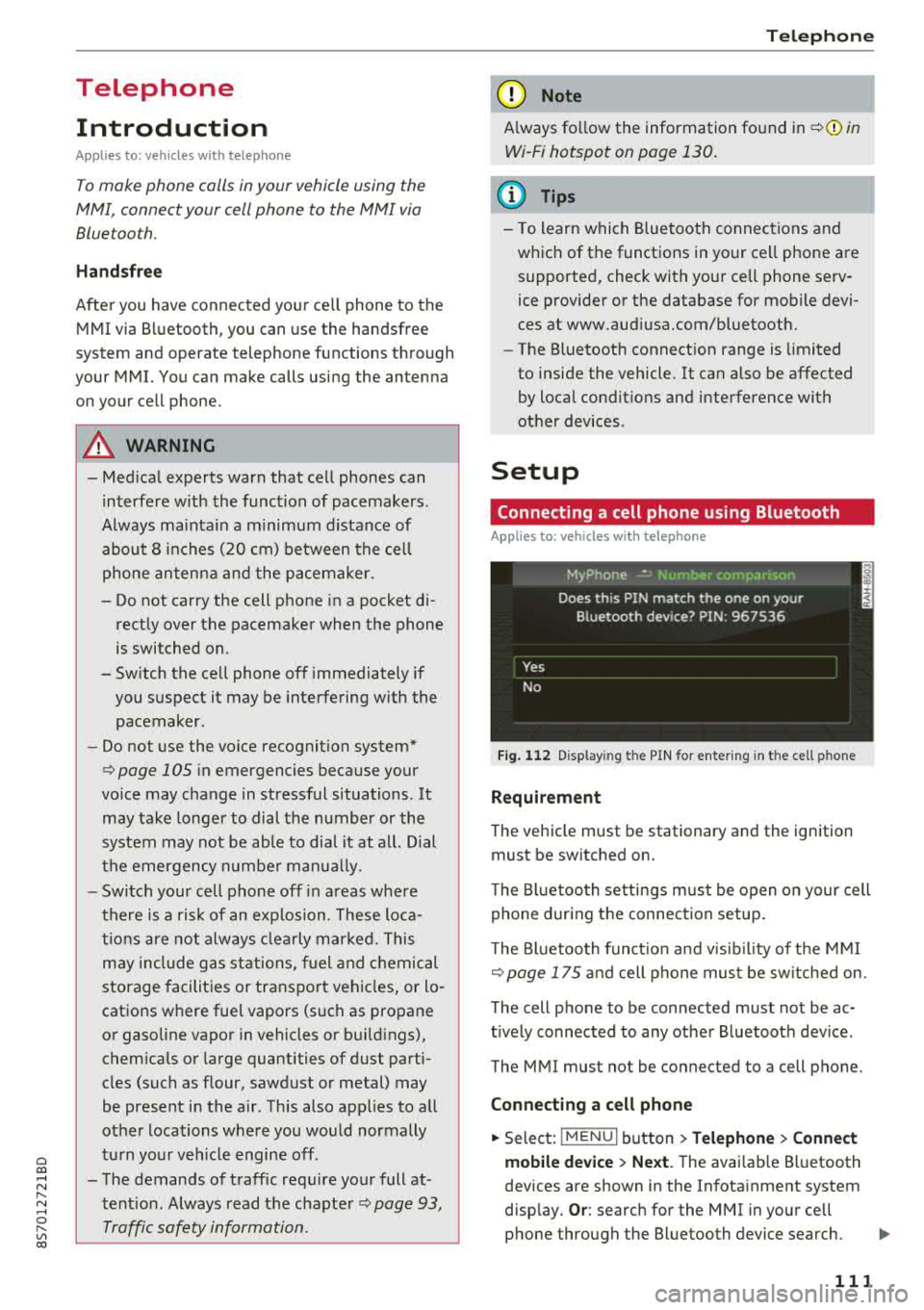
Fig. 112 Display ing t he PIN for enter ing in t he cell p hone
Requirement
T he vehicle must be stationary and the ignition
must be switched on.
T he Bl uetoo th settings must be open on your cell
phone during the connection setup .
T he Bluetooth funct io n and v is ibilit y of the MMI
Q page 175 and cell phone must be switched on.
The cell phone to be connected must not be ac
t ively connected to any other B luetooth dev ice .
The MMI must not be connected to a cell phone.
Connecting a cell phone
.,. Select: IMENU I button> Telephone> Connect
mobile device > Next .
The avai lab le Bluetooth
devices are shown in the Infotainment system
disp lay.
Or : search for the MMI in your cell
phone through the Bluetooth device search.
..,..
111
Page 117 of 310
Accepting/ending a call
Applies to: vehicles with telephone
-Ac cepting a call : sele ct and confirm A ccept
call .
- Declining a call :
select and confirm Decline .
- Muting th e active call:
select and confirm
Mute .
- Ending a phone call /cancel dialing:
select a nd
confirm
End call . Or : press the cont rol knob .
Accepting another call : see ¢ page 115, During
a phone call.
Caller information: the name, phone number or
Unknown appears in t he Infotainment system
d isp lay depending on if the caller has bee n sto red
i n the directory and if the phone number has
been transm itted . A p icture may also be dis
p layed, depend ing on whether yo u have ass igned
a pict ure to a contac t in you r d irec to ry and if it
was tr ansfer red to your M MI. Yo u can find ou t if
your cell phone supports this fu n cti on from yo ur
cell phone network prov ide r, yo ur cell ph one
owner 's manual o r at www .a ud iusa .com/
b luetoot h.
(D Tips
The radio o r me dia pla yba ck is mu ted during a
p hone ca ll.
During a phone call
Applies to: vehicles with telephone
Re qu irement: the re must be a call in pro gress .
.,. Press t he righ t contro l bu tton.
The fo llow ing opt ions are possib le dur ing a call
d epend ing on the ce ll phone bei ng use d an d t he
t ype o f con necti on:
- Making an additional call : selec t: Find contact
> Call li st / Directory /Favorites > an entry from
the lis t.
- Accepting an incoming call when there is an
active call and a call on hold :
select Replace .
The acti ve call i s repl aced with the inc oming
~ call. .-<
~ - Answering an additional call : if the re is a n in -N
8 coming ca ll w hile an othe r call is active, yo u ca n r--Vl 00
Telephone
select Accept call to put the ex isting call on
hold and answe r th e incoming ca ll. If you select
Decline , the incom ing call will be decl ined.
Addi tiona l functi ons include:
Mute : if you select and confi rm this f unction, the
othe r person on the p ho ne can not hear you . Y ou
ca n hear the other pers on .
Hold call /Resume : you can place the ex isting call
o n hold and res ume it aga in . To res ume the call,
select and co nfir m the call you would like to re
s u me .
Transfer call to mobile device *: select and con
firm
Transfer call to mobile device to transfer
t h e e xis ti ng c all fro m the M MI to yo ur cell phone .
Switch to hands-free mode *: Req uirement: you
mus t have a p ho ne call in p rogress on you r ce ll
phone . Se lect and confirm
Switch to hands-free
mode
t o t ransfe r th e ca ll from your cell p ho ne to
t h e MM I.
Swap call : alte rn ate be tween two phone calls
wh ile one of the calls is o n hold . Se lecting
End
call will e nd th e ac tive phone ca ll. A ph one call on
ho ld ca n be resumed using the righ t con trol bu t
t on
> Resume .
Add to conference :
a party on hol d and up to five
a ctive pa rties ( depend ing on the ne twor k) ca n b e
adde d to a c onferen ce call . T o m ake an ad ditio nal
c all , put al l p articip ants in t he cur rent con feren ce
ca ll on hold using the right cont ro l but ton
> Hold
conference.
Press the left cont rol button. Se lect
and confirm
Call list /Directory /Favorites > an
entry from the list .
You can add called contacts
to the confe rence using the right contro l butto n
> Add to conference . Resume takes all pa rt ies off
hold .
Multi-party calling : select the right cont rol b ut
ton
> Telephone settings > Call options . When
t h e function is switc hed
o n~ you can accept a n
additional ca ll us ing
Accept call or decline a ca ll
u sing
Decline . When the function is sw itched off,
yo u can Replace th e c all or Decline .
Connection manager:
see ¢ page 174 .
Telephone settings : see ¢page 121 .
115