light AUDI TT ROADSTER 2018 Workshop Manual
[x] Cancel search | Manufacturer: AUDI, Model Year: 2018, Model line: TT ROADSTER, Model: AUDI TT ROADSTER 2018Pages: 310, PDF Size: 46.95 MB
Page 106 of 310
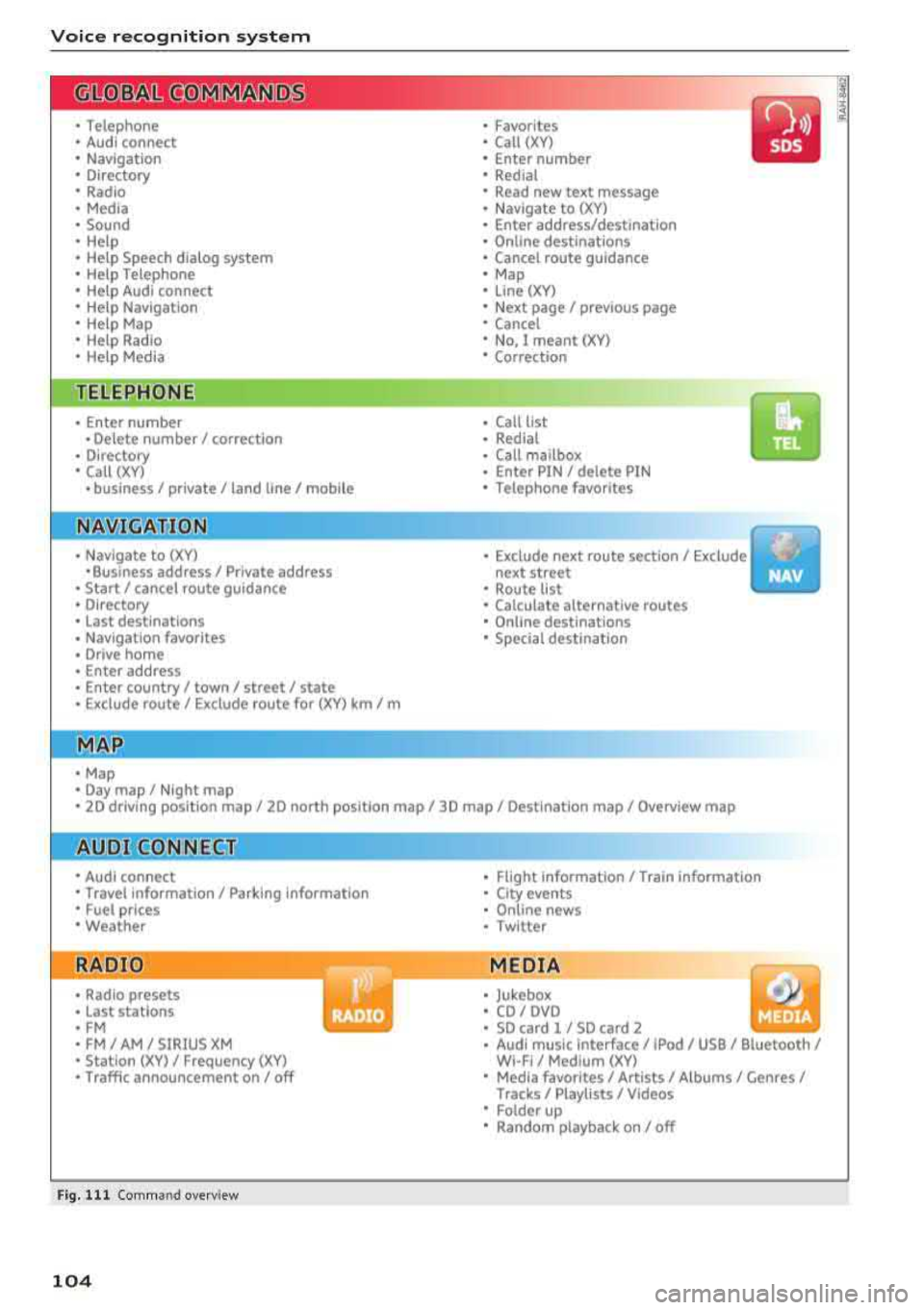
Voice recognition system
• Telephone
• Audi connect
• Navigation
• Directory
• Radio
• Media
• Sound
• Help
• Help Speech dialog system
• Help Telephone
• Help Audi connect
• Help Navigation
• Help
Map
• Help Radio
• Help Media
TE ~EPflON ~
• Enter number
• Delete number/ correction
• Directory
• Call (XV)
• business
I private/ land tine I mobile
N~~It ~JION
• Nav igate to (XY)
•Business address
I Private address
• Start/ cancel route guidance
• Directory
• Last destinations
• Nav igation favorites
, Drive home
• Enter address
• Enter country/ town
I street I state
• Exclude route
I Exclude route for (XY) km/ m
r~I?
• Map
• Day map/ Night map •
Favorites
• Call (XV)
• Enter number
• Redial
• Read new text message
• Navigate to (XY)
• Enter address/destination
• Online destinations
• Cancel route guidance
• Map
• Line (XY)
• Next page/ previous page
• Cancel
• No. I meant (XV)
• Correction
• Call list
• Redial
• Call mailbox
• Enter PIN
I delete PIN
• Telephone favorites
• Exclude next route section/ Exclude
next street
• Route list
• Calculate alternative routes
• Online destinations
• Special destination
• 2D driving position map/ 2D north position map/ 3D map
I Destination map I Overview map
Al!IDI Q ONNE GiT
• Audi connect
• Travel information
I Parking Information
• Fuel prices
• Weather
RADIO
• Radio presets
• Last stations
• FM
• FM / AM / SIRIUS XM
• Station (XV) / Frequency (XV)
• Traffic announcement on/ off
Fig. 111 Comm and overv iew
104
•
• Flight Information/ Train Information
• City events
• Online news
• Twitter
MEDIA
• Jukebox
• CD
I OVO
• SD card 1 / SD card 2
• Audi music Interface/ !Pod / USB / Bluetooth /
WI -Fl/ Medium (XV)
• Media favorites
I Artists/ Albums/ Genres/
Tracks/ Playllsts / Videos
• Folder up
• Random playback on / off
Page 107 of 310
Cl 00 .-< N r-N .-< 0 r-Vl 00
Voice recognition system Operating
Applies to: vehicles with voice recognitio n system
You con operate many Infotainment functions
conveniently by speaking.
Requirement: the ignition and the MM I must be
switched on, there m ust be no phone call in p rog
ress and the park ing system must not be active.
~ Switching on : briefly p ress t h e ~ but ton @
¢page 19, fig . 9 on the multif unction steering
whee l and say th e desi red command after the
Beep .
~ Switching off : press and hold the ~ button .
Or: say the command Cancel.
~ Pausing : say the command Pause . To resume,
press
the~ b utt on .
~ Corr ecting : press t h e ~ button one t ime ®
¢ page 18, fig. 7. Or: say the co mmand Correc
tion .
Input assistance
The system g uides you throug h the input with
v isua l and aud io feedback .
-Visual input assistance : after switching on
vo ice recogn it io n, a display with a se lection of
poss ible commands appears . The command
display can be sw itched on/off under
I M EN U I >
Setting s> left contro l butto n > MMI setting s>
Speech dialog system .
- Audio input assistance:
to have the poss ible
c omma nds read, press t he
10, I bu tton o n the
mul tifunc tion steering w heel b riefly and say
Help.
For the system to understand you:
Speak clearly and dis tinct ly a t a normal vo lume .
Speak lo uder when d riving faste r.
Emphasi ze the words in the commands even ly
a n d do not leave long pauses .
Do not spea k a command when the voice recogni
tion system is m aking an a nno uncement.
C lose the doors, the windows and the sunroof* to
r e duce background noise. Make s ure that passe n-
Voice recognition system
gers are not speaking w hen you are g iv ing a voice
comman d.
D o no t direct the vents towa rd the handsfree mi
c rophone, wh ic h is near the fro nt inter ior lights
on the roof headline r or on the dr iver's safety
belt*. Fo r additional informat io n on th e safety
belt m ic rophone, see
¢ pag e 122 .
Only use the system from the dr ive r's sea t be
ca use the hands -free microphone is di rected to
ward that s eat .
Additional settings
See ¢ page 178, Voice recognition system.
_&. WARNING
- D ir e ct y ou r full a tte ntio n to dr iv in g. A s t he
dr iver, you have com ple te re spon sibility fo r
safety in t raff ic . O nly use the functions in
such a way t hat you a lways maintai n com
p lete contro l over your vehicle in all traffic
situations.
- Do not use t he voice recognition system in
emergencies beca use your voice may change
in st ressfu l s ituations. It may ta ke longe r to
d ia l the number o r th e system may not be
ab le to d ia l it at all. Dia l the emergency
number manually .
(D Tips
-The d ialog pauses w hen the re is a n incom
ing phone call a nd will con tinue if yo u ig
nore the ca ll. The dia log ends if yo u answer
t he ca ll.
- There are no vo ice gu idance* prompts when
a dialog is ac tive .
- Yo u ca n select a n item in the list us ing ei
t her the vo ice recogn ition sys tem o r the
cont ro l knob .
Command overview
information
Applies to: vehicles with voice recognition system
T he following overv iews des crib e the co m man ds
t h at can be used to oper ate the MMI using the
vo ice recognit ion system.
..,.
105
Page 129 of 310
Cl 00 .-< N r-N .-< 0 r-Vl 00
Flight information
Applies to: vehicles with flight information
Information on flig hts and current arr ival/depa r
ture times in the selected searc h area .
.,. Select and confirm Flight information .
You can select the desired information using the
right control button.
City events
Applies to: vehicles with City events
Information on events in various categories in
the desired search area .
.. Select City Events > left control button > cate
gory.
Online news
Applies to: vehicles with online news
You can check the current headlines of your fa
vor ite pub lications in the MMI.
Requirement: your myAudi account must be sub
scr ibed to newsfeeds and your vehicle must be
connected to myAudi
~page 125.
.. Se lect : Online news > desired newsfeed > a
headline.
(D Tips
If you have not subscr ibed to any personal
newsfeeds in your myAud i account, pre-con
figured newsfeeds wi ll be displayed.
Twitter
Applies to: vehicles with Twitter
You can access the most important functions in
your Twitter account through your
MMI.
Requirement:
You must have connected your myAudi account
with Twitter. You can find additional information
at www.audiusa .com/myaudi.
You must have connected your vehicle with
myAudi
~page 125.
Audi connect
.. Select Twitter > left control button > desired
function
(for examp le, Trends ).
T he following categories can be selected in the
Twitter menu:
- My tweets: News Feed and the Tweets you have
posted are listed.
- Home : the Tweets for everyone you fo llow are
d isp layed.
- Trends : top ics on Twitter that are currently
popu lar within a country.
Different functions are ava ilable depending on
the Twitter category you have selected :
- New tweet: you can post a new tweet using
pre-made templates or using custom ized tem
plates in your myAudi account.
- Refresh : the se lected Twitter function is re
freshed.
- Favorite : mark a Tweet as favorite to show you
Liked it.
- Retweet : you can quote a Tweet to share it wit h
others.
(D Tips
- You can find additional information on con
necting your myAudi account to Twitter at
www.aud iusa.com/myaudi.
- Other settings suc h as account, language,
Tweet security and locat ion settings
cannot
be changed in the MMI. These changes m ust
be made on the Tw itter website.
- You can only connect
one Twitter account
w ith your myAudi account.
- Audi connect makes it possible to access
Twitter. Permanent availability cannot be
guaranteed, because that depends on Twit
ter.
Travel (travel guide)
Applies to: vehicles with Travel (travel guide)
You can use the Audi MMI connect opp to store
points of interest on your mobile device (such as a smartphone) and then use them for route
guidance in the
MMI .
Requirement:
127
Page 136 of 310
Navigation
Navigation
Opening navigation
Applies to: vehicles with navigation system
The navigation system directs you to your destination, around traffic incidents and on alternative
routes, if desired.
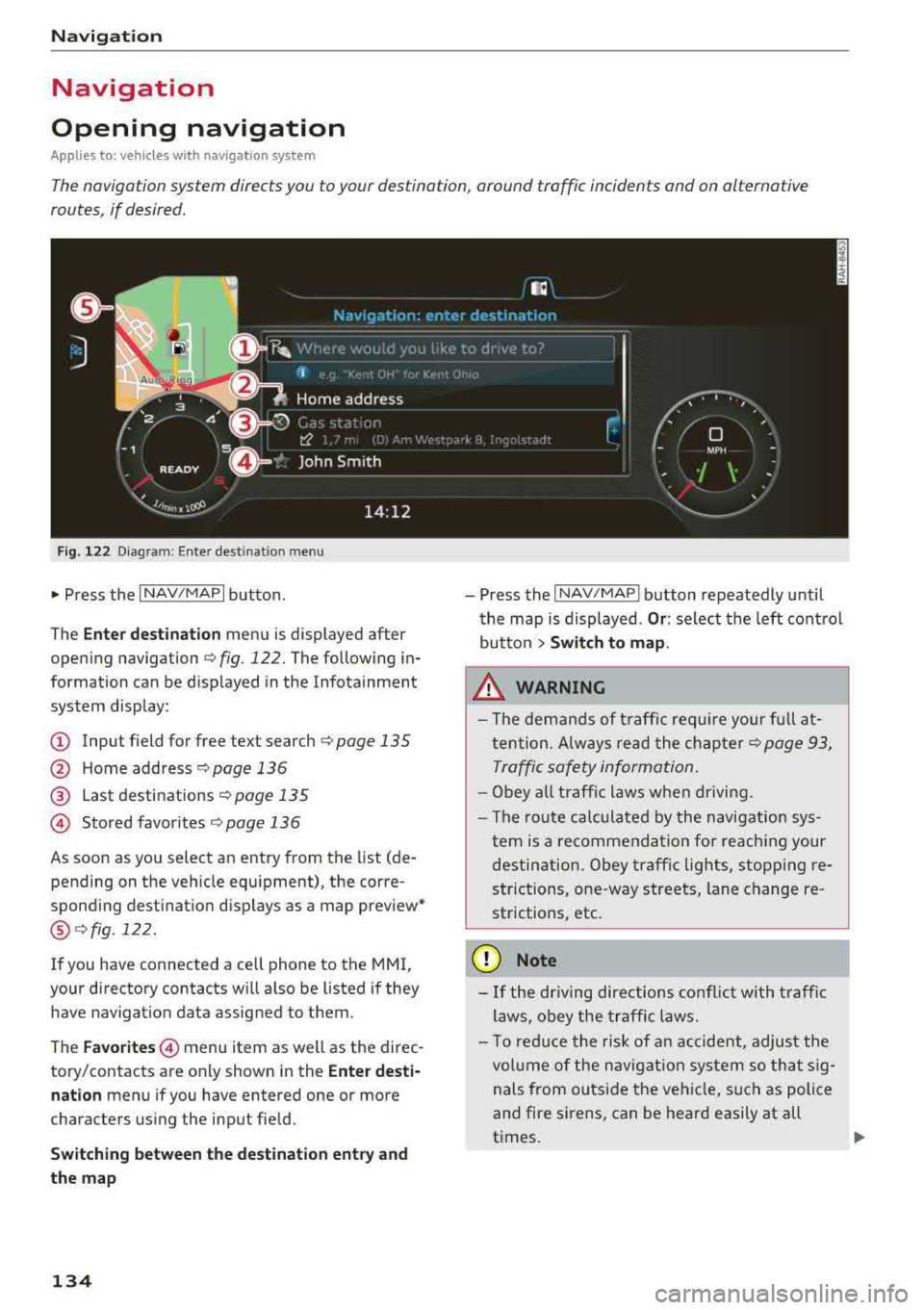
F ig. 122 Diagram: Ente r dest inat io n menu
~ Press the I NAV/MAPI button .
The
Enter destination menu is displayed after
opening navigation
¢ fig . 122. The following in
formation can be displayed in the Infotainment
system display:
@ Input field for free text search r:::;, page 135
@ Home address c;,poge 136
@ Last destinations r:::;, page 135
© Stored favor ites r:::;, page 136
As soon as you select an entry from the list (de
pending on the vehicle equipment), the corre
spond ing destination displays as a map preview*
@ c;,fig .122.
If you have connected a cell phone to the MMI,
your directory contacts will also be listed if they
have navigation data assigned to them .
The
Favorites © menu item as well as the direc
tory/contacts are only shown in the
Enter desti·
nation
menu if you have entered one or more
characters using the input field.
Switching between the destination entry and
the map
134
-Press the I NAV/MAPI button repeatedly until
the map is displayed .
Or: select the left control
button
> Switch to map.
& WARNING
-The demands of traffic require your full at
tention . A lways read the chapter
c;, page 93,
Traffic safety information.
-Obey all traffic laws when driving.
-The route calculated by the navigation sys-
tem is a recommendation for reaching your
destination . Obey traffic lights, stopp ing re
strictions, one-way streets, lane change re
strictions, etc.
(D Note
-If the driving directions conflict with traffic
laws, obey the traffic laws.
-To reduce the risk of an accident, adjust the
vol um e of the navigation system so that sig
nals from outside the vehicle, such as police
and fire sirens, can be heard easily at all
t imes.
-
Page 162 of 310
Media
CD Note
Always follow the information found in ~CD in
Wi-Fi hotspot on page 130.
@ Tips
- Depending on the Internet connection and
network traffic, a connection loss can occur
d uring p layback of on line media services.
- Onli ne med ia and Inte rn et r adi o usage de
pends on the service availability of the third
party provider .
- Audi AG simply makes the access to online
media services possible through the MMI
and does not take any respons ibility for the
contents of the online media services.
- Always read the chapter ¢
page 131, About
Audi connect .
-Depending on the mobile device used, there
may be interruptions during media playback
and when using the
Au di MM I connect app.
To avoid interruptions when using a mobile
device, do not lock the screen on your mo
bile device and keep the
A udi MMI c onn ect
app in the foreground.
- Contact an authorized Audi dea ler or au
thorized Audi Service Facility for additional
i nformat io n about on line media.
160
Multimedia connections
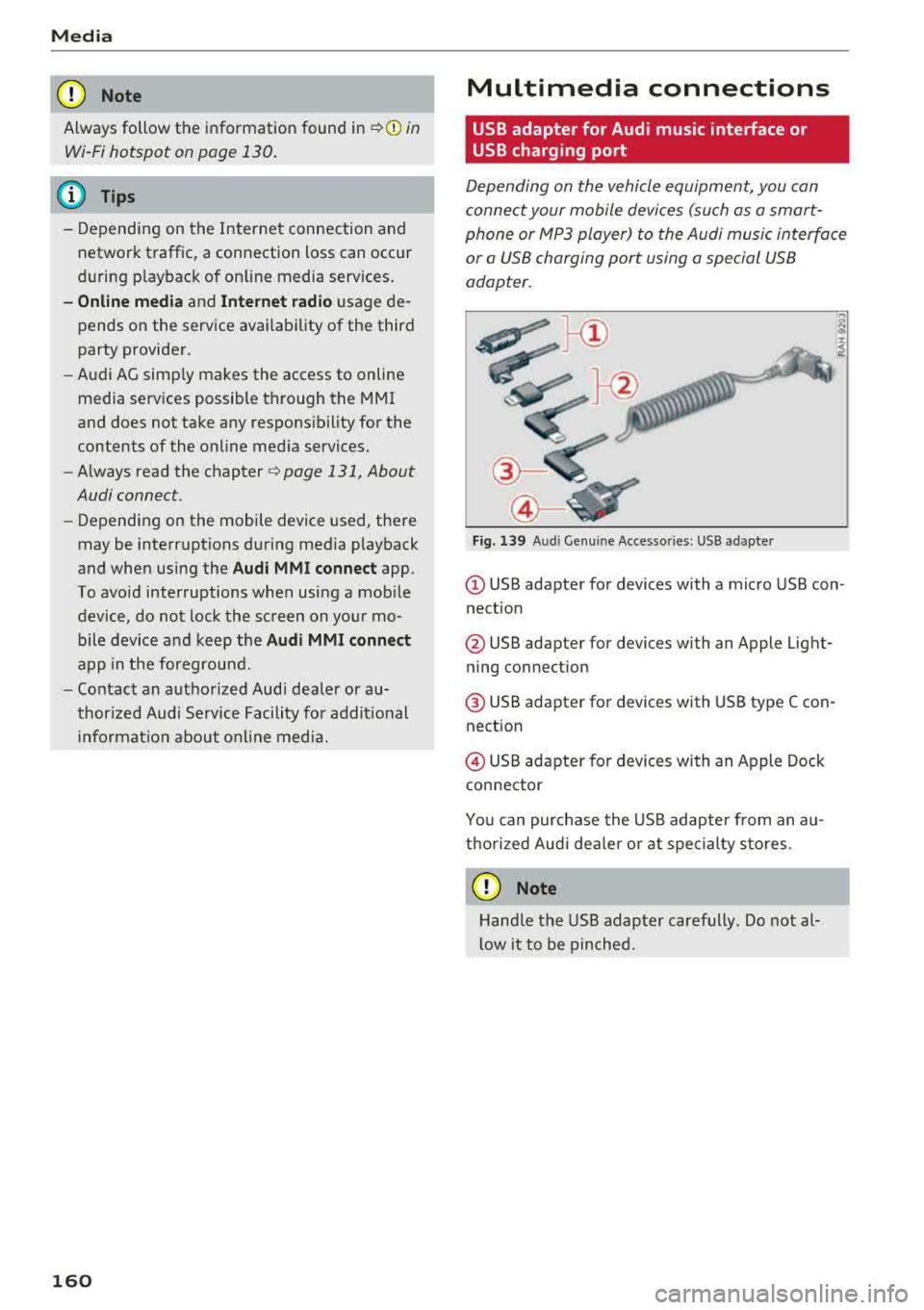
USB adapter for Audi music interface or
USB charging port
Depending on the vehicle equipment, you can
connect your mobile devices (such as a smart
phone or MP3 player) to the Audi music interface
or a USB charging port using a special USB
adapter.
"'
I
Fig. 139 A ud i Ge nuin e Acce sso ries : USB a dapter
@ USB adapter for devices with a micro USB con
nect ion
@ USB adapter for devices with an Apple Light
ning connection
@ USB adapter for dev ices with USB type C con
nection
@ USB adapter for devices with an Apple Dock
connector
You can purchase the USB adapter from an au
thorized Audi dea ler or at specialty sto res.
CD Note
Hand le the USB adapter carefully . Do not al
l ow it to be pinched.
Page 165 of 310
Cl co .... N ,....
N .... 0 ,....
Vl co
®
0
®
such as an MP3 player connected to
the AUX input
Bluetooth audio player*
Wi-Fi audio player* .......... .
Online media*
and Internet radio*
157
158
159
-Playing audio/video files: select a source in the
Media menu > category (such as artists > al
bum
> track) .
-Moving one level up in the folder structure:
press the I BACK I button. Or: select and confirm
Folder up.
- Selecting the previous or next track/chapter
1): press the On/Off knob on the MMI control
panel briefly to the left
l
-Fast-forwarding and rewinding audio/video
files :
press and hold the On/Off knob on the
MMI control panel to the left l
a longer time.
-Pausing or resuming playback: press the On/
Off knob on the MMI control panel briefly.
@ Tips
-You can scroll through long lists quickly by
turning the control knob quickly. The scroll
i ng speed depends on the number of list en
tries.
-For safety reasons, the video image is only
displayed when the vehicle is stationary. On ly the sound from the v ideo plays while driv
i ng .
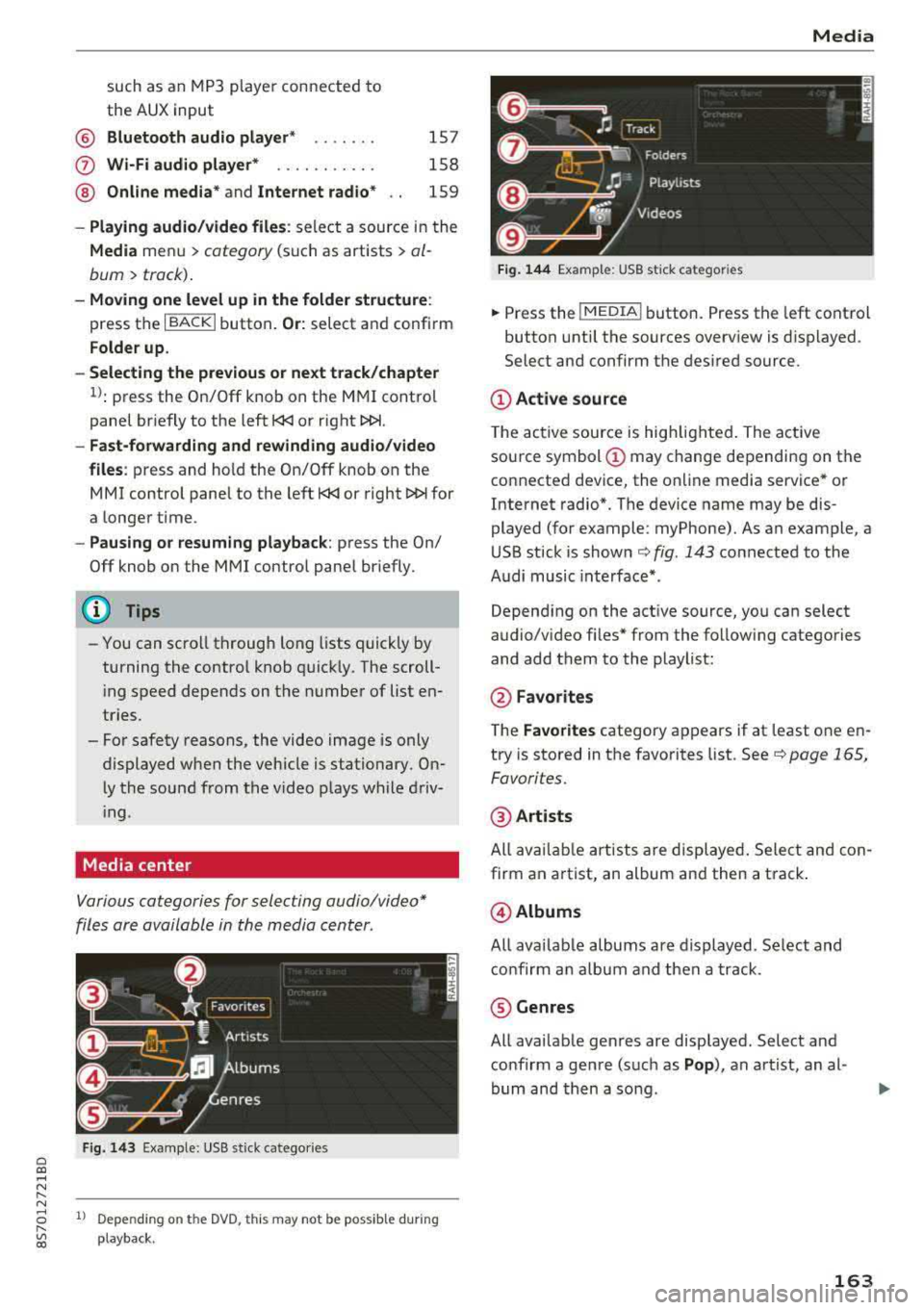
Media center
Various categories for selecting audio/video*
files are available in the media center .
Fig. 143 Example: USB stick catego ries
1l Depe ndi ng o n th e DVD, t his may not be possible during
playba ck .
Media
Fi g. 144 Example: USB stick categories
... Press the I MEDIA! button. Press the left control
button until the sources overview is displayed.
Select and confirm the desired source.
(D Active source
The active source is highlighted . The active
source symbol
(D may change depending on the
connected device, the online media service* or
Internet radio*. The device name may be dis
played (for example: myPhone). As an example, a
USB stick is shown
c:> fig. 143 connected to the
Audi music interface* .
Depending on the active source, you can select
audio/video fi les* from the follow ing categories
and add them to the playlist:
@ Favo rites
The Favorites category appears if at least one en
try is stored in the favorites list. See
c:> page 165,
Favorites.
@ Artists
All available artists are displayed. Select and con
firm an a rtist, an album and then a track .
@Albums
All availab le albums are displayed. Select and
confirm an album and then a track .
® Genres
All available genres are displayed. Select and
confirm a genre (such as
Pop ), an artist, an al
bum and then a song .
163
Page 173 of 310
Cl 00 ... N r--N ... 0 r--Vl 00
Audi smartphone interface
Setup
A ppl ies to : ve hicles w ith Audi smartpho ne inte rfa ce
You con connect your smortphone to the MMI us
ing the Audi smortphone interface . Certain con
tent on your smortphone is adopted to the Info
tainment system display while driving and con
be operated through the
MMI control panel .
Requirement:
The vehicle must be stat ionary and the ignition
must be switched on .
iPhone generation 5 or h igher w ith Lightning
connector and iOS 7 .1.2 operating system or h igher.
O r:
Smartphone with Android Auto app and Android
5 .0 Loll ipop operating system or higher.
.,. Connec t your sma rtphone to the Audi music in
terface
¢ page 161 using a USB adapte r
¢page 160, fig. 139 .
.. Select and confirm A ctivate Apple CarPlay or
Acti vate And roid Auto now .
.. Follow the system instruct ions.
.. Pay attention to any additiona l system prompts
on your smartphone if applicable .
If you chose not to use Apple CarP lay or Android
Auto when connecting your smartphone for the
first time, you can start the Audi smartphone in
terface later on using the
Connection manager.
.,. Se lect : I MENU I button > Audi smartphone in-
terfa ce
> Change to connection manager .
.. Connect your sma rtphone to the A udi music in
terface
¢ page 161 using a USB adapter
¢ page 160, fig. 139 .
.. Select and confirm Audi smartphone in t he
Connection manager ¢ page 174. You can se
l ect your smartphone in the list of devices that
are already paired
¢page 175.
.,. Follow the system instruct ions .
ll In prep arat io n at t he t im e of pr in tin g .
Aud i smartph one interfac e
@ Note
Always fo llow the information fo und in ¢ @ in
Wi-Fi hotspot on page 130.
(D Tips
-T he f unctions that can be used depend on
the fo llow ing factors, among others:
-the brand of your smartphone
-the vers io n of the ope rating system in
your smartphone
-the software ve rsion of the app used
-the USB adapter cab le an d correct connec -
tion
-your cell phone service provide r
-the customized se tt in g s on yo ur sm art-
phone
-O ne of t he factors above o r a com binat ion
o f any of them could cause you r sma rtphone
to be incompatib le wit h the Audi smart
phone interface. Compatibility cannot be
guaranteed for all types of smartphones.
For more informat ion and assistance, refe r
to the user guide and the man ufacturer of
your smartphone .
-If the connected smartphone has voice con
trol, you can operate you r smartp hon e usi ng
t he ex ter nal voice recognition system*
¢page 110.
-T he menu language show n in t he MMI is
based on t he sett ings in you r smartp ho ne.
-The time d isplayed in the MMI is based o n
t he settings in yo ur smartphone .
-Several M MI functions a re not avai lab le
w hen Apple Car Play or Andro id A uto is ac
t ive .
-You cannot co nnect any mob ile dev ices via
Bluetooth whe n an Apple CarPlay connec
tion is act ive.
-Whe n the App le CarPlay connection is ac
t ive,
Tag this song for iTunes*1
) is not ava il
able
¢page 150 .
171
Page 181 of 310
Cl 00 .-< N r--N .-< 0 r--Vl 00
Safe driving Basics
Safe driving habits
Please remember -safety first!
The individua l safety features of your vehicle can
work together as a system to help protect you
and your passengers in a wide range of accidents.
These features cannot work as a system if they
are not always correctly adjusted and correctly
used .
This chapter contains important informat ion,
tips, instruct ions and warn ings that you need to
read and observe for your own safety, the safety
of your passenge rs and others . We have summar
i zed here w hat you need to know about safety
be lts, a irbags, child restra ints as well as child
safety. Yo ur safety is for us priority number 1. Al
ways observe the information and warnings in
this section - for your own safety as well as that
of your passengers.
The informa tion in t his sect ion app lies to all
model versions of your vehicle. Some of the fea
tures described in t his sections may be standard
eq uipment on some models, or may be optional
equ ipment on others. If you are not sure, ask
your author ized Audi dealer.
A WARNING
-Always make sure that you follow the in
st ruct ions and heed the WAR NINGS in t his
Manua l. It is in your i nterest a nd in the in
t e res t of your passengers .
-
-Always keep the complete Owner's Litera
t ur e in yo ur Audi whe n you lend or se ll yo ur
vehicle so tha t this import ant information
w ill a lways be available to t he d rive r and
passengers.
-Alw ays keep t he Owne r's lite rature h andy so
that you can f ind it easily if yo u have ques
tions .
Safe dri ving
Important things to do before driving
Safety is everybody 's job ! Vehicle and occupant
safety always depends on the informed and care
ful driver .
For your safety and the safety of your passenger,
b efor e driving alw ay s:
.. Make sure that a ll lights and s ignals are operat
ing correctly.
.. Make sure tha t the tire pressure is correct .
.. Make sure that all windows are clean and afford
good vis ibility to the outs ide .
.. Secure all luggage and othe r items ca refully
c::> page 183, c::> page 49.
.. M ak e sure tha t not hing c an in terfere wi th the
peda ls .
.. Adj ust seat and mirrors correctly for your
height .
.. Make sure to use the right child restra int cor
rectly to protect children
c::> page 216, Child
safety.
.. Sit properly in your seat and make sure that
your passenger do the
same ¢ page 46, Front
seats.
.. Fasten yo ur safety belt and wear i t properly. Al
so inst ru ct yo ur passenge r to fas ten his safety
be lt properly
¢ page 187.
What impairs driving safety?
Safe driving is dire ctly related to the condition of
the vehicle, the driver as well as the driver's abili
ty to concentrate on the road without being dis
tracted.
T he dr iver is responsib le for the sa fe ty of the ve
hicle and a ll of its occupants. If your ability to
drive is impai red, safety risks for everybody in the
vehicl e inc rease and you a lso become a hazard to
everyone else on the road
¢ A_ . Therefore:
.. Do not let yourse lf be distracted by passenge r
or by using a ce llular telephone .
.. NEVER drive when your driving ability is im
pa ired (by med ications, alcohol, drugs, etc.) .
.. Observe all traffic laws, rules of the road and
speed lim its and plain common sense .
.. ALWAYS adjust your speed to road, traffic and
weather conditions .
.,.
179
Page 182 of 310
Safe dri ving
,.. Take frequent breaks on long trips. Do not drive
for more than two hours at a stretch.
,.. Do NOT drive when you are tired, under pres
sure or when you are stressed.
A WARNING
Impaired driving safety increases the risk of
serious personal injury and death whenever a
vehicle is being used.
Correct passenger
seating positions
Proper seating position for the driver
The proper driver seating position is important
for safe, relaxed driving.
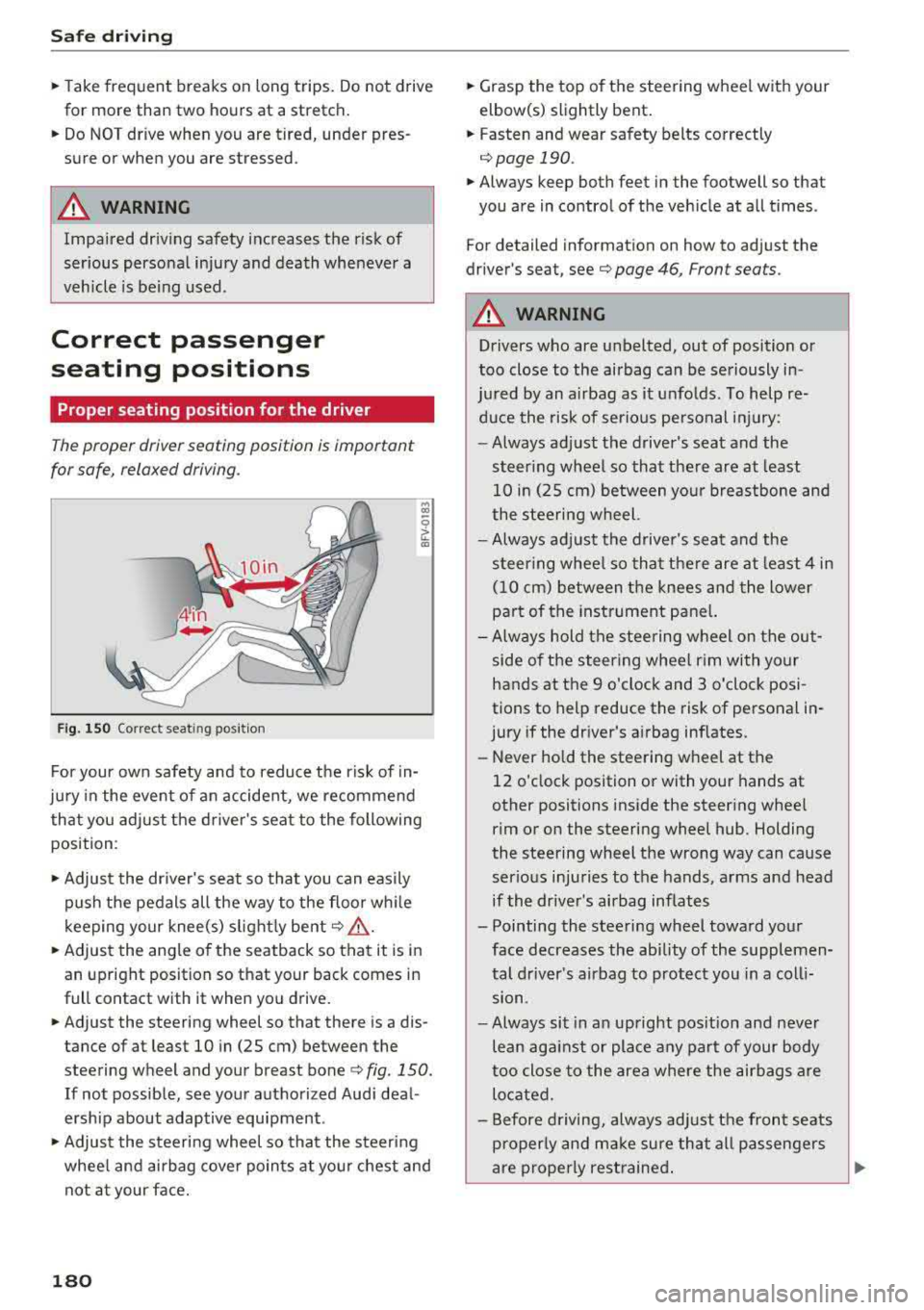
F ig. 150 Correct seat in g posi tion
.., CD
~ CD
For your own safety and to reduce the risk of in
jury in the event of an accident, we recommend
that you adjust the driver's seat to the following
position :
,.. Adjust the driver's seat so that you can easily
push the pedals all the way to the floor wh ile
k eeping your knee(s) s lightly bent
c:> .&_ .
,.. Adjust the angle of the seatback so that it is in
an upright position so that your back comes in
full contact with it when you drive.
,.. Adjust the steering wheel so that there is a dis
tance of at least 10 in (25 cm) between the
steering wheel and your breast bone
c:> fig. 150.
If not possible, see your authorized Audi deal
ersh ip about adaptive equipment .
,.. Adjust the steering wheel so that the steering
whee l and airbag cover points at you r chest and
not at your face.
180
,.. Grasp the top of the steering wheel with your
elbow(s) slightly bent.
,.. Fasten and wear safety belts correctly
c:> page 190 .
,.. Always keep both feet in the footwell so that
you are in control of the vehicle at all times .
For detailed information on how to adjust the
driver's seat, see
c:> page 46, Front seats.
A WARNING
Drivers who are unbelted, out of position or
too close to the airbag can be seriously in -
ju red by an airbag as it unfolds. To help re-
duce the risk of serious pe rsonal injury:
-Always adjust the driver's seat and the
steer ing wheel so that the re are at least
10 in (25 cm) between your breastbone and
the steering wheel.
-Always adjust the driver's seat and the
steer ing whee l so that there are at least 4 in
(10 cm) between the knees and the lower
pa rt of the instrument pane l.
- Always hold the steering wheel on the out
side of the steering wheel rim with your
hands at the 9 o'clock and 3 o'clock posi
tions to help reduce the risk of personal in
jury if the dr iver's a irbag inflates.
- Never hold the steering wheel at the
12 o'clock position or with your hands at
other positions inside the steering whee l
rim or on the steering wheel hub . Holding
the steering wheel the wrong way can cause
serious injuries to the hands, arms and head
if the driver's airbag inflates
- Pointing the steering wheel toward your face decreases the ability of the supplemen
tal driver's airbag to protect you in a coll i
sion.
- Always sit in an upright pos it ion and never
lean against or place any part of your body
too close to the area where the airbags are
located.
- Before driving, always adjust the front seats
properly and make sure that all passengers
-
are properly restrained . ..,.
Page 189 of 310
Cl 00 .-< N r-N .-< 0 r-Vl 00
Safety belts
General notes
Always wear safety belts!
Wearing safety belts correctly saves lives!
This chapter exp lains why safety be lts are neces
sary, how they work and how to adjust and wear
them correctly.
• Read all the information that follows and heed
all of the instructions and WARNINGS.
A WARNING
Not wearing safety belts or wearing them im
properly increases the risk of serious personal
injury and death.
- Safety belts are the s ingle most effective
means ava ilable to reduce the risk of serious
injury and death in automobile accidents.
For your protection and that of your passen
gers, always correctly wear safety belts
when the vehicle is moving.
- Pregnant women, injured, or physically im
paired persons must also use safety belts.
Like all vehicle occupants, they are more
likely to be seriously injured if th ey do not
wear safety belts. The best way to protect a
fetus is to protect the mother -throughout
the entire pregnancy.
Number of seats
Your veh icle has two seating positions. Each seat
ing position has a safety belt.
A WARNING
Not wearing safety belts or wearing them im
properly increases the risk of serious personal
injury and death.
- Never strap more than one person, includ
ing sma ll ch ildren, into any belt.
It is espe
ci ally da ngerous to place a safety belt over a
ch ild sitting on your lap.
- Never let more people ride in the vehicle
than there are safety belts available.
Safety belts
-Be sure everyone riding in the vehicle is
properly restrained with a separate safety
belt or child restraint.
4 Safety belt warning light
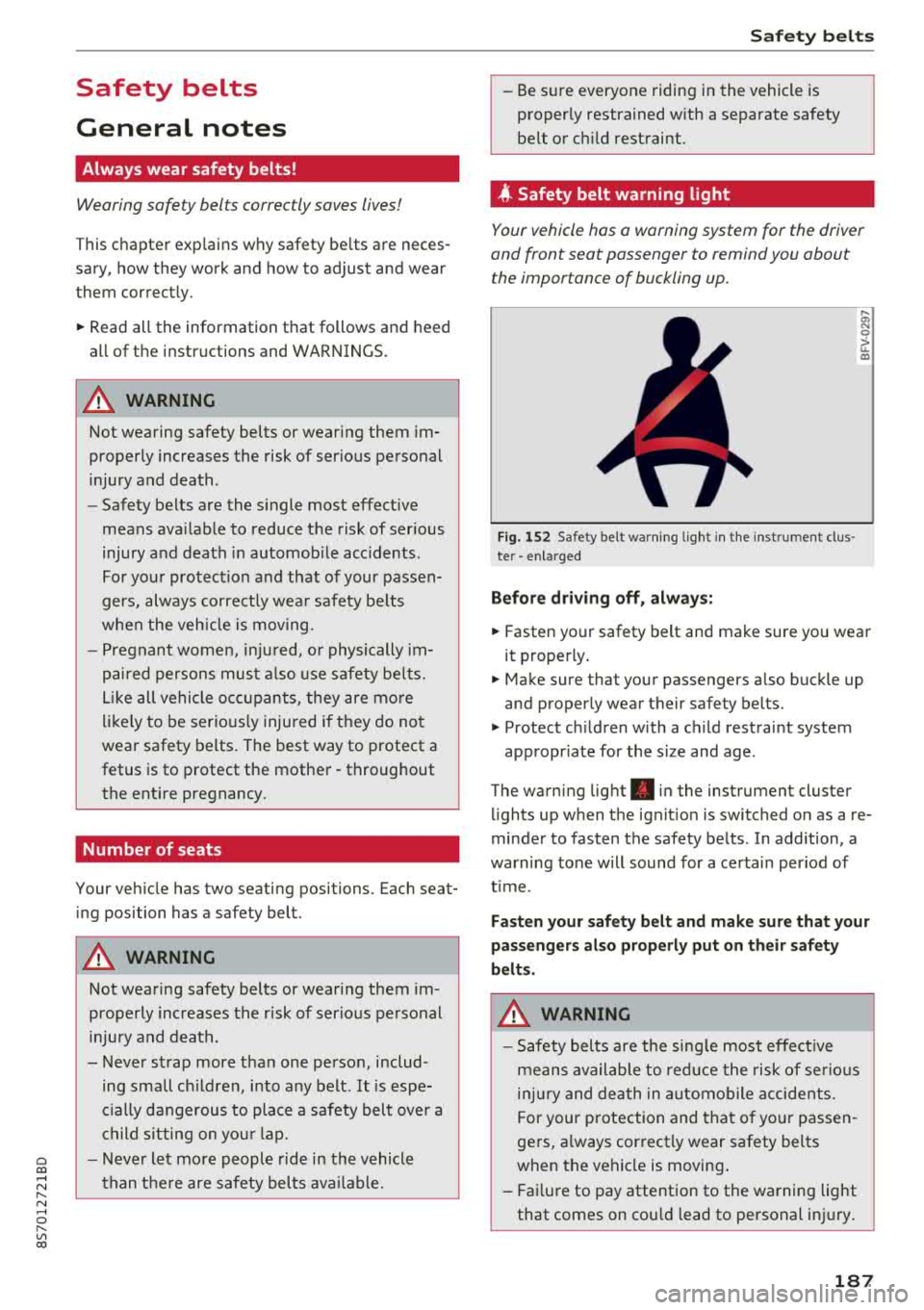
Your vehicle has a warning system for the driver
and front seat passenger to remind you about the importance of buckling up.
Fig. 152 Safety belt warn ing ligh t in the instrument clus
ter -en larged
Before driving off, always:
l,; N 0
> ... m
• Fasten your safety belt and make sure you wear
it properly.
• Make sure that your passengers also buckle up
and properly wear their safety belts.
• Protect ch ildren with a child restraint system
appropr iate for the size and age .
The warning light . in the instrument cluster
lights up when the ignit ion is switched on as a re
minder to fasten the safety belts . In add ition, a
warning tone will sound for a certain period of
time .
Fasten your safety belt and make sure that your
passengers also properly put on their safety
belts.
A WARNING
-
- Safety belts are the single most effect ive
means available to red uce the risk of serious
i njur y and death in automobile accidents.
Fo r your protection and that of yo ur passen
gers, always correctly wear safety belts
when the vehicle is moving .
- Fail ure to pay attention to the warning light
that comes on cou ld lead to personal injury.
187