display BMW 750LI SEDAN 2015 Owners Manual
[x] Cancel search | Manufacturer: BMW, Model Year: 2015, Model line: 750LI SEDAN, Model: BMW 750LI SEDAN 2015Pages: 314, PDF Size: 7.9 MB
Page 173 of 314
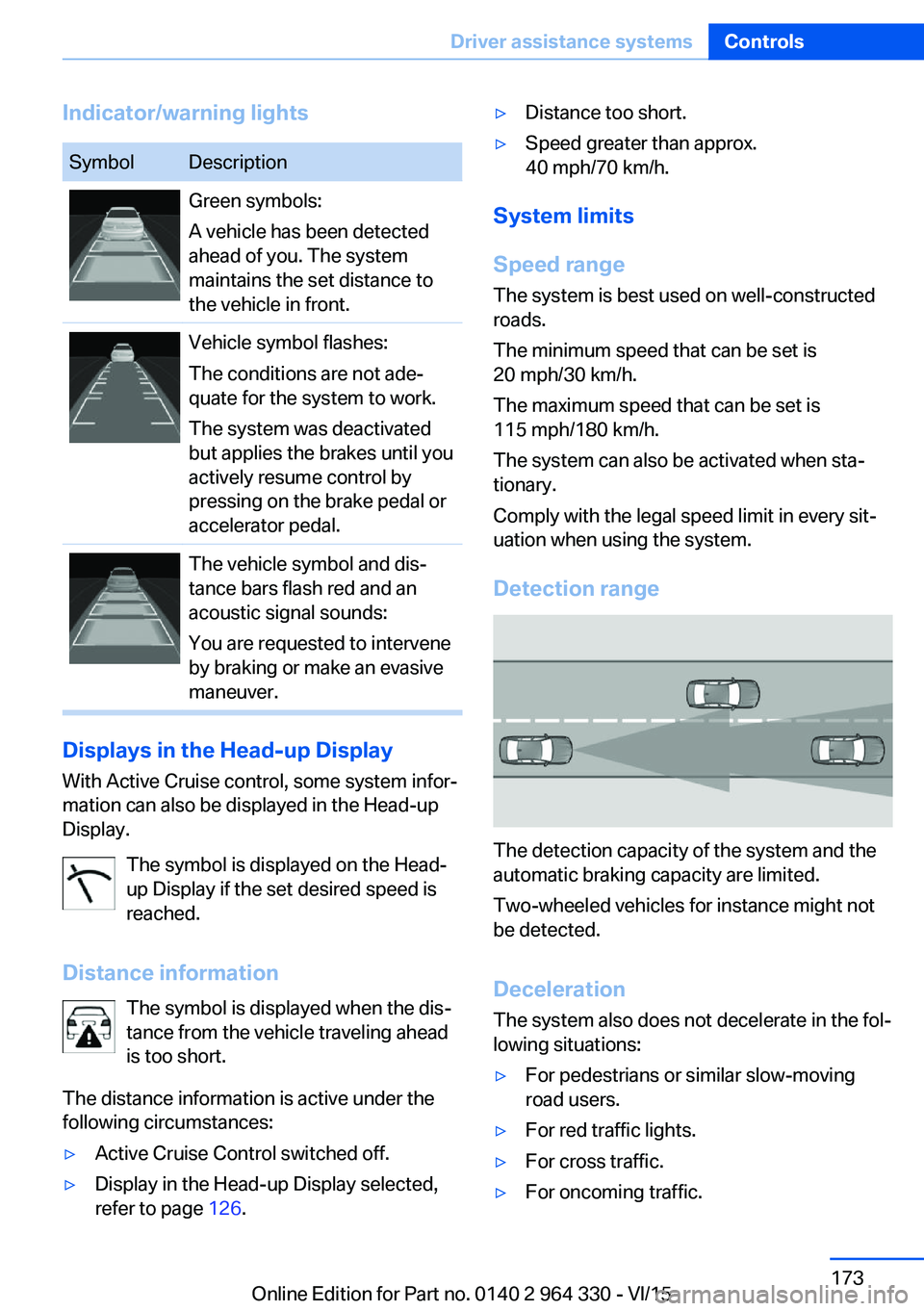
Indicator/warning lightsSymbolDescriptionGreen symbols:
A vehicle has been detected
ahead of you. The system
maintains the set distance to
the vehicle in front.Vehicle symbol flashes:
The conditions are not ade‐
quate for the system to work.
The system was deactivated
but applies the brakes until you
actively resume control by
pressing on the brake pedal or
accelerator pedal.The vehicle symbol and dis‐
tance bars flash red and an
acoustic signal sounds:
You are requested to intervene
by braking or make an evasive
maneuver.
Displays in the Head-up Display
With Active Cruise control, some system infor‐
mation can also be displayed in the Head-up
Display.
The symbol is displayed on the Head-
up Display if the set desired speed is
reached.
Distance information The symbol is displayed when the dis‐
tance from the vehicle traveling ahead
is too short.
The distance information is active under the
following circumstances:
▷Active Cruise Control switched off.▷Display in the Head-up Display selected,
refer to page 126.▷Distance too short.▷Speed greater than approx.
40 mph/70 km/h.
System limits
Speed range The system is best used on well-constructedroads.
The minimum speed that can be set is
20 mph/30 km/h.
The maximum speed that can be set is
115 mph/180 km/h.
The system can also be activated when sta‐
tionary.
Comply with the legal speed limit in every sit‐
uation when using the system.
Detection range
The detection capacity of the system and the
automatic braking capacity are limited.
Two-wheeled vehicles for instance might not
be detected.
Deceleration
The system also does not decelerate in the fol‐
lowing situations:
▷For pedestrians or similar slow-moving
road users.▷For red traffic lights.▷For cross traffic.▷For oncoming traffic.Seite 173Driver assistance systemsControls173
Online Edition for Part no. 0140 2 964 330 - VI/15
Page 175 of 314
Weather
In the event of unfavorable weather and light conditions, e. g. if there is rain, snowfall, slush,
fog or glare, this may result in poorer recogni‐
tion of vehicles as well as short-term interrup‐
tions for vehicles that are already detected. Drive attentively, and react to the current trafficsituation. If necessary, intervene actively, e.g.
by braking, steering or evading.
Radar sensor
For US owners only
The transmitter and receiver units comply with
part 15 of the FCC/Federal Communication
Commission regulations. Operation is gov‐
erned by the following:
FCC ID:▷OAYARS3-A
Compliance statement:
This device complies with part 15 of the FCC
Rules. Operation is subject to the following
two conditions:
▷This device may not cause harmful inter‐
ference, and▷this device must accept any interference
received, including interference that may
cause undesired operation.
Any unauthorized modifications or changes to
these devices could void the user's authority to
operate this equipment.
Malfunction
The system cannot be activated if the radar sensor is not aligned correctly. This may be
caused by damage incurred during parking,
e.g.
A Check Control message is displayed if the
system fails.
The function for detecting and responding
when approaching stationary vehicles may be limited in the following situations:
▷During calibration of the camera immedi‐
ately after vehicle delivery.▷If the camera is malfunctioning or dirty. A
Check Control message is displayed.
Cruise control
The concept The system maintains a preset speed via the
buttons on the steering wheel. The system
brakes on downhill gradients if engine braking
is insufficient.
General information
Depending on the driving settings, the features
of the cruise control can change in certain
areas.
The desired speed is also maintained downhill,
but may not be maintained on uphill grades if
engine power is insufficient.
Due to the driving style that minimizes fuel
consumption in ECO PRO drive mode, the ve‐
hicle may drop below the set desired speed in
some situations, e.g. on uphill grades.
Information WARNING
The use of the system can lead to an in‐
creased risk of accidents in the following situa‐
tions:
▷On winding roads.▷In heavy traffic.▷On slippery roads, in fog, snow or rain, or
on a loose road surface.
There is risk of accidents or risk of property
damage. Only use the system if driving at con‐
stant speed is possible.◀
Seite 175Driver assistance systemsControls175
Online Edition for Part no. 0140 2 964 330 - VI/15
Page 176 of 314
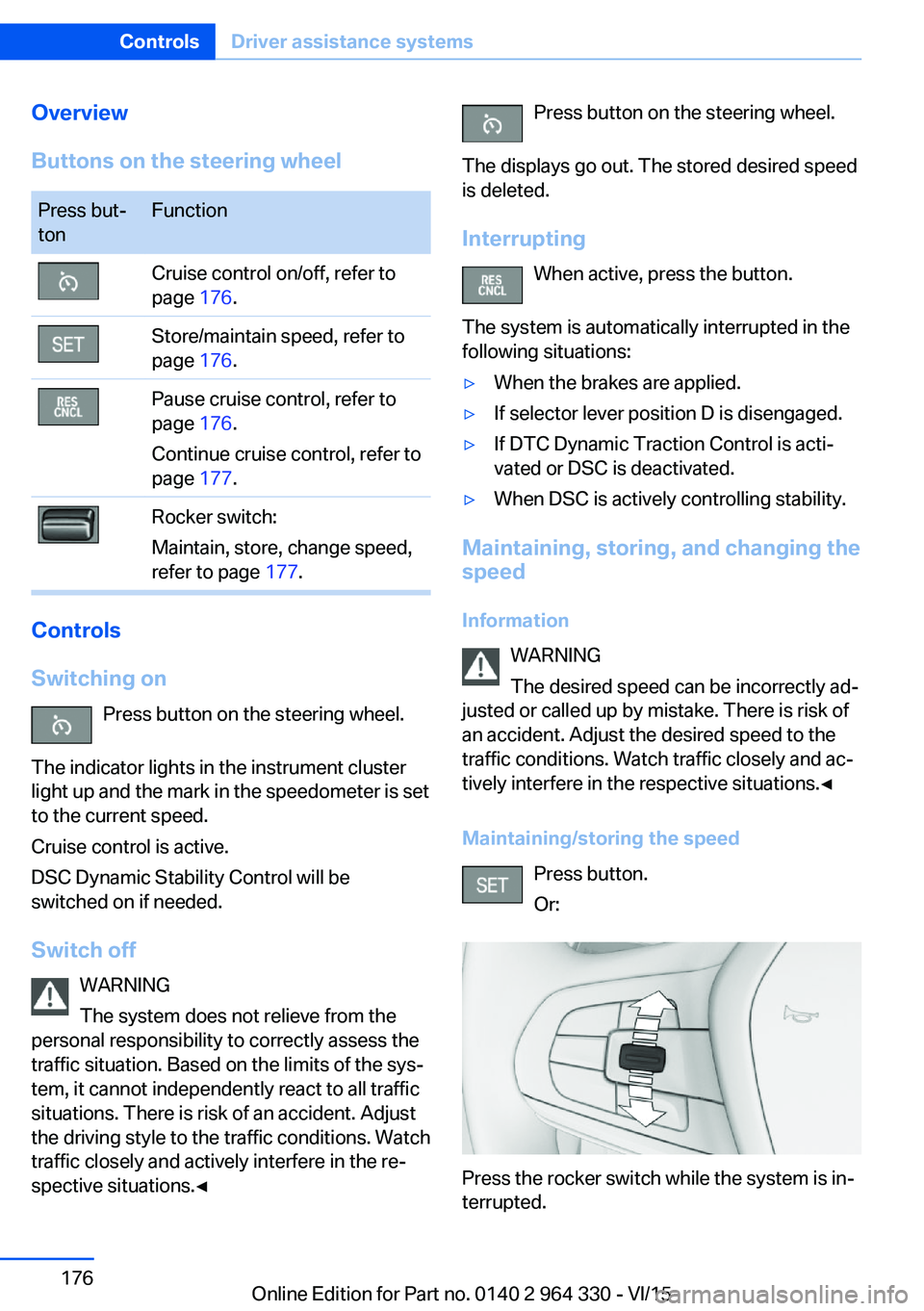
Overview
Buttons on the steering wheelPress but‐
tonFunctionCruise control on/off, refer to
page 176.Store/maintain speed, refer to
page 176.Pause cruise control, refer to
page 176.
Continue cruise control, refer to
page 177.Rocker switch:
Maintain, store, change speed,
refer to page 177.
Controls
Switching on Press button on the steering wheel.
The indicator lights in the instrument cluster
light up and the mark in the speedometer is set
to the current speed.
Cruise control is active.
DSC Dynamic Stability Control will be
switched on if needed.
Switch off WARNING
The system does not relieve from the
personal responsibility to correctly assess the
traffic situation. Based on the limits of the sys‐
tem, it cannot independently react to all traffic
situations. There is risk of an accident. Adjust
the driving style to the traffic conditions. Watch
traffic closely and actively interfere in the re‐
spective situations.◀
Press button on the steering wheel.
The displays go out. The stored desired speed
is deleted.
Interrupting When active, press the button.
The system is automatically interrupted in the
following situations:▷When the brakes are applied.▷If selector lever position D is disengaged.▷If DTC Dynamic Traction Control is acti‐
vated or DSC is deactivated.▷When DSC is actively controlling stability.
Maintaining, storing, and changing the
speed
Information WARNING
The desired speed can be incorrectly ad‐
justed or called up by mistake. There is risk of
an accident. Adjust the desired speed to the
traffic conditions. Watch traffic closely and ac‐
tively interfere in the respective situations.◀
Maintaining/storing the speed Press button.
Or:
Press the rocker switch while the system is in‐
terrupted.
Seite 176ControlsDriver assistance systems176
Online Edition for Part no. 0140 2 964 330 - VI/15
Page 177 of 314
When the system is switched on, the current
speed is maintained and stored as the desired
speed.
This is displayed, refer to page 177, in the
speedometer and briefly in the instrument
cluster.
DSC Dynamic Stability Control will be
switched on if needed.
Changing the speed
Press the rocker switch up or down repeatedly
until the desired speed is set.
If active, the displayed speed is stored and the
vehicle reaches the stored speed when the
road is clear.▷Each time the rocker switch is pressed to
the resistance point, the desired speed in‐
creases or decreases by 1 mph/1 km/h.▷Each time the rocker switch is pressed
past the point of resistance, the desired
speed increases or decreases by a maxi‐
mum of 5 mph/10 km/h.
The maximum speed that can be set de‐
pends on the vehicle.▷Pressing the rocker switch to the resist‐
ance point and holding it accelerates or de‐
celerates the vehicle without requiring
pressure on the accelerator pedal.
After the rocker switch is released, the ve‐
hicle maintains its final speed. Pressing the
switch beyond the resistance point causes
the vehicle to accelerate more rapidly.
Continuing cruise control
Press button while the system is inter‐
rupted.
The stored speed is reached and maintained.
Displays in the instrument cluster
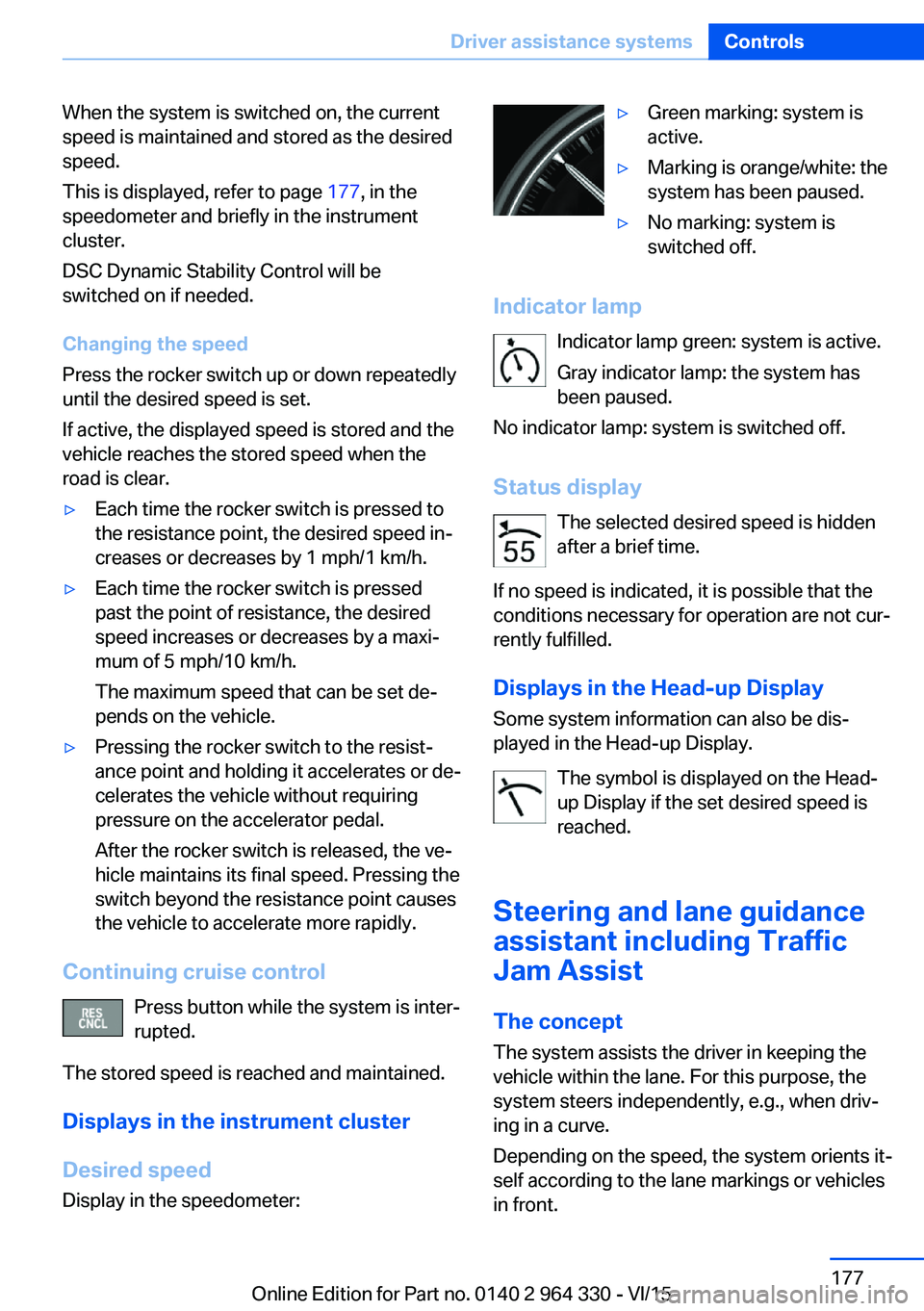
Desired speed Display in the speedometer:
▷Green marking: system is
active.▷Marking is orange/white: the
system has been paused.▷No marking: system is
switched off.
Indicator lamp
Indicator lamp green: system is active.
Gray indicator lamp: the system has
been paused.
No indicator lamp: system is switched off.
Status display The selected desired speed is hidden
after a brief time.
If no speed is indicated, it is possible that the
conditions necessary for operation are not cur‐
rently fulfilled.
Displays in the Head-up Display Some system information can also be dis‐
played in the Head-up Display.
The symbol is displayed on the Head-
up Display if the set desired speed is
reached.
Steering and lane guidance
assistant including Traffic
Jam Assist
The concept
The system assists the driver in keeping the vehicle within the lane. For this purpose, the
system steers independently, e.g., when driv‐
ing in a curve.
Depending on the speed, the system orients it‐
self according to the lane markings or vehicles
in front.
Seite 177Driver assistance systemsControls177
Online Edition for Part no. 0140 2 964 330 - VI/15
Page 179 of 314
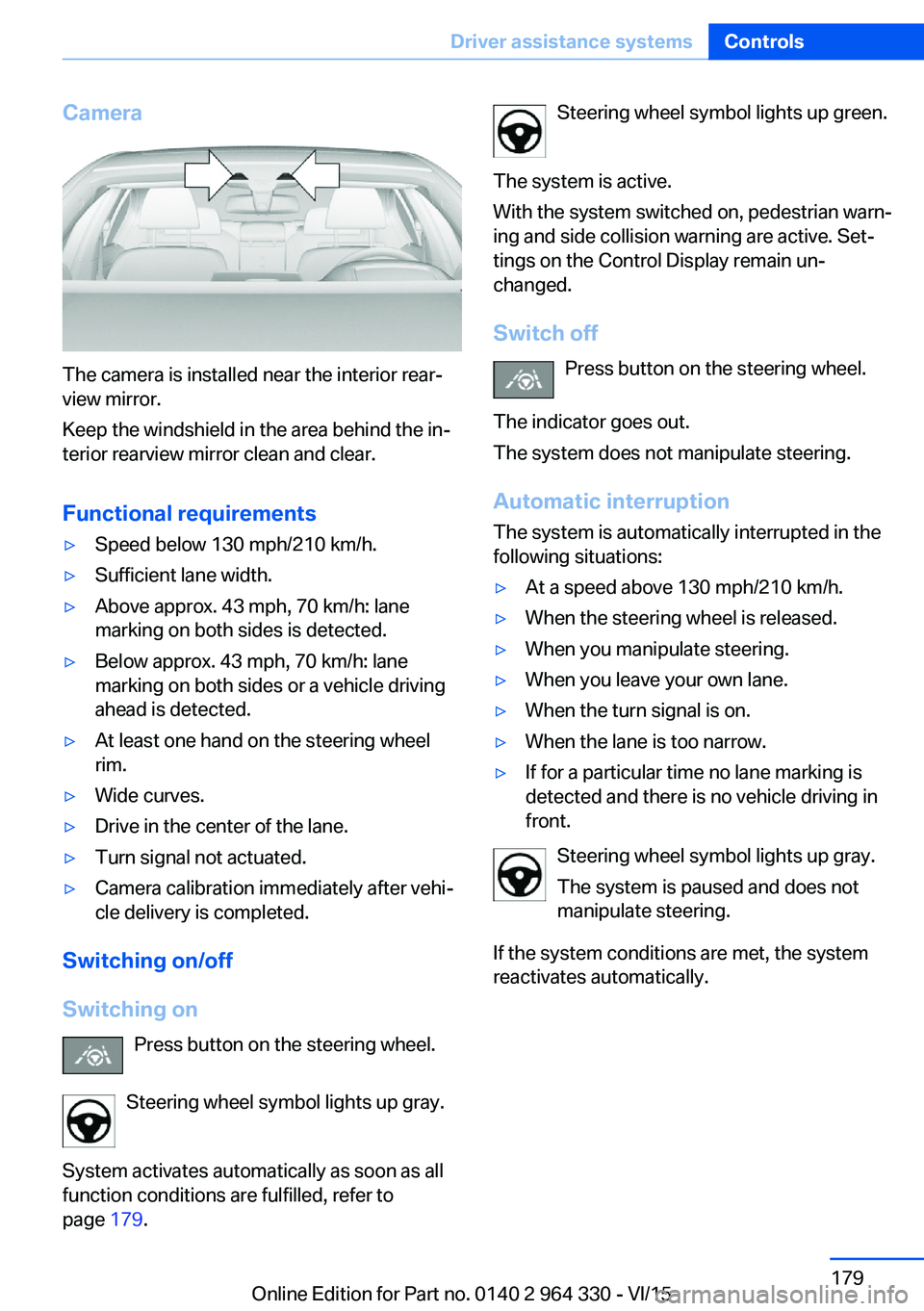
Camera
The camera is installed near the interior rear‐
view mirror.
Keep the windshield in the area behind the in‐
terior rearview mirror clean and clear.
Functional requirements
▷Speed below 130 mph/210 km/h.▷Sufficient lane width.▷Above approx. 43 mph, 70 km/h: lane
marking on both sides is detected.▷Below approx. 43 mph, 70 km/h: lane
marking on both sides or a vehicle driving
ahead is detected.▷At least one hand on the steering wheel
rim.▷Wide curves.▷Drive in the center of the lane.▷Turn signal not actuated.▷Camera calibration immediately after vehi‐
cle delivery is completed.
Switching on/off
Switching on Press button on the steering wheel.
Steering wheel symbol lights up gray.
System activates automatically as soon as all
function conditions are fulfilled, refer to
page 179.
Steering wheel symbol lights up green.
The system is active.
With the system switched on, pedestrian warn‐
ing and side collision warning are active. Set‐
tings on the Control Display remain un‐
changed.
Switch off Press button on the steering wheel.
The indicator goes out.
The system does not manipulate steering.
Automatic interruptionThe system is automatically interrupted in the
following situations:▷At a speed above 130 mph/210 km/h.▷When the steering wheel is released.▷When you manipulate steering.▷When you leave your own lane.▷When the turn signal is on.▷When the lane is too narrow.▷If for a particular time no lane marking is
detected and there is no vehicle driving in
front.
Steering wheel symbol lights up gray.
The system is paused and does not
manipulate steering.
If the system conditions are met, the system
reactivates automatically.
Seite 179Driver assistance systemsControls179
Online Edition for Part no. 0140 2 964 330 - VI/15
Page 180 of 314
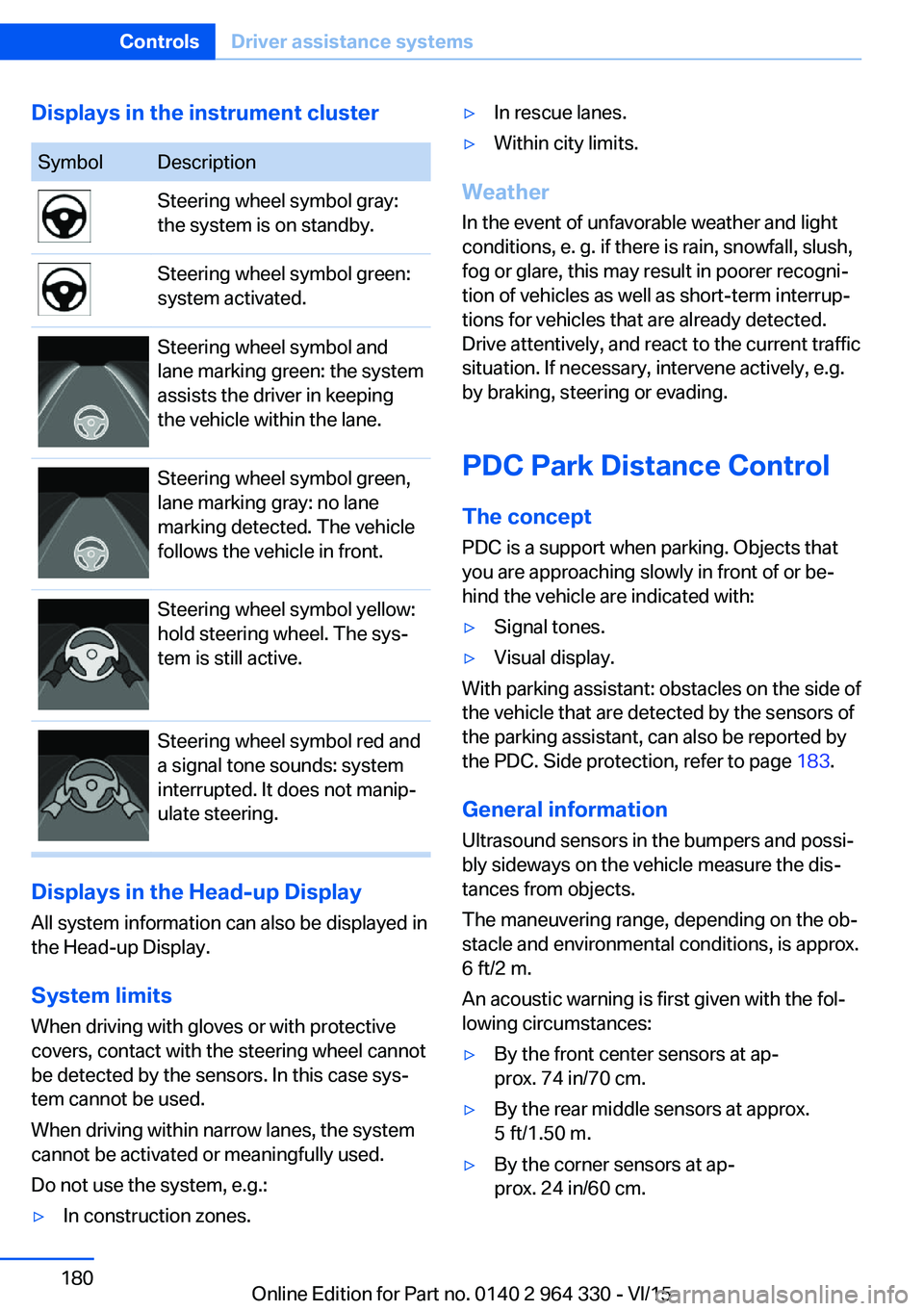
Displays in the instrument clusterSymbolDescriptionSteering wheel symbol gray:
the system is on standby.Steering wheel symbol green:
system activated.Steering wheel symbol and
lane marking green: the system
assists the driver in keeping
the vehicle within the lane.Steering wheel symbol green,
lane marking gray: no lane
marking detected. The vehicle
follows the vehicle in front.Steering wheel symbol yellow:
hold steering wheel. The sys‐
tem is still active.Steering wheel symbol red and
a signal tone sounds: system
interrupted. It does not manip‐
ulate steering.
Displays in the Head-up Display
All system information can also be displayed in
the Head-up Display.
System limits
When driving with gloves or with protective
covers, contact with the steering wheel cannot
be detected by the sensors. In this case sys‐
tem cannot be used.
When driving within narrow lanes, the system
cannot be activated or meaningfully used.
Do not use the system, e.g.:
▷In construction zones.▷In rescue lanes.▷Within city limits.
Weather
In the event of unfavorable weather and light conditions, e. g. if there is rain, snowfall, slush,
fog or glare, this may result in poorer recogni‐
tion of vehicles as well as short-term interrup‐
tions for vehicles that are already detected. Drive attentively, and react to the current trafficsituation. If necessary, intervene actively, e.g.
by braking, steering or evading.
PDC Park Distance Control The conceptPDC is a support when parking. Objects that
you are approaching slowly in front of or be‐
hind the vehicle are indicated with:
▷Signal tones.▷Visual display.
With parking assistant: obstacles on the side of
the vehicle that are detected by the sensors of
the parking assistant, can also be reported by
the PDC. Side protection, refer to page 183.
General information
Ultrasound sensors in the bumpers and possi‐
bly sideways on the vehicle measure the dis‐
tances from objects.
The maneuvering range, depending on the ob‐
stacle and environmental conditions, is approx.
6 ft/2 m.
An acoustic warning is first given with the fol‐
lowing circumstances:
▷By the front center sensors at ap‐
prox. 74 in/70 cm.▷By the rear middle sensors at approx.
5 ft/1.50 m.▷By the corner sensors at ap‐
prox. 24 in/60 cm.Seite 180ControlsDriver assistance systems180
Online Edition for Part no. 0140 2 964 330 - VI/15
Page 182 of 314
Switching on/off manuallyPress button.▷On: the LED lights up.▷Off: the LED goes out.
The rearview camera image is displayed when
the reverse gear is engaged by pressing the
button.
Display
Signal tones When approaching an object, an intermittent
sound indicates the position of the object. E. g.
if an object is detected to the left rear of the
vehicle, a signal tone sounds from the left rear
speaker.
The shorter the distance to the object, the
shorter the intervals.
If the distance to a detected object is less than
approx. 10 in/25 cm, a continuous tone is
sounded.
If there are objects in front of and behind the
vehicle at the same time, with a distance
smaller than approx. 10 in/25 cm, an alternat‐
ing constant tone will sound.
The interval tone and constant tone are
switched off if the selector lever position P is
engaged.
The interval tone is switched off after a short
time when the vehicle is stationary.
Volume
The ratio of the PDC signal tone volume to the
entertainment volume can be adjusted.
About iDrive:
1."My Vehicle"2."System settings"3."Tone"4."Volume settings"5."PDC"6.Set the desired value.
The setting is stored for the drive profile cur‐
rently used.
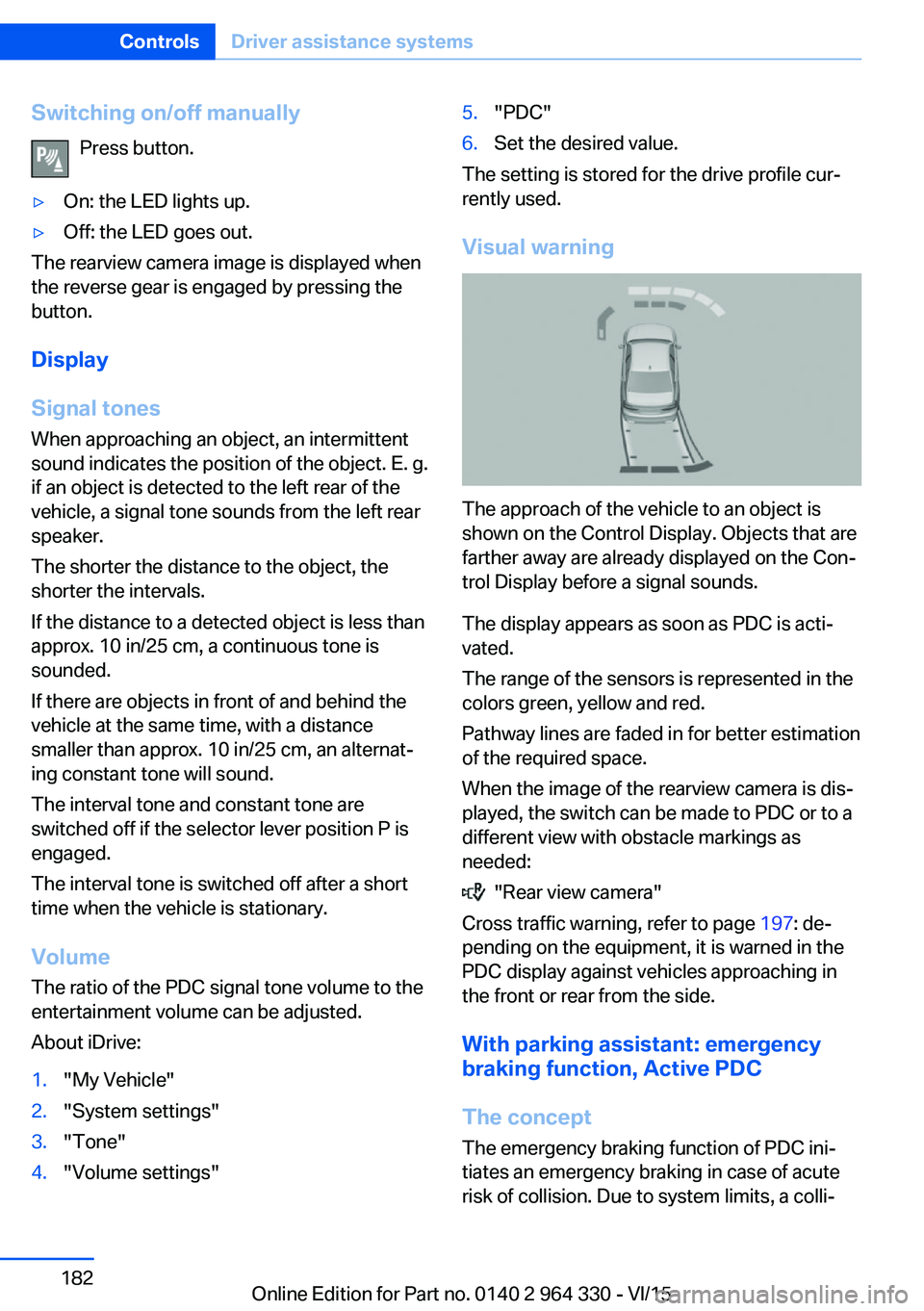
Visual warning
The approach of the vehicle to an object is
shown on the Control Display. Objects that are
farther away are already displayed on the Con‐
trol Display before a signal sounds.
The display appears as soon as PDC is acti‐
vated.
The range of the sensors is represented in the
colors green, yellow and red.
Pathway lines are faded in for better estimation
of the required space.
When the image of the rearview camera is dis‐
played, the switch can be made to PDC or to a
different view with obstacle markings as
needed:
"Rear view camera"
Cross traffic warning, refer to page 197: de‐
pending on the equipment, it is warned in the
PDC display against vehicles approaching in
the front or rear from the side.
With parking assistant: emergency
braking function, Active PDC
The concept The emergency braking function of PDC ini‐
tiates an emergency braking in case of acute
risk of collision. Due to system limits, a colli‐
Seite 182ControlsDriver assistance systems182
Online Edition for Part no. 0140 2 964 330 - VI/15
Page 183 of 314
sion cannot be prevented under all circum‐
stances.
The function is available from walking speed
while backing up or rolling backward.
A press of the gas pedal interrupts the braking
intervention.
After emergency braking to a stop, further
creeping toward an obstacle is possible. To
creep toward the obstacle, lightly press the ac‐
celerator pedal and release it again.
If the accelerator pedal is heavily depressed,
the vehicle drives off as usual. Manual braking
is possible at any time.
General information The system uses the ultrasound sensors of
PDC and parking assistant.
Information WARNING
The system does not relieve from the
personal responsibility to correctly assess the
traffic situation. There is risk of an accident.
Adjust the driving style to the traffic condi‐
tions. Watch traffic and vehicle surroundings
closely and actively interfere in the respective
situations.◀
Activating/deactivating the system About iDrive:1."My Vehicle"2."Vehicle settings"3."Parking"4."Active PDC emergency brake function"5."Active PDC emergency brake function"
The setting is stored for the drive profile cur‐
rently used.
With parking assistant: side
protection
The concept Obstacles on the side of the vehicle are de‐
tected by the sensors of the system. The sys‐
tem warns against these obstacles.
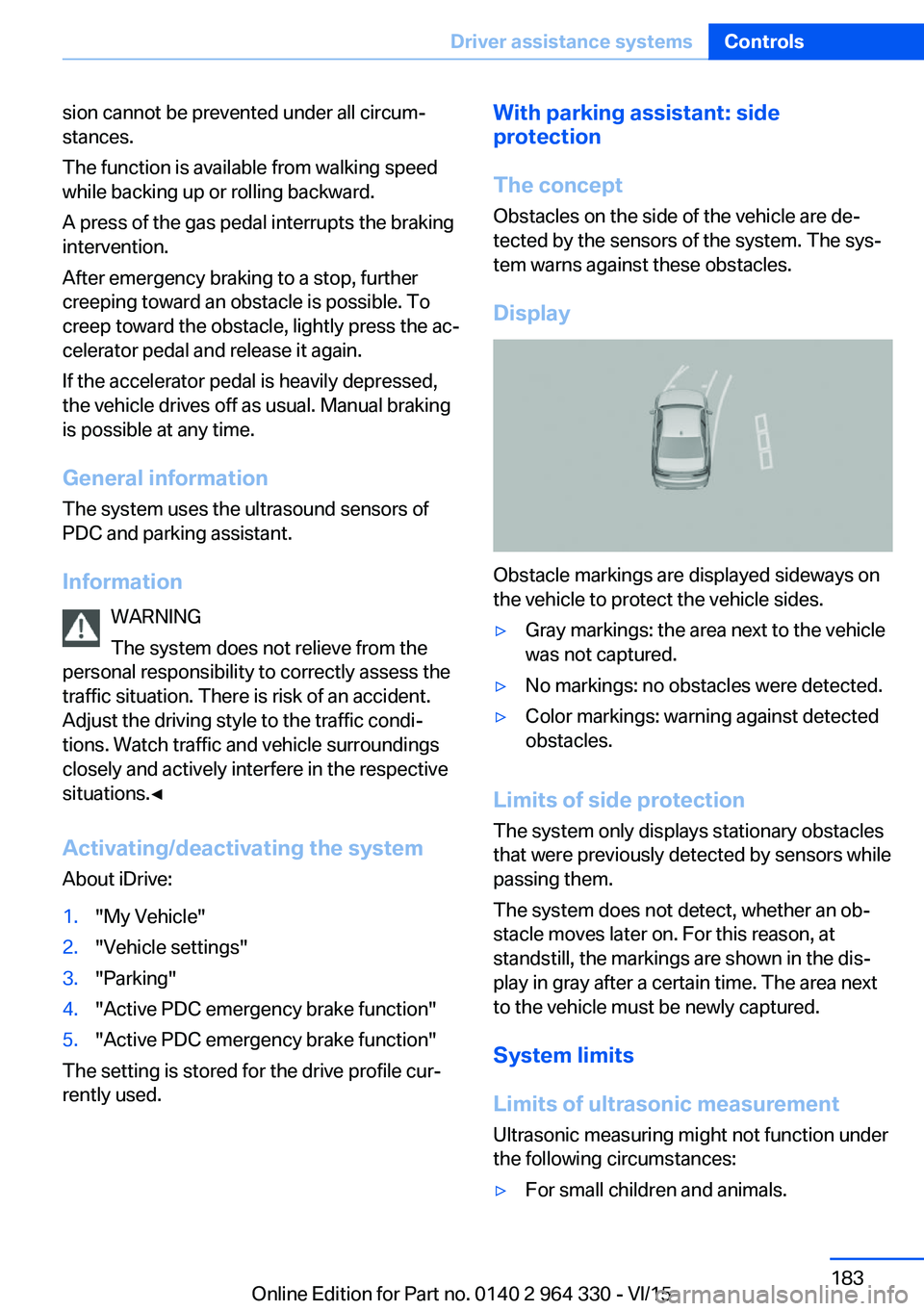
Display
Obstacle markings are displayed sideways on
the vehicle to protect the vehicle sides.
▷Gray markings: the area next to the vehicle
was not captured.▷No markings: no obstacles were detected.▷Color markings: warning against detected
obstacles.
Limits of side protection
The system only displays stationary obstacles
that were previously detected by sensors while passing them.
The system does not detect, whether an ob‐
stacle moves later on. For this reason, at standstill, the markings are shown in the dis‐
play in gray after a certain time. The area next
to the vehicle must be newly captured.
System limits
Limits of ultrasonic measurement Ultrasonic measuring might not function under
the following circumstances:
▷For small children and animals.Seite 183Driver assistance systemsControls183
Online Edition for Part no. 0140 2 964 330 - VI/15
Page 184 of 314
▷For persons with certain clothing, e.g.
coats.▷With external interference of the ultra‐
sound, e.g. from passing vehicles or loud
machines.▷When sensors are dirty, iced over, dam‐
aged or out of position.▷Under certain weather conditions such as
high relative humidity, rain, snowfall, ex‐
treme heat or strong wind.▷With tow bars and trailer couplings of other
vehicles.▷With thin or wedge-shaped objects.▷With moving objects.▷With elevated, protruding objects such as
ledges or cargo.▷With objects with corners and sharp edges.▷With objects with a fine surface structure
such as fences.▷For objects with porous surfaces.
Low objects already displayed, e.g., curbs, can
move into the blind area of the sensors before
or after a continuous tone sounds.
Cargo that extends beyond the perimeter of
the vehicle is not taken into account by the
system.
False warnings
PDC may issue a warning under the following
conditions even though there is no obstacle
within the detection range:
▷In heavy rain.▷When sensors are very dirty or covered
with ice.▷When sensors are covered in snow.▷On rough road surfaces.▷On uneven surfaces, such as speed
bumps.▷In large buildings with right angles and
smooth walls, e.g., in underground ga‐
rages.▷In automatic car washes.▷Through heavy pollution.▷Due to other ultrasound sources, e.g.,
sweeping machines, high pressure steam
cleaners or neon lights.
Malfunction
A Check Control message is displayed.
White symbol is displayed, and the
range of the sensors is dimmed on the
Control Display.
PDC has failed. Have the system checked.
Without Surround View:
rearview camera
The concept The rearview camera provides assistance in
parking and maneuvering backwards. The area
behind the vehicle is shown on the Control
Display.
Information WARNING
The system does not relieve from the
personal responsibility to correctly assess the
traffic situation. There is risk of an accident.
Adjust the driving style to the traffic condi‐
tions. Watch traffic and vehicle surroundings
closely and actively interfere in the respective
situations.◀
Seite 184ControlsDriver assistance systems184
Online Edition for Part no. 0140 2 964 330 - VI/15
Page 185 of 314
Overview
Button in the vehicle
Rearview camera
Camera
The camera lens is located in the handle of the
tailgate.
The image quality may be impaired by dirt.
Clean the camera lens, refer to page 294.
Switching on/off
Switching on automatically With the engine running, engage lever in posi‐
tion P R.
Automatic deactivation during forward travel
The system switches off when a certain driving
distance or speed is exceeded.
Switch the system back on if needed.
Switching on/off manually
Press button.▷On: the LED lights up.▷Off: the LED goes out.
The PDC is shown on the Control Display.
The rearview camera image is displayed when
the reverse gear is engaged by pressing the
button.
Switching the view via iDrive With PDC activated:
"Rear view camera"
The rearview camera image is displayed.
Display on the Control Display
Functional requirement
▷The rearview camera is switched on.▷The trunk lid is fully closed.
Assistance functions
Activate/deactivate assistance
functions
More than one assistance function can be ac‐
tive at the same time.
▷ "Parking aid lines"
Pathway lines and turning radius lines are
displayed, refer to page 186.▷ "Obstacle marking"
Spatially-shaped markings are displayed,
refer to page 186.Seite 185Driver assistance systemsControls185
Online Edition for Part no. 0140 2 964 330 - VI/15