scr BMW X5 3.0Si 2010 E70 Owner's Manual
[x] Cancel search | Manufacturer: BMW, Model Year: 2010, Model line: X5 3.0Si, Model: BMW X5 3.0Si 2010 E70Pages: 300, PDF Size: 12.41 MB
Page 7 of 300
5Reference
At a glance
Controls
Driving tips
Communications
Navigation
Entertainment
Mobility
The individual vehicle
When purchasing your BMW, you have decided
in favor of a model with individualized equip-
ment and features. This Owner's Manual
describes the entire array of options and equip-
ment available with a specific BMW model.
Please bear in mind that the manual may con-
tain information on accessories and equipment
that you have not specified for your own vehicle.
Sections describing options and special equip-
ment are marked by asterisks
* to assist you in
identifying possible differences between the
descriptions in this manual and your own vehi-
cle's equipment.
If equipment in your BMW is not described in
this Owner's Manual, please refer to the accom-
panying Supplementary Owner's Manuals.
Editorial notice
BMW pursues a policy of continuous, ongoing
development that is conceived to ensure that
our vehicles continue to embody the highest
quality and safety standards combined with
advanced, state-of-the-art technology. For this
reason, it is possible that the features described
in this Owner's Manual could differ from those
on your vehicle.
For your own safety
Maintenance and repairs
Advanced technology, e.g. the use of
modern materials and high-performance
electronics, requires specially adapted mainte-
nance and repair methods. Therefore, have cor-
responding work on your BMW performed only
by your BMW Sports Activity Vehicle Center or
a workshop that works according to BMW
repair procedures with correspondingly trained
personnel. If this work is not carried out prop-
erly, there is a danger of subsequent damage
and related safety hazards.<
Parts and accessories
For your own safety, use genuine parts
and accessories approved by BMW.
When you purchase accessories tested and
approved by BMW and Genuine BMW Parts,
you simultaneously acquire the assurance that
they have been thoroughly tested by BMW to
ensure optimum performance when installed
on your vehicle.
BMW warrants these parts to be free from
defects in material and workmanship.
BMW will not accept any liability for damage
resulting from installation of parts and accesso-
ries not approved by BMW.
BMW cannot test every product made by other
manufacturers to verify if it can be used on a
BMW safely and without risk to either the vehi-
cle, its operation or its occupants.
Genuine BMW Parts, BMW Accessories and
other products approved by BMW, together
with professional advice on using these items,
are available from all BMW Sports Activity Vehi-
cle Centers.
Installation and operation of non-BMW
approved accessories such as alarms, radios,
amplifiers, radar detectors, wheels, suspension
components, brake dust shields, telephones,
including operation of any mobile phone from
within the vehicle without using an externally
mounted antenna, or transceiver equipment
such as CBs, walkie-talkies, ham radios, or sim-
ilar accessories may cause extensive damage
to the vehicle, compromise its safety, interfere
with the vehicle's electrical system or affect the
validity of the BMW Limited Warranty. Refer to
your BMW Sports Activity Vehicle Center for
additional information.<
Maintenance, replacement, or repair of
the emission control devices and sys-
tems may be performed by any automotive
repair establishment or individual using any cer-
tified automotive part.<
ba8_e70ag.book Seite 5 Freitag, 5. Juni 2009 11:42 11
Page 13 of 300
At a glance
11Reference
Controls
Driving tips
Communications
Navigation
Entertainment
Mobility
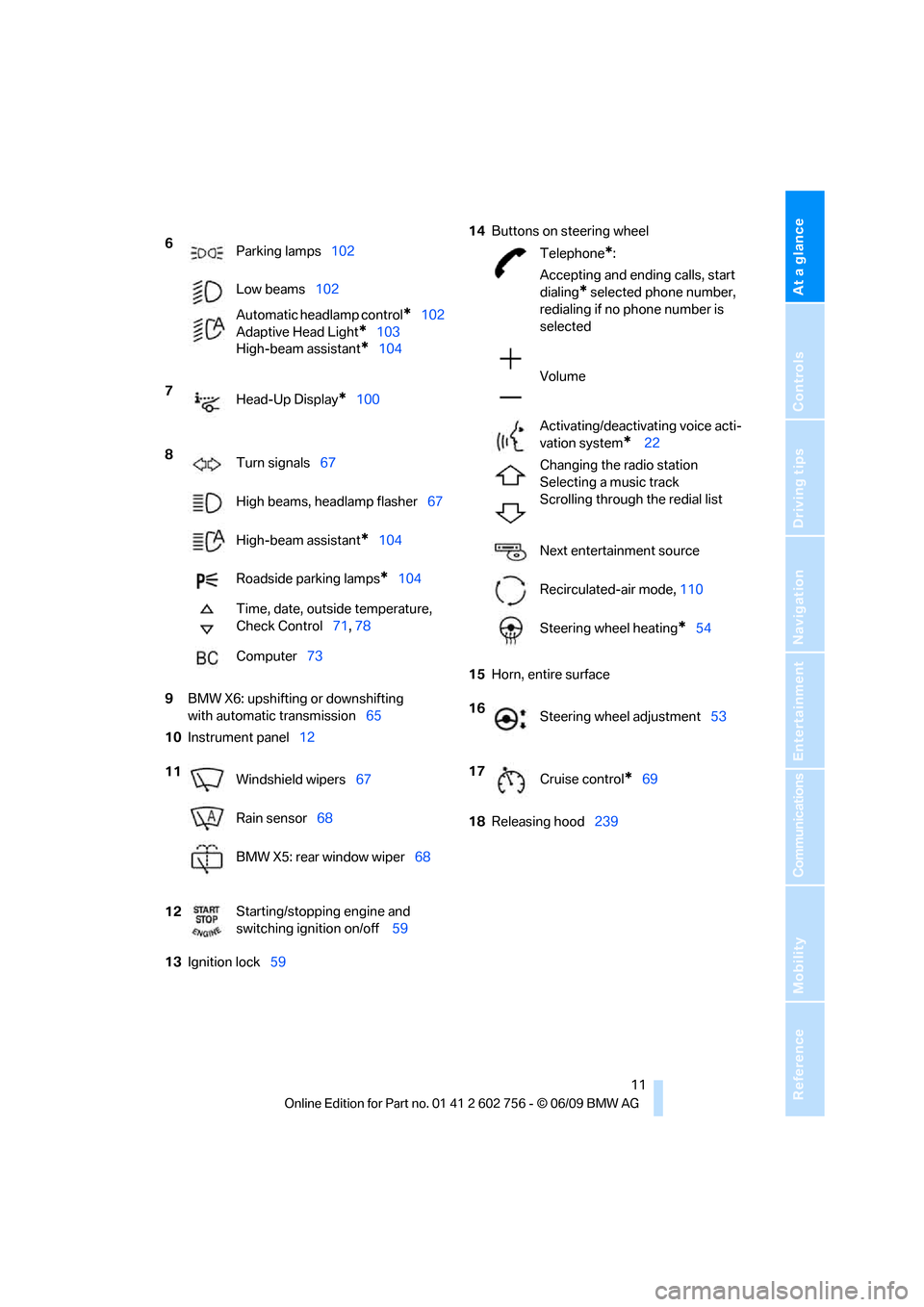
9BMW X6: upshifting or downshifting
with automatic transmission65
10Instrument panel12
13Ignition lock5914Buttons on steering wheel
15Horn, entire surface
18Releasing hood239 6
Parking lamps102
Low beams102
Automatic headlamp control
*102
Adaptive Head Light
*103
High-beam assistant
*104
7
Head-Up Display
*100
8
Turn signals67
High beams, headlamp flasher67
High-beam assistant
*104
Roadside parking lamps
*104
Time, date, outside temperature,
Check Control71, 78
Computer73
11
Windshield wipers67
Rain sensor68
BMW X5: rear window wiper68
12Starting/stopping engine and
switching ignition on/off 59
Telephone*:
Accepting and ending calls, start
dialing
* selected phone number,
redialing if no phone number is
selected
Volume
Activating/deactivating voice acti-
vation system
* 22
Changing the radio station
Selecting a music track
Scrolling through the redial list
Next entertainment source
Recirculated-air mode, 110
Steering wheel heating
*54
16
Steering wheel adjustment53
17
Cruise control
*69
ba8_e70ag.book Seite 11 Freitag, 5. Juni 2009 11:42 11
Page 18 of 300
iDrive
16
iDrive
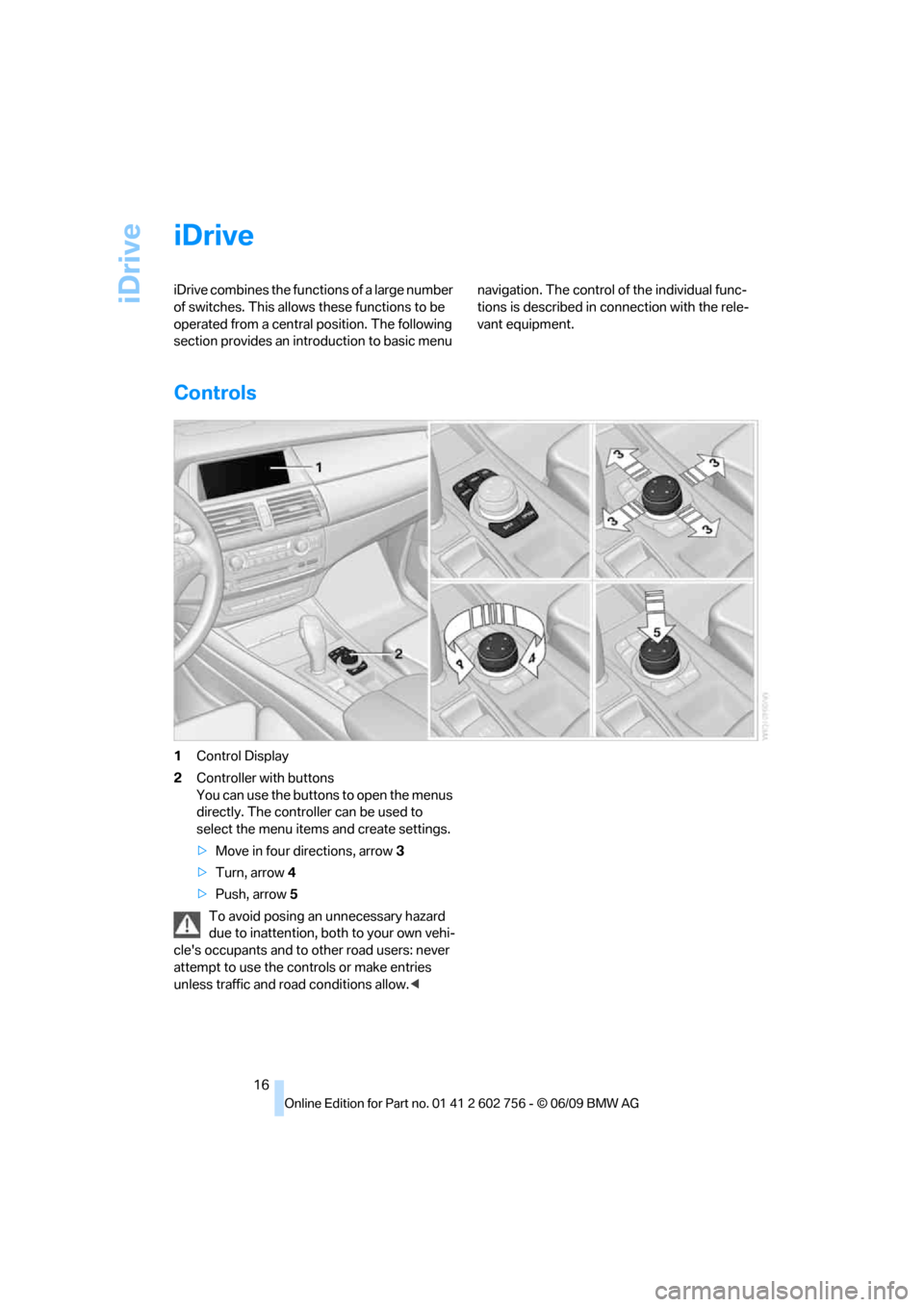
iDrive combines the functions of a large number
of switches. This allows these functions to be
operated from a central position. The following
section provides an introduction to basic menu navigation. The control of the individual func-
tions is described in connection with the rele-
vant equipment.
Controls
1Control Display
2Controller with buttons
You can use the buttons to open the menus
directly. The controller can be used to
select the menu items and create settings.
>Move in four directions, arrow 3
>Turn, arrow 4
>Push, arrow 5
To avoid posing an unnecessary hazard
due to inattention, both to your own vehi-
cle's occupants and to other road users: never
attempt to use the controls or make entries
unless traffic and road conditions allow.<
ba8_e70ag.book Seite 16 Freitag, 5. Juni 2009 11:42 11
Page 20 of 300
iDrive
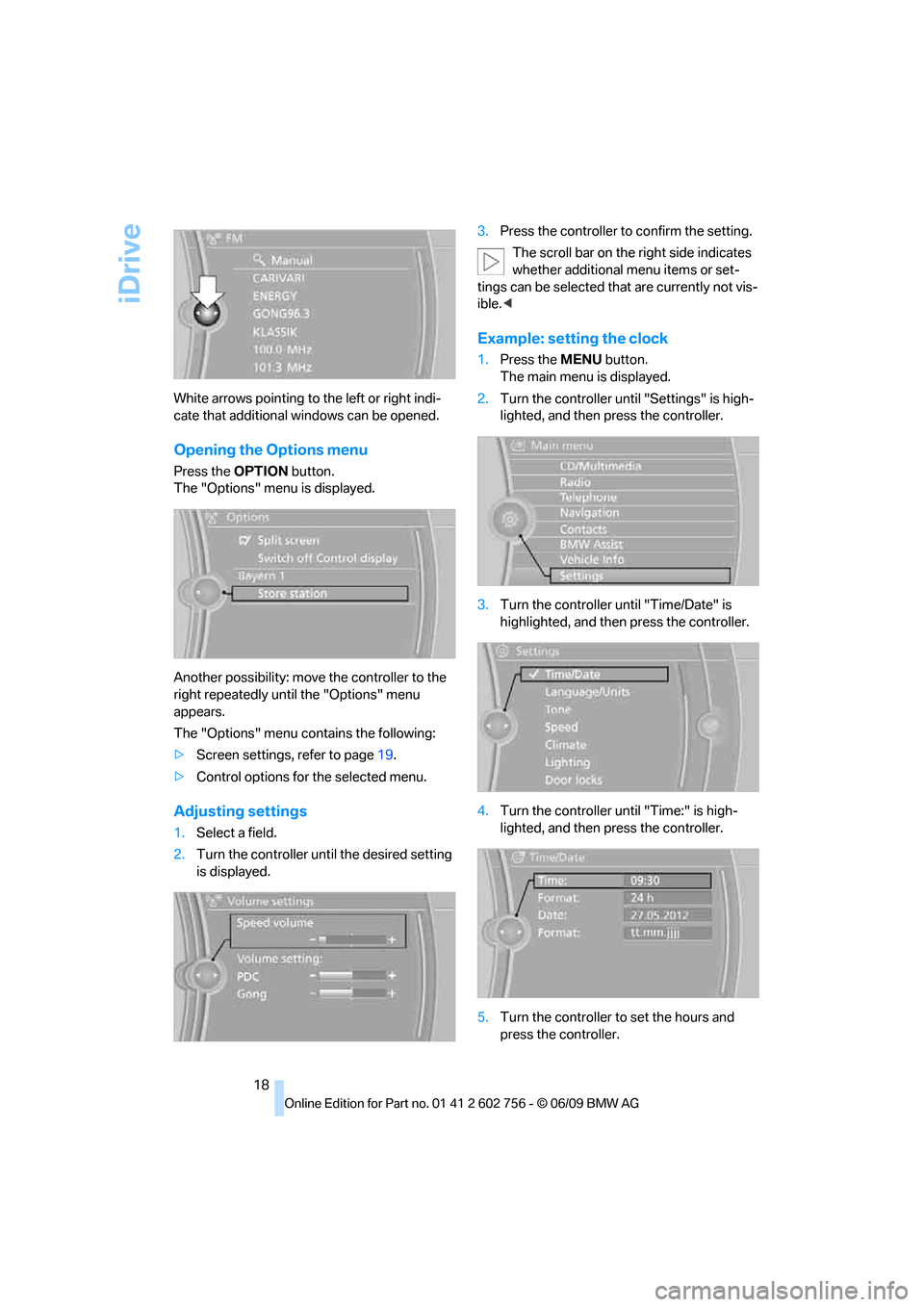
18 White arrows pointing to the left or right indi-
cate that additional windows can be opened.
Opening the Options menu
Press the OPTIONbutton.
The "Options" menu is displayed.
Another possibility: move the controller to the
right repeatedly until the "Options" menu
appears.
The "Options" menu contains the following:
>Screen settings, refer to page19.
>Control options for the selected menu.
Adjusting settings
1.Select a field.
2.Turn the controller until the desired setting
is displayed.3.Press the controller to confirm the setting.
The scroll bar on the right side indicates
whether additional menu items or set-
tings can be selected that are currently not vis-
ible.<
Example: setting the clock
1.Press the MENUbutton.
The main menu is displayed.
2.Turn the controller until "Settings" is high-
lighted, and then press the controller.
3.Turn the controller until "Time/Date" is
highlighted, and then press the controller.
4.Turn the controller until "Time:" is high-
lighted, and then press the controller.
5.Turn the controller to set the hours and
press the controller.
ba8_e70ag.book Seite 18 Freitag, 5. Juni 2009 11:42 11
Page 21 of 300
At a glance
19Reference
Controls
Driving tips
Communications
Navigation
Entertainment
Mobility
6.Turn the controller to set the minutes and
press the controller.
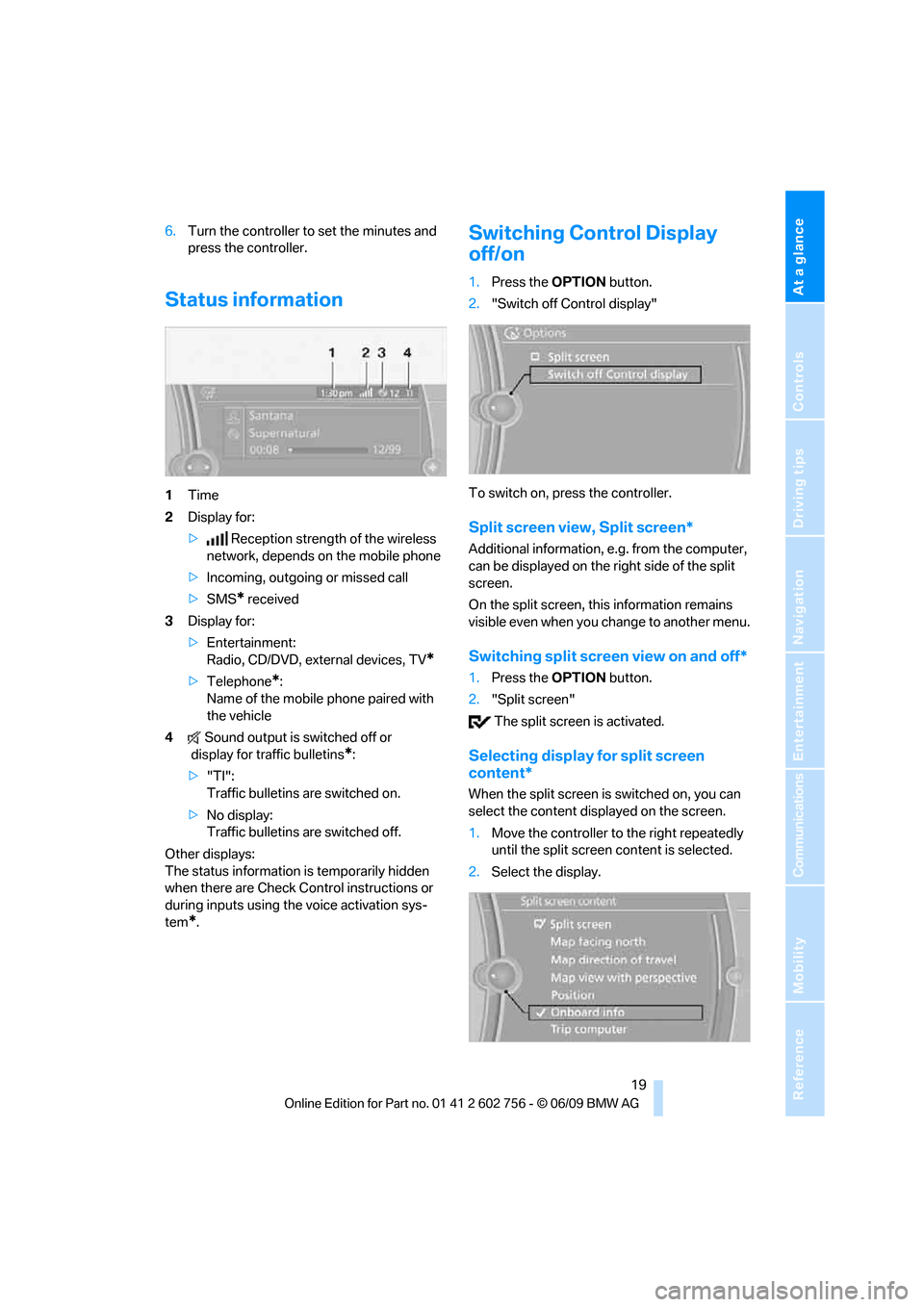
Status information
1Time
2Display for:
>Reception strength of the wireless
network, depends on the mobile phone
>Incoming, outgoing or missed call
>SMS
* received
3Display for:
>Entertainment:
Radio, CD/DVD, external devices, TV
*
>Telephone*:
Name of the mobile phone paired with
the vehicle
4Sound output is switched off or
display for traffic bulletins
*:
>"TI":
Traffic bulletins are switched on.
>No display:
Traffic bulletins are switched off.
Other displays:
The status information is temporarily hidden
when there are Check Control instructions or
during inputs using the voice activation sys-
tem
*.
Switching Control Display
off/on
1.Press the OPTIONbutton.
2."Switch off Control display"
To switch on, press the controller.
Split screen view, Split screen*
Additional information, e.g. from the computer,
can be displayed on the right side of the split
screen.
On the split screen, this information remains
visible even when you change to another menu.
Switching split screen view on and off*
1.Press the OPTIONbutton.
2."Split screen"
The split screen is activated.
Selecting display for split screen
content*
When the split screen is switched on, you can
select the content displayed on the screen.
1.Move the controller to the right repeatedly
until the split screen content is selected.
2.Select the display.
ba8_e70ag.book Seite 19 Freitag, 5. Juni 2009 11:42 11
Page 22 of 300
iDrive
20
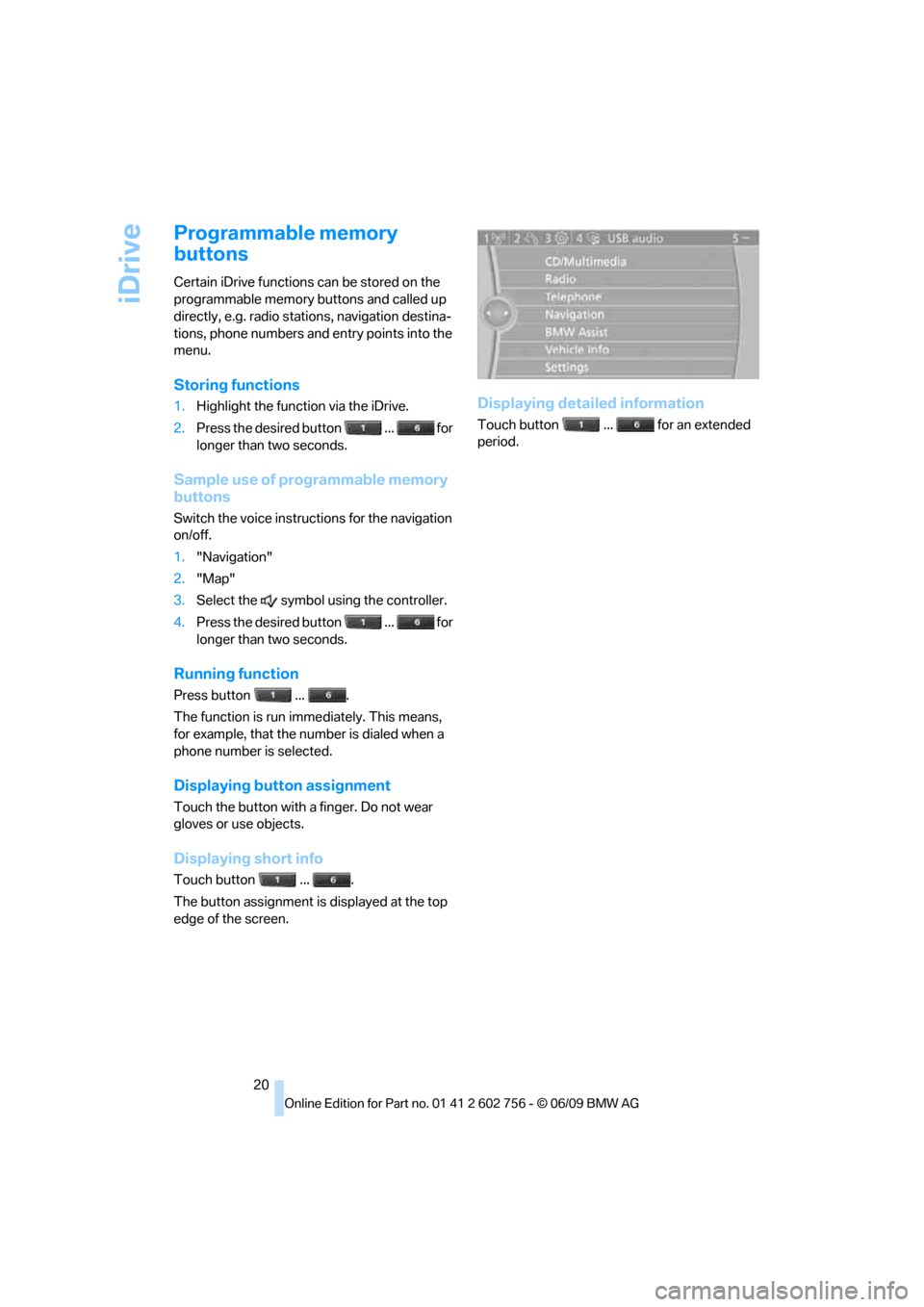
Programmable memory
buttons
Certain iDrive functions can be stored on the
programmable memory buttons and called up
directly, e.g. radio stations, navigation destina-
tions, phone numbers and entry points into the
menu.
Storing functions
1.Highlight the function via the iDrive.
2.Press the desired button ... for
longer than two seconds.
Sample use of programmable memory
buttons
Switch the voice instructions for the navigation
on/off.
1."Navigation"
2."Map"
3.Select the symbol using the controller.
4.Press the desired button ... for
longer than two seconds.
Running function
Press button ... .
The function is run immediately. This means,
for example, that the number is dialed when a
phone number is selected.
Displaying button assignment
Touch the button with a finger. Do not wear
gloves or use objects.
Displaying short info
Touch button ... .
The button assignment is displayed at the top
edge of the screen.
Displaying detailed information
Touch button ... for an extended
period.
ba8_e70ag.book Seite 20 Freitag, 5. Juni 2009 11:42 11
Page 27 of 300
Controls
This chapter is intended to provide you with
information for complete control of your vehicle.
Its extensive array of features and accessories,
both for driving and for your own safety,
comfort and convenience, are described here.
Controls
ba8_e70ag.book Seite 25 Freitag, 5. Juni 2009 11:42 11
Page 33 of 300
Controls
31Reference
At a glance
Driving tips
Communications
Navigation
Entertainment
Mobility
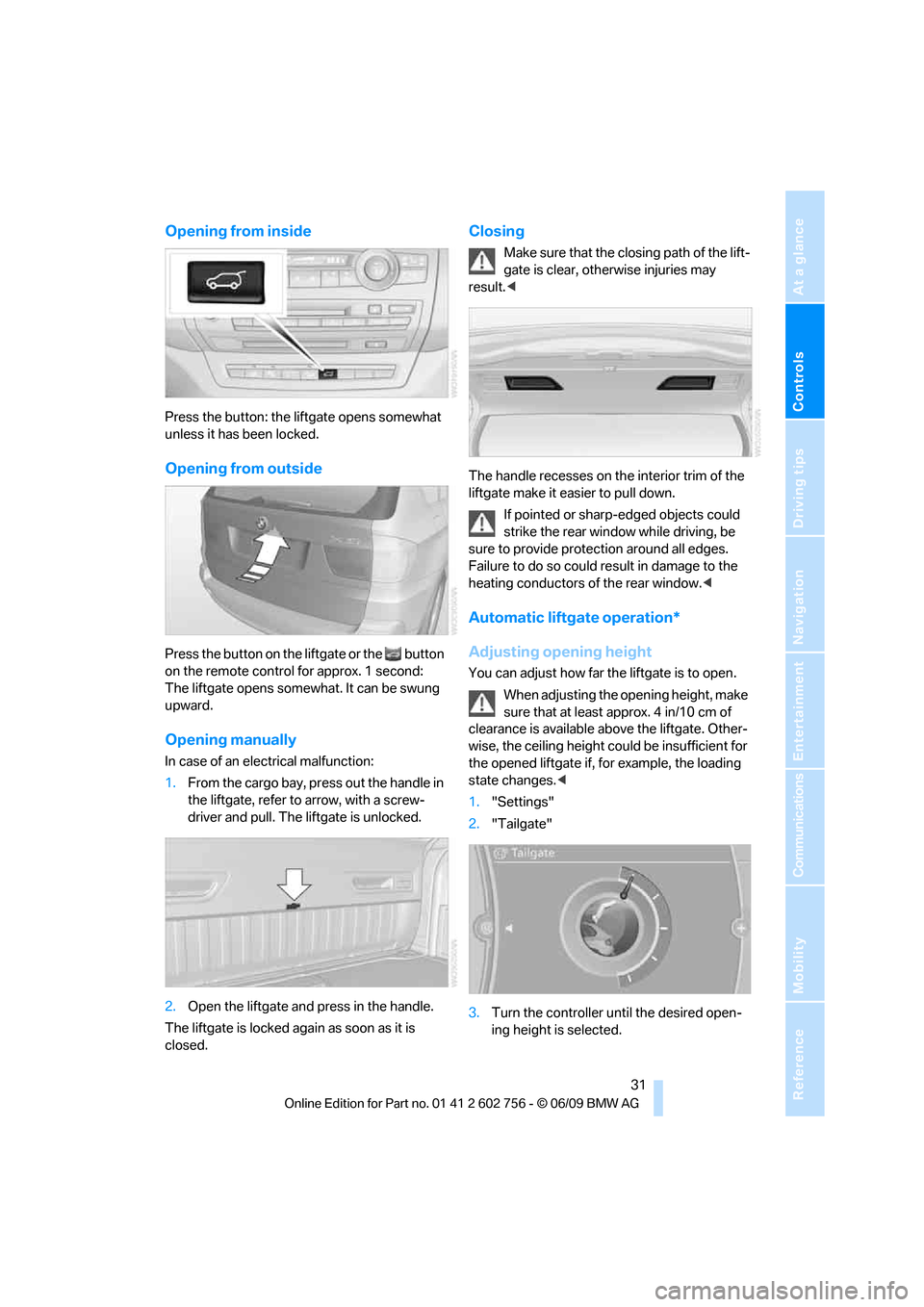
Opening from inside
Press the button: the liftgate opens somewhat
unless it has been locked.
Opening from outside
Press the button on the liftgate or the button
on the remote control for approx. 1 second:
The liftgate opens somewhat. It can be swung
upward.
Opening manually
In case of an electrical malfunction:
1.From the cargo bay, press out the handle in
the liftgate, refer to arrow, with a screw-
driver and pull. The liftgate is unlocked.
2.Open the liftgate and press in the handle.
The liftgate is locked again as soon as it is
closed.
Closing
Make sure that the closing path of the lift-
gate is clear, otherwise injuries may
result.<
The handle recesses on the interior trim of the
liftgate make it easier to pull down.
If pointed or sharp-edged objects could
strike the rear window while driving, be
sure to provide protection around all edges.
Failure to do so could result in damage to the
heating conductors of the rear window.<
Automatic liftgate operation*
Adjusting opening height
You can adjust how far the liftgate is to open.
When adjusting the opening height, make
sure that at least approx. 4 in/10 cm of
clearance is available above the liftgate. Other-
wise, the ceiling height could be insufficient for
the opened liftgate if, for example, the loading
state changes.<
1."Settings"
2."Tailgate"
3.Turn the controller until the desired open-
ing height is selected.
ba8_e70ag.book Seite 31 Freitag, 5. Juni 2009 11:42 11
Page 36 of 300
Opening and closing
34
Closing liftgate
Make sure that the closing path of the lift-
gate is clear, otherwise injuries may
result.<
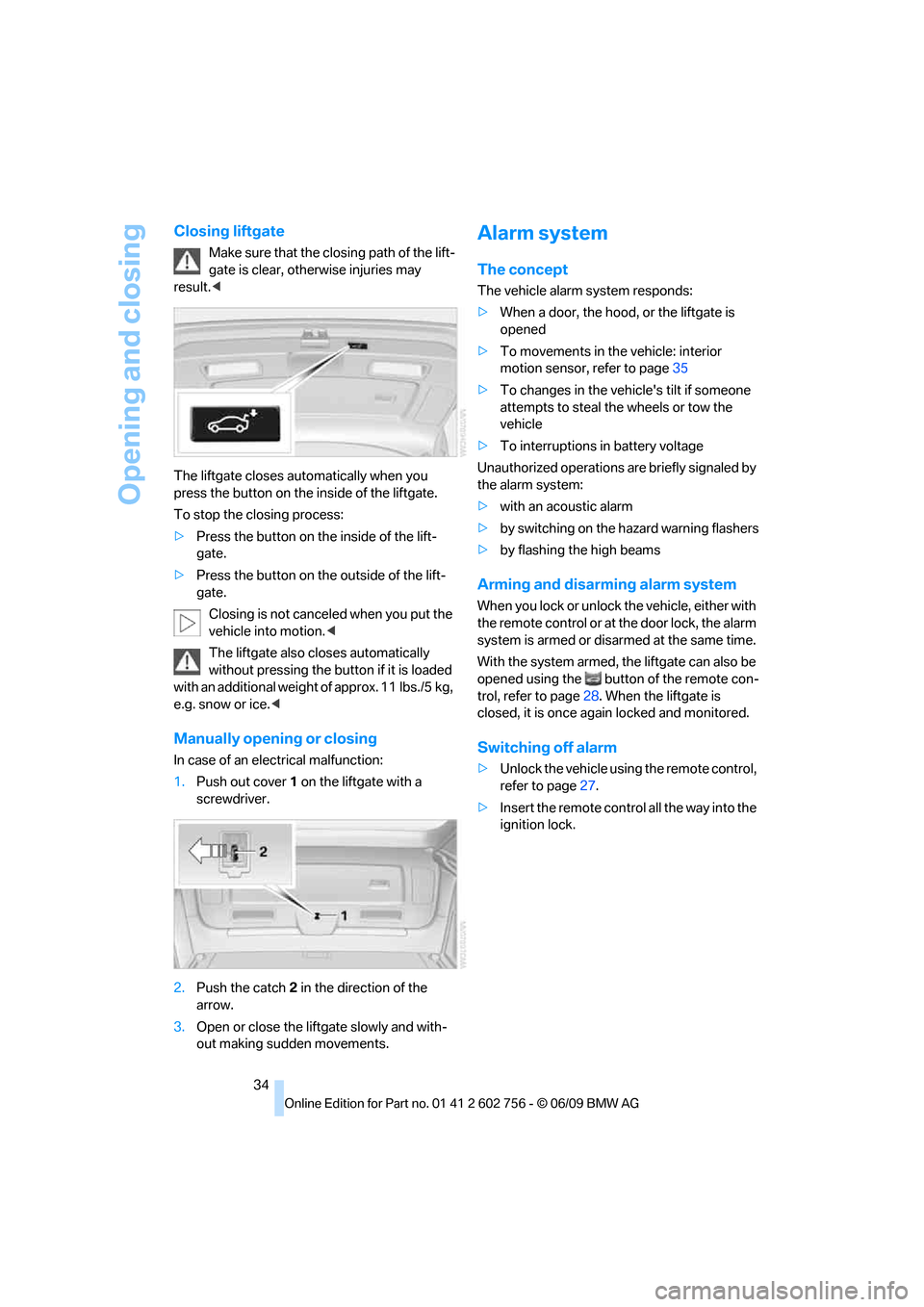
The liftgate closes automatically when you
press the button on the inside of the liftgate.
To stop the closing process:
>Press the button on the inside of the lift-
gate.
>Press the button on the outside of the lift-
gate.
Closing is not canceled when you put the
vehicle into motion.<
The liftgate also closes automatically
without pressing the button if it is loaded
with an additional weight of approx. 11 lbs./5 kg,
e.g. snow or ice.<
Manually opening or closing
In case of an electrical malfunction:
1.Push out cover 1 on the liftgate with a
screwdriver.
2.Push the catch 2 in the direction of the
arrow.
3.Open or close the liftgate slowly and with-
out making sudden movements.
Alarm system
The concept
The vehicle alarm system responds:
>When a door, the hood, or the liftgate is
opened
>To movements in the vehicle: interior
motion sensor, refer to page35
>To changes in the vehicle's tilt if someone
attempts to steal the wheels or tow the
vehicle
>To interruptions in battery voltage
Unauthorized operations are briefly signaled by
the alarm system:
>with an acoustic alarm
>by switching on
the hazard warning flashers
>by flashing the high beams
Arming and disarming alarm system
When you lock or unlock the vehicle, either with
the remote control or at the door lock, the alarm
system is armed or disarmed at the same time.
With the system armed, the liftgate can also be
opened using the button of the remote con-
trol, refer to page28. When the liftgate is
closed, it is once again locked and monitored.
Switching off alarm
>Unlock the vehicle using the remote control,
refer to page27.
>Insert the remote control all the way into the
ignition lock.
ba8_e70ag.book Seite 34 Freitag, 5. Juni 2009 11:42 11
Page 38 of 300
Opening and closing
36 >The engine can only be started if the vehicle
detects that the remote control is located in
the vehicle.
Comparison with ordinary remote
control
You can control the functions mentioned previ-
ously with the comfort access or by pressing
the buttons on the remote control. Therefore,
please familiarize yourself with the information
on opening and closing beginning on page26
beforehand.
The special features when using comfort
access are described in the following.
Should a short delay occur when opening
or closing the windows or the glass sun-
roof
*/panorama glass sunroof*, the system
checks whether a remote control is located in
the vehicle. Please repeat opening or closing if
necessary.<
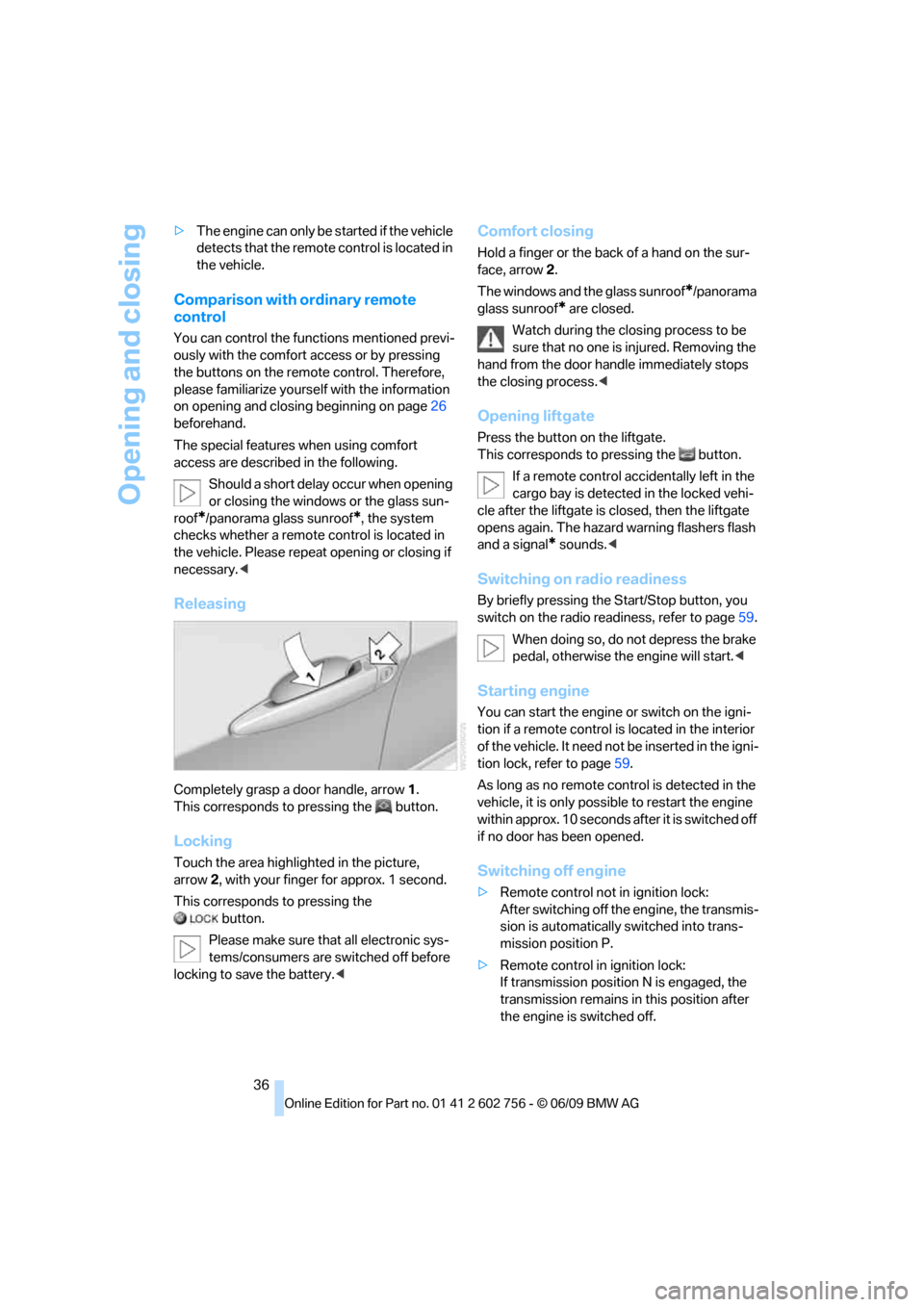
Releasing
Completely grasp a door handle, arrow1.
This corresponds to pressing the button.
Locking
Touch the area highlighted in the picture,
arrow2, with your finger for approx. 1 second.
This corresponds to pressing the
button.
Please make sure that all electronic sys-
tems/consumers are switched off before
locking to save the battery.<
Comfort closing
Hold a finger or the back of a hand on the sur-
face, arrow2.
The windows and the glass sunroof
*/panorama
glass sunroof
* are closed.
Watch during the closing process to be
sure that no one is injured. Removing the
hand from the door handle immediately stops
the closing process.<
Opening liftgate
Press the button on the liftgate.
This corresponds to pressing the button.
If a remote control accidentally left in the
cargo bay is detected in the locked vehi-
cle after the liftgate is closed, then the liftgate
opens again. The hazard warning flashers flash
and a signal
* sounds.<
Switching on radio readiness
By briefly pressing the Start/Stop button, you
switch on the radio readiness, refer to page59.
When doing so, do not depress the brake
pedal, otherwise the engine will start.<
Starting engine
You can start the engine or switch on the igni-
tion if a remote control is located in the interior
of the vehicle. It need not be inserted in the igni-
tion lock, refer to page59.
As long as no remote control is detected in the
vehicle, it is only possible to restart the engine
within approx. 10 seconds after it is switched off
if no door has been opened.
Switching off engine
>Remote control not in ignition lock:
After switching off the engine, the transmis-
sion is automatically switched into trans-
mission position P.
>Remote control in ignition lock:
If transmission position N is engaged, the
transmission remains in this position after
the engine is switched off.
ba8_e70ag.book Seite 36 Freitag, 5. Juni 2009 11:42 11