service BMW X5M 2012 Owner's Manual
[x] Cancel search | Manufacturer: BMW, Model Year: 2012, Model line: X5M, Model: BMW X5M 2012Pages: 317, PDF Size: 8.83 MB
Page 127 of 317
Interior equipment
Integrated universal remote
control*
The concept
This system can replace up to three different
hand-held transmitters for various types of re‐
mote-controlled equipment, such as garage
doors or lighting systems.
The hand-held transmitter signal can be pro‐
grammed on one of the three memory buttons.
The
corresponding device can then be operated
using the programmed memory button.
The LED indicates that a signal is being trans‐
mitted.
When selling the vehicle, delete the stored pro‐
grams for security reasons.
During programming
During programming and before activat‐
ing a device using the integrated universal re‐
mote control, ensure that there are no people,
animals or objects in the range of movement of
the remote-controlled device; otherwise, there
is a risk of injury or damage.
Also follow the safety instructions of the hand-
held transmitter.◀
Compatibility
If this symbol is printed on the packaging
or in the instructions of the hand-held
transmitter, the remote-controlled de‐
vice is generally compatible with the universal
remote control.
If you have any questions, please contact:
▷ Your service center.
▷ www.homelink.com on the Internet. Programming
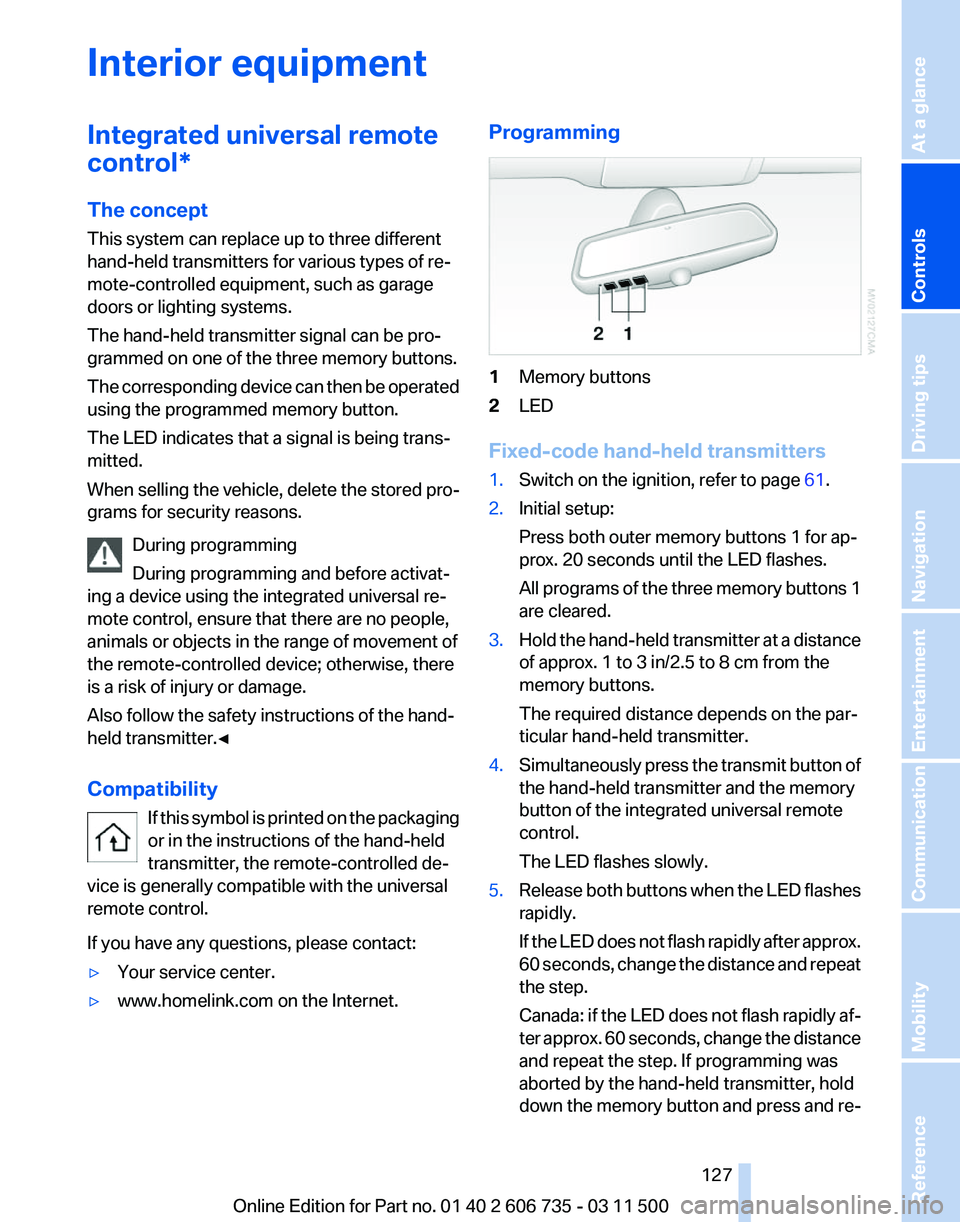
1
Memory buttons
2 LED
Fixed-code hand-held transmitters
1. Switch on the ignition, refer to page 61.
2. Initial setup:
Press both outer memory buttons 1 for ap‐
prox. 20 seconds until the LED flashes.
All
programs of the three memory buttons 1
are cleared.
3. Hold the hand-held transmitter at a distance
of approx. 1 to 3 in/2.5 to 8 cm from the
memory buttons.
The required distance depends on the par‐
ticular hand-held transmitter.
4. Simultaneously press the transmit button of
the hand-held transmitter and the memory
button of the integrated universal remote
control.
The LED flashes slowly.
5. Release both buttons when the LED flashes
rapidly.
If
the LED does not flash rapidly after approx.
60 seconds, change the distance and repeat
the step.
Canada: if the LED does not flash rapidly af‐
ter approx. 60 seconds, change the distance
and repeat the step. If programming was
aborted by the hand-held transmitter, hold
down the memory button and press and re‐
Seite 127
127Online Edition for Part no. 01 40 2 606 735 - 03 11 500
Reference Mobility Communication Entertainment Navigation Driving tips
Controls At a glance
Page 139 of 317
Securing cargo
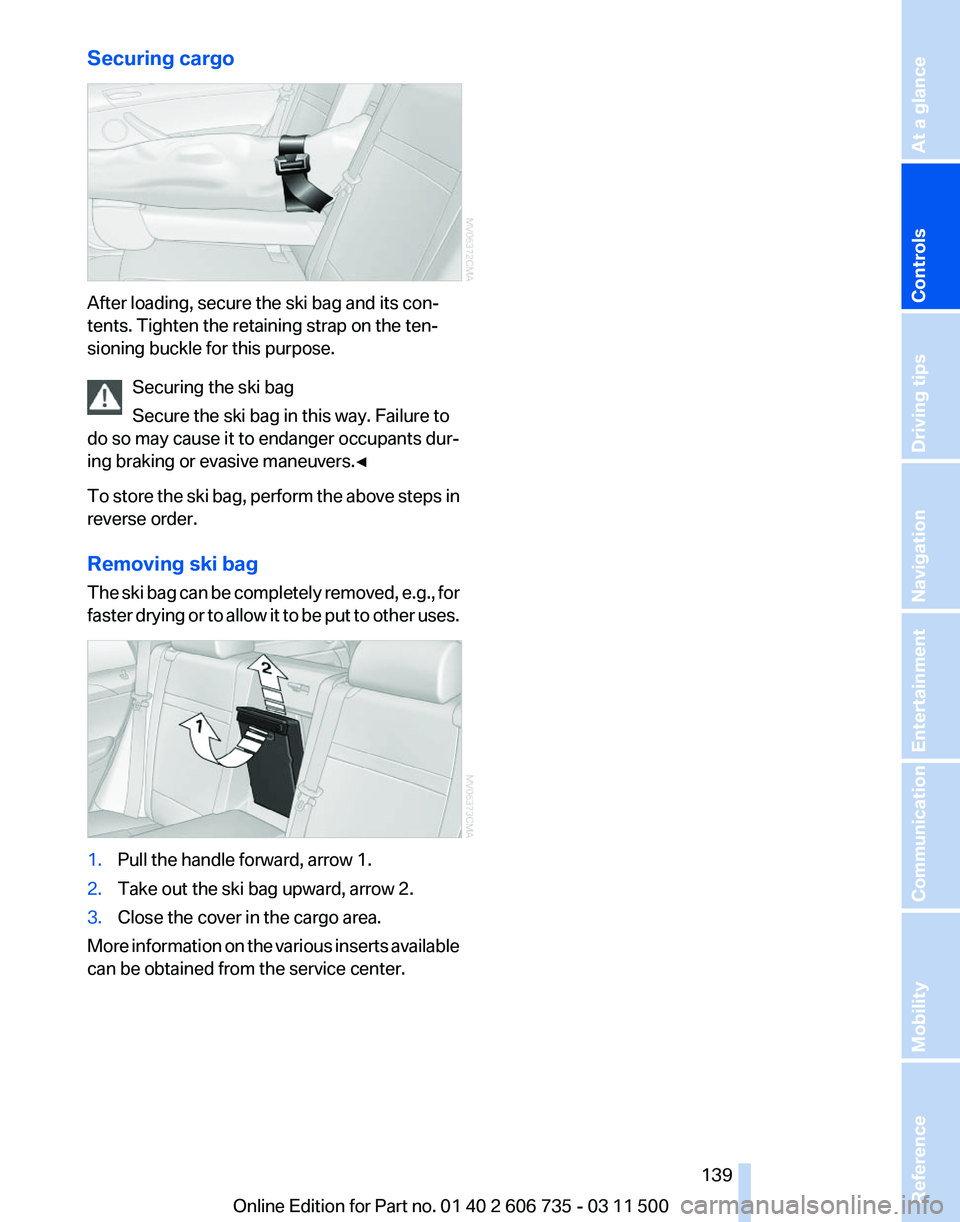
After loading, secure the ski bag and its con‐
tents. Tighten the retaining strap on the ten‐
sioning buckle for this purpose.
Securing the ski bag
Secure the ski bag in this way. Failure to
do so may cause it to endanger occupants dur‐
ing braking or evasive maneuvers.◀
To
store the ski bag, perform the above steps in
reverse order.
Removing ski bag
The ski bag can be completely removed, e.g., for
faster drying or to allow it to be put to other uses. 1.
Pull the handle forward, arrow 1.
2. Take out the ski bag upward, arrow 2.
3. Close the cover in the cargo area.
More information on the various inserts available
can be obtained from the service center. Seite 139
139Online Edition for Part no. 01 40 2 606 735 - 03 11 500
Reference Mobility Communication Entertainment Navigation Driving tips
Controls At a glance
Page 148 of 317
▷
After driving through water, press on the
brake pedal several times at low speeds to
dry the brakes.
▷ Depending on the prevailing terrain, activate
Dynamic Traction Control DTC, refer to
page 97, briefly.
▷ When the wheels spin, accelerate to enable
the driving stability control systems to dis‐
tribute the drive force to the individual
wheels.
▷ BMW X5 with M Sport Package*: if the ve‐
hicle is primarily used on poor roads or un‐
paved surfaces, it may be advantageous,
depending on the driving style, to use the
stone
chip guard offered by the service cen‐
ter. This reduces the risk of damage to
painted vehicle components, such as in the
area of the side skirts and wheel arches.
Your service center will be glad to advise
you.
After driving on poor roads
Adhere
to the following points to ensure vehicle
safety:
▷ Remove excessive accumulations of dirt
and mud from the vehicle body.
▷ Clear mud, snow, ice, etc., from the wheels
and tires and check for damage.
Saving fuel
General information
Your vehicle contains advanced technology for
the reduction of fuel consumption and emis‐
sions.
Fuel consumption depends on a number of dif‐
ferent factors.
The implementation of certain measures, driv‐
ing style and regular maintenance, refer to
page 268, can have an influence on fuel con‐
sumption and on the environmental impact.
Remove unnecessary cargo
Additional weight increases fuel consumption. Remove attached parts following use
Remove
unneeded auxiliary mirrors, roof or rear
luggage racks after use.
Attached parts on the vehicle impair the aero‐
dynamics and increase the fuel consumption.
Closing the windows and glass
sunroof*/panoramic glass sunroof*
Driving with the glass sunroof/panoramic glass
sunroof and windows open results in increased
air resistance and raises fuel consumption.
Check the tire inflation pressure
regularly
Check and, if necessary, correct the tire inflation
pressure, refer to page 252, at least twice a
month and before starting on a long trip.
Low tire inflation pressure increases rolling re‐
sistance and thus raises fuel consumption and
tire wear.
Drive away without delay
Do not wait for the engine to warm up while the
vehicle remains stationary. Start driving right
away, but at moderate engine speeds.
This is the fastest way for the cold engine to
reach its operating temperature.
Look well ahead when driving
Avoid unnecessary acceleration and braking.
By maintaining a suitable distance to the vehicle
driving ahead of you.
Driving smoothly and looking ahead reduces
fuel consumption.
Avoid high engine speeds
Driving at a low engine speed reduces fuel con‐
sumption and minimizes wear.
Use coasting conditions
When approaching a red light, take your foot off
the accelerator and let the vehicle coast to a halt.
On a downhill gradient, take your foot off the ac‐
celerator and let the vehicle roll.
The flow of fuel is interrupted while coasting.
Seite 148
148 Online Edition for Part no. 01 40 2 606 735 - 03 11 500
Things to remember when driving
Page 152 of 317
Navigation system*
General information
The navigation system can determine the pre‐
cise position of the vehicle, with the aid of sat‐
ellites and vehicle sensors, and can reliably
guide you to every entered destination.
Entries in stationary vehicle
Enter data only when the vehicle is sta‐
tionary,
and always give priority to the applicable
traffic regulations in the event of any contradic‐
tion between traffic and road conditions and the
instructions issued by the navigation system.
Failure to take to this precaution can place you
in violation of the law and put vehicle occupants
and other road users in danger.◀
Navigation data
Information on navigation data
1. "Navigation"
2. Open "Options".
3. "Navigation system version"
Information
is displayed on the data version.
Updating the navigation data
General information
Navigation
data are stored in the vehicle and can
be updated.
Navigation data and authorization codes are
available from your service center.
▷ Depending on the data volume, a data up‐
date may take several hours.
▷ Update during the trip to preserve battery.
▷ During the update, only the basic functions
of the navigation system are available.
▷ The status of the update can be viewed.
▷ The system restarts after the update.
▷ The data carrier with the navigation data can
be removed after the update is complete. Performing an update
1.
Insert the navigation DVD into the DVD
player with the labeled side facing up.
2. Follow the instructions on the Control Dis‐
play.
3. Enter the authorization code of the naviga‐
tion DVD and change the DVD if needed.
If the trip is interrupted, follow the instructions
on the Control Display and restart the update if
necessary.
Viewing the status
1. Open "Options".
2. "Navigation update"
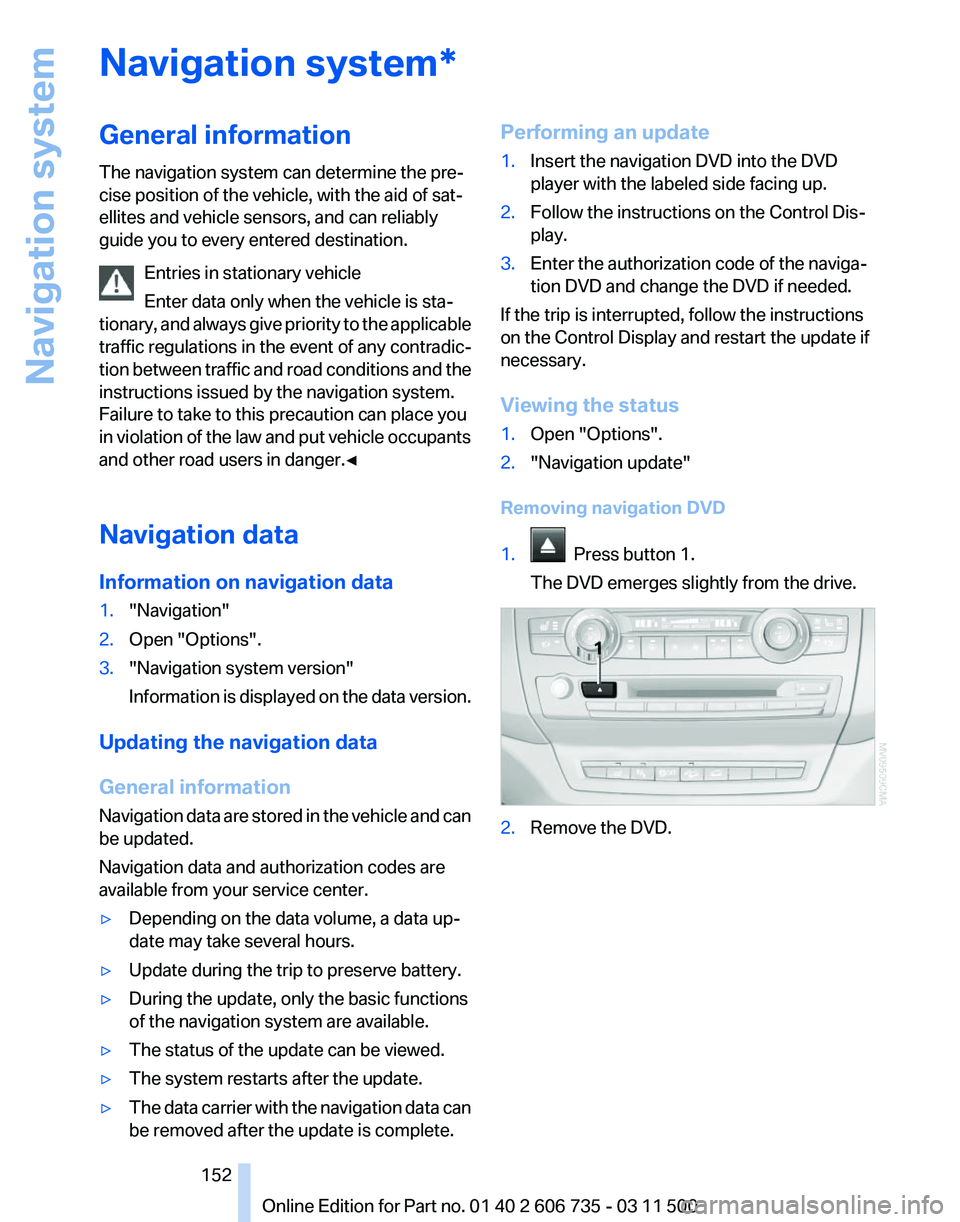
Removing navigation DVD
1. Press button 1.
The DVD emerges slightly from the drive. 2.
Remove the DVD.
Seite 152
152 Online Edition for Part no. 01 40 2 606 735 - 03 11 500
Navigation system
Page 157 of 317
"Start search": if a search term is not entered,
the
search is repeated with the previous search
term.
Category search
1. "Category search"
2. "Town/City"
3. Select or enter the town/city.
4. "Category"
5. Select the category.
6. "Category details"
For
some special destinations, multiple cat‐
egory details can be selected. Move the
controller to the left to leave the category
details.
7. "Start search"
A
list of the special destinations is displayed.
8. Select a special destination.
Details are displayed.
If multiple details are stored, you can leaf
through the pages.
If
a phone number is available, a connection
can be established if necessary.
9. Select the symbol.
10. "Start guidance" or "Add as another
destination"
Add a destination as a further destination,
refer to page 159.
Display of special destinations
List
of special destinations: special destinations
are arranged by distance and appear with a di‐
rectional arrow pointing to the special destina‐
tion.
On the split screen, special destinations of the
selected category are displayed in the map view
as symbols. The display depends on the scale
of the map and the category.
Destination entry via BMW Assist*
A connection is established to the Concierge
service, refer to page 238. 1.
"Navigation"
2. "Enter address"
3. Open "Options".
4. "BMW Assist dest. entry"
Displaying special destinations in the
map
To display symbols of the special destinations
in the map view:
1. "Navigation"
2. "Map"
3. Open "Options".
4. "Display Points of Interest"
5. Select the setting.
Destination entry by map
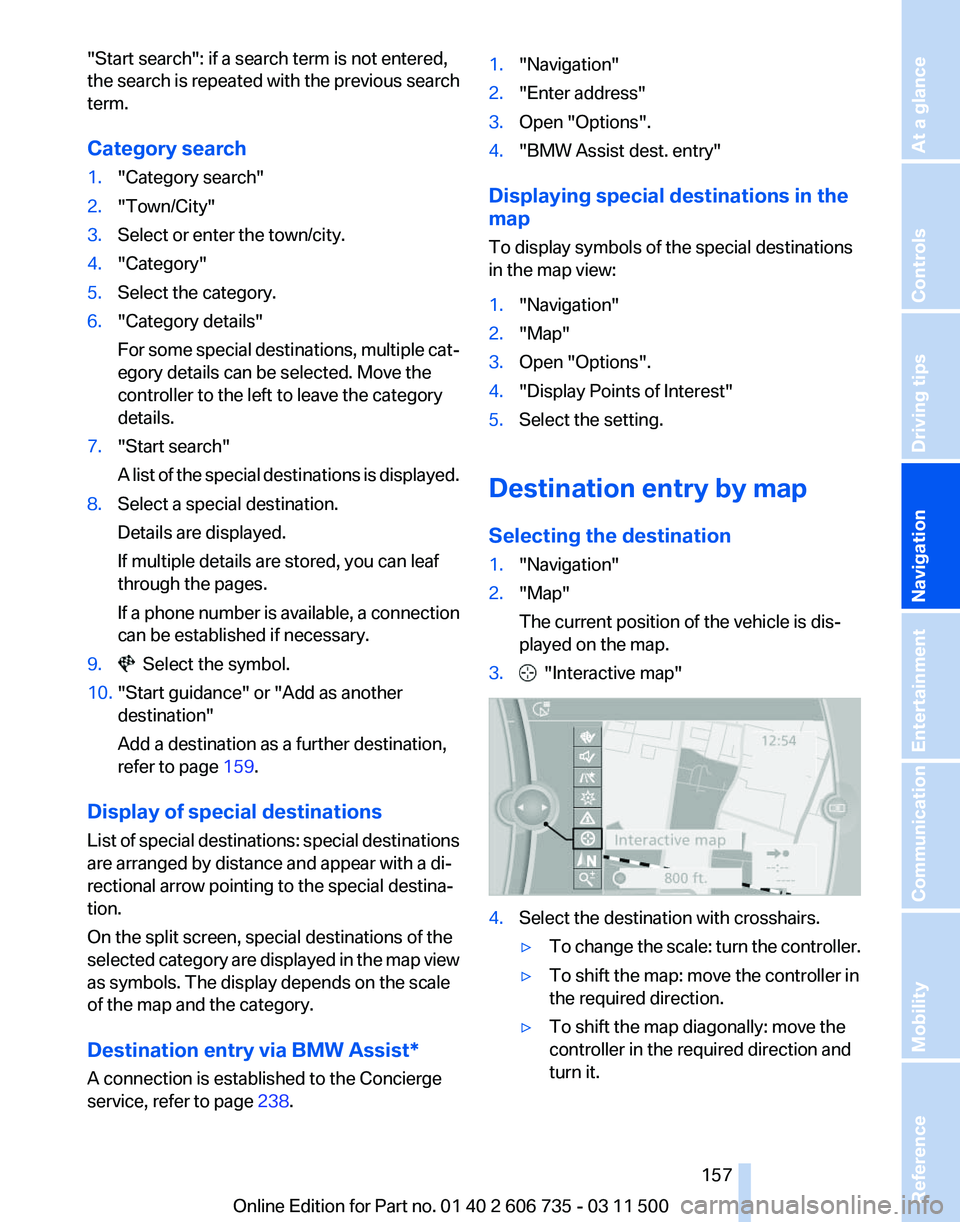
Selecting the destination
1. "Navigation"
2. "Map"
The current position of the vehicle is dis‐
played on the map.
3. "Interactive map"
4.
Select the destination with crosshairs.
▷To change the scale: turn the controller.
▷ To shift the map: move the controller in
the required direction.
▷ To shift the map diagonally: move the
controller in the required direction and
turn it.
Seite 157
157Online Edition for Part no. 01 40 2 606 735 - 03 11 500
Reference Mobility Communication Entertainment
Navigation Driving tips Controls At a glance
Page 165 of 317
4.
Select "Split screen content" or the scale.
5. Select the map view.
▷"Arrow display"
▷ "Map facing north"
▷ "Map direction of travel"
▷ "Map view with perspective"
▷ "Position"
▷ "Exit ramp view": selected blind drive‐
ways
are displayed three dimensionally.
▷ "Traffic conditions/gray map"
6. To change the scale: select the split screen
and turn the controller.
Traffic bulletins*
At a glance
▷ Display the traffic bulletins from radio sta‐
tions that broadcast the TI Traffic Informa‐
tion
of a traffic information service. Informa‐
tion on traffic obstructions and hazards is
updated continuously.
Certain BMW models equipped with navi‐
gation have the capability to display real-
time traffic information. If your system has
this capability the following additional terms
and conditions apply:
An End-User shall no longer have the right
to use the Traffic Data in the event that the
End-User is in material breach of the terms
and conditions contained herein.
A. Total Traffic Network, a division of Clear
Channel Broadcasting, Inc. (“Total Traffic
Network”) holds the rights to the traffic in‐
cident data and RDS-TMC network through
which it is delivered. You may not modify,
copy, scan or use any other method to re‐
produce, duplicate, republish, transmit or
distribute in any way any portion of traffic in‐
cident data. You agree to indemnify, defend
and hold harmless BMW of North America,
LLC. (“BMW NA”) and Total Traffic Net‐
work, Inrix, Inc (and their affiliates) against
any and all claims, damages, costs or other
expenses that arise directly or indirectly out of (a) your unauthorized use of the traffic in‐
cident data or the RDS-TMC network, (b)
your violation of this directive and/or (c) any
unauthorized
or unlawful activities by you in
connection herewith.
B. Total Traffic Network traffic data is infor‐
mational only. User assumes all risk of use.
Total Traffic Network, BMW NA, and their
suppliers make no representations about
content, traffic and road conditions, route
usability, or speed.
C. The licensed material is provided to li‐
censee “as is,” and “where is”. Total Traffic
Network, including, but not limited to, any
and all third party providers of any of the li‐
censed material, expressly disclaims, to the
fullest extent permitted by law, all warranties
or representations with respect to the li‐
censed material (including, without limita‐
tion, that the licensed material will be error-
free, will operate without interruption or that
the traffic data will be accurate), express, im‐
plied or statutory, including, without limita‐
tion, the implied warranties of merchanta‐
bility, non-infringement fitness for a
particular purpose, or those arising from a
course of dealing or usage of trade.
D. Neither Total Traffic Network, Inrix, Inc. or
BMW NA will be liable to you for any indirect,
special, consequential, exemplary, or inci‐
dental damages (including, without limita‐
tion, lost revenues, anticipated revenues, or
profits relating to the same) arising from any
claim relating directly or indirectly to use of
the traffic data, and even if Total Traffic Net‐
work, Inrix, Inc., or BMW NA are aware of the
possibility of such damages. These limita‐
tions apply to all claims, including, without
limitation, claims in contract and tort (such
as negligence, product liability and strict li‐
ability). Some states do not allow the exclu‐
sion or limitation of incidental or consequen‐
tial damages, so those particular limitations
may not apply to you.
▷ The traffic bulletins are indicated on the map
by symbols.
Seite 165
165Online Edition for Part no. 01 40 2 606 735 - 03 11 500
Reference Mobility Communication Entertainment
Navigation Driving tips Controls At a glance
Page 166 of 317
▷
The traffic bulletins for the surrounding area
are stored in a list. The symbol in the function bar of the map
view turns red if there are traffic bulletins
that affect the calculated route.
Switching the reception on/off
1. "Navigation"
2. Open "Options".
3. "Receive Traffic Info"
Opening the list of traffic bulletins
1. "Navigation"
2. "Map"
3. "Traffic Info"
First, traffic bulletins for the calculated route
are displayed.
The traffic bulletins are sorted by their dis‐
tance from the current position of the vehi‐
cle.
4. Select a traffic bulletin. "More information": display additional
information.
5. Scroll to the next or previous traffic bulletin
if required.
Traffic bulletins on the map
"Traffic conditions/gray map" active:
The Control Display changes to a black and
white display. This enables a better view of the
traffic bulletins. The day/night mode is disre‐
garded
in this setting. Symbols and special des‐
tinations are not displayed.
1. "Navigation"
2. "Map"
3. Open "Options".
4. "Settings"
5. "Traffic conditions/gray map"
Symbols in the map view
Depending on the scale of the map and the lo‐
cation of the traffic obstruction along the route, the symbols for the traffic obstructions are dis‐
played.
Additional information in the map view
Depending on the map scale, a traffic obstruc‐
tion's
length, direction, and impact are displayed
in the map using triangles or gray bars along the
calculated route.
▷ Red: traffic congestion
▷ Orange: stop-and-go traffic
▷ Yellow: heavy traffic
▷ Green: clear roads
▷ Gray: general traffic bulletins such as road
construction
The displayed information depends on the par‐
ticular traffic information service.
Filtering traffic bulletins
You
can set which traffic bulletins appear on the
map.
1. "Navigation"
2. "Map"
3. Open "Options".
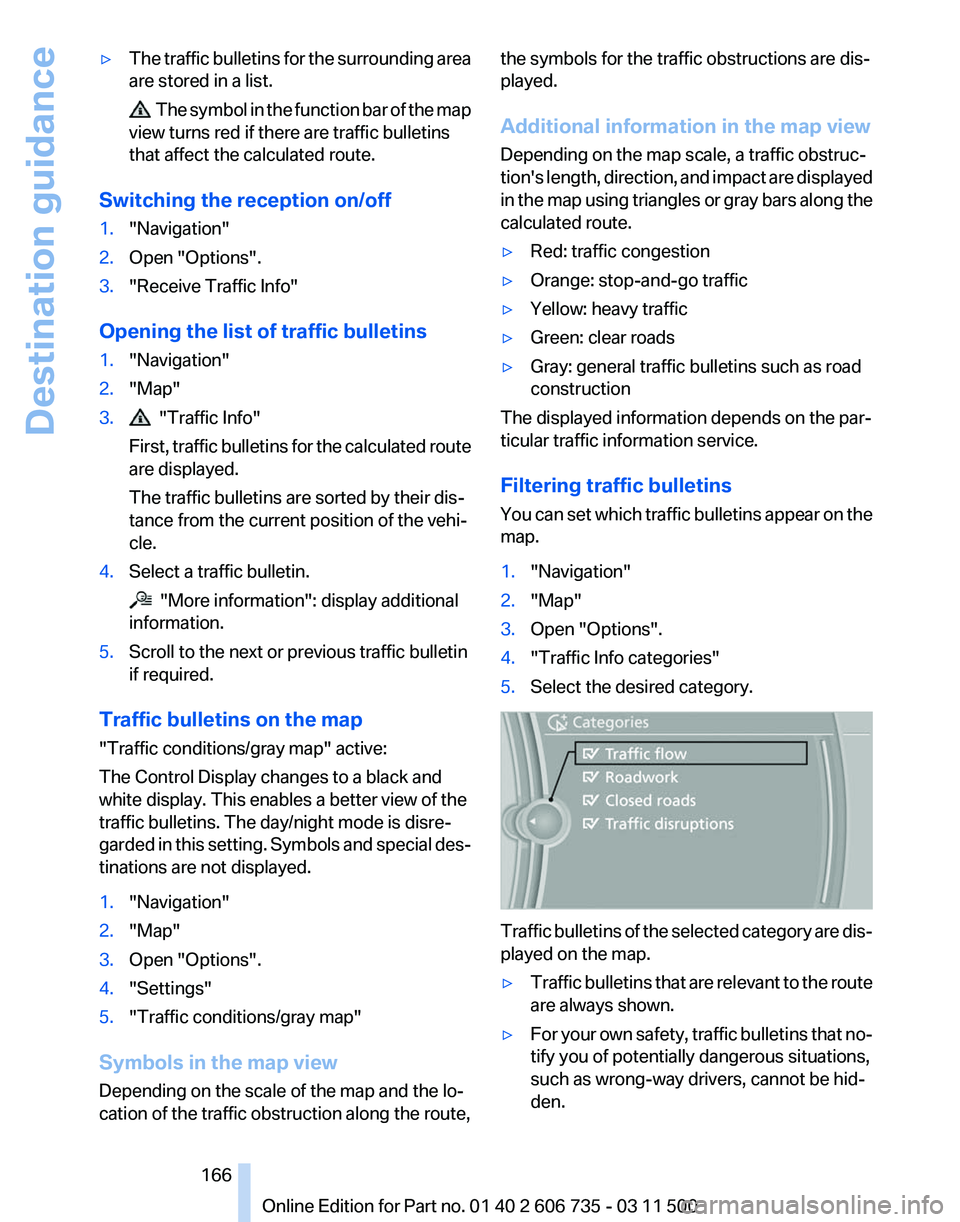
4. "Traffic Info categories"
5. Select the desired category. Traffic bulletins of the selected category are dis‐
played on the map.
▷
Traffic bulletins that are relevant to the route
are always shown.
▷ For your own safety, traffic bulletins that no‐
tify you of potentially dangerous situations,
such as wrong-way drivers, cannot be hid‐
den.
Seite 166
166 Online Edition for Part no. 01 40 2 606 735 - 03 11 500Destination guidance
Page 188 of 317
DTS Digital Surround™
Manufactured under license under U.S.
Patent Numbers: 5,451,942; 5,956,674;
5,974,380; 5,978,762; 6,487,535 & and other
patents granted and registered in the USA and
worldwide. DTS and the logo are registered
trademarks
& DTS Digital Surround and the DTS
logos are trademarks of DTS Inc. © DTS, Inc. All
rights reserved.
Music collection*
Storing music
General information
Music tracks from CDs/DVDs and USB devices
can be stored in the music collection on a hard
disc in the vehicle and played from there.
▷ Audio CD: tracks are converted into a com‐
pressed audio format. If available, informa‐
tion on the album, such as the artist, is
stored as well.
▷ CD/DVD or USB device with compressed
audio
files: the entire content of the CD/DVD
or the USB device is stored in the vehicle as
an album. The WMA, MP3, M4A*, and
AAC* formats are stored. Individual tracks
and directories can be deleted later, Delet‐
ing a track and directory, refer to page 191.
Tracks with DRM copy protection can be
stored but cannot be played back.
Backing up music data
Regularly back up the music data; other‐
wise,
it could be lost if there is a fault on the hard
disc.◀
Music recognition technology and re‐
lated data are provided by Gracenote®.
Gracenote is the industry standard in music rec‐
ognition technology and related content deliv‐
ery. For more information, please visit
www.gracenote.com.
CD and music-related data from Gracenote, Inc.,
copyright © 2000-2010 Gracenote. Gracenote
Software, copyright © 2000-2010 Gracenote. This product and service may practice one or
more
of the following U.S. Patents: #5,987,525;
#6,061,680; #6,154,773, #6,161,132,
#6,230,192, #6,230,207, #6,240,459,
#6,330,593, and other patents issued or pend‐
ing. Some services supplied under license from
Open Globe, Inc. for U.S. Patent: #6,304,523.
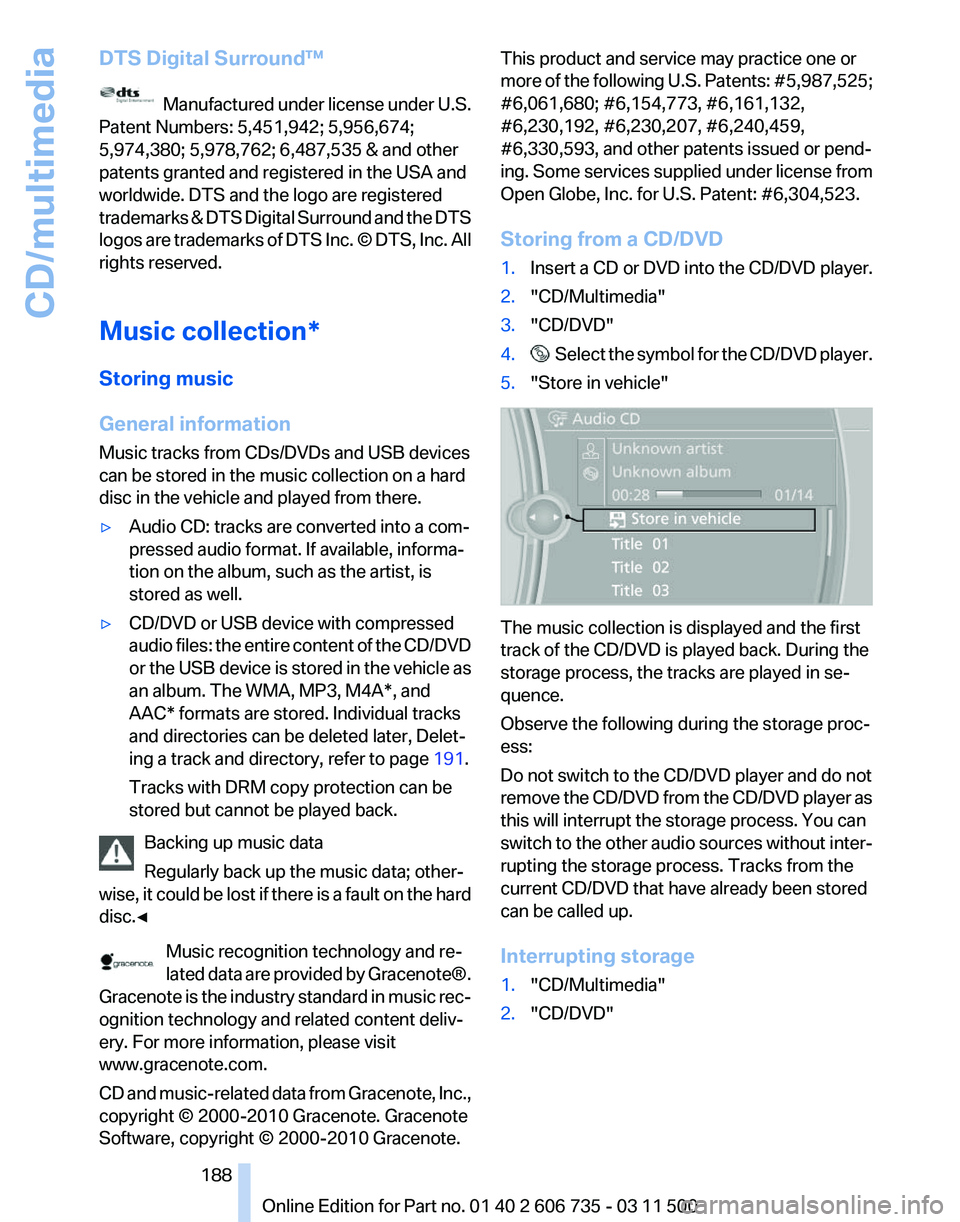
Storing from a CD/DVD
1. Insert a CD or DVD into the CD/DVD player.
2. "CD/Multimedia"
3. "CD/DVD"
4. Select the symbol for the CD/DVD player.
5. "Store in vehicle" The music collection is displayed and the first
track of the CD/DVD is played back. During the
storage process, the tracks are played in se‐
quence.
Observe the following during the storage proc‐
ess:
Do not switch to the CD/DVD player and do not
remove
the CD/DVD from the CD/DVD player as
this will interrupt the storage process. You can
switch to the other audio sources without inter‐
rupting the storage process. Tracks from the
current CD/DVD that have already been stored
can be called up.
Interrupting storage
1. "CD/Multimedia"
2. "CD/DVD"
Seite 188
188 Online Edition for Part no. 01 40 2 606 735 - 03 11 500
CD/multimedia
Page 189 of 317
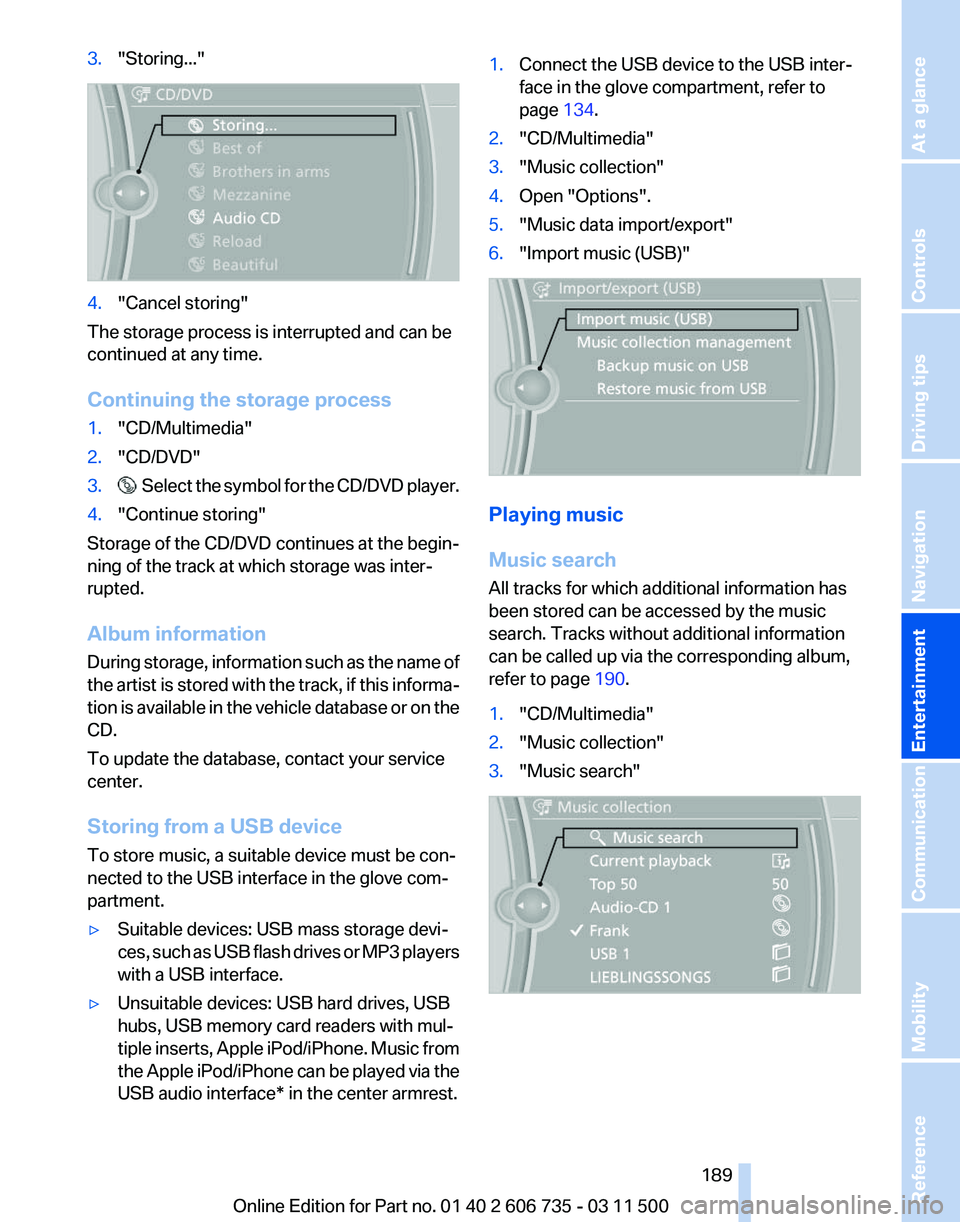
3.
"Storing..." 4.
"Cancel storing"
The storage process is interrupted and can be
continued at any time.
Continuing the storage process
1. "CD/Multimedia"
2. "CD/DVD"
3. Select the symbol for the CD/DVD player.
4. "Continue storing"
Storage of the CD/DVD continues at the begin‐
ning of the track at which storage was inter‐
rupted.
Album information
During
storage, information such as the name of
the artist is stored with the track, if this informa‐
tion is available in the vehicle database or on the
CD.
To update the database, contact your service
center.
Storing from a USB device
To store music, a suitable device must be con‐
nected to the USB interface in the glove com‐
partment.
▷ Suitable devices: USB mass storage devi‐
ces,
such as USB flash drives or MP3 players
with a USB interface.
▷ Unsuitable devices: USB hard drives, USB
hubs, USB memory card readers with mul‐
tiple
inserts, Apple iPod/iPhone. Music from
the Apple iPod/iPhone can be played via the
USB audio interface* in the center armrest. 1.
Connect the USB device to the USB inter‐
face in the glove compartment, refer to
page 134.
2. "CD/Multimedia"
3. "Music collection"
4. Open "Options".
5. "Music data import/export"
6. "Import music (USB)" Playing music
Music search
All tracks for which additional information has
been stored can be accessed by the music
search. Tracks without additional information
can be called up via the corresponding album,
refer to page
190.
1. "CD/Multimedia"
2. "Music collection"
3. "Music search" Seite 189
189Online Edition for Part no. 01 40 2 606 735 - 03 11 500
Reference Mobility Communication
Entertainment Navigation Driving tips Controls At a glance
Page 193 of 317
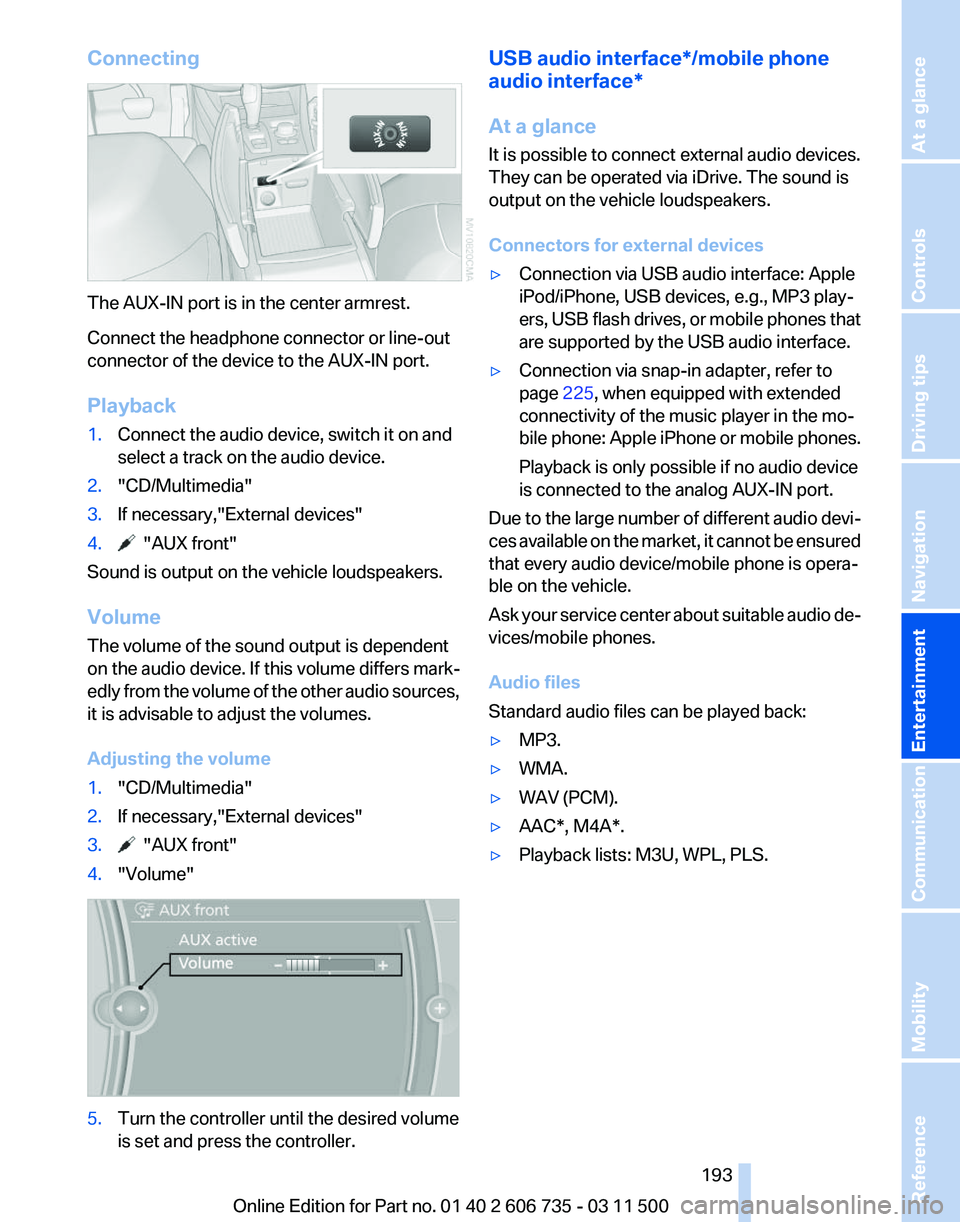
Connecting
The AUX-IN port is in the center armrest.
Connect the headphone connector or line-out
connector of the device to the AUX-IN port.
Playback
1.
Connect the audio device, switch it on and
select a track on the audio device.
2. "CD/Multimedia"
3. If necessary,"External devices"
4. "AUX front"
Sound is output on the vehicle loudspeakers.
Volume
The volume of the sound output is dependent
on the audio device. If this volume differs mark‐
edly
from the volume of the other audio sources,
it is advisable to adjust the volumes.
Adjusting the volume
1. "CD/Multimedia"
2. If necessary,"External devices"
3. "AUX front"
4. "Volume" 5.
Turn the controller until the desired volume
is set and press the controller. USB audio interface*/mobile phone
audio interface
*
At a glance
It is possible to connect external audio devices.
They can be operated via iDrive. The sound is
output on the vehicle loudspeakers.
Connectors for external devices
▷ Connection via USB audio interface: Apple
iPod/iPhone, USB devices, e.g., MP3 play‐
ers,
USB flash drives, or mobile phones that
are supported by the USB audio interface.
▷ Connection via snap-in adapter, refer to
page 225, when equipped with extended
connectivity of the music player in the mo‐
bile
phone: Apple iPhone or mobile phones.
Playback is only possible if no audio device
is connected to the analog AUX-IN port.
Due to the large number of different audio devi‐
ces
available on the market, it cannot be ensured
that every audio device/mobile phone is opera‐
ble on the vehicle.
Ask your service center about suitable audio de‐
vices/mobile phones.
Audio files
Standard audio files can be played back:
▷ MP3.
▷ WMA.
▷ WAV (PCM).
▷ AAC*, M4A*.
▷ Playback lists: M3U, WPL, PLS.
Seite 193
193Online Edition for Part no. 01 40 2 606 735 - 03 11 500
Reference Mobility Communication
Entertainment Navigation Driving tips Controls At a glance