service BMW X5M 2012 Owner's Guide
[x] Cancel search | Manufacturer: BMW, Model Year: 2012, Model line: X5M, Model: BMW X5M 2012Pages: 317, PDF Size: 8.83 MB
Page 199 of 317
▷
Switch the radio on and off again.
Music files can only be played back softly.
▷ Adjust the volume settings on the device.
Playback is disturbed when buttons are pressed
or by other messages on the device.
▷ Switch off the button tones and other signal
tones on the device.
Playback is interrupted by a telephone call or
traffic bulletin and is not resumed automatically.
▷ Switch the radio on and off again.
Playback is not possible if the mobile phone is
connected
both via Bluetooth Audio and via the
extended connectivity of the music player in the
mobile phone*.
▷ Disconnect one of the two connections; for
example, disconnect the audio connection,
refer to page 198, and restart playback.
If all points in this list have been checked and the
required function is still not available, please
contact the hotline or service center.
Software Update*
The vehicle supports various external devices
depending
on the current software version. With
a software update, the vehicle can support new
cell phones or new external device, for example.
▷ USB.
Software updates and related current infor‐
mation is available at www.bmw.com/up‐
date.
Displaying the current version
The currently installed software is displayed.
1. "Settings"
2. "Software update"
3. "Show current version"
Select desired version* to display additional in‐
formation*.
Updating software via USB
*
The software may only be updated when the ve‐
hicle is stationary. 1.
Store the file for the software-update in the
main director of a USB flash drive.
2. Insert the USB flash drive into the USB in‐
terface of the USB audio interface in the
center armrest. An update via the USB in‐
terface
in the glove compartment is not pos‐
sible.
3. "Settings"
4. "Software update"
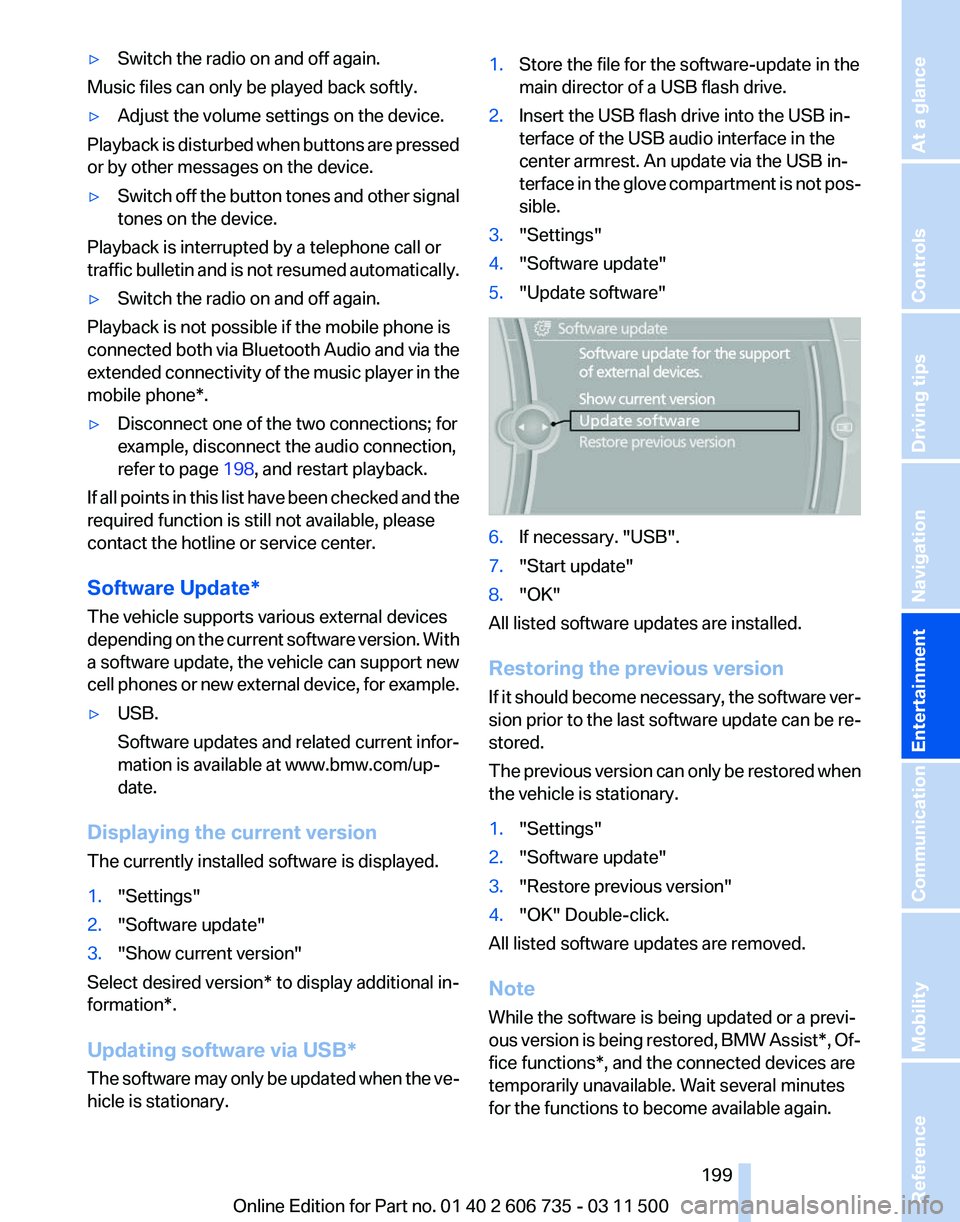
5. "Update software" 6.
If necessary. "USB".
7. "Start update"
8. "OK"
All listed software updates are installed.
Restoring the previous version
If
it should become necessary, the software ver‐
sion prior to the last software update can be re‐
stored.
The previous version can only be restored when
the vehicle is stationary.
1. "Settings"
2. "Software update"
3. "Restore previous version"
4. "OK" Double-click.
All listed software updates are removed.
Note
While the software is being updated or a previ‐
ous
version is being restored, BMW Assist*, Of‐
fice functions*, and the connected devices are
temporarily unavailable. Wait several minutes
for the functions to become available again.
Seite 199
199Online Edition for Part no. 01 40 2 606 735 - 03 11 500
Reference Mobility Communication
Entertainment Navigation Driving tips Controls At a glance
Page 201 of 317
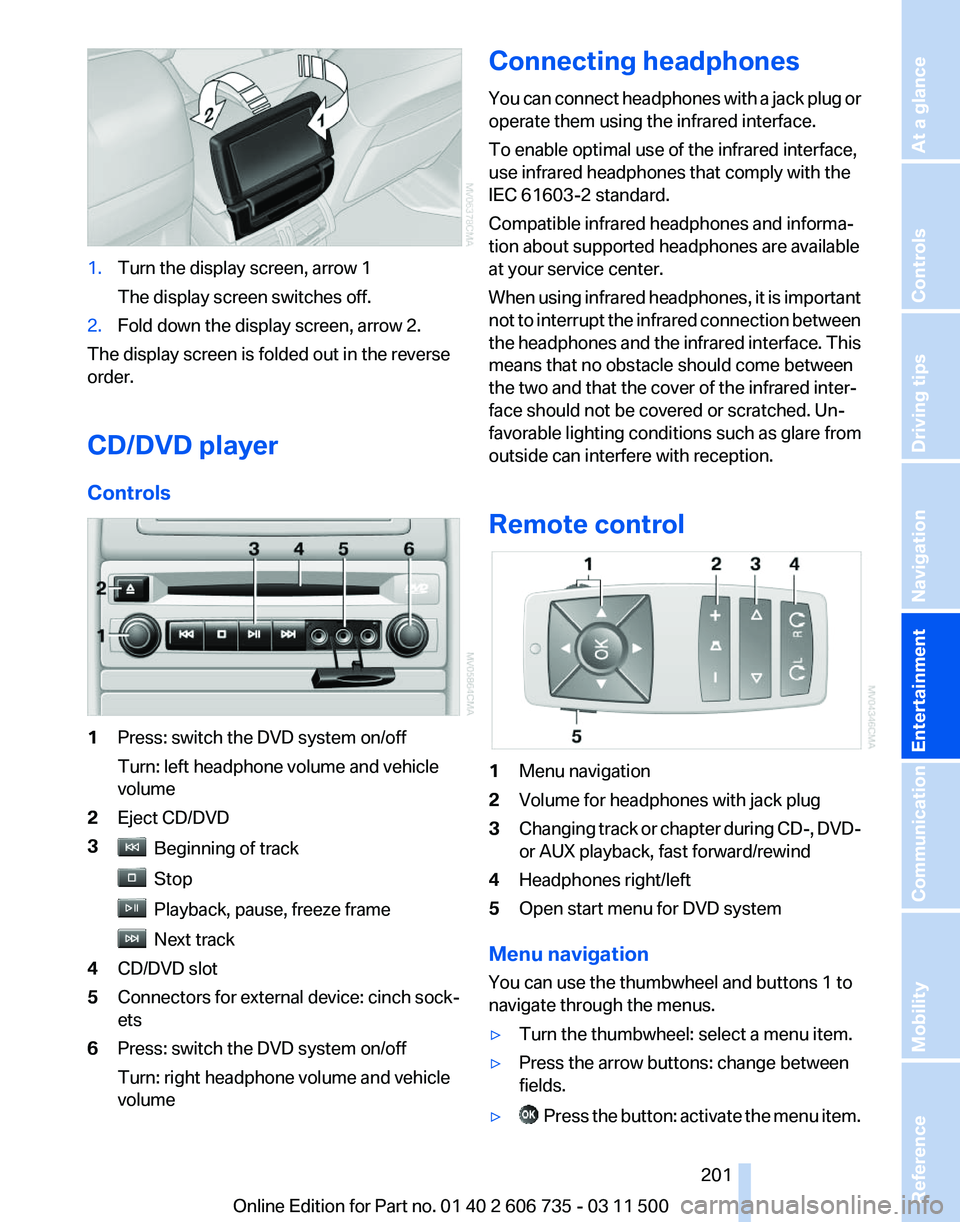
1.
Turn the display screen, arrow 1
The display screen switches off.
2. Fold down the display screen, arrow 2.
The display screen is folded out in the reverse
order.
CD/DVD player
Controls 1
Press: switch the DVD system on/off
Turn: left headphone volume and vehicle
volume
2 Eject CD/DVD
3 Beginning of track
Stop
Playback, pause, freeze frame
Next track
4 CD/DVD slot
5 Connectors for external device: cinch sock‐
ets
6 Press: switch the DVD system on/off
Turn: right headphone volume and vehicle
volume Connecting headphones
You
can connect headphones with a jack plug or
operate them using the infrared interface.
To enable optimal use of the infrared interface,
use infrared headphones that comply with the
IEC 61603-2 standard.
Compatible infrared headphones and informa‐
tion about supported headphones are available
at your service center.
When using infrared headphones, it is important
not to interrupt the infrared connection between
the headphones and the infrared interface. This
means that no obstacle should come between
the two and that the cover of the infrared inter‐
face should not be covered or scratched. Un‐
favorable lighting conditions such as glare from
outside can interfere with reception.
Remote control 1
Menu navigation
2 Volume for headphones with jack plug
3 Changing track or chapter during CD-, DVD-
or AUX playback, fast forward/rewind
4 Headphones right/left
5 Open start menu for DVD system
Menu navigation
You can use the thumbwheel and buttons 1 to
navigate through the menus.
▷ Turn the thumbwheel: select a menu item.
▷ Press the arrow buttons: change between
fields.
▷ Press the button: activate the menu item.
Seite 201
201Online Edition for Part no. 01 40 2 606 735 - 03 11 500
Reference Mobility Communication
Entertainment Navigation Driving tips Controls At a glance
Page 202 of 317
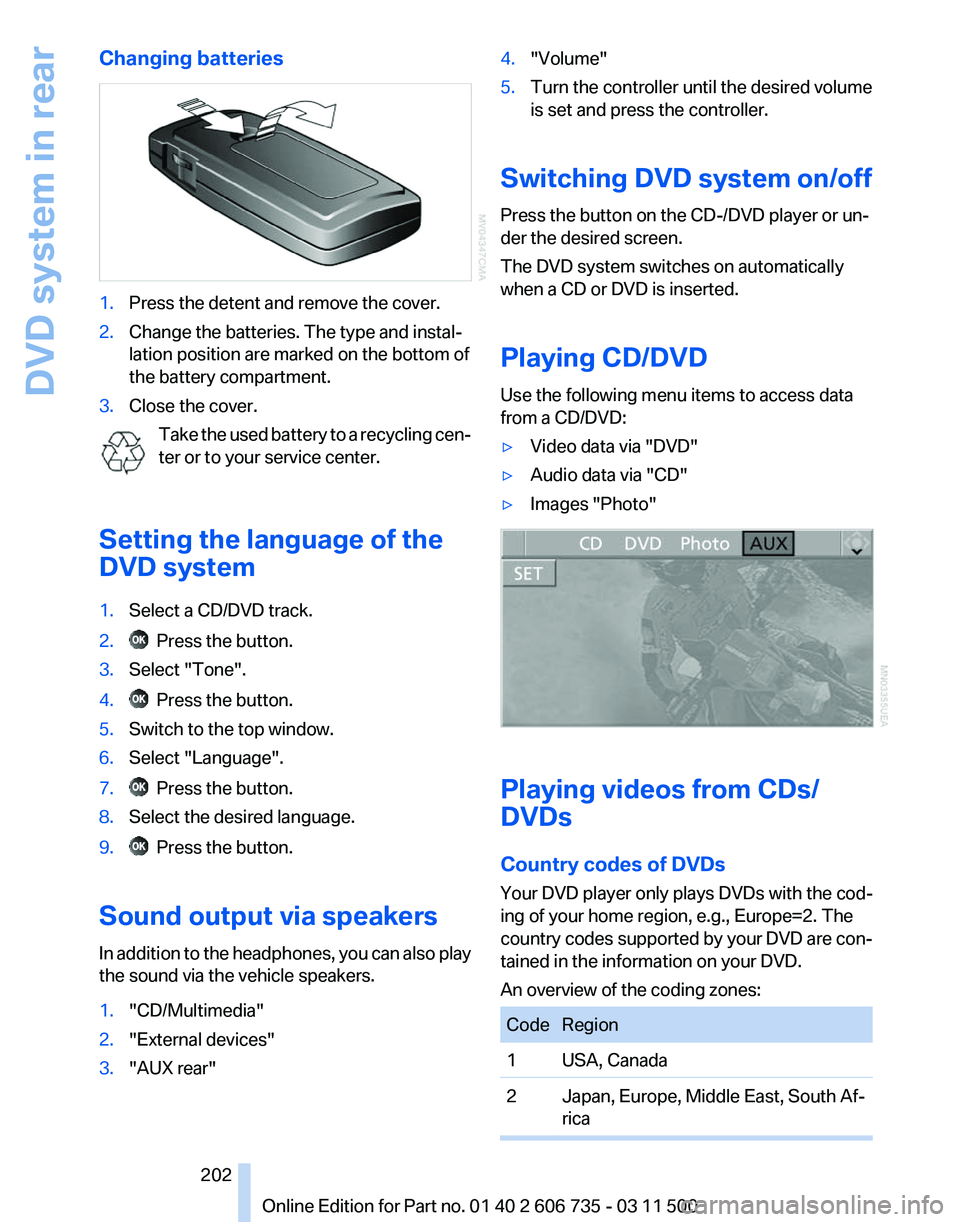
Changing batteries
1.
Press the detent and remove the cover.
2. Change the batteries. The type and instal‐
lation position are marked on the bottom of
the battery compartment.
3. Close the cover.
Take the used battery to a recycling cen‐
ter or to your service center.
Setting the language of the
DVD system
1. Select a CD/DVD track.
2. Press the button.
3. Select "Tone".
4. Press the button.
5. Switch to the top window.
6. Select "Language".
7. Press the button.
8. Select the desired language.
9. Press the button.
Sound output via speakers
In addition to the headphones, you can also play
the sound via the vehicle speakers.
1. "CD/Multimedia"
2. "External devices"
3. "AUX rear" 4.
"Volume"
5. Turn the controller until the desired volume
is set and press the controller.
Switching DVD system on/off
Press the button on the CD-/DVD player or un‐
der the desired screen.
The DVD system switches on automatically
when a CD or DVD is inserted.
Playing CD/DVD
Use the following menu items to access data
from a CD/DVD:
▷ Video data via "DVD"
▷ Audio data via "CD"
▷ Images "Photo" Playing videos from CDs/
DVDs
Country codes of DVDs
Your DVD player only plays DVDs with the cod‐
ing of your home region, e.g., Europe=2. The
country
codes supported by your DVD are con‐
tained in the information on your DVD.
An overview of the coding zones: Code Region
1 USA, Canada
2 Japan, Europe, Middle East, South Af‐
rica Seite 202
202 Online Edition for Part no. 01 40 2 606 735 - 03 11 500
DVD system in rear
Page 215 of 317
Communication
All of the options available to you for mobile
communication with family, friends, business
partners, and service providers are described in this chapter.
Online Edition for Part no. 01 40 2 606 735 - 03 11 500
Page 216 of 317
Telephone*
At a glance
The concept
Mobile
phones or other external devices such as
audio players can be connected to the vehicle
via Bluetooth.
Bluetooth® is a registered trademark of Blue‐
tooth® SIG, Inc.
After these devices are paired once, they are
recognized automatically when the ignition is
switched on as soon as they are in the vehicle
and can then be operated via iDrive, the buttons
on the steering wheel, and via voice activation*.
Depending on their functionality, external devi‐
ces can be used via the vehicle as a telephone
or as an audio source. The telephone functions
are described in the following. Operating the au‐
dio functions, refer to page 196.
Up to four external devices can be paired.
Certain functions may need to be enabled by the
mobile phone provider or service provider.
Using the mobile phone while driving
Make entries only when traffic and road
conditions allow. Do not hold the mobile phone
in your hand while you are driving; use the
hands-free system instead. If you do not ob‐
serve this precaution, you can endanger the ve‐
hicle occupants and other road users.◀
Snap-in adapter*
The snap-in adapter is used to:
▷ Hold the mobile phone.
▷ Recharge the battery.
▷ Connect the mobile phone to an outside an‐
tenna of the vehicle.
This provides for better network reception
and consistent sound quality.
Approved mobile phones
Details on which mobile phones and external
devices with a Bluetooth interface are sup‐ ported by the mobile phone preparation pack‐
age
can be obtained at www.bmwusa.com/blue‐
tooth.
Displaying the vehicle identification
number and software part number
The vehicle identification number and software
part number are needed to determine which mo‐
bile phones are supported by the mobile phone
preparation package. The software version of
the mobile phone may also be required.
1. "Telephone"
2. Open "Options".
3. "Bluetooth® info"
4. "Display system information"
These approved mobile phones with a certain
software version, support the vehicle functions
described below.
Malfunctions may occur with other mobile
phones or software versions.
Do
not operate a mobile phone that is connected
to the vehicle on the mobile phone keypad, as
this may lead to a malfunction.
A software update, refer to page 199, can be
performed if necessary.
Pairing/unpairing the mobile
phone
General information
The following functions are available:
▷ Use of a mobile phone as a telephone.
▷ Use of a mobile phone as an additional tele‐
phone.
▷ Use of a mobile phone as an audio source.
▷ Use of an audio device as an audio source,
refer to page 196.
Seite 216
216 Online Edition for Part no. 01 40 2 606 735 - 03 11 500
Telephone
Page 220 of 317
▷
The strength of the Bluetooth signal on the
mobile phone can be adjusted, depending
on the mobile phone.
▷ Insert the mobile phone into the snap-in
adapter* or place it in the area of the center
console.
▷ Adjust the volume of the microphone and
loudspeakers separately.
If all points in this list have been checked and the
required function is still not available, please
contact the hotline or service center.
Controls
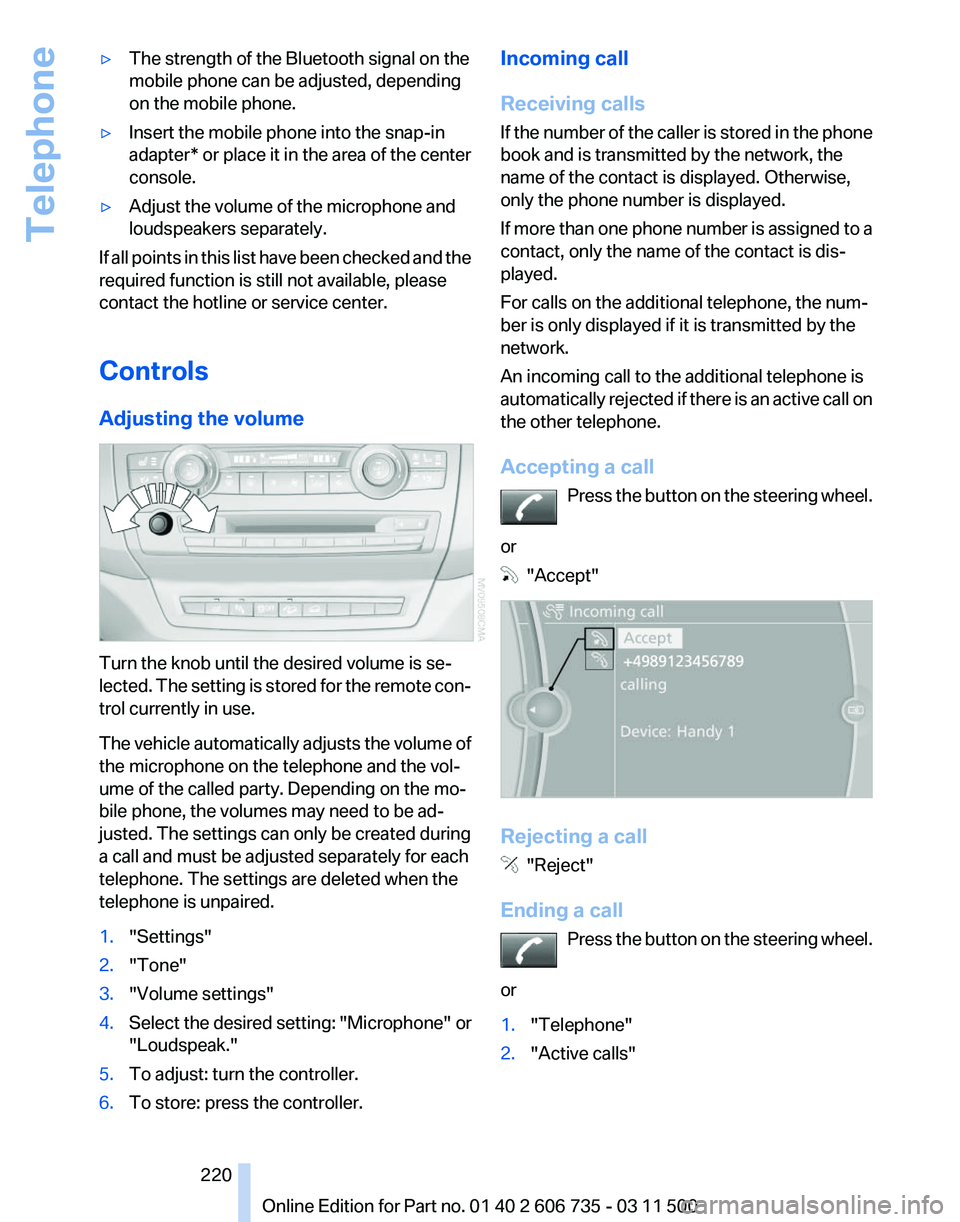
Adjusting the volume Turn the knob until the desired volume is se‐
lected.
The setting is stored for the remote con‐
trol currently in use.
The vehicle automatically adjusts the volume of
the microphone on the telephone and the vol‐
ume of the called party. Depending on the mo‐
bile phone, the volumes may need to be ad‐
justed. The settings can only be created during
a call and must be adjusted separately for each
telephone. The settings are deleted when the
telephone is unpaired.
1. "Settings"
2. "Tone"
3. "Volume settings"
4. Select the desired setting: "Microphone" or
"Loudspeak."
5. To adjust: turn the controller.
6. To store: press the controller. Incoming call
Receiving calls
If
the number of the caller is stored in the phone
book and is transmitted by the network, the
name of the contact is displayed. Otherwise,
only the phone number is displayed.
If more than one phone number is assigned to a
contact, only the name of the contact is dis‐
played.
For calls on the additional telephone, the num‐
ber is only displayed if it is transmitted by the
network.
An incoming call to the additional telephone is
automatically rejected if there is an active call on
the other telephone.
Accepting a call
Press the button on the steering wheel.
or "Accept"
Rejecting a call
"Reject"
Ending a call Press
the button on the steering wheel.
or
1. "Telephone"
2. "Active calls" Seite 220
220 Online Edition for Part no. 01 40 2 606 735 - 03 11 500
Telephone
Page 221 of 317
3. "End call"
Entering a phone number
Dialing a number
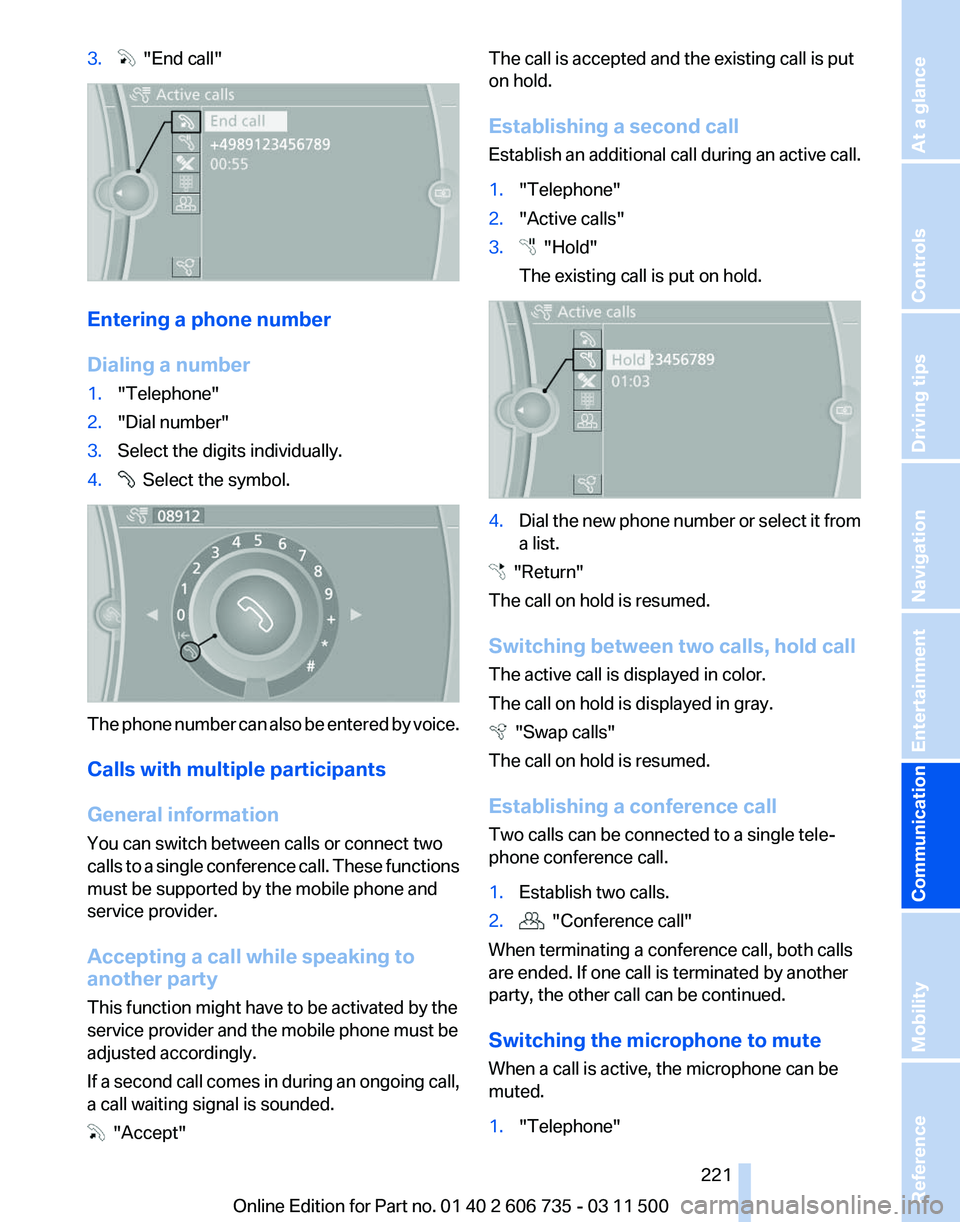
1.
"Telephone"
2. "Dial number"
3. Select the digits individually.
4. Select the symbol.
The phone number can also be entered by voice.
Calls with multiple participants
General information
You can switch between calls or connect two
calls
to a single conference call. These functions
must be supported by the mobile phone and
service provider.
Accepting a call while speaking to
another party
This function might have to be activated by the
service provider and the mobile phone must be
adjusted accordingly.
If a second call comes in during an ongoing call,
a call waiting signal is sounded. "Accept" The call is accepted and the existing call is put
on hold.
Establishing a second call
Establish
an additional call during an active call.
1. "Telephone"
2. "Active calls"
3. "Hold"
The existing call is put on hold. 4.
Dial the new phone number or select it from
a list. "Return"
The call on hold is resumed.
Switching between two calls, hold call
The active call is displayed in color.
The call on hold is displayed in gray. "Swap calls"
The call on hold is resumed.
Establishing a conference call
Two calls can be connected to a single tele‐
phone conference call.
1. Establish two calls.
2. "Conference call"
When terminating a conference call, both calls
are ended. If one call is terminated by another
party, the other call can be continued.
Switching the microphone to mute
When a call is active, the microphone can be
muted.
1. "Telephone"
Seite 221
221Online Edition for Part no. 01 40 2 606 735 - 03 11 500
Reference Mobility
Communication Entertainment Navigation Driving tips Controls At a glance
Page 222 of 317
2.
"Active calls"
3. "Microphone mute"
A microphone that has been switched to mute
is automatically reactivated:
▷ When a new connection is established.
▷ When switching between call parties.
DTMF suffix dialing
DTMF suffix dialing can be used for gaining ac‐
cess
to network services or for controlling devi‐
ces, e.g., to make a remote inquiry of an answer‐
ing machine. The DTMF code is needed for this
purpose.
1. "Telephone"
2. Select the contact from a list or "Dial
number".
3. "Keypad dialing"
4. Enter the DTMF code via iDrive.
Phone book
Displays
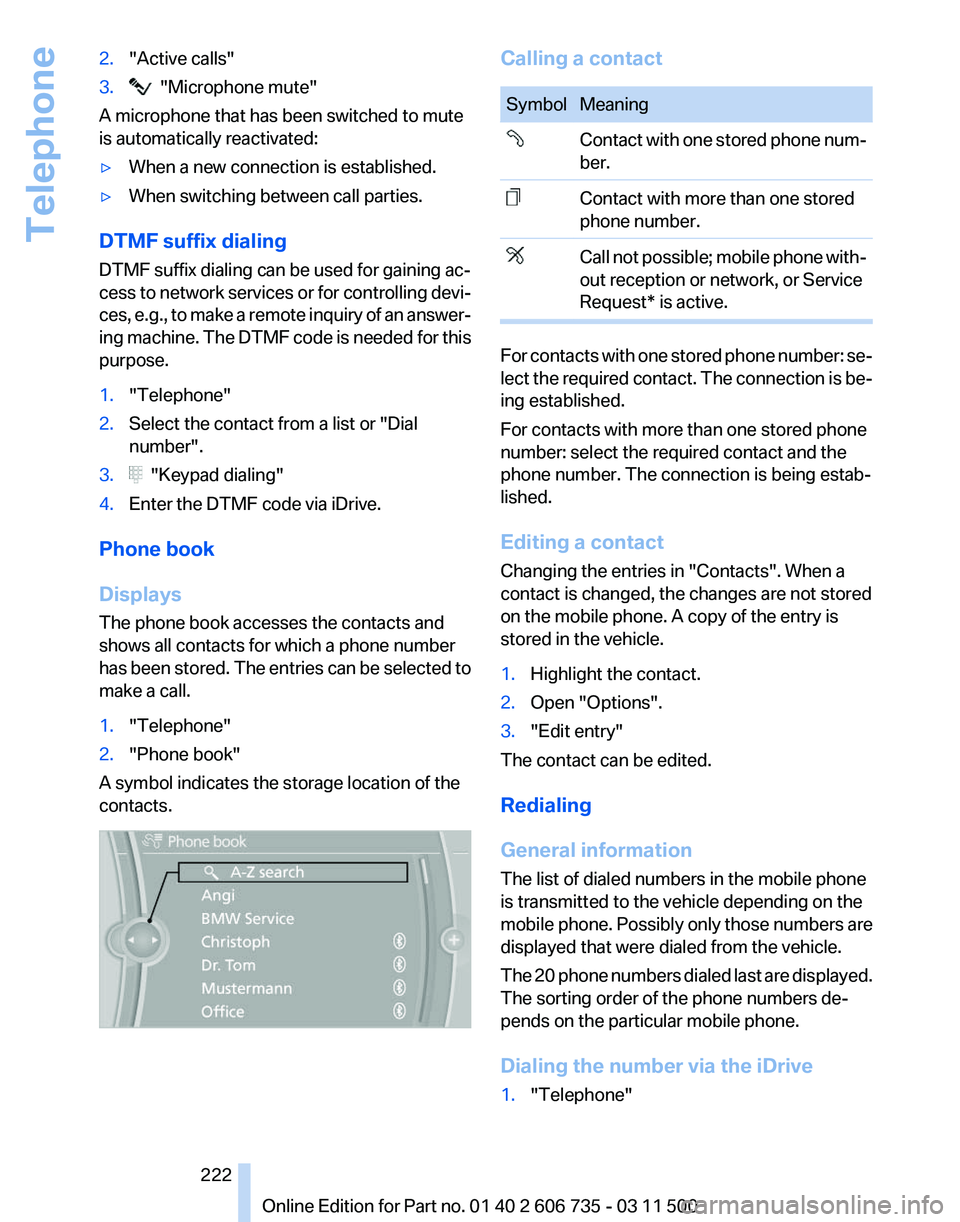
The phone book accesses the contacts and
shows all contacts for which a phone number
has
been stored. The entries can be selected to
make a call.
1. "Telephone"
2. "Phone book"
A symbol indicates the storage location of the
contacts. Calling a contact
Symbol Meaning
Contact with one stored phone num‐
ber.
Contact with more than one stored
phone number.
Call not possible; mobile phone with‐
out reception or network, or Service
Request* is active.
For contacts with one stored phone number: se‐
lect
the required contact. The connection is be‐
ing established.
For contacts with more than one stored phone
number: select the required contact and the
phone number. The connection is being estab‐
lished.
Editing a contact
Changing the entries in "Contacts". When a
contact is changed, the changes are not stored
on the mobile phone. A copy of the entry is
stored in the vehicle.
1. Highlight the contact.
2. Open "Options".
3. "Edit entry"
The contact can be edited.
Redialing
General information
The list of dialed numbers in the mobile phone
is transmitted to the vehicle depending on the
mobile
phone. Possibly only those numbers are
displayed that were dialed from the vehicle.
The 20 phone numbers dialed last are displayed.
The sorting order of the phone numbers de‐
pends on the particular mobile phone.
Dialing the number via the iDrive
1. "Telephone"
Seite 222
222 Online Edition for Part no. 01 40 2 606 735 - 03 11 500
Telephone
Page 230 of 317
Messages
General information
Whether
or not text messages and e-mails from
the mobile phone are displayed depends on
whether transmission from the mobile phone to
the vehicle is supported. Text messages and e-
mails may not be supported by the service pro‐
vider, or the function may need to be enabled
separately. After the mobile phone is first paired,
transmission may take several minutes. Mes‐
sages are only displayed in full length when the
vehicle is stationary. Messages from the addi‐
tional telephone are not transmitted.
Display of different messages:
▷ Text messages.
▷ Message from My Info*.
▷ Messages from the BMW Assist Concierge
service*.
▷ E-mails from the mobile phone*.
Displaying messages
1. "Office"
2. "Messages"
A symbol identifies the type of message. Symbol Message type
Text messages.
My Info
Message from the Concierge serv‐
ice. E-mail from mobile phone.
Filtering the message list
The message list can be filtered, when more
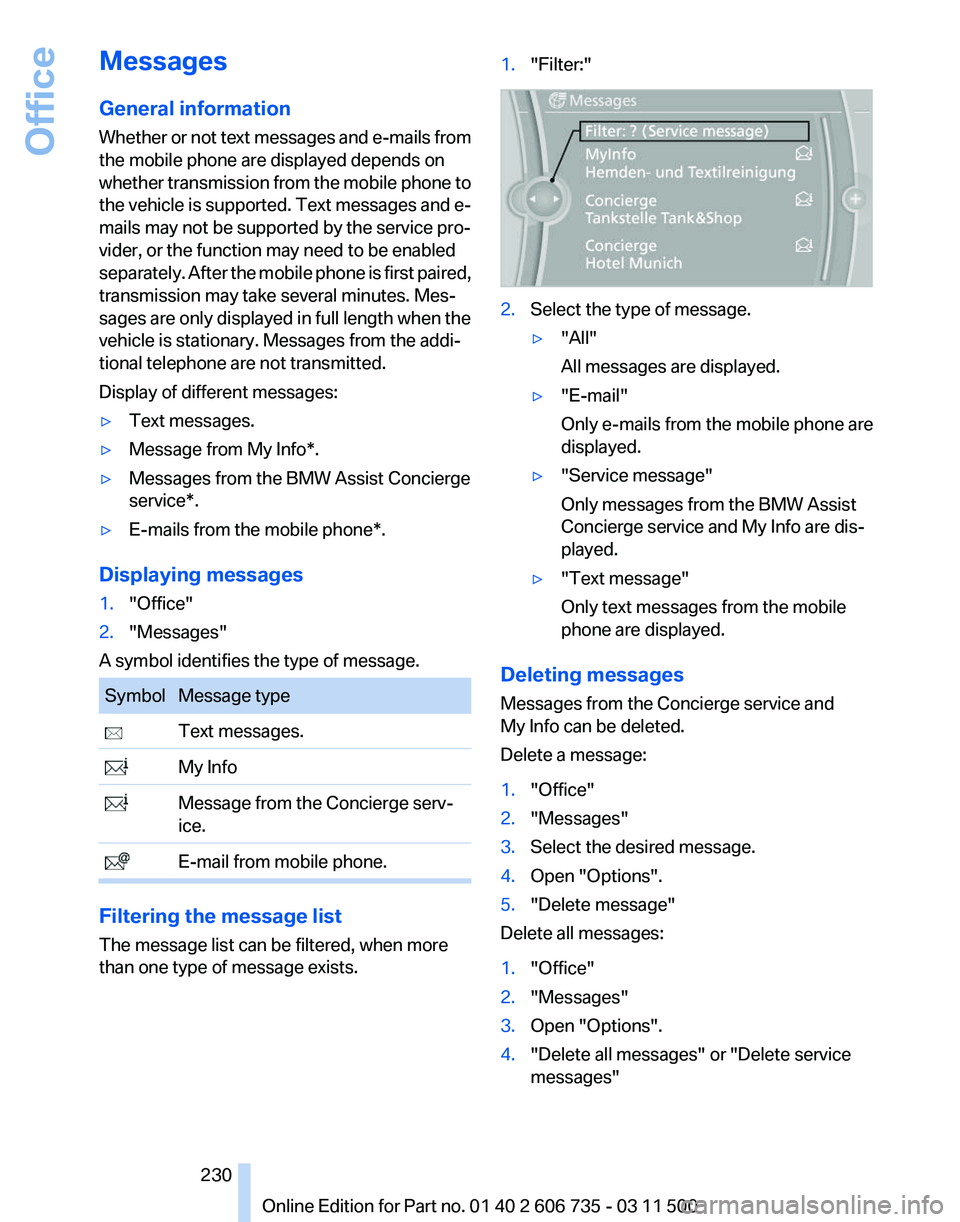
than one type of message exists. 1.
"Filter:" 2.
Select the type of message.
▷"All"
All messages are displayed.
▷ "E-mail"
Only e-mails from the mobile phone are
displayed.
▷ "Service message"
Only messages from the BMW Assist
Concierge service and My Info are dis‐
played.
▷ "Text message"
Only text messages from the mobile
phone are displayed.
Deleting messages
Messages from the Concierge service and
My Info can be deleted.
Delete a message:
1. "Office"
2. "Messages"
3. Select the desired message.
4. Open "Options".
5. "Delete message"
Delete all messages:
1. "Office"
2. "Messages"
3. Open "Options".
4. "Delete all messages" or "Delete service
messages"
Seite 230
230 Online Edition for Part no. 01 40 2 606 735 - 03 11 500
Office
Page 231 of 317
Text messages
Using contact data
Contact data from appointments, tasks, text
messages, e-mails, and notes can be saved or
selected*, refer to page
233.
Reading the text message out loud
*
Read the text message out loud, refer to
page 234.
My Info
Starting destination guidance
1. Select the desired message.
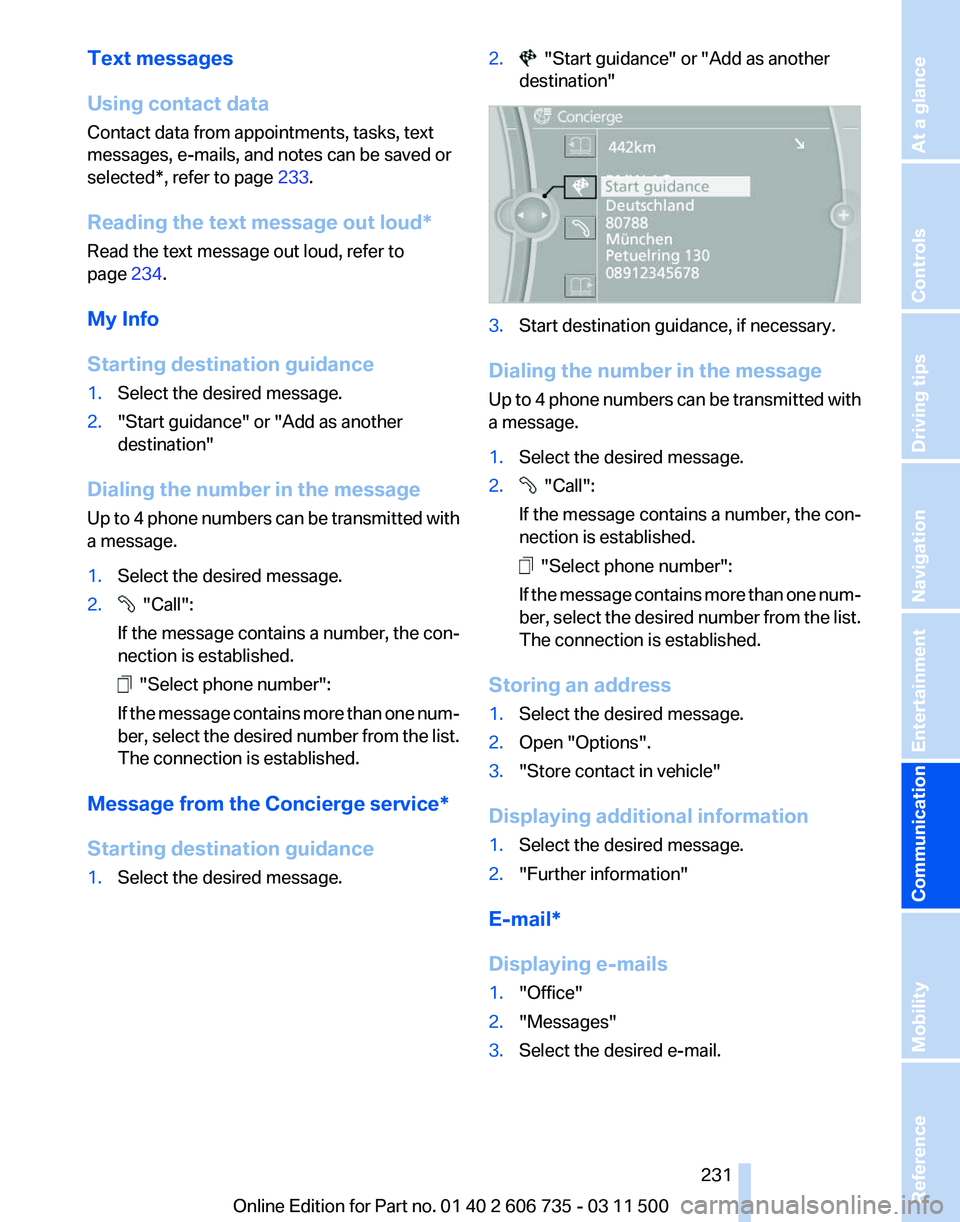
2. "Start guidance" or "Add as another
destination"
Dialing the number in the message
Up
to 4 phone numbers can be transmitted with
a message.
1. Select the desired message.
2. "Call":
If the message contains a number, the con‐
nection is established. "Select phone number":
If
the message contains more than one num‐
ber, select the desired number from the list.
The connection is established.
Message from the Concierge service*
Starting destination guidance
1. Select the desired message. 2. "Start guidance" or "Add as another
destination" 3.
Start destination guidance, if necessary.
Dialing the number in the message
Up
to 4 phone numbers can be transmitted with
a message.
1. Select the desired message.
2. "Call":
If the message contains a number, the con‐
nection is established. "Select phone number":
If
the message contains more than one num‐
ber, select the desired number from the list.
The connection is established.
Storing an address
1. Select the desired message.
2. Open "Options".
3. "Store contact in vehicle"
Displaying additional information
1. Select the desired message.
2. "Further information"
E-mail*
Displaying e-mails
1. "Office"
2. "Messages"
3. Select the desired e-mail.
Seite 231
231Online Edition for Part no. 01 40 2 606 735 - 03 11 500
Reference Mobility
Communication Entertainment Navigation Driving tips Controls At a glance