start BUICK ENCORE 2019 Infotainment System Guide
[x] Cancel search | Manufacturer: BUICK, Model Year: 2019, Model line: ENCORE, Model: BUICK ENCORE 2019Pages: 86, PDF Size: 1.01 MB
Page 46 of 86
Buick Infotainment System (GMNA-Localizing-U.S./Canada-12690019) -
2019 - crc - 6/26/18
Navigation 45
turn list. When entering a turn
list, the next maneuver
instruction is spoken.
. The turn list title is the name or
address of the destination.
Touch the information icon next
to the name of the destination to
display the destination
information.
. The turn list is sorted in order
with the next maneuver at the
top of the list and the
subsequent maneuvers listed
below it. The next maneuver is
always highlighted upon entry
into the Turn List to quickly show
what the next maneuver is.
. Each maneuver indicates the
distance between it and the
previous maneuver or the
vehicle’s current location. The
next maneuver at the top will
count down until the maneuver
is reached, and then the next
maneuver will begin to
count down. .
Each maneuver has an
estimated time of arrival based
on the current driving conditions.
Saved Trips
Waypoint trips can be saved for
later recall. Touch Add in the
waypoints list to save the trip to the
Saved Trips list in the vehicle’ s
contacts list. When trips are saved,
they are given a default title of the
final destination. Saved trips can be
edited by selecting Edit to access
the edit display for the saved entry.
The only field that can be edited is
the name field. Touch the name field
to access the keyboard view. Type
the name change. This change is
automatically saved when executed
by the keyboard.
The saved trip can also be deleted
from the edit mode. Touch Delete
and a delete confirmation pop-up
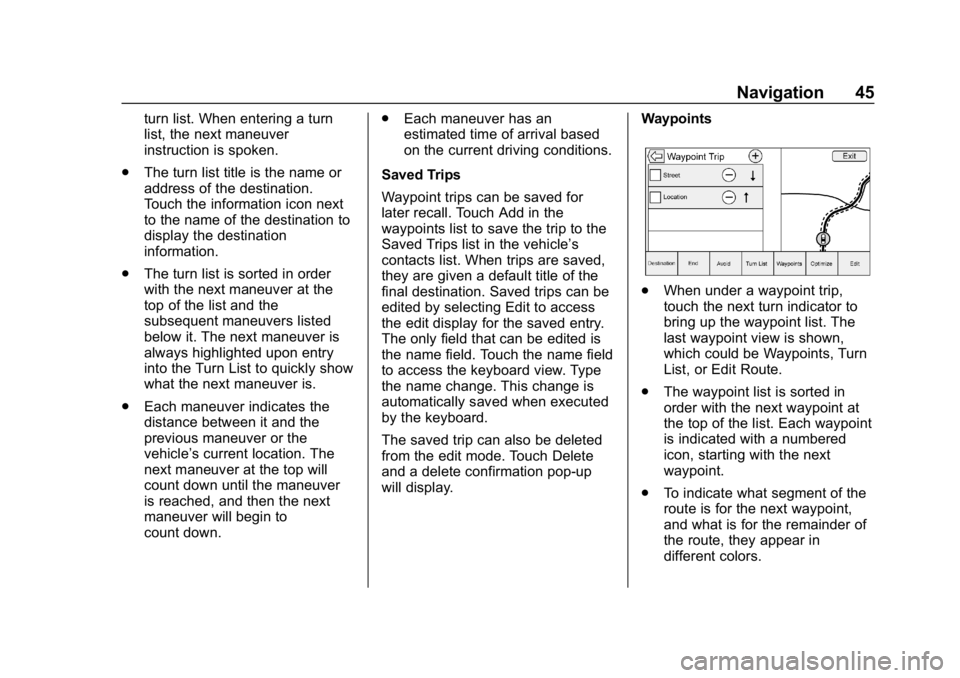
will display. Waypoints
.
When under a waypoint trip,
touch the next turn indicator to
bring up the waypoint list. The
last waypoint view is shown,
which could be Waypoints, Turn
List, or Edit Route.
. The waypoint list is sorted in
order with the next waypoint at
the top of the list. Each waypoint
is indicated with a numbered
icon, starting with the next
waypoint.
. To indicate what segment of the
route is for the next waypoint,
and what is for the remainder of
the route, they appear in
different colors.
Page 49 of 86
Buick Infotainment System (GMNA-Localizing-U.S./Canada-12690019) -
2019 - crc - 6/26/18
48 Navigation
.This is the first navigation use
after the map data is updated.
. The 12-volt battery is
disconnected for several days.
. The vehicle is driving in heavy
traffic where driving is at low
speeds, and the vehicle is
stopped and started repeatedly.
Problems with Route
Guidance
Inappropriate route guidance can
occur under one or more of the
following conditions:
.The turn was not made on the
road indicated.
. Route guidance might not be
available when using automatic
rerouting for the next right or
left turn.
. The route might not be changed
when using automatic rerouting.
. There is no route guidance when
turning at an intersection.
. Plural names of places might be
announced occasionally. .
It could take a long time to
operate automatic rerouting
during high-speed driving.
. Automatic rerouting might
display a route returning to the
set waypoint if heading for a
destination without passing
through a set waypoint.
. The route prohibits the entry of a
vehicle due to a regulation by
time or season or any other
regulation which may be given.
. Some routes might not be
searched.
. The route to the destination
might not be shown if there are
new roads, if roads have
recently changed, or if certain
roads are not listed in the map
data. See Maps030.
To recalibrate the vehicle's position
on the map, park with the vehicle
running for two to five minutes, until
the vehicle position updates. Make
sure the vehicle is parked in a
location that is safe and has a clear
view of the sky and away from large
obstructions.
If the System Needs
Service
If the navigation system needs
service and the steps listed here
have been followed but there are
still problems, see your dealer.
Map Data Updates
The map data in the vehicle is the
most up-to-date information
available when the vehicle was
produced. The map data is updated
periodically, provided that the map
information has changed.
For questions about the operation of
the navigation system or the update
process, contact the GM Nav Disc
Center toll-free phone number,
1-877-NAV-DISC (1-877-628-3472)
or go to the center ’s website,
www.gmnavdisc.com. If updates are
needed, call the GM Nav Disc
Center or order online.
Page 50 of 86
Buick Infotainment System (GMNA-Localizing-U.S./Canada-12690019) -
2019 - crc - 6/26/18
Navigation 49
Over-the-Air Vehicle Map
Updates
If equipped, the infotainment system
can receive map updates over the
air. Map updates occur within a
161 km (100 mi) radius around the
home address on file. This
boundary will adjust over time
based on driving patterns. The
vehicle uses a Cloud-connected
service to receive the data and
downloads it to the system’s
onboard SD card, if equipped. The
SD card is required for navigation
system function.
When a map update is available, a
prompt will appear on the
infotainment display. Once the
update is accepted, it will download
and run in the background without
interrupting any infotainment
functions. The download will carry
over ignition cycles, stopping and
starting where it left off. The
updates can be set to download
automatically.See www.gmnavdisc.com for
information on ordering, purchasing,
and installing a new or replacement
SD card. Features are subject to
change. For more information on
this feature, see my.buick.com/
learn.
Database Coverage
Explanations
Coverage areas vary with respect to
the level of map detail available for
any given area. Some areas feature
greater levels of detail than others.
If this happens, it does not mean
there is a problem with the system.
As the map data is updated, more
detail can become available for
areas that previously had limited
detail. See
Map Data Updates 048.
Page 51 of 86
Buick Infotainment System (GMNA-Localizing-U.S./Canada-12690019) -
2019 - crc - 6/26/18
50 Voice Recognition
Voice Recognition
Voice recognition allows for
hands-free operation within the
navigation, audio, phone, and
weather applications. This feature
can be started by pressing
gon the
steering wheel controls or by
touching
gon the infotainment
display.
However, not all features within
these areas are supported by voice
commands. Generally, only complex
tasks that require multiple manual
interactions to complete are
supported by voice commands.
For example, tasks that take more
than one or two touches such as
selecting a song or artist to play
from a media device would be
supported by voice commands.
Other tasks, like adjusting the
volume or seeking up or down, are
audio features that are easily
performed by pressing one or two
controls, and are not supported by
voice commands. In general there are flexible ways to
speak commands for completing the
tasks. Most of them, except
destination entry and voice keypad,
can be completed in a single
command. If the task takes more
than one command to complete, the
first command should be to indicate
the kind of task to be performed, like
“Navigation Destination Entry.”
The
system replies with prompts that
lead you through a dialog to enter
the necessary information. For
example, if a destination for route
guidance is needed, say
“Navigation” or“Destination Entry.”
Voice recognition can be used when
the ignition is on or when Retained
Accessory Power (RAP) is active.
See “Retained Accessory Power
(RAP)” in the owner ’s manual.
Using Voice Recognition
Voice recognition becomes available
once the system has been
initialized. This begins when the
ignition is turned on. Initialization
may take a few moments. 1. Press
gon the steering wheel
controls to activate voice
recognition, or touch
gon the
infotainment display.
2. The audio system mutes and the system plays a prompt
followed by a beep.
3. Wait until after the beep completes, then clearly speak
one of the commands
described in this section.
A voice recognition system
prompt can be interrupted while
it is playing by pressing
gon
the steering wheel controls
again.
For example, if the prompt
seems to be taking too long to
finish, press
gagain and the
beep should happen
right away.
Page 57 of 86
Buick Infotainment System (GMNA-Localizing-U.S./Canada-12690019) -
2019 - crc - 6/26/18
56 Voice Recognition
Destination Entry command is
“Navigate to Place of Interest–
Hotels.” If these commands do not
work, try saying “Navigate to Place
of Interest” or“Navigate to Address”
and the system will come back and
ask for details of your destination
Voice Recognition for the
Phone
“Call
call to an entered contact. The
command may include location if
the contact has location numbers
stored.
“Call
“At Work,” “On Mobile,” or“On
Other” :Initiate a call to an entered
contact and location at home, at
work, on mobile device, or on
another phone. “Call
:Initiate a
call to a standard phone number or
to a local emergency number.
“Pair Phone” :Begin the Bluetooth
pairing process. Follow instructions
on the radio display.
“Switch Phone” :Select a different
phone for outgoing calls.
“Voice Keypad” :Begin a dialog to
enter special numbers like
international numbers. The numbers
can be entered in groups of digits
with each group of digits being
repeated back by the system. If the
group of digits is not correct, the
command “Delete”will remove the
last group of digits and allow them
to be re-entered. Once the entire
number has been entered, the
command “Call”will start dialing the
number. “Voice Mail”
:Initiate a call to voice
mail numbers.
Voice Pass-Thru
Voice pass-thru allows access to the
voice recognition commands on the
cell phone, for example, Siri or
Voice Command. See the cell
phone manufacturer's user guide to
see if the cell phone supports this
feature. To activate the phone voice
recognition system, press and hold
gon the steering wheel controls for
a few seconds.
Voice Recognition for OnStar
(If Equipped)
“OnStar” :Begin OnStar Voice
Recognition.
Page 58 of 86
Buick Infotainment System (GMNA-Localizing-U.S./Canada-12690019) -
2019 - crc - 6/26/18
Phone 57
Phone
Bluetooth (Overview)
The Bluetooth-capable system can
interact with many cell phones,
allowing:
.Placement and receipt of calls in
a hands-free mode.
. Sharing of the cell phone’s
address book or contact list with
the vehicle.
To minimize driver distraction,
before driving, and with the vehicle
parked:
. Become familiar with the
features of the cell phone.
Organize the phone book and
contact lists clearly and delete
duplicate or rarely used entries.
If possible, program speed dial
or other shortcuts.
. Review the controls and
operation of the infotainment
system. .
Pair cell phone(s) to the vehicle.
The system may not work with
all cell phones. See “Pairing”in
this section.
Vehicles with a Bluetooth system
can use a Bluetooth-capable cell
phone with a Hands-Free Profile to
make and receive phone calls. The
infotainment system and voice
recognition are used to control the
system. The system can be used
with the ignition on or in ACC/
ACCESSORY. The range of the
Bluetooth system can be up to 9.1 m
(30 ft). Not all phones support all
functions and not all phones work
with the Bluetooth system. See
www.gm.com/bluetooth for more
information about compatible
phones.
Bluetooth Controls
Use the infotainment display
features on the infotainment system
or press the steering wheel icon to
operate the Bluetooth system. Steering Wheel Controls
g:
Press to answer incoming calls,
confirm system information, and
start voice recognition.
c: Press to end a call, decline a
call, or cancel an operation. Press
to mute or unmute the infotainment
system when not on a call.
Infotainment System Features
For information about how to
navigate the menu system using the
infotainment features, see
Infotainment 02.
Phone : Touch the Home Page to
enter the phone main menu.
Audio System
When using the Bluetooth system,
sound comes through the vehicle's
front audio system speakers and
overrides the audio system. Press
Oduring a call to change the
volume level. The adjusted volume
level remains in memory for later
calls. The system maintains a
minimum volume level.
Page 59 of 86
Buick Infotainment System (GMNA-Localizing-U.S./Canada-12690019) -
2019 - crc - 6/26/18
58 Phone
Bluetooth (Infotainment
Controls)
For information about how to
navigate the menu system using the
infotainment features, see
Infotainment02.
Pairing
A Bluetooth-enabled cell phone
must be paired to the Bluetooth
system and then connected to the
vehicle before it can be used. See
the cell phone manufacturer's user
guide for Bluetooth functions before
pairing the cell phone.
Pairing Information
.
A Bluetooth phone with music
capability can be paired to the
vehicle as a phone and a music
player at the same time.
. Up to 10 devices can be paired
to the Bluetooth system.
. The pairing process is disabled
when the vehicle is moving. .
Pairing only needs to be
completed once, unless the
pairing information on the cell
phone changes or the cell phone
is deleted from the system.
. One Bluetooth device can be
connected to the Bluetooth
system at a time.
. If multiple paired cell phones are
within range of the system, the
system connects to the paired
cell phone in the order that they
were last used in the system. To
link to a different paired phone,
see “Connecting to a Different
Phone” later in this section.
Pairing a Phone 1. Touch Phone on the Home Page.
2. Select Phones and select Pair New Device.
3. A four-digit Personal Identification Number (PIN)
appears on the display. The
PIN, if required, may be used
in Step 5. 4. Start the pairing process on the
cell phone to be paired to the
vehicle. See the cell phone
manufacturer's user guide for
information on this process.
5. Locate “Buick”on the display.
Follow the instructions
provided in Step 3, to enter the
PIN. After the PIN is
successfully entered or the
code is confirmed, the system
responds with “
has been successfully paired”
when the pairing process is
complete.
6. If “Buick” does not appear, turn
the phone off or remove the
phone battery and retry.
7. If the phone prompts to accept connection or allow phone
book download, select Always
Accept and Allow. The phone
book may not be available if
not accepted.
8. Repeat Steps 1−5 to pair additional phones.
Page 61 of 86
Buick Infotainment System (GMNA-Localizing-U.S./Canada-12690019) -
2019 - crc - 6/26/18
60 Phone
2. Touch Contacts.
3. Touch the name to call.
4. Touch the desired contactnumber to call.
To make a call using the Recent
Calls menu: 1. Touch Phone on the Home Page.
2. Touch Recent.
3. Touch the name or number to call.
4. If necessary, select between Missed, Recent, and Sent calls
by touching View in the top
right corner of the list.
Making a Call Using the
Keypad
To make a call by dialing the
numbers:
1. Touch Phone on the Home Page.
2. Touch Keypad and enter a phone number.
3. Touch Call to start dialing the number.
Accepting or Declining a Call
When an incoming call is received,
the infotainment system mutes and
a ring tone is heard in the vehicle.
Accepting a Call
To accept a call:
.Press
gon the steering wheel
controls.
. Touch Answer on the
infotainment display.
Declining a Call
To decline a call:
. Press
con the steering wheel
controls.
. Touch Ignore on the infotainment
display.
Call Waiting
Call waiting must be supported on
the Bluetooth phone and enabled by
the wireless service carrier to work. Accepting a Call
To accept a call-waiting call:
.
Press
gon the steering wheel
controls.
. Touch Switch on the
infotainment display.
Declining a Call
To decline a call-waiting call:
. Press
con the steering wheel
controls.
. Touch Ignore on the infotainment
display.
Switching Between Calls (Call
Waiting Calls Only)
To switch between calls, touch
Phone on the Home Page to display
“Call View.” While in Call View,
touch the call information of the call
on hold to change calls.
Three-Way Calling
Three-way calling must be
supported on the Bluetooth phone
and enabled by the wireless service
carrier to work.
Page 62 of 86
Buick Infotainment System (GMNA-Localizing-U.S./Canada-12690019) -
2019 - crc - 6/26/18
Phone 61
To start a three-way call while in a
current call:1. In the Call View, touch Add to add another call.
2. Initiate the second call by selecting from Recent,
Contacts, or Keypad.
3. When the second call is active, touch Merge to conference the
three-way call together.
4. Once all calls are merged, the Merge option becomes an
Unmerge option. Touch to
unmerge the calls.
Some wireless service carriers
may not allow a merged call to
become unmerged.
Ending a Call
.Presscon the steering wheel
controls.
. Touch End on the infotainment
display to end all existing calls,
or touch End next to a call to
end only that call.
Dual Tone Multi-Frequency
(DTMF) Tones
The in-vehicle Bluetooth system can
send numbers during a call. This is
used when calling a menu-driven
phone system.
1. Touch Phone on the Home Page.
2. While in the Call View, touch the up arrow to raise the
interaction selector.
3. Touch Keypad and enter the number.
Voice Mail
The default voice mail number is the
phone number of the outgoing
phone source. The voice mail
number can be changed in
Bluetooth settings.
To dial a voice mail number:
1. Touch Phone on the Home Page.
2. Touch Voice Mail.
3. Touch Call. 4. Enter the DTMF tones using
the keypad if needed.
Bluetooth (Voice
Recognition)
Using Bluetooth Voice
Recognition
To use voice recognition, pressg
on the steering wheel controls. Use
the commands below for the various
voice features. For additional
information, say “Help”while in a
voice recognition menu. See Voice
Recognition 050 for help using
voice recognition commands.
Making a Call
Calls can be made using the
following commands.
Using the “Dial”or“Call”
Command
To call a number:
1. Press
gon the steering wheel
controls. The system responds
“Command Please,” followed
by a tone.
Page 67 of 86
Buick Infotainment System (GMNA-Localizing-U.S./Canada-12690019) -
2019 - crc - 6/26/18
66 Settings
PressSBACK on the center
stack or touch the Back icon on
the infotainment display to go
back to the previous menu.
. Bose AudioPilot noise
compensation technology (If
Equipped): This feature adjusts
the volume based on the noise
in the vehicle and speed. See
AM-FM Radio 011.
. Maximum Startup Volume: This
feature sets the maximum
startup volume. If the vehicle is
started and the volume is
greater than this level, the
volume is adjusted to this level.
To set the maximum startup
volume, touch + or −to increase
or decrease.
Press
qBACK orSBACK on
the center stack or touch the
Back icon on the infotainment
display to go back to the
previous menu.
Vehicle Settings
See “Vehicle Personalization” in the
owner ’s manual.
Bluetooth
From the Bluetooth option, the
following may be displayed:
.
Pair New Device: Touch to add a
new device.
. Device Management: Touch to
connect to a different phone
source, disconnect a phone,
or delete a phone.
. Ringtones: Touch to change the
ring tone for the specific phone.
The phone does not need to be
connected to change the
ring tone.
. Voice Mail Numbers: This
feature displays the voice mail
number for all connected
phones. The voice mail number
may be changed by touching
Edit, typing in the new number,
and touching Save.
Press
SBACK orqBACK on
the center stack or touch the
Back icon on the infotainment
display to go back to the
previous menu. .
Text Message Alerts: This
feature will turn text message
alerts on or off. Press Text
Message Alerts and then select
Off or On.
Press
qBACK orSBACK on
the center stack or touch the
Back icon on the infotainment
display to go back to the
previous menu. See Text
Messaging 062.
Voice
From the Voice option, the following
may be displayed:
.
Confidence Threshold: Select
Confirm More or Confirm Less
for the system to confirm more
or less before acting on a
command.
. Prompt Length: Select Short or
Long for shorter or longer voice
prompts.
Press
qBACK orSBACK on
the center stack or touch the
Back icon on the infotainment
display to go to the
previous menu.