start BUICK ENCORE 2019 Infotainment System Guide
[x] Cancel search | Manufacturer: BUICK, Model Year: 2019, Model line: ENCORE, Model: BUICK ENCORE 2019Pages: 86, PDF Size: 1.01 MB
Page 7 of 86
Buick Infotainment System (GMNA-Localizing-U.S./Canada-12690019) -
2019 - crc - 6/26/18
6 Introduction
Steering Wheel Controls
(Encore)
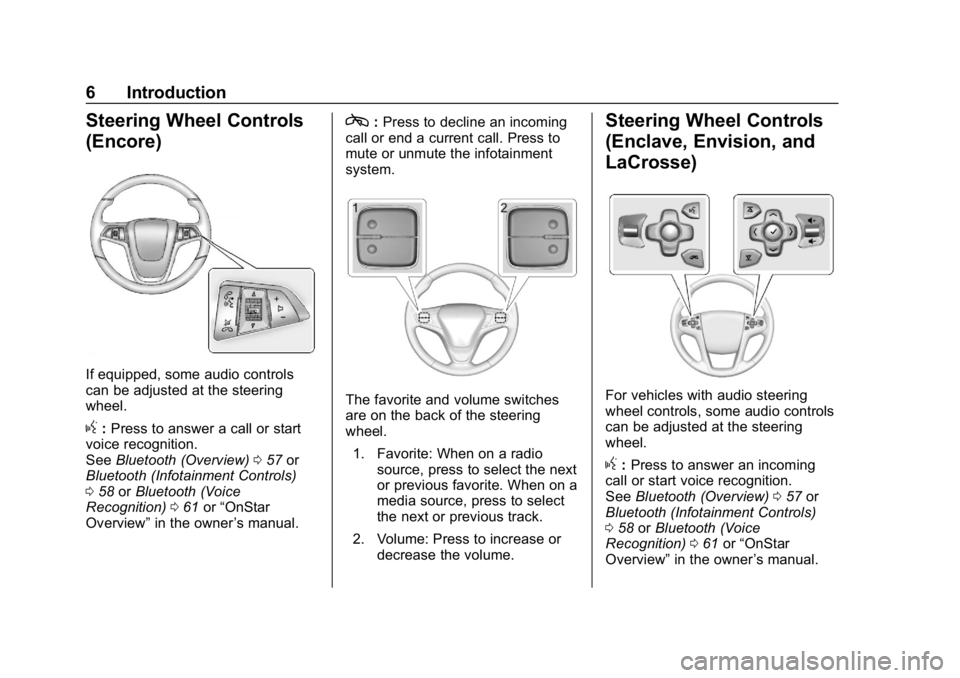
If equipped, some audio controls
can be adjusted at the steering
wheel.
g:Press to answer a call or start
voice recognition.
See Bluetooth (Overview) 057 or
Bluetooth (Infotainment Controls)
0 58 orBluetooth (Voice
Recognition) 061 or“OnStar
Overview” in the owner ’s manual.
c:Press to decline an incoming
call or end a current call. Press to
mute or unmute the infotainment
system.
The favorite and volume switches
are on the back of the steering
wheel.
1. Favorite: When on a radio source, press to select the next
or previous favorite. When on a
media source, press to select
the next or previous track.
2. Volume: Press to increase or decrease the volume.
Steering Wheel Controls
(Enclave, Envision, and
LaCrosse)
For vehicles with audio steering
wheel controls, some audio controls
can be adjusted at the steering
wheel.
g:Press to answer an incoming
call or start voice recognition.
See Bluetooth (Overview) 057 or
Bluetooth (Infotainment Controls)
0 58 orBluetooth (Voice
Recognition) 061 or“OnStar
Overview” in the owner ’s manual.
Page 9 of 86
Buick Infotainment System (GMNA-Localizing-U.S./Canada-12690019) -
2019 - crc - 6/26/18
8 Introduction
Nav/OnStar Nav
Touch the Nav icon to display the
navigation map or OnStar
Turn-by-Turn Navigation. SeeUsing
the Navigation System 023, and
OnStar System 046.
Settings
Touch the Settings icon to display
the Settings menu. See Settings
0 65.
OnStar
If equipped, touch the OnStar icon
to display the OnStar main page
and start OnStar voice recognition.
See “OnStar Overview” in the
owner ’s manual.
Climate
Touch the Climate icon to display
the Climate main page. See “Dual
Automatic Climate Control System”
in the owner ’s manual. Rear Climate
If equipped, touch the R. Climate
icon to display the Rear Climate
main page. See
“Rear Climate
Control System” in the owner’s
manual.
Applications Tray
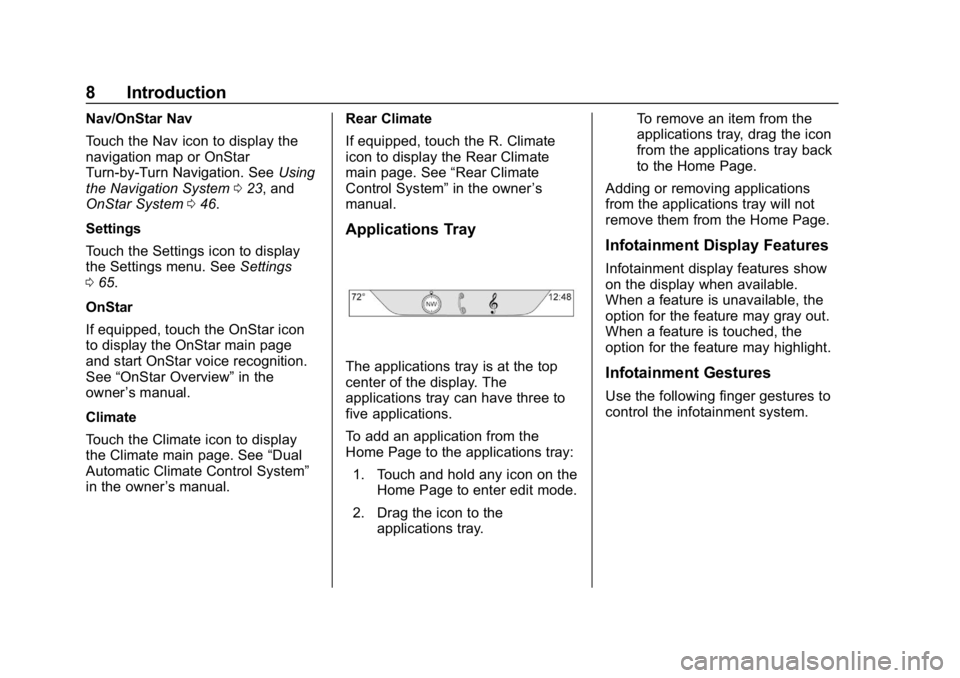
The applications tray is at the top
center of the display. The
applications tray can have three to
five applications.
To add an application from the
Home Page to the applications tray:
1. Touch and hold any icon on the Home Page to enter edit mode.
2. Drag the icon to the applications tray. To remove an item from the
applications tray, drag the icon
from the applications tray back
to the Home Page.
Adding or removing applications
from the applications tray will not
remove them from the Home Page.
Infotainment Display Features
Infotainment display features show
on the display when available.
When a feature is unavailable, the
option for the feature may gray out.
When a feature is touched, the
option for the feature may highlight.
Infotainment Gestures
Use the following finger gestures to
control the infotainment system.
Page 10 of 86
Buick Infotainment System (GMNA-Localizing-U.S./Canada-12690019) -
2019 - crc - 6/26/18
Introduction 9
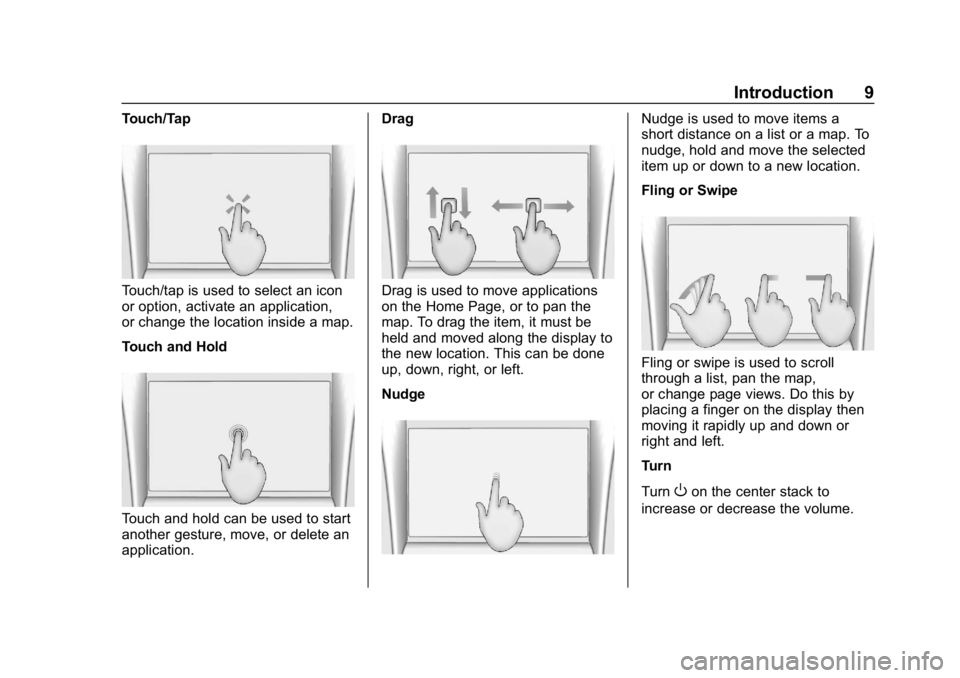
Touch/Tap
Touch/tap is used to select an icon
or option, activate an application,
or change the location inside a map.
Touch and Hold
Touch and hold can be used to start
another gesture, move, or delete an
application.Drag
Drag is used to move applications
on the Home Page, or to pan the
map. To drag the item, it must be
held and moved along the display to
the new location. This can be done
up, down, right, or left.
Nudge
Nudge is used to move items a
short distance on a list or a map. To
nudge, hold and move the selected
item up or down to a new location.
Fling or Swipe
Fling or swipe is used to scroll
through a list, pan the map,
or change page views. Do this by
placing a finger on the display then
moving it rapidly up and down or
right and left.
Turn
Turn
Oon the center stack to
increase or decrease the volume.
Page 15 of 86
Buick Infotainment System (GMNA-Localizing-U.S./Canada-12690019) -
2019 - crc - 6/26/18
14 Radio
To scroll through the favorites:
.Drag up from near the bottom to
display the favorites. To close
the favorites, drag them down.
. Slide a finger to the right or left
to scroll through each page of
favorites.
Tone Settings : Touch and hold a
preset to store the current tone
settings as a favorite. Touch a
saved favorite to recall a favorite
tone setting.
The number of favorites displayed is
automatically adjusted by default,
but can be manually adjusted in the
Settings menu under Radio and
then Number of Favorites Shown.
HD Radio Technology
If equipped, HD Radio is a free
service with features such as digital
quality sound, more stations
available on a single frequency such
as HD2 and HD3, and display
information such as artist and song
title. From the Now Playing display, touch
the HD Radio icon to turn HD on
or off.
Station Access
To access HD Radio stations:
1. Tune the radio to the station. If HD Radio is turned on and
the station is broadcasting in
HD Radio, the radio will
automatically tune to the HD
version of the current channel
(HD1) after several seconds.
The radio will also display
icons representing additional
channels (HD2, ...HD8), that
may be available. When the
radio successfully tunes to a
HD station, the HD logo will
display and digital audio
will play.
2. Touch7or6on the
infotainment display to tune to
the previous or next HD Radio
station.
There may be a delay before the
station starts playing. The HD Radio station number is
indicated next to the HD logo.
HD Radio stations can be saved as
favorites.
For a list of all stations, see
www.hdradio.com.
HD Radio Troubleshooting
Digital Audio Delay :
Wait for the
signal to process. This can take
several seconds.
Volume Change, Audio Skip,
Echo, Digital Audio Lost : Station
signal strength may be weak, the
station is out of range, or the station
may be out of alignment. Verify
proper reception on another station.
If the HD Radio signal loses
reception while listening to HD1, the
radio will go back to the analog
version of the radio station.
If the HD Radio signal loses
reception while listening to stations
HD2 to HD8, the radio mutes until
the signal can be recovered or until
the station is changed.
Page 19 of 86
Buick Infotainment System (GMNA-Localizing-U.S./Canada-12690019) -
2019 - crc - 6/26/18
18 Audio Players
previous track plays. If playing
longer than five seconds, the
current track restarts.
. Press and hold to reverse
quickly through playback.
Release to return to playing
speed. Elapsed time displays.
dor6:
. Press to seek to the next track.
. Press and hold to advance
quickly through playback.
Release to return to playing
speed. Elapsed time displays.
Z:Touch the shuffle icon on the
infotainment display to shuffle
through the available media.
/: Touch the replay icon on the
infotainment display to show the
timebar. Move the timebar to
interact with the currently
playing song.
Tone : Touch Tone on the
infotainment display to access Tone
Settings. Set Bass, Midrange,
Treble, Balance, and Fade. USB Menu
Touch Menu to display the USB
menu. The following may be
available:
Shuffle :
Touch to play the tracks
randomly. Touch again to stop
shuffle.
Tone : Touch + or –to adjust the
tone settings. See AM-FM Radio
0 11.
Auto Volume (If Equipped) : This
feature adjusts the volume based on
the speed of the vehicle. See
AM-FM Radio 011.
Bose AudioPilot Noise
Compensation Technology (If
Equipped) : This feature adjusts
the volume based on the noise in
the vehicle and speed. See AM-FM
Radio 011.
USB Browse Menu
Touch anywhere between the top
and bottom menus to view the
Browse menu and the following
options appear near the bottom of
the display: Playlists:
1. Touch to view the playlists stored on the USB.
2. Select a playlist to view the list of all songs in that playlist.
3. Select a song from the list to begin playback.
Artists: 1. Touch to view the list of artists stored on the USB.
2. Select an artist name to view a list of all albums by the artist.
3. To select a song, touch All Songs or touch an album and
then select a song from the list.
Albums: 1. Touch to view the albums on the USB.
2. Touch the album to view a list of all songs on the album.
3. Touch a song from the list to begin playback.
Page 22 of 86
Buick Infotainment System (GMNA-Localizing-U.S./Canada-12690019) -
2019 - crc - 6/26/18
Audio Players 21
Bluetooth Audio
If equipped, music may be played
from a paired Bluetooth device.
SeeBluetooth (Overview) 057 or
Bluetooth (Infotainment Controls)
0 58 orBluetooth (Voice
Recognition) 061 for help pairing a
device.
The music can be controlled by
either the infotainment controls,
or the controls on the device.
Music can be launched by touching
Media on the infotainment display.
To play music through Bluetooth:
1. Power on the device, and pair to connect the device.
2. Once paired, go into the audio application from the Home
Page or through the
applications tray. Touch Media
and then scroll until Bluetooth
displays. Bluetooth Audio Menu
Touch Menu on the infotainment
display to access the Bluetooth
Audio menu. The following may be
available:
Tone :
Touch + or –to adjust the
tone settings. See AM-FM Radio
0 11.
Touch the Back icon on the
infotainment display to go back to
the previous menu.
Auto Volume (If Equipped) : This
feature adjusts the volume based on
the speed of the vehicle. See
AM-FM Radio 011.
Bose AudioPilot Noise
Compensation Technology (If
Equipped) : This feature adjusts
the volume based on the noise in
the vehicle and speed. See AM-FM
Radio 011. Manage Bluetooth Devices :
Touch to go to the Bluetooth page to
add or delete devices.
When selecting Bluetooth audio, the
radio may not be able to launch the
audio player on the connected
device to start playing. When the
vehicle is not moving, choose the
connected device to begin playback.
All devices launch audio differently.
When selecting Bluetooth audio as
a source, the radio may show as
paused on the display. Touch play
on the device or touch
rto begin
playback.
Some phones support sending
Bluetooth music information to
display on the radio. When the radio
receives this information, it will
check to see if any is available and
display it. For more information
about supported Bluetooth features,
see www.gm.com/bluetooth.
Page 31 of 86
Buick Infotainment System (GMNA-Localizing-U.S./Canada-12690019) -
2019 - crc - 6/26/18
30 Navigation
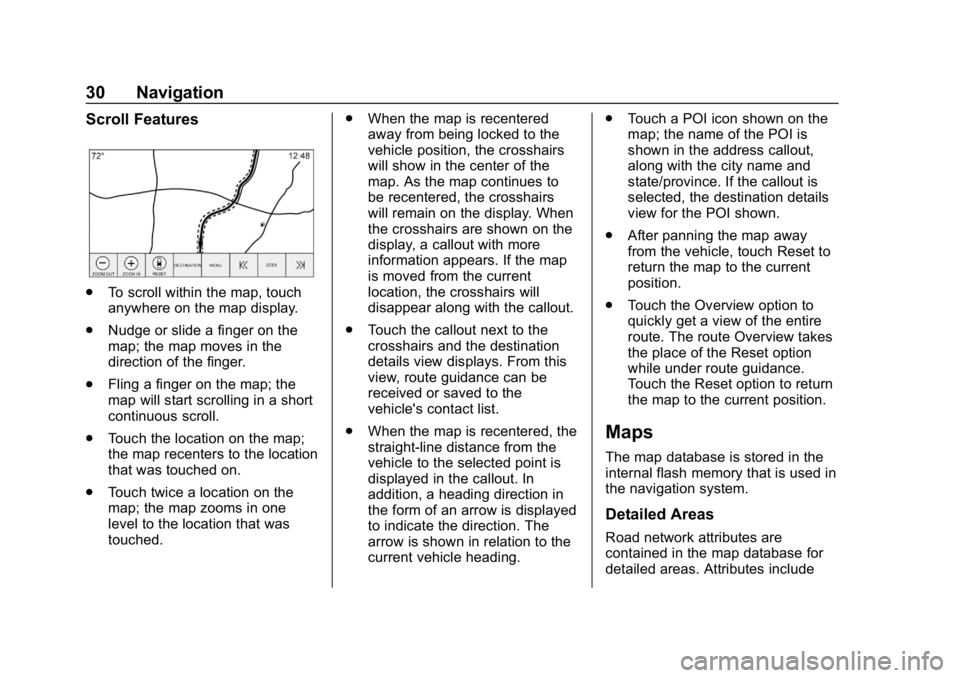
Scroll Features
.To scroll within the map, touch
anywhere on the map display.
. Nudge or slide a finger on the
map; the map moves in the
direction of the finger.
. Fling a finger on the map; the
map will start scrolling in a short
continuous scroll.
. Touch the location on the map;
the map recenters to the location
that was touched on.
. Touch twice a location on the
map; the map zooms in one
level to the location that was
touched. .
When the map is recentered
away from being locked to the
vehicle position, the crosshairs
will show in the center of the
map. As the map continues to
be recentered, the crosshairs
will remain on the display. When
the crosshairs are shown on the
display, a callout with more
information appears. If the map
is moved from the current
location, the crosshairs will
disappear along with the callout.
. Touch the callout next to the
crosshairs and the destination
details view displays. From this
view, route guidance can be
received or saved to the
vehicle's contact list.
. When the map is recentered, the
straight-line distance from the
vehicle to the selected point is
displayed in the callout. In
addition, a heading direction in
the form of an arrow is displayed
to indicate the direction. The
arrow is shown in relation to the
current vehicle heading. .
Touch a POI icon shown on the
map; the name of the POI is
shown in the address callout,
along with the city name and
state/province. If the callout is
selected, the destination details
view for the POI shown.
. After panning the map away
from the vehicle, touch Reset to
return the map to the current
position.
. Touch the Overview option to
quickly get a view of the entire
route. The route Overview takes
the place of the Reset option
while under route guidance.
Touch the Reset option to return
the map to the current position.
Maps
The map database is stored in the
internal flash memory that is used in
the navigation system.
Detailed Areas
Road network attributes are
contained in the map database for
detailed areas. Attributes include
Page 35 of 86
Buick Infotainment System (GMNA-Localizing-U.S./Canada-12690019) -
2019 - crc - 6/26/18
34 Navigation
characters, slide a finger left or right
to adjust the highlight of the special
character.
Special Character List
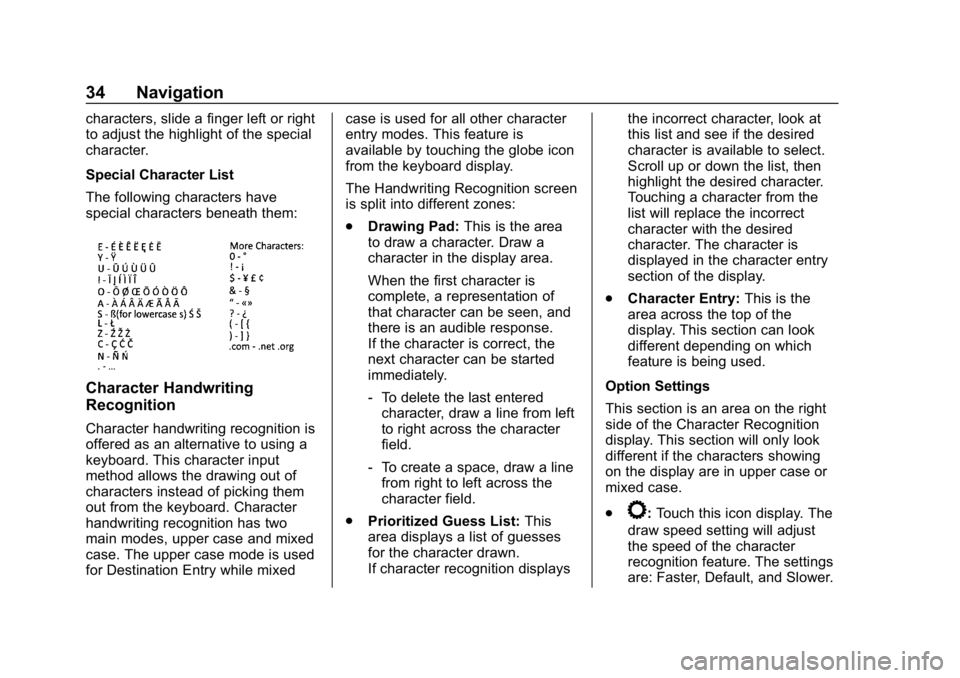
The following characters have
special characters beneath them:
Character Handwriting
Recognition
Character handwriting recognition is
offered as an alternative to using a
keyboard. This character input
method allows the drawing out of
characters instead of picking them
out from the keyboard. Character
handwriting recognition has two
main modes, upper case and mixed
case. The upper case mode is used
for Destination Entry while mixedcase is used for all other character
entry modes. This feature is
available by touching the globe icon
from the keyboard display.
The Handwriting Recognition screen
is split into different zones:
.
Drawing Pad: This is the area
to draw a character. Draw a
character in the display area.
When the first character is
complete, a representation of
that character can be seen, and
there is an audible response.
If the character is correct, the
next character can be started
immediately.
‐ To delete the last entered
character, draw a line from left
to right across the character
field.
‐ To create a space, draw a line
from right to left across the
character field.
. Prioritized Guess List: This
area displays a list of guesses
for the character drawn.
If character recognition displays the incorrect character, look at
this list and see if the desired
character is available to select.
Scroll up or down the list, then
highlight the desired character.
Touching a character from the
list will replace the incorrect
character with the desired
character. The character is
displayed in the character entry
section of the display.
. Character Entry: This is the
area across the top of the
display. This section can look
different depending on which
feature is being used.
Option Settings
This section is an area on the right
side of the Character Recognition
display. This section will only look
different if the characters showing
on the display are in upper case or
mixed case.
.
k: Touch this icon display. The
draw speed setting will adjust
the speed of the character
recognition feature. The settings
are: Faster, Default, and Slower.
Page 37 of 86
Buick Infotainment System (GMNA-Localizing-U.S./Canada-12690019) -
2019 - crc - 6/26/18
36 Navigation
Address and Contact matches are
shown in full width list format. The
match results will display unique
icons for full addresses, streets,
intersections, cities, states/
provinces, and countries.
POIs show in a split list format with
the map on the right displaying the
locations of the matches. The brand
icon or category icon will display for
the match results.
When a list displays, the results for
a particular type can be filtered by
touching the filters along the top of
the screen. If there are no particular
results for a selected type, a
message is indicated in the list.
For example:
.For no addresses: “No
Addresses Found Within
. For no POIs: “No POIs Found
Within <75 km/50 mi/ 800 km/
500 mi>.” This distance is shown
depending on what radius is
completed and what current
units are selected. .
For no contacts: “No Contacts
Found.”
The system performs partial
searches on contacts, so typing a
first name or last name would find a
match. The entire contact name
does not need to be entered for it to
be found in a search.
Touching a contact listed on the
results list displays the standard
contact details view to select an
item, such as an address to start
routing, or a phone number to place
a call.
Address
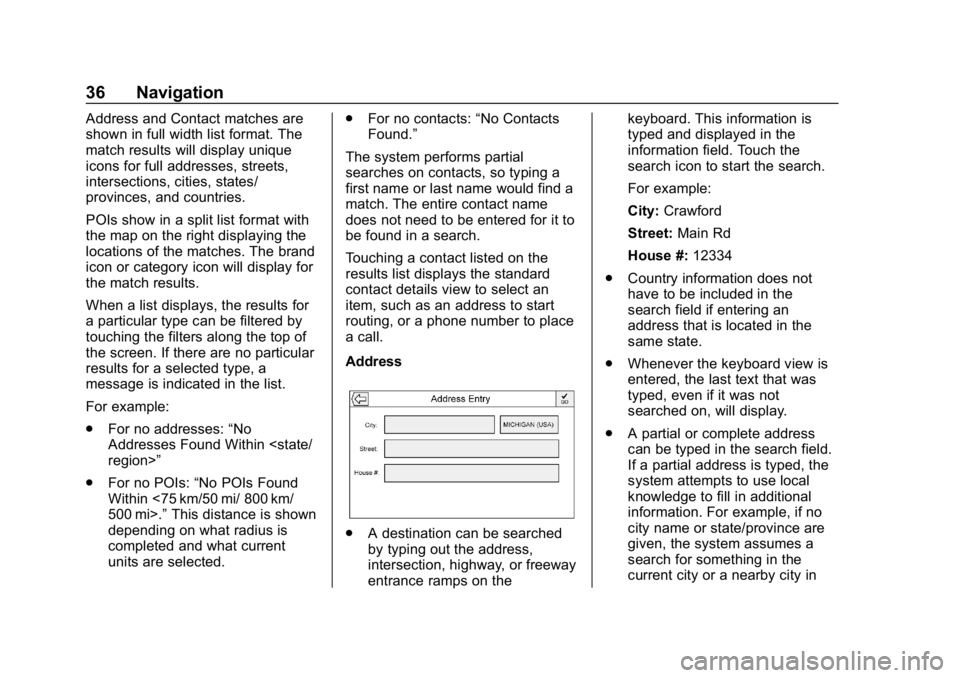
. A destination can be searched
by typing out the address,
intersection, highway, or freeway
entrance ramps on the keyboard. This information is
typed and displayed in the
information field. Touch the
search icon to start the search.
For example:
City:
Crawford
Street: Main Rd
House #: 12334
. Country information does not
have to be included in the
search field if entering an
address that is located in the
same state.
. Whenever the keyboard view is
entered, the last text that was
typed, even if it was not
searched on, will display.
. A partial or complete address
can be typed in the search field.
If a partial address is typed, the
system attempts to use local
knowledge to fill in additional
information. For example, if no
city name or state/province are
given, the system assumes a
search for something in the
current city or a nearby city in
Page 43 of 86
Buick Infotainment System (GMNA-Localizing-U.S./Canada-12690019) -
2019 - crc - 6/26/18
42 Navigation
.Location Name saved as
First Name
. Phone Number saved as Work
. Address saved as Work
. POI Information saved as Notes
. Category saved in Category
Field
After touching Create New Contact,
the newly created contact is then
displayed.
Favorite Destinations
. Destinations can be saved as
Favorites for recall later.
Depending on the favorite, when
an address or POI favorite is
recalled, the Destination Details
view is shown.
. When a favorite address is being
routed to, it is shown active.
Touch the active favorite, to
suspend that route.
. Save locations as Favorites for
recall later in the Destination
Details view.
. Save trips from the
Address Book. Storing Favorites from the Contact
Details List
A contact name or any of the
contact’
s information such as phone
number or address from Contact
Details can be stored as a Favorite.
. Touch and hold on the favorite
location while viewing a contact
on the Contact Details List. The
contact name and all contact
information can be stored.
. Touch to save as a favorite. The
favorite label will be the name of
the contact.
. Touch the Favorite to display the
destination view.
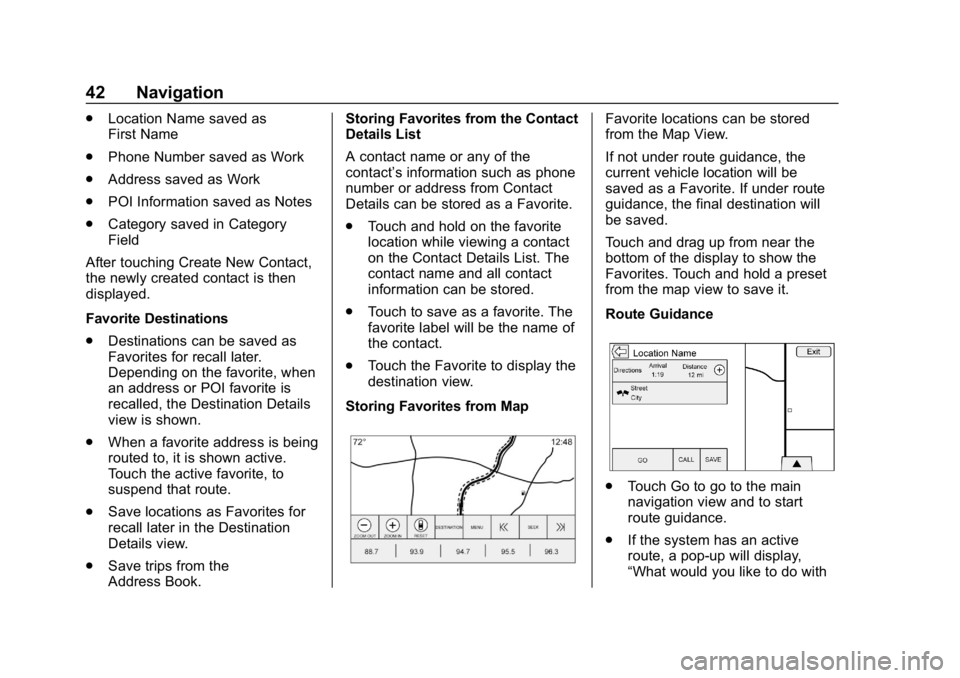
Storing Favorites from MapFavorite locations can be stored
from the Map View.
If not under route guidance, the
current vehicle location will be
saved as a Favorite. If under route
guidance, the final destination will
be saved.
Touch and drag up from near the
bottom of the display to show the
Favorites. Touch and hold a preset
from the map view to save it.
Route Guidance
. Touch Go to go to the main
navigation view and to start
route guidance.
. If the system has an active
route, a pop-up will display,
“What would you like to do with