Car CADILLAC CTS V 2017 3.G Owner's Manual
[x] Cancel search | Manufacturer: CADILLAC, Model Year: 2017, Model line: CTS V, Model: CADILLAC CTS V 2017 3.GPages: 352, PDF Size: 3.99 MB
Page 144 of 352
Cadillac CTS/CTS-V Owner Manual (GMNA-Localizing-MidEast-10293089) -
2017 - crc - 6/22/16
INSTRUMENTS AND CONTROLS 143
LANE KEEPING ASSIST
UNAVAILABLE
This message displays when the Lane
Keep Assist (LKA) and Lane Departure
Warning (LDW) system is temporarily
unavailable. The LKA system does not
need service.
This message could be due to the
camera being blocked. Cleaning the
outside of the windshield behind the
rearview mirror may correct the issue.
REAR AUTO BRAKE/PARK
ASSIST OFF
This message displays when the
Parking Assist system has been turned
off or when there is a temporary
condition causing the system to be
disabled.
REAR AUTO BRAKE AND PARK
ASSIST UNAVAILABLE
This message displays when
attempting to activate the parking and
backing features of the Driver
Assistance System when they are
temporarily unavailable. The system
does not need service.This can occur under the following
conditions:
.
The radar is not clean. Keep the
radar sensors free of mud, dirt,
snow, ice, and slush. Clean the
entire front and/or rear of the
vehicle. For cleaning instructions,
see Exterior Care 0315.
. Heavy rain or snow is interfering
with the radar object detection or
camera performance.
See Driver Assistance Systems 0227.
SERVICE FORWARD COLLISION
SYSTEM
If this message displays, take the
vehicle to your dealer to repair the
system. Adaptive Cruise Control
(ACC), Forward Collision Alert (FCA),
and/or Forward Automatic Braking
(FAB) may not work. Do not use these
systems until the vehicle has been
repaired.
SERVICE DRIVER ASSIST SYSTEM
If this message displays, take the
vehicle to your dealer to repair the
system. Adaptive Cruise Control (ACC),
Forward Collision Alert (FCA),
Forward Automatic Braking (FAB),
Assistance Systems for Parking or
Backing, and/or the Lane Keep Assist
(LKA) system may not work. Do not
use these systems until the vehicle
has been repaired.
SERVICE FRONT CAMERA
If this message remains on after
continued driving, take the vehicle to
your dealer for service. Do not use the
Lane Keep Assist (LKA), Lane
Departure Warning (LDW), and
Forward Collision Alert (FCA) features.
SERVICE PARK ASSIST
This message displays if there is a
problem with the Parking Assist
system. Do not use this system to
help you park. See your dealer for
service.
SERVICE REAR AUTO BRAKE AND
PARK ASSIST
This message displays if there is a
problem with the parking and backing
features of the Driver Assistance
Page 145 of 352
Cadillac CTS/CTS-V Owner Manual (GMNA-Localizing-MidEast-10293089) -
2017 - crc - 6/22/16
144 INSTRUMENTS AND CONTROLS
System. Do not use this system to
help park or back the vehicle. See your
dealer for service.
SERVICE SIDE DETECTION
SYSTEM
If this message remains on after
continued driving, the vehicle needs
service. Side Blind Zone Alert (SBZA),
Lane Change Alert (LCA), and Rear
Cross Traffic Alert (RCTA) features
will not work. Take the vehicle to your
dealer.
SIDE DETECTION SYSTEM
UNAVAILABLE
This message indicates that Side Blind
Zone Alert (SBZA), Lane Change Alert
(LCA), and Rear Cross Traffic Alert
(RCTA) are disabled either because the
sensor is blocked and cannot detect
vehicles in the blind zone, or the
vehicle is passing through an open
area, such as the desert, where there
is insufficient data for operation. This
message may also activate during
heavy rain or due to road spray. The
vehicle does not need service. For
cleaning, see "Washing the Vehicle"
underExterior Care 0315.
TAKE STEERING
If LKA does not detect active driver
steering, an alert and chime may be
provided. Move the steering wheel to
dismiss. See Lane Keep Assist
(LKA) 0241.
Ride Control System
Messages
ALL WHEEL DRIVE OFF
If the vehicle has the All-Wheel-Drive
(AWD) system, this message displays
when there is a temporary condition
making the AWD system unavailable.
The vehicle will run in 2WD. This
could be caused by:
.
Loss of wheel or vehicle speed
. AWD system overheat
. Certain vehicle electrical
conditions
This message turns off when the
above conditions are no longer
present and the warning message is
reset.
See All-Wheel Drive 0206.
PERFORMANCE TRACTION 1 -
WET (V-Series Only)
This message displays when this
Performance Traction Management
(PTM) mode is selected. The TCS and
StabiliTrak OFF cluster lights will also
be on when this mode is selected.
Launch Control is available when this
mode is selected. In this mode, the
Traction Control and Active Handling
System are available but intended for
use on wet race track conditions.
Adjust your driving accordingly. See
“Performance Traction Management
(V-Series Only)” underCompetitive
Driving Mode 0214.
PERFORMANCE TRACTION 2 -
DRY (V-Series Only)
This message displays when this
Performance Traction Management
(PTM) mode is selected. The TCS and
StabiliTrak OFF cluster lights will also
be on when this mode is selected.
Launch Control is available when this
mode is selected. In this mode, the
Traction Control and Active Handling
System are available but intended for
use on dry race track conditions.
Adjust your driving accordingly. See
Page 149 of 352
Cadillac CTS/CTS-V Owner Manual (GMNA-Localizing-MidEast-10293089) -
2017 - crc - 6/22/16
148 INSTRUMENTS AND CONTROLS
SHIFT DENIED
This message displays when using the
Driver Shift Control (DSC) and
attempting to shift to a gear not
appropriate for the vehicle speed and
engine revolutions per minute (rpm).
SeeManual Mode 0205.
SHIFT TO PARK
This message displays when the
transmission needs to be shifted to
P (Park). This may appear when
turning the ignition off if the vehicle
is not in P (Park).
TRANSMISSION HOT —IDLE
ENGINE
This message displays and a chime
sounds if the transmission fluid in the
vehicle gets hot. Driving with the
transmission fluid temperature high
can cause damage to the vehicle. Stop
the vehicle and let it idle to allow the
transmission to cool. This message
clears when the fluid temperature
reaches a safe level.
Vehicle Reminder
Messages
ICE POSSIBLE DRIVE WITH CARE
This message displays when ice
conditions are possible.
Vehicle Speed Messages
SPEED LIMIT EXCEEDED
This message is displayed when the
vehicle speed is greater than the set
speed. See “Speed Warning” under
Driver Information Center (DIC) 0132.
VEHICLE OVERSPEED
This message displays when the
vehicle speed exceeds 120 km/h
(75 mph).
Washer Fluid Messages
WASHER FLUID LOW ADD FLUID
This message may display when the
washer fluid level is low. Fill the
windshield washer reservoir as soon
as possible. See Engine Compartment
Overview 0250 for the location of the
windshield washer reservoir. Also, see
Washer Fluid 0269.
Page 150 of 352
Cadillac CTS/CTS-V Owner Manual (GMNA-Localizing-MidEast-10293089) -
2017 - crc - 6/22/16
INSTRUMENTS AND CONTROLS 149
Vehicle Personalization
Use the audio system controls to
access the personalization menus for
customizing vehicle features.
The following are all possible
personalization features. Depending
on the vehicle, some may not be
available.
Infotainment System Audio System
Controls
To access the personalization menu:1. Press SETTINGS on the Home page on the infotainment system
display.
2. Press the desired feature to display a list of available options.
3. Press to select the desired feature setting.
4. Press the
[Back screen button
to return to the previous menu.
Personalization Menus
The following list of menu items may
be available:
. Time and Date .
Driving Mode
. Language (Language)
. Valet Mode
. Radio
. Vehicle
. Bluetooth
. Apple CarPlay
. Android Auto
. Voice
. Display
. Rear Camera
. Return to Factory Settings
. Software Information
Each menu is detailed in the following
information.
Time and Date
Manually set the time and date. See
Clock 0108.
Driving Mode
These settings will overwrite the main
Vehicle Mode selections made with
the mode button(s) on the console. Press and the following may display:
.
Engine Sound Management
. Steering
. Suspension
Engine Sound Management
This allows the Engine Sound
Management setting to be changed.
Select Auto (Mode Selector), Tour,
Sport, or Track.
Steering
This allows the Steering setting to be
changed.
Select Auto (Mode Selector), Tour,
Sport, or Track.
Suspension
This allows the Suspension setting to
be changed.
Select Auto (Mode Selector), Tour,
Sport, or Track.
Language (Language)
Select Language, then select from the
available language(s).
Page 155 of 352

Cadillac CTS/CTS-V Owner Manual (GMNA-Localizing-MidEast-10293089) -
2017 - crc - 6/22/16
154 INSTRUMENTS AND CONTROLS
Select Off or On.
Remote Start Auto Heat Seats
If equipped and turned on, this
feature will turn on the heated seats
when using remote start on cold days.
Select Off or On.
Remote Window Operation
This allows the window to be opened
when pressing and holding
Kon the
RKE transmitter. See Remote Keyless
Entry (RKE) System Operation 029.
Select Off or On.
Passive Door Unlock
This allows the selection of what
doors will unlock when using the
button on the driver door to unlock
the vehicle.
Select All Doors or Driver Door.
Passive Door Lock
This allows passive locking to be
turned on or off and selects feedback.
See Remote Keyless Entry (RKE) System
Operation 029.
Select Off, On with Horn Chirp, or On. Remote Left in Vehicle Alert
This feature sounds an alert when the
RKE transmitter is left in the vehicle.
Select Off or On.
Bluetooth
Select and the following may display:
.
Pair New Device
. Device Management
. Ringtones
. Voice Mail Numbers
Pair New Device
Select to pair a new device. See
“Pairing” in“Infotainment Controls ”
under “Bluetooth ”in the infotainment
manual.
Device Management
Select to connect to a different phone
source, disconnect a phone, or delete
a phone.
Ringtones
Press to change the ring tone for the
specific phone. The phone does not
need to be connected to change
the ring. Voice Mail Numbers
This feature displays the voice mail
number for all connected phones. To
change the voice mail number, select
EDIT or press the EDIT button. Type a
new number, then select SAVE or
press the SAVE button.
Apple CarPlay™
Select and the following may display:
.
Apple CarPlay
. Manage Apple CarPlay Devices
Apple CarPlay
This feature allows Apple devices to
be connected to the infotainment
system through a USB port.
Select Off or On.
Manage Apple CarPlay Devices
Select to manage Apple devices. Apple
CarPlay must be on for this feature to
be accessed.
Android Auto
Select and the following may display:
. Android Auto
. Manage Android Auto Devices
Page 167 of 352
Cadillac CTS/CTS-V Owner Manual (GMNA-Localizing-MidEast-10293089) -
2017 - crc - 6/22/16
166 INFOTAINMENT SYSTEM
countries and situations. Vehicles
equipped with the PDR System are
intended for use on private tracks
only and may under local laws and
regulations be restricted or
completely excluded from use in
areas accessible by the public,
such as public roads. It is your
own responsibility to ensure
compliance with applicable laws
and regulations, including but not
limited to privacy laws, laws
related to camera surveillance and
recordings, road traffic and
security laws, and laws on the
protection of publicity and
personality rights. You may need a
permit, license, or other approval
from local authorities in order to
comply with applicable laws and
regulations.
. Do not use the PDR System if this
could distract your attention from
traffic or entail other risks.
. Do not rely exclusively on camera
footage for steering the vehicle.
. Comply with any notice and
consent requirements before
capturing and/or recording the voices or images of other persons
or collecting other personal data
with the PDR System.
. Notify other drivers of your
vehicle of the above rules and
require them to comply with them.
. General Motors does not accept
any responsibility or liability in
connection with an impermissible
use of the PDR System.
. Please note that law enforcement
authorities may have the right to
seize video recordings and use
them as evidence of criminal/
driving offences against you or
third parties.
. The PDR System captures and
records any sound perceivable
within the vehicle, including any
conversations among vehicle
occupants. Hidden recording of
conversations may be an offence
under certain jurisdictions.
Therefore, all vehicle users and
occupants must be informed about
ongoing audio recording upon
activation of the PDR System. The PDR records video, audio, and
vehicle data. This data is stored on a
removable SD card in the glove box.
The recorded data is not stored
anywhere else and is only accessible
from the SD card.
To begin, insert a FAT32 formatted SD
card, Class 10 required, 8, 16, or 32 GB
recommended, into the glove box SD
card reader.
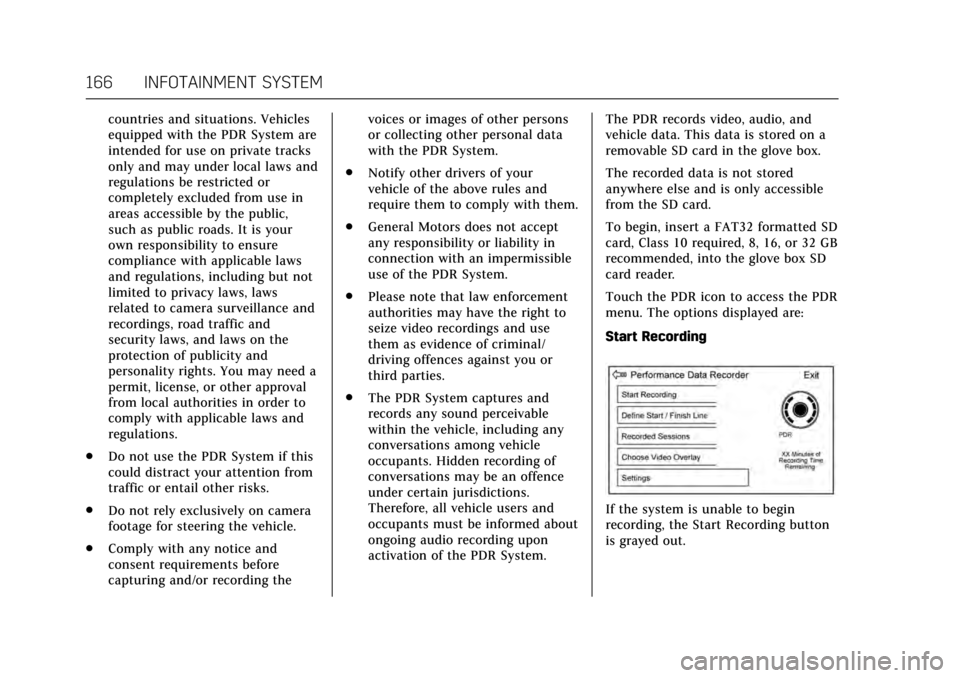
Touch the PDR icon to access the PDR
menu. The options displayed are:
Start Recording
If the system is unable to begin
recording, the Start Recording button
is grayed out.
Page 168 of 352
Cadillac CTS/CTS-V Owner Manual (GMNA-Localizing-MidEast-10293089) -
2017 - crc - 6/22/16
INFOTAINMENT SYSTEM 167
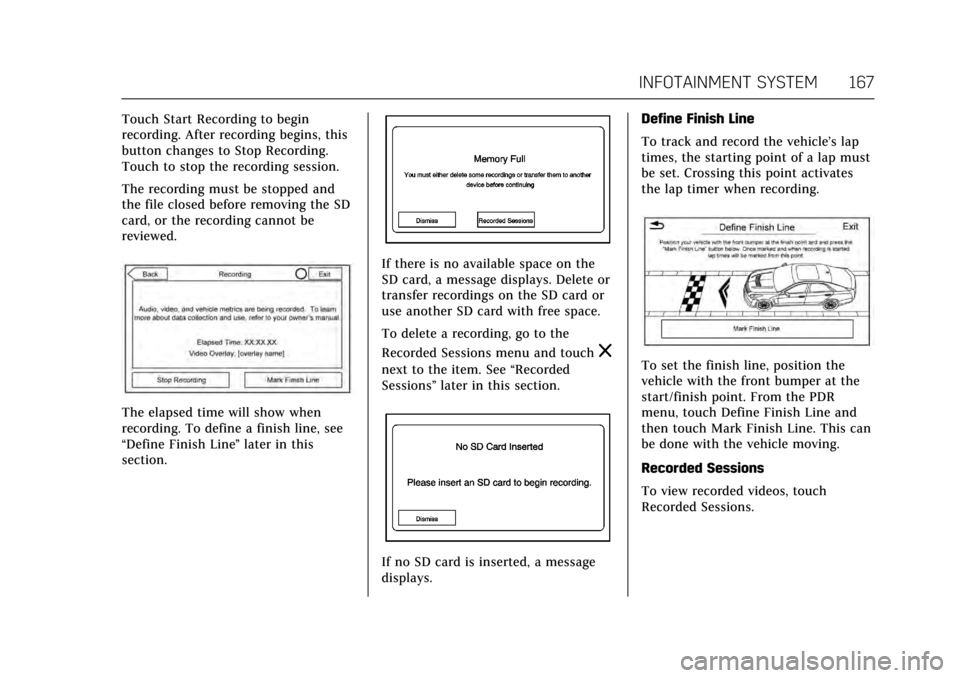
Touch Start Recording to begin
recording. After recording begins, this
button changes to Stop Recording.
Touch to stop the recording session.
The recording must be stopped and
the file closed before removing the SD
card, or the recording cannot be
reviewed.
The elapsed time will show when
recording. To define a finish line, see
“Define Finish Line”later in this
section.
If there is no available space on the
SD card, a message displays. Delete or
transfer recordings on the SD card or
use another SD card with free space.
To delete a recording, go to the
Recorded Sessions menu and touch
z
next to the item. See “Recorded
Sessions” later in this section.
If no SD card is inserted, a message
displays. Define Finish Line
To track and record the vehicle’s lap
times, the starting point of a lap must
be set. Crossing this point activates
the lap timer when recording.
To set the finish line, position the
vehicle with the front bumper at the
start/finish point. From the PDR
menu, touch Define Finish Line and
then touch Mark Finish Line. This can
be done with the vehicle moving.
Recorded Sessions
To view recorded videos, touch
Recorded Sessions.
Page 171 of 352
Cadillac CTS/CTS-V Owner Manual (GMNA-Localizing-MidEast-10293089) -
2017 - crc - 6/22/16
170 INFOTAINMENT SYSTEM
.Event Odometer: Displays the
distance driven since the recording
began.
. Drive Mode: Displays the vehicle’s
current drive mode.
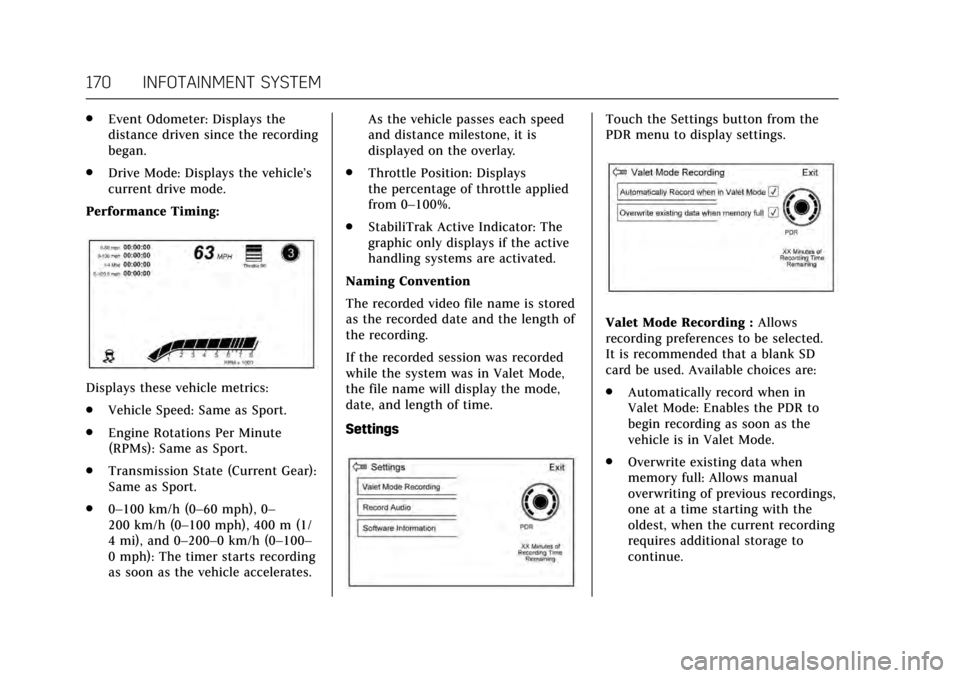
Performance Timing:
Displays these vehicle metrics:
. Vehicle Speed: Same as Sport.
. Engine Rotations Per Minute
(RPMs): Same as Sport.
. Transmission State (Current Gear):
Same as Sport.
. 0–100 km/h (0–60 mph), 0–
200 km/h (0–100 mph), 400 m (1/
4 mi), and 0–200–0 km/h (0–100–
0 mph): The timer starts recording
as soon as the vehicle accelerates. As the vehicle passes each speed
and distance milestone, it is
displayed on the overlay.
. Throttle Position: Displays
the percentage of throttle applied
from 0–100%.
. StabiliTrak Active Indicator: The
graphic only displays if the active
handling systems are activated.
Naming Convention
The recorded video file name is stored
as the recorded date and the length of
the recording.
If the recorded session was recorded
while the system was in Valet Mode,
the file name will display the mode,
date, and length of time.
Settings
Touch the Settings button from the
PDR menu to display settings.
Valet Mode Recording : Allows
recording preferences to be selected.
It is recommended that a blank SD
card be used. Available choices are:
. Automatically record when in
Valet Mode: Enables the PDR to
begin recording as soon as the
vehicle is in Valet Mode.
. Overwrite existing data when
memory full: Allows manual
overwriting of previous recordings,
one at a time starting with the
oldest, when the current recording
requires additional storage to
continue.
Page 178 of 352
Cadillac CTS/CTS-V Owner Manual (GMNA-Localizing-MidEast-10293089) -
2017 - crc - 6/22/16
CLIMATE CONTROLS 177
The climate control system uses the
sensor information to adjust the
temperature, fan speed, recirculation,
and air delivery mode for best
comfort.
If the sensor is covered, the automatic
climate control system may not work
properly.
Air Quality Sensor
If equipped with an air quality sensor,
the climate control system adjusts to
limit some exhaust fumes from being
pulled inside the vehicle.
Press the AUTO button on the climate
control to activate the air quality
sensor. Recirculation is automatically
selected when poor quality air is
detected. The air quality sensor will
not maintain recirculation for an
extended period to prevent the air
inside the vehicle from becoming too
dry or stuffy.
Under certain conditions, the air
quality sensor will not activate, such
as during cold weather or with
extreme odors. Press
@to activate
recirculation. The air quality sensor system does not
protect against carbon monoxide (CO),
which you cannot see or smell. See
Engine Exhaust
0202. The air quality
sensor operation can be adjusted, See
“Climate and Air Quality” under
Vehicle Personalization 0149.
Rear Climate Control
System
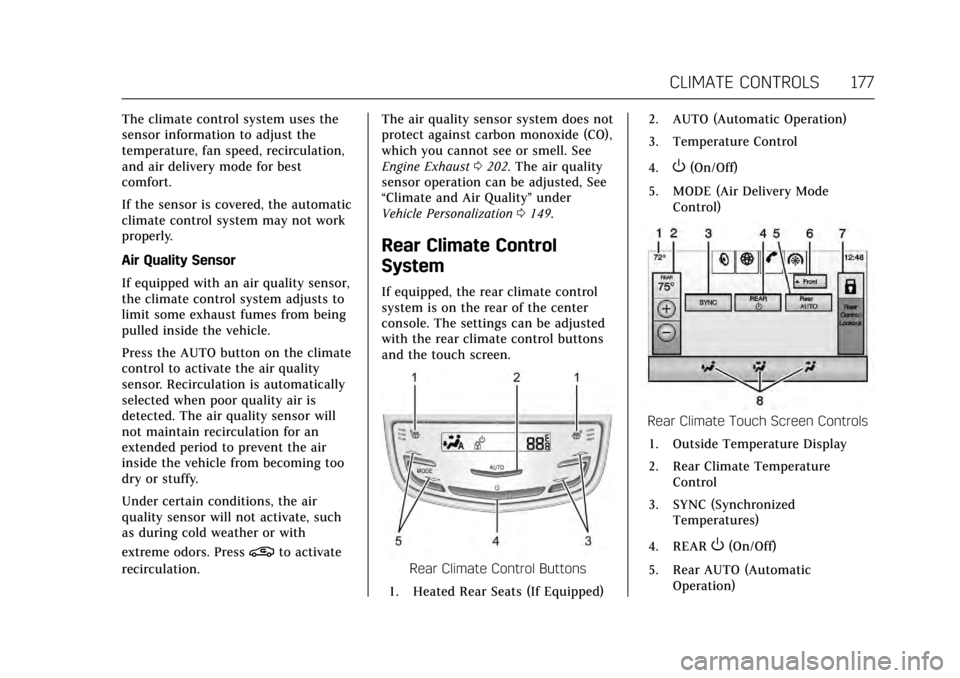
If equipped, the rear climate control
system is on the rear of the center
console. The settings can be adjusted
with the rear climate control buttons
and the touch screen.
Rear Climate Control Buttons
1. Heated Rear Seats (If Equipped) 2. AUTO (Automatic Operation)
3. Temperature Control
4.
O(On/Off)
5. MODE (Air Delivery Mode Control)
Rear Climate Touch Screen Controls
1. Outside Temperature Display
2. Rear Climate Temperature Control
3. SYNC (Synchronized Temperatures)
4. REAR
O(On/Off)
5. Rear AUTO (Automatic Operation)
Page 183 of 352
Cadillac CTS/CTS-V Owner Manual (GMNA-Localizing-MidEast-10293089) -
2017 - crc - 6/22/16
182 DRIVING AND OPERATING
Driving Information
Distracted Driving
Distraction comes in many forms and
can take your focus from the task of
driving. Exercise good judgment and
do not let other activities divert your
attention away from the road. Many
local governments have enacted laws
regarding driver distraction. Become
familiar with the local laws in
your area.
To avoid distracted driving, keep your
eyes on the road, keep your hands on
the steering wheel, and focus your
attention on driving.
.Do not use a phone in demanding
driving situations. Use a
hands-free method to place or
receive necessary phone calls.
. Watch the road. Do not read, take
notes, or look up information on
phones or other electronic devices.
. Designate a front seat passenger
to handle potential distractions. .
Become familiar with vehicle
features before driving, such as
programming favorite radio
stations and adjusting climate
control and seat settings. Program
all trip information into any
navigation device prior to driving.
. Wait until the vehicle is parked to
retrieve items that have fallen to
the floor.
. Stop or park the vehicle to tend to
children.
. Keep pets in an appropriate carrier
or restraint.
. Avoid stressful conversations
while driving, whether with a
passenger or on a cell phone.
{Warning
Taking your eyes off the road too
long or too often could cause a
crash resulting in injury or death.
Focus your attention on driving. See the infotainment manual for
information on that system or the
navigation system, if equipped,
including pairing and using a cell
phone.
Defensive Driving
Defensive driving means
“always
expect the unexpected.” The first step
in driving defensively is to wear the
safety belt. See Safety Belts064.
. Assume that other road users
(pedestrians, bicyclists, and other
drivers) are going to be careless
and make mistakes. Anticipate
what they might do and be ready.
. Allow enough following distance
between you and the driver in
front of you.
. Focus on the task of driving.
Control of a Vehicle
Braking, steering, and accelerating are
important factors in helping to control
a vehicle while driving.