lock CADILLAC ESCALADE 2010 3.G Owners Manual
[x] Cancel search | Manufacturer: CADILLAC, Model Year: 2010, Model line: ESCALADE, Model: CADILLAC ESCALADE 2010 3.GPages: 616, PDF Size: 39.41 MB
Page 294 of 616
Using the REPEAT Feature
REPEAT :Press to change between Repeat One andRepeat Folder.
.Repeat One—Repeats the song that is playing.
.Repeat Folder—Repeats the folder that isplaying.
Tips and Troubleshooting Chart
ProblemRecommended Action
IR Sensor Inoperative.Check that thebatteries are goodin the remotecontrol..Check that theremote Control IRSensor is notblocked..Aim the remotecontrol toward theIR Sensor beingcontrolled..Select the correctscreen, 3 or 4.
ProblemRecommended Action
No picture.Check that thecorrect video inputmode is selected..Check that thevideo cable isplugged into thejack securely.
No Sound.Check that thecorrect audio inputmode is selected..Check that theaudio cable issecurely pluggedinto the jack.
Cleaning the Video Screens
The video display screens are made of a speciallycoated glass and can be scratched or damaged byabrasive products, solvents, or ammonia-based windowcleaners. Clean with a soft, lint-free, cotton cloth thathas been slightly dampened with warm water. Dry thescreens by wiping with a clean dry cotton cloth.
4-102
Page 297 of 616
PROG (Program) :Press this button to go to the nextpreset radio station or channel set on the main radio.This function is inactive, with some radios, if the frontseat passengers are listening to the radio.
When a CD or DVD audio disc is playing, press thisbutton to go to the beginning of the CD or DVD audio.This function is inactive, with some radios, if the frontseat passengers are listening to the disc.
When a disc is playing in the CD or DVD changer, pressthis button to select the next disc, if multiple discs areloaded. This function is inactive, with some radios, if thefront seat passengers are listening to the disc.
When a DVD video menu is being displayed, press thePROG button to perform the menu function, enter.
Theft-Deterrent Feature
THEFTLOCK®is designed to discourage theft of thevehicle's radio by learning a portion of the VehicleIdentification Number (VIN). The radio does not operateif it is stolen or moved to a different vehicle.
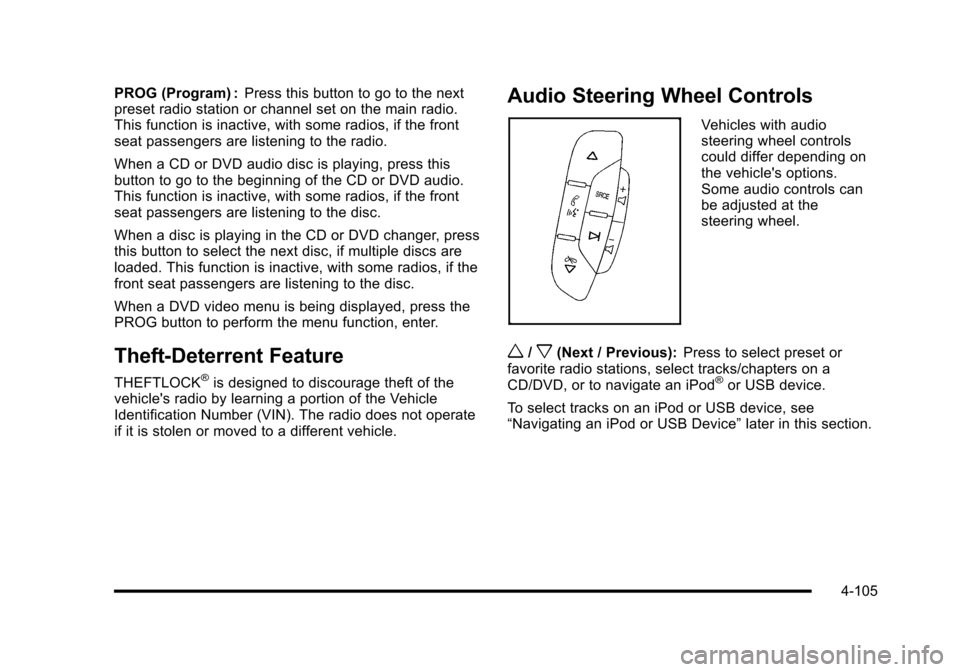
Audio Steering Wheel Controls
Vehicles with audiosteering wheel controlscould differ depending onthe vehicle's options.Some audio controls canbe adjusted at thesteering wheel.
w/x(Next / Previous):Press to select preset orfavorite radio stations, select tracks/chapters on aCD/DVD, or to navigate an iPod®or USB device.
To select tracks on an iPod or USB device, see“Navigating an iPod or USB Device”later in this section.
4-105
Page 303 of 616

A. FULL MAP Touch Screen Button. See“NAV”under“Hard Keys”underUsing the Navigation Systemon page 5!12for more information.
B. No GPS Symbol. SeeSymbolson page 5!17formore information.
C. North Up/Heading Up Symbol. SeeSymbolsonpage 5!17for more information.
D. Map Scale. See“Map Scales”underMapsonpage 5!14for more information.
E.0(Zoom In) Touch Screen Button. See“Map
Scales”underMapson page 5!14for moreinformation.
F. Mark Touch Screen Button. See“AddingDestinations to the Address Book”underDestinationon page 5!24for more information.
G.Z(DVD Map Disc Eject) Key. SeeMapson
page 5!14for more information.
H. Map DVD Slot. See“Installing the Map DVD”underMapson page 5!14for information on how toinstall and eject a map DVD.
I.M(Load) Key. SeeCD Playeron page 5!68or
DVD Playeron page 5!75for more information.
J.Z(CD/DVD Video/Audio Eject) Key. SeeCD
Playeron page 5!68orDVD Playeron page 5!75for more information.
K. CD/DVD Video/Audio Slot. SeeCD Playeronpage 5!68orDVD Playeron page 5!75formore information.
L.O/n(Power/Volume) Knob. SeeNavigation
Audio Systemon page 5!60for more information.
M.M(Disc Up/Down) Key. See“Hard Keys”under
Using the Navigation Systemon page 5!12formore information.
N. AUDIO Key. SeeNavigation Audio Systemonpage 5!60for more information.
O. FAV (Favorite) Key. See“Storing Radio StationPresets”underNavigation Audio Systemonpage 5!60for more information.
P.5(Phone) Key. See the OnStar®owner guide and
Bluetooth®on page 4!67for more information.
Q.e(Sound) Key. See“Sound Menu”under
Navigation Audio Systemon page 5!60formore information.
R. Source (AM, FM, XM, CD, etc.) Touch ScreenButton. SeeNavigation Audio Systemonpage 5!60for more information.
S. Clock Touch Screen Button. See“Setting theClock”underConfigure Menuon page 5!42formore information.
5-3
Page 308 of 616

Setting the Clock
The navigation system time and the analog clockoperate independently. Changing the time through thenavigation system does not change the time on theanalog clock. SeeAnalog Clockon page 4!20tochange the analog clock time.
To set the time for the navigation system:
1. Press the CONFIG key to enter the configuremenu options, then press the CONFIG keyrepeatedly until the time is selected or touch thetime screen button.
2. Press the Hours and Minutes!(minus) and+ (plus) signs to decrease or to increase the time.
See“Setting the Clock”underConfigure Menuonpage 5!42for more information.
Entering an Address and Point of
Interest, and Storing Preset
Destinations
Entering an Address
Enter a destination by inputting the city name first:
1. If the radio is already on with a map disc inserted,skip to Step 5.
2. PressOto turn the system on.
3. Insert the DVD map disc. See“Installing theMap DVD”underMapson page 5!14for moreinformation.
4. A caution may appear. Touch the OK screen buttonto proceed.
5. Press the DEST hard key.
6. Press the2Address Entry screen button.
5-8
Page 353 of 616
After selecting the INFO (information) screen button,the type of traffic condition, the street name, and adescription of the traffic condition displays. See“Scrolling the Map”underMapson page 5!14formore information.
To display traffic events in another state or a greatdistance away, scroll to the desired area, and then stopscrolling. Wait for the traffic to update. It may take up totwo minutes before traffic in this new area can bereceived and displayed.
Traffic Event Display Categories
The following are traffic condition categories andsymbols that can appear on the display:
Category 1, Road Closure:
q(Road Closed):Road and/or ramps closed.
Category 2, Traffic Delayed:
o(Stopped Traffic):Traffic stopped, stop and gotraffic, delayed and congested traffic.
Category 3, Incidents:
p(Alert):Object in the roadway, disabled vehicle,or dangerous road conditions.
t(Accident):Roadway obstructed due to accident.
s(Road Works):Delayed traffic due to construction.
Category 4, Advisories:
j/r(Road Condition):Delayed or stopped traffic,lane blocked or closed due to a road condition.
k(Weather):Heavy rain, snow, or fog weathercondition.
m(Parking):Available parking area.
l(Information):Special event, general information,or warning.
5-53
Page 356 of 616
:Touch the + (plus) or!(minus) screenbuttons to increase or decrease the brig](/img/23/7913/w960_7913-355.png "CADILLAC ESCALADE 2010 3.G Owners Manual Brightness/Contrast/Mode
Touch this screen button to change the brightness,contrast, and mode of the display.
](Brightness):Touch the + (plus) or!(minus) screenbuttons to increase or decrease the brig")
Brightness/Contrast/Mode
Touch this screen button to change the brightness,contrast, and mode of the display.
](Brightness):Touch the + (plus) or!(minus) screenbuttons to increase or decrease the brightness of thescreen.
_(Contrast):Touch the + (plus) or!(minus) screenbuttons to increase or decrease the contrast of thescreen.
Auto (Automatic) :Touch this screen button for thesystem to automatically adjust the screen backgrounddepending on exterior lighting conditions.
Night :Touch this screen button and the system makesthe map background darker.
Day :Touch this screen button and the system makesthe map background brighter.
Setting the Clock
The navigation system time and the analog clockoperate independently. Changing the time through thenavigation system does not change the time on theanalog clock. SeeAnalog Clockon page 4!20tochange the analog clock time.
Press the CONFIG key to enter the configure menuoptions, then press the CONFIG key repeatedly until thetime is selected or touch the time screen button.
Hours :Press the!(minus) or + (plus) signs todecrease or increase the hours.
Minutes :Press the!(minus) or + (plus) signs todecrease or increase the minutes.
12/24 Format :Select the 12 screen button for standardtime; select the 24 screen button for military time.
5-56
Page 367 of 616
The RDS system is always on. When information isbroadcast from the FM station that is playing, the stationname or call letters displays on the audio screen.
XM™Satellite Radio Service
XM™is a satellite radio service that is based inthe 48 contiguous United States and 10 Canadianprovinces. XM Satellite Radio has a wide varietyof programming and commercial-free music,coast-to-coast, and in digital-quality sound. Duringyour trial or when you subscribe, you will get unlimitedaccess to XM Radio Online while not in the vehicle.A service fee is required to receive the XM service.For more information, contact XM at xmradio.com orcall 1-800-929-2100 in the U.S. and xmradio.ca orcall 1-877-438-9677 in Canada.
When XM™is active, the channel name and number,song title, and artist displays on the screen.
XM™Radio Messages
XL (Explicit Language Channels) :XL on the radiodisplay, after the channel name, indicates contentwith explicit language. These channels, or anyothers, can be blocked at a customer's request bycalling 1!800!852!XMXM (9696).
XM Updating :The encryption code in the receiver isbeing updated and no action is required.
No XM signal :The vehicle is in a location that isblocking the XM™signal. When the vehicle is movedinto an open area, the signal should return.
Loading XM :The audio system is processing audioand text data received. No action is needed.
Channel Off Air :This channel is not currently inservice.
Channel Unauth :This channel is blocked or cannotbe received with your XM Subscription package.
Channel Unavail :This previously assigned channel isno longer assigned.
5-67
Page 368 of 616

No Artist Info :No artist information is available.The system is working properly.
No Title Info :No song title information is available.The system is working properly.
No CAT Info :No category information is available.The system is working properly.
CAT Not Found :There are no channels available forthe selected category. The system is working properly.
No Information :No text or informational messages areavailable. The system is working properly.
XM Theftlocked :The XM™receiver may havepreviously been in another vehicle. For securitypurposes, XM™receivers cannot be swapped betweenvehicles. If this message is received after having yourvehicle serviced, check with your dealer/retailer.
XM Radio ID :If tuned to channel 0, this message willalternate with the XM™Radio eight digit radio ID label.This label is needed to activate the service.
Unknown :If this message is received when tuned tochannel 0, there may be a receiver fault. Consult withyour dealer/retailer.
Check XM Receiver :If this message does not clearwithin a short period of time, the receiver may have afault. Consult with your dealer/retailer.
CD Player
The player can be used for CD, MP3, DVD audio, andas a DVD video player. SeeDVD Playeron page 5!75for more information about DVD audio and video.
Six-Disc CD Player
While playing a CD, the navigation system is available.
When you insert a CD, the CD tab displays. If a DSPsetting is selected for the CD, it activates each time youplay a CD.
If the ignition or radio is turned off with a CD in theplayer, it stays in the player. When the ignition or radiois turned on, the CD starts playing where it stopped, if itwas the last selected audio source.
As each new track starts to play, the track numberdisplays.
If an error appears on the display, see“CD Messages”later in this section.
If viewing a map screen, touch the CD screen button.The display will split between the audio screen and themap screen. If you do not want to view a split screen oryou are not on a map screen, press the AUDIO keythen press the AUDIO key repeatedly until CD isselected or touch the CD screen button.
5-68
Page 370 of 616

Playing an Audio CD
j/r(Pause/Play):Touch this button to pause theCD. This button will then change to the play button.Touch the play button to play the CD.
Random :Touch this button to hear the tracks inrandom, rather than sequential, order. Touch Randomagain to turn off random play.
DISC :Touch this screen button to view the list ofloaded disc(s). Select the disc to play.
r(Rewind):Touch and hold this button to rewindquickly through a track selection. You will hear soundat a reduced volume. Release this button to stoprewinding. The display will show the elapsed timeof the track.
[(Forward):Touch and hold this button to fastforward quickly through a track selection. You will hearsound at a reduced volume. Release this button to stopfast forwarding. The display will show the elapsed timeof the track.
y © ¨ z(Seek):To seek tracks, press theup arrow to go to the next track. Press the down arrowto go to the start of the current track, if more thaneight seconds have played. If either arrow is pressedmore than once, the player continues moving backwardor forward through the CD. The sound mutes whileseeking.
w(Tuning Knob):Turn this knob counterclockwiseone notch to go to the start of the current track, turn itagain to go to the previous track. Turn this knobclockwise to go to the next track.
When playing an audio CD the rear seat operator canpower on the RSE video screen and use the remotecontrol to navigate through the tracks on the CD.
5-70
Page 374 of 616
r(Rewind):Touch and hold this button to rewindquickly through a track selection. You will hear soundat a reduced volume. Release this button to stoprewinding. The display will show the elapsed time ofthe track.
[(Forward):Touch and hold this button to fastforward quickly through a track selection. You will hearsound at a reduced volume. Release this button to stopfast forwarding. The display will show the elapsed timeof the track.
qr(Folder/Artist/Album):Select the left or rightarrow to go to the previous or next folder, artist,or album on the disc.
Press the middle screen button, with the folder, artist,or album name, to sort the MP3 by folder, artist,or album. It may take a few minutes for the system tosort the MP3.
y © ¨ z(Seek):To seek tracks, press the uparrow to go to the next track. Press the down arrow togo to the start of the current track, if more thaneight seconds have played. If either arrow is pressedmore than once, the player will continue movingbackward or forward through the CD. The sound willmute while seeking.
w(Tuning Knob):Turn this knob counterclockwiseone notch to go to the start of the current track, turn itagain to go to the previous track. Turn this knobclockwise to go to the next track.
When playing an MP3 the rear seat operator can poweron the RSE video screen and use the remote control tonavigate through the MP3.
CD Messages
If Disc Read Error appears on the display and/or the CDcomes out, it could be for one of the following reasons:
.If a disc was inserted with an invalid or unknownformat.
.If the map DVD disc was installed into the CD slot.See“Installing the Map DVD”underMapsonpage 5!14for more information.
.It is very hot. When the temperature returns tonormal, the CD should play.
.You are driving on a very rough road. When theroad becomes smoother, the CD should play.
.The CD is dirty, scratched, wet, or upside down.
.The air is very humid. If so, wait about an hour andtry again.
.There may have been a problem while burningthe CD.
.The label may be caught in the CD player.
If the CD is not playing correctly, for any other reason,try a known good CD.
If any error occurs repeatedly or if an error cannot becorrected, contact your dealer/retailer.
5-74