radio CADILLAC ESCALADE 2010 3.G Owner's Guide
[x] Cancel search | Manufacturer: CADILLAC, Model Year: 2010, Model line: ESCALADE, Model: CADILLAC ESCALADE 2010 3.GPages: 616, PDF Size: 39.41 MB
Page 300 of 616
Cellular Phone Usage
Cellular phone usage may cause interference with thevehicle's radio. This interference may occur whenmaking or receiving phone calls, charging the phone'sbattery, or simply having the phone on. Thisinterference causes an increased level of static whilelistening to the radio. If static is received while listeningto the radio, unplug the cellular phone and turn it off.
Rear Side Window Antenna
The AM-FM antenna is located in the passenger rearside windows. Make sure the inside surfaces of the rearside windows are not scratched and that the lines onthe glass are not damaged. If the inside surfaces aredamaged, they could interfere with radio reception.
If a cellular telephone antenna needs to be attached tothe glass, make sure that the grid lines for the AM-FMantenna are not damaged. There is enough spacebetween the grid lines to attach a cellular telephoneantenna without interfering with radio reception.
Notice:Using a razor blade or sharp object to clearthe inside of the rear side windows may affect radioreception or damage the rear side window antenna.Repairs would not be covered by the warranty. Donot clear the inside of the rear side windows withsharp objects.
Notice:Do not apply aftermarket glass tinting withmetallic film. The metallic film in some tintingmaterials will interfere with or distort the incomingradio reception. Any damage caused to the antennadue to metallic tinting materials will not be coveredby the warranty.
XM™Satellite Radio Antenna
System
The XM Satellite Radio antenna is located on the roof ofthe vehicle. Keep the antenna clear of obstructions forclear radio reception.
If the vehicle has a sunroof, the performance of theXM system may be affected if the sunroof is open.
4-108
Page 303 of 616

A. FULL MAP Touch Screen Button. See“NAV”under“Hard Keys”underUsing the Navigation Systemon page 5!12for more information.
B. No GPS Symbol. SeeSymbolson page 5!17formore information.
C. North Up/Heading Up Symbol. SeeSymbolsonpage 5!17for more information.
D. Map Scale. See“Map Scales”underMapsonpage 5!14for more information.
E.0(Zoom In) Touch Screen Button. See“Map
Scales”underMapson page 5!14for moreinformation.
F. Mark Touch Screen Button. See“AddingDestinations to the Address Book”underDestinationon page 5!24for more information.
G.Z(DVD Map Disc Eject) Key. SeeMapson
page 5!14for more information.
H. Map DVD Slot. See“Installing the Map DVD”underMapson page 5!14for information on how toinstall and eject a map DVD.
I.M(Load) Key. SeeCD Playeron page 5!68or
DVD Playeron page 5!75for more information.
J.Z(CD/DVD Video/Audio Eject) Key. SeeCD
Playeron page 5!68orDVD Playeron page 5!75for more information.
K. CD/DVD Video/Audio Slot. SeeCD Playeronpage 5!68orDVD Playeron page 5!75formore information.
L.O/n(Power/Volume) Knob. SeeNavigation
Audio Systemon page 5!60for more information.
M.M(Disc Up/Down) Key. See“Hard Keys”under
Using the Navigation Systemon page 5!12formore information.
N. AUDIO Key. SeeNavigation Audio Systemonpage 5!60for more information.
O. FAV (Favorite) Key. See“Storing Radio StationPresets”underNavigation Audio Systemonpage 5!60for more information.
P.5(Phone) Key. See the OnStar®owner guide and
Bluetooth®on page 4!67for more information.
Q.e(Sound) Key. See“Sound Menu”under
Navigation Audio Systemon page 5!60formore information.
R. Source (AM, FM, XM, CD, etc.) Touch ScreenButton. SeeNavigation Audio Systemonpage 5!60for more information.
S. Clock Touch Screen Button. See“Setting theClock”underConfigure Menuon page 5!42formore information.
5-3
Page 307 of 616
Language—English/Metric
To change the language of the navigation screens, seeDriver Information Center (DIC)on page 4!41for moreinformation.
To change the navigation screens from English ormetric, seeDIC Operation and Displayson page 4!41for more information.
Deleting Personal Information
This navigation system can record and store personalinformation such as names and addresses. Delete thisinformation when selling your vehicle or returning aleased vehicle. See“Edit Address Book—Edit/View”underConfigure Menuon page 5!42for deletinginformation from the address book.
Limit Features While Driving
The navigation system may have this feature.
Touch the Limit Features While Driving screen button toturn the ability to limit functions on and off while driving.When this screen button is highlighted, the followingfunctions are limited while driving:
.Music Navigator Scrolling
.Radio Category Scrolling
.Navigation Menu Scrolling and some functions
See“Category”underNavigation Audio Systemonpage 5!60for more information. See“From Map”underDestinationon page 5!24for more information.
Some functions will remain limited regardless of thesetting.
Storing Radio Station Presets
To set preset radio stations, do the following:
1. PressOto turn the system on.
2. Press the AUDIO hard key and select the desiredband (AM, FM, or XM (if equipped)).
3. Use thew(tuning) knob or the SEEK arrows to
tune to the desired station.
4. Press and hold one of the five preset screenbuttons, at the bottom of the screen, until a beep isheard or if the station displays on the selectedpreset button.
5. Repeat the steps for each preset.
See“Storing Radio Station Presets”underNavigationAudio Systemon page 5!60for more information.
5-7
Page 308 of 616

Setting the Clock
The navigation system time and the analog clockoperate independently. Changing the time through thenavigation system does not change the time on theanalog clock. SeeAnalog Clockon page 4!20tochange the analog clock time.
To set the time for the navigation system:
1. Press the CONFIG key to enter the configuremenu options, then press the CONFIG keyrepeatedly until the time is selected or touch thetime screen button.
2. Press the Hours and Minutes!(minus) and+ (plus) signs to decrease or to increase the time.
See“Setting the Clock”underConfigure Menuonpage 5!42for more information.
Entering an Address and Point of
Interest, and Storing Preset
Destinations
Entering an Address
Enter a destination by inputting the city name first:
1. If the radio is already on with a map disc inserted,skip to Step 5.
2. PressOto turn the system on.
3. Insert the DVD map disc. See“Installing theMap DVD”underMapson page 5!14for moreinformation.
4. A caution may appear. Touch the OK screen buttonto proceed.
5. Press the DEST hard key.
6. Press the2Address Entry screen button.
5-8
Page 309 of 616
7. Select the state/province screen button, if needed,to change the current state or province. A list of allof the available states and provinces appear.Select the state or province.
8. Once a state or province has been selectedthe City name category is automatically selectedfor entry.
If five or less names are available, a list displays.If more than five are available, the List screenbutton displays a number. This number representsthe number of available cities. Select this button toview the list and select a city.
9. Once a city has been selected the Street namecategory is automatically selected for entry.
If five or less streets are available for the selectedcity, the system displays the list of streets. If morethan five streets are available the system displaysthe alpha keyboard. Start entering the street name.If five or less names are available, a list displays.If more than five are available, the List screenbutton displays a number. This button representsthe number of available streets. Select this buttonto view the list and select a street.
10. Once a street has been selected, select theHouse # screen button to enter the house number.The system displays the house number range thatis available for the street.
11. Select the Go screen button. A map screen, withthe destination marked appears.
12. Select the route preference (Fastest, Shortest,or Other). The system calculates and highlightsthe route.
13. Select the Start Guidance screen button. You arenow ready to start your route.
See“Address Entry”underDestinationon page 5!24for more information.
Entering a Point of Interest (POI)
To set a destination by entering a Point of Interest(POI), do the following:
1. If the radio is already on with a map disc inserted,skip to Step 5.
2. PressOto turn the system on.
3. Insert the DVD map disc. See“Installing the MapDVD”underMapson page 5!14for moreinformation.
4. A caution may appear. Touch the OK screen buttonto proceed.
5. Press the DEST hard key.
6. Press theiPoint of Interest screen button.
5-9
Page 310 of 616

7. Select the state/province screen button, if needed,to change the current state or province. A list of allof the available states and provinces appear.Select the state or province.
8. Enter the specific title of the POI in the POI namespace (e.g. Washington Monument).
If five or less names are available, a list displays.If more than five are available, the List screenbutton displays a number. This button representsthe number of available POIs. Select this button toview the list.
9. Select the Go screen button next to the POI.A map screen, with the destination markedappears.
10. Select the route preference (Fastest, Shortest,or Other). The system calculates and highlightsthe route.
11. Select the Start Guidance screen button. The routeis now ready to be started.
See“Point of Interest (POI)”underDestinationonpage 5!24for more information.
Storing Preset Destinations
1. If the radio is already on with a map disc inserted,skip to Step 5.
2. PressOto turn the system on.
3. Insert the DVD map disc. See“Installing theMap DVD”underMapson page 5!14for moreinformation.
4. A caution may appear. Touch the OK screen buttonto proceed.
5. Press the DEST hard key.
Enter a destination. SeeDestinationon page 5!24for more information on how to enter a destination.
6. Press the DEST hard key, the Route screendisplays. Press the Final Destination or Stopoverscreen button. The information screen displays forthat location. Press the Add to Address Bookscreen button. The address book screen appears.
7. Select the Name screen button. An alpha-keyboarddisplays. Enter the name. Select the Back screenbutton.
8. Press and hold one of the screen buttons at thebottom of the screen until the name appears in thescreen button on the display.
The name appears in that preset destinationscreen button and is now available to select fromthe Destination Entry screen. See“Using YourStored Preset Destinations”next in this section toselect it as a destination.
See“Adding or Changing Preset Destinations”underDestinationon page 5!24for moreinformation on how to add preset destinations.
5-10
Page 311 of 616
Using Your Stored Preset Destinations
These destinations are available for selection whiledriving.
1. If the radio is already on with a map disc inserted,skip to Step 5.
2. PressOto turn the system on.
3. Insert the DVD map disc. See“Installing the MapDVD”underMapson page 5!14for moreinformation.
4. A caution may appear. Touch the OK screen buttonto proceed.
5. Press the DEST hard key.
6. Select one of the available preset destinationscreen buttons. A map screen, with the destinationmarked appears.
7. Select the route preference (Fastest, Shortest,or Other). The system calculates and highlights theroute.
8. Select the Start Guidance screen button. The routeis now ready to be started.
See“Preset Destination”underDestinationonpage 5!24for more information.
Canceling Guidance
Guidance is canceled once the final destination isreached. To cancel guidance prior to arrival at the finaldestination:
1. Press the DEST hard key.
2. Press the Cancel Guidance screen button.
3. Press OK to confirm.
Guidance Volume
Adjust the volume of voice guidance prompts:
1. Press the CONFIG hard key to enter the menuoptions, then press the CONFIG key repeatedlyuntil Nav is selected or touch the Nav screenbutton.
2. Press the Voice Prompt screen button.
3. Press the + (plus) or–(minus) screen buttons toincrease or to decrease the volume of the voiceprompts. The system responds with the adjustedvoice level.
See“Voice Prompt”underConfigure Menuonpage 5!42for more information.
Cleaning the Display
Use a soft clean cotton cloth dampened withclean water.
5-11
Page 312 of 616
Features and Controls
Using the Navigation System
This section presents basic information needed tooperate the navigation system.
Use the hard keys located on the navigation systemalong with the available touch-sensitive screen buttonson the navigation screen to operate the system. SeeNavigation System Overviewo n p a g e 5!2for moreinformation.
Once the vehicle is moving, various functions aredisabled to reduce driver distractions.
Hard Keys
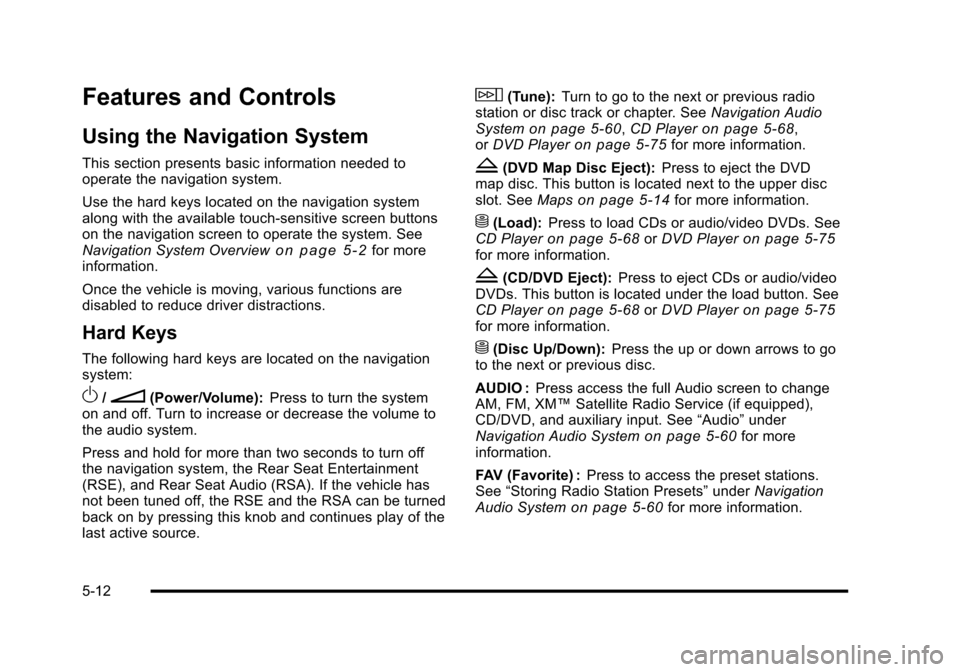
The following hard keys are located on the navigationsystem:
O/n(Power/Volume):Press to turn the systemon and off. Turn to increase or decrease the volume tothe audio system.
Press and hold for more than two seconds to turn offthe navigation system, the Rear Seat Entertainment(RSE), and Rear Seat Audio (RSA). If the vehicle hasnot been tuned off, the RSE and the RSA can be turnedback on by pressing this knob and continues play of thelast active source.
w(Tune):Turn to go to the next or previous radiostation or disc track or chapter. SeeNavigation AudioSystemon page 5!60,CD Playeron page 5!68,orDVD Playeron page 5!75for more information.
Z(DVD Map Disc Eject):Press to eject the DVDmap disc. This button is located next to the upper discslot. SeeMapson page 5!14for more information.
M(Load):Press to load CDs or audio/video DVDs. SeeCD Playeron page 5!68orDVD Playeron page 5!75for more information.
Z(CD/DVD Eject):Press to eject CDs or audio/videoDVDs. This button is located under the load button. SeeCD Playeron page 5!68orDVD Playeron page 5!75for more information.
M(Disc Up/Down):Press the up or down arrows to goto the next or previous disc.
AUDIO :Press access the full Audio screen to changeAM, FM, XM™Satellite Radio Service (if equipped),CD/DVD, and auxiliary input. See“Audio”underNavigation Audio Systemon page 5!60for moreinformation.
FAV (Favorite) :Press to access the preset stations.See“Storing Radio Station Presets”underNavigationAudio Systemon page 5!60for more information.
5-12
Page 313 of 616
5(Phone):Press to access calling through OnStar®.See the OnStar®owner guide andBluetooth®onpage 4!67for more information.
e(Sound):Press to access the Sound screen toadjust bass, midrange, treble, and Digital SignalProcessing (DSP). See“Sound Menu”underNavigationAudio Systemon page 5!60for more information.
DEST (Destination) :Press to access the DestinationEntry screen to plan a destination. SeeDestinationonpage 5!24for more information.
CONFIG (Configure Menu) :Press to adjust featuresfor sound, radio, navigation, and the display. SeeConfigure Menuon page 5!42for more information.
NAV (Navigation) :Press to view your vehicle's currentposition on the map screen. Each press of this keycycles through Full Map and the tab that displays thecurrent audio source (AM, FM, CD, etc.). Full Mapdisplays the screen in full map view. Selecting the audiotab splits the screen between the map screen and thecurrent audio source screen menu. See“Audio”underNavigation Audio Systemon page 5!60for moreinformation.
RPT (Navigation Repeat) :Press to repeat the lastvoice guidance prompt.
y © ¨ z(Seek):Press the seek arrows to seekand scan radio stations, to seek tracks on a CD, and toseek chapters on a DVD. SeeNavigation Audio Systemon page 5!60,CD Playeron page 5!68, orDVDPlayeron page 5!75for more information.
Touch-Sensitive Screen Buttons
Touch-sensitive screen buttons are located on thescreen. When a screen button has been selected, abeep sounds. Screen buttons are highlighted when afeature is available.
Alpha-Numeric Keyboard
Letters of the alphabet, symbols, punctuation, andnumbers, when available, displays on the navigationscreen as an alpha or numeric keyboard. The alphakeyboard displays when the system requires entry of acity or street name.
All characters are touch-sensitive screen buttons.Touch a character to select it.
A-Y (Accent Alphabet) :Select to enter letters withaccent symbols. This button may toggle to A-Z.
A-Z (Alphabet) :Select to enter letters from thealphabet. This button may toggle to A-Y.
0-9 (Numbers) :Select to enter numbers.
5-13
Page 336 of 616
Previous Destinations
Previous OnStar Destination Downloads are savedunder Previous Destinations in the navigation systemwhere they can be accessed or saved to theaddress book.
Important Notes regarding OnStar DestinationDownload:
.If the navigation system is turned off when thedestination download is attempted, the navigationsystem will automatically turn on and display theOnStar Destination Download Screen. The radiowill remain on after the download occurs.
.If OnStar downloads a destination and the addressis not found in the mapping disc’s database androuting by coordinates is not available, the Go andMap buttons gray out and routing will not beavailable. Press the blue OnStar button for furtherassistance.
.The Call button grays out when there is no phonenumber available for your destination and whileconnected to OnStar.
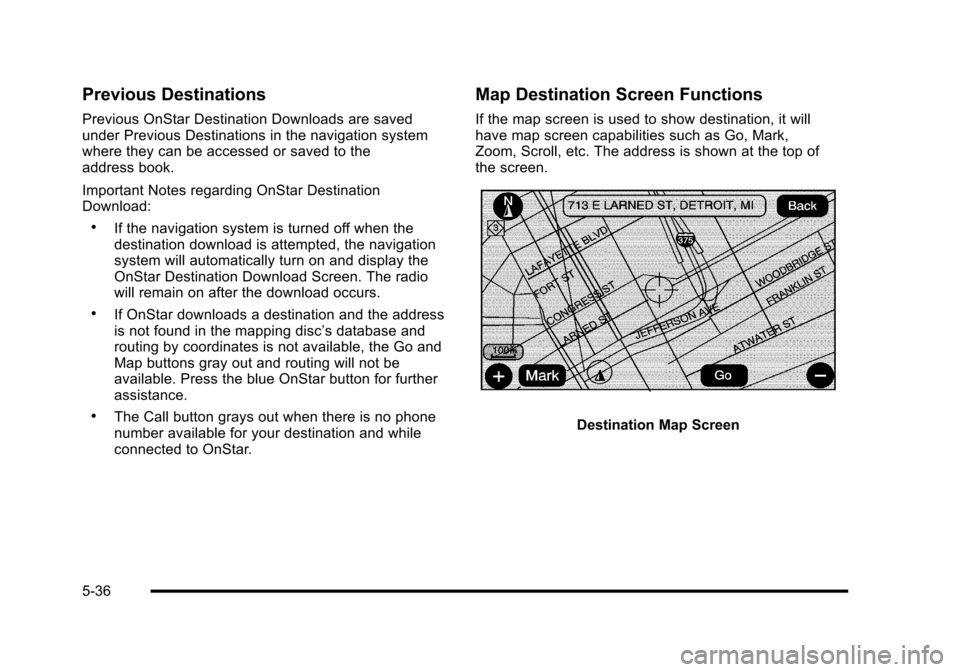
Map Destination Screen Functions
If the map screen is used to show destination, it willhave map screen capabilities such as Go, Mark,Zoom, Scroll, etc. The address is shown at the top ofthe screen.
Destination Map Screen
5-36