change CADILLAC ESCALADE 2023 Owner's Guide
[x] Cancel search | Manufacturer: CADILLAC, Model Year: 2023, Model line: ESCALADE, Model: CADILLAC ESCALADE 2023Pages: 461, PDF Size: 7.99 MB
Page 143 of 461
Cadillac Escalade Owner Manual (GMNA-Localizing-U.S./Canada/Mexico-
16417396) - 2023 - CRC - 5/9/22
Lighting 141
To access, press{on the infotainment
controls, then touch AMBIENT LIGHTING to
display the settings screen.
Touch to select from the following:
OFF : Turns the feature off.
ON : Turns the feature on. Ambient lighting
provides the ability to customize the color
and intensity of the interior accent lighting.
Chose the color on the display screen to
make change to interior lighting color.
DEMO MODE : When the shift lever is in
P (Park), touch to turn the feature on in
colors chosen by the vehicle. When the shift
lever is not in P (Park) , the interior color
will default to the last active color selected.
LINK TO DRIVE MODE : The light color is
matched to the color being used for the
drive mode.Dome Lamps
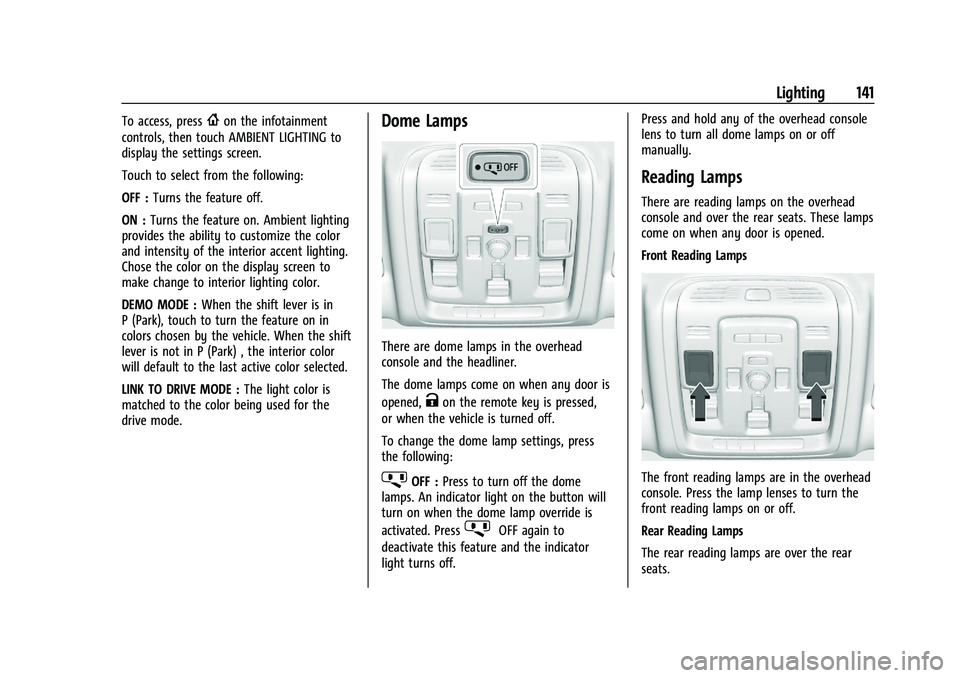
There are dome lamps in the overhead
console and the headliner.
The dome lamps come on when any door is
opened,
Kon the remote key is pressed,
or when the vehicle is turned off.
To change the dome lamp settings, press
the following:
jOFF : Press to turn off the dome
lamps. An indicator light on the button will
turn on when the dome lamp override is
activated. Press
jOFF again to
deactivate this feature and the indicator
light turns off. Press and hold any of the overhead console
lens to turn all dome lamps on or off
manually.
Reading Lamps
There are reading lamps on the overhead
console and over the rear seats. These lamps
come on when any door is opened.
Front Reading Lamps
The front reading lamps are in the overhead
console. Press the lamp lenses to turn the
front reading lamps on or off.
Rear Reading Lamps
The rear reading lamps are over the rear
seats.
Page 144 of 461
Cadillac Escalade Owner Manual (GMNA-Localizing-U.S./Canada/Mexico-
16417396) - 2023 - CRC - 5/9/22
142 Lighting
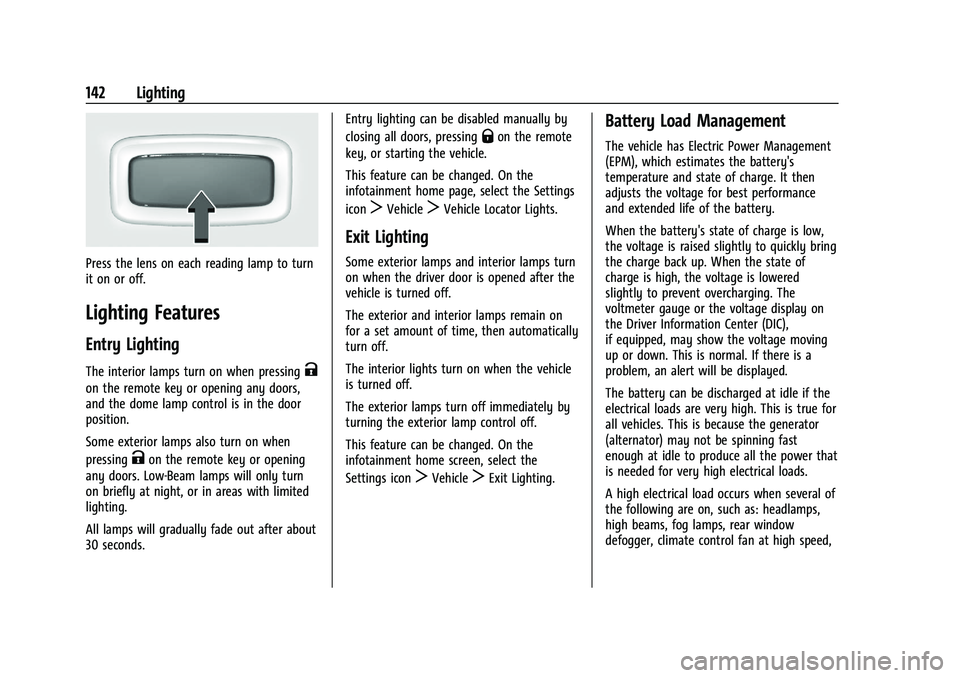
Press the lens on each reading lamp to turn
it on or off.
Lighting Features
Entry Lighting
The interior lamps turn on when pressingK
on the remote key or opening any doors,
and the dome lamp control is in the door
position.
Some exterior lamps also turn on when
pressing
Kon the remote key or opening
any doors. Low-Beam lamps will only turn
on briefly at night, or in areas with limited
lighting.
All lamps will gradually fade out after about
30 seconds. Entry lighting can be disabled manually by
closing all doors, pressing
Qon the remote
key, or starting the vehicle.
This feature can be changed. On the
infotainment home page, select the Settings
icon
TVehicleTVehicle Locator Lights.
Exit Lighting
Some exterior lamps and interior lamps turn
on when the driver door is opened after the
vehicle is turned off.
The exterior and interior lamps remain on
for a set amount of time, then automatically
turn off.
The interior lights turn on when the vehicle
is turned off.
The exterior lamps turn off immediately by
turning the exterior lamp control off.
This feature can be changed. On the
infotainment home screen, select the
Settings icon
TVehicleTExit Lighting.
Battery Load Management
The vehicle has Electric Power Management
(EPM), which estimates the battery's
temperature and state of charge. It then
adjusts the voltage for best performance
and extended life of the battery.
When the battery's state of charge is low,
the voltage is raised slightly to quickly bring
the charge back up. When the state of
charge is high, the voltage is lowered
slightly to prevent overcharging. The
voltmeter gauge or the voltage display on
the Driver Information Center (DIC),
if equipped, may show the voltage moving
up or down. This is normal. If there is a
problem, an alert will be displayed.
The battery can be discharged at idle if the
electrical loads are very high. This is true for
all vehicles. This is because the generator
(alternator) may not be spinning fast
enough at idle to produce all the power that
is needed for very high electrical loads.
A high electrical load occurs when several of
the following are on, such as: headlamps,
high beams, fog lamps, rear window
defogger, climate control fan at high speed,
Page 147 of 461
Cadillac Escalade Owner Manual (GMNA-Localizing-U.S./Canada/Mexico-
16417396) - 2023 - CRC - 5/9/22
Infotainment System 145
.Set up the audio by presetting favorite
stations, setting the tone, and adjusting
the speakers.
.Set up phone numbers in advance so they
can be called easily by pressing a single
control or by using a single voice
command.
See Distracted Driving 0206.
Overview
Infotainment System
The infotainment system is controlled by
using the infotainment display, controls on
the center console, steering wheel controls,
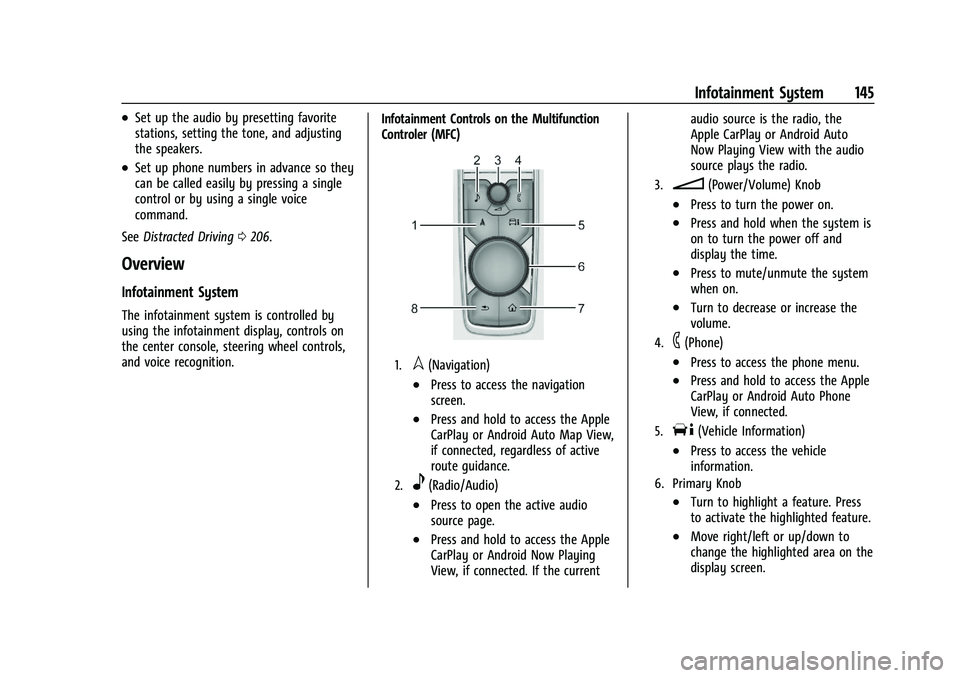
and voice recognition. Infotainment Controls on the Multifunction
Controler (MFC)
1.l(Navigation)
.Press to access the navigation
screen.
.Press and hold to access the Apple
CarPlay or Android Auto Map View,
if connected, regardless of active
route guidance.
2.e(Radio/Audio)
.Press to open the active audio
source page.
.Press and hold to access the Apple
CarPlay or Android Now Playing
View, if connected. If the currentaudio source is the radio, the
Apple CarPlay or Android Auto
Now Playing View with the audio
source plays the radio.
3.n(Power/Volume) Knob
.Press to turn the power on.
.Press and hold when the system is
on to turn the power off and
display the time.
.Press to mute/unmute the system
when on.
.Turn to decrease or increase the
volume.
4.6(Phone)
.Press to access the phone menu.
.Press and hold to access the Apple
CarPlay or Android Auto Phone
View, if connected.
5.T(Vehicle Information)
.Press to access the vehicle
information.
6. Primary Knob
.Turn to highlight a feature. Press
to activate the highlighted feature.
.Move right/left or up/down to
change the highlighted area on the
display screen.
Page 148 of 461
Cadillac Escalade Owner Manual (GMNA-Localizing-U.S./Canada/Mexico-
16417396) - 2023 - CRC - 5/9/22
146 Infotainment System
7.{(Home Page)
.Press to access the Home Page.
See“Home Page” later in this
section.
.Press and hold to access the Apple
CarPlay or Android Auto Phone
Home screen, if connected.
8.0(Back)
.Press to return to the previous
display in a menu.
Home Page
The Home Page is where vehicle application
icons or cards are accessed. Some
applications are disabled when the vehicle is
moving.
Swipe left or right across the display or use
the MFC to move the home page. Move the
knob right/left to change the page or touch
on one of the page count indicators at the
bottom of the screen to jump to a
specific page.
Managing Home Page Icons/Cards
1. Touch and hold any of the Home Page icons/cards to enter edit mode. Edit
mode is not available when the vehicle is
moving. 2. Continue holding the icon/card and drag
it to the desired position.
3. Release your finger to drop the icon in the desired position.
4. To move an application to another page, drag the icon to the edge of the display
toward the desired page. Cards must
stay on the first page.
5. Continue dragging and dropping application icons as desired.
6. Application cards on the first page can be replaced, moved or deleted based on
user preference while in edit mode.
7. Touch Done to save changes or Cancel to not save and exit edit mode.
There will always be 10 icons per page
except on the last page. If an icon is moved
from the first page to the second, then that
icon from the second page will replace the
one removed from the first.
Steering Wheel Controls
If equipped, some audio controls can be
adjusted at the steering wheel.
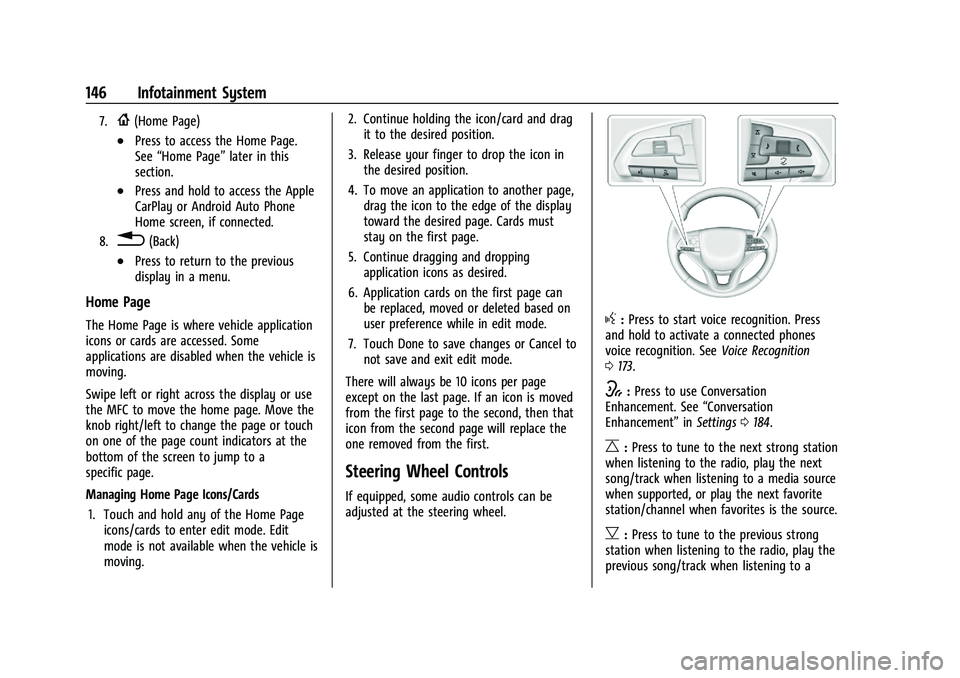
g: Press to start voice recognition. Press
and hold to activate a connected phones
voice recognition. See Voice Recognition
0 173.
w:Press to use Conversation
Enhancement. See “Conversation
Enhancement” inSettings 0184.
C:Press to tune to the next strong station
when listening to the radio, play the next
song/track when listening to a media source
when supported, or play the next favorite
station/channel when favorites is the source.
B: Press to tune to the previous strong
station when listening to the radio, play the
previous song/track when listening to a
Page 150 of 461
Cadillac Escalade Owner Manual (GMNA-Localizing-U.S./Canada/Mexico-
16417396) - 2023 - CRC - 5/9/22
148 Infotainment System
if equipped, or a compatible mobile device
hotspot. On most mobile devices, activation
of the Wi-Fi hotspot is in the device’s
Settings menu under Mobile Network
Sharing, Personal Hotspot, Mobile Hotspot,
or similar.
Availability of apps and connectivity varies
by vehicle, conditions, and location. Data
plan rates apply. Features are subject to
change. For more information, see
www.my.cadillac.com/learn for US/Canada
and see my.cadillac.com.mx. for Mexico.
OnStar Services
If equipped, touch the OnStar Services icon
to display the OnStar Services and Account
pages. SeeOnStar Overview 0439.
Camera
Touch the Camera icon to access the camera
application. See Assistance Systems for
Parking or Backing 0274.
Rear Media
If equipped, touch the Rear Media icon to
access the Rear Seat Infotainment
application. See Rear Seat Infotainment (RSI)
System 0157.
Shortcut Menu
The shortcut menu is along the left edge of
the display. It shows up to five applications.
Proximity Sensing
The infotainment system uses proximity
sensing. When a hand approaches the
screen, the view changes from the Multi
Function Controller (MFC) view to the
touch view.
Infotainment Gestures
Use the following finger gestures to control
the infotainment system.
Touch/Tap
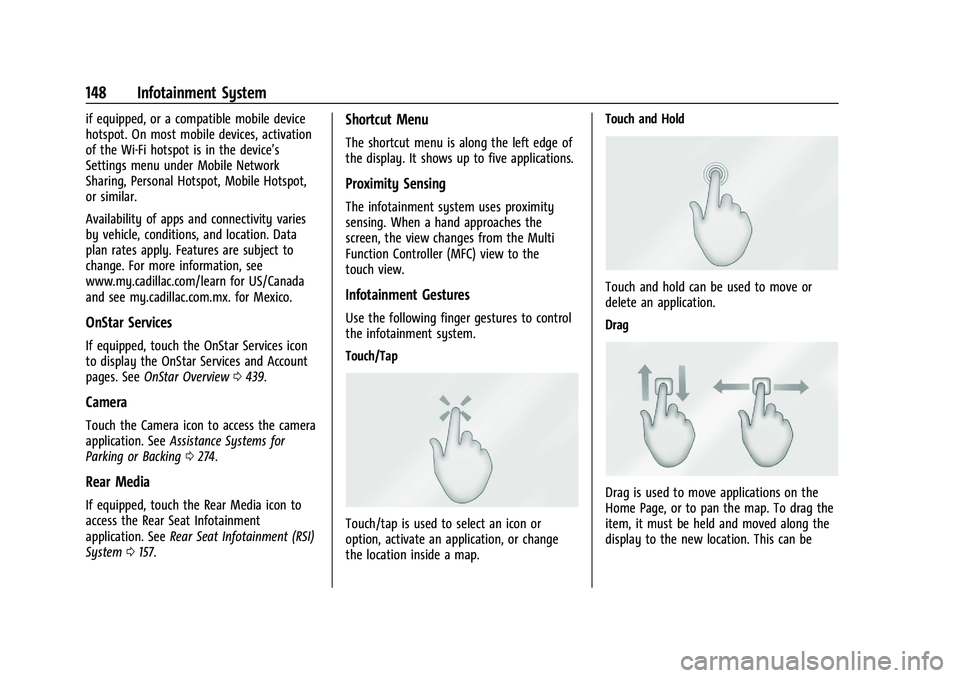
Touch/tap is used to select an icon or
option, activate an application, or change
the location inside a map. Touch and Hold
Touch and hold can be used to move or
delete an application.
Drag
Drag is used to move applications on the
Home Page, or to pan the map. To drag the
item, it must be held and moved along the
display to the new location. This can be
Page 151 of 461
Cadillac Escalade Owner Manual (GMNA-Localizing-U.S./Canada/Mexico-
16417396) - 2023 - CRC - 5/9/22
Infotainment System 149
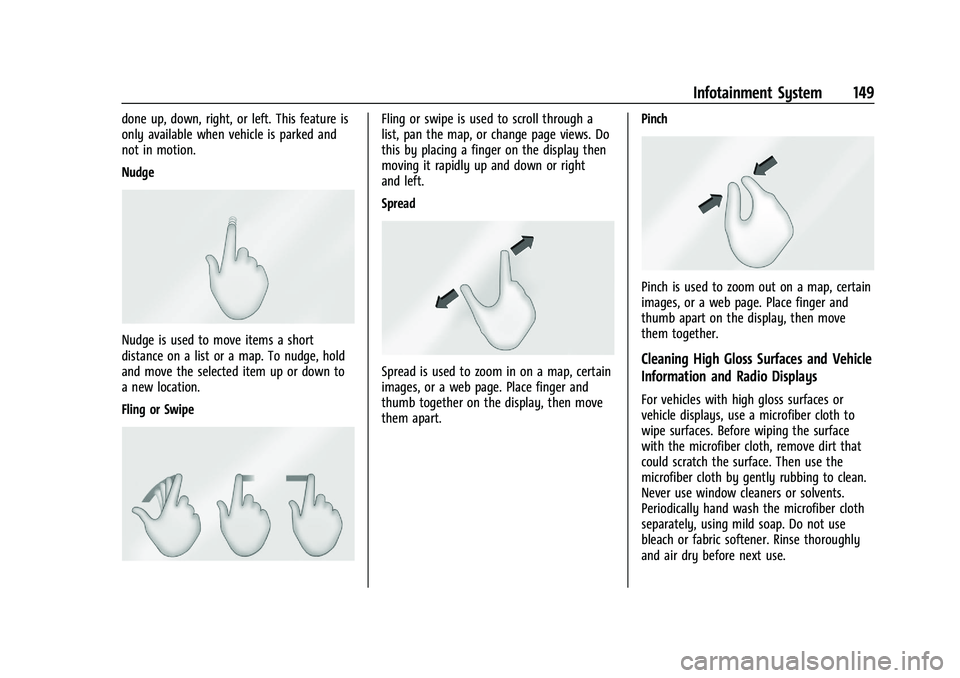
done up, down, right, or left. This feature is
only available when vehicle is parked and
not in motion.
Nudge
Nudge is used to move items a short
distance on a list or a map. To nudge, hold
and move the selected item up or down to
a new location.
Fling or Swipe
Fling or swipe is used to scroll through a
list, pan the map, or change page views. Do
this by placing a finger on the display then
moving it rapidly up and down or right
and left.
Spread
Spread is used to zoom in on a map, certain
images, or a web page. Place finger and
thumb together on the display, then move
them apart.Pinch
Pinch is used to zoom out on a map, certain
images, or a web page. Place finger and
thumb apart on the display, then move
them together.
Cleaning High Gloss Surfaces and Vehicle
Information and Radio Displays
For vehicles with high gloss surfaces or
vehicle displays, use a microfiber cloth to
wipe surfaces. Before wiping the surface
with the microfiber cloth, remove dirt that
could scratch the surface. Then use the
microfiber cloth by gently rubbing to clean.
Never use window cleaners or solvents.
Periodically hand wash the microfiber cloth
separately, using mild soap. Do not use
bleach or fabric softener. Rinse thoroughly
and air dry before next use.
Page 154 of 461
Cadillac Escalade Owner Manual (GMNA-Localizing-U.S./Canada/Mexico-
16417396) - 2023 - CRC - 5/9/22
152 Infotainment System
the current channel (HD1) after several
seconds. The radio will also display icons
representing additional channels (HD2,
...HD8), that may be available. When the
radio successfully tunes to a HD station,
the HD logo will display and digital
audio will play.
2. Touch the display arrows or swipe the coverflow left/right to tune to the
previous or next HD Radio station.
There may be a delay before the station
starts playing.
The HD Radio station number is indicated
next to the HD logo.
HD Radio stations can be saved as favorites.
For a list of all stations, see
www.hdradio.com.
HD Radio Troubleshooting
Digital Audio Delay : Wait for the signal to
process. This can take several seconds.
Volume Change, Audio Skip, Echo, Digital
Audio Lost : Station signal strength may be
weak, the station is out of range, or the
station may be out of alignment. Verify
proper reception on another station. If the HD Radio signal weakens while
listening to HD1, the radio will automatically
switch to the analog version of the radio
station.
If the HD Radio signal loses reception while
listening to stations HD2 to HD8, the radio
mutes until the signal can be recovered or
until the station is changed.
HD Radio can be disabled if driving in a
weak signal area. Touch HD Radio On/Off to
toggle HD Radio reception on and off.
Radio Data System (RDS)
If equipped, RDS features are available for
use only on FM stations that broadcast RDS
information. When supported, the
radio may:
.Group stations by Category (i.e., Program
Type) such as Rock, Jazz, Classical, etc.
.Display text from radio stations that
include station name and messages.
This system relies on receiving specific
information from these stations and only
works when the information is available.
It is possible that a radio station could
broadcast incorrect information that causes
the radio features to work improperly. If this
happens, contact the radio station. When information is broadcast from a RDS
station, the station name or call letters
display on the audio screen. Radio text
supporting the currently playing broadcast
may also appear.
Satellite Radio
SiriusXM Radio Service
If equipped, vehicles with a valid SiriusXM
radio subscription can receive SiriusXM
programming.
SiriusXM radio has a wide variety of
programming and commercial-free music,
coast to coast, in digital-quality sound. In
the U.S., see www.siriusxm.com or call
1-888-601-6296. In Canada, see
www.siriusxm.ca or call 1-877-438-9677.
When SiriusXM is active, the channel name,
number, song title, and artist appear on the
display.
SiriusXM with 360L
SiriusXM with 360L interface has enhanced
in-vehicle listening experience for
subscribers. The experience now offers more
categories and system learned
recommendations toward discovering more
personalized content.
Page 158 of 461
Cadillac Escalade Owner Manual (GMNA-Localizing-U.S./Canada/Mexico-
16417396) - 2023 - CRC - 5/9/22
156 Infotainment System
2. Touch an artist name to view a list of allalbums by the artist.
3. To select a song, touch All Songs or touch an album and then touch a song
from the list.
Songs: 1. Touch to display a list of all songs on the USB.
2. To begin playback, touch a song from the list.
Albums: 1. Touch to view the albums on the USB.
2. Touch the album to view a list of all songs on the album.
3. Touch a song from the list to begin playback.
Genres: 1. Touch to view the genres on the USB.
2. Touch a genre to view a list of artists.
3. Touch an artist to view albums by that artist.
4. Touch an album to view songs on the album.
5. Touch a song to start playback. Composers:
1. Touch to view the composers on the USB.
2. Touch a Composer to view a list of albums by that composer.
3. Touch an album or All Songs to view a list of songs.
4. Touch a song from the list to begin playback.
Folders: 1. Touch to view the directories on the USB.
2. Touch a folder to view a list of all files.
3. Touch a file from the list to begin playback.
Podcasts : Touch to view the podcasts on
the connected Apple device and get a list of
podcast episodes.
Audiobooks:
1. Touch to view the audiobooks stored on the Apple device.
2. Touch an audiobook to get a list of chapters.
3. Touch the chapter from the list to begin playback. File System and Naming
File systems supported by the USB may
include:
.FAT32
.NTFS
.HFS+
The songs, artists, albums, and genres are
taken from the file’s song information and
are only displayed if present. The radio
displays the file name as the track name if
the song information is not available.
Supported Apple Devices
To view supported devices, see
my.cadillac.com/learn.
Media Playback and Mute
USB playback will be paused if the system is
muted. If the steering wheel mute control is
pressed again, playback will resume.
If the source is changed while in mute,
playback resumes and audio will unmute.
Bluetooth Audio
Music may be played from a paired
Bluetooth device. See Bluetooth (Overview)
0 178 orBluetooth (Pairing and Using a
Phone) 0179 for help pairing a device.
Page 161 of 461
Cadillac Escalade Owner Manual (GMNA-Localizing-U.S./Canada/Mexico-
16417396) - 2023 - CRC - 5/9/22
Infotainment System 159
Customer Owned Bluetooth Headphones
The RSI system supports Bluetooth
headphones. Up to four Bluetooth
headphones can be paired to each REAR
SCREEN. This screen provides a list of all
Bluetooth headphones that have been paired
to the RSI system, as well as control over
their use and settings. New Bluetooth
headphones can be connected, or the
Bluetooth headphone settings can be
changed from or on this screen.
To pair Bluetooth headphones to one of the
rear screens:1. Select Bluetooth Headphones or touch
Xfrom the desired Rear Screen
Home Page.
2. Select Connect Headphones.
3. Make sure the Bluetooth headphones are in pairing mode. Once recognized by the
system, the Bluetooth headphones are
displayed on the list of Available
Headphones.
4. Select the Bluetooth headphones from the list. The headphones may need to be
unpaired from your phone before pairing
to the RSI. 5. Once a headphone is paired, touch
options for that headphone to access the
menu where the headphone can be
renamed, connected, disconnected, or to
forget.
Provided Bluetooth Headphones
{Warning
The headphones have a built-in
rechargeable lithium ion battery pack
that presents a serious fire hazard if
damaged, defective, or improperly used.
To avoid battery leakage and/or a
potential fire:
.Do not attempt to burn, crush, or cut
the battery
.Do not expose the battery to
environments with extremely low air
pressures or temperatures above 60 °C
(140 °F)
.Do not charge the battery at
temperatures above 45 °C (113 °F)
.Do not charge the battery if the
headphones are defective or damaged
Caution
Do not store the headphones in heat or
direct sunlight. This could damage the
headphones and repairs would not be
covered by the vehicle warranty. Storage
in extreme cold can weaken the batteries.
Keep the headphones stored in a cool,
dry place.
Batteries in this product should not be
disposed of with household waste. Batteries
should be recycled at an appropriate facility.
Contact local authorities for details on
recycling.
Page 162 of 461
Cadillac Escalade Owner Manual (GMNA-Localizing-U.S./Canada/Mexico-
16417396) - 2023 - CRC - 5/9/22
160 Infotainment System
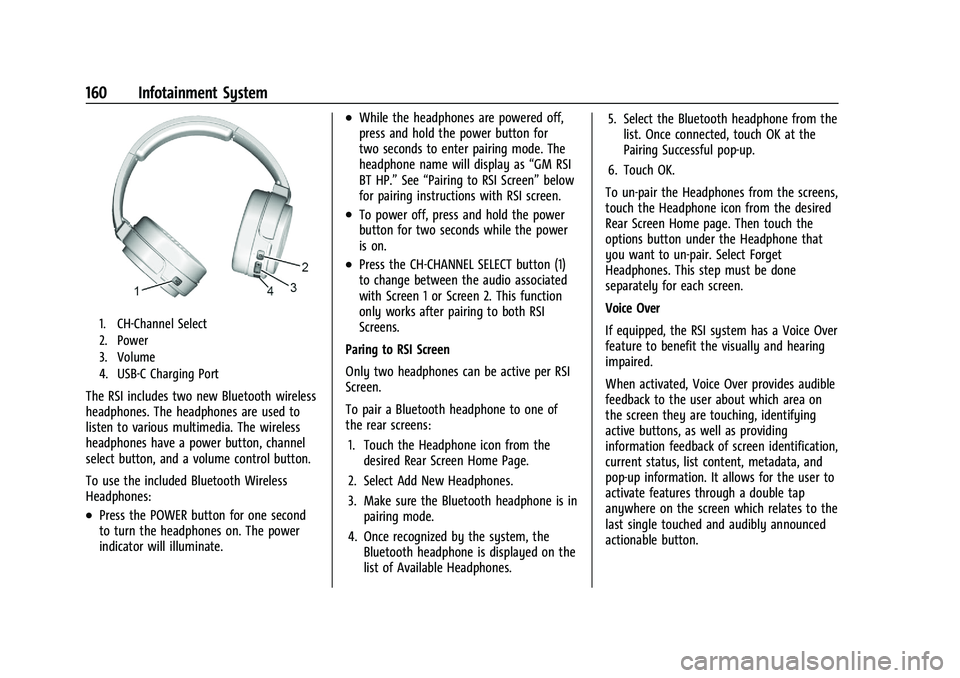
1. CH-Channel Select
2. Power
3. Volume
4. USB-C Charging Port
The RSI includes two new Bluetooth wireless
headphones. The headphones are used to
listen to various multimedia. The wireless
headphones have a power button, channel
select button, and a volume control button.
To use the included Bluetooth Wireless
Headphones:
.Press the POWER button for one second
to turn the headphones on. The power
indicator will illuminate.
.While the headphones are powered off,
press and hold the power button for
two seconds to enter pairing mode. The
headphone name will display as“GM RSI
BT HP.” See“Pairing to RSI Screen” below
for pairing instructions with RSI screen.
.To power off, press and hold the power
button for two seconds while the power
is on.
.Press the CH-CHANNEL SELECT button (1)
to change between the audio associated
with Screen 1 or Screen 2. This function
only works after pairing to both RSI
Screens.
Paring to RSI Screen
Only two headphones can be active per RSI
Screen.
To pair a Bluetooth headphone to one of
the rear screens: 1. Touch the Headphone icon from the desired Rear Screen Home Page.
2. Select Add New Headphones.
3. Make sure the Bluetooth headphone is in pairing mode.
4. Once recognized by the system, the Bluetooth headphone is displayed on the
list of Available Headphones. 5. Select the Bluetooth headphone from the
list. Once connected, touch OK at the
Pairing Successful pop-up.
6. Touch OK.
To un-pair the Headphones from the screens,
touch the Headphone icon from the desired
Rear Screen Home page. Then touch the
options button under the Headphone that
you want to un-pair. Select Forget
Headphones. This step must be done
separately for each screen.
Voice Over
If equipped, the RSI system has a Voice Over
feature to benefit the visually and hearing
impaired.
When activated, Voice Over provides audible
feedback to the user about which area on
the screen they are touching, identifying
active buttons, as well as providing
information feedback of screen identification,
current status, list content, metadata, and
pop-up information. It allows for the user to
activate features through a double tap
anywhere on the screen which relates to the
last single touched and audibly announced
actionable button.