change time CADILLAC LYRIC 2023 Owner's Manual
[x] Cancel search | Manufacturer: CADILLAC, Model Year: 2023, Model line: LYRIC, Model: CADILLAC LYRIC 2023Pages: 424, PDF Size: 4.76 MB
Page 171 of 424
Cadillac Lyriq Owner Manual (GMNA-Localizing-U.S./Canada-15644413) -
2023 - CRC - 2/23/22
170 Infotainment System
Bluetooth (Pairing
and Using a Phone)
Pairing
A Bluetooth-enabled mobile
device must be paired to the
Bluetooth system and then
connected to the vehicle
before it can be used. See the
mobile device manufacturer's
user guide for Bluetooth
functions before pairing the
device.
Pairing Information
.Touch the Phone icon on the
home page of the
infotainment display.
.If no mobile device has been
paired, a message on the
infotainment display will
show the Manage Phones
option. Touch this option to
be taken to the Phones
management screen. See
“Pairing a Phone”later in this
section.
.A Bluetooth smartphone
with music capability can be
paired to the vehicle as a
smartphone and a music
player at the same time.
.Up to 10 devices can be
paired to the Bluetooth
system.
.The pairing process is
disabled when the vehicle is
moving.
.Pairing only needs to be
completed once, unless the
pairing information on the
cell phone changes or the
cell phone is deleted from
the system.
.If multiple paired cell phones
are within range of the
system, the system
connects to the paired cell
phone that is set to First to
Connect. If there is no cell
phone set to First to
Connect, it will link to the cell
phone which was used last.
To link to a different paired
cell phone, see “Linking to a
Different Phone” later in this
section. Pairing a Phone
1. Make sure Bluetooth has been enabled on the cell
phone before starting the
pairing process.
2. Touch the Phone icon on the Home Page.
3. If no mobile device is connected, touch Manage
Phones and the Phones
screen will display.
If another mobile device is
connected already, touch
Settings, Connections, and
then Phones.
4. Touch Add Phone.
5. Follow the on-screen prompts to pair the cell
phone.
6. Follow the instructions on the cell phone to confirm
the six-digit code showing
on the infotainment display
and touch Pair. The code on
the cell phone and
infotainment display needs
to be acknowledged for a
successful pair.
Page 176 of 424
Cadillac Lyriq Owner Manual (GMNA-Localizing-U.S./Canada-15644413) -
2023 - CRC - 2/23/22
Infotainment System 175
3. When the phone is firstconnected to activate Apple
CarPlay or Android Auto,
the “Terms and Conditions”
consent will appear.
.Touch Enable to launch
Apple CarPlay or
Android Auto.
.Touch Disable to remove
Apple CarPlay and
Android Auto capability
from the vehicle Settings
menu. Other functions
may still work.
For Wireless Phone
Projection 1. Download the Android Auto app to your smartphone
from Google Play for
phones running Android
9 and below. There is no
app required for Apple
CarPlay or newer versions
of Android. 2. For first time connection:
.Connect the phone over
Bluetooth. See Bluetooth
(Overview)
0168 or
Bluetooth (Pairing and
Using a Phone) 0170.
3. Make sure wireless is turned on the phone for
wireless projection to work.
4. When the phone is first connected to activate Apple
CarPlay or Android Auto,
agree to the terms and
conditions on the
infotainment system. Touch
Enable to launch Apple
CarPlay or Android Auto.
5. Follow the instructions on the phone.
The Android Auto and Apple
CarPlay icons on the Home
Page will illuminate depending
on the smartphone. Android
Auto and/or Apple CarPlay
may automatically launch.
If not, touch the Android Auto
or Apple CarPlay icon on the
Home Page to launch. To disconnect the phones
wireless projection:
1. Select Settings from the Home Page.
2. Select Connections.
3. Select Phones.
4. Touch Options on the phone card.
5. Turn off Apple CarPlay or Android Auto.
Press
{on the center stack to
return to the Home Page.
Features are subject to
change. For further
information on how to set up
Android Auto and Apple
CarPlay in the vehicle, see
your vehicles brand website.
Android Auto is provided by
Google and is subject to
Google’s terms and privacy
policy. Apple CarPlay is
provided by Apple and is
subject to Apple’s terms
and privacy policy. Data
plan rates apply. For Android
Auto support see
Page 177 of 424
Cadillac Lyriq Owner Manual (GMNA-Localizing-U.S./Canada-15644413) -
2023 - CRC - 2/23/22
176 Infotainment System
https://support.google.com/
androidauto. For Apple
CarPlay support see
www.apple.com/ios/carplay/.
Apple or Google may change
or suspend availability at any
time. Google, Android, Android
Auto, Google Maps and other
marks are trademarks of
Google LLC. Apple CarPlay is
a trademark of Apple Inc.
Press
{on the center stack to
exit Android Auto or Apple
CarPlay. To enter back into
Android Auto or Apple
CarPlay, press and hold
{on
the center stack.
Apple CarPlay and Android
Auto can be disabled from the
infotainment system. To do
this, touch Home>Settings>
Connections>Phones and then
Phone Options on the phone
card. Use the On/Off toggled
to turn off Apple CarPlay or
Android Auto for that phone.
Settings
To access the Settings menus:
1. Touch Settings on the Home Page on the
infotainment display.
2. Touch the desired category to display a list of available
options.
3. Touch to select the desired feature setting.
4. Touch the options on the infotainment display to
change a setting.
5. Touch
Sto go back.
The Settings menu may
contain the following:
Connections
The menu may contain the
following:
Phones
Allows connecting to a
different cell phone or mobile
device source, disconnect a cell phone or media device,
or delete a cell phone or media
device.
Wi-Fi Networks
Shows connected and
available Wi-Fi networks.
Wi-Fi Hotspot
Allows adjustment of different
Wi-Fi features.
Vehicle-to-Phone Sharing
Vehicle
The menu may contain the
following:
Teen Driver
See Teen Driver
0178.
Rear Seat Reminder
Allows for a chime and a
message when the rear door
has been opened before or
during operation of the
vehicle.
Page 183 of 424
Cadillac Lyriq Owner Manual (GMNA-Localizing-U.S./Canada-15644413) -
2023 - CRC - 2/23/22
182 Infotainment System
.Touch Clear PIN and All
Teen Driver Keys from the
Teen Driver menu. This will
also unregister any Teen
Driver keys and delete
the PIN.
Forgotten PIN
See your dealer to reset
the PIN.
Trademarks and
License
Agreements
FCC Information
See Radio Frequency
Statement 0395.
If you decide to continue
service after your trial, your
selected subscription plan will
automatically renew thereafter. You will be
charged at then-current rates.
Fees and taxes apply. Please
see the SiriusXM Customer
Agreement at siriusxm.com for
complete terms and how to
cancel, which includes calling
SiriusXM at 1-866-635-2349.
All fees and programming are
subject to change.
Fees and Taxes: Subscription
fee, taxes, one time activation
fee, and other fees may apply.
Subscription fee is consumer
only. All fees and programming
subject to change.
Subscriptions subject to
Customer Agreement available
at www.siriusxm.com. SiriusXM
service is only available in the
48 contiguous United States
and Canada.
In Canada: Some deterioration
of service may occur in
extreme northern latitudes.
This is beyond the control of
SiriusXM Satellite Radio.
Explicit Language Notice:
Channels with frequent
explicit language are indicated
with an
“XL”preceding the
channel name. Channel
blocking is available for
SiriusXM Satellite Radio
receivers by notifying
SiriusXM:
.USA Customers —See
www.siriusxm.com or call
1-888-601–6296.
.Canada Customers —See
www.siriusxm.ca or call
1-877-438-9677.
It is prohibited to copy,
decompile, disassemble,
reverse engineer, hack,
manipulate, or otherwise make
available any technology or
software incorporated in
receivers compatible with the
SiriusXM Satellite Radio
System or that support the
SiriusXM website, the Online
Service or any of its content.
Furthermore, the AMBER
voice compression software
included in this product is
Page 187 of 424
Cadillac Lyriq Owner Manual (GMNA-Localizing-U.S./Canada-15644413) -
2023 - CRC - 2/23/22
186 Climate Controls
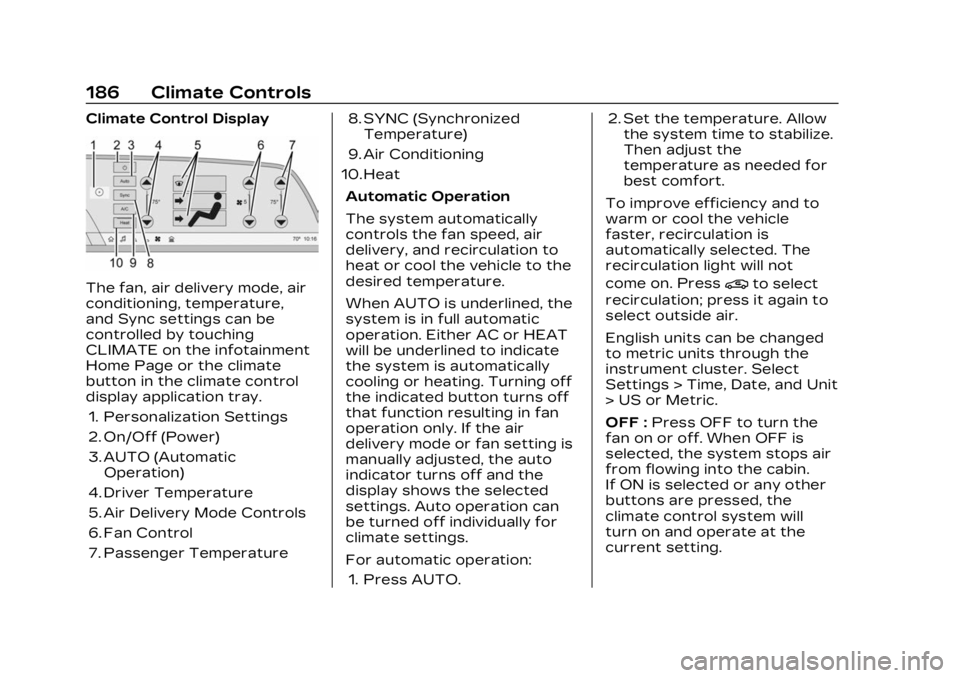
Climate Control Display
The fan, air delivery mode, air
conditioning, temperature,
and Sync settings can be
controlled by touching
CLIMATE on the infotainment
Home Page or the climate
button in the climate control
display application tray.1. Personalization Settings
2. On/Off (Power)
3. AUTO (Automatic Operation)
4. Driver Temperature
5. Air Delivery Mode Controls
6. Fan Control
7. Passenger Temperature 8. SYNC (Synchronized
Temperature)
9. Air Conditioning
10. Heat
Automatic Operation
The system automatically
controls the fan speed, air
delivery, and recirculation to
heat or cool the vehicle to the
desired temperature.
When AUTO is underlined, the
system is in full automatic
operation. Either AC or HEAT
will be underlined to indicate
the system is automatically
cooling or heating. Turning off
the indicated button turns off
that function resulting in fan
operation only. If the air
delivery mode or fan setting is
manually adjusted, the auto
indicator turns off and the
display shows the selected
settings. Auto operation can
be turned off individually for
climate settings.
For automatic operation:1. Press AUTO. 2. Set the temperature. Allow
the system time to stabilize.
Then adjust the
temperature as needed for
best comfort.
To improve efficiency and to
warm or cool the vehicle
faster, recirculation is
automatically selected. The
recirculation light will not
come on. Press@to select
recirculation; press it again to
select outside air.
English units can be changed
to metric units through the
instrument cluster. Select
Settings > Time, Date, and Unit
> US or Metric.
OFF : Press OFF to turn the
fan on or off. When OFF is
selected, the system stops air
from flowing into the cabin.
If ON is selected or any other
buttons are pressed, the
climate control system will
turn on and operate at the
current setting.
Page 190 of 424
Cadillac Lyriq Owner Manual (GMNA-Localizing-U.S./Canada-15644413) -
2023 - CRC - 2/23/22
Climate Controls 189
Caution (Continued)
with a razor blade or
anything else that is sharp.
This may damage the rear
window defogger grid and
affect the radio's ability to
pick up stations clearly. The
repairs would not be
covered by the vehicle
warranty.
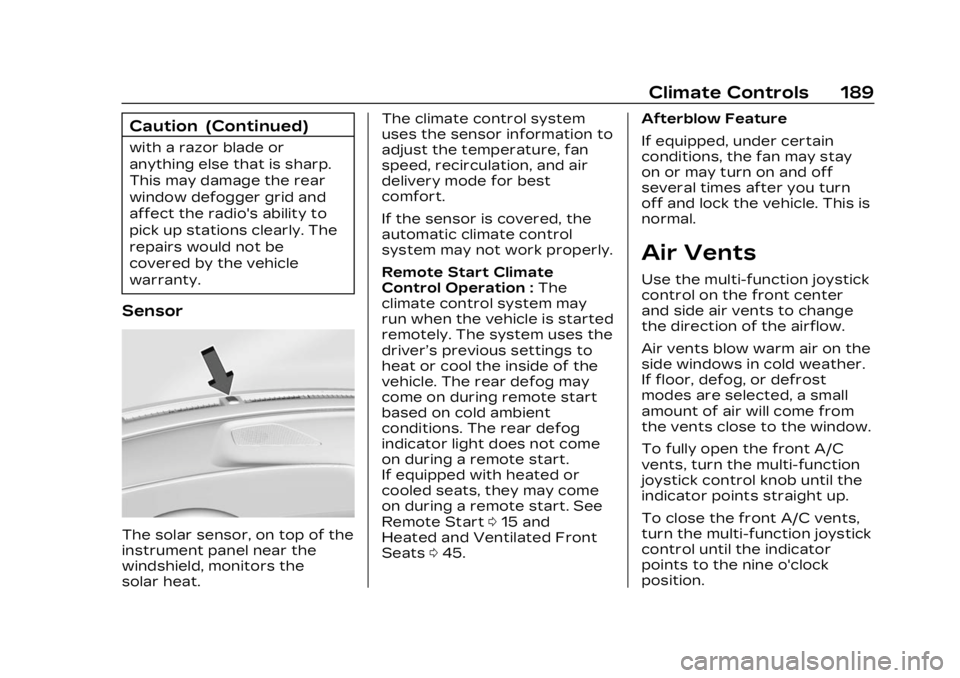
Sensor
The solar sensor, on top of the
instrument panel near the
windshield, monitors the
solar heat.The climate control system
uses the sensor information to
adjust the temperature, fan
speed, recirculation, and air
delivery mode for best
comfort.
If the sensor is covered, the
automatic climate control
system may not work properly.
Remote Start Climate
Control Operation :
The
climate control system may
run when the vehicle is started
remotely. The system uses the
driver’s previous settings to
heat or cool the inside of the
vehicle. The rear defog may
come on during remote start
based on cold ambient
conditions. The rear defog
indicator light does not come
on during a remote start.
If equipped with heated or
cooled seats, they may come
on during a remote start. See
Remote Start 015 and
Heated and Ventilated Front
Seats 045. Afterblow Feature
If equipped, under certain
conditions, the fan may stay
on or may turn on and off
several times after you turn
off and lock the vehicle. This is
normal.
Air Vents
Use the multi-function joystick
control on the front center
and side air vents to change
the direction of the airflow.
Air vents blow warm air on the
side windows in cold weather.
If floor, defog, or defrost
modes are selected, a small
amount of air will come from
the vents close to the window.
To fully open the front A/C
vents, turn the multi-function
joystick control knob until the
indicator points straight up.
To close the front A/C vents,
turn the multi-function joystick
control until the indicator
points to the nine o'clock
position.
Page 217 of 424
Cadillac Lyriq Owner Manual (GMNA-Localizing-U.S./Canada-15644413) -
2023 - CRC - 2/23/22
216 Driving and Operating
Brakes
Electric Brake Boost
Vehicles equipped with
electric brake boost have
hydraulic brake circuits that
are electronically controlled
when the brake pedal is
applied during normal
operation. The system
performs routine tests and
turns off within a few minutes
after the vehicle is turned off.
Noise may be heard during
this time. If the brake pedal is
pressed during the tests or
when the electric brake boost
system is off, a noticeable
change in pedal force and
travel may be felt. This is
normal.
Antilock Brake
System (ABS)
The Antilock Brake System
(ABS) helps prevent a braking
skid and maintain steering
while braking hard.
ABS performs a system check
when the vehicle is first driven.
A momentary motor or clicking
noise may be heard while this
test is going on, and the brake
pedal may move slightly. This
is normal.
If there is a problem with ABS,
this warning light stays on.
See Antilock Brake System
(ABS) Warning Light0117. ABS does not change the time
needed to get a foot on the
brake pedal and does not
always decrease stopping
distance. If you get too close
to the vehicle ahead, there will
not be enough time to apply
the brakes if that vehicle
suddenly slows or stops.
Always leave enough room
ahead to stop, even with ABS.
Using ABS
Do not pump the brakes. Just
hold the brake pedal down
firmly. Hearing or feeling ABS
operate is normal.
Braking in Emergencies
ABS allows steering and
braking at the same time. In
many emergencies, steering
can help even more than
braking.
Page 225 of 424
Cadillac Lyriq Owner Manual (GMNA-Localizing-U.S./Canada-15644413) -
2023 - CRC - 2/23/22
224 Driving and Operating
mode improves vehicle
handling and acceleration on
dry pavement. When active,
Sport mode modifies steering
efforts, pedal tuning, electric
vehicle sound enhancement
(EVSE), adaptive cruise
control, and suspension
tuning, if equipped.
Snow/Ice Mode :Snow/Ice
mode improves vehicle
acceleration on snow covered
roads. When active, Snow/Ice
mode adjusts pedal tuning to
optimize traction on slippery
surfaces. This can affect the
acceleration on dry asphalt.
Snow/Ice mode also modifies
electric All-Wheel Drive
(eAWD) and steering.
My Mode : My mode is used to
personalize everyday driving.
This mode allows the driver to
configure the vehicle
subsystem settings to their
driving preferences. My mode
remains active across on/off
cycles. Through the infotainment
display, the following vehicle
subsystems may be available
for customization in this mode:
Acceleration Feel :
Relaxed,
Tour, Sport
Brake Feel : Tour, Sport
Steering : Tour, Sport
Motor Sound : Tour, Sport
For a more detailed
description of each selectable
option, refer to “Drive Mode
Customization.”
Drive Mode Customization
The vehicle is equipped to
modify the following settings
based on vehicle content.
Through the infotainment
home screen, select Settings >
Vehicle > Drive Mode
Customization to personalize
My mode. These settings will
be retained over each on/off
cycle, and do not have to be
reset each time the vehicle is
started. Acceleration Feel :
Choose
how responsive you want
acceleration to feel. You can
adjust the accelerator pedal to
provide increased power.
Brake Feel : Brake response
settings adjust the brake
pedal response. Brake pedal
feel is less sensitive at lower
settings and more sensitive at
higher settings.
Motor Sound : Customize how
your vehicle sounds when you
are accelerating. Your electric
motor remains quiet outside
but the sound you hear inside
changes as you drive faster or
slower.
Steering : Choose how
responsive you want the
steering to feel. You can set
the steering wheel to provide
more feedback, which requires
more steering effort.
Page 231 of 424
Cadillac Lyriq Owner Manual (GMNA-Localizing-U.S./Canada-15644413) -
2023 - CRC - 2/23/22
230 Driving and Operating
will adjust the vehicle's speed
and attempt to maintain the
follow distance gap selected.
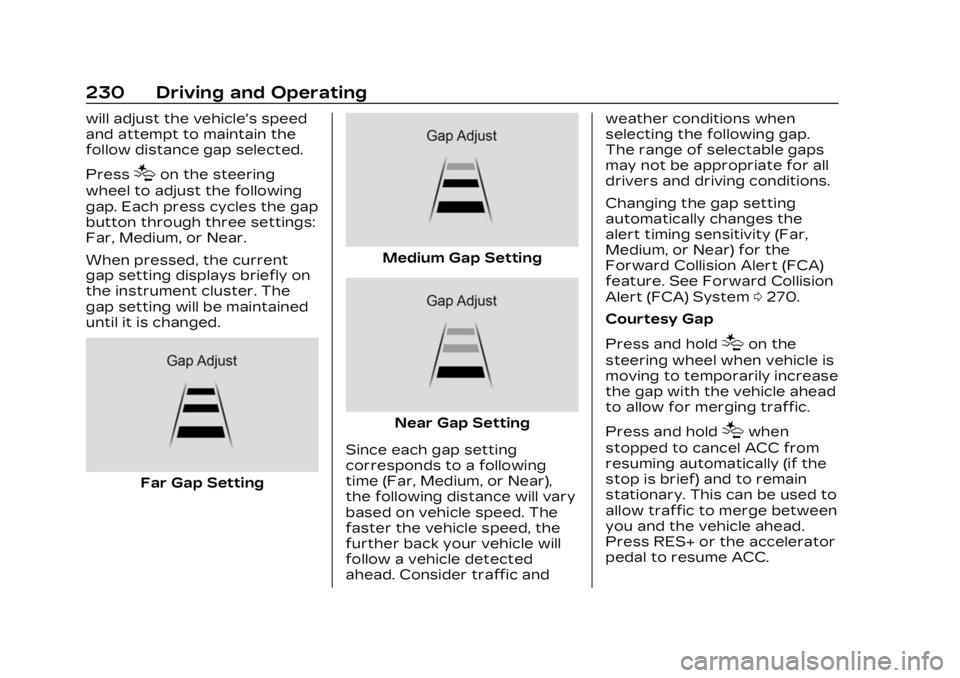
Press
[on the steering
wheel to adjust the following
gap. Each press cycles the gap
button through three settings:
Far, Medium, or Near.
When pressed, the current
gap setting displays briefly on
the instrument cluster. The
gap setting will be maintained
until it is changed.
Far Gap Setting
Medium Gap Setting
Near Gap Setting
Since each gap setting
corresponds to a following
time (Far, Medium, or Near),
the following distance will vary
based on vehicle speed. The
faster the vehicle speed, the
further back your vehicle will
follow a vehicle detected
ahead. Consider traffic and weather conditions when
selecting the following gap.
The range of selectable gaps
may not be appropriate for all
drivers and driving conditions.
Changing the gap setting
automatically changes the
alert timing sensitivity (Far,
Medium, or Near) for the
Forward Collision Alert (FCA)
feature. See Forward Collision
Alert (FCA) System
0270.
Courtesy Gap
Press and hold
[on the
steering wheel when vehicle is
moving to temporarily increase
the gap with the vehicle ahead
to allow for merging traffic.
Press and hold
[when
stopped to cancel ACC from
resuming automatically (if the
stop is brief) and to remain
stationary. This can be used to
allow traffic to merge between
you and the vehicle ahead.
Press RES+ or the accelerator
pedal to resume ACC.
Page 232 of 424
Cadillac Lyriq Owner Manual (GMNA-Localizing-U.S./Canada-15644413) -
2023 - CRC - 2/23/22
Driving and Operating 231
Following distance gap will
return to the original selection
after hold.
Alerting the Driver
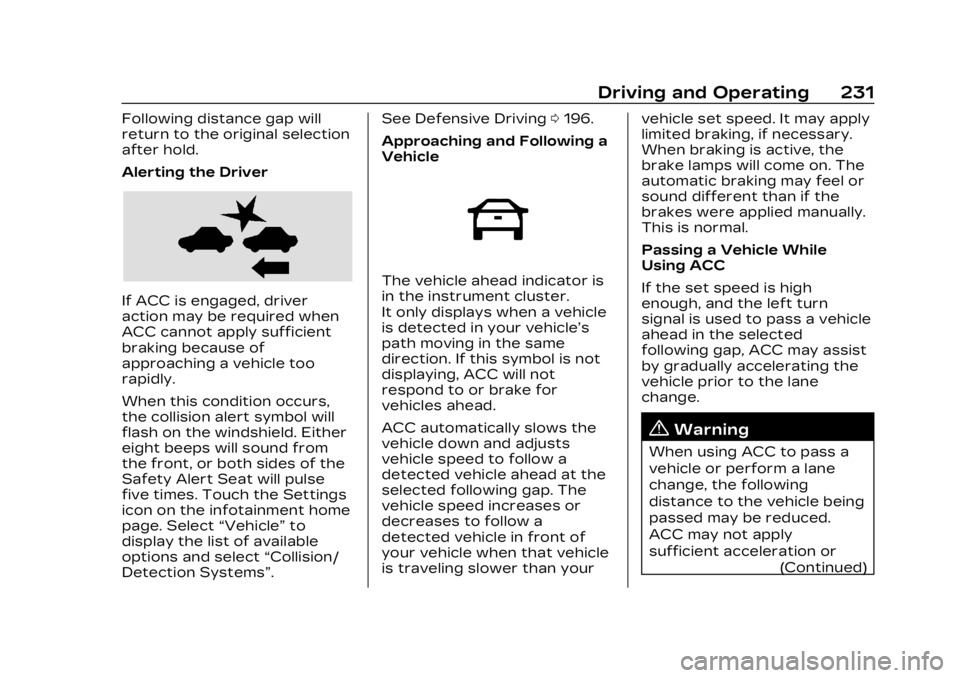
If ACC is engaged, driver
action may be required when
ACC cannot apply sufficient
braking because of
approaching a vehicle too
rapidly.
When this condition occurs,
the collision alert symbol will
flash on the windshield. Either
eight beeps will sound from
the front, or both sides of the
Safety Alert Seat will pulse
five times. Touch the Settings
icon on the infotainment home
page. Select“Vehicle”to
display the list of available
options and select “Collision/
Detection Systems”. See Defensive Driving
0196.
Approaching and Following a
Vehicle
The vehicle ahead indicator is
in the instrument cluster.
It only displays when a vehicle
is detected in your vehicle’s
path moving in the same
direction. If this symbol is not
displaying, ACC will not
respond to or brake for
vehicles ahead.
ACC automatically slows the
vehicle down and adjusts
vehicle speed to follow a
detected vehicle ahead at the
selected following gap. The
vehicle speed increases or
decreases to follow a
detected vehicle in front of
your vehicle when that vehicle
is traveling slower than your vehicle set speed. It may apply
limited braking, if necessary.
When braking is active, the
brake lamps will come on. The
automatic braking may feel or
sound different than if the
brakes were applied manually.
This is normal.
Passing a Vehicle While
Using ACC
If the set speed is high
enough, and the left turn
signal is used to pass a vehicle
ahead in the selected
following gap, ACC may assist
by gradually accelerating the
vehicle prior to the lane
change.
{Warning
When using ACC to pass a
vehicle or perform a lane
change, the following
distance to the vehicle being
passed may be reduced.
ACC may not apply
sufficient acceleration or
(Continued)