display CADILLAC SEVILLE 2003 5.G Repair Manual
[x] Cancel search | Manufacturer: CADILLAC, Model Year: 2003, Model line: SEVILLE, Model: CADILLAC SEVILLE 2003 5.GPages: 408, PDF Size: 2.72 MB
Page 209 of 408

If playing a CD-R the sound quality may be reduced
due to CD-R quality, the method of recording, the quality
of the music that has been recorded and the way the
CD-R has been handled. You may experience an
increase in skipping, difficulty in ®nding tracks and/or
difficulty in loading and ejecting. If these problems occur
try a known good CD.
Do not add paper labels to discs, they could get caught
in the CD player.
Do not play 3 inch discs without a standard
adapter disc.
If an error appears on the display, see ªCompact Disc
Messagesº later in this section.
1 PREV (Previous):Press this pushbutton to seek to
the previous track on the compact disc.
2 NEXT:Press this pushbutton to seek to the next
track on the compact disc.
3
{RW (Rewind):Press this pushbutton to reverse
the compact disc. Release it to return to playing speed.4FF
|(Fast Forward):Press this pushbutton to fast
forward to another part of the compact disc. Release
it to return to playing speed.
6 RDM (Random):Press this pushbutton to listen to
the tracks in random instead of sequential order.
RDM will appear on the display. Press RDM to turn off
random play. RDM will disappear from the display.
¦SEEK¥:Press the up or the down arrow to seek
to the next or to the previous track.
SIDE:Press this pushbutton to play a CD when
listening to the radio.
SCAN:Press this button to listen to tracks for a few
seconds. The compact disc will go to a track, play for a
few seconds, then go on to the next track. Press this
button again to stop scanning.
Z(Eject):Press this button, located to the right of
the CD slot, to stop a CD when it is playing or to eject a
CD when it is not playing. Eject may be activated with
the radio off and/or the ignition off.
3-97
Page 210 of 408
Compact Disc Messages
If the disc comes out, it could be for one of the following
reasons:
·You're driving on a very rough road. When the road
becomes smoother, the disc should play.
·It's very hot. When the temperature returns to
normal, the disc should play.
·The disc is dirty, scratched, wet or upside down.
·The air is very humid. If so, wait about an hour and
try again.
·There may have been a problem while burning
the CD.
·The label may be caught in the CD player.
If the CD is not playing correctly, for any other reason,
try a known good CD.
If any error occurs repeatedly or if an error can't be
corrected, contact your dealer.
Navigation/Radio System
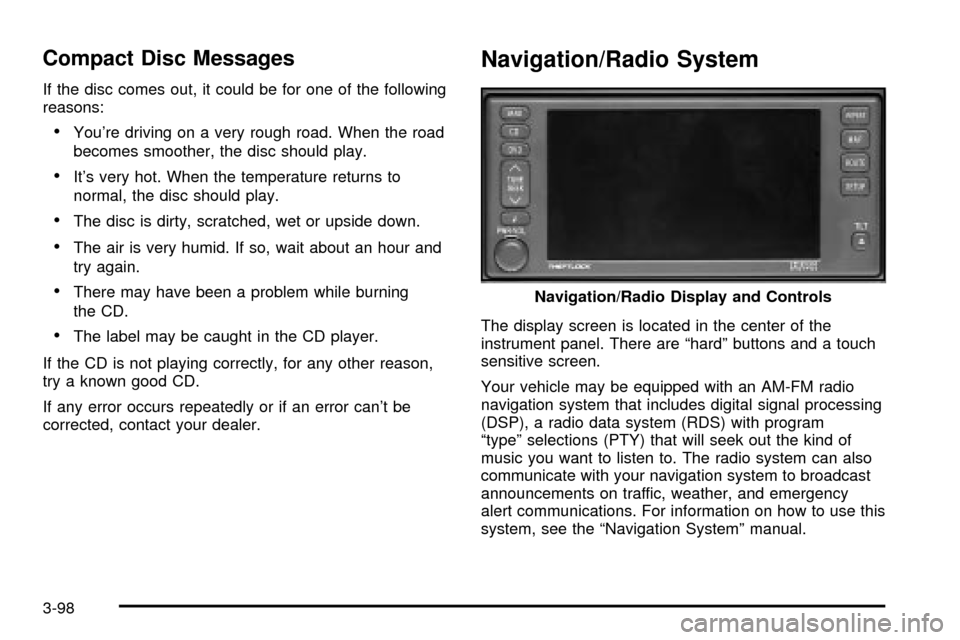
The display screen is located in the center of the
instrument panel. There are ªhardº buttons and a touch
sensitive screen.
Your vehicle may be equipped with an AM-FM radio
navigation system that includes digital signal processing
(DSP), a radio data system (RDS) with program
ªtypeº selections (PTY) that will seek out the kind of
music you want to listen to. The radio system can also
communicate with your navigation system to broadcast
announcements on traffic, weather, and emergency
alert communications. For information on how to use this
system, see the ªNavigation Systemº manual.Navigation/Radio Display and Controls
3-98
Page 212 of 408
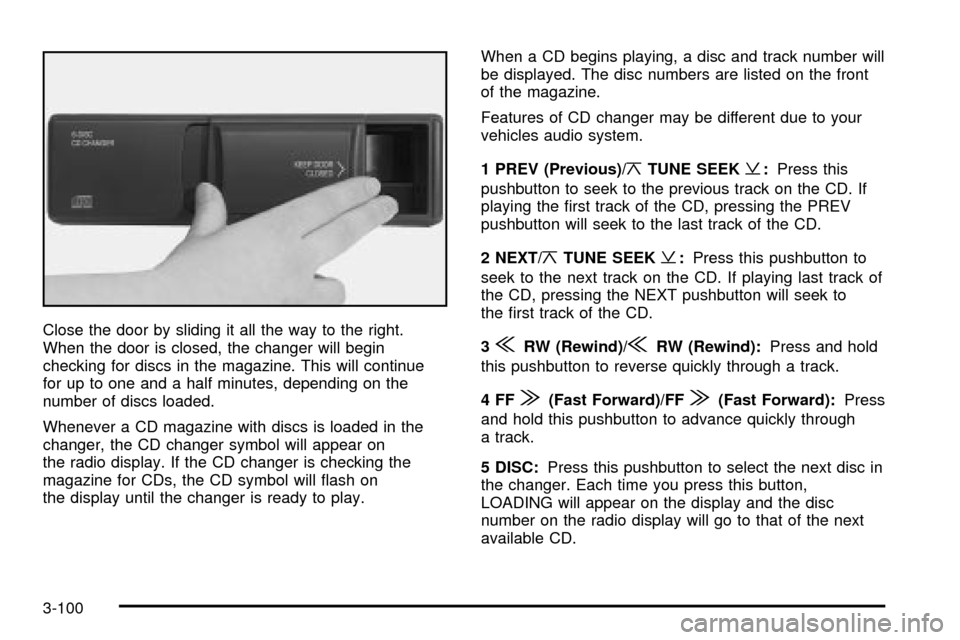
Close the door by sliding it all the way to the right.
When the door is closed, the changer will begin
checking for discs in the magazine. This will continue
for up to one and a half minutes, depending on the
number of discs loaded.
Whenever a CD magazine with discs is loaded in the
changer, the CD changer symbol will appear on
the radio display. If the CD changer is checking the
magazine for CDs, the CD symbol will ¯ash on
the display until the changer is ready to play.When a CD begins playing, a disc and track number will
be displayed. The disc numbers are listed on the front
of the magazine.
Features of CD changer may be different due to your
vehicles audio system.
1 PREV (Previous)/
¦TUNE SEEK¥:Press this
pushbutton to seek to the previous track on the CD. If
playing the ®rst track of the CD, pressing the PREV
pushbutton will seek to the last track of the CD.
2 NEXT/
¦TUNE SEEK¥:Press this pushbutton to
seek to the next track on the CD. If playing last track of
the CD, pressing the NEXT pushbutton will seek to
the ®rst track of the CD.
3
{RW (Rewind)/{RW (Rewind):Press and hold
this pushbutton to reverse quickly through a track.
4FF
|(Fast Forward)/FF|(Fast Forward):Press
and hold this pushbutton to advance quickly through
a track.
5 DISC:Press this pushbutton to select the next disc in
the changer. Each time you press this button,
LOADING will appear on the display and the disc
number on the radio display will go to that of the next
available CD.
3-100
Page 213 of 408

6 RDM (Random):Press this pushbutton to hear the
tracks in random, rather than sequential, order. RDM will
appear on the display. Press the PREV or NEXT
pushbuttons while RDM is on the display to randomly
seek through discs. Press RDM again to turn off random
play. This feature may not be available on your radio.
SCAN:Press this button. You will hear the ®rst few
seconds of the ®rst track on each disc. The CD will mute
while scanning and SCAN will appear on the display.
Press this button again to stop scanning.
SOURCE:Press this button if you have a disc loaded
in the changer and the radio is on, to play a compact
disc. To return to playing the radio, press BAND.
Pressing source also switches between a tape or
compact disc if both are loaded.
EJECT:Slide the CD changer door all the way open.
Press the EJECT button and the magazine will eject.Compact Disc Changer Errors
CD CHANGER ERROR:This message may be
displayed for one of the following reasons:
·You're driving on a very rough road. When the road
becomes smoother, the disc should play.
·The disc is dirty, scratched, wet or loaded label
side up.
·The air is very humid. If so, wait about an hour and
try again.
If any error occurs repeatedly or if an error cannot be
corrected, contact your dealership. If your radio displays
an error number, write it down and provide this
information to your dealership when reporting the
problem.
3-101
Page 214 of 408

Radio Personalization with Home
and Away Feature
If DRIVER 1 (HOME or AWAY) PRESETS or DRIVER 2
(HOME or AWAY) PRESETS appears in the display
when the radio is ®rst turned on, your vehicle is
equipped with this feature.
This feature allows the driver to return to the last used
audio source (radio, cassette, or CD) using the
remote keyless entry transmitter. This feature can also
store and recall AM and FM presets, volume, tone,
and the last selected radio station. The number on the
back of each transmitter (1 or 2) corresponds to
driver 1 or 2. If transmitter 1 is used to enter the vehicle,
the last used audio source and/or settings set by
driver 1 will be recalled. If transmitter 2 is used to enter
the vehicle, the last used audio source and/or settings
set by driver 2 will be recalled. The settings can also be
recalled by pressing the MEMORY seat buttons 1 or 2
located on the driver's door.
Your radio can store home and away presets. Home
and away presets allow you to use one set of preset
radio settings in the area where you live, and another set
when you go out of town. You will not need to
reprogram your presets every time you travel. With the
radio off and the time displayed, use fast forward
and reverse to select home or away presets. To selectthe away presets, press and hold FF for ®ve seconds
until you hear a beep. The next time the radio comes on,
the away presets will be active. To select the home
presets, press and hold RW for ®ve seconds until you
hear a beep. The next time the radio comes on,
the home presets will be active.
When battery power is removed and later applied, you
will not have to reset your home radio presets
because the radio remembers them. However, you will
have to reset your away radio presets.
Theft-Deterrent Feature
THEFTLOCKžis designed to discourage theft of your
radio. Your vehicle has a ªbuilt inº theft-deterrent feature
on each radio that is automatic ± there is no
programming required. The radio in your vehicle cannot
be used in any other vehicle. When the radio was
originally installed in your vehicle at the factory, it stored
the Vehicle Identi®cation Number (VIN). Each time
the ignition is turned on, the VIN is veri®ed. If the
vehicle's VIN does not match the VIN stored in the
radio, THEFTLOCK
žwill be activated and the audio
system will not play. If the radio is removed from your
vehicle, the original VIN in the radio can be used to trace
the radio back to your vehicle.
3-102
Page 215 of 408
Audio Steering Wheel Controls
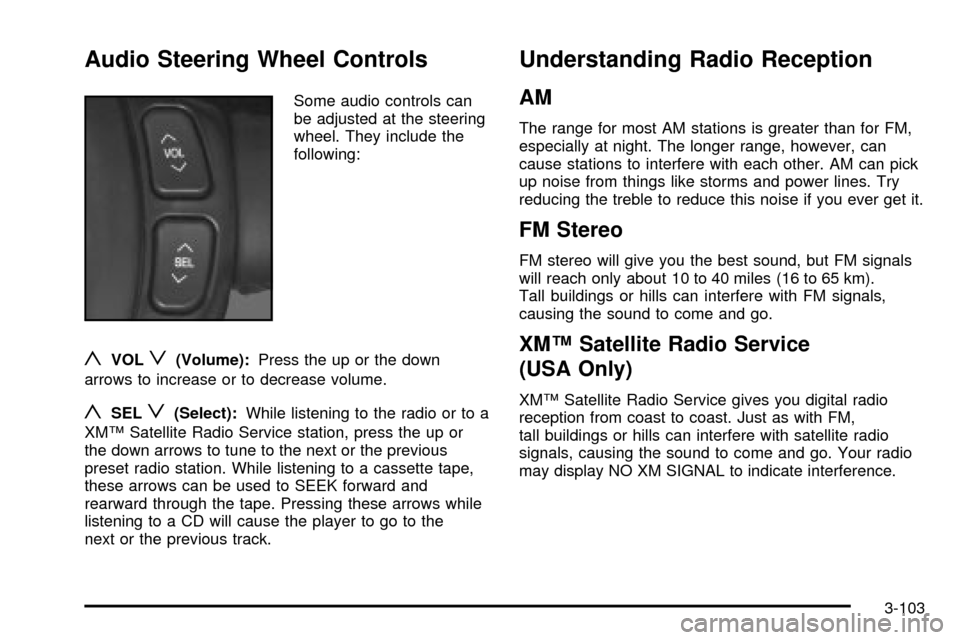
Some audio controls can
be adjusted at the steering
wheel. They include the
following:
yVOLz(Volume):Press the up or the down
arrows to increase or to decrease volume.
ySELz(Select):While listening to the radio or to a
XMŸ Satellite Radio Service station, press the up or
the down arrows to tune to the next or the previous
preset radio station. While listening to a cassette tape,
these arrows can be used to SEEK forward and
rearward through the tape. Pressing these arrows while
listening to a CD will cause the player to go to the
next or the previous track.
Understanding Radio Reception
AM
The range for most AM stations is greater than for FM,
especially at night. The longer range, however, can
cause stations to interfere with each other. AM can pick
up noise from things like storms and power lines. Try
reducing the treble to reduce this noise if you ever get it.
FM Stereo
FM stereo will give you the best sound, but FM signals
will reach only about 10 to 40 miles (16 to 65 km).
Tall buildings or hills can interfere with FM signals,
causing the sound to come and go.
XMŸ Satellite Radio Service
(USA Only)
XMŸ Satellite Radio Service gives you digital radio
reception from coast to coast. Just as with FM,
tall buildings or hills can interfere with satellite radio
signals, causing the sound to come and go. Your radio
may display NO XM SIGNAL to indicate interference.
3-103
Page 216 of 408

Cellular Phone Usage
Cellular phone usage may cause interference with your
vehicle's radio. This interference may occur when making
or receiving phone calls, charging the phone's battery, or
simply having the phone on. This interference is
described as an increased level of static while listening to
the radio. If you notice static while listening to the radio,
unplug the cellular phone and turn it off.
Weather Band
Weather band is restricted to speech and the audio
quality is not as good as with the AM or FM bands.
Depending on location, the radio should receive one or
two channels.
Care of Your Cassette Tape Player
A tape player that is not cleaned regularly can cause
reduced sound quality, ruined cassettes or a damaged
mechanism. Cassette tapes should be stored in their
cases away from contaminants, direct sunlight and
extreme heat. If they aren't, they may not operate
properly or may cause failure of the tape player.
Your tape player should be cleaned regularly after every
50 hours of use. Your radio may display CLEAN
TAPE to indicate that you have used your tape player
for 50 hours without resetting the tape clean timer. If this
message appears on the display, your cassette tape
player needs to be cleaned. It will still play tapes,
but you should clean it as soon as possible to prevent
damage to your tapes and player. If you notice a
reduction in sound quality, try a known good cassette to
see if the tape or the tape player is at fault. If this
other cassette has no improvement in sound quality,
clean the tape player.
For best results, use a scrubbing action, non-abrasive
cleaning cassette with pads which scrub the tape
head as the hubs of the cleaner cassette turn. The
recommended cleaning cassette is available through
your dealership.
3-104
Page 217 of 408

The broken tape detection feature of your cassette tape
player may identify the cleaning cassette as a
damaged tape, in error. To prevent the cleaning cassette
from being ejected, use the following steps:
1. Turn the ignition on.
2. Turn the radio off.
3. Press and hold the SOURCE button for two
seconds. The tape symbol on the display will ¯ash
three times.
4. Turn the radio on and insert the scrubbing action
cleaning cassette.
5. Eject the cleaning cassette after the manufacturer's
recommended cleaning time.
After the cleaning cassette is ejected, the broken tape
detection feature will be active again.
You may also choose a non-scrubbing action, wet-type
cleaner which uses a cassette with a fabric belt to
clean the tape head. This type of cleaning cassette will
not eject on its own. A non-scrubbing action cleaner
may not clean as thoroughly as the scrubbing type
cleaner. The use of a non-scrubbing action, dry-type
cleaning cassette is not recommended.After you clean the player, press and hold the eject
button for ®ve seconds to reset the CLEAN TAPE
indicator. The radio will display CLEAN TAPE MSG
CLEARED to show the indicator was reset.
Cassettes are subject to wear and the sound quality
may degrade over time. Always make sure the cassette
tape is in good condition before you have your tape
player serviced.
Care of Your CDs
Handle CDs carefully. Store them in their original cases
or other protective cases and away from direct
sunlight and dust. If the surface of a CD is soiled,
dampen a clean, soft cloth in a mild, neutral detergent
solution and clean it, wiping from the center to the edge.
Be sure never to touch the side without writing when
handling CDs. Pick up CDs by grasping the outer edges
or the edge of the hole and the outer edge.
Care of Your CD Player
The use of CD lens cleaners for CDs is not advised,
due to the risk of contaminating the lens of the CD optics
with lubricants internal to the CD mechanism.
3-105
Page 227 of 408

Remember: Anti-lock doesn't change the time you need
to get your foot up to the brake pedal or always
decrease stopping distance. If you get too close to the
vehicle in front of you, you won't have time to apply
your brakes if that vehicle suddenly slows or stops.
Always leave enough room up ahead to stop, even
though you have anti-lock brakes.
Using Anti-Lock
Don't pump the brakes. Just hold the brake pedal down
®rmly and let anti-lock work for you. You may hear
the anti-lock pump or motor operate, and feel the brake
pedal pulsate, but this is normal.
Braking in Emergencies
With anti-lock, you can steer and brake at the same
time. In many emergencies, steering can help you more
than even the very best braking.
Traction Control System (TCS)
Your vehicle has a traction control system that limits
wheel spin. This is especially useful in slippery
road conditions. The system operates only if it senses
that one or both of the front wheels are spinning or
beginning to lose traction. When this happens,
the system works the front brakes and reduces engine
power to limit wheel spin.
The TRACTION ENGAGED message will display on the
Driver Information Center when the traction control
system is limiting wheel spin. See
DIC Warnings and
Messages on page 3-56. You may feel or hear the
system working, but this is normal.
If your vehicle is in cruise control when the traction
control system begins to limit wheel spin, the cruise
control will automatically disengage. When road
conditions allow you to safely use it again, you may
reengage the cruise control. See ªCruise Controlº under
Turn Signal/Multifunction Lever on page 3-9.
4-9
Page 228 of 408
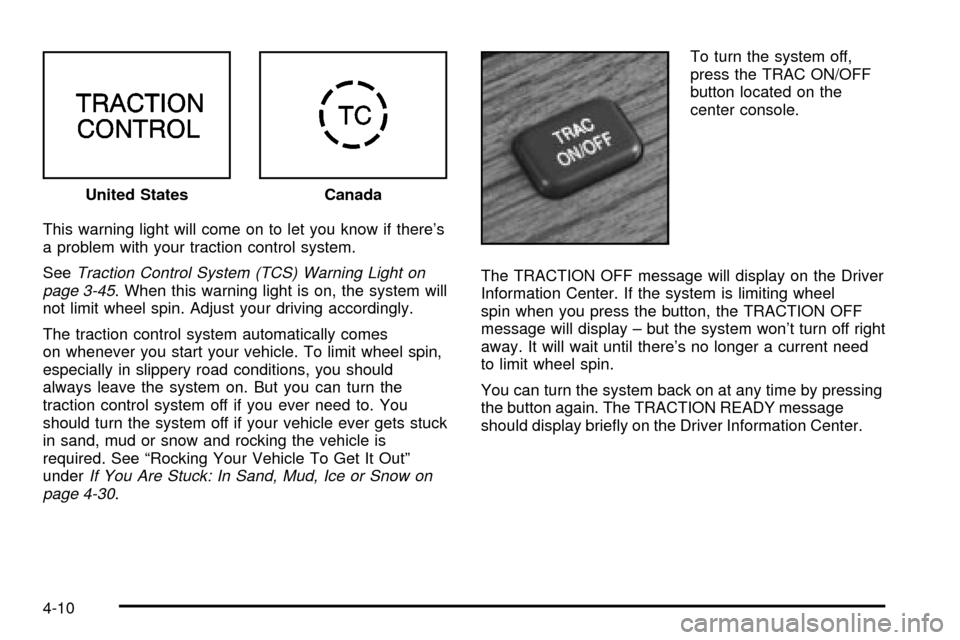
This warning light will come on to let you know if there's
a problem with your traction control system.
See
Traction Control System (TCS) Warning Light on
page 3-45. When this warning light is on, the system will
not limit wheel spin. Adjust your driving accordingly.
The traction control system automatically comes
on whenever you start your vehicle. To limit wheel spin,
especially in slippery road conditions, you should
always leave the system on. But you can turn the
traction control system off if you ever need to. You
should turn the system off if your vehicle ever gets stuck
in sand, mud or snow and rocking the vehicle is
required. See ªRocking Your Vehicle To Get It Outº
under
If You Are Stuck: In Sand, Mud, Ice or Snow on
page 4-30.To turn the system off,
press the TRAC ON/OFF
button located on the
center console.
The TRACTION OFF message will display on the Driver
Information Center. If the system is limiting wheel
spin when you press the button, the TRACTION OFF
message will display ± but the system won't turn off right
away. It will wait until there's no longer a current need
to limit wheel spin.
You can turn the system back on at any time by pressing
the button again. The TRACTION READY message
should display brie¯y on the Driver Information Center. United States
Canada
4-10