check CADILLAC XT6 2021 Owner's Guide
[x] Cancel search | Manufacturer: CADILLAC, Model Year: 2021, Model line: XT6, Model: CADILLAC XT6 2021Pages: 431, PDF Size: 8.29 MB
Page 125 of 431

Cadillac XT6 Owner Manual (GMNA-Localizing-U.S./Canada-14574701) -
2021 - CRC - 2/8/21
124 INSTRUMENTS AND CONTROLS
Door Ajar Light
This light comes on when a door is
open or not securely latched. Before
driving, check that all doors are
properly closed.
Information Displays
Driver Information
Center (DIC)
The DIC is displayed in the
instrument cluster. It shows the status
of many vehicle systems.
SorT:Press to move between the
interactive display zones in the
cluster. Press
Sto go back to the
previous menu.
yorz: Use the thumbwheel to
scroll to the previous or next
selection.
V: Press the thumbwheel to open a
menu or select a menu item. Press
and hold to reset values on certain
screens.
Info Page Options
The info displays on the DIC can be
turned on or off through the
Options menu. 1. Press
Tto scroll to the Options
menu. Use the thumbwheel to
scroll to Info Pages and press the
thumbwheel to select.
2. Scroll
yorzto move through
the list of possible info displays.
3. Press the thumbwheel while an item is highlighted to select or
deselect that item.
The info pages can also be turned on
or off through the DIC page Info Page
Options.
DIC Information Displays
The following is the list of all possible
DIC information displays. Some of the
information displays may not be
available for your particular vehicle.
While in the Info Page Options menu,
the info pages can be restored to the
default factory settings by pressing
and holding
Ron the left steering
wheel controls and the thumbwheel
on the right steering wheel controls at
the same time.
Speed : Shows the vehicle speed in
either kilometers per hour (km/h) or
miles per hour (mph).
Page 130 of 431
Cadillac XT6 Owner Manual (GMNA-Localizing-U.S./Canada-14574701) -
2021 - CRC - 2/8/21
INSTRUMENTS AND CONTROLS 129
Incoming phone calls appearing in the
instrument cluster, may also display
in any HUD view.
Metric
English
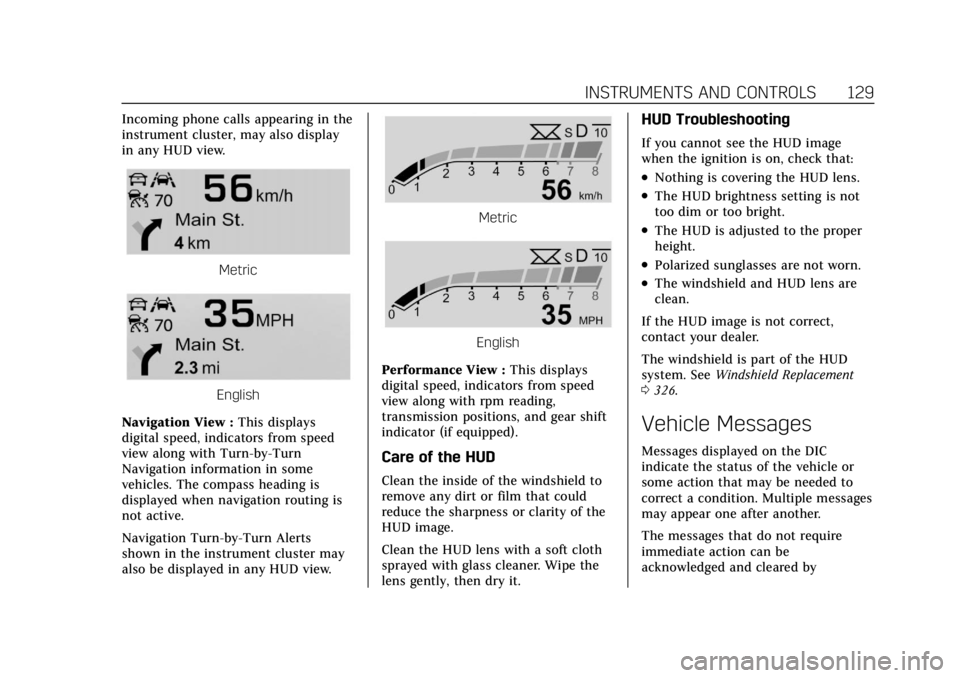
Navigation View : This displays
digital speed, indicators from speed
view along with Turn-by-Turn
Navigation information in some
vehicles. The compass heading is
displayed when navigation routing is
not active.
Navigation Turn-by-Turn Alerts
shown in the instrument cluster may
also be displayed in any HUD view.
Metric
English
Performance View : This displays
digital speed, indicators from speed
view along with rpm reading,
transmission positions, and gear shift
indicator (if equipped).
Care of the HUD
Clean the inside of the windshield to
remove any dirt or film that could
reduce the sharpness or clarity of the
HUD image.
Clean the HUD lens with a soft cloth
sprayed with glass cleaner. Wipe the
lens gently, then dry it.
HUD Troubleshooting
If you cannot see the HUD image
when the ignition is on, check that:
.Nothing is covering the HUD lens.
.The HUD brightness setting is not
too dim or too bright.
.The HUD is adjusted to the proper
height.
.Polarized sunglasses are not worn.
.The windshield and HUD lens are
clean.
If the HUD image is not correct,
contact your dealer.
The windshield is part of the HUD
system. See Windshield Replacement
0 326.
Vehicle Messages
Messages displayed on the DIC
indicate the status of the vehicle or
some action that may be needed to
correct a condition. Multiple messages
may appear one after another.
The messages that do not require
immediate action can be
acknowledged and cleared by
Page 161 of 431
Cadillac XT6 Owner Manual (GMNA-Localizing-U.S./Canada-14574701) -
2021 - CRC - 2/8/21
160 INFOTAINMENT SYSTEM
Touch one of the following Browse
options to save a favorite:
Playlists :Touch
Hnext to any
playlist to store the playlist as a
favorite. Touch a saved favorite to
recall a favorite playlist. The first song
in the playlist begins to play.
Artists : Touch
Hnext to any artist
to store the artist as a favorite. Touch
a saved favorite to recall a favorite
artist. The first song in the artist list
begins to play.
Songs : Touch
Hnext to any song to
store the song as a favorite. Touch a
saved favorite to recall a favorite song.
Albums : Touch
Hnext to any
album to store the album as a
favorite. Touch a saved favorite to
recall a favorite album. The first song
in the album list begins to play.
Genres : Touch
Hnext to any genre
to store the genre as a favorite. Touch
a saved favorite to recall a favorite
genre. The first song of the genre
begins to play. Podcasts :
Touch
Hnext to any
podcast to store the podcast as a
favorite. Touch a saved favorite to
recall a favorite podcast. The podcast
begins to play.
Audiobooks : Touch
Hnext to any
audiobook to store the audiobook as a
favorite. Touch a saved favorite to
recall a favorite audiobook. The first
chapter in the audiobook begins
to play.
Media Playback and Mute
USB playback will be paused if the
system is muted. If the steering wheel
mute control is pressed again,
playback will resume.
If the source is changed while in
mute, playback resumes and audio
will unmute.
Bluetooth Audio
Music may be played from a paired
Bluetooth device. See Bluetooth
(Overview) 0181 or
Bluetooth (Pairing and Using a Phone)
0 182 for help pairing a device. Volume and song selection may be
controlled by using the infotainment
controls or the mobile device.
If Bluetooth is selected and no volume
is present, check the volume setting
on both your mobile device and the
infotainment system.
Music can be launched by touching
Bluetooth from the recent sources list
on the left of the display or by
touching the More option and then
touching the Bluetooth device.
To play music via Bluetooth:
1. Power on the device, and pair to connect the device.
2. Once paired, touch Audio from the Home Page, then touch Bluetooth
from the recent sources list on the
left of the display.
Bluetooth Sound Menu
See “Infotainment System Sound
Menu ”under AM-FM Radio 0153.
Manage Bluetooth Devices
From the Home Page: 1. Touch Audio.
2. Touch More.
Page 162 of 431
Cadillac XT6 Owner Manual (GMNA-Localizing-U.S./Canada-14574701) -
2021 - CRC - 2/8/21
INFOTAINMENT SYSTEM 161
3. Touch Bluetooth.
4. Touch Devices to add or deletedevices.
When touching Bluetooth, the radio
may not be able to launch the audio
player on the connected device to
start playing. When the vehicle is not
moving, use the mobile device to
begin playback.
All devices launch audio differently.
When selecting Bluetooth as a source,
the radio may show as paused on the
display. Press play on the device or
touch
pon the display to begin
playback.
Browse functionality will be provided
where supported by the Bluetooth
device. This media content will not be
part of the MyMedia source mode.
Some smartphones support sending
Bluetooth music information to
display on the radio. When the radio
receives this information, it will check
to see if any is available and display it.
For more information about supported
Bluetooth features, see
my.cadillac.com/learn.
OnStar System
4G LTE
If equipped with 4G LTE, up to seven
devices, such as smartphones, tablets,
and laptops, can be connected to
high-speed Internet through the
vehicle’s built-in Wi-Fi hotspot.
Call 1-888-4ONSTAR (1-888-466-7827)
to connect to an OnStar Advisor for
assistance. See www.onstar.com for
vehicle availability, details, and system
limitations. Service and connectivity
may vary by make, model, year,
carrier, availability, and conditions.
4G LTE service is available in select
markets. 4G LTE performance is based
on industry averages and vehicle
systems design. Some services require
a data plan.
The OnStar App
If equipped, the infotainment system
has OnStar controls in the embedded
OnStar app on the Home Page. Most
OnStar functions that can be
performed with the buttons can be
done using the app. To open the app,
touch the OnStar icon on the Home Page. App updates require a
corresponding service plan. Features
vary by region and model. Features
are subject to change. For more
information, see my.cadillac.com/learn
or press
Q.
Services
The Services tab displays the default
view for the app. Use this page to
launch the available OnStar services.
Touch a service to open its display.
Touch Wi-Fi to launch the
connections manager. Turn-by-Turn
and Advisor Call are the other tiled
options.
Account
The Account tab displays a snapshot
of the account linked with the vehicle.
If there is no such account, this tab
will show all values as ——. The call
advisor call icon will be active even if
there is no active account.
Advisor Call
Selecting Advisor Call is the same as
pressing
Qor calling 1-888-4ONSTAR
(1-888-466-7827). The X option in the
Page 166 of 431

Cadillac XT6 Owner Manual (GMNA-Localizing-U.S./Canada-14574701) -
2021 - CRC - 2/8/21
INFOTAINMENT SYSTEM 165
Traffic Preferences (If Equipped)
While in Map View, touch
A, then
Settings and then Map and Navigation
Settings to access Traffic Preferences.
When Show Traffic on Map is turned
on, the feature provides an overview
of the traffic flow using different
coded colors. The following options
are available for rerouting:
.Auto Reroute to Better Route –The
system will automatically reroute if
the system detects there is a traffic
issue ahead.
.Ask Before Rerouting (Default) –If
the system detects there is a traffic
issue ahead, it will display a pop-up
with details about the issue. Choose
to reroute or cancel the alert.
.Never Search for Better Route –The
system will not check for a better
route until one of the above options
is selected.
Alert Preferences
Set alerts on or off during both
inactive and active guidance views.
The following alerts may be available:
.Road Safety Alerts –Touch to
display upcoming School Zones.
.Traffic Camera Alerts
Manage History
Touch Manage History to access the
History options:
.Clear Recent Destinations –Touch
\to clear the recent destinations.
.Clear Search History –Touch\to
clear the search history.
About
Touch to display software information,
such as:
.Telenav Terms and Conditions
.Telenav Privacy Statement
.Navigation Version
Maps
The Nav application requires a map
database to run. It is stored on an SD
card that is connected to the
infotainment system. If the map
database is not available, a missing SD
card error message will be displayed. SD Card Error Messages
The SD card only works for one
unique vehicle. The SD card must pass
authentication verification to be used
for that specific vehicle. Potential
error scenarios and messages include:
.The SD card has initialized for the
first time:
“Once initialized, this SD
card can only be used for navigation
in this vehicle.”
.The SD card is not working
properly: “SD card is not functioning
properly. (Error Code).”
.The SD card is not paired with the
existing system: “This SD card is not
valid in this vehicle for navigation.
See Owner’s Manual for more detail
or visit your dealer. (Error Code).”
.The SD card has been removed from
the slot: “SD card has been removed.
(Error Code).”
Touch Continue to resume after the
initialization error message. For the
other messages, touch OK to return to
the Home Page.
Page 192 of 431

Cadillac XT6 Owner Manual (GMNA-Localizing-U.S./Canada-14574701) -
2021 - CRC - 2/8/21
INFOTAINMENT SYSTEM 191
Voice
Touch and the following may display:
.Confirm More/Less: This setting
specifies how often the voice
recognition system confirms
commands. Touch Confirm More to
have the system check with you
more often before acting on your
commands.
.Prompt Length: This setting
specifies the amount of detail the
voice recognition system provides
when giving you feedback. Touch
Auto to have the system
automatically adjust to your speech
habits. Touch Informative, Short,
or Auto.
.Audio Feedback Speed: Touch Slow,
Medium, or Fast to adjust how
quickly the voice recognition system
speaks.
.Friendly Prompts: This setting
adjusts the formality of voice
prompts. Touch Off for shorter
prompts. Touch On to hear prompts
with more personality. Touch Auto
to have the prompt match your
command style.
.Tutorial Mode: Touch Off or On to
provide tutorial feedback on the
display.
.Allow Prompt Interruptions: This
setting controls whether voice
commands can be spoken before
voice prompts finish. Turn this on
to speak commands without hearing
the full prompt. Speaking while the
prompt is still playing will
immediately stop playing the
current prompt and recognize your
command. Background noise may
cause accidental interruptions.
Touch Off or On.
Favorites
Touch and the following may display:
.Manage Favorites: Touch to display
a list of Audio, Phone, and
Navigation favorites.
Favorites can be moved, renamed,
or deleted.
To move, touch and hold the
favorite, and then drag up or down
to rearrange the position.
.Set Number of Audio Favorites:
Touch to select how many favorites
pages can be viewed from the audio application. The Auto setting will
automatically adjust this number
based on the number of favorites
you have saved. Touch Auto, 5, 10,
15, 20, 25, 30, 35, or 40.
Updates
If equipped, the vehicle can download
and install select software updates
over a wireless connection. The
system will prompt for certain
updates to be downloaded and
installed. There is also an option to
check for updates manually.
To manually check for updates, touch
Settings on the Home Page and select
the System tab. Go to the Vehicle
Software section and touch Updates.
Follow the on-screen prompts. The
steps to check for, download, and
install updates may vary by vehicle.
The vehicle can be used normally
during the software download. Once
the download is complete, there may
be a prompt to accept the installation
of the update upon the next ignition
cycle or the next time the vehicle is
shifted into P (Park). For most
updates, the vehicle will be disabled
and cannot be driven during the
Page 196 of 431
Cadillac XT6 Owner Manual (GMNA-Localizing-U.S./Canada-14574701) -
2021 - CRC - 2/8/21
INFOTAINMENT SYSTEM 195
SiriusXM
Touch and the following may display:
.Account Information: Displays the
account information and
subscription information.
.Listener Options: Based on the
current vehicle profile selected.
Touch and the following may
display:
.SiriusXM Favorites: Favorites
shown can be moved or deleted.
.Listener Settings: Selections
include hide explicit language,
channels and content, reset
listening history, and start songs
at the beginning when tuning to
a music channel.
.System Settings: Enable or disable
SiriusXM location services. Also
shows radio ID.
.Contact SiriusXM: Displays radio ID
and phone number to call SiriusXM
Customer Care.
.SiriusXM Policies: Shows
information on the Customer
Agreement and Privacy Policy.
Vehicle
This menu allows adjustment of
different vehicle features. SeeVehicle
Personalization 0130.
Personal
If equipped, this menu allows
adjustment of different user profile
settings. See “Users”in Using the
System 0149 for information on
setting up user profiles.
The menu may contain the following:
Name
Touch to edit your user name that will
be displayed in the vehicle.
Vehicle Account Information
Touch to view the vehicle account
information and to change the
account password.
An “unverified user account ”pop-up
will display until the account
information verification process has
been completed on the Internet.
Check your registered e-mail account
for an activation e-mail to complete
the verification process. Profile Picture
Touch to choose or change your
profile picture.
Profile Identifiers
Touch to have the vehicle recognize
the identifier you choose.
Touch Vehicle Key 1 and/or
Vehicle Key 2.
If the Remote Keyless Entry (RKE)
transmitter is lost or stolen, see your
dealer.
Security
Touch to have your profile secured
with a Personal Identification
Number (PIN).
Touch No or Yes.
Vehicle Name
Touch to edit your vehicle name.
Vehicle Account
Touch to view the vehicle account
information and to change the
account password.
Page 223 of 431
Cadillac XT6 Owner Manual (GMNA-Localizing-U.S./Canada-14574701) -
2021 - CRC - 2/8/21
222 DRIVING AND OPERATING
Off-Road Driving
All-Wheel Drive vehicles can be used
for off-road driving. Vehicles without
All-Wheel Drive and vehicles not
equipped with All Terrain (AT) or
On-Off Road (OOR) tires must not be
driven off-road except on a level, solid
surface. To contact the tire
manufacturer for more information
about the original equipment tires, see
the Limited Warranty and Owner
Assistance Information manual.
Controlling the vehicle is the key to
successful off-road driving. One of the
best ways to control the vehicle is to
control the speed.
{Warning
When driving off-road, bouncing
and quick changes in direction can
easily throw you out of position.
This could cause you to lose control
and crash. You and your passengers
should always wear seat belts.
Before Driving Off-Road
.Have all necessary maintenance and
service work completed.
.Fuel the vehicle, fill fluid levels, and
check inflation pressure in all tires,
including the spare, if equipped.
.Read all the information about
All-Wheel Drive vehicles in this
manual.
.Make sure all underbody shields,
if equipped, are properly attached.
.Know the local laws that apply to
off-road driving.
To gain more ground clearance if
needed, it may be necessary to remove
the front fascia lower air dam.
However, driving without the air dam
reduces fuel economy.
Caution
Operating the vehicle for extended
periods without the front fascia
lower air dam installed can cause
improper airf low to the engine.
Reattach the front fascia air dam
after off-road driving.
Loading the Vehicle for Off-Road
Driving
{Warning
.Unsecured cargo on the load
floor can be tossed about when
driving over rough terrain. You or
your passengers can be struck by
flying objects. Secure the cargo
properly.
.Keep cargo in the cargo area as
far forward and as low as
possible. The heaviest things
should be on the floor, forward
of the rear axle.
.Heavy loads on the roof raise the
vehicle's center of gravity,
making it more likely to roll over.
You can be seriously or fatally
injured if the vehicle rolls over.
Put heavy loads inside the cargo
area, not on the roof.
For more information about loading
the vehicle, see Vehicle Load Limits
0 228.
Page 226 of 431

Cadillac XT6 Owner Manual (GMNA-Localizing-U.S./Canada-14574701) -
2021 - CRC - 2/8/21
DRIVING AND OPERATING 225
Traction is reduced on hard packed
snow and ice and it is easy to lose
control. Reduce vehicle speed when
driving on hard packed snow and ice.
{Warning
Driving on frozen lakes, ponds,
or rivers can be dangerous. Ice
conditions vary greatly and the
vehicle could fall through the ice;
you and your passengers could
drown. Drive your vehicle on safe
surfaces only.
Driving in Water
{Warning
Driving through rushing water can
be dangerous. Deep water can
sweep your vehicle downstream and
you and your passengers could
drown. If it is only shallow water, it
can still wash away the ground
from under your tires. Traction
could be lost, and the vehicle could
roll over. Do not drive through
rushing water.
Caution
Do not drive through standing
water if it is deep enough to cover
the wheel hubs, axles, or exhaust
pipe. Deep water can damage the
axle and other vehicle parts.
If the standing water is not too deep,
drive slowly through it. At faster
speeds, water splashes on the ignition
system and the vehicle can stall.
Stalling can also occur if you get the
exhaust pipe under water. While the
exhaust pipe is under water, you will
not be able to start the engine. When
going through water, the brakes get
wet, and it might take longer to stop.
See Driving on Wet Roads 0225.
After Off-Road Driving
Remove any brush or debris that has
collected on the underbody or chassis,
or under the hood. These
accumulations can be a fire hazard.
After operation in mud or sand, have
the brake linings cleaned and checked.
These substances can cause glazing
and uneven braking. Check the body
structure, steering, suspension, wheels, tires, and exhaust system for
damage and check the fuel lines and
cooling system for any leakage.
Driving on Wet Roads
Rain and wet roads can reduce vehicle
traction and affect your ability to stop
and accelerate. Always drive slower in
these types of driving conditions and
avoid driving through large puddles
and deep-standing or flowing water.
{Warning
Wet brakes can cause crashes. They
might not work as well in a quick
stop and could cause pulling to one
side. You could lose control of the
vehicle.
After driving through a large puddle
of water or a car/vehicle wash,
lightly apply the brake pedal until
the brakes work normally.
Flowing or rushing water creates
strong forces. Driving through
flowing water could cause the
vehicle to be carried away. If this
happens, you and other vehicle
(Continued)
Page 227 of 431
Cadillac XT6 Owner Manual (GMNA-Localizing-U.S./Canada-14574701) -
2021 - CRC - 2/8/21
226 DRIVING AND OPERATING
Warning (Continued)
occupants could drown. Do not
ignore police warnings and be very
cautious about trying to drive
through flowing water.
Hydroplaning
Hydroplaning is dangerous. Water can
build up under the vehicle's tires so
they actually ride on the water. This
can happen if the road is wet enough
and you are going fast enough. When
the vehicle is hydroplaning, it has
little or no contact with the road.
There is no hard and fast rule about
hydroplaning. The best advice is to
slow down when the road is wet.
Other Rainy Weather Tips
Besides slowing down, other wet
weather driving tips include:
.Allow extra following distance.
.Pass with caution.
.Keep windshield wiping equipment
in good shape.
.Keep the windshield washer fluid
reservoir filled.
.Have good tires with proper tread
depth. SeeTires0337.
.Turn off cruise control.
Hill and Mountain Roads
Driving on steep hills or through
mountains is different than driving on
flat or rolling terrain. Tips include:
.Keep the vehicle serviced and in
good shape.
.Check all fluid levels and brakes,
tires, cooling system, and
transmission.
.Shift to a lower gear when going
down steep or long hills.
{Warning
Using the brakes to slow the vehicle
on a long downhill slope can cause
brake overheating, can reduce brake
performance, and could result in a
loss of braking. Shift the
transmission to a lower gear to let
the engine assist the brakes on a
steep downhill slope.
{Warning
Coasting downhill in N (Neutral) or
with the ignition off is dangerous.
This can cause overheating of the
brakes and loss of steering assist.
Always have the engine running
and the vehicle in gear.
.Drive at speeds that keep the
vehicle in its own lane. Do not
swing wide or cross the center line.
.Be alert on top of hills; something
could be in your lane (e.g., stalled
car, crash).
.Pay attention to special road signs
(e.g., falling rocks area, winding
roads, long grades, passing or
no-passing zones) and take
appropriate action.
Winter Driving
Driving on Snow or Ice
Snow or ice between the tires and the
road creates less traction or grip, so
drive carefully. Wet ice can occur at
about 0 °C (32 °F) when freezing rain