display CHEVROLET BOLT EV 2021 Repair Manual
[x] Cancel search | Manufacturer: CHEVROLET, Model Year: 2021, Model line: BOLT EV, Model: CHEVROLET BOLT EV 2021Pages: 293, PDF Size: 9.21 MB
Page 161 of 293
Chevrolet Bolt EV Owner Manual (GMNA-Localizing-U.S./Canada-
14637856) - 2021 - CRC - 10/2/20
160 Driving and Operating
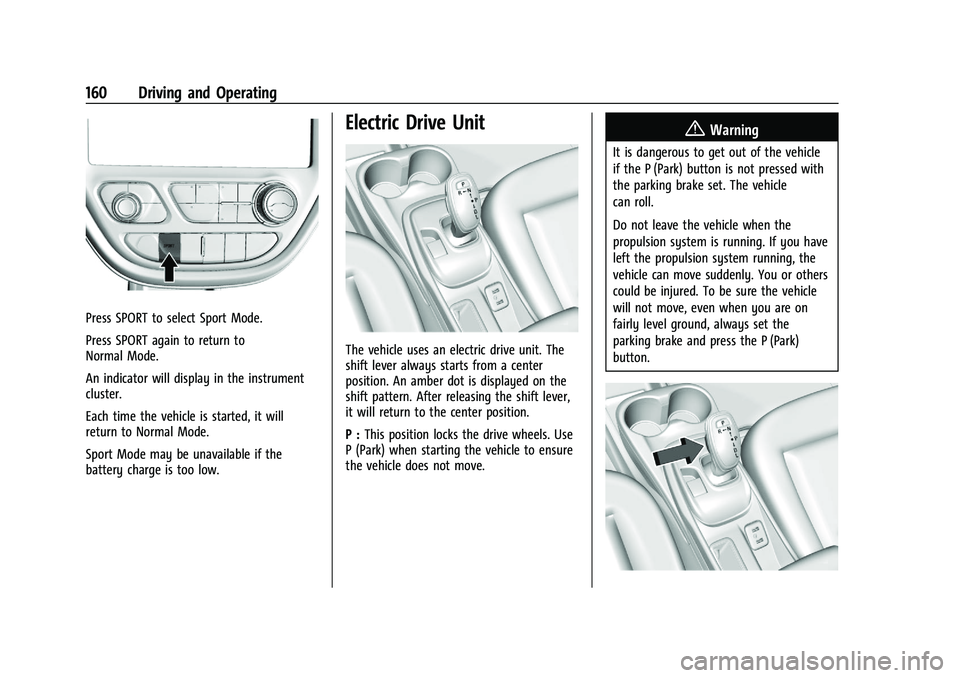
Press SPORT to select Sport Mode.
Press SPORT again to return to
Normal Mode.
An indicator will display in the instrument
cluster.
Each time the vehicle is started, it will
return to Normal Mode.
Sport Mode may be unavailable if the
battery charge is too low.
Electric Drive Unit
The vehicle uses an electric drive unit. The
shift lever always starts from a center
position. An amber dot is displayed on the
shift pattern. After releasing the shift lever,
it will return to the center position.
P :This position locks the drive wheels. Use
P (Park) when starting the vehicle to ensure
the vehicle does not move.
{Warning
It is dangerous to get out of the vehicle
if the P (Park) button is not pressed with
the parking brake set. The vehicle
can roll.
Do not leave the vehicle when the
propulsion system is running. If you have
left the propulsion system running, the
vehicle can move suddenly. You or others
could be injured. To be sure the vehicle
will not move, even when you are on
fairly level ground, always set the
parking brake and press the P (Park)
button.
Page 165 of 293
Chevrolet Bolt EV Owner Manual (GMNA-Localizing-U.S./Canada-
14637856) - 2021 - CRC - 10/2/20
164 Driving and Operating
Braking in Emergencies
ABS allows steering and braking at the same
time. In many emergencies, steering can
help even more than braking.
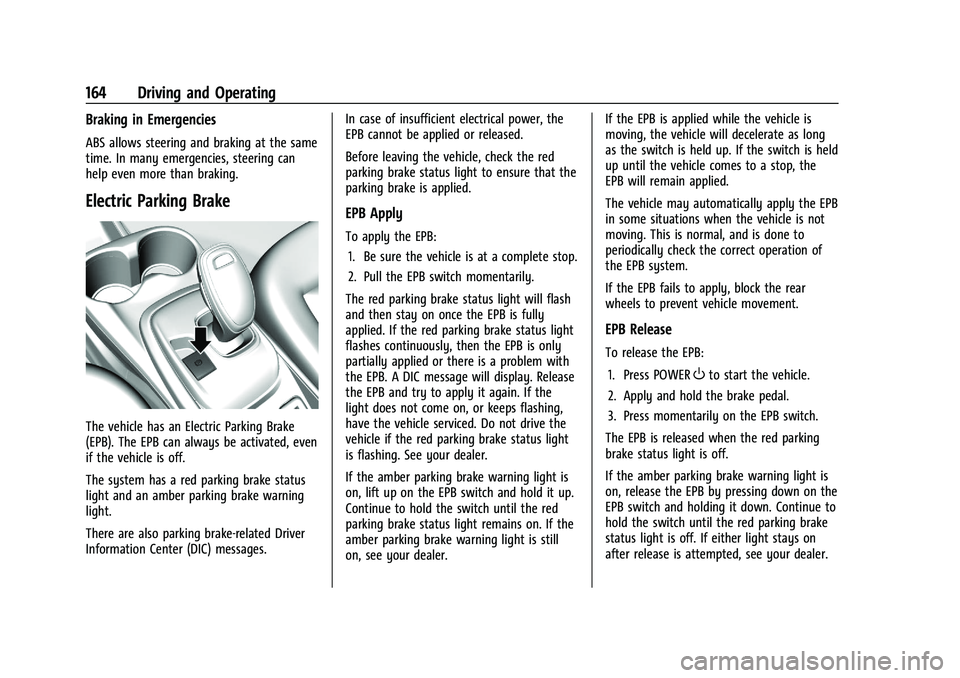
Electric Parking Brake
The vehicle has an Electric Parking Brake
(EPB). The EPB can always be activated, even
if the vehicle is off.
The system has a red parking brake status
light and an amber parking brake warning
light.
There are also parking brake-related Driver
Information Center (DIC) messages.In case of insufficient electrical power, the
EPB cannot be applied or released.
Before leaving the vehicle, check the red
parking brake status light to ensure that the
parking brake is applied.
EPB Apply
To apply the EPB:
1. Be sure the vehicle is at a complete stop.
2. Pull the EPB switch momentarily.
The red parking brake status light will flash
and then stay on once the EPB is fully
applied. If the red parking brake status light
flashes continuously, then the EPB is only
partially applied or there is a problem with
the EPB. A DIC message will display. Release
the EPB and try to apply it again. If the
light does not come on, or keeps flashing,
have the vehicle serviced. Do not drive the
vehicle if the red parking brake status light
is flashing. See your dealer.
If the amber parking brake warning light is
on, lift up on the EPB switch and hold it up.
Continue to hold the switch until the red
parking brake status light remains on. If the
amber parking brake warning light is still
on, see your dealer. If the EPB is applied while the vehicle is
moving, the vehicle will decelerate as long
as the switch is held up. If the switch is held
up until the vehicle comes to a stop, the
EPB will remain applied.
The vehicle may automatically apply the EPB
in some situations when the vehicle is not
moving. This is normal, and is done to
periodically check the correct operation of
the EPB system.
If the EPB fails to apply, block the rear
wheels to prevent vehicle movement.
EPB Release
To release the EPB:
1. Press POWER
Oto start the vehicle.
2. Apply and hold the brake pedal.
3. Press momentarily on the EPB switch.
The EPB is released when the red parking
brake status light is off.
If the amber parking brake warning light is
on, release the EPB by pressing down on the
EPB switch and holding it down. Continue to
hold the switch until the red parking brake
status light is off. If either light stays on
after release is attempted, see your dealer.
Page 167 of 293
Chevrolet Bolt EV Owner Manual (GMNA-Localizing-U.S./Canada-
14637856) - 2021 - CRC - 10/2/20
166 Driving and Operating
Cruise control will turn off and the brake
lamps may come on when this feature is
activated.
If the vehicle is in D (Drive) and is brought
to a complete stop while the Regen on
Demand paddle is held, the vehicle will not
creep forward when the paddle is released.
The accelerator pedal must be pressed to
move the vehicle forward. See“One-Pedal
Driving” underElectric Drive Unit 0160.
If the vehicle is on a steep grade, the brake
pedal must be used to hold the vehicle.
Regenerative power may be limited when
the battery is near full charge or cold. The
regen battery icon will appear gray when
limited. The regen power limit is also
displayed as a horizontal bar on the power
indicator gauge.
Avoid using Regen On Demand under
slippery road conditions. Under Regenerative
Power Limited Condition, the amount of
vehicle deceleration will be limited. Use the
brake pedal as the primary braking device.Ride Control Systems
Traction Control/Electronic
Stability Control
System Operation
The vehicle has a Traction Control System
(TCS) and StabiliTrak/Electronic Stability
Control (ESC), an electronic stability control
system. These systems help limit wheel slip
and assist the driver in maintaining control,
especially on slippery road conditions.
TCS activates if it senses that any of the
drive wheels are spinning or beginning to
lose traction. When this happens, TCS
applies the brakes to the spinning wheels
and reduces propulsion system power to
limit wheel spin.
StabiliTrak/ESC activates when the vehicle
senses a difference between the intended
path and the direction the vehicle is actually
traveling. StabiliTrak/ESC selectively applies
braking pressure to any one of the vehicle
wheel brakes to assist the driver in keeping
the vehicle on the intended path. If cruise control is being used and TCS or
StabiliTrak/ESC begins to limit wheel spin,
cruise control will disengage. Cruise control
may be turned back on when road
conditions allow.
Both systems come on automatically when
the vehicle is started and begins to move.
The systems may be heard or felt while
they are operating or while performing
diagnostic checks. This is normal and does
not mean there is a problem with the
vehicle.
It is recommended to leave both systems on
for normal driving conditions, but it may be
necessary to turn TCS off if the vehicle gets
stuck in sand, mud, ice, or snow. See
“Turning the Systems Off and On”
later in
this section.
The indicator light for both systems is in the
instrument cluster. This light will:
.Flash when TCS is limiting wheel spin.
.Flash when StabiliTrak/ESC is activated.
Page 168 of 293
Chevrolet Bolt EV Owner Manual (GMNA-Localizing-U.S./Canada-
14637856) - 2021 - CRC - 10/2/20
Driving and Operating 167
.Turn on and stay on when either system
is not working.
If either system fails to turn on or to
activate, a message displays in the Driver
Information Center (DIC), and
dcomes on
and stays on to indicate that the system is
inactive and is not assisting the driver in
maintaining control. The vehicle is safe to
drive, but driving should be adjusted
accordingly.
If
dcomes on and stays on:
1. Stop the vehicle.
2. Turn the vehicle off and wait 15 seconds.
3. Start the vehicle.
Drive the vehicle. If
dcomes on and stays
on, the vehicle may need more time to
diagnose the problem. If the condition
persists, see your dealer.
Turning the Systems Off and On
Caution
Do not repeatedly brake or accelerate
heavily when TCS is off. The vehicle
driveline could be damaged.
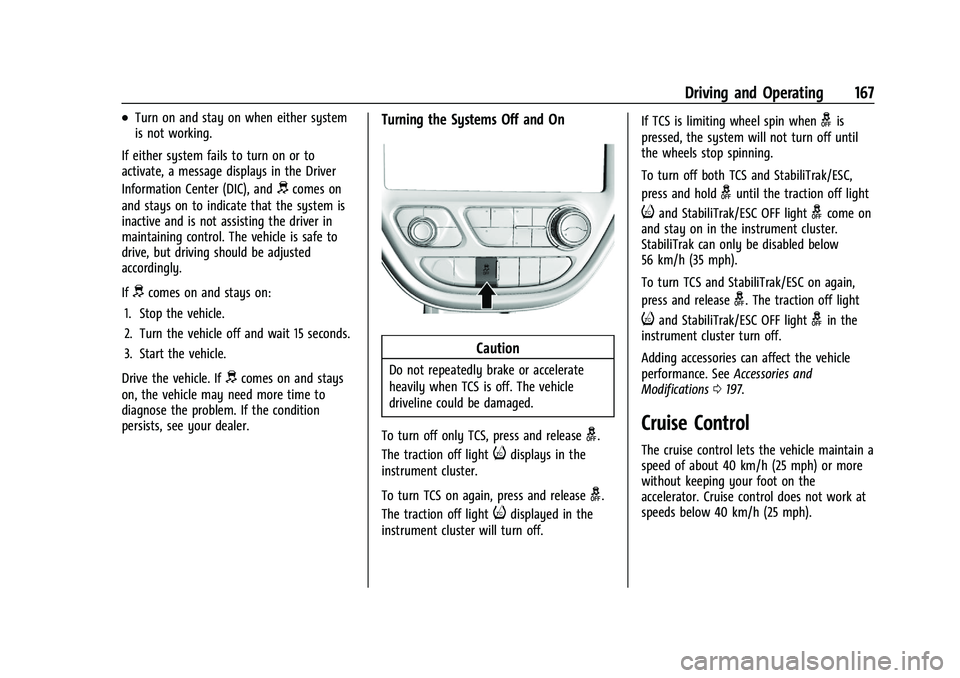
To turn off only TCS, press and release
g.
The traction off light
idisplays in the
instrument cluster.
To turn TCS on again, press and release
g.
The traction off light
idisplayed in the
instrument cluster will turn off. If TCS is limiting wheel spin when
gis
pressed, the system will not turn off until
the wheels stop spinning.
To turn off both TCS and StabiliTrak/ESC,
press and hold
guntil the traction off light
iand StabiliTrak/ESC OFF lightgcome on
and stay on in the instrument cluster.
StabiliTrak can only be disabled below
56 km/h (35 mph).
To turn TCS and StabiliTrak/ESC on again,
press and release
g. The traction off light
iand StabiliTrak/ESC OFF lightgin the
instrument cluster turn off.
Adding accessories can affect the vehicle
performance. See Accessories and
Modifications 0197.
Cruise Control
The cruise control lets the vehicle maintain a
speed of about 40 km/h (25 mph) or more
without keeping your foot on the
accelerator. Cruise control does not work at
speeds below 40 km/h (25 mph).
Page 170 of 293
Chevrolet Bolt EV Owner Manual (GMNA-Localizing-U.S./Canada-
14637856) - 2021 - CRC - 10/2/20
Driving and Operating 169
Once the vehicle speed reaches about
40 km/h (25 mph) or more, briefly press
+RES. The vehicle returns to the previous set
speed.
Increasing Speed While Using Cruise Control
If the cruise control system is already
activated:
.Press and hold +RES until the vehicle
accelerates to the desired speed, then
release it.
.To increase the speed in small increments,
briefly press +RES. For each press, the
vehicle goes about 1 km/h (1 mph) faster.
The speedometer reading can be displayed
in either English or metric units. See
Instrument Cluster 079. The increment
value used depends on the units displayed.
Reducing Speed While Using Cruise Control
If the cruise control system is already
activated:
.Press and hold −SET until the desired
lower speed is reached, then release it.
.To slow down in small increments, briefly
press −SET. For each press, the vehicle
goes about 1 km/h (1 mph) slower. The speedometer reading can be displayed
in either English or metric units. See
Instrument Cluster
079. The increment
value used depends on the units displayed.
Passing Another Vehicle While Using Cruise
Control
Use the accelerator pedal to increase the
vehicle speed. When you take your foot off
the pedal, the vehicle will slow down to the
previous set cruise speed. While pressing the
accelerator pedal or shortly following the
release to override cruise control, briefly
pressing −SET will result in cruise control set
to the current vehicle speed.
Using Cruise Control on Hills
How well the cruise control works on hills
depends upon the vehicle speed, load, and
the steepness of the hills. When going up
steep hills, you might have to step on the
accelerator pedal to maintain the vehicle
speed. When going downhill, you might
have to brake or shift to a lower gear to
keep your speed down. If the brake pedal is
applied, cruise control will disengage.
Ending Cruise Control
There are five ways to end cruise control:
.Step lightly on the brake pedal.
.Press*.
.Shift the electric drive unit to N (Neutral).
.Press5to turn the cruise control system
off completely.
.Activate Regen on Demand. See “Regen
on Demand” underRegenerative Braking
0 165.
Erasing Speed Memory
The cruise control set speed is erased from
memory if
5is pressed or if the vehicle is
turned off.
Driver Assistance Systems
This vehicle may have features that work
together to help avoid crashes or reduce
crash damage while driving, backing, and
parking. Read this entire section before
using these systems.
{Warning
Do not rely on the Driver Assistance
Systems. These systems do not replace
the need for paying attention and driving
safely. You may not hear or see alerts or
warnings provided by these systems.
(Continued)
Page 171 of 293
Chevrolet Bolt EV Owner Manual (GMNA-Localizing-U.S./Canada-
14637856) - 2021 - CRC - 10/2/20
170 Driving and Operating
Warning (Continued)
Failure to use proper care when driving
may result in injury, death, or vehicle
damage. SeeDefensive Driving 0148.
Under many conditions, these systems
will not:
.Detect children, pedestrians, bicyclists,
or animals.
.Detect vehicles or objects outside the
area monitored by the system.
.Work at all driving speeds.
.Warn you or provide you with enough
time to avoid a crash.
.Work under poor visibility or bad
weather conditions.
.Work if the detection sensor is not
cleaned or is covered by ice, snow,
mud, or dirt.
.Work if the detection sensor is
covered up, such as with a sticker,
magnet, or metal plate.
.Work if the area surrounding the
detection sensor is damaged or not
properly repaired. (Continued)
Warning (Continued)
Complete attention is always required
while driving, and you should be ready to
take action and apply the brakes and/or
steer the vehicle to avoid crashes.
Audible Alert
Some driver assistance features alert the
driver of obstacles by beeping. To change
the volume of the warning chime, see
“Comfort and Convenience” underVehicle
Personalization 0101.
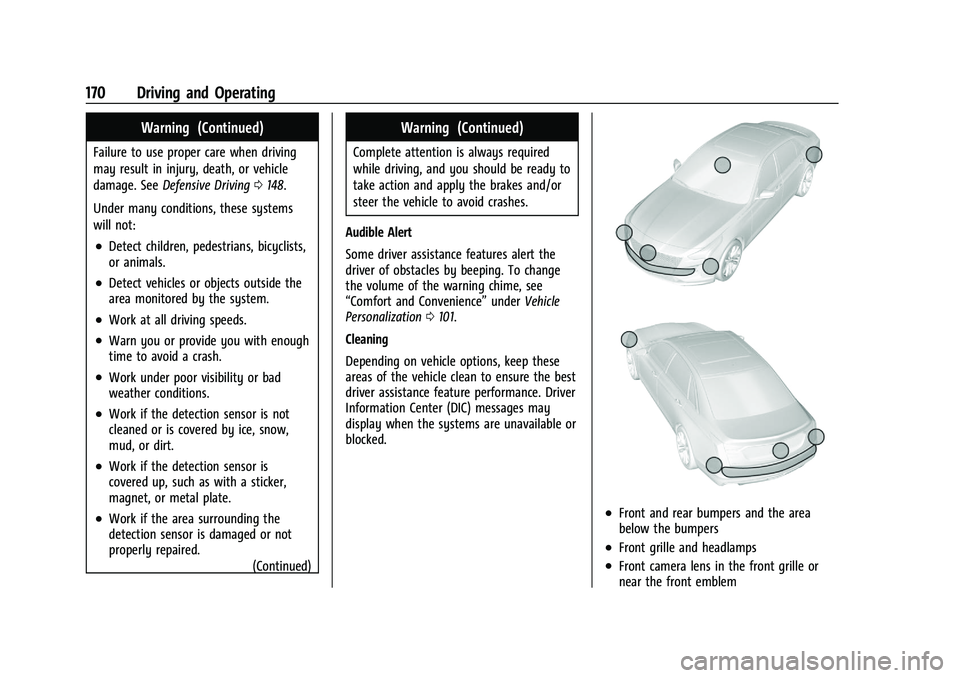
Cleaning
Depending on vehicle options, keep these
areas of the vehicle clean to ensure the best
driver assistance feature performance. Driver
Information Center (DIC) messages may
display when the systems are unavailable or
blocked.
.Front and rear bumpers and the area
below the bumpers
.Front grille and headlamps
.Front camera lens in the front grille or
near the front emblem
Page 172 of 293
Chevrolet Bolt EV Owner Manual (GMNA-Localizing-U.S./Canada-
14637856) - 2021 - CRC - 10/2/20
Driving and Operating 171
.Front side and rear side panels
.Outside of the windshield in front of the
rearview mirror
.Side camera lens on the bottom of the
outside mirrors
.Rear side corner bumpers
.Rear Vision Camera above the license
plate
Radio Frequency
This vehicle may be equipped with driver
assistance systems that operate using radio
frequency. See Radio Frequency Statement
0 271.
Assistance Systems for Parking or
Backing
If equipped, the Rear Vision Camera (RVC),
Rear Park Assist (RPA), Surround Vision, and
Rear Cross Traffic Alert (RCTA) may help the
driver park or avoid objects. Always check
around the vehicle when parking or backing.
Rear Vision Camera (RVC)
When the vehicle is shifted into R (Reverse),
the RVC displays an image of the area
behind the vehicle in the infotainment
display. The previous screen displays when
the vehicle is shifted out of R (Reverse) after a short delay. To return to the previous
screen sooner, press Home or Back on the
infotainment system, shift into P (Park),
or reach a vehicle speed of approximately
12 km/h (8 mph) while in D (Drive).
Turn
Dto adjust the display brightness
while viewing the infotainment display.
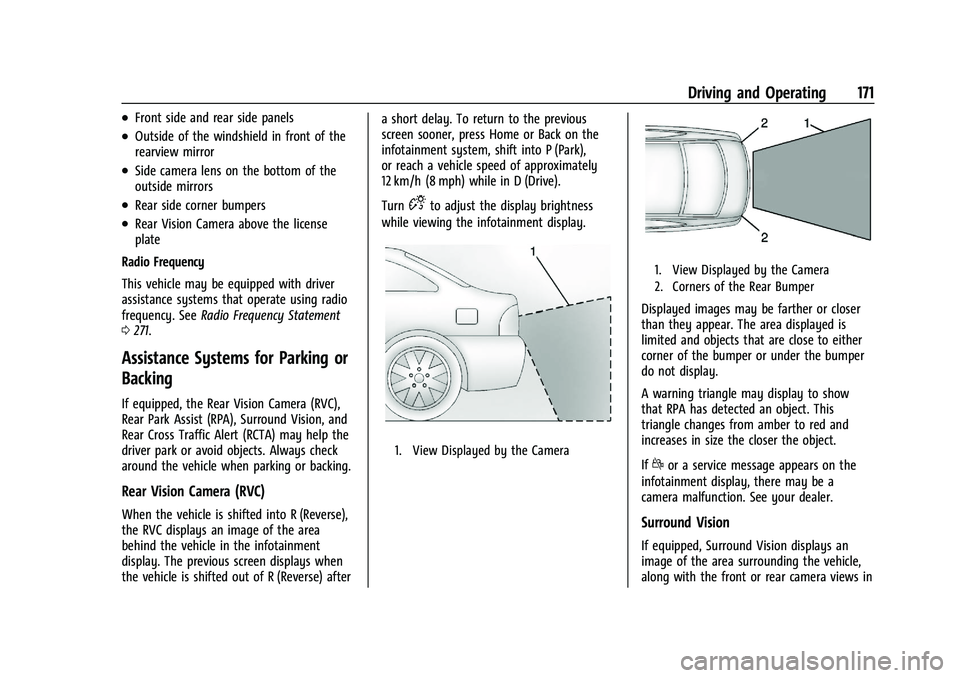
1. View Displayed by the Camera
1. View Displayed by the Camera
2. Corners of the Rear Bumper
Displayed images may be farther or closer
than they appear. The area displayed is
limited and objects that are close to either
corner of the bumper or under the bumper
do not display.
A warning triangle may display to show
that RPA has detected an object. This
triangle changes from amber to red and
increases in size the closer the object.
If
dor a service message appears on the
infotainment display, there may be a
camera malfunction. See your dealer.
Surround Vision
If equipped, Surround Vision displays an
image of the area surrounding the vehicle,
along with the front or rear camera views in
Page 173 of 293
Chevrolet Bolt EV Owner Manual (GMNA-Localizing-U.S./Canada-
14637856) - 2021 - CRC - 10/2/20
172 Driving and Operating
the infotainment display. The front camera
is in the grille or near the front emblem, the
side cameras are on the bottom of the
outside mirrors, and the rear camera is
above the license plate.
The Surround Vision system can be accessed
by selecting CAMERA in the infotainment
display or when the vehicle is shifted into
R (Reverse). To return to the previous screen
sooner, press any button on the
infotainment system, shift into P (Park),
or reach a vehicle speed of approximately
12 km/h (8 mph).
{Warning
The Surround Vision Cameras have blind
spots and will not display all objects near
the corners of the vehicle. Folding side
mirrors that are out of position will not
display surround view correctly. Always
check around the vehicle when parking or
backing.
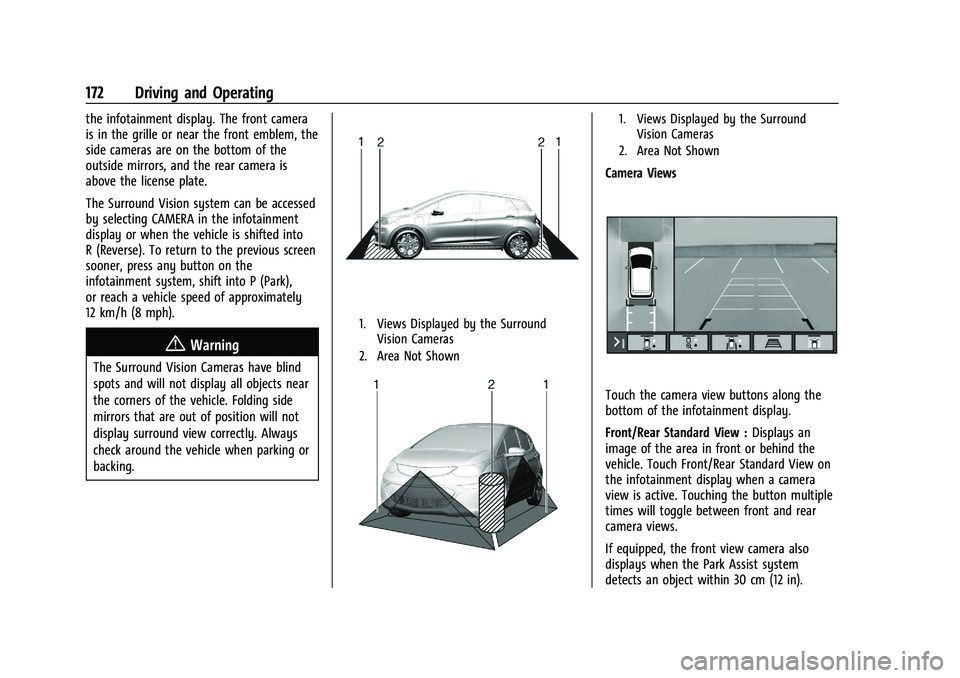
1. Views Displayed by the SurroundVision Cameras
2. Area Not Shown
1. Views Displayed by the Surround Vision Cameras
2. Area Not Shown
Camera Views
Touch the camera view buttons along the
bottom of the infotainment display.
Front/Rear Standard View : Displays an
image of the area in front or behind the
vehicle. Touch Front/Rear Standard View on
the infotainment display when a camera
view is active. Touching the button multiple
times will toggle between front and rear
camera views.
If equipped, the front view camera also
displays when the Park Assist system
detects an object within 30 cm (12 in).
Page 174 of 293
Chevrolet Bolt EV Owner Manual (GMNA-Localizing-U.S./Canada-
14637856) - 2021 - CRC - 10/2/20
Driving and Operating 173
Front/Rear Overhead View :Displays a Front
or Rear Overhead View of the vehicle.
Touching the button will toggle between the
two views.
Side Forward/Rearward View : Displays a
view that shows objects next to the front or
rear sides of the vehicle. Touch Side
Forward/Rearward View on the infotainment
display when a camera view is active.
Touching the button multiple times will
toggle between forward and rearward views.
Park Assist and RCTA are not available when
Side Forward/Rearward view is active.
Park Assist
If equipped with Rear Park Assist (RPA), as
the vehicle moves at speeds of less than
8 km/h (5 mph) the sensors on the bumpers
may detect objects up to 2.3 m (7.5 ft)
behind the vehicle within a zone of 25 cm
(10 in) high off the ground and below
bumper level. These detection distances may
be shorter during warmer or humid weather.
Blocked sensors will not detect objects and
can also cause false detections. Keep the
sensors clean of mud, dirt, snow, ice, and
slush; and clean sensors after a car wash in
freezing temperatures.
{Warning
The Park Assist system does not detect
children, pedestrians, bicyclists, animals,
or objects located below the bumper or
that are too close or too far from the
vehicle. It is not available at speeds
greater than 8 km/h (5 mph). To prevent
injury, death, or vehicle damage, even
with Park Assist, always check the area
around the vehicle and check all mirrors
before moving forward or backing.
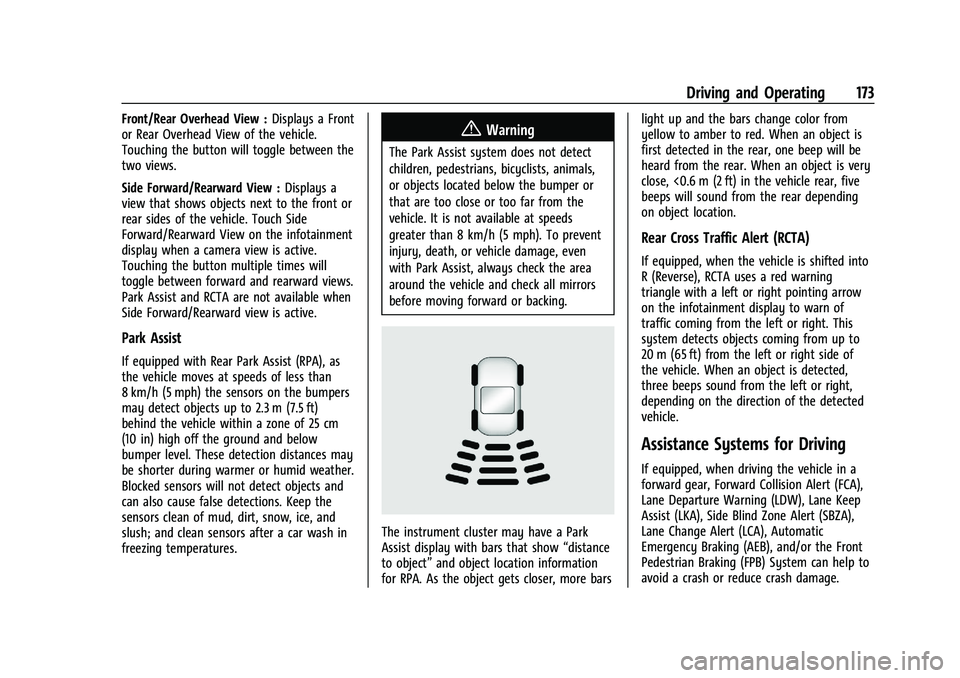
The instrument cluster may have a Park
Assist display with bars that show “distance
to object” and object location information
for RPA. As the object gets closer, more bars light up and the bars change color from
yellow to amber to red. When an object is
first detected in the rear, one beep will be
heard from the rear. When an object is very
close, <0.6 m (2 ft) in the vehicle rear, five
beeps will sound from the rear depending
on object location.
Rear Cross Traffic Alert (RCTA)
If equipped, when the vehicle is shifted into
R (Reverse), RCTA uses a red warning
triangle with a left or right pointing arrow
on the infotainment display to warn of
traffic coming from the left or right. This
system detects objects coming from up to
20 m (65 ft) from the left or right side of
the vehicle. When an object is detected,
three beeps sound from the left or right,
depending on the direction of the detected
vehicle.
Assistance Systems for Driving
If equipped, when driving the vehicle in a
forward gear, Forward Collision Alert (FCA),
Lane Departure Warning (LDW), Lane Keep
Assist (LKA), Side Blind Zone Alert (SBZA),
Lane Change Alert (LCA), Automatic
Emergency Braking (AEB), and/or the Front
Pedestrian Braking (FPB) System can help to
avoid a crash or reduce crash damage.
Page 175 of 293
Chevrolet Bolt EV Owner Manual (GMNA-Localizing-U.S./Canada-
14637856) - 2021 - CRC - 10/2/20
174 Driving and Operating
Forward Collision Alert (FCA)
System
If equipped, the FCA system may help to
avoid or reduce the harm caused by
front-end crashes. When approaching a
vehicle ahead too quickly, FCA provides a
red flashing alert on the windshield and
rapidly beeps. FCA also lights an amber
visual alert if following another vehicle
much too closely. FCA detects vehicles
within a distance of approximately 60 m
(197 ft) and operates at speeds above
8 km/h (5 mph).
{Warning
FCA is a warning system and does not
apply the brakes. When approaching a
slower-moving or stopped vehicle ahead
too rapidly, or when following a vehicle
too closely, FCA may not provide a
warning with enough time to help avoid
a crash. It also may not provide any
warning at all. FCA does not warn of
pedestrians, animals, signs, guardrails,
bridges, construction barrels, or other
objects. Be ready to take action and
apply the brakes.
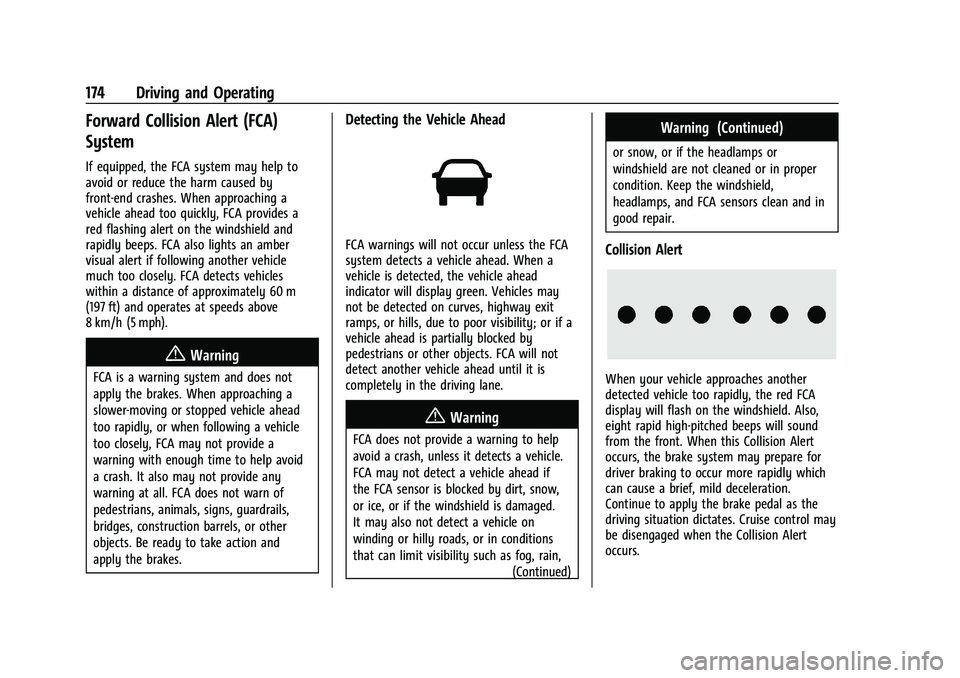
Detecting the Vehicle Ahead
FCA warnings will not occur unless the FCA
system detects a vehicle ahead. When a
vehicle is detected, the vehicle ahead
indicator will display green. Vehicles may
not be detected on curves, highway exit
ramps, or hills, due to poor visibility; or if a
vehicle ahead is partially blocked by
pedestrians or other objects. FCA will not
detect another vehicle ahead until it is
completely in the driving lane.
{Warning
FCA does not provide a warning to help
avoid a crash, unless it detects a vehicle.
FCA may not detect a vehicle ahead if
the FCA sensor is blocked by dirt, snow,
or ice, or if the windshield is damaged.
It may also not detect a vehicle on
winding or hilly roads, or in conditions
that can limit visibility such as fog, rain,(Continued)
Warning (Continued)
or snow, or if the headlamps or
windshield are not cleaned or in proper
condition. Keep the windshield,
headlamps, and FCA sensors clean and in
good repair.
Collision Alert
When your vehicle approaches another
detected vehicle too rapidly, the red FCA
display will flash on the windshield. Also,
eight rapid high-pitched beeps will sound
from the front. When this Collision Alert
occurs, the brake system may prepare for
driver braking to occur more rapidly which
can cause a brief, mild deceleration.
Continue to apply the brake pedal as the
driving situation dictates. Cruise control may
be disengaged when the Collision Alert
occurs.