buttons CHEVROLET CAPTIVA SPORT 2013 User Guide
[x] Cancel search | Manufacturer: CHEVROLET, Model Year: 2013, Model line: CAPTIVA SPORT, Model: CHEVROLET CAPTIVA SPORT 2013Pages: 374, PDF Size: 6.66 MB
Page 137 of 374

Black plate (41,1)Chevrolet Captiva Sport Owner Manual - 2013 - crc - 11/12/12
Instruments and Controls 5-41Press
U until PRESS
V TO
RESTORE DEFAULTS appears on
the DIC display. Press
V once to
access the settings for this feature.
Then press
U to scroll through the
following settings:
RESTORE (default): The
customization features will be set to
their factory default settings.
NO CHANGE: The customization
features will not be set to their
factory default settings.
To select a setting, press
V while
the desired setting is displayed on
the DIC.
EXIT FEATURE SETTINGS
This feature allows you to exit the
feature settings menu.
Press
U until PRESS
V TO EXIT
FEATURE SETTINGS appears in
the DIC display. Press
V once to
exit the menu. If you do not exit, pressing
U again
will return you to the beginning of
the feature settings menu.
Exiting the Feature
Settings Menu The feature settings menu will be
exited when any of the following
occurs: .
The vehicle is no longer in
ON/RUN. .
The
3 or
T DIC buttons are
pressed. .
The end of the feature settings
menu is reached and exited. .
A 40-second time period has
elapsed with no selection made. Universal Remote
System See Radio Frequency Statement on
page 13 ‑ 20 for information
regarding Part 15 of the Federal
Communications Commission (FCC)
rules and Industry Canada
Standards RSS-GEN/210/220/310.
Universal Remote System
Programming
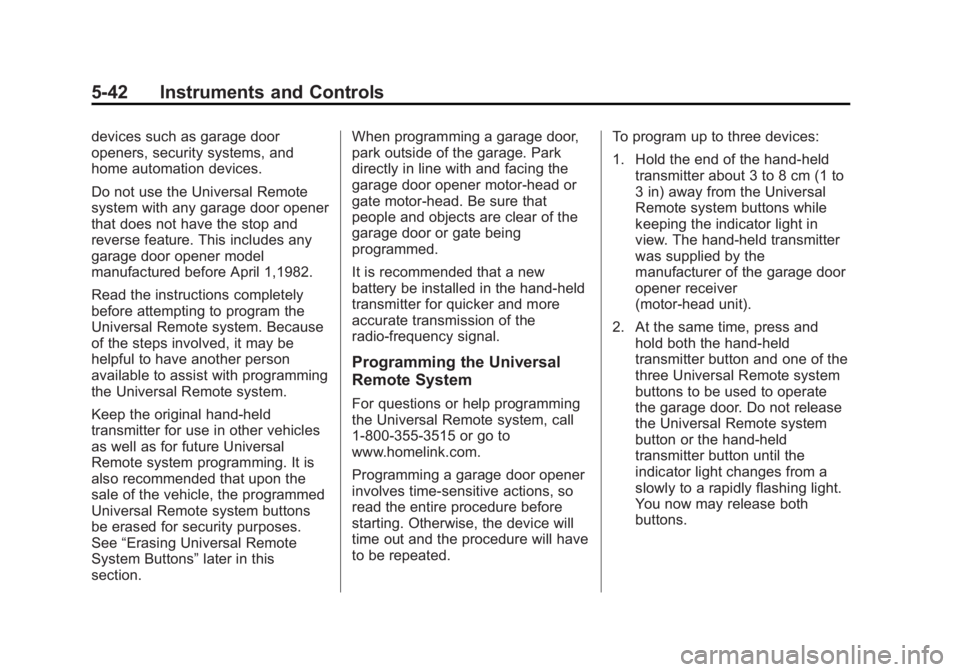
If the vehicle has this feature, you
will see these buttons with one
indicator light next to them in the
overhead console.
This system provides a way to
replace up to three remote control
transmitters used to activate
Page 138 of 374
Black plate (42,1)Chevrolet Captiva Sport Owner Manual - 2013 - crc - 11/12/12
5-42 Instruments and Controls devices such as garage door
openers, security systems, and
home automation devices.
Do not use the Universal Remote
system with any garage door opener
that does not have the stop and
reverse feature. This includes any
garage door opener model
manufactured before April 1,1982.
Read the instructions completely
before attempting to program the
Universal Remote system. Because
of the steps involved, it may be
helpful to have another person
available to assist with programming
the Universal Remote system.
Keep the original hand-held
transmitter for use in other vehicles
as well as for future Universal
Remote system programming. It is
also recommended that upon the
sale of the vehicle, the programmed
Universal Remote system buttons
be erased for security purposes.
See “ Erasing Universal Remote
System Buttons ” later in this
section. When programming a garage door,
park outside of the garage. Park
directly in line with and facing the
garage door opener motor-head or
gate motor-head. Be sure that
people and objects are clear of the
garage door or gate being
programmed.
It is recommended that a new
battery be installed in the hand-held
transmitter for quicker and more
accurate transmission of the
radio-frequency signal.
Programming the Universal
Remote System For questions or help programming
the Universal Remote system, call
1-800-355-3515 or go to
www.homelink.com.
Programming a garage door opener
involves time-sensitive actions, so
read the entire procedure before
starting. Otherwise, the device will
time out and the procedure will have
to be repeated. To program up to three devices:
1. Hold the end of the hand-held
transmitter about 3 to 8 cm (1 to
3 in) away from the Universal
Remote system buttons while
keeping the indicator light in
view. The hand-held transmitter
was supplied by the
manufacturer of the garage door
opener receiver
(motor-head unit).
2. At the same time, press and
hold both the hand-held
transmitter button and one of the
three Universal Remote system
buttons to be used to operate
the garage door. Do not release
the Universal Remote system
button or the hand-held
transmitter button until the
indicator light changes from a
slowly to a rapidly flashing light.
You now may release both
buttons.
Page 140 of 374
Black plate (44,1)Chevrolet Captiva Sport Owner Manual - 2013 - crc - 11/12/12
5-44 Instruments and Controls To program the remaining two
Universal Remote system buttons,
begin with Step 1 of “ Programming
the Universal Remote System. ”
Gate Operator and Canadian
Programming If you have questions or need help
programming the Universal Remote
system, call 1-800-355-3515 or go
to www.homelink.com.
Canadian radio-frequency laws
require transmitter signals to time
out or quit after several seconds of
transmission. This may not be long
enough for the Universal Remote
system to pick up the signal during
programming. Similarly, some U.S.
gate operators are manufactured to
time out in the same manner. If you live in Canada, or you are
having difficulty programming a gate
operator or garage door opener by
using the “ Programming the
Universal Remote System ”
procedures, regardless of where
you live, replace Step 2 under
“ Programming the Universal Remote
System ” with the following:
Continue to press and hold the
Universal Remote system button
while you press and release every
two seconds (cycle) the hand-held
transmitter button until the
frequency signal has been
successfully accepted by the
Universal Remote system. The
Universal Remote system indicator
light will flash slowly at first and then
rapidly. Proceed with Step 3 under
“ Programming the Universal Remote
System ” to complete. Universal Remote System
Operation Using the Universal Home
Remote Press and hold the appropriate
Universal Home Remote button for
at least half of a second. The
indicator light will come on while the
signal is being transmitted.
Erasing Universal Home
Remote Buttons The programmed buttons should be
erased when the vehicle is sold or
the lease ends.
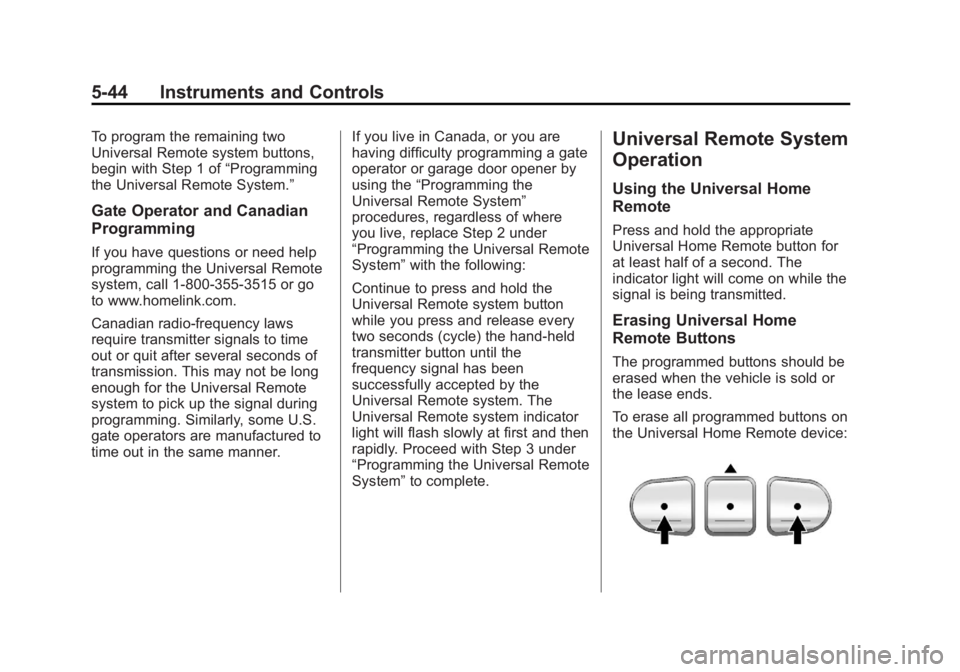
To erase all programmed buttons on
the Universal Home Remote device:
Page 141 of 374
Black plate (45,1)Chevrolet Captiva Sport Owner Manual - 2013 - crc - 11/12/12
Instruments and Controls 5-451. Press and hold down the two
outside buttons until the
indicator light begins to flash,
after 20 seconds.
2. Release both buttons.
Reprogramming a Single
Universal Home Remote
Button To reprogram any of the three
Universal Home Remote buttons,
repeat the programming instructions
earlier in this section, beginning with
Step 2.
For help or information on the
Universal Home Remote System,
call 1-800-355-3515 or go to
www.homelink.com.
Page 151 of 374
Black plate (3,1)Chevrolet Captiva Sport Owner Manual - 2013 - crc - 11/12/12
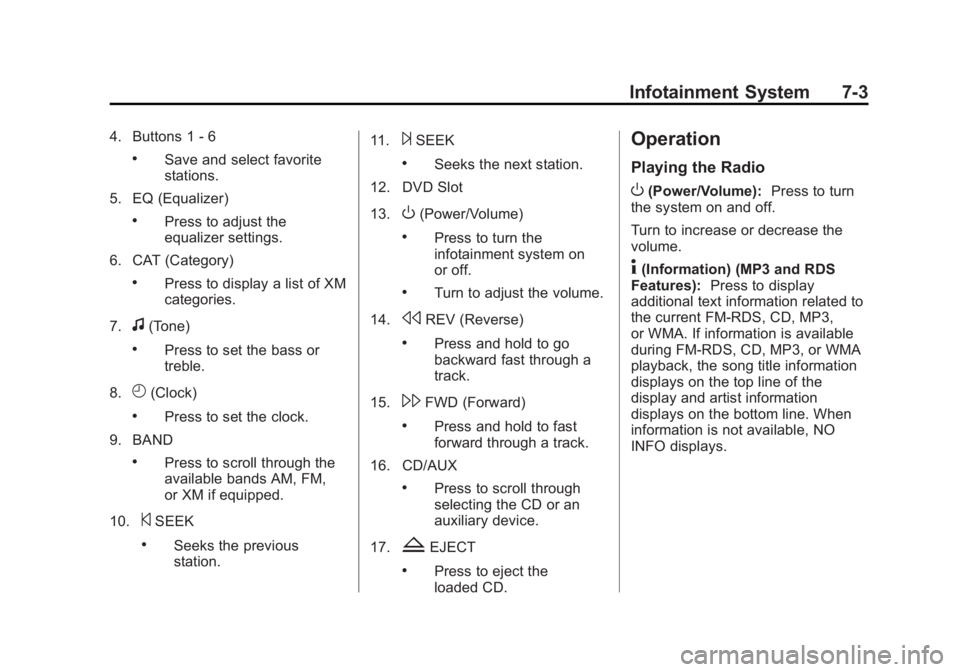
Infotainment System 7-34. Buttons 1 - 6 .
Save and select favorite
stations.
5. EQ (Equalizer) .
Press to adjust the
equalizer settings.
6. CAT (Category) .
Press to display a list of XM
categories.
7.
f (Tone) .
Press to set the bass or
treble.
8.
H (Clock) .
Press to set the clock.
9. BAND .
Press to scroll through the
available bands AM, FM,
or XM if equipped.
10.
© SEEK .
Seeks the previous
station. 11.
¨ SEEK .
Seeks the next station.
12. DVD Slot
13.
O (Power/Volume) .
Press to turn the
infotainment system on
or off. .
Turn to adjust the volume.
14.
s REV (Reverse) .
Press and hold to go
backward fast through a
track.
15.
\ FWD (Forward) .
Press and hold to fast
forward through a track.
16. CD/AUX .
Press to scroll through
selecting the CD or an
auxiliary device.
17.
Z EJECT .
Press to eject the
loaded CD. Operation Playing the Radio
O (Power/Volume): Press to turn
the system on and off.
Turn to increase or decrease the
volume.
4 (Information) (MP3 and RDS
Features): Press to display
additional text information related to
the current FM-RDS, CD, MP3,
or WMA. If information is available
during FM-RDS, CD, MP3, or WMA
playback, the song title information
displays on the top line of the
display and artist information
displays on the bottom line. When
information is not available, NO
INFO displays.
Page 153 of 374
Black plate (5,1)Chevrolet Captiva Sport Owner Manual - 2013 - crc - 11/12/12
Infotainment System 7-5The volume level changes between
Normal and Loud. The selected
volume level appears on the radio
display.
Removing the radio and not
replacing it with a factory radio or
chime module will disable vehicle
chimes.
Radio Messages Calibration Error: The audio
system has been calibrated for the
vehicle from the factory.
If Calibration Error displays, it
means that the radio has not been
configured properly for the vehicle
and it must be returned to your
dealer for service.
Locked: This message displays
when the TheftLock system has
locked up the radio. Take the
vehicle to your dealer for service.
If any error occurs repeatedly or if
an error cannot be corrected,
contact your dealer. Radio AM-FM Radio Radio Data System (RDS) The RDS feature is available for use
only on FM stations that broadcast
RDS information. This system relies
upon receiving specific information
from these stations and only works
when the information is available.
While the radio is tuned to an
FM-RDS station, the station name
or call letters display. In rare cases,
a radio station could broadcast
incorrect information that causes the
radio features to work improperly.
If this happens, contact the radio
station.
Finding a Station
BAND: Press to switch between
AM or FM.
f (Tune): Turn to select radio
stations.
© SEEK or
¨ SEEK: Press to go to
the previous or to the next station. To scan stations, press and hold
either button for a few seconds until
a beep sounds. The radio goes to a
station, plays for a few seconds,
then goes to the next station. Press
either button again to stop scanning.
The radio only seeks and scans
stations with a strong signal that are
in the selected band.
Storing a Radio Station as a
Favorite Drivers are encouraged to set up
their radio station favorites while the
vehicle is in P (Park). Tune to
favorite stations using the presets,
favorites button, and steering wheel
controls. See Steering Wheel
Controls on page 5 ‑ 2 .
FAV (Favorites): A maximum of
36 stations can be programmed as
favorites using the six pushbuttons
below the radio station frequency
labels, and by using the radio
favorites page button (FAV button).
Press to go through up to six pages
of favorites, each having six favorite
Page 154 of 374
Black plate (6,1)Chevrolet Captiva Sport Owner Manual - 2013 - crc - 11/12/12
7-6 Infotainment System stations available per page. Each
page of favorites can contain any
combination of AM or FM stations.
The balance/fade and tone settings
that were previously adjusted, are
stored with the favorite stations.
To store a station as a favorite:
1. Tune to a radio station.
2. Press FAV to display the page
where to store the station.
3. Press and hold one of the
six pushbuttons until a beep
sounds. When that pushbutton is
pressed and released, the
station that was set returns.
4. Repeat the steps for each radio
station to be stored as a favorite.
To set up the number of favorites
pages:
1. Press MENU to display the radio
setup menu.
2. Press the pushbutton below the
FAV 1-6 label. 3. Select the desired number of
favorites pages by pressing the
pushbutton below the displayed
page numbers.
4. Press FAV, or let the menu time
out, to return to the original main
radio screen showing the radio
station frequency labels and to
begin the process of
programming favorites for the
chosen number of numbered
pages.
Satellite Radio Vehicles with a SiriusXM ®
Satellite
Radio tuner and a valid SiriusXM
Satellite subscription can receive
SiriusXM programming.
SiriusXM Satellite Radio
Service
SiriusXM is a satellite radio service
based in the 48 contiguous United
States and 10 Canadian provinces.
SiriusXM Satellite Radio has a wide
variety of programming and
commercial-free music, coast to coast, and in digital-quality sound.
A service fee is required to receive
the SiriusXM service. For more
information, contact SiriusXM at
www.siriusxm.com or
1-866-635-2349 (U.S) and
www.xmradio.ca or call
1-877-209-0079 (Canada).
Finding a Station BAND: Press to switch between
AM, FM, or SiriusXM. The selection
displays.
f (Tune): Turn to select radio
stations.
© SEEK or
¨ SEEK: Press to go to
the previous or to the next station
and stay there.
To scan stations, press and hold
©SEEK or
¨ SEEK until a beep
sounds. The radio goes to a station,
plays for a few seconds, then goes
to the next station. Press either
arrow again to stop scanning.
Page 156 of 374
Black plate (8,1)Chevrolet Captiva Sport Owner Manual - 2013 - crc - 11/12/12
7-8 Infotainment System FAV (Favorites): A maximum of
36 stations can be programmed as
favorites using the six pushbuttons
below the radio station frequency
labels and by using the radio
favorites page button (FAV button).
Press to go through up to six pages
of favorites, each having six favorite
stations available per page. Each
page of favorites can contain any
combination of AM, FM, or SiriusXM
stations.
The balance/fade and tone settings
that were previously adjusted, are
stored with the favorite stations.
To store a station as a favorite:
1. Tune to a radio station.
2. Press FAV to display the page
where to store the station.
3. Press and hold one of the
six pushbuttons until a beep
sounds. When that pushbutton is
pressed and released, the
station that was set returns.
4. Repeat the steps for each radio
station to be stored as a favorite. To set up the number of favorites
pages:
1. Press MENU to display the radio
setup menu.
2. Press the pushbutton below the
FAV 1-6 label.
3. Select the desired number of
favorites pages by pressing the
pushbutton below the displayed
page numbers.
4. Press FAV, or let the menu time
out, to return to the original main
radio screen showing the radio
station frequency labels and to
begin the process of
programming favorites for the
chosen number of favorites
pages.
SiriusXM Radio Messages
XL (Explicit Language
Channels): These channels, or any
others, can be blocked at a
customer's request, by calling
1-866-635-2349 (U.S) or
1-877-209-0079 (Canada). XM Updating: The encryption code
in the receiver is being updated, and
no action is required. This process
should take no longer than
30 seconds.
No XM Signal: The system is
functioning correctly, but the vehicle
is in a location that is blocking the
SiriusXM signal. When the vehicle is
moved into an open area, the signal
should return.
Loading XM: The audio system is
acquiring and processing audio and
text data. No action is needed. This
message should disappear shortly.
Channel Off Air: This channel is
not currently in service. Tune in to
another channel.
Channel Unauth: This channel is
blocked or cannot be received with
your SiriusXM Subscription
package.
Channel Unavail: This previously
assigned channel is no longer
assigned. Tune to another station.
Page 166 of 374
Black plate (18,1)Chevrolet Captiva Sport Owner Manual - 2013 - crc - 11/12/12
7-18 Infotainment System accessed prior to any root directory
folders. However, playlists (Px) are
always accessed before root folders
or files.
Empty Directory or Folder
If a root directory or a folder exists
somewhere in the file structure that
contains only folders/subfolders and
no compressed files directly
beneath them, the player advances
to the next folder in the file structure
that contains compressed audio
files. The empty folder does not
display.
No Folder
When the CD contains only
compressed files, the files are under
the root folder. The next and
previous folder functions do not
display on a CD that was recorded
without folders or playlists. When
displaying the name of the folder,
the radio displays ROOT.
When the CD contains only playlists
and compressed audio files, but no
folders, all files are under the root folder. The folder down and up
buttons search playlists (Px) first
and then go to the root folder. When
the radio displays the name of the
folder the radio displays ROOT.
Order of Play
Tracks recorded to the CD-R or
CD-RW are played in the following
order: .
Play begins from the first track in
the first playlist and continues
sequentially through all tracks in
each playlist. When the last
track of the last playlist has
played, play continues from the
first track of the first playlist. .
Play begins from the first track in
the first folder and continues
sequentially through all tracks in
each folder. When the last track
of the last folder has been
played, play continues from the
first track of the first folder.
When play enters a new folder, the
display does not automatically show
the new folder name unless the folder mode is chosen as the default
display. The new track name
displays.
File System and Naming
The song name displayed is the
song name contained in the ID3 tag.
If the song name is not present in
the ID3 tag, then the radio displays
the file name without the extension
(such as .mp3) as the track name.
Track names longer than 32
characters or four pages are
shortened. Parts of words on the
last page of text and the extension
of the file name do not display.
Preprogrammed Playlists
Preprogrammed playlists created by
WinAmp ™ , MusicMatch ™ , or Real
Jukebox ™ software can be
accessed; however, they cannot be
edited using the radio. These
playlists are treated as special
folders containing compressed
audio song files.
Page 167 of 374
Black plate (19,1)Chevrolet Captiva Sport Owner Manual - 2013 - crc - 11/12/12
Infotainment System 7-19
Auxiliary Devices Using the Auxiliary Input Jack Radios with an auxiliary input jack
on the lower right side of the
faceplate can connect to an external
audio device such as an iPod ®
,
MP3 player, or CD player, for use as
another source for audio listening.
This input jack is not an audio
output; do not plug headphones into
the front auxiliary input jack.
To use a portable audio player,
connect a 3.5 mm (1/8 in) cable to
the radio's front auxiliary input jack.
When a device is connected, press
the radio CD/AUX button to begin
playing audio from the device over
the vehicle speakers.
For optimal sound quality, increase
the portable audio device's volume
to the loudest level.
It is always best to power the
portable audio device through its
own battery while playing. O (Power/Volume): Turn clockwise
or counterclockwise to increase or
decrease the volume of the portable
player. Additional volume
adjustments might have to be made
from the portable device if the
volume is not loud or soft enough.
BAND: Press to listen to the radio
when a portable audio device is
playing. The portable audio device
continues playing.
CD/AUX (CD/Auxiliary): Press to
play a CD when a portable audio
device is playing. Press again and
the system begins playing audio
from the connected portable audio
player. If a portable audio player is
not connected, No Input Device
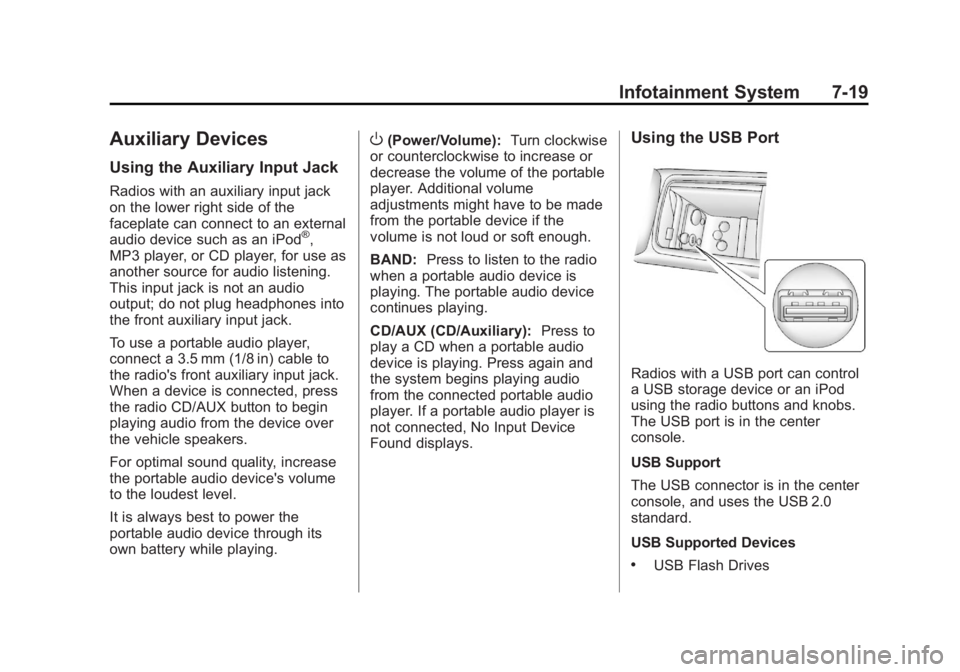
Found displays. Using the USB Port
Radios with a USB port can control
a USB storage device or an iPod
using the radio buttons and knobs.
The USB port is in the center
console.
USB Support
The USB connector is in the center
console, and uses the USB 2.0
standard.
USB Supported Devices .
USB Flash Drives