ECO CHEVROLET TRAVERSE 2016 1.G Manual Online
[x] Cancel search | Manufacturer: CHEVROLET, Model Year: 2016, Model line: TRAVERSE, Model: CHEVROLET TRAVERSE 2016 1.GPages: 392, PDF Size: 6.66 MB
Page 169 of 392
Chevrolet Traverse Owner Manual (GMNA-Localizing-U.S./Canada/Mexico-
9159264) - 2016 - crc - 8/17/15
168 Infotainment System
or CD, MP3, or WMA song.
If information is available during XM,
CD, MP3, or WMA playback, the
song title information displays on
the top line of the display and artist
information displays on the bottom
line. When information is not
available,“NO INFO” displays.
Auto Text (Satellite Radio Service
(if equipped), CD, MP3, and WMA
features) : If additional information
is available for the current song
being played, Auto Text will
automatically page/scroll the
information every five seconds
above the FAV presets on the radio
display.
To activate Auto Text:
1. Press MENU to display the radio setup menu.
2. Press the softkey under the AUTO TXT tab on the radio
display.
3. Press the softkey under the ON tab on the radio display.
If
4is pressed and the song title or
artist information is longer than what
can be displayed, the extra information will page every
five seconds when Auto Text is
activated.
Speed Compensated Volume
(SCV) :
The SCV feature
automatically adjusts the radio
volume to compensate for road and
wind noise as the vehicle speeds up
or slows down, so that the volume
level is consistent.
To activate SCV:
1. Set the radio volume.
2. Press the MENU button to display the radio setup menu.
3. Press the softkey under the AUTO VOLUM (automatic
volume) tab on the radio
display.
4. Press the softkey under the Speed Compensated Volume
setting (OFF, Low, Med,
or High) to select the level of
radio volume compensation.
Press the softkey located
below the BACK tab on the
MENU SETUP display or let
the display time out after
approximately 10 seconds. Each higher setting allows for
more radio volume
compensation at faster vehicle
speeds.
Setting the Tone (Bass/
Midrange/Treble)
BASS/MID/TREB (Bass, Midrange,
or Treble) :
To adjust bass,
midrange, or treble:
1. Press
funtil the tone control
tabs display.
2. Continue pressing
fto
highlight the tab, or press the
softkey under the tab.
3. To adjust the highlighted setting, do one of the following
until the levels are obtained:
.Turn
fclockwise or
counterclockwise.
. Press
\FWD, orsREV.
If a station's frequency is weak or if
there is static, decrease the treble.
To quickly adjust bass, midrange,
or treble to the middle position,
press the softkey under the BASS,
Page 170 of 392
Chevrolet Traverse Owner Manual (GMNA-Localizing-U.S./Canada/Mexico-
9159264) - 2016 - crc - 8/17/15
Infotainment System 169
MID, or TREB tab for more than
two seconds. A beep sounds and
the level adjusts to the middle
position.
To quickly adjust all tone and
speaker controls to the middle
position when in the Tone menu,
press
ffor more than two seconds
until a beep sounds.
EQ (Equalization) : Press to
choose bass and treble equalization
settings designed for different types
of music. The choices are pop, rock,
country, talk, jazz, and classical.
Selecting MANUAL or changing
bass or treble, returns the EQ to the
manual bass and treble settings.
Unique EQ settings can be saved
for each source.
If the radio has a Bose
®audio
system, the EQ settings are either
MANUAL or TALK.
Adjusting the Speakers
(Balance/Fade)
BAL/FADE (Balance/Fade) : To
adjust the balance or fade:
1. Press
funtil the speaker
control tabs display.
2. Continue pressing
fto
highlight the tab, or press the
softkey under the tab.
3. To adjust the highlighted setting, do one of the following
until the levels are obtained:
.Turn
fclockwise or
counterclockwise.
. Press
\FWD, orsREV.
To quickly adjust balance or fade to
the middle position, press the
softkey under the BAL or FADE tab
for more than two seconds. A beep
sounds and the level adjusts to the
middle position.
To quickly adjust all speaker and
tone controls to the middle position,
press
ffor more than two seconds
until a beep sounds.
Radio Messages
Calibration Error : The audio
system has been calibrated for the
vehicle from the factory. If the
message displays, it means that the
radio has not been configured
properly for the vehicle and it must
be returned to your dealer for
service.
Locked : This message displays
when the TheftLock
®system has
locked up the radio. Take the
vehicle to your dealer for service.
If any error occurs repeatedly or if
an error cannot be corrected,
contact your dealer.
Operation (Radio with
Touchscreen)
Infotainment Controls
PUSH/O(Volume/Power):
. Press to turn the system on
and off.
. Turn to adjust the volume.
Page 172 of 392
Chevrolet Traverse Owner Manual (GMNA-Localizing-U.S./Canada/Mexico-
9159264) - 2016 - crc - 8/17/15
Infotainment System 171
Home Page
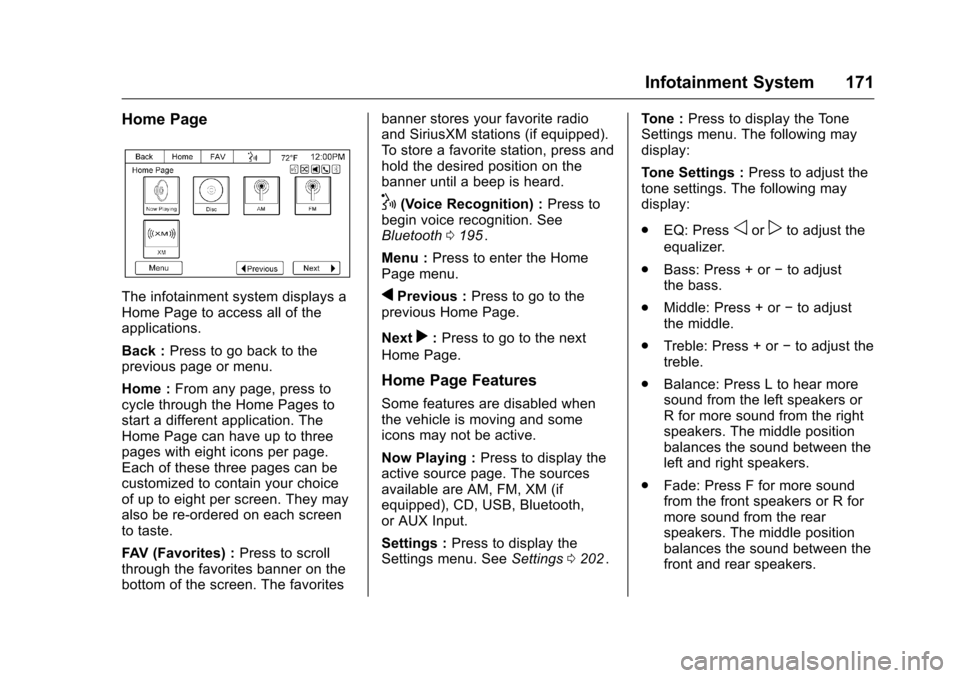
The infotainment system displays a
Home Page to access all of the
applications.
Back :Press to go back to the
previous page or menu.
Home : From any page, press to
cycle through the Home Pages to
start a different application. The
Home Page can have up to three
pages with eight icons per page.
Each of these three pages can be
customized to contain your choice
of up to eight per screen. They may
also be re-ordered on each screen
to taste.
FAV (Favorites) : Press to scroll
through the favorites banner on the
bottom of the screen. The favorites banner stores your favorite radio
and SiriusXM stations (if equipped).
To store a favorite station, press and
hold the desired position on the
banner until a beep is heard.
!(Voice Recognition) :
Press to
begin voice recognition. See
Bluetooth 0195
ii.
Menu : Press to enter the Home
Page menu.
qPrevious : Press to go to the
previous Home Page.
Next
r: Press to go to the next
Home Page.
Home Page Features
Some features are disabled when
the vehicle is moving and some
icons may not be active.
Now Playing : Press to display the
active source page. The sources
available are AM, FM, XM (if
equipped), CD, USB, Bluetooth,
or AUX Input.
Settings : Press to display the
Settings menu. See Settings0202
ii. Tone :
Press to display the Tone
Settings menu. The following may
display:
Tone Settings : Press to adjust the
tone settings. The following may
display:
. EQ: Press
oorpto adjust the
equalizer.
. Bass: Press + or −to adjust
the bass.
. Middle: Press + or −to adjust
the middle.
. Treble: Press + or −to adjust the
treble.
. Balance: Press L to hear more
sound from the left speakers or
R for more sound from the right
speakers. The middle position
balances the sound between the
left and right speakers.
. Fade: Press F for more sound
from the front speakers or R for
more sound from the rear
speakers. The middle position
balances the sound between the
front and rear speakers.
Page 173 of 392
Chevrolet Traverse Owner Manual (GMNA-Localizing-U.S./Canada/Mexico-
9159264) - 2016 - crc - 8/17/15
172 Infotainment System
DSP Mode :Pressoorpto adjust
the DSP mode, if equipped.
Language
To change the language of the
screens, see Vehicle
Personalization (With DIC Buttons)
0 145
ii.
English or Metric Units
To change the screens from English
or metric, see Driver Information
Center (DIC) (With DIC Buttons)
0 129
iior Driver Information Center
(DIC) (Without DIC Buttons) 0134ii.
Radio
AM-FM Radio (Radio
without Touchscreen)
Radio Data System (RDS)
The RDS feature is available for use
only on FM stations that broadcast
RDS information. This system relies
upon receiving specific information
from these stations and only works
when the information is available.
While the radio is tuned to an
FM-RDS station, the station name
or call letters display. In rare cases,
a radio station could broadcast
incorrect information that causes the
radio features to work improperly.
If this happens, contact the radio
station.
Finding a Station
BAND : Press to switch between
AM, FM, or SiriusXM®(if equipped).
The selection displays.
f(Tune) : Turn to select radio
stations.
©SEEK and¨SEEK : Press to go
to the previous or next station and
stay there.
To scan stations, press and hold
©
SEEK or¨SEEK until a beep
sounds. The radio goes to a station,
plays for a few seconds, then goes
to the next station. Press either
arrow again to stop scanning.
The radio only seeks and scans
stations with a strong signal that are
in the selected band.
Storing a Radio Station as a
Favorite
Drivers are encouraged to set up
their radio station favorites while the
vehicle is in P (Park). Tune to
favorite stations using the presets,
favorites button, and steering wheel
controls. See Steering Wheel
Controls (Radio with Touchscreen)
0 109
iior Steering Wheel Controls
(Radio without Touchscreen) 0108ii.
FAV (Favorites) : A maximum of
36 stations can be programmed as
favorites using the six softkeys
below the radio station frequency
Page 177 of 392
Chevrolet Traverse Owner Manual (GMNA-Localizing-U.S./Canada/Mexico-
9159264) - 2016 - crc - 8/17/15
176 Infotainment System
Storing Radio Station Presets
Up to 30 preset stations can be
stored. AM, FM, and SiriusXM (if
equipped) can be mixed.1. From the AM, FM, or SiriusXM main page, press and hold any
1−5 buttons or one of the
preset screen buttons on the
banner until a beep is heard.
The new preset information
displays on that screen button.
2. Repeat for each preset.
Mixed-Band Presets
Each favorite page can store
five preset stations. The presets
within a page can be from different
radio bands.
To scroll through the pages, press
FAV or the FAV screen button on the
top bar. The current page number
displays above the preset buttons.
The stored stations for each favorite
page display on the preset buttons.
To change the number of favorite
pages displayed: 1. Press Settings on the Home Page. 2. Press Favorite Pages.
3. Select the number of pages to
display.
Recalling a Preset Station
To recall a preset station from a
favorites page, do one the following:
. Press the FAV screen button at
the top bar to display the preset
pop-up. Press one of the preset
screen buttons to go to the
selected preset station.
. In the AM, FM, or SiriusXM (if
equipped) main page, press one
of the preset screen buttons to
go to the selected preset station.
Satellite Radio (Radio
without Touchscreen)
SiriusXM®Satellite Radio
Service
If equipped, SiriusXM is a satellite
radio service based in the
48 contiguous United States and 10
Canadian provinces. SiriusXM
Satellite Radio has a wide variety of
programming and commercial-free
music, coast to coast, and in digital-quality sound. A service fee
is required to receive the SiriusXM
service. If SiriusXM Service needs
to be reactivated, the radio will
display
“No Subscription Please
Renew” on channel XM1. For more
information, contact SiriusXM at
www.siriusxm.com or
1-866-635-2349 (U.S) and
www.xmradio.ca or call
1-877-209-0079 (Canada).
Finding a Station
BAND : Press to switch between
AM, FM, or SiriusXM. The selection
displays.
f(Tune) : Turn to select radio
stations.
©SEEK and¨SEEK : Press to go
to the previous or next station and
stay there.
To scan stations, press and hold
©
or¨until a beep sounds. The radio
goes to a station, plays for a few
seconds, then goes to the next
station. Press either arrow again to
stop scanning.
Page 179 of 392
Chevrolet Traverse Owner Manual (GMNA-Localizing-U.S./Canada/Mexico-
9159264) - 2016 - crc - 8/17/15
178 Infotainment System
FAV (Favorites) :A maximum of
36 stations can be programmed as
favorites using the six softkeys
below the radio station frequency
tabs and by using the radio favorites
page button (FAV button). Press to
go through up to six pages of
favorites, each having six favorite
stations available per page. Each
page of favorites can contain any
combination of AM, FM, or SiriusXM
stations.
The balance/fade and tone settings
that were previously adjusted are
stored with the favorite stations.
To store a station as a favorite:
1. Tune to the desired radio station.
2. Press FAV to display the page to store the station.
3. Press and hold one of the six softkeys until a beep
sounds. When that softkey is
pressed and released, the
station that was set returns.
4. Repeat the steps for each radio station to be stored as a
favorite. To set up the number of favorites
pages:
1. Press MENU to display the radio setup menu.
2. Press the softkey below the FAV 1-6 tab.
3. Select the desired number of favorites pages by pressing the
softkey below the displayed
page numbers.
4. Press FAV, or let the menu time out, to return to the original
main radio screen showing the
radio station frequency tabs
and to begin the process of
programming favorites for the
chosen number of favorites
pages.
SiriusXM Radio Messages
XL (Explicit Language
Channels) : These channels, or any
others, can be blocked at a
customer's request, by calling
1-866-635-2349 (U.S) and
1-877-209-0079 (Canada). XM Updating :
The encryption code
in the receiver is being updated, and
no action is required. This process
should take no longer than
30 seconds.
No XM Signal : The system is
functioning correctly, but the vehicle
is in a location that is blocking the
SiriusXM signal. When the vehicle is
moved into an open area, the signal
should return.
Loading XM : The audio system is
acquiring and processing audio and
text data. No action is needed. This
message should disappear shortly.
Channel Off Air : This channel is
not currently in service. Tune in to
another channel.
Channel Unauth : This channel is
blocked or cannot be received with
your SiriusXM subscription package.
Channel Unavail : This previously
assigned channel is no longer
assigned. Tune to another station.
If this station was one of the
presets, choose another station for
that preset button.
Page 182 of 392
Chevrolet Traverse Owner Manual (GMNA-Localizing-U.S./Canada/Mexico-
9159264) - 2016 - crc - 8/17/15
Infotainment System 181
snow and ice build up for clear radio
reception. If the vehicle has a
sunroof, the performance of the
radio system may be affected if the
sunroof is open. Loading items onto
the roof of the vehicle can interfere
with the performance of the radio
system and, if the vehicle has this
feature, OnStar. Make sure the
multi-band antenna is not
obstructed.Audio Players
CD Player (Radio without
Touchscreen)
Playing a CD
Insert a CD partway into the slot,
label side up. The player pulls it in
and the CD should begin playing.
ZEJECT :Press and release to
eject the disc that is currently
playing. A beep sounds and
Ejecting Disc displays. Once the
disc is ejected, Remove Disc
displays. The disc can be removed.
If the disc is not removed, after
several seconds, the disc
automatically pulls back into the
player.
f(Tune) : Turn to select tracks on
the CD that is currently playing.
©SEEK or¨SEEK : Press©SEEK to go to the start of the
current track, if more than
10 seconds on the track have
played, otherwise goes to the
previous track. Press
¨SEEK to go
to the next track. If either arrow is held, or pressed
multiple times, the player continues
moving backward or forward
through the tracks on the CD.
sREV (Fast Reverse) :
Press
and hold to reverse playback quickly
within a track. Sound will be heard
at a reduced volume. Release to
resume playing the track. The
elapsed time of the track displays.
\FWD (Fast Forward) : Press
and hold to advance playback
quickly within a track. Sound will be
heard at a reduced volume. Release
to resume playing the track. The
elapsed time of the track displays.
RDM (Random) : CD tracks can be
listened to in random, rather than
sequential order with the random
setting. To use random, press the
softkey under the RDM label until
Random Current Disc displays.
Press the softkey again to turn off
random play.
BAND : Press to listen to the radio
when a CD is playing. The CD
remains inside the radio for future
listening.
Page 183 of 392
Chevrolet Traverse Owner Manual (GMNA-Localizing-U.S./Canada/Mexico-
9159264) - 2016 - crc - 8/17/15
182 Infotainment System
CD/AUX (CD/Auxiliary) :Press to
select between CD, Auxiliary,
or USB.
. When a CD is in the player, the
CD icon and a message
showing the disc and/or track
number display.
. If an auxiliary input device is not
connected or a CD is not
installed an error message will
display.
Care of CDs
If playing a CD-R, the sound quality
can be reduced due to CD-R or
CD-RW quality, the method of
recording, the quality of the music
that has been recorded, and the
way the CD-R or CD-RW has been
handled. Handle them carefully.
Store CD-R(s) or CD-RW(s) in their
original cases or other protective
cases and away from direct sunlight
and dust. The CD player scans the
bottom surface of the disc. If the
surface of a CD is damaged, such
as cracked, broken, or scratched,
the CD does not play properly or not
at all. Do not touch the bottom side
of a CD while handling it; this could damage the surface. Pick up CDs
by grasping the outer edges or the
edge of the hole and the outer edge.
If the surface of a CD is soiled, take
a soft, lint-free cloth or dampen a
clean, soft cloth in a mild, neutral
detergent solution mixed with water,
and clean it. Make sure the wiping
process starts from the center to
the edge.
Care of the CD Player
Do not add any label to a CD; it
could get caught in the CD player.
If a CD is recorded on a personal
computer and a description label is
needed, try labeling the top of the
recorded CD with a marking pen.
The use of CD lens cleaners for
CDs is not advised.
Caution
If a label is added to a CD, more
than one CD is inserted into the
slot at a time, or an attempt is
made to play scratched or
damaged CDs, the CD player
(Continued)
Caution (Continued)
could be damaged. While using
the CD player, use only CDs in
good condition without any label,
load one CD at a time, and keep
the CD player and the loading slot
free of foreign materials, liquids,
and debris.
If an error displays, see “CD
Messages” later in this section.
Playing an MP3/WMA CD-R or
CD-RW Disc
The radio has the capability of
playing an MP3/WMA CD-R or
CD-RW disc. For more information
on how to play an MP3/WMA CD-R
or CD-RW disc, see MP3 (Radio
with Touchscreen) 0190
iior MP3
(Radio without Touchscreen) 0185ii.
CD Messages
Check Disc : Radios with a single
CD player display Check Disc and/
or eject the CD if an error occurs.
Page 184 of 392
Chevrolet Traverse Owner Manual (GMNA-Localizing-U.S./Canada/Mexico-
9159264) - 2016 - crc - 8/17/15
Infotainment System 183
Disc Error :The disc was inserted
upside down.
Disk Read Error : A disc was
inserted with an invalid or unknown
format.
Player Error : There are disc LOAD
or disc EJECT problems.
. It is very hot. When the
temperature returns to normal,
the CD should play.
. The road is very rough. When
the road becomes smoother, the
CD should play.
. The CD is dirty, scratched, wet,
or upside down.
. The air is very humid. If so, wait
about an hour and try again.
. There was a problem while
burning the CD.
. The label is caught in the CD
player.
If the CD is not playing correctly for
any other reason, try a known
good CD. If any error occurs repeatedly or if
an error cannot be corrected,
contact your dealer. If the radio
displays an error message, write it
down and provide it to your dealer
when reporting the problem.
CD Player (Radio with
Touchscreen)
The player can be used for CD and
MP3 audio.
With the vehicle on, insert a disc
into the slot, label side up. The
player pulls it in and begins playing.
The system is capable of playing:
.
Most audio CDs
. CD-R
. CD-RW
. MP3 or unprotected WMA
formats
When playing any compatible
recordable disc, the sound quality
can be reduced due to disc quality,
the method of recording, the quality
of the music that has been
recorded, or the way the disc has
been handled. There can be increased skipping,
difficulty in recording tracks,
difficulty in finding tracks, and/or
difficulty in loading and ejecting.
If these problems occur, check the
disc for damage or try a known
good disc.
To avoid damage to the CD player:
.
Do not use scratched or
damaged discs.
. Do not apply labels to discs. The
labels could get caught in the
player.
. Insert only one disc at a time.
. Keep the loading slot free of
foreign materials, liquids, and
debris.
. Use a marking pen to label the
top of the disc.
Loading and Ejecting Discs
To load a disc:
1. Turn the radio on.
2. Insert a disc into the slot, label side up. The player pulls it in
the rest of the way. If the disc
Page 185 of 392
Chevrolet Traverse Owner Manual (GMNA-Localizing-U.S./Canada/Mexico-
9159264) - 2016 - crc - 8/17/15
184 Infotainment System
is damaged or improperly
loaded, there is an error and
the disc ejects.
The disc automatically plays once
loaded.
Press
Zto eject a disc from the
CD player. If the disc is not removed
within a short period of time, it is
automatically pulled back into the
player.
Playing an Audio CD
Make sure a disc is inserted in the
player.
1. Press the Disc screen button on the Home Page or from the
SRCE/Source banner.
2. Press the Menu screen button on the CD Audio screen to
display a list of Tracks/Songs.
3. Press the desired track/song.
On the Disc main page a track
number displays at the beginning of
each track. Song, Artist, Elapsed
Time, and Album information
displays when available. Use the following controls to play
the disc:
©SEEK:
. Press to seek to the beginning of
the current or previous track.
If the track has been playing for
less than eight seconds, it seeks
to the previous track. If longer
than eight seconds, the current
track starts from the beginning.
. Press and hold to fast reverse
through a track. Release the
button to return to playing
speed. Elapsed time displays.
SEEK
¨:
. Press to seek to the next track.
. Press and hold to fast forward
through a track. Release the
button to return to playing
speed. Elapsed time displays.
PUSH/SEL (Select) : Turn to the
right or left to select the next or
previous track.
Error Messages
If Disc Error displays and/or the disc
comes out, it could be for one of the
following reasons:
. The disc has an invalid or
unknown format.
. The disc is very hot. Try the disc
again when the temperature
returns to normal.
. The road is very rough. Try the
disc again when the road is
smoother.
. The disc is dirty, scratched, wet,
or upside down.
. The air is very humid. Try the
disc again later.
. There was a problem while
burning the disc.
. The label is caught in the player.
If the CD is not playing correctly, for
any other reason, try a known
good CD.
If any error continues, contact your
dealer.