radio CHEVROLET VOLT 2011 Owner's Guide
[x] Cancel search | Manufacturer: CHEVROLET, Model Year: 2011, Model line: VOLT, Model: CHEVROLET VOLT 2011Pages: 516, PDF Size: 6.61 MB
Page 230 of 516
Black plate (40,1)Chevrolet Volt Owner Manual - 2011
7-40 Infotainment System
Always be alert and obey traffic
and roadway laws and instructions,
regardless of the guidance from
the navigation system. Because
the navigation system uses street
map information that does not
include all traffic restrictions or
the latest road changes, it may
suggest using a road that is now
closed for construction or a turn
that is prohibited by signs at the
intersection. Because the system
uses limited information, always
evaluate whether following the
system's directions is safe and
legal for the current conditions.
Use the buttons on the navigation
system and the available screen
buttons on the navigation screen to
operate the system. SeeOverview
on page 7‑3.
Various functions are disabled when
the vehicle is moving.Infotainment Control Buttons
The buttons on the faceplate are
used to start primary functions
while using the infotainment system.
See Overview on page 7‑3. These
buttons are:
RADIO BAND: Press to select AM,
FM, or XM, if equipped.
HDD/DVD/AUX (Source): Change
to the Hard Drive, CD, DVD, USB,
or AUX by pressing the HDD/DVD/
AUX button until the desired source
is selected.
The audio sources can also be
changed by using the steering
wheel controls. See Steering Wheel
Controls on page 5‑6 for more
information.
FAV (Favorites): Press to display
the current page number above the
preset buttons. The stored stations
for each list display on the preset
buttons at the bottom of the touch
screen. The number of preset FAV
lists can be changed. TUNE/MENU:
Turn to highlight
a feature. Press to activate the
highlighted feature.
}BACK: Press to return to
the previous screen in a menu.
The
}BACK button does not work
in primary screens, such as the
map, audio, leaf, or climate screens.
TONE: Press to open the tone
menu for sound adjustment.
CONFIG (Configure): Press to
adjust features for radio, navigation,
display, phone, vehicle, and time.
See Configure Menu on page 7‑66
for more information.
SEEK
[:
1. Press to seek to the next track or chapter.
2. Press and hold to advance quickly through playback.
3. Release the button to return to playing speed. Elapsed time
displays.
Page 256 of 516

Black plate (66,1)Chevrolet Volt Owner Manual - 2011
7-66 Infotainment System
Previous Destinations
Previously downloaded OnStar
destinations are saved under
Previous Destinations in the
navigation system where they
can be accessed or saved to
the address book.
Map Destination Screen Functions
Destination Map Screen
If the map screen is used to show
destination, it has map screen
capabilities such as Go, Save,
Zoom, Scroll, etc. The address is
shown at the top of the screen.
Configure Menu
Adjust features and preferences
through the Configure Menu.
The last selected menu screen
displays. Adjust features for Sound,
Radio, Nav (navigation), Display,
or Time.
Radio
Press the CONFIG button to
enter the Menu options. Turn the
TUNE/MENU knob to scroll through
the available menu options. Press
the TUNE/MENU knob or press
Radio to display the radio settings.
Press this feature to make changes
for radio information displayed,
preset pages, Auto Volume, Audio
Cue Options, and XM Categories
Restore. See Satellite Radio on
page 7‑16 for more information.
Nav (Navigation)
Press the CONFIG button to
enter the Menu options. Turn the
TUNE/MENU knob to scroll through
the available menu options. Press
the TUNE/MENU knob or press the
Nav screen button.
XM NavTraffic®(if equipped)
The navigation system might
have an XM NavTraffic receiver.
It is a subscription service provided
through XM Satellite Radio.
A service fee is required to
receive the XM NavTraffic service.
Real-time traffic information is
provided to fully integrate the
navigation system to display
current traffic conditions for
the chosen route.
A screen displays to indicate if the
XM NavTraffic subscription is not
activated.
Page 257 of 516
Black plate (67,1)Chevrolet Volt Owner Manual - 2011
Infotainment System 7-67
If activated, traffic information
displays:
.Unscheduled traffic incident
data, such as accidents and
disabled vehicles.
.Scheduled traffic incident data,
such as road construction and
road closures.
.Traffic flow information (rate of
speed data). Flow data might not
be available in all markets.
Traffic information is delivered to the
vehicle by the XM Radio satellites.
XM NavTraffic provides continuously
updated traffic information.
XM NavTraffic currently broadcasts
the traffic information for many
markets nationally. The service may
be available in more cities in the
future. Visit www.xmnavtraffic.com
for more details on local coverage. To turn XM NavTraffic on or off:
1. Press the CONFIG button to
enter the menu options. Turn
the TUNE/MENU knob to scroll
through the available menu
options. Press the TUNE/MENU
knob or press the Nav screen
button to display the other
navigation settings.
2. Press the Traffic Information button.
3. Press the Traffic screen button. This button highlights and a
checkmark displays when active.
Selecting Alert for Approaching
Traffic Events displays a screen
to notify of possible traffic events
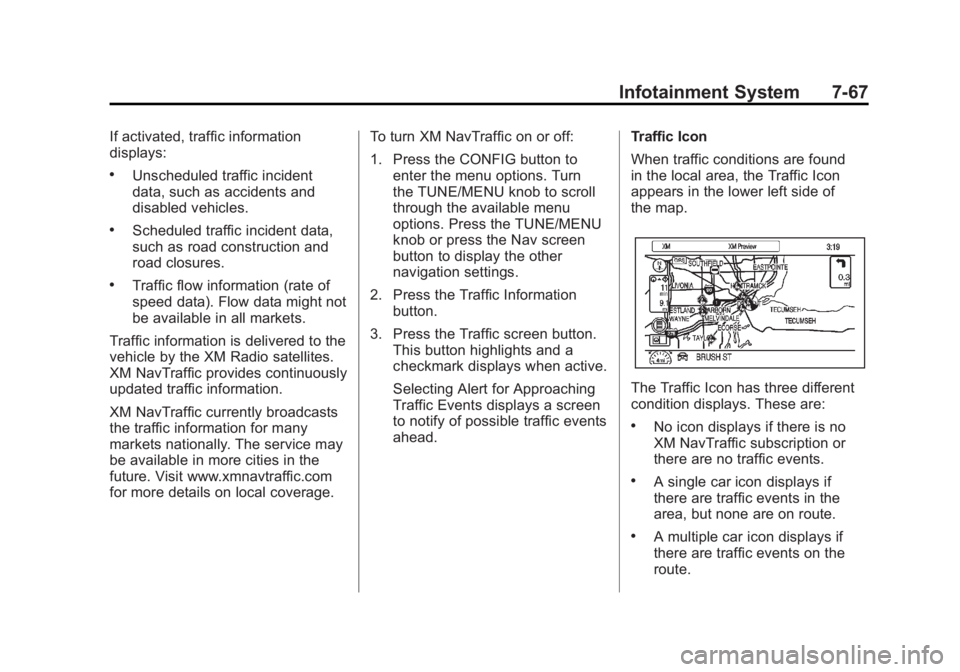
ahead. Traffic Icon
When traffic conditions are found
in the local area, the Traffic Icon
appears in the lower left side of
the map.
The Traffic Icon has three different
condition displays. These are:
.No icon displays if there is no
XM NavTraffic subscription or
there are no traffic events.
.A single car icon displays if
there are traffic events in the
area, but none are on route.
.A multiple car icon displays if
there are traffic events on the
route.
Page 267 of 516
Black plate (77,1)Chevrolet Volt Owner Manual - 2011
Infotainment System 7-77
Database Coverage
Explanations
Coverage areas vary with respect to
the level of map detail available for
any given area. Some areas feature
greater levels of detail than others.
If this happens, it does not mean
there is a problem with the system.
As the map data is updated, more
detail can become available for
areas which previously had limited
detail. SeeOrdering Map DVDs on
page 7‑76 for more information.
Voice Recognition
The navigation system's voice
recognition allows for hands-free
operation of the navigation system
and the audio system features.
Voice recognition only works if the
map database is installed in the
system.
If the radio is off, the only
commands would be Hands
Free and Help.
Navigation voice commands are not
available until the I Agree button
has been selected.
Voice recognition can be used when
the vehicle is on or when Retained
Accessory Power (RAP) is active.
SeeRetained Accessory Power
(RAP) on page 9‑22 for more
information.
Using Voice Recognition
1. Press and release theb g
steering wheel button. The audio
system mutes, and a beep is
heard. A voice prompt stating,
“Please start speaking after the
beep” might be heard.
If there is no beep, make sure
that the voice volume setting is
not turned down. See Configure
Menu on page 7‑66 for more
information.
While voice recognition is active,
the system displays a
gsymbol.
2. Clearly speak one of the commands listed later in this
section.
Page 268 of 516
Black plate (78,1)Chevrolet Volt Owner Manual - 2011
7-78 Infotainment System
Canceling Voice Recognition
1. Press and release the$i
steering wheel button to cancel
a command, or if the system
response does not match the
verbal command.
2. The system replies, “Voice
recognition canceled.”
Pressing any other radio or
steering wheel control, other
than the volume knob or the
volume steering wheel button
cancels the session.
3. Press and release the
b g
steering wheel button to restart
the voice recognition session.
Helpful Hints for Speaking
Commands
.When multiple commands are
available, choose the command
that best works for you.
.Words that are in brackets are
optional. For example, for the
command “Radio (band) FM,”
saying “Radio FM” or“Radio
Band FM” are both valid
commands.
.Words separated by a ( / ) mean
there is a choice of using a
word on either side of the slash.
For example, for the command
(CD/DVD/Disc) (help), you can
say “CD (help)” or“DVD (help)”
or “Disc (help).”
.When the system recognizes the
command, the system will either
perform the function or ask to
confirm the choice by clearly
saying “yes”or“no.”
.When the system does not
recognize the command,
the system issues an error
message such as “pardon”
or “command not recognized.”
The system could also say,
“voice recognition canceled.”
.If experiencing difficulty with the
system recognizing a command,
confirm that the command is
correct. Try saying the command
clearly or wait for a brief moment
after the beep.
.Background noise such as a
climate control fan positioned
on high, open windows, and
very loud outside noises, even
if the windows are closed, can
cause voice commands to be
misunderstood.
Page 269 of 516
Black plate (79,1)Chevrolet Volt Owner Manual - 2011
Infotainment System 7-79
.This system is able to recognize
commands in different
languages, such as English,
French Canadian, and Spanish.
The system only recognizes
commands based on the
language selected.
.To increase or decrease the
voice volume during a voice
recognition session, turn
the volume knob of the radio,
or press the volume steering
wheel buttons. If the volume
is adjusted during a voice
recognition session, a Voice
Volume bar appears on the
screen showing the voice
volume level as it is being
adjusted. This also changes
the volume of the guidance
prompts.
Voice Recognition Help
To enter the help playback session,
clearly speak one of the help
commands.
Help:The system plays back
more specific help commands
(such as Radio Help, Display Help,
Navigation Help) for the user to
choose from.
Radio (help): The system plays
back helpful advice about radio
commands, and some common
radio commands which are
available. Use this command
to learn about how to select a
band (AM, FM, or XM), and how
to change radio stations (by
speaking frequency numbers).
(CD/DVD/Disc) (help): The system
plays back helpful advice about
disc commands, and some common
disc commands which are available.
Use this command to learn about
how to select Disc mode playback,
and how to change track numbers. Display (help):
The system plays
back helpful advice about display
commands, and some common
display commands which are
available to adjust the display
setting.
Navigation (help): The system
plays back helpful advice about
navigation commands, and some
common navigation commands
which are available.
Voice Recognition Commands
The following list shows the
voice commands available for
the navigation system with a brief
description of each. The commands
are listed with the optional words
in brackets. To use the voice
commands, see the instructions
listed previously.
Page 270 of 516
Black plate (80,1)Chevrolet Volt Owner Manual - 2011
7-80 Infotainment System
Display Commands
Display (set) day (mode),
display (select) day (mode):
This command instructs the system
to switch the display to day mode.
Display (set) night (mode),
display (select) night (mode):
This command instructs the system
to switch the display to night mode.
Display (set) auto (mode),
display (select) auto (mode):
This command instructs the system
to switch the display to auto mode.
Display (help):This command
instructs the system to play back
helpful advice about display
commands, and some common
display commands which are
available to adjust the display
setting.Radio Commands
Radio AM, radio (band) AM,
radio FM, radio (band) FM,
radio XM, radio (band) XM:
These commands instruct the
system to go to either the AM,
FM, or XM radio bands.
Radio select (frequency) AM,
radio select (frequency) FM:
These commands instruct the
system to go to a specific frequency
on either the AM or FM band.
For example, radio select ninety
seven point one FM or radio select
ten forty AM.
Radio select (channel) XM:
This command instructs the
system to go to a specific channel
on the XM band (if equipped).
For example, radio select one
fifty one XM.
Radio (help): This command
instructs the system to play back
some helpful advice about radio
commands, and some common
radio commands which are available
to the user.
CD/DVD/Disc Commands
The following commands are only
available when a CD, MP3, or DVD
is loaded:
Radio CD, radio DVD, radio disc:
These commands instruct the
system to go to Disc mode.
Radio CD select (track number),
radio DVD select (track number),
radio disc select (track number):
These commands instruct the
system to play a specific track on
the disc. For example, radio disc
select ten. This command supports
up to 254 tracks.
CD (help), DVD (help), disc
(help): This command instructs
the system to play back helpful
advice about disc commands, and
some common disc commands
which are available.
Page 273 of 516
Black plate (83,1)Chevrolet Volt Owner Manual - 2011
Infotainment System 7-83
The state name displays.
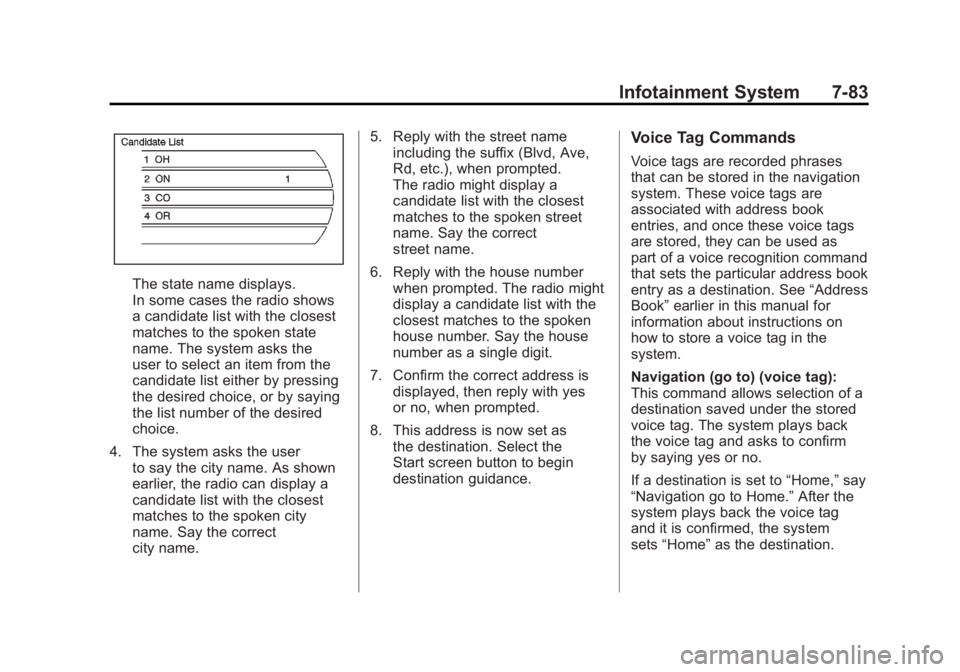
In some cases the radio shows
a candidate list with the closest
matches to the spoken state
name. The system asks the
user to select an item from the
candidate list either by pressing
the desired choice, or by saying
the list number of the desired
choice.
4. The system asks the user to say the city name. As shown
earlier, the radio can display a
candidate list with the closest
matches to the spoken city
name. Say the correct
city name. 5. Reply with the street name
including the suffix (Blvd, Ave,
Rd, etc.), when prompted.
The radio might display a
candidate list with the closest
matches to the spoken street
name. Say the correct
street name.
6. Reply with the house number when prompted. The radio might
display a candidate list with the
closest matches to the spoken
house number. Say the house
number as a single digit.
7. Confirm the correct address is displayed, then reply with yes
or no, when prompted.
8. This address is now set as the destination. Select the
Start screen button to begin
destination guidance.
Voice Tag Commands
Voice tags are recorded phrases
that can be stored in the navigation
system. These voice tags are
associated with address book
entries, and once these voice tags
are stored, they can be used as
part of a voice recognition command
that sets the particular address book
entry as a destination. See “Address
Book” earlier in this manual for
information about instructions on
how to store a voice tag in the
system.
Navigation (go to) (voice tag):
This command allows selection of a
destination saved under the stored
voice tag. The system plays back
the voice tag and asks to confirm
by saying yes or no.
If a destination is set to “Home,”say
“Navigation go to Home.” After the
system plays back the voice tag
and it is confirmed, the system
sets “Home” as the destination.
Page 274 of 516
Black plate (84,1)Chevrolet Volt Owner Manual - 2011
7-84 Infotainment System
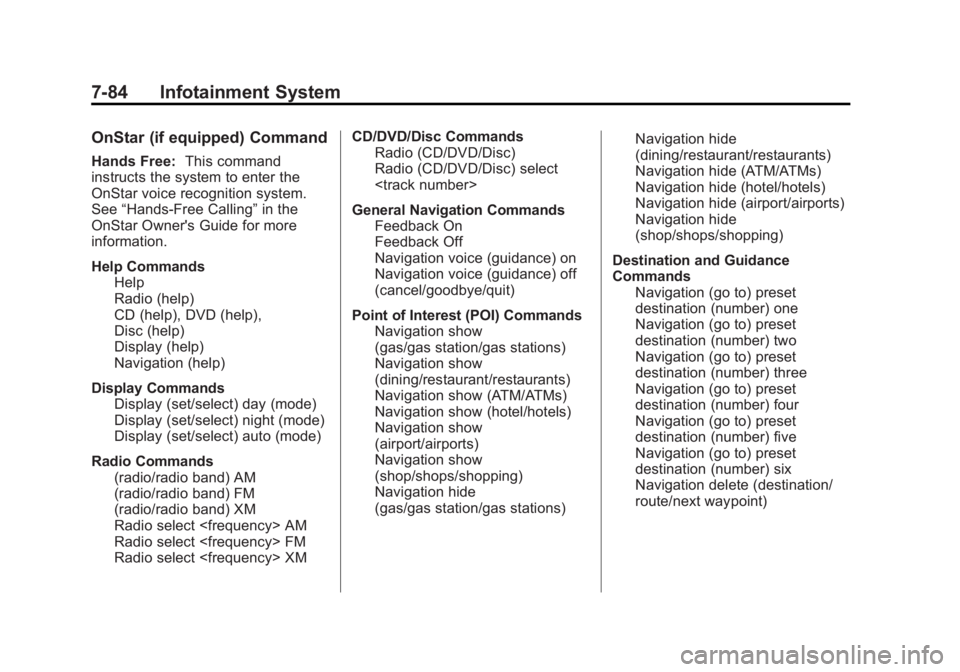
OnStar (if equipped) Command
Hands Free:This command
instructs the system to enter the
OnStar voice recognition system.
See “Hands-Free Calling” in the
OnStar Owner's Guide for more
information.
Help Commands Help
Radio (help)
CD (help), DVD (help),
Disc (help)
Display (help)
Navigation (help)
Display Commands Display (set/select) day (mode)
Display (set/select) night (mode)
Display (set/select) auto (mode)
Radio Commands (radio/radio band) AM
(radio/radio band) FM
(radio/radio band) XM
Radio select
Radio select
Radio select
Radio (CD/DVD/Disc)
Radio (CD/DVD/Disc) select
Page 300 of 516
Black plate (8,1)Chevrolet Volt Owner Manual - 2011
8-8 Climate Controls
Rear Window Defogger
=(Rear Window Defogger):
Press to turn the rear window
defogger on or off.
The rear window defogger
turns off automatically after about
five minutes. If turned on again,
it runs for about five minutes
before turning off. The defogger
can also be turned off by turning
the vehicle off.
For vehicles with heated outside
rearview mirrors, they turn on when
the rear window defogger button
is on and help to clear fog or frost
from the surface of the mirror.
See Heated Mirrors on page 2‑16. Notice:
Do not try to clear frost
or other material from the inside
of the front windshield and rear
window with a razor blade or
anything else that is sharp.
This may damage the rear
window defogger grid and affect
the radio's ability to pick up
stations clearly. The repairs
wouldn't be covered by the
vehicle warranty.
Remote Start: For vehicles with
this feature, the climate control
system may be started by using
the Remote Keyless Entry (RKE)
transmitter. The climate control
system will default to an appropriate
heating or cooling mode.
See Remote Start on page 2‑8.
The rear window defogger turns on
if it is cold outside.
Compressor
The vehicle has an electric powered
air conditioning compressor.
This allows for continuous air
conditioning and/or high voltage
battery cooling operation, without
running the engine.
The compressor operating speed
is not tied to the engine speed, so
some noise may be heard from the
compressor, especially when air
conditioning use is high and the
engine has turned off. This is
normal.