change CITROEN C1 2021 Owner's Guide
[x] Cancel search | Manufacturer: CITROEN, Model Year: 2021, Model line: C1, Model: CITROEN C1 2021Pages: 269, PDF Size: 7.63 MB
Page 196 of 269

194
C1_en_Chap10a_ Autoradio-Toyota-tactile-1_ed01-2016
Radio
* Depending on equipment.
Selecting a station
Press on "Audio source " to display t
he carousel of sound sources.
Select " FM".
Select the " Station" tab then select
a
radio station from the stations
r
eceived. Select the "
Manual" tab to search for
a
station.
Select " FM radio configuration "
then " Update the list of stations " to
refresh
the list.
If
necessary, select change of source
b
y pressing on the "Audio source "
shortcut in the upper bar of the
carousel.
Select " AM" or " DAB" *. Press on "
Audio source " to display t
he carousel of sound sources.
Select " FM".
Press the step by step buttons to
search
for frequencies up or down.
Press
the automatic buttons to
s
earch for frequencies up or down.
Turn
the button at bottom right of the
s
creen to search for frequencies up
o
r down.
OR OR
The
exterior environment (hills,
b
uildings, tunnel, car park, below
g
round...) may prevent reception, even
i
n RDS alternative frequencies mode.
T
his phenomenon is normal in the
p
ropagation of radio waves and is in no
w
ay indicative of a fault with the audio
s
ystem.
Changing a radio frequency
Audio and Telematics
Page 199 of 269

197
C1_en_Chap10a_ Autoradio-Toyota-tactile-1_ed01-2016
Press on "Audio source " to display t
he carousel of sound sources. Press "
Audio source " to display the
c
arousel of audio sources.
Select " DAB". Select "
DAB".
Select " DAB radio configuration ".
Activate " L-band". Select "
DAB radio configuration ".
Activate " Alternative DAB
frequency ".
Select the "
Station" tab then select a
station from those received.
Select the " Manual" tab to search for
a station.
Digital radio provides higher quality
r
eception and also the display of
a
dditional
in
formation
(
album
ar
twork...)
o
n
the radio station being listened to.
S
elect "DAB" in the carousel of audio
s
ources.
The range of multiplexes available is
d
isplayed in alphabetical order.
Digital radio does not cover 100% of the
t
e r r i to r y.
When
the digital signal is weak, the
"A
lternative DAB frequency" option
makes
it possible to continue listening
t
o the same station, by automatically
s
witching to the corresponding "FM"
s
tation (if there is one).If
the "DAB" station being listened to
i
s not available, or if "L-band" is not
activated,
the sound will cut out while
t
he digital signal is too weak.
If "
Alternative DAB frequency "
tracking
is activated, there is a
d
ifference of a few seconds when the
s
ystem switches to the "FM" analogue
r
adio station with sometimes a variation
i
n volume.
When
the digital signal is restored, the
s
ystem automatically changes back
t
o "DAB".
DAB / FM station tracking
Digital radio
.
Audio and Telematics
Page 201 of 269

199
C1_en_Chap10a_ Autoradio-Toyota-tactile-1_ed01-2016
Press on "Audio source " to display t
he carousel of audio sources.
Select the " USB"
auxiliary source.
Select the " A/V"
auxiliary source.
Use
the
play settings at the bottom of the
sc
reen.
Selection of source
OR Pressing the "
MODE " button at the
steering mounted controls changes to
t
he next media, available if the source
i
s active.
.
Audio and Telematics
Page 206 of 269

204
C1_en_Chap10a_ Autoradio-Toyota-tactile-1_ed01-2016
Press on "Audio source " to display t
he carousel of audio sources.
Select " Bluetooth audio ".
Select " Bluetooth configuration "
Activate
the telephone's Bluetooth function
a
nd
ensure that it is "visible to all" (telephone
c
onfiguration).
Select the telephone in the list.
Select "
Connect telephone ".
Select the "
Telephone/message
configuration " tab.
Select your choice.
Select the " Add"
tab in the system. Press "
OK"
to confirm.
If the telephone is not detected, it is recommended that you switch the Bluetooth f
unction on your telephone off and then on again.
As a safety measure and because they require prolonged attention on the part
o
f the driver, the operations for pairing
t
he Bluetooth mobile telephone to the
h
ands-free system of the audio system
m
ust be carried out with the vehicle
stationary .
Pairing a Bluetooth® telephone
A waiting screen is displayed with the B
luetooth settings of the system and a default
B
luetooth PIN.
Once
detected, select the name of the system
i
n your telephone.
The
system displays that the services to be
u
sed on the telephone are: "Telephone "
and
"A
udio player ".
The
system offers to connect the telephone:
-
w
ith "Connect all",
-
w
ith "Connect as telephone "
(hands-free
k
it, telephone only),
-
w
ith "Connect as audio player "
(streaming:
wireless play of audio files on
t
he
t
elephone).
Enter
the PIN code in the telephone then accept
t
he connection (depending on the telephone).To
change the connection choice, Sel
ect "Telephone ".
Audio and Telematics
Page 225 of 269

223
C1_en_Chap10a_ Autoradio-Toyota-tactile-1_ed01-2016
Level 1Level 2 Level 3 Comments
Navigation
Return home Press
the change of direction indicator to open the list
o
f changes of direction.
Press
the time information area to alternate the
i
nformation displayed: estimated time of arrival /
r
emaining
t
ime.
Press
the distance information area to alternate the
i
nformation displayed: remaining distance / distance
t
ravelled.
Navigation Map Go
directly to the navigation menu.
Map
orientation and scale.
Press
to zoom in.
Press
to zoom out.
Indicates
the strength of the GPS signal.
Search for POIs nearby Display
the information on your current position and
s
elect the desired settings.
Add
to favourites
Set
as home
Navigation
Route overview Point
of departure
Display the distance and information on the duration of the journey.
Display the total distance and information on the total duration of the journey.
Point of arrival.
D eparture
t
ime.
Distance
t
ravelled.
Estimated
time of arrival.
.
Audio and Telematics
Page 227 of 269
225
C1_en_Chap10a_ Autoradio-Toyota-tactile-1_ed01-2016
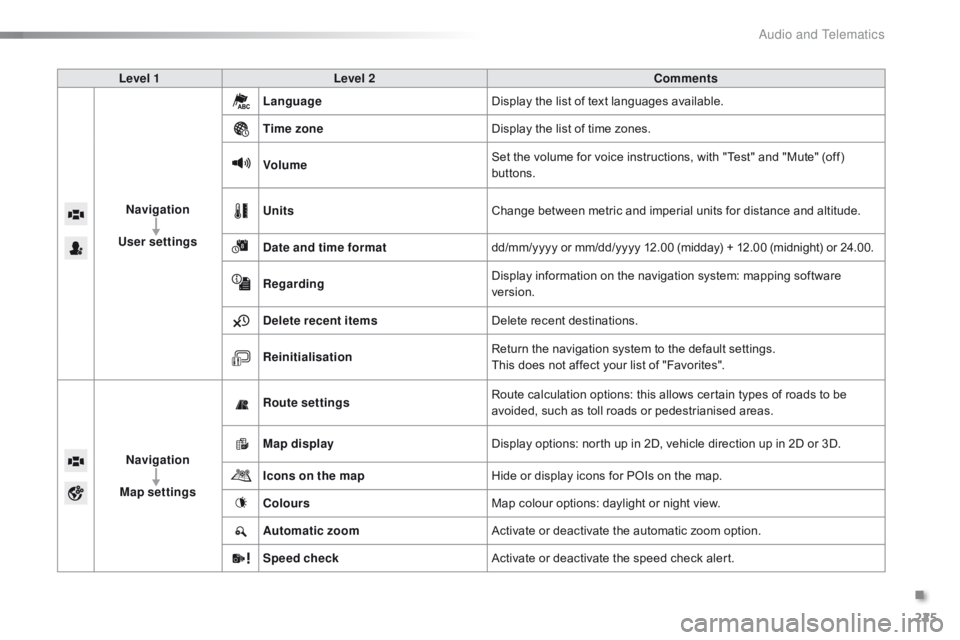
Level 1Level 2 Comments
Navigation
User settings Language
Display
the list of text languages available.
Time zone Display
the list of time zones.
Volume Set
the volume for voice instructions, with "Test" and "Mute" (off)
b
uttons.
Units Change
between metric and imperial units for distance and altitude.
Date and time format dd/mm/yyyy
or mm/dd/yyyy 12.00 (midday) + 12.00 (midnight) or 24.00.
Regarding Display
information on the navigation system: mapping software
ve
rsion.
Delete recent items Delete
recent destinations.
Reinitialisation Return
the navigation system to the default settings.
This
does not affect your list of "Favorites".
Navigation
Map settings Route settings
Route
calculation options: this allows certain types of roads to be
a
voided, such as toll roads or pedestrianised areas.
Map display Display
options: north up in 2D, vehicle direction up in 2D or 3D.
Icons on the map Hide
or display icons for POIs on the map.
Colours Map
colour options: daylight or night view.
Automatic zoom Activate
or deactivate the automatic zoom option.
Speed check Activate
or deactivate the speed check alert.
.
Audio and Telematics
Page 235 of 269
233
C1_en_Chap10a_ Autoradio-Toyota-tactile-1_ed01-2016
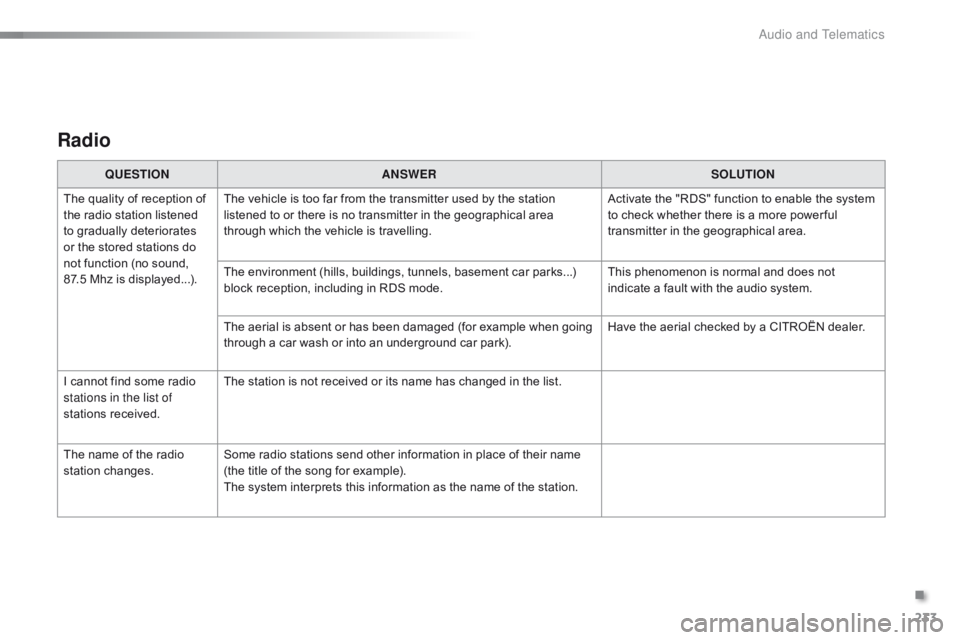
Radio
QUESTIONANSWER SOLUTION
The
quality of reception of
t
he
radio station listened
t
o
gradually deteriorates
o
r
the
stored stations do
n
ot
function (no sound,
87
.5 Mhz is displayed...). The
vehicle is too far from the transmitter used by the station
l
istened to or there is no transmitter in the geographical area
t
hrough which the vehicle is travelling.Activate
the "RDS" function to enable the system
t
o check whether there is a more power ful
t
ransmitter in the geographical area.
The
environment (hills, buildings, tunnels, basement car parks...)
b
lock reception, including in RDS mode.This
phenomenon is normal and does not
i
ndicate a fault with the audio system.
The
aerial is absent or has been damaged (for example when going
t
hrough a car wash or into an underground car park).Have
the aerial checked by a CITROËN dealer.
I
cannot find some radio
s
tations in the list of
stations
r
eceived. The
station is not received or its name has changed in the list.
The
name of the radio
s
tation
c
hanges. Some
radio stations send other information in place of their name
(
the title of the song for example).
The
system interprets this information as the name of the station.
.
Audio and Telematics
Page 236 of 269

234
C1_en_Chap10a_ Autoradio-Toyota-tactile-1_ed01-2016
Settings, configuration
QUESTIONANSWER SOLUTION
There
is a difference in
s
ound
quality between the
d
ifferent audio sources
(
radio,
U
SB...). For
optimum sound quality, the audio settings (Volume, Treble,
M
edium, Bass) can be adapted to the different sound sources,
w
hich may result in audible differences when changing source
(
radio,
U
SB...). Check
that the audio settings are adapted to
t
he sources listened to. It is advisable to select
a
utomatic sound adjustment (Low, Medium,
Hig
h).
Check
the quality and format of your recording.
With
the engine off, the
s
ystem
switches off after a
f
ew
minutes of use. When
the engine is switched off, the system's operating time
d
epends on the battery charge.
The
switch-off is normal: the system changes to economy mode
a
nd switches off to preserve the state of charge of the vehicle's
b
attery. Start
the vehicle's engine to increase the battery
c
harge.
Audio and Telematics
Page 240 of 269
238
C1_en_Chap10b_ Autoradio-Toyota-2_ed01-2016
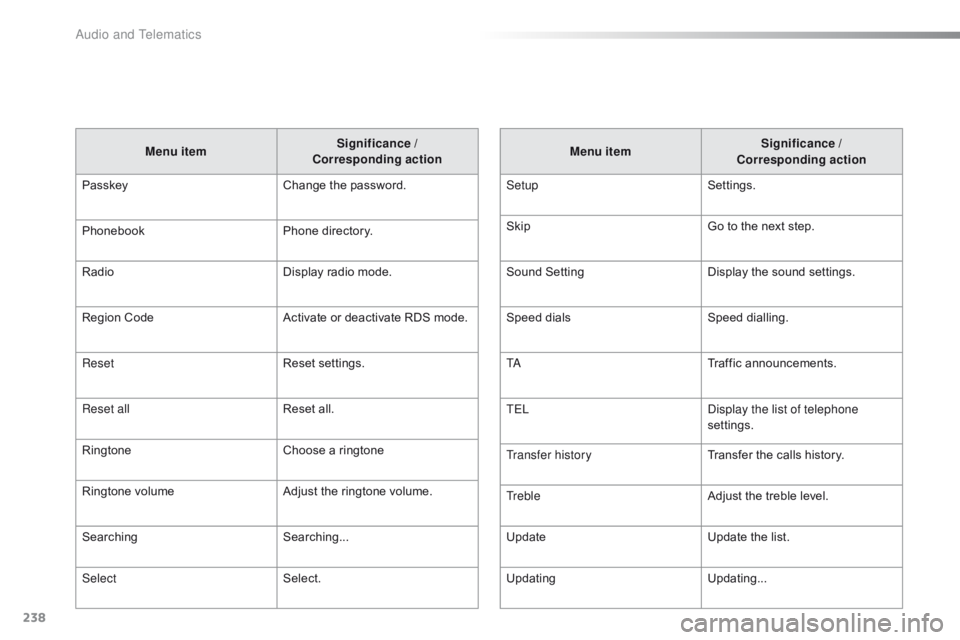
Menu itemSignificance /
Corresponding action
Passkey Change
the password.
Phonebook Phone
directory.
Radio Display
radio mode.
Region
Code Activate
or deactivate RDS mode.
Reset Reset
se
ttings.
Reset all Reset
all.
Ringtone Choose
a ringtone
Ringtone
volume Adjust
the ringtone volume.
Searching Searching...
Select Select. Menu item
Significance /
Corresponding action
Setup Settings.
Skip Go
to the next step.
Sound
S
ettingDisplay
t
he
s
ound
se
ttings.
Speed
d
ialsSpeed
d
ialling.
TA Traffic
a
nnouncements.
TEL Display the list of telephone
settings.
Transfer history Transfer
the calls history.
Treble Adjust
the treble level.
Update Update
the list.
Updating Updating...
Audio and Telematics
Page 241 of 269

MODE
239
C1_en_Chap10b_ Autoradio-Toyota-2_ed01-2016
First steps
On/Off.
Volume (each source is
i
ndependent).
Accept
an incoming call. AM
radio buttons 1 to 6: select a p
reset radio station.
FM
buttons 1 to 5: select a preset
r
adio
s
tation.
FM
list: display the radio stations
r
eceived.
Press
and hold: preset a radio
s
tation.
Back:
abandon current operation, up
o
n level in the menu.Display
menu and set options.
Rotate: scroll through a list or change
r
adio
s
tation.
Press: confirm the option displayed in
t
he screen.
Reject an incoming call.
End
call. Select
AM, FM and DAB*
w
avebands.
Select the BTA (Bluetooth Audio) and
A
UX (auxiliary) source.
Select:
-
t
he next radio frequency up
au
tomatically.
-
t
he next line in a list or a menu.
- t he next media folder.
Select:
-
t
he next radio frequency down
au
tomatically.
-
t
he previous line in a list or a
m
enu.
-
t
he previous media folder.
*
Depending on equipment.
Audio system with Bluetooth®
.
Audio and Telematics