USB Citroen C4 2016 2.G Owner's Manual
[x] Cancel search | Manufacturer: CITROEN, Model Year: 2016, Model line: C4, Model: Citroen C4 2016 2.GPages: 396, PDF Size: 10.22 MB
Page 7 of 396
5
C4-2_en_Chap00b_vue-ensemble_ed02-2015
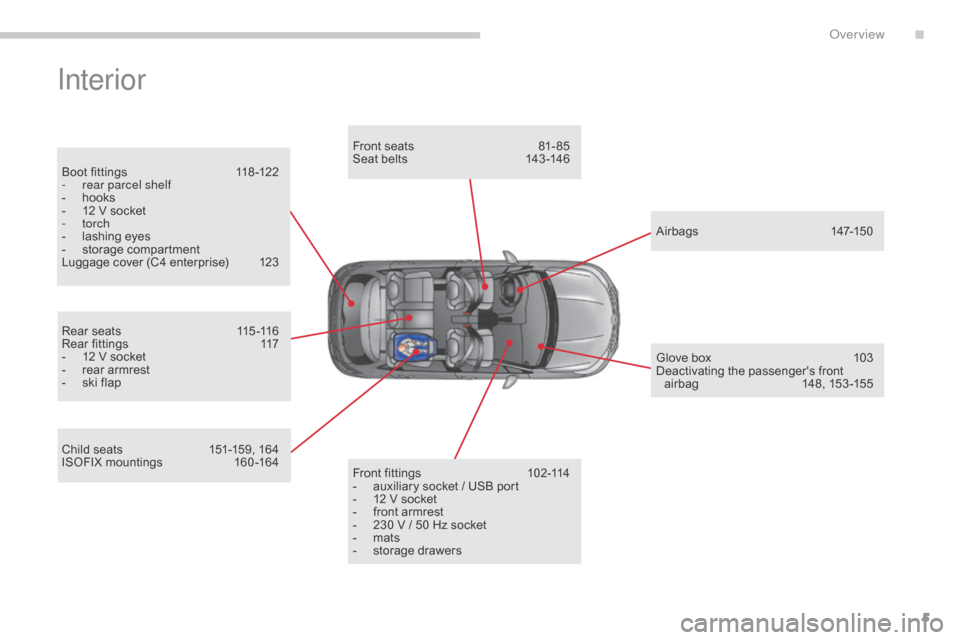
Interior
Boot fittings 118 -122
- r ear parcel shelf
-
h
ooks
-
1
2 V socket
-
torch
-
l
ashing eyes
-
s
torage compartment
Luggage
cover (C4 enterprise)
1
23
Rear
seats
1
15 -116
Rear
fittings
1
17
-
1
2 V socket
-
r
ear armrest
-
s
ki flap
Child
seats
1
51-159, 164
ISOFIX
mountings
1
60 -164Front
seats
8
1- 85
Seat belts 1 43 -146
A ir bags
1
47-150
Front
fittings
1
02-114
-
a
uxiliary socket / USB port
-
1
2 V socket
-
f
ront armrest
-
2
30 V / 50 Hz socket
-
m
ats
-
s
torage drawersGlove
box
1
03
Deactivating
t
he
p
assenger's
f
ront
a
irbag
1
48, 153 -155
.
Over view
Page 105 of 396

103
C4-2_en_Chap03_ergonomie-et-confort_ed02-2015
12 V accessory socket
F To connect a 12 V accessory (max power: 1
20 W), lift the cover and connect a
s
uitable
a
daptor.
Component
which
protects
against
sunlight
f
rom
the
front
or
the
side,
also
equipped
with
an
i
lluminated
v
anity
m
irror.
F
W
ith
the
ignition
on,
raise
the
concealing
f
lap;
the
mirror
is
illuminated
automatically.
This
sun
visor
is
also
equipped
with
a
ticket
h
o l d e r.
Sun visor Illuminated glove box
It has dedicated locations for storing a water b
ottle, the vehicle's handbook pack...
Its
lid has locations for storing a pen, a pair of
g
lasses, tokens, maps, a cup...
F
T
o open the glove box, raise the handle.
The
glove box is illuminated when the lid is
ope
ned.
It
gives access to the passenger's front airbag
d
eactivation switch A .
It
contains an adjustable ventilation nozzle B,
distributing
the same conditioned air as the
v
ents in the passenger compartment. The connection of an electrical device
not approved by CITROËN, such as a
USB
charger, may adversely affect the
o
peration of vehicle electrical systems,
c
ausing faults such as poor telephone
r
eception or inter ference with displays
in
the screens.
3
Ease of use and comfort
Page 106 of 396
104
C4-2_en_Chap03_ergonomie-et-confort_ed02-2015
USB Player
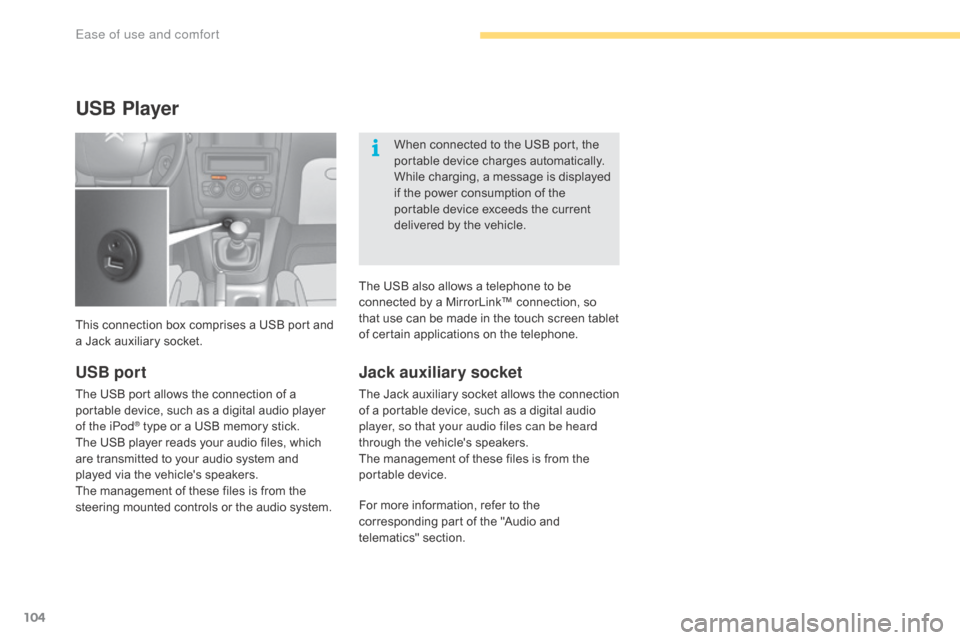
This connection box comprises a USB port and a Jack auxiliary socket. When
connected to the USB port, the
p
ortable device charges automatically.
While charging, a message is displayed
i
f the power consumption of the
p
ortable device exceeds the current
d
elivered by the vehicle.
Jack auxiliary socket
The Jack auxiliary socket allows the connection o
f a portable device, such as a digital audio
p
layer, so that your audio files can be heard
through
the vehicle's speakers.
The
management of these files is from the
p
ortable
d
evice.
USB port
The USB port allows the connection of a portable device, such as a digital audio player
o
f the iPod
® type or a USB memory stick.
T
he
USB
player reads your audio files, which
a
re
transmitted to your audio system and
p
layed
via
the vehicle's speakers.
The
management of these files is from the
s
teering
mounted controls or the audio system.For
more information, refer to the
c
orresponding part of the "Audio and
t
elematics"
se
ction.
The
USB also allows a telephone to be
c
onnected by a MirrorLink™ connection, so
t
hat use can be made in the touch screen tablet
o
f certain applications on the telephone.
Ease of use and comfort
Page 289 of 396
287
C4-2_en_Chap10b_SMEGplus_ed02-2015
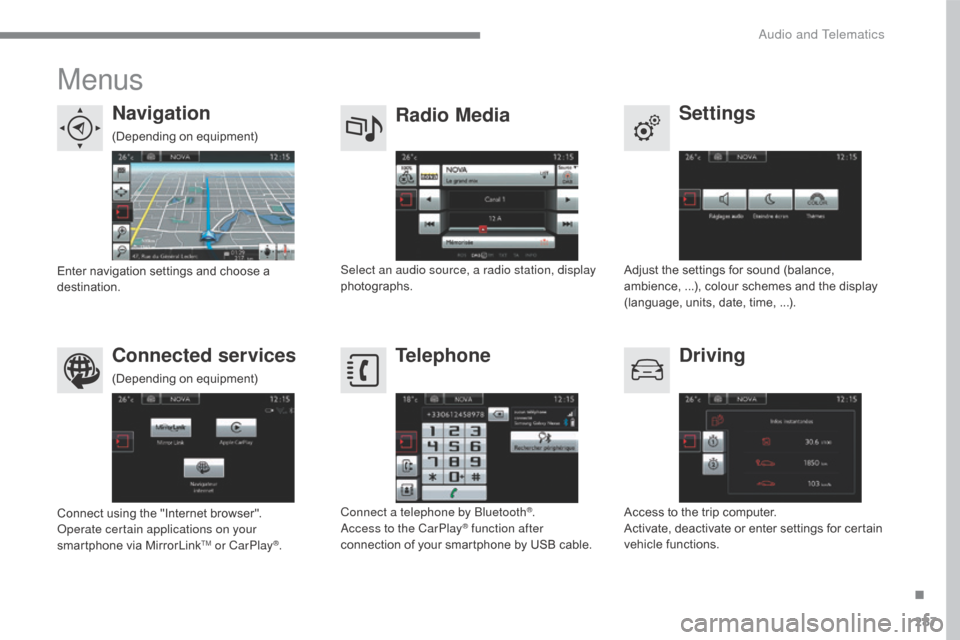
Menus
Settings
Radio Media
Navigation
Driving
Connected services Telephone
Adjust the settings for sound (balance, a
mbience, ...), colour schemes and the display
(
language, units, date, time, ...).
Select an audio source, a radio station, display
photographs.
Enter
navigation
settings
and
choose
a
d
estination.
Access
to the trip computer.
Activate,
deactivate or enter settings for certain
v
ehicle functions.
Connect
using
the
"Internet
browser".
Operate certain applications on your
smartphone
via
MirrorLink
TM or CarPlay®. Connect a telephone by Bluetooth
®.
Access to the CarPlay® function after
connection
of
your
smartphone by USB cable.
(Depending
o
n
e
quipment)
(Depending
o
n
e
quipment)
.
Audio and Telematics
Page 305 of 396
303
C4-2_en_Chap10b_SMEGplus_ed02-2015
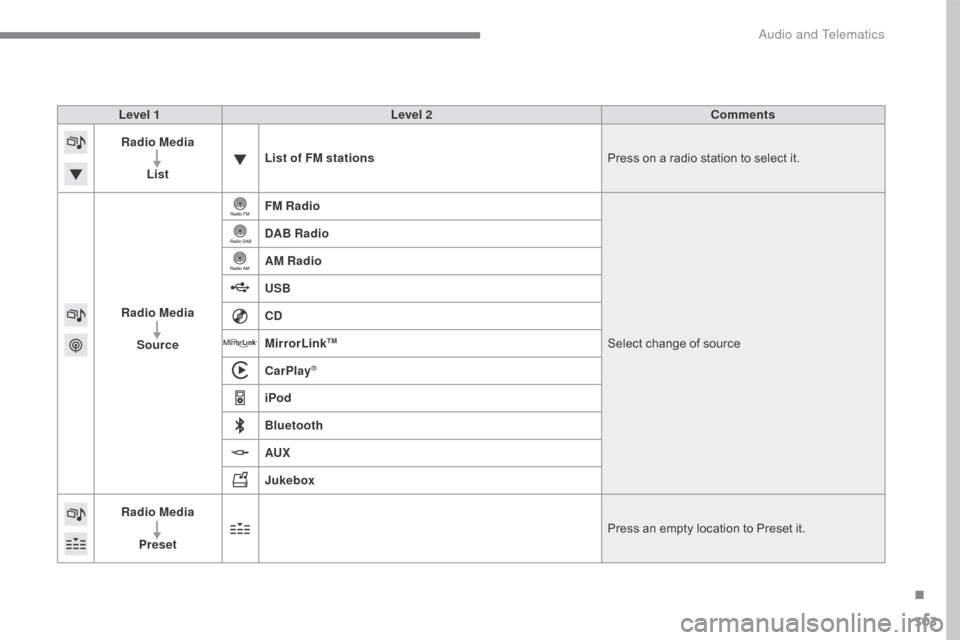
Level 1Level 2 Comments
Radio Media
List List of FM stations
Press
on a radio station to select it.
Radio Media Source FM Radio
Select
change of source
DAB Radio
AM Radio
USB
CD
MirrorLink
TM
CarPlay®
iPod
Bluetooth
AUX
Jukebox
Radio Media
Preset Press
an empty location to Preset it.
.
Audio and Telematics
Page 310 of 396
308
C4-2_en_Chap10b_SMEGplus_ed02-2015
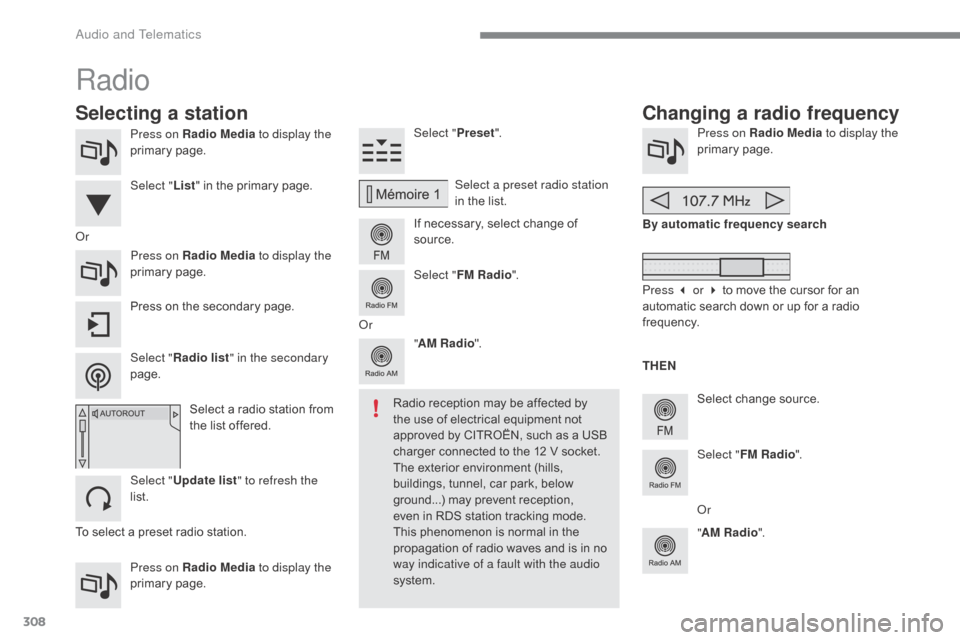
Press on Radio Media to display the
primary pag e.
Press on Radio Media to display the
primary
pag
e. Select "
Preset".
If necessary, select change of
s
ource.Press on Radio Media
to display the
primary pag e.
Select
change source.
"
AM Radio ". By automatic frequency search
Select "FM Radio ".
" AM Radio ".
Press
on the secondary page. Select a preset radio station
in
the list.
Select " FM Radio ".
Select
a radio station from
t
he list offered.
Select " Update list " to refresh the
list. Select " List"
in the primary page.
Press on Radio Media to display the
primary
pag
e.
Radio
Changing a radio frequency
Selecting a station
To select a preset radio station. TH EN
Radio reception may be affected by
t
he use of electrical equipment not
a
pproved by CITROËN, such as a USB
c
harger connected to the 12 V socket.
The exterior environment (hills,
b
uildings, tunnel, car park, below
g
round...) may prevent reception, e
ven in RDS station tracking mode. T
his phenomenon is normal in the
p
ropagation of radio waves and is in no
w
ay indicative of a fault with the audio
system.
Or
Select "Radio list " in the secondary
page. Or
Press 3 or 4 to move the cursor for an
a
utomatic search down or up for a radio
f
requency.
Or
Audio and Telematics
Page 314 of 396
312
C4-2_en_Chap10b_SMEGplus_ed02-2015
Media
USB playerSelecting the source
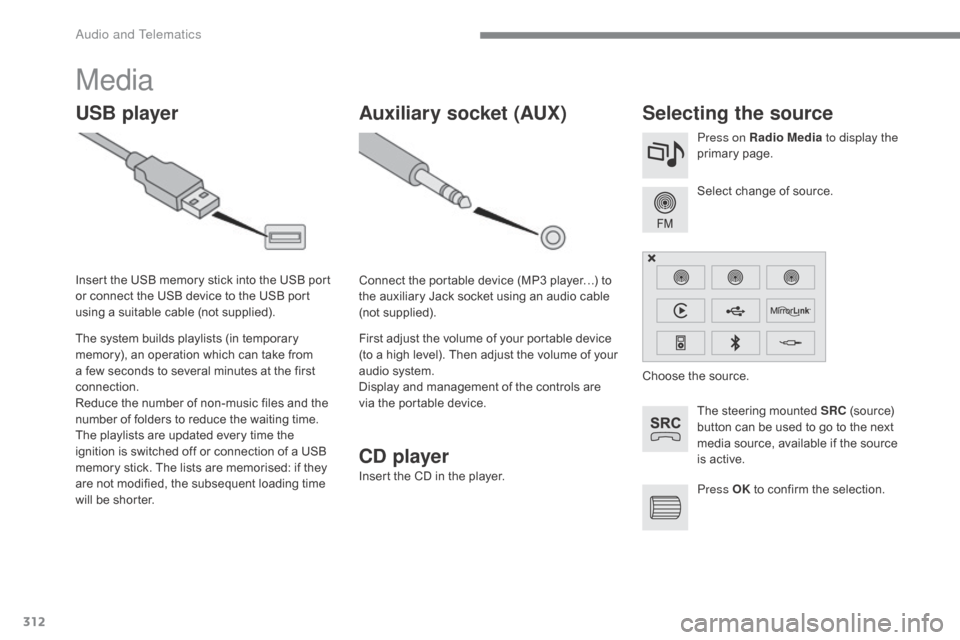
The steering mounted SRC (source) b
utton can be used to go to the next
m
edia source, available if the source
i
s active.
Select
change of source.
Press on Radio Media
to display the
primary
pag
e.
The
system
builds
playlists
(in
temporary
m
emory),
an
operation
which
can
take
from
a
few
seconds
to
several
minutes
at
the
first
c
onnection.
Reduce
the
number
of
non-music
files
and
the
n
umber
of
folders
to
reduce
the
waiting
time.
The
playlists
are
updated
every
time
the
i
gnition
is
switched
off
or
connection
of
a
USB
m
emory
stick.
The
lists
are
memorised:
if
they
a
re
not
modified,
the
subsequent
loading
time
w
ill
be
shorter.
Insert
the
USB
memory
stick
into
the
USB
port
o
r
connect
the
USB
device
to
the
USB
port
u
sing
a
suitable
cable
(not
supplied).
Auxiliary socket (AUX)
Connect the portable device (MP3 player…) to t
he auxiliary Jack socket using an audio cable
(
not
sup
plied).
First
adjust the volume of your portable device
(
to a high level). Then adjust the volume of your
a
udio system.
Display
and management of the controls are
v
ia the portable device. Choose
the source.
Press OK
to confirm the selection.
CD player
Insert the CD in the player.
Audio and Telematics
Page 315 of 396
313
C4-2_en_Chap10b_SMEGplus_ed02-2015
The audio equipment will only play audio files with ".wma, .aac, .flac, .ogg and. mp3" file
e
xtensions and with a bit rate of between
32
Kbps and 320 Kbps.
It
also supports VBR (Variable Bit Rate) mode.
No
other type of file (.mp4, ...) can be played.
".wma"
files must be of the standard wma 9 type.
The
sampling rates supported are 32, 44 and
4
8 KHz.
It
is advisable to restrict file names to
2
0 characters, without using of special
c
haracters (e.g.: " " ? ; ù) to avoid any playing
a
nd
d
isplaying
pro
blems.
Information and advice
Use only USB memory sticks formatted FAT32 (file allocation table).
The
system
supports
USB
mass
s
torage
devices,
BlackBerry
® devices
or Apple® players via USB ports. The a
daptor
cable not supplied.
Control of the peripheral device is with
the
audio
system controls.
Other
peripherals, not recognised on
c
onnection, must be connected to the
a
uxiliary
socket using a Jack cable (not
sup
plied). It
is recommended that the USB cable
f
or the portable device is used.
The system does not support the
s
imultaneous connection of two
i
dentical devices (two memory sticks,
t
wo Apple
® players) but it is possible t
o
connect
one memory stick and one
A
pple
® player at the same time.
I
n order to be able to play a recorded CDR or
CDRW,
when
recording
it
is
preferable
to
select
t
he
ISO
9660
level
1,
2
or
Joliet
standard.
If
the
disc
is
recorded
in
another
format
it
may
n
ot
be
played
correctly.
It
is
recommended
that
the
same
recording
s
tandard is always used for an individual disc,
with
as
low
a
speed
as
possible
(4x
maximum)
f
or
optimum
sound
quality.
In
the
particular
case
of
a
multi-session
CD,
the
J
oliet
standard
is
recommended.
.
Audio and Telematics
Page 316 of 396
314
C4-2_en_Chap10b_SMEGplus_ed02-2015
Bluetooth® audio streaming
Streaming allows audio files on your telephone to be played through the vehicle's speakers.
Connect
the telephone: see the "Telephone "
section, then " Bluetooth".
Choose the " Audio" or "All"
pro
file.
If
play does not start automatically, it may be
n
ecessary to start the audio playback from the
t
elephone.
Control
is from the peripheral device or by
u
sing the audio system buttons.
Once
connected in streaming mode,
t
he telephone is considered to be a
media
source.
It
is recommended that you activate
"R
epeat"
on the Bluetooth peripheral.
Connecting Apple® players
Connect the Apple® player to the USB port u
sing
a
suitable
cable (not supplied).
Play
starts
automatically.
Control
is
via
the
audio system. The classifications available are those
of the portable device connected
(artists
/ albums / genres / playlists /
a
udiobooks / podcasts).
The default classification used is by
artist. To modify the classification used,
r
eturn to the first level of the menu
t
hen select the desired classification
(playlists for example) and confirm t
o go down through the menu to the
de
sired
t
rack.
The
version of software in the audio system
m
ay not be compatible with the generation of
y
our Apple
® player.
Audio and Telematics
Page 317 of 396
315
C4-2_en_Chap10b_SMEGplus_ed02-2015
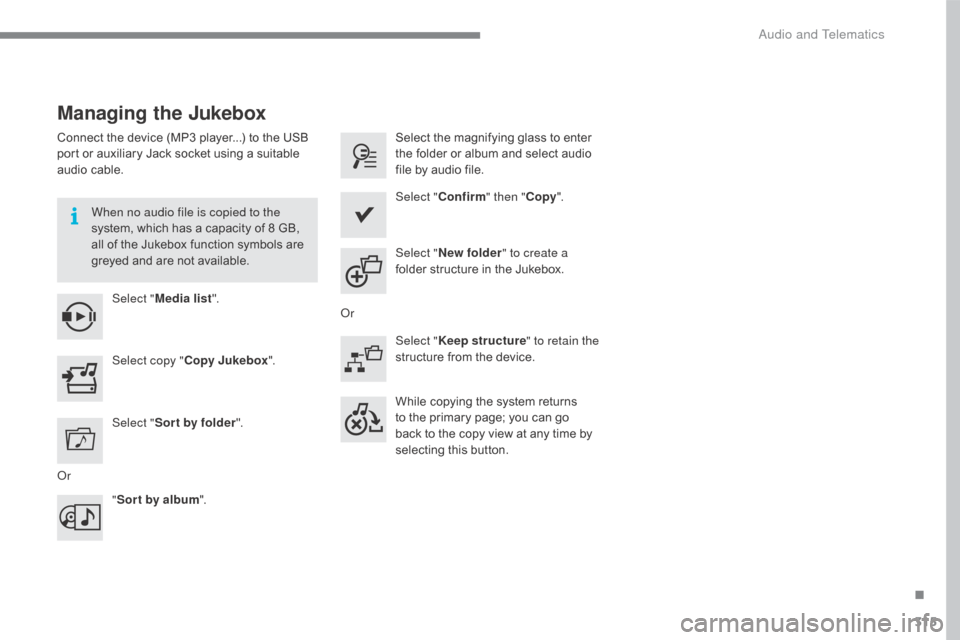
Managing the Jukebox
Connect the device (MP3 player...) to the USB port or auxiliary Jack socket using a suitable
a
udio cable.
When no audio file is copied to the
system,
which has a capacity of 8 GB,
a
ll of the Jukebox function symbols are
g
reyed and are not available.
Select " Media list ". Select
the magnifying glass to enter t
he folder or album and select audio
f
ile by audio file.
Select copy " Copy Jukebox ". Select "
Confirm " then "Copy".
Select " Sor t by folder ". Select "
New folder " to create a
folder
structure in the Jukebox.
" Sor t by album ". Select "
Keep structure " to retain the
structure
from the device.
While
copying the system returns
t
o the primary page; you can go
b
ack to the copy view at any time by
s
electing this button.
Or Or
.
Audio and Telematics