warning DODGE CHARGER SRT 2015 7.G Uconnect 8.4A
[x] Cancel search | Manufacturer: DODGE, Model Year: 2015, Model line: CHARGER SRT, Model: DODGE CHARGER SRT 2015 7.GPages: 429, PDF Size: 4.01 MB
Page 222 of 429
Voice Texting (Must Be Registered With Uconnect®
Access And Have A Current Subscription, U.S.
Residents Only)
WARNING!
ALWAYS drive safely and obey all applicable
laws. You should only use Uconnect® features
when it is safe to do so. Failure to do so may result
in an accident involving serious injury or death.
Want to dictate a personal message? Register with
Uconnect® Access to take advantage of a new, cloud-
based Voice Texting service, an enhancement to Voice
Text Reply.
Voice Texting allows you to compose a new text or reply
to an incoming text message. Before you attempt to use
the Voice Texting feature, check to ensure you have the
following:
1. A Paired, Bluetooth® enabled phone with the Message
Access Profile (MAP). Not all Bluetooth® enabled
phones support MAP. VisitUconnectPhone.comfor
system and device compatibility information.
2. An active Uconnect® Access trial or paid subscription.
Press the “Apps” button on the lower right hand
corner of the touchscreen to begin the registration
process.
3. Accept the Allow MAP profile request on your smart
phone. (Please refer to device manufacturer instruc-
tions for details).
3
Uconnect® 8.4A — If Equipped 221
Page 267 of 429
View Map — Settings
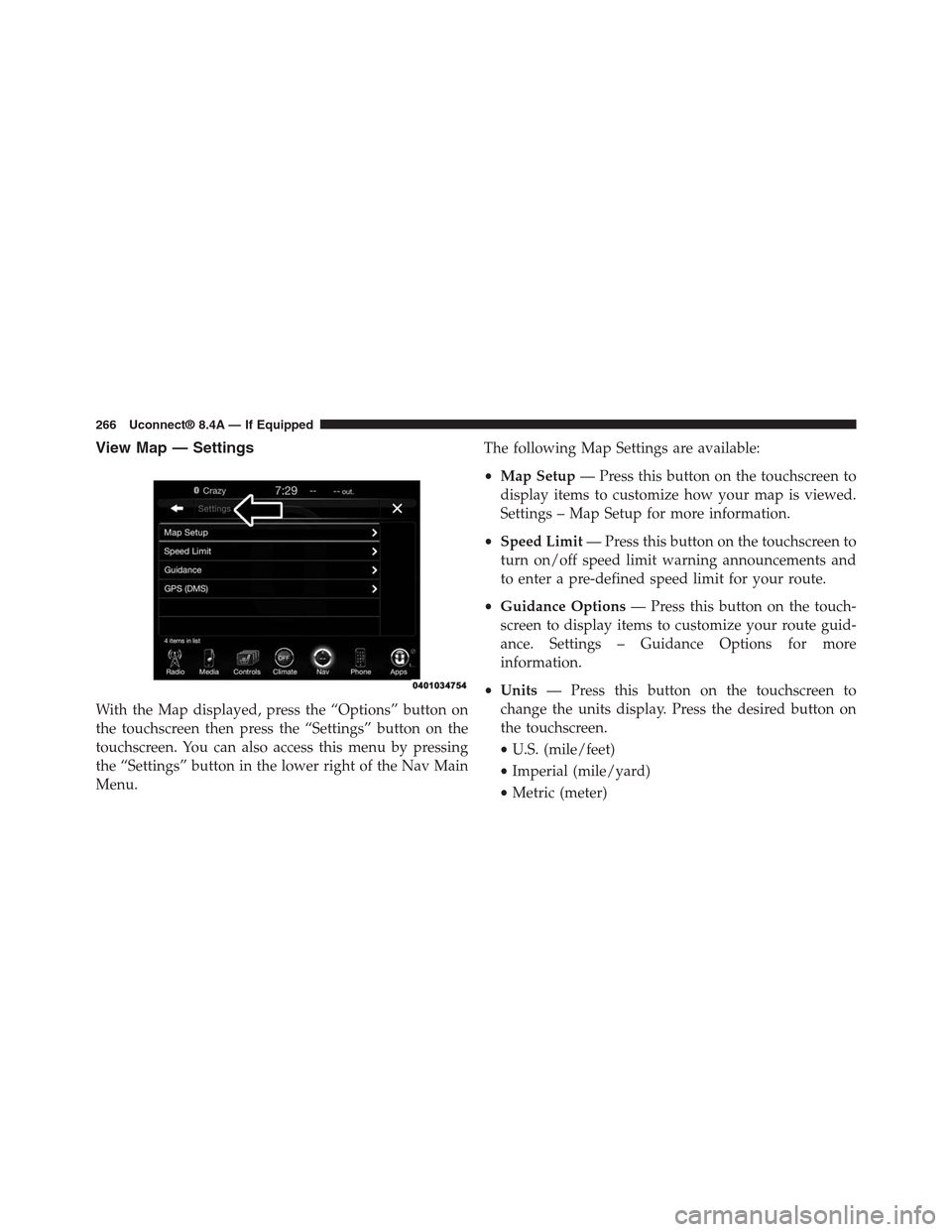
With the Map displayed, press the “Options” button on
the touchscreen then press the “Settings” button on the
touchscreen. You can also access this menu by pressing
the “Settings” button in the lower right of the Nav Main
Menu.
The following Map Settings are available:
•Map Setup— Press this button on the touchscreen to
display items to customize how your map is viewed.
Settings – Map Setup for more information.
•Speed Limit— Press this button on the touchscreen to
turn on/off speed limit warning announcements and
to enter a pre-defined speed limit for your route.
•Guidance Options— Press this button on the touch-
screen to display items to customize your route guid-
ance. Settings – Guidance Options for more
information.
•Units— Press this button on the touchscreen to
change the units display. Press the desired button on
the touchscreen.
•U.S. (mile/feet)
•Imperial (mile/yard)
•Metric (meter)
266 Uconnect® 8.4A — If Equipped
Page 285 of 429
6. If a connection between the vehicle and a 9-1-1 opera-
tor is made, the 9-1-1 Call system may transmit certain
vehicle information to a 9-1-1 operator, including the
last known GPS coordinates of your vehicle. If a
connection is made between a 9-1-1 operator and your
vehicle, you understand and agree that 9-1-1 operators
may record conversations and sounds in your car
upon connection and consent to such recordings. Your
vehicle MUST have a working electrical system for the
9-1-1 Call system, among others, to operate. IF YOUR
VEHICLE LOSES BATTERY POWER FOR ANY REA-
SON (INCLUDING DURING OR AFTER AN ACCI-
DENT) THE 9-1-1 CALL SYSTEM, AMONG OTHER
VEHICLES SYSTEMS, WILL NOT OPERATE.
WARNING!
If anyone in the vehicle could be in danger (e.g.,
fire or smoke is visible, dangerous road conditions
(Continued)
WARNING!(Continued)
or location), do not wait for voice contact from a
9-1-1 operator. All occupants should exit the ve-
hicle immediately and move to a safe location.
WARNING!
Do not add any aftermarket electrical equipment
to the vehicle’s electrical system. This may prevent
your vehicle from sending a signal to initiate an
emergency call. To avoid interference that can
cause the 9-1-1 Call system to fail, never add
aftermarket equipment (e.g., two way mobile ra-
dio, CB radio, data recorder, etc.) to your vehicle’s
electrical system or modify the antennas on your
vehicle.
284 Uconnect® 8.4A — If Equipped
Page 286 of 429
9-1-1 Call System Limitations
Vehicles sold in Canada and Mexico DO NOT have 9-1-1
Call system capabilities.
9-1-1 or other emergency line operators in Canada and
Mexico may not answer or respond to 9-1-1 system calls.
If the 9-1-1 Call system detects a malfunction, any of the
following may occur at the time the malfunction is
detected, and at the beginning of each ignition cycle:
•The Rearview Mirror light will continuously be illu-
minated red.
•The Phone Screen will display the following message
“Vehicle phone requires service. Please contact your
dealer.”
•An In-Vehicle Audio message will state “Vehicle phone
requires service. Please contact your dealer.”
WARNING!
•Ignoring the Rearview Mirror light could mean you
may not have 9-1-1 Call capability if needed. If the
Rearview Mirror light is illuminated, have an au-
thorized dealer service the 9-1-1 Call system imme-
diately.
•The Occupant Restraint Controller (ORC) turns on
the Air Bag Warning Light on the instrument panel
if a malfunction is detected in any part of the air
bag system. If the Air Bag Warning Light is illumi-
nated, the air bag system may not be working
properly and the 9-1-1 system may not be able to
send a signal to a 9-1-1 operator. If the Air Bag
Warning Light is illuminated, have an authorized
dealer service your vehicle immediately.
3
Uconnect® 8.4A — If Equipped 285
Page 287 of 429
Even if the 9-1-1 Call system is fully functional, factors
beyond Chrysler Group LLC’s control may prevent or
stop 9-1-1 Call system operation. These include, but are
not limited to, the following factors:
•The ignition key has been removed from the ignition
and the delayed accessories mode is active.
•The ignition key is in OFF position.
•The vehicle’s electrical systems are not intact.
•The 9-1-1 Call system software and/or hardware are
damaged during a crash.
•The vehicle battery loses power or becomes discon-
nected during a vehicle crash.
•Wireless and/or Global Positioning Satellite signals
are unavailable or obstructed.
•Equipment malfunction at the 9-1-1 operator facility.
•Operator error by the 9-1-1 operator.
•Wireless network congestion.
•Weather.
•Buildings, structures, geographic terrain, or tunnels.
WARNING!
Never place anything on or near the vehicle’s
wireless and GPS antennas. You could prevent
wireless and GPS signal reception, which can
prevent your vehicle from placing an emergency
call. Wireless and GPS signal reception is required
for the 9-1-1 Call system to function properly.
286 Uconnect® 8.4A — If Equipped
Page 288 of 429
WARNING!
Failure to perform scheduled maintenance and
regularly inspect your vehicle may result in ve-
hicle damage and/or serious injury.
General Information
This device complies with Part 15 of the FCC Rules.
Operation is subject to the following two conditions: (1)
This device may not cause harmful interference, and (2)
this device must accept any interference received, includ-
ing interference that may cause undesired operation.
REMOTE SERVICE FEATURES
If your vehicle is equipped with Remote Service Features,
for more information, refer tomoparownerconnect.com
or call 855-792-4241 for U.S. residents and 855-209-8317
for Canadian residents.
3
Uconnect® 8.4A — If Equipped 287
Page 317 of 429
WARNING!
ALWAYS drive safely and obey all applicable
laws. You should only use Uconnect® features
when it is safe to do so. Failure to do so may result
in an accident involving serious injury or death.
The Uconnect® Phone is driven through your
Bluetooth® “Hands-Free Profile” mobile phone.
Uconnect® features Bluetooth® technology - the global
standard that enables different electronic devices to con-
nect to each other without wires or a docking station, so
Uconnect® Phone works no matter where you stow your
mobile phone (be it your purse, pocket, or briefcase), as
long as your phone is turned on and has been paired to
the vehicle’s Uconnect® Phone. The Uconnect® Phone
allows up to ten mobile phones or audio devices to be
linked to the system. Only one linked (or paired) mobile
phone and one audio device can be used with the system
at a time.
Uconnect® Phone Button
The Uconnect® Phonebutton on your steering
wheel is used to get into the phone mode
and make calls, show recent, incoming, out-
going calls, view phonebook etc., When you
press the button you will hear a BEEP. The
beep is your signal to give a command.
Uconnect® Voice Command Button
The Uconnect® Voice Commandbutton on your
steering wheel is only used for “barge in”
and when you are already in a call and you
want to send Tones or make another call.
Thebutton on your steering wheel is also used to
access the Voice Commands for the Uconnect® Voice
Command features if your vehicle is equipped. Please
see the Uconnect® Voice Command section for direc-
tion on how to use thebutton.
316 Uconnect® 8.4AN — If Equipped
Page 335 of 429
Even though international dialing for most number com-
binations is supported, some shortcut dialing number
combinations may not be supported.
Far End Audio Performance
Audio quality is maximized under:
•Low-To-Medium Blower Setting
•Low-To-Medium Vehicle Speed
•Low Road Noise
•Smooth Road Surface
•Fully Closed Windows
•Dry Weather Conditions
•Operation From The Driver’s Seat
Performance such as audio clarity, echo, and loudness to
a large degree rely on the phone and network, and not
the Uconnect® Phone.
Echo at the far end can sometimes be reduced by
lowering the in-vehicle audio volume.
In a convertible vehicle, system performance may be
compromised with the convertible top down.
Voice Text Reply
WARNING!
ALWAYS drive safely and obey all applicable
laws. You should only use Uconnect® features
when it is safe to do so. Failure to do so may result
in an accident involving serious injury or death.
334 Uconnect® 8.4AN — If Equipped
Page 337 of 429
Voice Texting (Must Be Registered With Uconnect®
Access And Have A Current Subscription, U.S.
Residents Only)
WARNING!
ALWAYS drive safely and obey all applicable
laws. You should only use Uconnect® features
when it is safe to do so. Failure to do so may result
in an accident involving serious injury or death.
Want to dictate a personal message? Register with
Uconnect® Access to take advantage of a new, cloud-
based Voice Texting service, an enhancement to Voice
Text Reply.
Voice Texting allows you to compose a new text or reply
to an incoming text message. Before you attempt to use
the Voice Texting feature, check to ensure you have the
following:
1. A Paired, Bluetooth® enabled phone with the Message
Access Profile (MAP). Not all Bluetooth® enabled
phones support MAP. VisitUconnectPhone.comfor
system and device compatibility information.
2. An active Uconnect® Access trial or paid subscription.
Press the “Apps” button on the lower right hand
corner of the touchscreen to begin the registration
process.
3. Accept the Allow MAP profile request on your smart
phone. (Please refer to device manufacturer instruc-
tions for details).
336 Uconnect® 8.4AN — If Equipped
Page 382 of 429
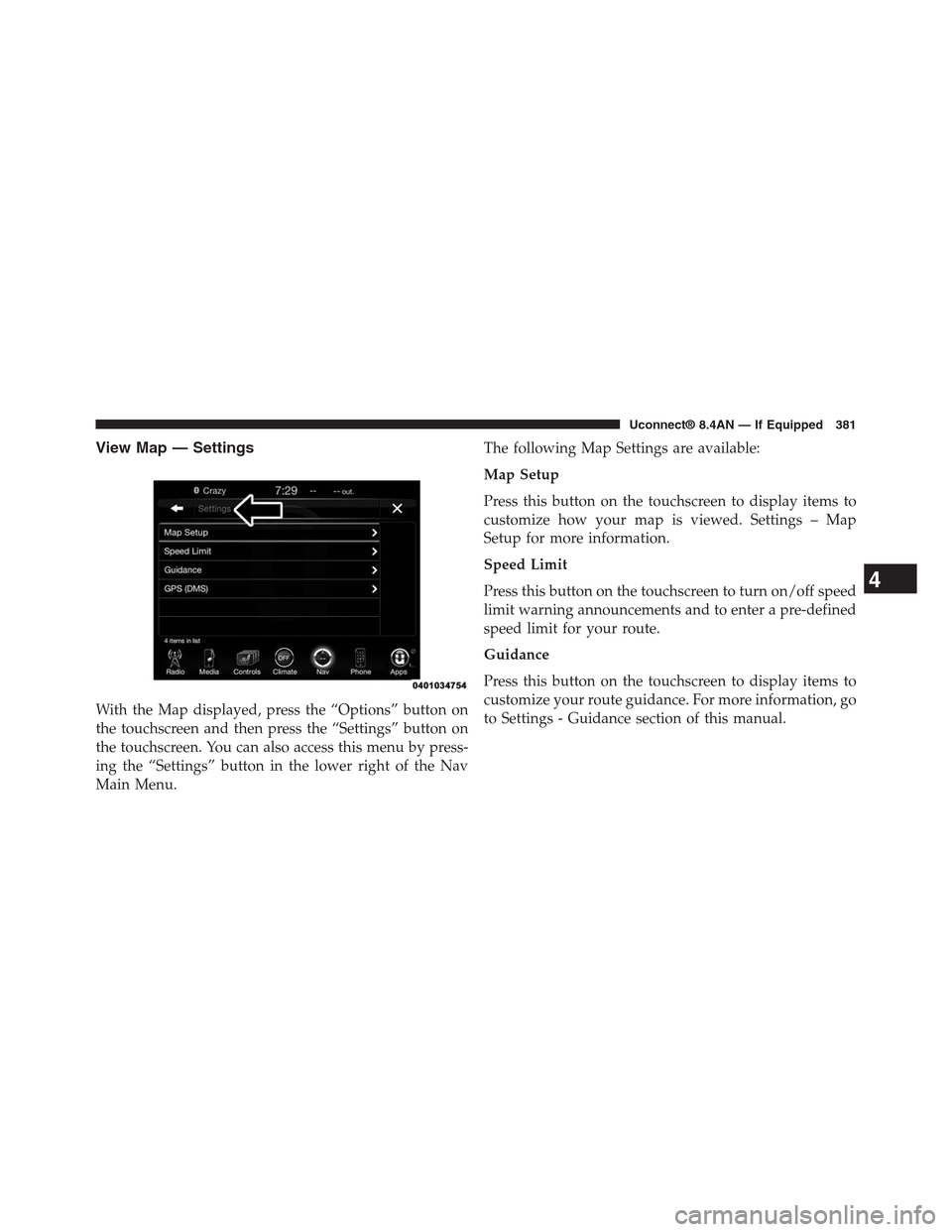
View Map — Settings
With the Map displayed, press the “Options” button on
the touchscreen and then press the “Settings” button on
the touchscreen. You can also access this menu by press-
ing the “Settings” button in the lower right of the Nav
Main Menu.
The following Map Settings are available:
Map Setup
Press this button on the touchscreen to display items to
customize how your map is viewed. Settings – Map
Setup for more information.
Speed Limit
Press this button on the touchscreen to turn on/off speed
limit warning announcements and to enter a pre-defined
speed limit for your route.
Guidance
Press this button on the touchscreen to display items to
customize your route guidance. For more information, go
to Settings - Guidance section of this manual.
4
Uconnect® 8.4AN — If Equipped 381