phone DODGE CHARGER SRT 2015 7.G Uconnect 8.4A
[x] Cancel search | Manufacturer: DODGE, Model Year: 2015, Model line: CHARGER SRT, Model: DODGE CHARGER SRT 2015 7.GPages: 429, PDF Size: 4.01 MB
Page 66 of 429
7.Why don’t I see the Yelp® App on my in-vehicle
touchscreen?The vehicle must be registered with
Uconnect® Access and have an active subscription
that includes the applicable feature or App. The App
may take several minutes to download after complet-
ing registration for the first time.
8.What is the difference between Yelp® and onboard
navigation?Both experiences are slightly different,
but may yield the same results. For example, while
both the onboard navigation system and Yelp® con-
veniently provide pre-defined search categories,
Yelp® gives the customer the ability to create their
own custom search category, such as “Guitar shops.”
In addition, the customer may be able to view a POI on
a map before routing there when using the onboard
navigation system. Both onboard navigation and
Yelp® provide phone numbers when they are avail-
able, but Yelp® provides the customer with user
ratings and hours of operation (when available). Since
Yelp® pulls its data from the cloud, the customer will
always get the most up-to-date information. Finally,
Yelp® requires that the vehicle be in range of a usable
and authorized cellular signal.
9.Why doesn’t Yelp® recognize my Voice Command
search request?To Search Yelp®, Uconnect® must
establish a connection to the Yelp® cloud-based ser-
vice, using the built in 3G connection in your
Uconnect® Access system. Be sure to wait until AF-
TER the beep, before you speak your search request.
Your voice command might not be fully captured if
there is a misrecognition, resulting in inaccurate re-
sults. You will see visual cues highlighted in green, in
the lower left corner of the radio which says “Listen-
ing” to let you know it’s your turn to say a command.
2
ALL ABOUT Uconnect® ACCESS 65
Page 67 of 429
10.How come I don’t see the same results when I use
Yelp® on my smart phone?This is because Yelp® is
only returning locations that have been rated by
Yelp® users. Un-rated locations do not show up in
the search results. This is an enhancement that will be
coming soon.
11.Can I use Yelp® to search for places based on my
end destination, instead of just places around me?
Yes, you can say “Pizza in Chicago,” and add it as a
stop on your road trip.
Theft Alarm Notification
Notifies you via email or text message (SMS) when the
vehicle’s factory-installed theft alarm system has been
set-off.
Description
The Theft Alarm Notification feature notifies you via
email or text message (SMS) when the vehicle’s factory-
installed theft alarm system has been set-off. You’ve
probably seen this before, a vehicle’s alarm goes off in a
parking lot or out on the street, and the owner is nowhere
to be found. With Theft Alarm Notification your vehicle
will alert you of the situation.
Should you receive a notification that your theft alarm
has been set-off, please react with caution. There are a
number of reasons why your alarm may have been
triggered, one of which could be that your vehicle was
stolen. If so, please see the details of the Stolen Vehicle
Assistance service below.
How It Works
Theft Alarm Notification can send you an email or text
message (SMS) should the alarm go off. The following
instructions will help you manage your notifications.
66 ALL ABOUT Uconnect® ACCESS
Page 68 of 429
1. Log on to the Mopar Owner Connect website
(moparownerconnect.com) using the username and
password you used when registering your Uconnect®
Access system.
•If you forgot your username or password, links are
provided on the website to help you retrieve them.
2. Once logged in you will find yourself on the Dash-
board. Click on the “Edit Profile” button in the upper-
right corner of the page.
3. Click on the “Notifications” tab on the left side of the
page.
4. If you have more than one vehicle with Uconnect®
Access, please select which vehicle you want to man-
age notifications for using the drop down menu.
5. You can enter up to five mobile phone and/or email
addresses to your notifications, and you can customize
which ones receive the types of messages.
6. You will receive a confirmation text message, asking to
confirm and receive vehicle notifications. If you are ok
with this, reply to the text message saying “yes”
(message and data rates may apply, please see your
mobile phone provider for details). If you have ques-
tions, text “HELP” in your reply.
7. You’re all set. Should your theft alarm go off, a
notification(s) will be sent to the number(s) and/or
email(s) you provided.
Requirements
•Vehicle must be properly equipped with the
Uconnect® Access System and a factory installed Theft
Alarm system.
•Vehicle must be in range of a usable and authorized 3G
cellular signal.
2
ALL ABOUT Uconnect® ACCESS 67
Page 69 of 429
•Vehicle must be registered with Uconnect® Access and
have an active subscription that includes the appli-
cable feature or App.
•Owner must properly set-up notification to have the
Theft Alarm Notification sent to an appropriate mobile
phone or email account.
CAUTION!
In the event your theft alarm is activated, use
caution and evaluate the situation from a safe
distance. If any unauthorized or suspicious person
is near or inside of your vehicle, immediately
contact the police. Do not do anything that could
jeopardize your safety or the safety of those
around you.
FAQs
1.What do I do if my Theft Alarm goes off?In the event
your theft alarm is activated, use caution and evaluate
the situation from a safe distance. If any unauthorized
or suspicious person is near or inside of your vehicle,
immediately contact the police. Do not do anything
that could jeopardize your safety or the safety of those
around you.
2.How can I change where I receive notifications?You
can manage your notifications by going to the Mopar
Owner Connect website (moparownerconnect.com)
and log in with your username and password. Once
there, you can click on “Edit Profile”, then the “Noti-
fications” tab.
68 ALL ABOUT Uconnect® ACCESS
Page 71 of 429
2. Next, inform Uconnect® Care that your vehicle has
been stolen. Uconnect® Care can be reached by calling
855-792-4241. The Uconnect® Care Agent will ask for
the stolen vehicle report number (as issued by your
local law enforcement).
If you have downloaded the Uconnect® Access App,
you can push the “Operator” button on your smart-
phone and select “Uconnect® Care” to make the call.
3. Uconnect® Care will authenticate that you are the
owner of the vehicle and contact the law enforcement
with whom you filed the stolen vehicle report.
4. Uconnect® Care will work with your local law en-
forcement to track and attempt to recover the vehicle.
You will be contacted by law enforcement if your
vehicle is recovered. While the investigation is ongo-
ing, you should also contact your insurance company
to inform it of the situation.
Requirements
•Vehicle must be properly equipped with the
Uconnect® Access System.
•Vehicle must be in range of a usable and authorized
cellular signal.
•Vehicle must be registered with Uconnect® Access and
have an active subscription that includes the appli-
cable feature or App.
Disclaimers
•No security system is invincible, and vehicle thieves
may develop ways to prevent your vehicle from being
located.
70 ALL ABOUT Uconnect® ACCESS
Page 80 of 429
FAQs
1.How do I know if I have a good signal strength?
There is a signal strength indicator on the Apps button
of the radio touchscreen.
2.What do I do if the WiFi Hotspot connection drops
while I’m driving?The connection will be automatic
when you enter an area with cellular coverage. Factors
affecting the performance of WiFi Hotspot include:
cellular network signal strength and quality, time of
day, number of channels used by the service provider,
type of connection, number of client using WiFi
Hotspot, client device.
3.What is the factory default security setting?WPA2/
WPA
4.What if I want to create a custom password for my
connection?Select either WPA2/WPA or the WEP
setting and create a pass phrase by pressing Apps >
All Apps > WiFi Hotspot > View/Edit Pass phrase.
5.I do not see the connection on my wireless laptop or
phone, what should I do?Refer to your device’s
owner ’s manual for specific information related to
your device.
6.Are there any data constraints with WiFi Hotspot?
WiFi Hotspot must be purchased in either one day, one
week or one month durations.
2
ALL ABOUT Uconnect® ACCESS 79
Page 94 of 429
9.What are “Timer Constraints” or criteria that needs
to be met to show performance data?
•0-60 MPH or 0-100 kph ET reached within 10 seconds
•Distance of 1/4 mile and 1/8 mile
•Brake timer when traveling > 30 MPH
•A braking event goes beyond 30 seconds
10.How many Timers are stored on the radio and for
how long?Performance timers are maintained as
long as you drive the vehicle. You can save the
statistics at any time.
11.Do all Timer measurements give a “Best”, “Last”
and Current” value?They all do except for Braking
which will not provide a “Best” measurement.
Voice Texting
Add Free-Form Voice Texts To Your Voice Text Reply Feature
Description
This Voice Texting enhances the Voice Text Reply feature
built into your Uconnect® Access 8.4A and 8.4AN radio.
While Voice Text Reply provides 18 pre-defined messages
you can send, Voice Texting lets you create and send
nearly any message you want. Just speak your message
as if you were talking to the recipient, and the Uconnect®
Access voice-texting technology will convert your voice
into a text message.
Voice Texting and Voice Text Reply features are compatible
with many newer Android and Blackberry phones. Before
using, determine if your phone has been tested to support
Bluetooth® “Message Access Profile (MAP)” at
UconnectPhone.com. iPhone® and some other smart-
phones do not currently support Bluetooth® MAP. En-
sure MAP is ON and incoming message notification is
enabled.
2
ALL ABOUT Uconnect® ACCESS 93
Page 95 of 429
How It Works
Set Up Your Phone To Work With Voice Texting
After pairing your phone to the vehicle using Bluetooth®
(seeUconnectPhone.com), push the “phone” button on
the menu bar of the radio to see the main Phone screen.
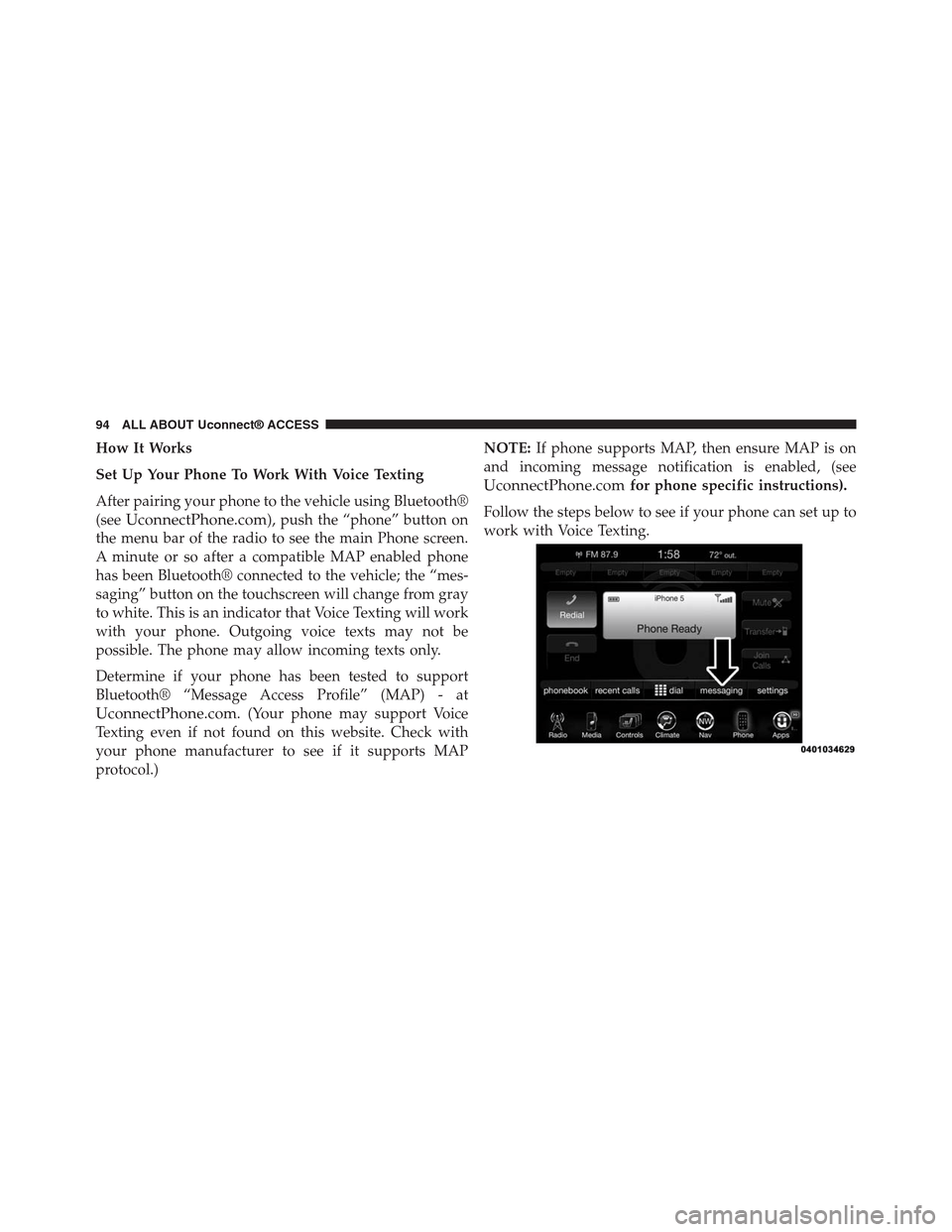
A minute or so after a compatible MAP enabled phone
has been Bluetooth® connected to the vehicle; the “mes-
saging” button on the touchscreen will change from gray
to white. This is an indicator that Voice Texting will work
with your phone. Outgoing voice texts may not be
possible. The phone may allow incoming texts only.
Determine if your phone has been tested to support
Bluetooth® “Message Access Profile” (MAP) - at
UconnectPhone.com. (Your phone may support Voice
Texting even if not found on this website. Check with
your phone manufacturer to see if it supports MAP
protocol.)
NOTE:If phone supports MAP, then ensure MAP is on
and incoming message notification is enabled, (see
UconnectPhone.comfor phone specific instructions).
Follow the steps below to see if your phone can set up to
work with Voice Texting.
94 ALL ABOUT Uconnect® ACCESS
Page 96 of 429
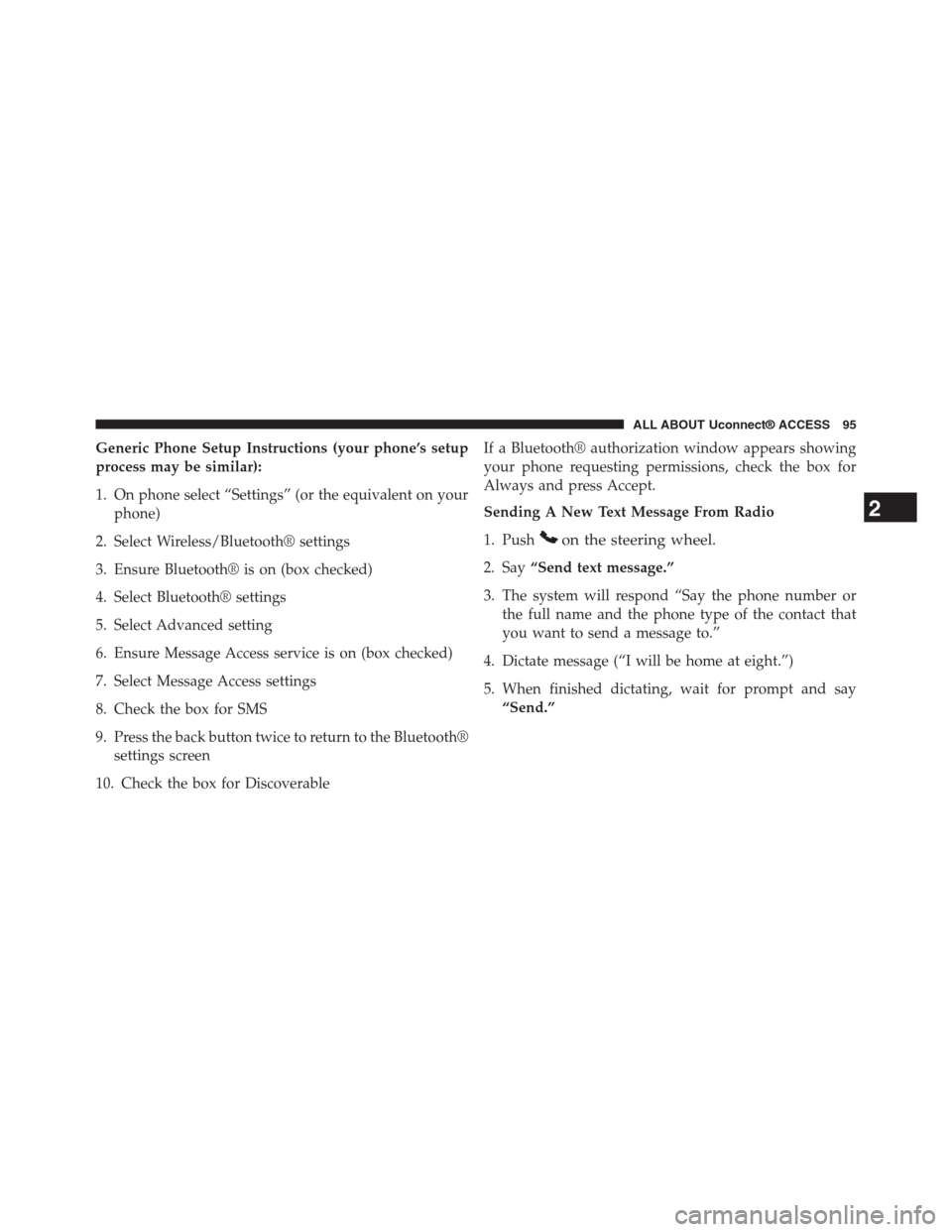
Generic Phone Setup Instructions (your phone’s setup
process may be similar):
1. On phone select “Settings” (or the equivalent on your
phone)
2. Select Wireless/Bluetooth® settings
3. Ensure Bluetooth® is on (box checked)
4. Select Bluetooth® settings
5. Select Advanced setting
6. Ensure Message Access service is on (box checked)
7. Select Message Access settings
8. Check the box for SMS
9. Press the back button twice to return to the Bluetooth®
settings screen
10. Check the box for Discoverable
If a Bluetooth® authorization window appears showing
your phone requesting permissions, check the box for
Always and press Accept.
Sending A New Text Message From Radio
1. Pushon the steering wheel.
2. Say“Send text message.”
3. The system will respond “Say the phone number or
the full name and the phone type of the contact that
you want to send a message to.”
4. Dictate message (“I will be home at eight.”)
5. When finished dictating, wait for prompt and say
“Send.”
2
ALL ABOUT Uconnect® ACCESS 95
Page 97 of 429
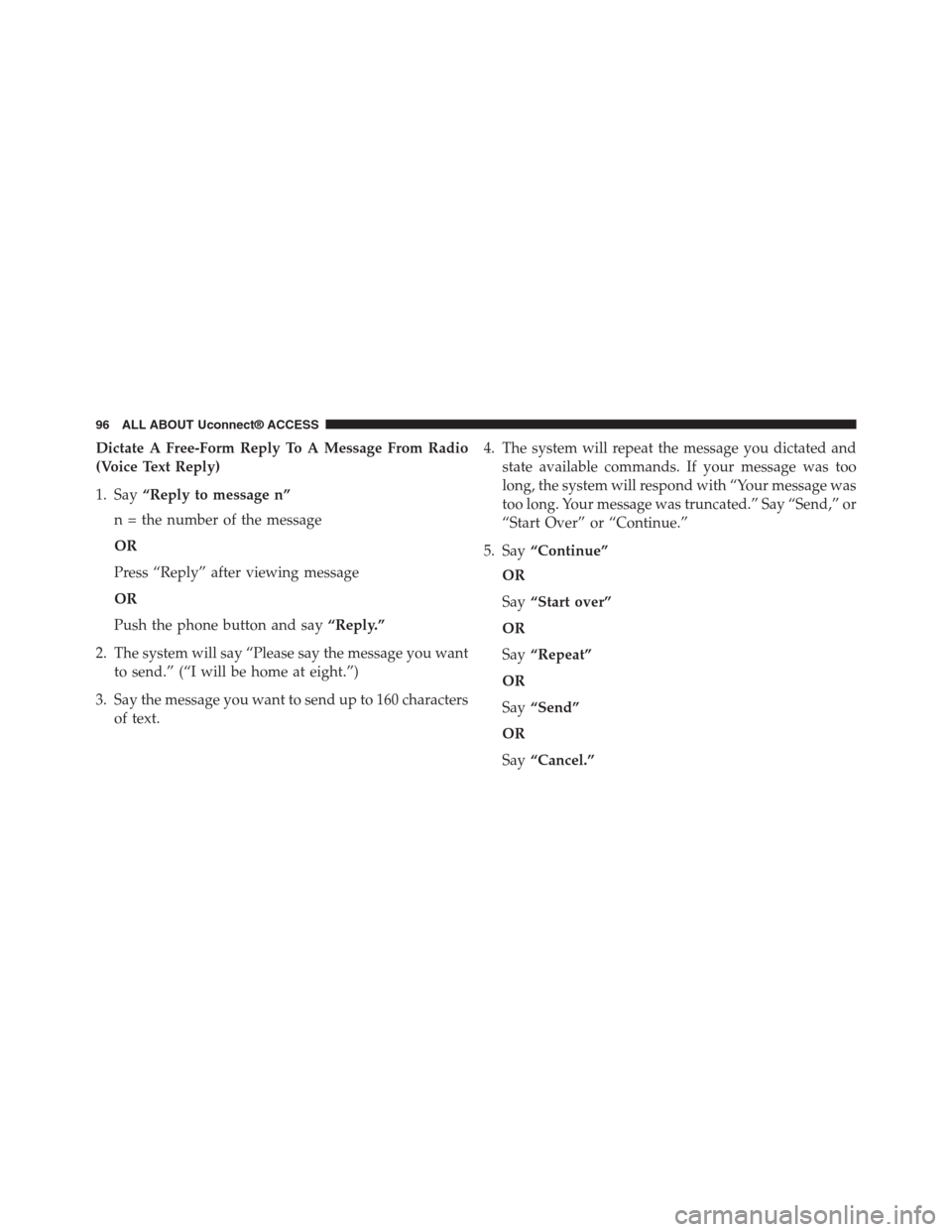
Dictate A Free-Form Reply To A Message From Radio
(Voice Text Reply)
1. Say“Reply to message n”
n = the number of the message
OR
Press “Reply” after viewing message
OR
Push the phone button and say“Reply.”
2. The system will say “Please say the message you want
to send.” (“I will be home at eight.”)
3. Say the message you want to send up to 160 characters
of text.
4. The system will repeat the message you dictated and
state available commands. If your message was too
long, the system will respond with “Your message was
too long. Your message was truncated.” Say “Send,” or
“Start Over” or “Continue.”
5. Say“Continue”
OR
Say“Start over”
OR
Say“Repeat”
OR
Say“Send”
OR
Say“Cancel.”
96 ALL ABOUT Uconnect® ACCESS