phone DODGE CHARGER SRT 2015 7.G Uconnect 8.4A
[x] Cancel search | Manufacturer: DODGE, Model Year: 2015, Model line: CHARGER SRT, Model: DODGE CHARGER SRT 2015 7.GPages: 429, PDF Size: 4.01 MB
Page 47 of 429
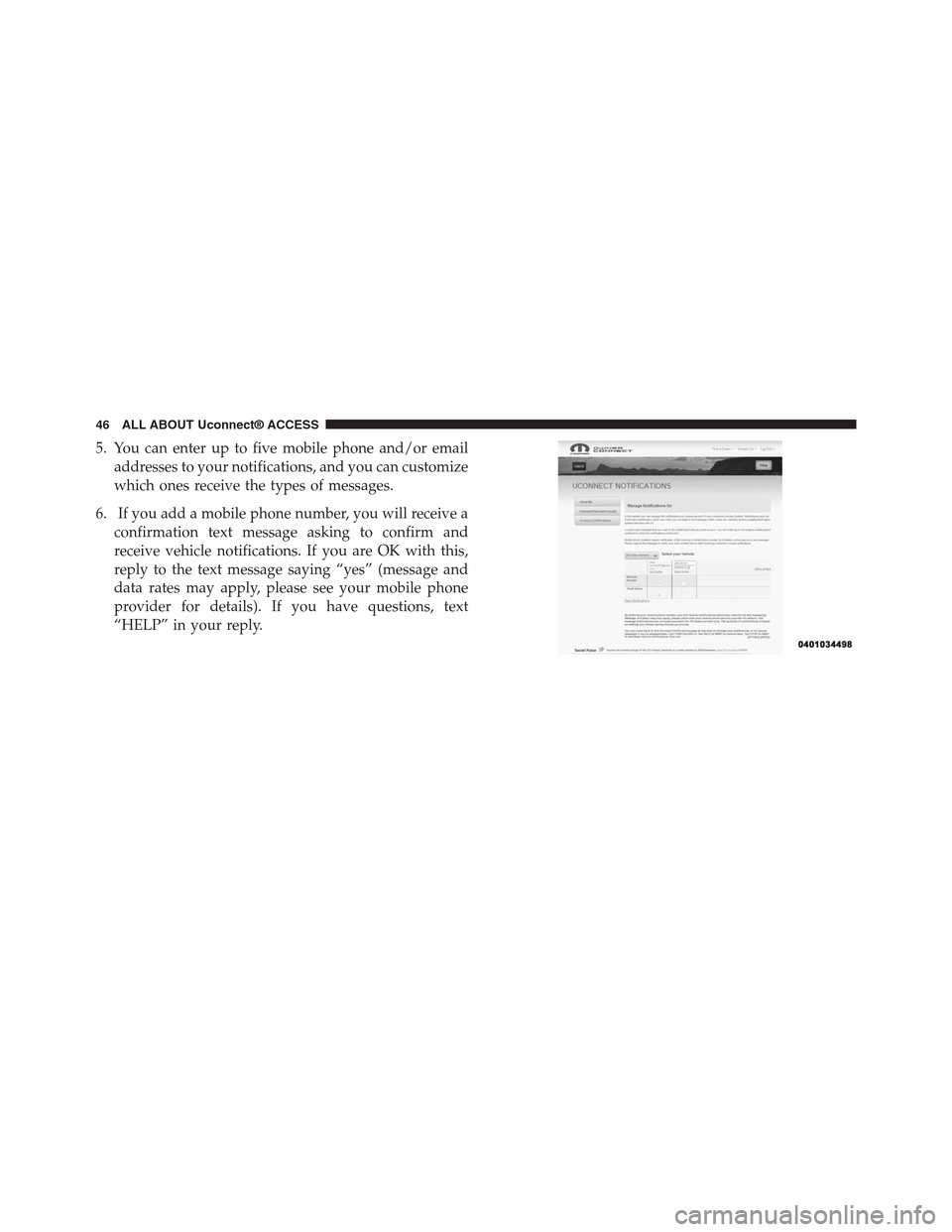
5. You can enter up to five mobile phone and/or email
addresses to your notifications, and you can customize
which ones receive the types of messages.
6. If you add a mobile phone number, you will receive a
confirmation text message asking to confirm and
receive vehicle notifications. If you are OK with this,
reply to the text message saying “yes” (message and
data rates may apply, please see your mobile phone
provider for details). If you have questions, text
“HELP” in your reply.
46 ALL ABOUT Uconnect® ACCESS
Page 48 of 429
USING Uconnect® ACCESS
Getting Started With Apps
Applications (Apps for short) in your Uconnect® Access
system are designed to deliver the features and services
that you want. There are two basic categories:
•Built-In Apps— uses the built-in Cellular Network on
your Uconnect® 8.4A or 8.4AN radio.
•Uconnect® Access via Mobile (if equipped)— uses
the Uconnect® Access app and your smartphone’s
data plan to access your personal Pandora®, iHeart-
Radio, Aha™ and Slacker accounts from the vehicle
and control them using the vehicle touchscreen. Cus-
tomer’s data plan charges will apply.
Get started with your Uconnect® Access Apps by press-
ing the Uconnect® “Apps” button on the menu bar at the
bottom right corner of the in-vehicle touchscreen. Avail-
able Apps and features are organized by the tabs on the
left of the screen.
•Favorite Apps— this is the default screen when you
first press the “Apps” button on the touchscreen, and
is a good place to put the Apps you use most fre-
quently. To make an App a “favorite,” press the
“Settings” button on the touchscreen to the right of the
App and select “Make a favorite.”
•All Apps— all of your available Apps will reside in
the “All Apps” folder.
•Running Apps— press this tab to see which Apps are
currently running.
NOTE:Most Uconnect® Access features do not require
that you have a compatible Smartphone. The Uconnect®
2
ALL ABOUT Uconnect® ACCESS 47
Page 49 of 429
Access features work using the built-in cellular connec-
tion. Only Voice Texting the Uconnect® Access App and
Via Mobile Apps require a compatible smartphone to
work with your Uconnect® Access system.
9-1-1 Call
Access To Emergency Services At The Push Of A Button
Uconnect® Access In-Vehicle Assistance Features
With Uconnect® Access, your vehicle has on-board assis-
tance features located on the rear view mirror designed to
enhance your driving experience if you should ever need
assistance or support.
Description
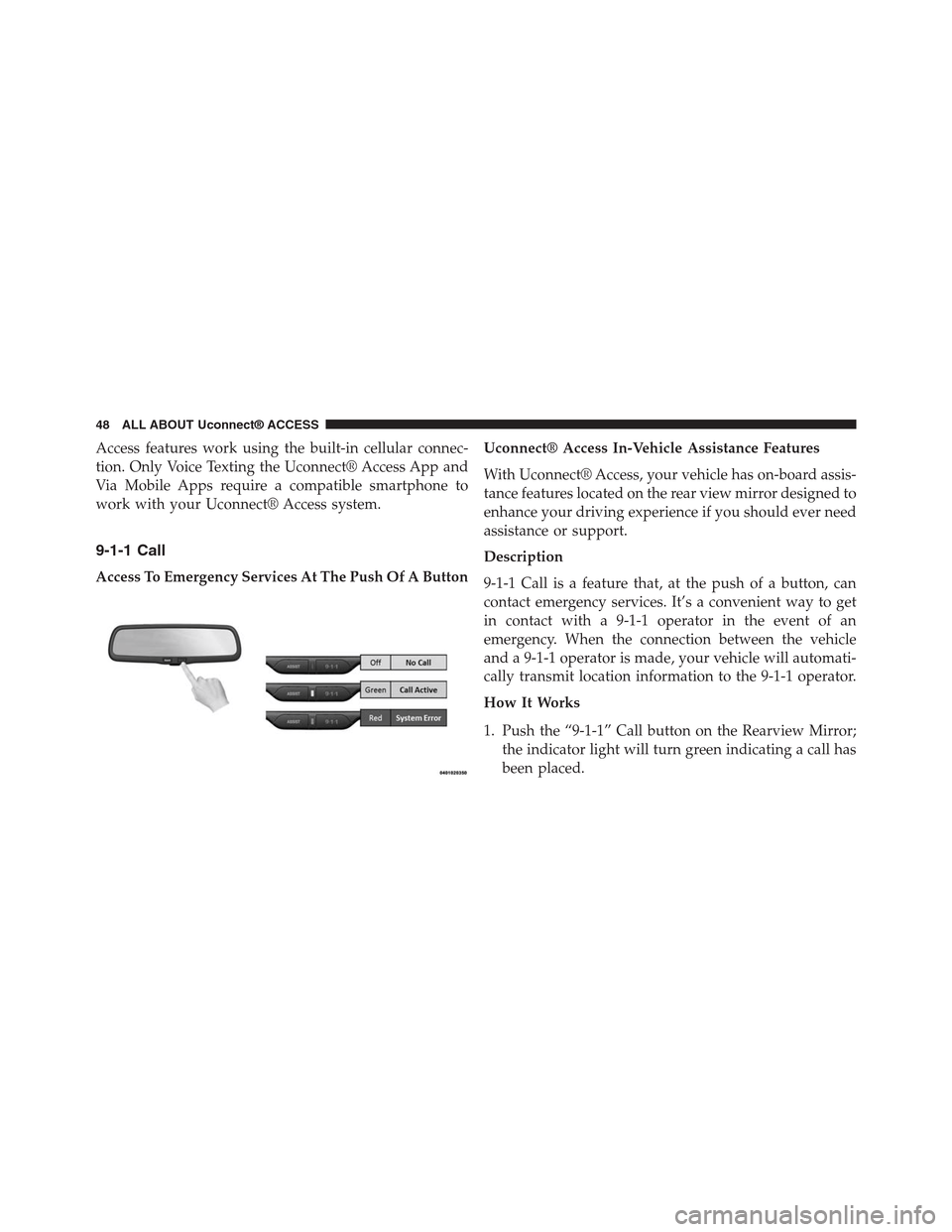
9-1-1 Call is a feature that, at the push of a button, can
contact emergency services. It’s a convenient way to get
in contact with a 9-1-1 operator in the event of an
emergency. When the connection between the vehicle
and a 9-1-1 operator is made, your vehicle will automati-
cally transmit location information to the 9-1-1 operator.
How It Works
1. Push the “9-1-1” Call button on the Rearview Mirror;
the indicator light will turn green indicating a call has
been placed.
48 ALL ABOUT Uconnect® ACCESS
Page 50 of 429
NOTE:In case the “9-1-1” Call button is accidentally
pushed, there is a 10 second delay before the 9-1-1 call is
placed. The system will verbally alert you that a call is
about to be made. To cancel the 9-1-1 Call connection,
push the “9-1-1” Call button on the Rearview Mirror or
press the “Cancellation” button on the Phone Screen.
2. Once a connection between the vehicle and a 9-1-1
operator is made, the 9-1-1 Call system will transmit
the following important vehicle information to a 9-1-1
operator:
•Indication that the occupant placed a 9-1-1 Call.
•The vehicle brand.
•The last known GPS coordinates of the vehicle.
3. You should be able to speak with the 9-1-1 operator
through the vehicle audio system to determine if
additional help is needed.
If a connection is made between a 9-1-1 operator and
your vehicle, you understand and agree that 9-1-1 opera-
tors may, like any other 9-1-1 call, record conversations
and sounds in and near your vehicle upon connection.
9-1-1 Call System Limitations
Vehicles sold in Canada and MexicoDO NOThave 9-1-1
Call system capabilities. 9-1-1 or other emergency line
operators in Canada and Mexico may not answer or
respond to 9-1-1 system calls. If the 9-1-1 Call system
detects a malfunction, any of the following may occur at
the time the malfunction is detected.
•The Rearview Mirror light will continuously be illu-
minated red.
•The screen will display the following message “Vehicle
phone requires service. Please contact your dealer.”
•An In-Vehicle Audio message will state “Vehicle phone
requires service. Please contact your dealer.”
2
ALL ABOUT Uconnect® ACCESS 49
Page 56 of 429
Requirements
•This feature is available only on vehicles sold in the
US.
•Vehicle must be properly equipped with the
Uconnect® Access System.
•Vehicle must be in range of a usable and authorized
cellular signal.
•Vehicle must be registered with Uconnect® Access and
have an active subscription that includes the appli-
cable feature or App.
•Vehicle must be powered in the ON/RUN or ACC
(Accessory) position with a properly functioning elec-
trical system.
Disclaimers
If Roadside Assistance is provided to your vehicle, you
agree to be responsible for any additional roadside
assistance service costs that you may incur. In order to
provide Uconnect® Services to you, we may record and
monitor your conversations with Roadside Assistance,
Uconnect® Care or Vehicle Care, whether such conver-
sations are initiated through the Uconnect® Services in
your vehicle, or via a landline or mobile telephone, and
may share information obtained through such recording
and monitoring in accordance with regulatory require-
ments. You acknowledge, agree and consent to any
recording, monitoring or sharing of information obtained
through any such call recordings.
2
ALL ABOUT Uconnect® ACCESS 55
Page 57 of 429
FAQs
1.What Is The Phone Number For Roadside Assis-
tance?The phone number is 800-521-2779.
NOTE:Some Apps are suspended while an Assist call is
active
2.If I Am Subscribed To Uconnect® Access, Does It
Cover Towing Or Other Expenses Incurred By Using
Chrysler Roadside Assistance?No, however your
new vehicle may include Roadside Assistance ser-
vices.
Yelp®
Looking for a burrito joint that is open? A boutique to
buy a new pair of jeans? Yelp® is here to help. Use Yelp®
to search for places to eat, shop, relax and play.
Description
Yelp® is a familiar, widely used website and mobile app
that connects people to great local businesses. Now with
Uconnect® Access, Yelp® has been adapted for your
vehicle, and on the go capability. Yelp® gives you the
ability to search for a Point of Interest (POI) or desired
destination using either pre-defined search categories, or
custom searches, using keywords like “tacos.” Searching
can be done by voice recognition or by using the touch-
screen keypad.
Here is what Yelp® can do for you while you are on the
road:
•Deliver a list of up to 20 results, prioritizing by best
match, by distance or rating.
•Provide up-to-date search listings (pulling the latest
information from the cloud).
56 ALL ABOUT Uconnect® ACCESS
Page 58 of 429
•The live and local search engine will scan 12 categories
and millions of POIs to provide drivers with a local
guide for real word-of-mouth recommendations.
•With one press, select from the list to find location
address, phone number, user ratings, hours of opera-
tion (if available) and price ratings (if available).
•The ability to call the selected POI directly (a phone
must be paired via Bluetooth®), or have the address
immediately sent to the navigation system for routing
(if equipped).
How It Works
1.Using the touchscreen, launch Yelp® by pressing
Apps > All Apps > Yelp®.
OR
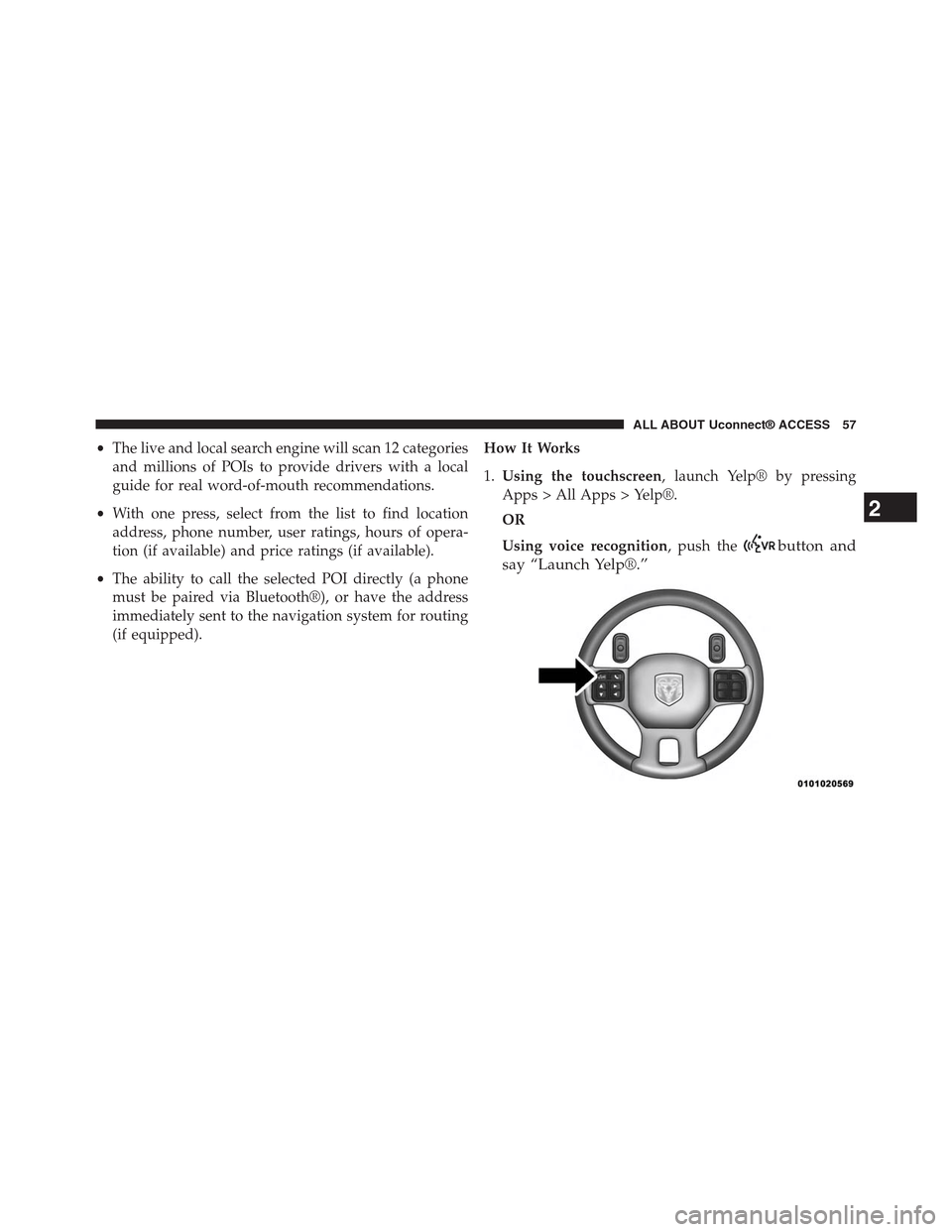
Using voice recognition, push thebutton and
say “Launch Yelp®.”
2
ALL ABOUT Uconnect® ACCESS 57
Page 62 of 429
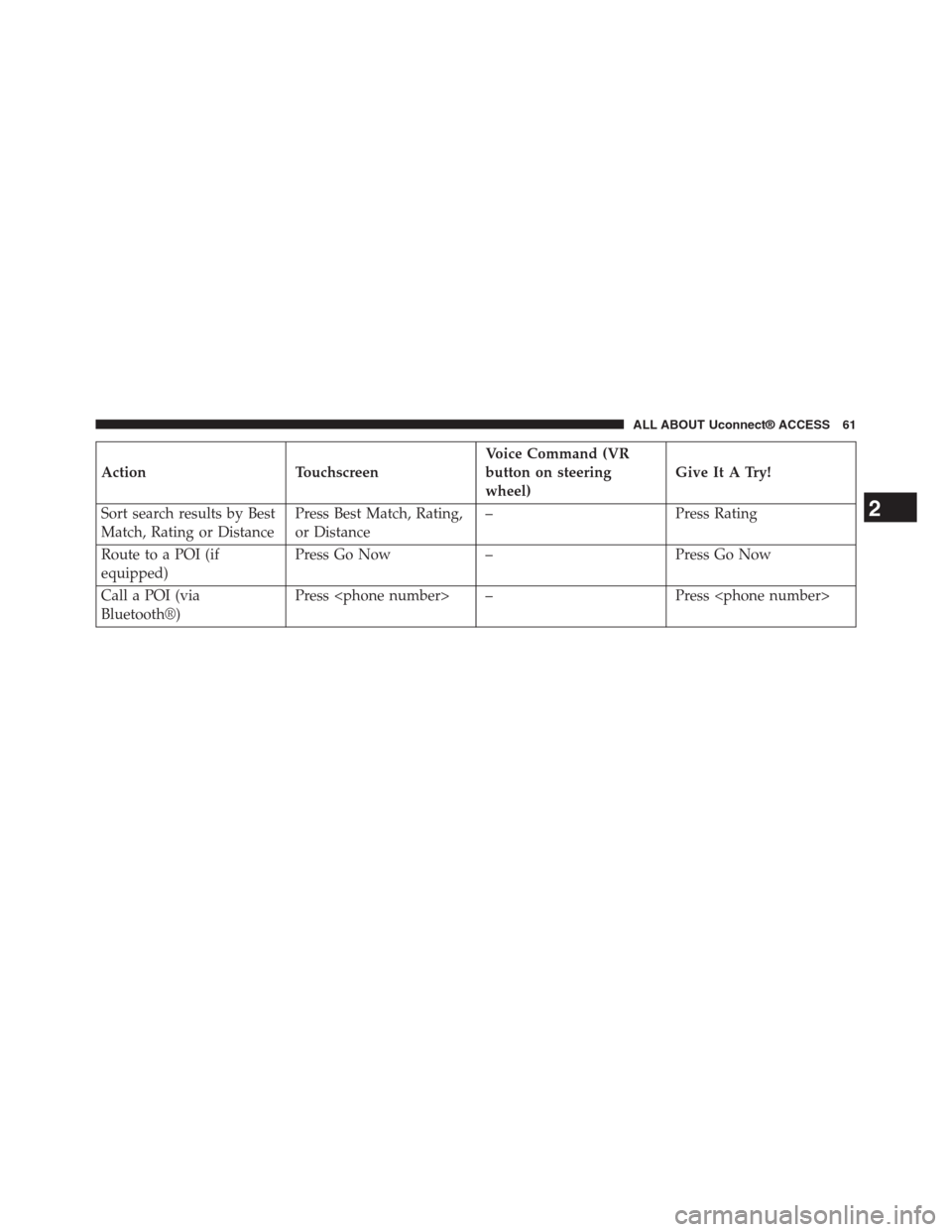
Action Touchscreen
Voice Command (VR
button on steering
wheel)
Give It A Try!
Sort search results by Best
Match, Rating or Distance
Press Best Match, Rating,
or Distance
– Press Rating
Route to a POI (if
equipped)
Press Go Now – Press Go Now
Call a POI (via
Bluetooth®)
Press
2
ALL ABOUT Uconnect® ACCESS 61
Page 64 of 429
Safety Information
WARNING!
•ALWAYS drive safely with your hands on the
steering wheel. You have full responsibility and
assume all risks related to the use of the Uconnect®
features and applications in this vehicle. Only use
Uconnect® when it is safe to do so. Failure to do so
may result in an accident involving serious injury
or death.
•It is not possible to use some of the touchscreen
features while the vehicle is in motion (e.g. key
pad).
Tips And Shortcuts
•To improve your search results, use single search terms
like “coffee” rather than multiple words, which may
deliver mixed results, for example, “home improve-
ment and gardening stores.”
•Press the “microphone” on the touchscreen to use
voice commands.
•If you wish to cancel a search request, press “Cancel.”
•To learn more about a listing, press the line that
appears on the display details such as the address,
phone number and hours of operation (if applicable).
•Sort results by Best Match, Rating or Distance (default
is Best Match).
•The Rating tab will re-sort your search based on
ratings submitted by everyday users to Yelp®’s online
database.
2
ALL ABOUT Uconnect® ACCESS 63
Page 65 of 429
•Distance will sort by the closest POI near you.
•To bypass the voice prompts hit thebutton a
second time to barge in and state your desired
command.
•To exit Yelp®, press the “X” (close) button in the upper
right corner of the touchscreen.
FAQs
1.Is there a Help menu within the Yelp® App?No, but
you may Push the ASSIST button and select
Uconnect® Care to ask for help.
2.Will Yelp® allow me to route directly to my desired
search result?Yes, by selectingGo Now. A factory or
dealer-installed Uconnect® navigation system is re-
quired.
3.Will Yelp® allow me to make a phone call to my
desired search result?Yes. Phone must be paired and
connected.
4.How many search results does Yelp® generate at a
time?Maximum of 20 listings.
5.How do I select my final desired location?Make your
final selection by pressing the desired POI name in
your search result list. Voice recognition is not sup-
ported for the final POI selection.
6.Can I conduct a search using a phone number?The
ability to search Yelp® by phone number is not
currently available.
64 ALL ABOUT Uconnect® ACCESS