change time DODGE DURANGO 2020 Workshop Manual
[x] Cancel search | Manufacturer: DODGE, Model Year: 2020, Model line: DURANGO, Model: DODGE DURANGO 2020Pages: 464, PDF Size: 22.14 MB
Page 411 of 464
MULTIMEDIA409
Uconnect works seamlessly with Apple
CarPlay®, the smarter, more secure way to use
your iPhone® in the car, and stay focused on
the road. Use your Uconnect Touchscreen
display, the vehicle's knobs and controls, and
your voice with Siri to get access to Apple
Music®, Maps, Messages, and more.
To use Apple CarPlay®, make sure you are
using iPhone® 5 or later, have Siri enabled in
Settings, ensure your iPhone® is unlocked for
the very first connection only, and then use the
following procedure:
1. Connect your iPhone® to one of the media
USB ports in your vehicle.
NOTE:
Be sure to use the factory-provided Lightning
cable that came with your phone, as after -
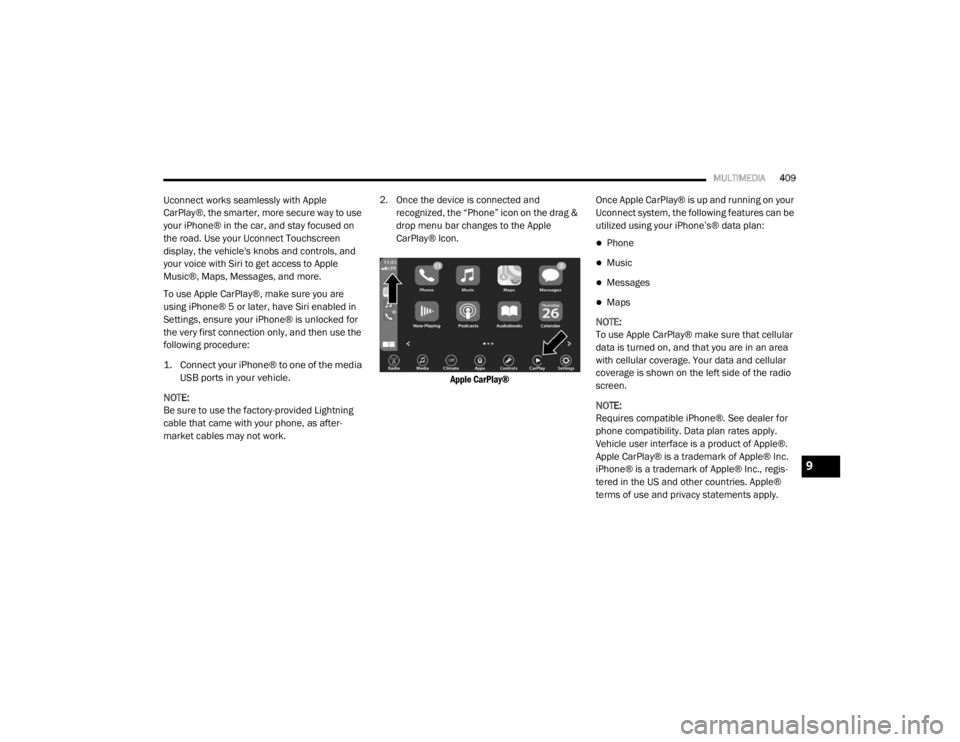
market cables may not work. 2. Once the device is connected and recognized, the “Phone” icon on the drag &
drop menu bar changes to the Apple
CarPlay® Icon.
Apple CarPlay®
Once Apple CarPlay® is up and running on your
Uconnect system, the following features can be
utilized using your iPhone’s® data plan:
Phone
Music
Messages
Maps
NOTE:
To use Apple CarPlay® make sure that cellular
data is turned on, and that you are in an area
with cellular coverage. Your data and cellular
coverage is shown on the left side of the radio
screen.
NOTE:
Requires compatible iPhone®. See dealer for
phone compatibility. Data plan rates apply.
Vehicle user interface is a product of Apple®.
Apple CarPlay® is a trademark of Apple® Inc.
iPhone® is a trademark of Apple® Inc., regis -
tered in the US and other countries. Apple®
terms of use and privacy statements apply.
9
20_WD_OM_EN_USC_t.book Page 409
Page 413 of 464
MULTIMEDIA411
Android Auto™ Automatic Bluetooth® Pairing
After connecting to Android Auto™ for the first
time and undergoing the setup procedure, the
smartphone will automatically pair to the
Uconnect system via Bluetooth® without any
setup required every time it is within range, if
Bluetooth® is turned on.
NOTE:
Android Auto™ features cannot be used with
Bluetooth®, a USB connection is required for its
use. Android Auto™ uses both Bluetooth® and
USB connections to function, and the
connected device will be unavailable to other
devices when connected using Android Auto™.
Multiple Devices Connecting To The Uconnect
System
It is possible to have multiple devices
connected to the Uconnect system. For
example, if using Android Auto™/Apple
CarPlay®, the connected device will be the one
that will be used to place hands-free phone calls
or send hands-free text messages. However,
another device can also be paired to the
Uconnect system, via Bluetooth®, as an audio
source, so the passenger can stream music. NOTE:
If using a Samsung device, every time it is
connected to a media USB, and there is
another device plugged in, you will need to
manually change the configuration of the
USB connection in order for the Samsung
device to send data.
The Uconnect 4 built-in media functions will
be unavailable when Android Auto™/Apple
CarPlay® are in use.
PHONE MODE
Overview
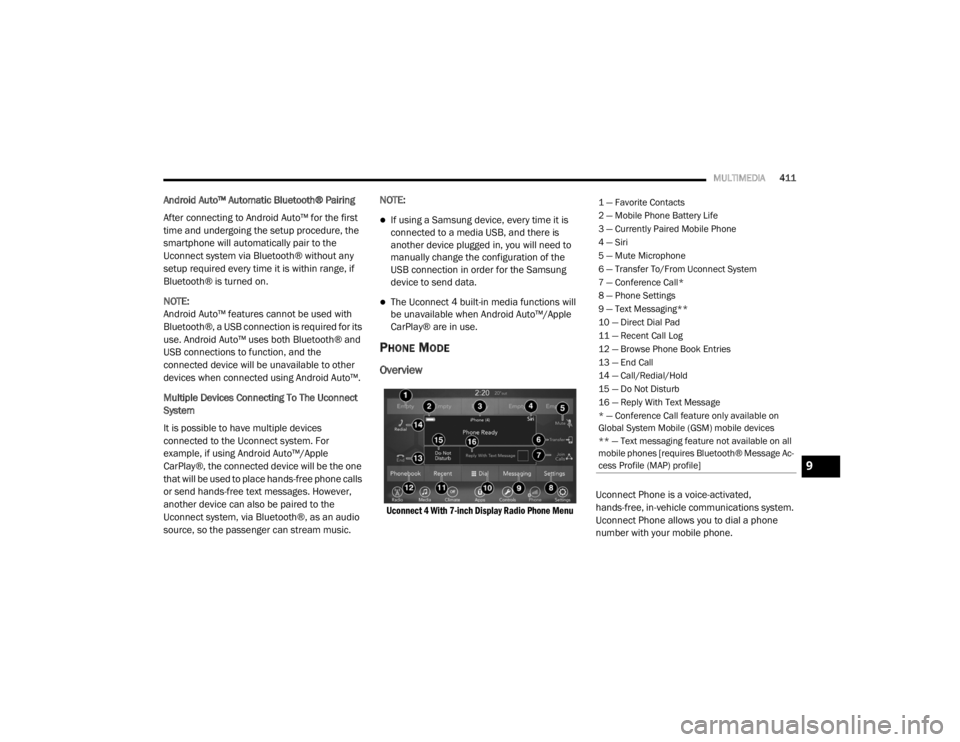
Uconnect 4 With 7-inch Display Radio Phone Menu
Uconnect Phone is a voice-activated,
hands-free, in-vehicle communications system.
Uconnect Phone allows you to dial a phone
number with your mobile phone.
1 — Favorite Contacts
2 — Mobile Phone Battery Life
3 — Currently Paired Mobile Phone
4 — Siri
5 — Mute Microphone
6 — Transfer To/From Uconnect System
7 — Conference Call*
8 — Phone Settings
9 — Text Messaging**
10 — Direct Dial Pad
11 — Recent Call Log
12 — Browse Phone Book Entries
13 — End Call
14 — Call/Redial/Hold
15 — Do Not Disturb
16 — Reply With Text Message
* — Conference Call feature only available on
Global System Mobile (GSM) mobile devices
** — Text messaging feature not available on all
mobile phones [requires Bluetooth® Message Ac
-
cess Profile (MAP) profile]
9
20_WD_OM_EN_USC_t.book Page 411
Page 418 of 464

416MULTIMEDIA
Pair Additional Mobile Phones
1. Press the Phone Settings button on the
touchscreen from the Phone main screen.
2. Press the Add Device button on the touchscreen.
3. Search for available devices on your Bluetooth®-enabled mobile phone. When
prompted on the phone, enter the name
and PIN shown on the Uconnect screen.
4. Uconnect Phone will display an in process screen while the system is connecting.
5. When the pairing process has successfully completed, the system will prompt you to
choose whether or not this is your favorite
phone. Selecting “Yes” will make this phone
the highest priority. This phone will take
precedence over other paired phones within
range.
NOTE:
For phones which are not made a favorite, the
phone priority is determined by the order in
which it was paired. The latest phone paired will
have the higher priority. You can also use the following VR commands to
bring up the Paired Phone screen from any
screen on the radio:
“Show Paired Phones” or
“Connect My Phone”
Pair A Bluetooth® Streaming Audio Device
1. Press the Media button on the touchscreen to begin.
2. Change the Source to Bluetooth®.
3. Press the Bluetooth® button on the touchscreen to display the Paired Audio
Devices screen.
4. Press the Add Device button on the touchscreen.
NOTE:
If there is no device currently connected with
the system, a pop-up will appear.
5. Search for available devices on your Bluetooth®-enabled audio device. When
prompted on the device, enter the PIN
shown on the Uconnect screen. 6. Uconnect Phone will display an in process
screen while the system is connecting.
7. When the pairing process has successfully completed, the system will prompt you to
choose whether or not this is your favorite
device. Selecting “Yes” will make this device
the highest priority. This device will take
precedence over other paired devices
within range.
NOTE:
For devices which are not made a favorite, the
device priority is determined by the order in
which it was paired. The latest device paired will
have the higher priority.
You can also use a following VR command to
bring up a list of paired audio devices:
“Show Paired Phones” or
“Connect My Phone”
20_WD_OM_EN_USC_t.book Page 416
Page 420 of 464
418MULTIMEDIA
See Uconnect website, UconnectPhone.com,
for supported phones.
To call a name from a downloaded mobile
phone book, follow the procedure in the
“Uconnect Voice Recognition Quick Tips”
section.
Automatic download and update of a phone
book, if supported, begins as soon as the
Bluetooth® wireless phone connection is
made to the Uconnect Phone, for example,
after you start the vehicle.
A maximum of 5,000 contact names with
four numbers per contact will be downloaded
and updated every time a phone is
connected to the Uconnect Phone.
Depending on the maximum number of
entries downloaded, there may be a short
delay before the latest downloaded names
can be used. Until then, if available, the previ -
ously downloaded phonebook is available for
use.
Only the phonebook of the currently
connected mobile phone is accessible.
This downloaded phonebook cannot be
edited or deleted on the Uconnect Phone.
These can only be edited on the mobile
phone. The changes are transferred and
updated to Uconnect Phone on the next
phone connection.
Managing Your Favorites
There are two ways you can add an entry to your
Favorites.
1. After loading the mobile phonebook, press the Favorites button on the touchscreen,
and then press one of the +Add favorite
Contact buttons that appears on the list.
2. After loading the mobile phonebook, select Contacts from the Phone main screen, and
then select the appropriate number. Press
the down arrow symbol button next to the
selected number to display the options
pop-up. In the pop-up select Add to
Favorites.
NOTE:
If the Favorites list is full, you will be asked to
remove an existing favorite. To Remove A Favorite
1. To remove a Favorite, select “Favorites”
from the Phone main screen.
2. Next select the down arrow icon next to the contact you want to remove from your
favorites. This will bring up the options for
that favorite contact.
3. Press “Remove from Favs”.
Phone Call Features
The following features can be accessed through
the Uconnect Phone if the feature(s) are
available and supported by Bluetooth® on your
mobile service plan. For example, if your mobile
service plan provides three-way calling, this
feature can be accessed through the Uconnect
Phone. Check with your mobile service provider
for the features that you have.
20_WD_OM_EN_USC_t.book Page 418
Page 423 of 464
MULTIMEDIA421
Making A Second Call While Current Call Is In
Progress
You can place a call on hold by pressing the
Hold button on the Phone main screen, then
dial a number from the dialpad, recent calls,
SMS Inbox or from the phonebooks. To go back
to the first call, refer to “Toggling Between Calls”
in this section. To combine two calls, refer to
“Join Calls” in this section.
Toggling Between Calls
If two calls are in progress (one active and one
on hold), press the Swap button on the Phone
main screen. Only one call can be placed on
hold at a time.
You can also press the Phone button on the
touchscreen to toggle between the active and
held phone call.
Join Calls
When two calls are in progress (one active and
one on hold), press the Join Calls button on the
Phone main screen to combine all calls into a
Conference Call. Call Termination
To end a call in progress, momentarily press the
Phone End button on the touchscreen or push
the Phone End button on the steering wheel.
Only the active call(s) will be terminated and if
there is a call on hold, it will become the new
active call.
Redial
Press the Redial button on the touchscreen, or
push the VR button and after the “Listening”
prompt and the following beep, say “Redial.”
The Uconnect Phone will call the last number
that was dialed from your mobile phone.
Call Continuation
Call continuation is the progression of a phone
call on the Uconnect Phone after the vehicle
ignition has been switched to OFF.
NOTE:
The call will remain within the vehicle audio
system until the phone becomes out of range
for the Bluetooth® connection. It is recom
-mended to press the Transfer button on the
touchscreen when leaving the vehicle.
Browsing SMS
Using the steering wheel commands, you can
view and manage the last 10 SMS messages
received on the instrument panel. To use this
function, the mobile phone must support the
SMS exchange function through Bluetooth®.
Select the PHONE button on the instrument
panel menu, and then select “SMS Reader”
using the arrow keys on the steering wheel
controls.
The “SMS Reader” submenu allows the last 10
SMS messages to be displayed.
Advanced Phone Connectivity
Transfer Call To And From Mobile Phone
The Uconnect Phone allows ongoing calls to be
transferred from your mobile phone to the
Uconnect Phone without terminating the call. To
transfer an ongoing call from your connected
mobile phone to the Uconnect Phone or vice
versa, press the Transfer button on the Phone
main screen.
9
20_WD_OM_EN_USC_t.book Page 421
Page 425 of 464
MULTIMEDIA423
Performance such as audio clarity, echo, and
loudness to a large degree rely on the phone
and network, and not the Uconnect Phone.
Echo at the far end can sometimes be reduced
by lowering the in-vehicle audio volume.
Bluetooth® Communication Link
Mobile phones have been found to lose
connection to the Uconnect Phone. When this
happens, the connection can generally be
re-established by switching the mobile phone
OFF/ON. Your mobile phone is recommended to
remain in Bluetooth® ON mode.
Power-Up
After switching the ignition key from OFF to
either the ON/RUN or ACC position, or after a
language change, you must wait at least
15 seconds prior to using the system.
STEERING WHEEL AUDIO CONTROLS
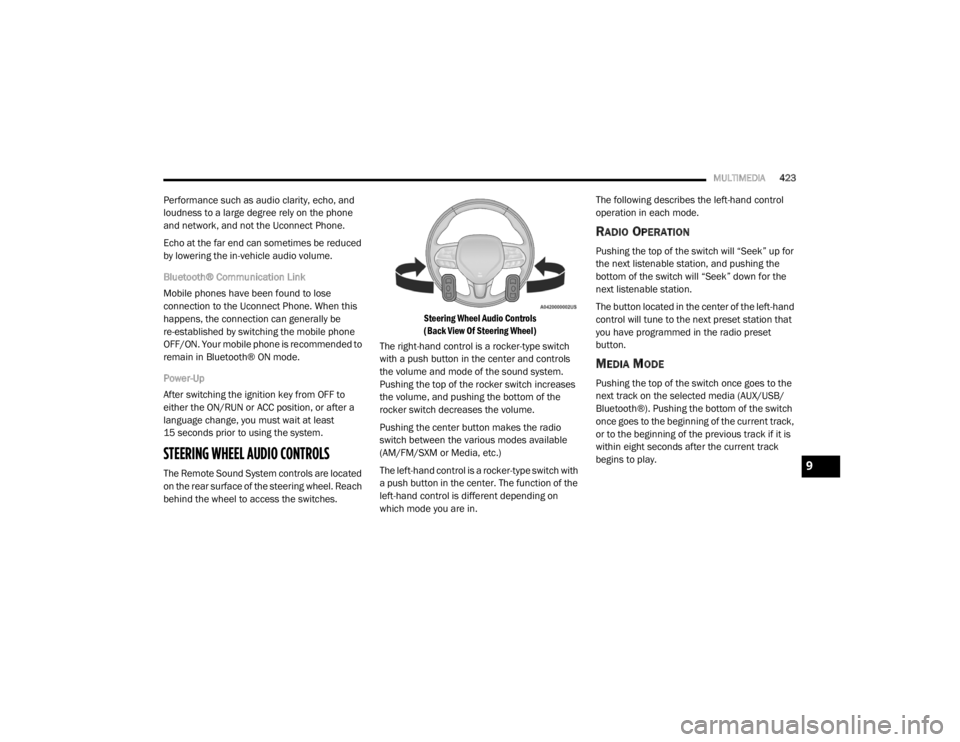
The Remote Sound System controls are located
on the rear surface of the steering wheel. Reach
behind the wheel to access the switches.
Steering Wheel Audio Controls
(Back View Of Steering Wheel)
The right-hand control is a rocker-type switch
with a push button in the center and controls
the volume and mode of the sound system.
Pushing the top of the rocker switch increases
the volume, and pushing the bottom of the
rocker switch decreases the volume.
Pushing the center button makes the radio
switch between the various modes available
(AM/FM/SXM or Media, etc.)
The left-hand control is a rocker-type switch with
a push button in the center. The function of the
left-hand control is different depending on
which mode you are in. The following describes the left-hand control
operation in each mode.
RADIO OPERATION
Pushing the top of the switch will “Seek” up for
the next listenable station, and pushing the
bottom of the switch will “Seek” down for the
next listenable station.
The button located in the center of the left-hand
control will tune to the next preset station that
you have programmed in the radio preset
button.
MEDIA MODE
Pushing the top of the switch once goes to the
next track on the selected media (AUX/USB/
Bluetooth®). Pushing the bottom of the switch
once goes to the beginning of the current track,
or to the beginning of the previous track if it is
within eight seconds after the current track
begins to play.
9
20_WD_OM_EN_USC_t.book Page 423
Page 430 of 464
428MULTIMEDIA
6. Radio Full Screen Mode
Select this button to change to Full Screen
Mode.
7. Cabin Audio Mode Select this button to change the cabin audio
to the rear entertainment source currently
shown on the rear media control screen.
8. RSE Mode Select this button to change the source for
the active (highlighted) rear Screen/Chan -
nel on the rear media control screen.
Press the Media button on the touchscreen,
and then press the rear media button on the
touchscreen.
Press the OK button on the touchscreen to
begin playing the Blu-ray™ disc on the touch -
screen radio.
Using The Remote Control
Select an audio channel (Rear 1 for driver’s
side rear screen and Rear 2 for passenger’s
side rear screen), and then press the source
key. Using the Up and Down arrows, highlight
disc from the menu and press the OK button.
Press the POPUP/MENU key to navigate the
disc menu and options.
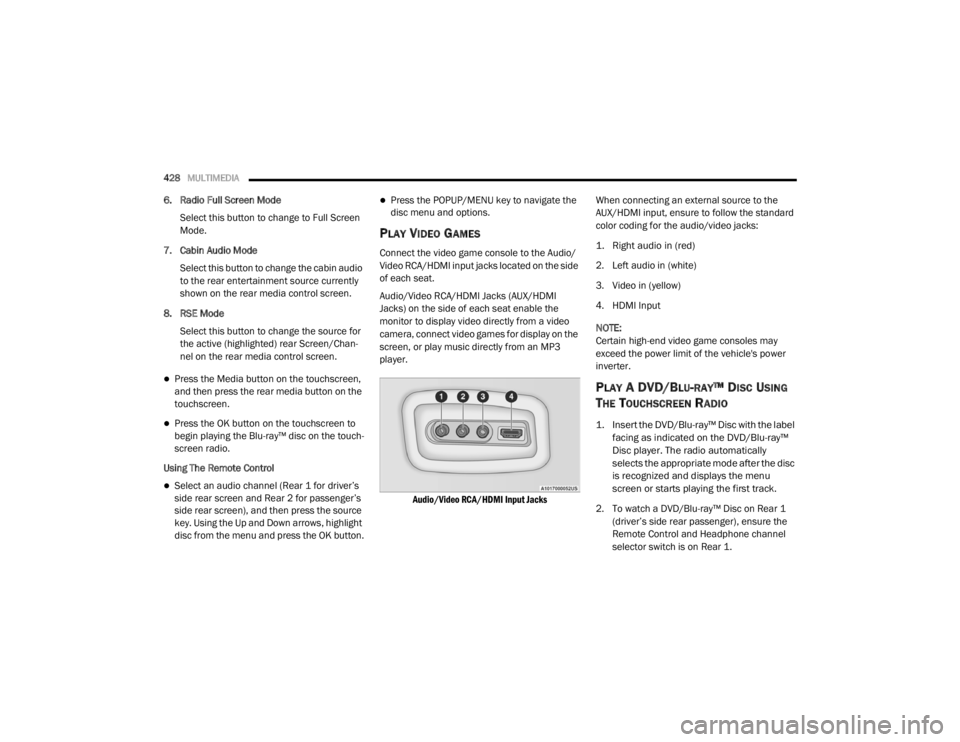
PLAY VIDEO GAMES
Connect the video game console to the Audio/
Video RCA/HDMI input jacks located on the side
of each seat.
Audio/Video RCA/HDMI Jacks (AUX/HDMI
Jacks) on the side of each seat enable the
monitor to display video directly from a video
camera, connect video games for display on the
screen, or play music directly from an MP3
player.
Audio/Video RCA/HDMI Input Jacks
When connecting an external source to the
AUX/HDMI input, ensure to follow the standard
color coding for the audio/video jacks:
1. Right audio in (red)
2. Left audio in (white)
3. Video in (yellow)
4. HDMI Input
NOTE:
Certain high-end video game consoles may
exceed the power limit of the vehicle's power
inverter.
PLAY A DVD/BLU-RAY™ DISC USING
T
HE TOUCHSCREEN RADIO
1. Insert the DVD/Blu-ray™ Disc with the label
facing as indicated on the DVD/Blu-ray™
Disc player. The radio automatically
selects the appropriate mode after the disc
is recognized and displays the menu
screen or starts playing the first track.
2. To watch a DVD/Blu-ray™ Disc on Rear 1 (driver’s side rear passenger), ensure the
Remote Control and Headphone channel
selector switch is on Rear 1.
20_WD_OM_EN_USC_t.book Page 428
Page 435 of 464
MULTIMEDIA433
Foam earpieces, which will wear over time
through normal use, are specifically not covered
(replacement foam is available for a nominal
charge). APTIV IS NOT LIABLE FOR ANY
INJURIES OR DAMAGES TO PERSONS OR
PROPERTY RESULTING FROM THE USE OF, OR
ANY FAILURE OR DEFECT IN, THE PRODUCT,
NOR IS APTIV LIABLE FOR ANY GENERAL,
SPECIAL, DIRECT, INDIRECT, INCIDENTAL,
CONSEQUENTIAL, EXEMPLARY, PUNITIVE OR
OTHER DAMAGES OF ANY KIND OR NATURE
WHATSOEVER. Some states and jurisdictions
may not allow the exclusion or limitation of
incidental or consequential damages, so the
above limitation may not apply to you. This
warranty gives you specific legal rights. You may
also have other rights, which vary from
jurisdiction to jurisdiction.
What Will Aptiv Do? Aptiv, at its option, will
repair or replace any defective Product. Aptiv
reserves the right to replace any discontinued
Product with a comparable model. THIS
WARRANTY IS THE SOLE WARRANTY FOR THIS
PRODUCT, SETS FORTH YOUR EXCLUSIVE
REMEDY REGARDING DEFECTIVE PRODUCTS,
AND IS IN LIEU OF ALL OTHER WARRANTIES
(EXPRESS OR IMPLIED), INCLUDING ANY WARRANTY FOR MERCHANTABILITY OR
FITNESS FOR A PARTICULAR PURPOSE.
If you have any questions or comments
regarding your Aptiv wireless headphones,
please email [email protected] or phone:
888-293-3332
System Information
Disc Menu
When listening to a CD Audio or CD Data disc,
pushing the remote control’s POPUP/MENU
button displays a list of all commands which
control playback of the disc.
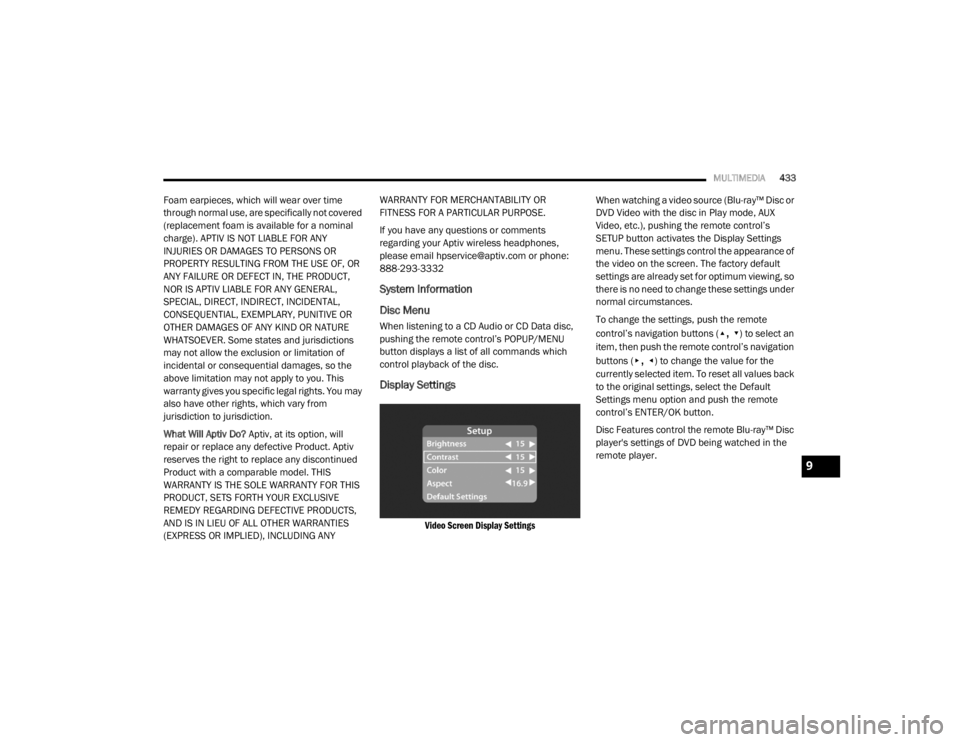
Display Settings
Video Screen Display Settings
When watching a video source (Blu-ray™ Disc or
DVD Video with the disc in Play mode, AUX
Video, etc.), pushing the remote control’s
SETUP button activates the Display Settings
menu. These settings control the appearance of
the video on the screen. The factory default
settings are already set for optimum viewing, so
there is no need to change these settings under
normal circumstances.
To change the settings, push the remote
control’s navigation buttons (
▴, ▾) to select an
item, then push the remote control’s navigation
buttons (
▸, ◂) to change the value for the
currently selected item. To reset all values back
to the original settings, select the Default
Settings menu option and push the remote
control’s ENTER/OK button.
Disc Features control the remote Blu-ray™ Disc
player's settings of DVD being watched in the
remote player.
9
20_WD_OM_EN_USC_t.book Page 433
Page 436 of 464

434MULTIMEDIA
Listening To Audio With The Screen Closed
To listen to only audio portion of the channel
with the screen closed:
Set the audio to the desired source and
channel.
Close the video screen.
To change the current audio mode, push the
remote control’s SOURCE button. This will
automatically select the next available audio
mode without using the Mode/Source Select
menu.
When the screen is reopened, the video
screen will automatically turn back on and
show the appropriate display menu or media.
If the screen is closed and there is no audio
heard, verify that the headphones are turned on
(the ON indicator is illuminated) and the
headphone selector switch is on the desired
channel. If the headphones are turned on, push
the remote control’s power button to turn audio
on. If audio is still not heard, check that fully
charged batteries are installed in the
headphones.
Disc Formats
The Blu-ray™ Disc player is capable of playing
the following types of 4.7-inch (12 centimeter)
diameter discs:
BD: BDMV (Profile 1.1), BDAV (Profile 1.1)
DVD: DVD-Video, DVD-Audio, AVCREC,
AVCHD, DVD-VR
CD: CD-DA, VCD, CD-TEXT
DVD/CD: MP3, WMA, AAC, DivX (versions 3 –
6) profile 3.0
DVD Region Codes
The Blu-ray™ Disc player and many DVD discs
are coded by geographic region. These region
codes must match in order for the disc to play.
If the region code for the DVD disc does not
match the region code for the player, the disc
will not play.
DVD Audio Support
When a DVD-Audio disc is inserted in the
Blu-ray™ Disc player, the DVD-Audio title on the
disc is played by default (most DVD-Audio discs
also have a Video title, but the Video title is
ignored). All multi-channel program material is
automatically mixed down to two channels,
which may result in a lowered apparent volume
level. If you increase the volume level to
account for this change in level, remember to
lower the volume before changing the disc or to
another mode.
Recorded Discs
The Blu-ray™ Disc player will play CD-R and
CD-RW discs recorded in CD-Audio or Video-CD
format, or as a CD-ROM containing MP3 or WMA
files. The player will also play DVD-Video content
recorded to a DVD-R or DVD-RW disc. DVD-ROM
discs (either pressed or recorded) are not
supported.
If you record a disc using a personal computer,
there may be cases where the Blu-ray™ Disc
player may not be able to play some or the
entire disc, even if it is recorded in a compatible
format and is playable on other players.
20_WD_OM_EN_USC_t.book Page 434
Page 437 of 464

MULTIMEDIA435
To help avoid playback problems, use the
following guidelines when recording discs:
Open sessions are ignored. Only sessions
that are closed are playable.
For multi-session CDs that contain only
multiple CD-Audio sessions, the player will
renumber the tracks so each track number is
unique.
For CD Data (or CD-ROM) discs, always use
the ISO-9660 (Level 1 or Level 2), Joliet, or
Romeo format. Other formats (such as UDF,
HFS, or others) are not supported.
The player recognizes a maximum of 512
files and 99 folders per CD-R and CD-RW
disc.
Mixed media recordable DVD formats will
only play the Video_TS portion of the disc.
If you are still having trouble writing a disc that
is playable in the Blu-ray™ Disc player, check
with the disc recording software publisher for
more information about burning playable discs.
The recommended method for labeling
recordable discs (CD-R, CD-RW, and DVD-R) is
with a permanent marker. Do not use adhesive labels as they may
separate from the disc, become stuck, and
cause permanent damage to the DVD player.
Compressed Audio Files (MP3 and WMA)
The Blu-ray™ Disc player is capable of playing
MP3 (MPEG-1 Audio Layer 3) and WMA
(Windows Media Audio) files from a CD Data
disc (usually a CD-R or CD-RW).
The Blu-ray™ Disc player always uses the file
extension to determine the audio format, so
MP3 files must always end with the extension
".mp3" or ".MP3" and WMA files must always
end with the extension ".wma" or ".WMA". To
prevent incorrect playback, do not use these
extensions for any other types of files.
For MP3 files, only version 1 ID3 tag data
(such as artist name, track title, album, etc.)
are supported.
Any file that is copy protected (such as those
downloaded from many online music stores)
will not play. The Blu-ray™ player will auto
-
matically skip the file and begin playing the
next available file.
Other compression formats such as AAC,
MP3 Pro, Ogg Vorbis, and ATRAC3 will not
play. The Blu-ray™ player will automatically
skip the file and begin playing the next avail -
able file.
If you are creating your own files, the recom -
mended fixed bit rate for MP3 files is
between 96 and 192 Kbps and the recom -
mended fixed bit rate for WMA files is
between 64 and 192Kbps. Variable bit rates
are also supported. For both formats, the
recommended sample rate is either 44.1 kHz
or 48 kHz.
To change the current file, use the remote
control’s or Blu-ray™ Disc player’s ? button to
advance to the next file, or the ? button to
return to the start of the current or previous
file.
Disc Errors
If the Blu-ray™ Disc player is unable to read the
disc, a "Disc Error" message is displayed on the
rear screen and Radio displays. A dirty,
damaged, or incompatible disc format are all
potential causes for a "Disc Error" message.
9
20_WD_OM_EN_USC_t.book Page 435