change time DODGE JOURNEY 2020 Workshop Manual
[x] Cancel search | Manufacturer: DODGE, Model Year: 2020, Model line: JOURNEY, Model: DODGE JOURNEY 2020Pages: 396, PDF Size: 25.53 MB
Page 357 of 396
MULTIMEDIA 355
SiriusXM® Travel Link brings a wealth of useful
information into your vehicle and right to your
fingertips:
Fuel Prices
Check detailed price information for fuel
stations near your current location.
Sort the list of closest fuel stations by price,
distance or alphabetically.
Route to selected fuel station.
Store a favorite fuel station for quick access
to pricing.
Movie Listings
Check which movies are playing at theaters
near your current location.
Sort the list of theaters by distance or alpha -
betically.
Show movie titles, start times, ratings, run
length, and summaries.
Store a favorite theater for quick access to
schedules. Ski Info
View ski and snowboarding conditions at ski
resorts.
Store a favorite location for quick access to
snow conditions.
Sports Scores
View scores and upcoming events for all
major sports.
Store your favorite teams for quick access to
the scores and schedules.
NOTE:
SiriusXM® Travel Link data services subscrip -
tion is separate from your SiriusXM® Satellite
R a
dio (audio) subscription.
SiriusXM® services require subscriptions, sold
s e
parately after the 12-month trial included
with the new vehicle purchase. If you decide to
continue your service at the end of your trial
subscription, the plan you choose will automatically renew and bill at then-current
rates until you call SiriusXM at 866-635-2349
to cancel.
See SiriusXM® Customer Agreement for
c
o
mplete terms for U.S. residents at
www.siriusxm.com , and Canadian residents at
www.siriusxm.ca . All fees and programming
subject to change. Our satellite service is
a v
ailable only to those at least 18 and older in
the 48 contiguous USA and D.C. Our Sirius
satellite service is also available in PR (with
coverage limitations). Our Internet radio service
is available throughout our satellite service area
and in AK and HI. © 2020 Sirius XM Radio Inc.
Sirius, XM and all related marks and logos are
trademarks of SiriusXM® Radio Inc.
Weather
View detailed current conditions at your
current location.
Check extended 12-hour and 5-day fore -
casts.
Store a favorite location for quick access to
weather conditions and forecasts.
CAUTION!
Neither SiriusXM nor FCA US LLC is
responsible for any errors in accuracies in the
SiriusXM data services or its use in vehicles.
9
Page 362 of 396
360 MULTIMEDIA
and sold anonymously in a form that does not
personally identify you. The collection and use
of this location information are described in
more detail in the privacy statement for the
Garmin® Product.
Disclaimer of Endorsement; Change of Content
Pr
oviders
Reference to any products, services, processes,
h y
pertext links to third parties or other Content
by trade name, trademark, manufacturer,
supplier or otherwise does not necessarily
constitute or imply its endorsement,
sponsorship or recommendation by Garmin® or
its licensors. Product and service information
are the sole responsibility of each individual
vendor. The HERE name and logo, the HERE
and HERE ON BOARD trademarks and logos,
and other trademarks and trade names owned
by HERE North America LLC may not be used in
any commercial manner without the prior
written consent of HERE. Content providers may
be changed by Garmin® during the term of this
Agreement, and your experience with the
Content provided by a new provider may not
duplicate your experience with the previous
Content supplier. Export Control
You agree not to export from anywhere any part
o f
the Content or any direct product thereof
except in compliance with and with all licenses
and approvals required under, applicable
export laws, rules and regulations.
Legal Compliance
You represent and warrant that (i) you are not
l o
cated in a country that is subject to a U.S.
Government embargo, or has been designated by
the U.S. Government as a “terrorist supporting”
country, and (ii) you are not listed on any U.S.
Government list of prohibited or restricted parties.
Indemnity
You agree to indemnify, defend and hold
G a
rmin® and its licensors, including the
respective licensors, service providers, channel
partners, suppliers, assignees, subsidiaries,
affiliated companies, and the respective
officers, directors, employees, shareholders,
agents and representatives of Garmin® and its
licensors, free and harmless from and against
any liability, loss, injury (including injuries
resulting in death), demand, action, cost,
expense, or claim of any kind or character,
including but not limited to attorney’s fees,
arising out of or in connection with any use or
possession by you of the Garmin® Products. Map Data
Use of the Map Data is subject to certain
r e
strictions and/or requirements imposed by
third party suppliers and/or governmental or
regulatory authorities as further set forth at
legal.here.com/en-gb/terms
Term
This Agreement is effective until such time as (i)
i f
applicable, your subscription term is either
terminated (by you or by Garmin®) or expires, or
(ii) Garmin® terminates this Agreement for any
reason, including, but not limited to, if Garmin®
finds that you have violated any of the terms of
this Agreement. In addition, this Agreement shall
terminate immediately upon the termination of
an agreement between Garmin® and any third
party from whom Garmin® (a) obtains services or
distribution necessary to support the Garmin®
Products, or (b) licenses Content. You agree,
upon termination, to destroy all copies of the
Content. The Disclaimers of Warranty and
Liability set out above shall continue in force
even after any termination.
Page 370 of 396
368 MULTIMEDIA
5.▸▸ – In radio modes, push to seek the
next tunable station. In disc modes, push
and hold to fast forward through the current
audio track or video chapter. In menu
modes use to navigate in the menu.
6.
▾ / Prev – In radio modes, push to select to
the previous station. In disc modes, push
to advance to the start of the current or
p r
evious audio track or video chapter.
In menu modes, use to navigate in the menu.
7. M ENU – Push to return to the main menu of
a
DVD disc, to select an audio or video
channel from the Station list, or select
playback modes (SCAN/RANDOM for a CD).
8.
▸ / ‖ (Play/Pause) – Begin/resume or
pause disc play.
9. (Stop) – Stops disc play. 10. P
ROG Up/Down – When listening to a radio
m
ode, pushing PROG Up selects the next
preset and pushing PROG Down selects the
previous preset stored in the radio.
11. Mute – Push to mute the headphone audio o
utput for the selected channel.
12. S LOW – Push to slow playback of a DVD
d
isc. Push play (
▸) to resume normal play.
13. S TATUS – Push to display the current
s
tatus.
14. M ODE – Push to change the mode of the
s
elected channel. See the Mode Selection
section of this manual for details on
changing modes.
15. BACK – When navigating in menu mode, p
ush to return to the previous screen. When
navigating a DVDs disc menu, the operation
depends on the disc’s contents. 16. S
ETUP – When in a video mode, push the
S
ETUP button to access the display settings
(see the display settings section) to access
the DVD setup menu, select the menu
button on the radio. When a disc is loaded
in the DVD player (if equipped) and the VES
mode is selected and the disc is stopped,
push the SETUP button to access the DVD
Setup menu.
17.
◂◂ – In radio modes, push to seek to the
previous tunable station. In disc modes,
push and hold to fast rewind through the
current audio track or video chapter. In
menu modes, use to navigate in the menu.
18. E NTER – Push to select the highlighted
o
ption in a menu.
19.
▴ / NEXT – In radio modes, push to select
to the next station. In disc modes, push to
advance to the next audio track or video
chapter. In menu modes, use to navigate in
the menu.
Page 374 of 396
372 MULTIMEDIA
What Will Aptiv Do?
Aptiv, at its option, will repair or replace any
d e
fective Product. Aptiv reserves the right to replace
any discontinued Product with a comparable model.
THIS WARRANTY IS THE SOLE WARRANTY FOR THIS
PRODUCT, SETS FORTH YOUR EXCLUSIVE REMEDY
REGARDING DEFECTIVE PRODUCTS, AND IS IN LIEU
OF ALL OTHER WARRANTIES (EXPRESS OR
IMPLIED), INCLUDING ANY WARRANTY FOR
MERCHANTABILITY OR FITNESS FOR A PARTICULAR
PURPOSE.
If you have any questions or comments
r e
garding your Aptiv wireless headphones,
please email [email protected] or phone:
888-293-3332
SYSTEM INFORMATION
Shared Modes
This allows the VES to output radio sources to the
headphones and the radio to output VES sources
to the vehicle speakers. When the radio and VES
channel 1 or 2 are in the same (shared) mode, a
VES icon will be visible on the radio’s display for
that channel, and the shared icon will be visible
on the VES screen. When in shared mode, the
same audio source is heard in the shared
headphone channel 1 or channel 2.
If the radio functions (FM, AM, or SAT) are in the
sh
ared mode with the VES, only the radio is able
to control the radio functions. In this case, VES
can share the radio mode, but not change
stations until the radio mode is changed to a
mode that is different from the VES selected
radio mode. When shared, the radio has priority
for all radio modes (FM, AM). The VES has the
ability to switch tuner (AM/FM), SEEK, TUNE,
and recall presets in radio modes as long as it is
not in shared mode.
When in shared disc, both the radio and the VES
h a
ve control of the video functions. The VES has
the ability to control the following video modes:
NOTE:
CD: Ability to Fast Forward, Rewind, and
Track Up/Down.
The VES can even control radio modes or video
m o
des while the radio is turned off. The VES can
access the radio modes or disc modes by
navigating to those modes on the VES and
activating a radio mode or disc mode.
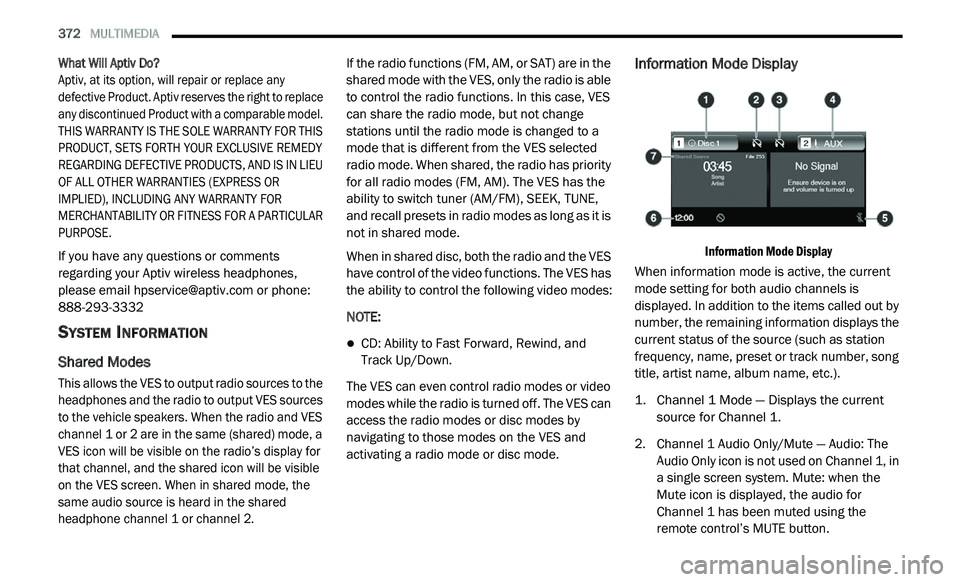
Information Mode Display
Information Mode Display
When information mode is active, the current
m o
de setting for both audio channels is
displayed. In addition to the items called out by
number, the remaining information displays the
current status of the source (such as station
frequency, name, preset or track number, song
title, artist name, album name, etc.).
1. C hannel 1 Mode — Displays the current
s
ource for Channel 1.
2. C hannel 1 Audio Only/Mute — Audio: The
A
udio Only icon is not used on Channel 1, in
a single screen system. Mute: when the
Mute icon is displayed, the audio for
Channel 1 has been muted using the
remote control’s MUTE button.
Page 376 of 396
374 MULTIMEDIA
Options Menu
When watching a video source (DVD Video with
the disc in Play mode, Aux Video, etc.), pressing
the Options button on the touchscreen activates
the Options Settings menu. From this menu you
can adjust Audio, Subtitles, Angle and Title.
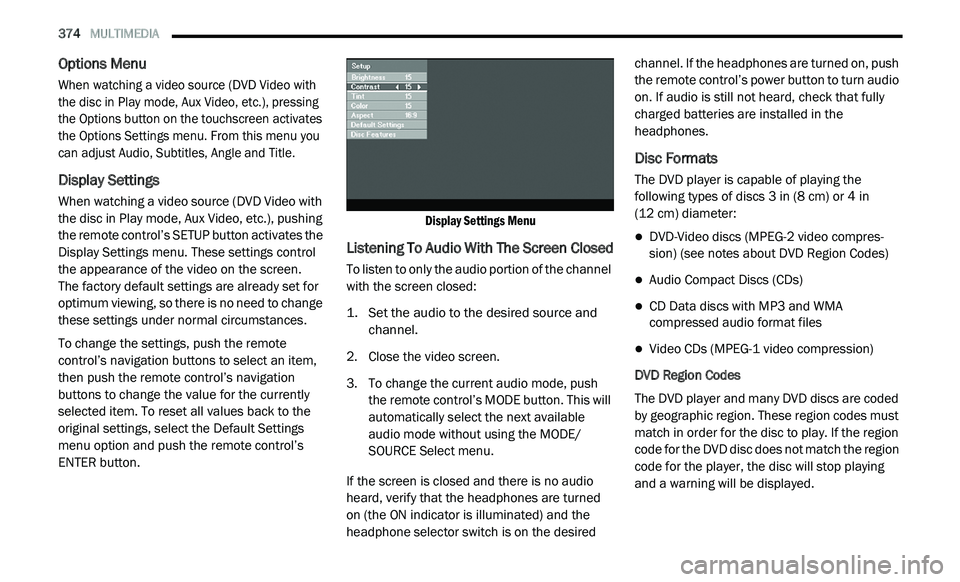
Display Settings
When watching a video source (DVD Video with
the disc in Play mode, Aux Video, etc.), pushing
the remote control’s SETUP button activates the
Display Settings menu. These settings control
the appearance of the video on the screen.
The factory default settings are already set for
o p
timum viewing, so there is no need to change
these settings under normal circumstances.
To change the settings, push the remote
c o
ntrol’s navigation buttons to select an item,
then push the remote control’s navigation
buttons to change the value for the currently
selected item. To reset all values back to the
original settings, select the Default Settings
menu option and push the remote control’s
ENTER button.
Display Settings Menu
Listening To Audio With The Screen Closed
To listen to only the audio portion of the channel
with the screen closed:
1. S
et the audio to the desired source and
c
hannel.
2. C lose the video screen.
3
. T o change the current audio mode, push
t
he remote control’s MODE button. This will
automatically select the next available
audio mode without using the MODE/
SOURCE Select menu.
If the screen is closed and there is no audio
h e
ard, verify that the headphones are turned
on (the ON indicator is illuminated) and the
h e
adphone selector switch is on the desired channel. If the headphones are turned on, push
the remote control’s power button to turn audio
on. If audio is still not heard, check that fully
charged batteries are installed in the
headphones.
Disc Formats
The DVD player is capable of playing the
following types of discs 3
in (8 cm) or 4 in
(12 cm) diameter:
DVD-Video discs (MPEG-2 video compres -
sion) (see notes about DVD Region Codes)
Audio Compact Discs (CDs)
CD Data discs with MP3 and WMA
compressed audio format files
Video CDs (MPEG-1 video compression)
DVD Region Codes
The DVD player and many DVD discs are coded
b y
geographic region. These region codes must
match in order for the disc to play. If the region
code for the DVD disc does not match the region
code for the player, the disc will stop playing
and a warning will be displayed.
Page 377 of 396
MULTIMEDIA 375
DVD Audio Support
When a DVD-Audio disc is inserted in the DVD
pl
ayer, the DVD-Audio title on the disc is played
by default (most DVD-Audio discs also have a
Video title, but the Video title is ignored). All
multi-channel program material is automatically
mixed down to two channels, which may result
in a lowered apparent volume level. If you
increase the volume level to account for this
change in level, remember to lower the volume
before changing the disc or to another mode.
Recorded Discs
The DVD player will play CD-R and CD-RW discs
r e
corded in CD-Audio or Video-CD format, or as a
CD-ROM containing MP3 or WMA files. The player
will also play DVD-Video content recorded to a
DVD-R, DVD-RW and DVD-ROM discs.
If you record a disc using a personal computer,
th
ere may be cases where the DVD player may
not be able to play some or the entire disc, even
if it is recorded in a compatible format and is
playable on other players. To help avoid
playback problems, use the following guidelines
when recording discs.
Open sessions are ignored. Only sessions
that are closed are playable.
For multi-session CDs that contain only
multiple CD-Audio sessions, the player will
renumber the tracks so each track number is
unique.
For CD Data (or CD-ROM) discs, always use
the ISO-9660 (Level 1 or Level 2), Joliet, or
UDF format. CD-DA may also be used for PCM
Audio contained on CD-Based Data.
The player recognizes a maximum of 512
files and 99 folders per CD-R and CD-RW
disc.
Mixed media recordable DVD formats will
only play the Video_TS portion of the disc.
If you are still having trouble writing a disc that
i s
playable in the DVD player, check with the
disc recording software publisher for more
information about burning playable discs.
The recommended method for labeling
r e
cordable discs (CD-R, CD-RW, DVD-R and
DVD-RW) is with a permanent marker. Do not
use adhesive labels as they may separate from
the disc, become stuck, and cause permanent
damage to the DVD player. Compressed Audio Files (MP3, WMA And ACC)
The DVD player is capable of playing MP3
(
M
PEG-1 Audio Layer 3 with data bitrates from
32 to 320 kbit/s, including variable bit rates),
WMA (All Standard 8.x, 9.x Windows Media
Audio) and ACC (MPEG-4 audio; sampling
frequencies 8 to 48 kHz; mono and stereo)
audio files with the from CD Data disc (usually a
CD-R or CD-RW).
The DVD player always uses the file extension
to determine the audio format, so MP3 files
must always end with the extension ".mp3" or
".MP3", WMA files must always end with the
extension ".wma" or "WMA", and ACC files must
end with the extensions “.acc” or “.m4a”. To
prevent incorrect playback, do not use these
extensions for any other types of files.
For MP3 files, ID3 tag data v1, v1.1, v2 and
v2.4 (such as artist name, track title, album,
etc.) are supported.
Any file that is copy protected (such as those
downloaded from many online music stores)
will not play. The DVD player will automati -
cally skip the file and begin playing the next
a v
ailable file.
9
Page 378 of 396
376 MULTIMEDIA
Other compression formats such as AAC,
MP3 Pro, Ogg Vorbis, and ATRAC3 will not
play. The DVD player will automatically skip
the file and begin playing the next available
file.
If you are creating your own files, the recom -
mended fixed bit rate for MP3 files is between 96
a n
d 192Kbps and the recommended fixed bit
rate for WMA files is between 64 and 192Kbps.
Variable bit rates are also supported. For both
formats, the recommended sample rate is either
44.1kHz or 48kHz.
To change the current file, use the remote
control’s or DVD player’s Play button to
advance to the next file, or the Menu button
to return to the start of the current or
previous file.
To change the current directory, use the
remote control’s PROG UP and Down buttons
or Rewind/skip back and fast fwd/skip
forward.
Disc Errors
If the DVD player is unable to read the disc, a
" D
isc Error" message is displayed on the Radio
display and the disc is automatically ejected. A dirty, damaged, or incompatible disc format
a
r
e all potential causes for a "Disc Error"
message.
If a disc has a damaged track which results in
a u
dible or visible errors that persists for 2
seconds, the DVD player will attempt to continue
playing the disc by skipping forward 1 to 3
seconds at a time. If the end of the disc is
reached, the DVD player will return to the
beginning of the disc and attempt to play the
start of the first track.
The DVD player may shut down during extremely
h o
t conditions, such as when the vehicle’s
interior temperature is above 120°F (49°C).
When this occurs, the DVD player will display
"High Temp" and will shut off the display until a
safe temperature is reached. This shutdown is
necessary to protect the optics of the DVD player.
Product Agreement
This product incorporates copyright protection
technology that is protected by US patents and
other intellectual property rights. Use of this
copyright protection technology must be
authorized by Macrovision, and is intended for home or other limited viewing uses otherwise
authorized by Macrovision. Reverse
engineering or disassembly is prohibited.
Dolby Digital and MLP Lossless
Manufactured under license from
Do
lby Laboratories. "Dolby," "MLP
Lossless," and the double-D symbol are
trademarks of Dolby Laboratories. Confidential
unpublished works. Copyright 1992-1997
Dolby Laboratories. All rights reserved.
RADIO OPERATION AND MOBILE PHONES
Under certain conditions, the mobile phone
being on in your vehicle can cause erratic or
noisy performance from your radio. This
condition may be lessened or eliminated by
relocating the mobile phone antenna. This
condition is not harmful to the radio. If your
radio performance does not satisfactorily
“clear” by the repositioning of the antenna, it is
recommended that the radio volume be turned
down or off during mobile phone operation
when not using Uconnect (if equipped).
Page 379 of 396
MULTIMEDIA 377
REGULATORY AND SAFETY
I
NFORMATION
USA/CANADA
Exposure to Radio Frequency Radiation
The radiated output power of the internal
w i
reless radio is far below the FCC and IC radio
frequency exposure limits. Nevertheless, the
wireless radio will be used in such a manner
that the radio is 8 in (20 cm) or further from the
h u
man body.
The internal wireless radio operates within
g u
idelines found in radio frequency safety
standards and recommendations, which reflect
the consensus of the scientific community.
The radio manufacturer believes the internal
w i
reless radio is safe for use by consumers.
The level of energy emitted is far less than the
e l
ectromagnetic energy emitted by wireless
devices such as mobile phones. However, the
use of wireless radios may be restricted in some
situations or environments, such as aboard
airplanes. If you are unsure of restrictions, you
are encouraged to ask for authorization before
turning on the wireless radio. The following regulatory statement applies to all
R
a
dio Frequency (RF) devices equipped in this
vehicle:
This device complies with Part 15 of the FCC
R u
les and with Innovation, Science and
Economic Development Canada license-exempt
RSS standard(s). Operation is subject to the
following two conditions:
1. T his device may not cause harmful
i
nterference, and
2. T his device must accept any interference
r
eceived, including interference that may
cause undesired operation.
Le présent appareil est conforme aux CNR
d`
Innovation, Science and Economic
Development applicables aux appareils radio
exempts de licence. L'exploitation est autorisée
aux deux conditions suivantes:
1. l 'appareil ne doit pas produire de
b
rouillage, et
2. l 'utilisateur de l'appareil doit accepter tout
b
rouillage radioélectrique subi, même si le
brouillage est susceptible d'en compro -
mettre le fonctionnement. La operación de este equipo está sujeta a las
s
i
guientes dos condiciones:
1. e s posible que este equipo o dispositivo no
c
ause interferencia perjudicial y
2. e ste equipo o dispositivo debe aceptar
c
ualquier interferencia, incluyendo la que
pueda causar su operación no deseada.
NOTE:
Changes or modifications not expressly
a p
proved by the party responsible for compli -
ance could void the user’s authority to operate
t h
e equipment.
NOTE:
This equipment has been tested and found to
comply with the limits for a Class B digital device,
pursuant to Part 15 of the FCC Rules. These
limits are designed to provide reasonable protec -
tion against harmful interference in a residential
i n
stallation. This equipment generates, uses and
can radiate radio frequency energy and, if not
installed and used in accordance with the
instructions, may cause harmful interference to
radio communications. However, there is no
guarantee that interference will not occur in a
particular installation.
9
Page 381 of 396
MULTIMEDIA 379
Natural Speech
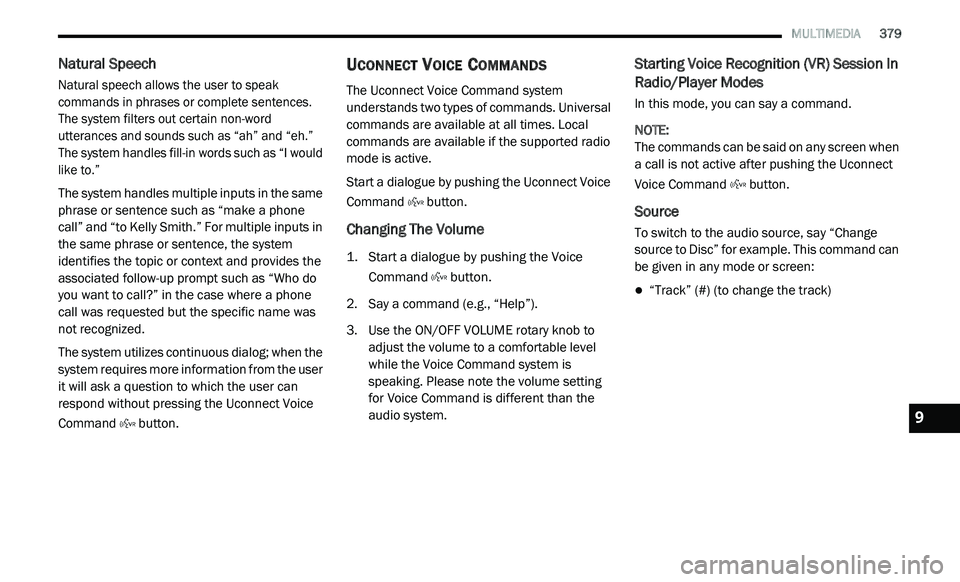
Natural speech allows the user to speak
commands in phrases or complete sentences.
The system filters out certain non-word
utterances and sounds such as “ah” and “eh.”
The system handles fill-in words such as “I would
like to.”
The system handles multiple inputs in the same
ph
rase or sentence such as “make a phone
call” and “to Kelly Smith.” For multiple inputs in
the same phrase or sentence, the system
identifies the topic or context and provides the
associated follow-up prompt such as “Who do
you want to call?” in the case where a phone
call was requested but the specific name was
not recognized.
The system utilizes continuous dialog; when the
s y
stem requires more information from the user
it will ask a question to which the user can
respond without pressing the Uconnect Voice
Command button.
UCONNECT VOICE COMMANDS
The Uconnect Voice Command system
understands two types of commands. Universal
commands are available at all times. Local
commands are available if the supported radio
mode is active.
Start a dialogue by pushing the Uconnect Voice
Co
mmand button.
Changing The Volume
1. Start a dialogue by pushing the Voice
Command button.
2. S ay a command (e.g., “Help”).
3
. U se the ON/OFF VOLUME rotary knob to
a
djust the volume to a comfortable level
while the Voice Command system is
speaking. Please note the volume setting
for Voice Command is different than the
audio system.
Starting Voice Recognition (VR) Session In
Radio/Player Modes
In this mode, you can say a command.
NOTE:
The commands can be said on any screen when
a
call is not active after pushing the Uconnect
Voice Command button.
Source
To switch to the audio source, say “Change
source to Disc” for example. This command can
be given in any mode or screen:
“Track” (#) (to change the track)
9
Page 390 of 396
388
K
Key Fob
Panic Alarm
.................................................11Programming Additional Key Fobs.......12, 17Key Fob Battery Service (Remote Keyless
Entry)...............................................................11Key Fob Programming (Remote Keyless
Entry)...............................................................12Key-In Reminder..............................................14Keyless Enter-N-Go.................................21, 158Passive Entry...............................................21Passive Entry Programming.........................21Keys...................................................................9Replacement...............................................17Sentry (Immobilizer)....................................16
L
Lane Change And Turn Signals........................42Lane Change Assist.........................................42Lap/Shoulder Belts.......................................122Latches..........................................................156Hood...........................................................76Lead Free Gasoline........................................257Leaks, Fluid...................................................156Life Of Tires...................................................245Liftgate............................................................77Liftgate Window Wiper/Washer.......................46Light Bulbs...........................................156, 189
Lights......................................................43, 156Air Bag....................................100, 131, 155Automatic Headlights..................................41Back-Up....................................................192Brake Assist Warning...............................113Brake Warning..........................................100Bulb Replacement....................................189Cruise.......................................................106Daytime Running.........................................41Dimmer Switch, Headlight...........................41Exterior...............................................40, 156Fog.....................................................42, 192Hazard Warning Flasher...........................189Headlight Switch..........................................40Headlights..........................................40, 191Headlights On With Wipers..........................41High Beam..........................................41, 191High Beam/Low Beam Select......................41Instrument Cluster.......................................40Intensity Control..........................................43Interior.........................................................43License.....................................................192Lights On Reminder.....................................42Malfunction Indicator (Check Engine).......103Parade Mode (Daytime Brightness).............43Park.................................................106, 191Passing........................................................41Rear Servicing..........................................192
Rear Tail Lamps........................................192Seat Belt Reminder..................................100Security Alarm..........................................101Service......................................................189Side Marker..............................................191Tire Pressure Monitoring (TPMS)..............116Traction Control........................................113Turn Signals.....40, 42, 106, 156, 191, 192Vanity Mirror................................................40Warning Instrument Cluster
Descriptions................................101, 106Load Floor, Cargo.............................................78Load Shed Battery Saver Mode........................99Load Shed Battery Saver On............................99Load Shed Electrical Load Reduction..............99Load Shed Intelligent Battery Sensor...............99Loading Vehicle....................................177, 178Capacities.................................................178Tires..........................................................239Locks Auto Unlock.................................................20Automatic Door............................................20Child Protection...........................................23Power Door..................................................20Low Tire Pressure System.............................116Lubrication, Body..........................................226Lug Nuts/Bolts..............................................257Luggage Carrier................................................91