change time DODGE JOURNEY 2020 Service Manual
[x] Cancel search | Manufacturer: DODGE, Model Year: 2020, Model line: JOURNEY, Model: DODGE JOURNEY 2020Pages: 396, PDF Size: 25.53 MB
Page 332 of 396
330 MULTIMEDIA
Phonebook Download (Automatic Phonebook
Transfer From Mobile Phone) — If Equipped
If equipped and specifically supported by your
ph
one, Uconnect Phone automatically
downloads names (text names) and number
entries from the mobile phone’s phonebook.
Specific Bluetooth® Phones with Phone Book
Access Profile may support this feature.
See Uconnect website, UconnectPhone.com,
for supported phones.
To call a name from a downloaded mobile
phone book, follow the procedure in the
Voice Recognition Quick Reference section.
Automatic download and update of a phone
book, if supported, begins as soon as the
Bluetooth® wireless phone connection is
made to the Uconnect Phone, for example,
after you start the vehicle.
A maximum of 2,000 entries per phone will
be downloaded and updated every time a
phone is connected to the Uconnect Phone.
Depending on the maximum number of entries
downloaded, there ma\y be a short delay
before the latest downloaded names can be
used. Until then, if available, the previously
downloaded phonebook is available for use.
Only the phonebook of the currently
connected mobile phone is accessible.
This downloaded phonebook cannot be
edited or deleted on the Uconnect Phone.
These can only be edited on the mobile
phone. The changes are transferred and
updated to Uconnect Phone on the next
phone connection.
Managing Your Favorite Phonebook
There are three ways you can add an entry to
yo
ur Favorite Phonebook.
1. D uring an active call of a number to make
a
favorite, press and hold a favorite button
on the top of the phone main screen.
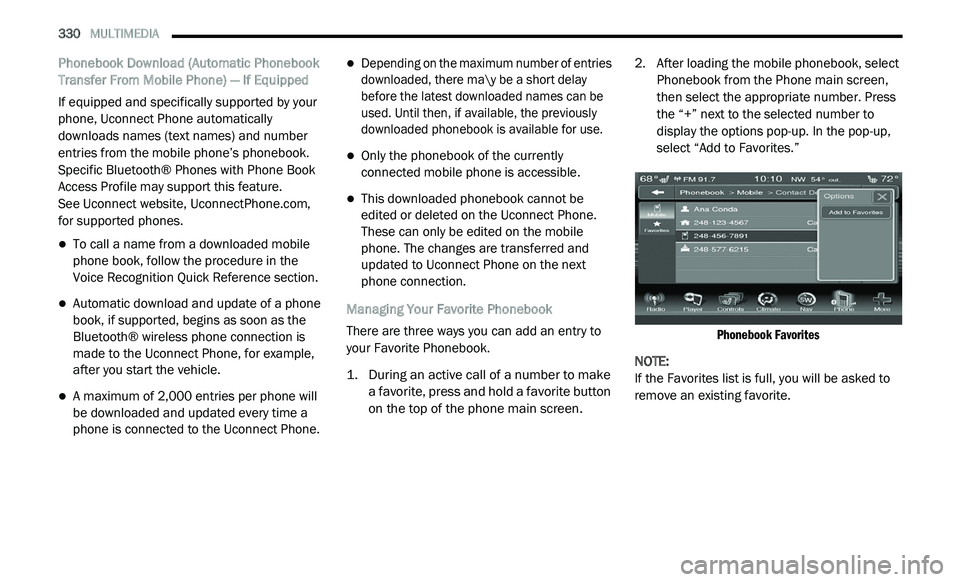
2. A
fter loading the mobile phonebook, select
P
honebook from the Phone main screen,
then select the appropriate number. Press
the “+” next to the selected number to
display the options pop-up. In the pop-up,
select “Add to Favorites.”
Phonebook Favorites
NOTE:
If the Favorites list is full, you will be asked to
r e
move an existing favorite.
Page 333 of 396
MULTIMEDIA 331
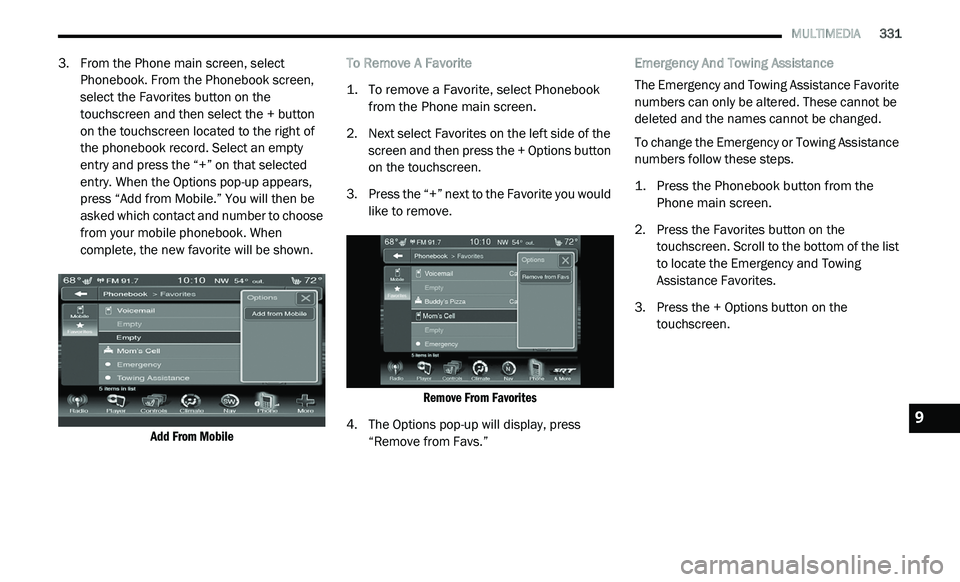
3. From the Phone main screen, select
Phonebook. From the Phonebook screen,
select the Favorites button on the
touchscreen and then select the + button
on the touchscreen located to the right of
the phonebook record. Select an empty
entry and press the “+” on that selected
entry. When the Options pop-up appears,
press “Add from Mobile.” You will then be
asked which contact and number to choose
from your mobile phonebook. When
complete, the new favorite will be shown.
Add From Mobile
To Remove A Favorite
1. T
o remove a Favorite, select Phonebook
f
rom the Phone main screen.
2. N ext select Favorites on the left side of the
s
creen and then press the + Options button
on the touchscreen.
3. P ress the “+” next to the Favorite you would
l
ike to remove.
Remove From Favorites
4. T he Options pop-up will display, press
“
Remove from Favs.” Emergency And Towing Assistance
The Emergency and Towing Assistance Favorite
n
u
mbers can only be altered. These cannot be
deleted and the names cannot be changed.
To change the Emergency or Towing Assistance
n u
mbers follow these steps.
1. P ress the Phonebook button from the
P
hone main screen.
2. P ress the Favorites button on the
t
ouchscreen. Scroll to the bottom of the list
to locate the Emergency and Towing
Assistance Favorites.
3. Press the + Options button on the t
ouchscreen.
9
Page 342 of 396
340 MULTIMEDIA
Be careful of the ambient temperature. Using
the navigation system at extreme tempera -
tures can lead to malfunction or damage.
A ls
o note that the unit can be damaged by
strong vibration, metal objects, or by water
getting inside the unit. Notice
This navigation system can be used when the
i
g
nition key is turned to ON/RUN or ACC.
To preserve the battery, however, it should
be used with the engine running whenever
p o
ssible. Using the navigation system for a long
time with the engine switched off can cause the
battery to run down.
Map Data Information
Garmin® uses a combination of governmental
a n
d private data sources. Virtually all data
sources contain some inaccurate or incomplete
data. In some countries, complete and accurate
map information is either not available or is
prohibitively expensive.
Getting Started
To access the Navigation system, press the Nav
button on bottom of the screen.
Setting Up Your System
When using your navigation system for the first
t i
me, complete the following tasks:
1. Ac quire satellites.
2
. U nderstand the main menu. A
cquiring Satellites
The bars indicate satellite strength.
Go to an open area, away from tall buildings and
t r
ees.
Acquiring satellite signals can take a few
m i
nutes.
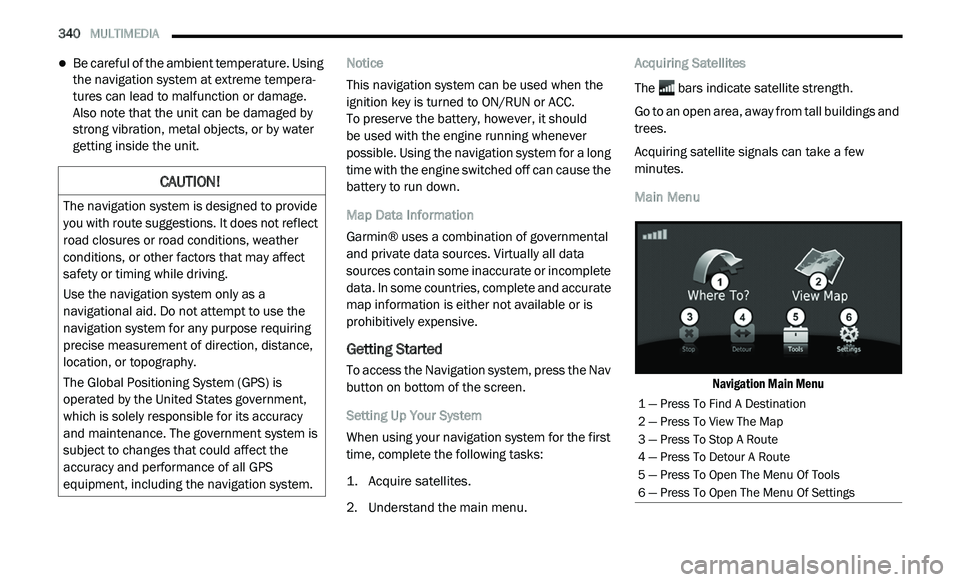
Main Menu
Navigation Main Menu
CAUTION!
The navigation system is designed to provide
you with route suggestions. It does not reflect
road closures or road conditions, weather
conditions, or other factors that may affect
safety or timing while driving.
Use the navigation system only as a
na
vigational aid. Do not attempt to use the
navigation system for any purpose requiring
precise measurement of direction, distance,
location, or topography.
The Global Positioning System (GPS) is
o p
erated by the United States government,
which is solely responsible for its accuracy
and maintenance. The government system is
subject to changes that could affect the
accuracy and performance of all GPS
equipment, including the navigation system.
1 — Press To Find A Destination
2 — Press To View The Map
3 — Press To Stop A Route
4 — Press To Detour A Route
5 — Press To Open The Menu Of Tools
6 — Press To Open The Menu Of Settings
Page 343 of 396
MULTIMEDIA 341
Using The On-Screen Buttons
Press and hold to quickly return to the
main menu.
Press and to see more choices.
Press and hold and to scroll faster.
Finding A Point Of Interest
The detailed maps loaded in your navigation
s y
stem contain points of interest, such as
restaurants, hotels and auto services.
1. Fr om the main menu, press
W
here To? >
Points of Interest
.
2. S elect a category.
3
. I f necessary, select a subcategory.
4
. S elect a destination.
5
. P ress Go!
F
inding A Location By Spelling The Name
1. Fr om the main menu, press
W
here To? >
Points of Interest > Spell Name
.
2. E nter all or part of the name.
3
. P ress Done . 4
. S
elect a destination.
5
. P ress Go!
U
sing The On-screen Keyboard
Press a character on the keyboard to enter a
letter or number.
Press “Space” to add a space.
Press to delete a character.
Press and hold to erase the entire entry.
Press to select the keyboard language
mode.
Press to enter special characters, such as
punctuation marks.
Adding Points To The Active Route
1. W hile navigating a route, press
to return
to the main menu.
2. F rom the main menu, press W
here To?
3. S elect a category.
4
. I f necessary, select a subcategory.
5
. S elect a destination. 6
. P
ress Go!
7
. P ress Add as a Via Point .
C
hanging The Destination Of The Active Route
Before you can change destinations you must
b e
navigating a route.
1. P ress
to return to the main menu.
2. P ress Where To?
3
. S earch for the location.
4
. P ress Go!
5
. P ress Set as a New Destination .
T
aking A Detour
While navigating a route, you can use detours to
a v
oid obstacles ahead of you, such as
construction zones.
NOTE:
If the route you are currently taking is the only
re
asonable option, the navigation system might
not calculate a detour.
1. W hile navigating a route, press .
2
. F rom the main menu, press D
etour.
9
Page 344 of 396
342 MULTIMEDIA
Stopping The Route
1. While navigating a route, press .
2
. F rom the main menu, press S
top.
Finding Locations
The Where To? menu provides several different
categories you can use to search for locations.
To perform a simple search, see the “Getting
Started” section.
Finding An Address
NOTE:
Depending on the version of the built-in map
d a
ta on your navigation system, the button
names and the order of steps could be different
than the steps below.
1. From the main menu, press
W
here To? >
Address
.
2. I f necessary, change the state, the country,
o
r the province.
3. P ress Spell City .
4
. E nter the city/postal code. N
OTE:
If you are unsure of the city/postal code, press
S e
arch All .
5. P ress Done .
6
. I f necessary, select the city/postal code.
N
OTE:
Not all map data provides postal code
s e
arching.
7. E nter the number of the address.
8
. P ress Done .
9
. E nter the street name.
1
0. P ress Done .
1
1. I f necessary, select the street.
1
2. I f necessary, select the address. U
sing The Go! Page
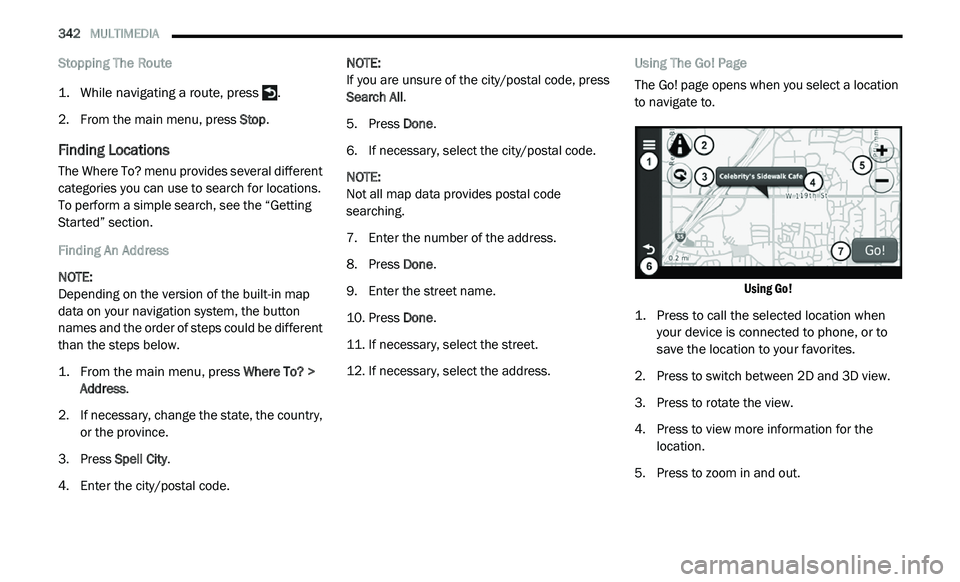
The Go! page opens when you select a location
t o
navigate to.
Using Go!
1. P ress to call the selected location when
y
our device is connected to phone, or to
save the location to your favorites.
2. P ress to switch between 2D and 3D view.
3
. P ress to rotate the view.
4
. P ress to view more information for the
l
ocation.
5. P ress to zoom in and out.
Page 345 of 396
MULTIMEDIA 343
6. Press to return to the previous page. Press
and hold to return to the main menu.
7. P ress to create a turn-by-turn route to this
l
ocation.
Setting A Home Location
You can set your home location for the location
yo
u return to most often.
1. Fr om the main menu, press
W
here
To? > Go Home
.
2. S elect Enter M
y Address, Use My Current
Location or Recently Found .
Going Home
Before you can navigate to home you must set
a
home location.
From the main menu, press Where To? > Go
Home .
Resetting Your Home Location
1. F rom the main menu, press
W
here To? > > Set Home Location
.
2. S elect an option to change your address. E
diting Your Home Location Information
1. Fr om the main menu, press
W
here
To? > Favorites > Home
.
2. P ress
> Edit.
3. E nter your changes.
4
. P ress Done .
V
iewing A List Of Recently Found Locations
Your navigation system stores the last
50 locations you have found.
From the main menu, press Where
To? > Recently Found .
Clearing The List Of Recently Found Locations
From the main menu, press Wh
ere To? >
Recently Found > > Clear > Yes.
About Favorites
You can save locations in your Favorites so you
c a
n quickly find them and create routes to
them. Your home location is also stored in
Favorites. Saving Your Current Location To Favorites
1. Fr
om the map, press the vehicle icon.
2
. P ress Save .
3
. E nter a name.
4
. P ress Done .
T
he location is saved in Fa
vorites.
Saving Locations To Favorites
1. Search for the location.
2
. From the Go! page, press
> Save > OK.
Finding Favorites
1. Fr om the main menu, press
W
here
To? > Favorites
.
2. I f necessary, select a category.
3
. S elect a saved location.
E
diting Favorites
1. Fr om the main menu, press
W
here
To? > Favorites
.
2. S elect a category.
9
Page 346 of 396
344 MULTIMEDIA
3. Select a favorite.
4. Press the information box.
5
. P ress
> Edit.
6. S elect an option:
Name
Phone Number
Categories
Change Map Symbol
7. E dit the information.
8
. P ress Done .
P
lanning A Trip
You can use Trip Planner to create and save a
t r
ip with multiple destinations.
1. Fr om the main menu, press
W
here
To? > Trip Planner
.
2. P ress .
3
. P ress Select Start Location .
4
. S earch for a location.
5
. P ress Select . 6
. P
ress
to add an additional location.
7. P ress Select .
8
. R epeat steps 4-6 to add additional
l
ocations to your trip.
9. P ress Next .
1
0. E nter a name.
1
1. P ress Done .
N
avigating To A Saved Trip
1. Fr om the main menu, press
W
here
To? > Trip Planner
.
2. S elect a saved trip.
3
. P ress Go!
E
diting A Saved Trip
1. Fr om the main menu, press
W
here
To? > Trip Planner
.
2. S elect a saved trip.
3
. Press 4
. S
elect an option:
Press Rename Trip to edit the trip name.
Press Edit Destinations to add or delete
locations.
Press Delete Trip to delete the entire trip.
Press Optimize Order to arrange your trip
locations in the most efficient order.
Using The Map Buttons
1. Fr om the main menu, press
W
here
To? > Browse Map
.
2. P ress anywhere on the map.
Press and to zoom in and out.
Press to switch between 2D and 3D
views.
Press to rotate the view.
Page 351 of 396
MULTIMEDIA 349
Viewing The Junction View
Before you can view the junction view, you must
be
navigating a route.
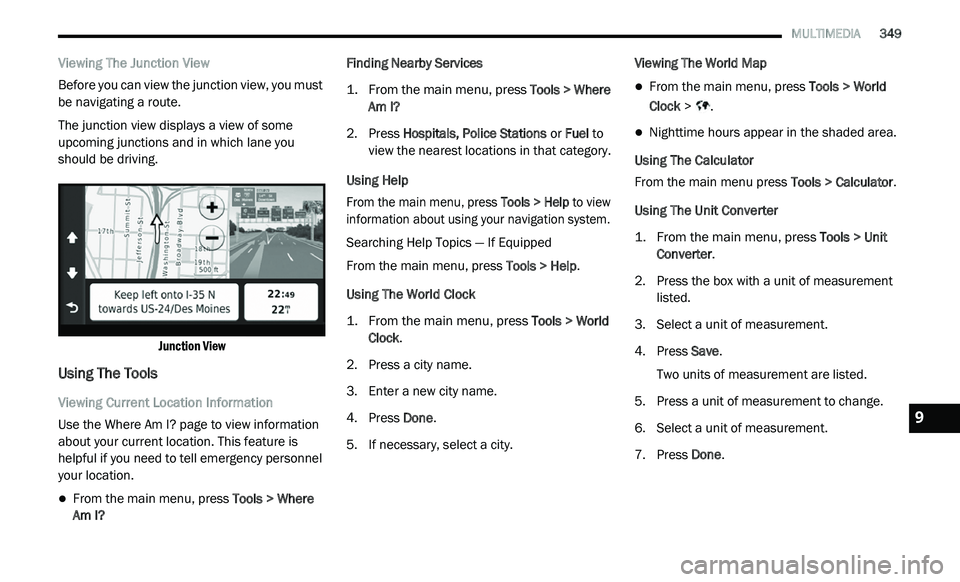
The junction view displays a view of some
u p
coming junctions and in which lane you
should be driving.
Junction View
Using The Tools
Viewing Current Location Information
Use the Where Am I? page to view information
ab
out your current location. This feature is
helpful if you need to tell emergency personnel
your location.
From the main menu, press Tools > Where
Am I? Finding Nearby Services
1. Fr
om the main menu, press
T
ools > Where
Am I?
2. P ress Hospitals, Police Stations
or Fuel to
view the nearest locations in that category.
Using Help
From the main menu, press To
ols > Help to view
information about using your navigation system.
Searching Help Topics — If Equipped
From the main menu, press To
ols > Help.
Using The World Clock
1. From the main menu, press
T
ools > World
Clock
.
2. P ress a city name.
3
. E nter a new city name.
4
. P ress Done .
5
. I f necessary, select a city. V
iewing The World Map
From the main menu, press
Tools > World
Clock > .
Nighttime hours appear in the shaded area.
Using The Calculator
From the main menu press T
o
ols > Calculator.
Using The Unit Converter
1. From the main menu, press
T
ools > Unit
Converter
.
2. P ress the box with a unit of measurement
l
isted.
3. S elect a unit of measurement.
4
. P ress Save .
T
wo units of measurement are listed.
5. Press a unit of measurement to change.
6
. S elect a unit of measurement.
7
. P ress Done .9
Page 352 of 396
350 MULTIMEDIA
8. Repeat steps 5 and 6, if necessary.
9. Enter a value.
1
0. P ress Done .
S
etting Currency Conversion Rates Manually
You can update the currency conversion rates
m a
nually so that you are always using the most
current rates.
1. Fr om the main menu press
T
ools > Unit
Converter
.
2. P ress the box with a currency listed.
3
. S elect C
urrency.
4. P ress Save .
5
. P ress a currency box.
6
. S elect the currency you want to update.
7
. R epeat steps 3-6 to select a currency to
c
onvert to, if necessary.
8. P ress a box under a currency.
9
. E nter a new value for the currency.
1
0. P ress Done .
1
1. R epeat steps 8 and 9, if necessary.
Traffic
Notice
Garmin® is not responsible for the accuracy or
ti
meliness of the traffic information. Your
navigation system may receive traffic content
via Satellite Radio service in North America or
via FM broadcast in other regions.
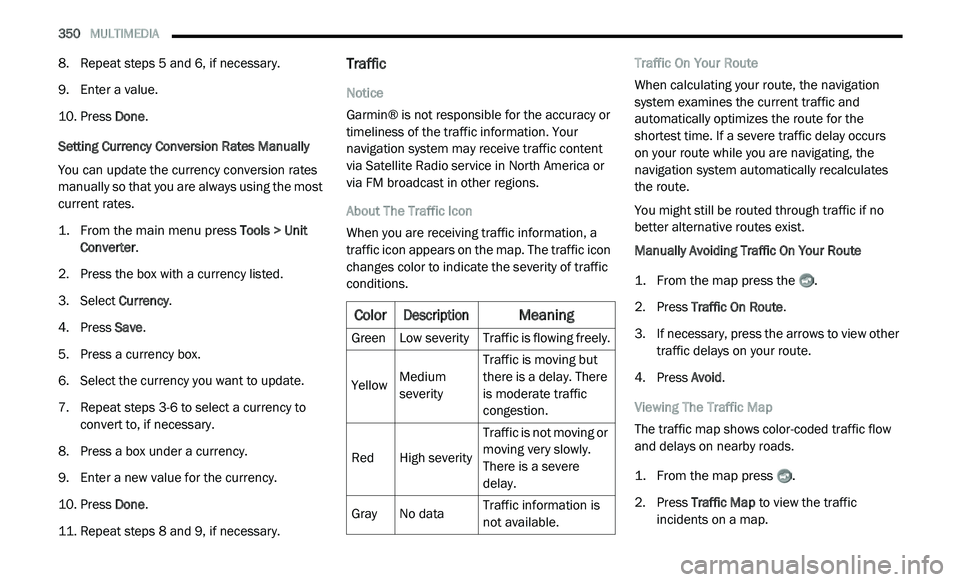
About The Traffic Icon
When you are receiving traffic information, a
t r
affic icon appears on the map. The traffic icon
changes color to indicate the severity of traffic
conditions. Traffic On Your Route
When calculating your route, the navigation
s
y
stem examines the current traffic and
automatically optimizes the route for the
shortest time. If a severe traffic delay occurs
on your route while you are navigating, the
n a
vigation system automatically recalculates
the route.
You might still be routed through traffic if no
b e
tter alternative routes exist.
Manually Avoiding Traffic On Your Route
1. Fr om the map press the .
2
. P ress Traffic On Route .
3
. I f necessary, press the arrows to view other
t
raffic delays on your route.
4. P ress Avoid .
V
iewing The Traffic Map
The traffic map shows color-coded traffic flow
a n
d delays on nearby roads.
1. Fr om the map press .
2
. P ress Traffic Map
to view the traffic
incidents on a map.
Color
Description
Meaning
GreenLow severity Traffic is flowing freely.
Yellow Medium
s
e
verity Traffic is moving but
t
h
ere is a delay. There
is moderate traffic
congestion.
Red High severity Traffic is not moving or
m
o
ving very slowly.
There is a severe
delay.
Gray No data Traffic information is
n
o
t available.
Page 353 of 396
MULTIMEDIA 351
Searching For Traffic Delays
1. From the map page press .
2
. P ress Traffic Search to view a list of roads
w
ith traffic delays.
3. P ress an item in the list to view delays on
t
he road.
4. I f there is more than one delay, press the
a
rrows to view additional delays.
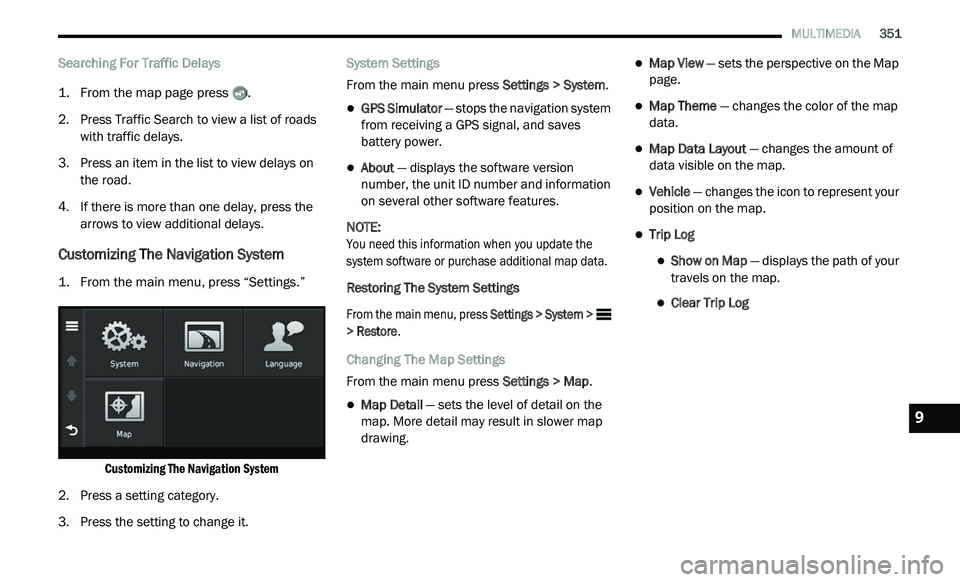
Customizing The Navigation System
1. From the main menu, press “Settings.”
Customizing The Navigation System
2. P ress a setting category.
3
. P ress the setting to change it. S
ystem Settings
From the main menu press Se
ttings > System.
GPS Simulator — stops the navigation system
from receiving a GPS signal, and saves
battery power.
About — displays the software version
number, the unit ID number and information
on several other software features.
NOTE:
You need this information when you update the
s y
stem software or purchase additional map data.
Restoring The System Settings
From the main menu, press Se
ttings > System >
> Restore .
Changing The Map Settings
From the main menu press Se
ttings > Map.
Map Detail — sets the level of detail on the
map. More detail may result in slower map
drawing.
Map View — sets the perspective on the Map
page.
Map Theme — changes the color of the map
data.
Map Data Layout — changes the amount of
data visible on the map.
Vehicle — changes the icon to represent your
position on the map.
Trip Log
Show on Map — displays the path of your
travels on the map.
Clear Trip Log
9