phone FIAT DUCATO 244 2002 3.G Connect NavPlus Manual
[x] Cancel search | Manufacturer: FIAT, Model Year: 2002, Model line: DUCATO 244, Model: FIAT DUCATO 244 2002 3.GPages: 246, PDF Size: 3.39 MB
Page 121 of 246

CONNECT Nav
120
“Telephone” function
VOICE COMMANDS - KEYWORDS
1
stLEVEL
KEYWORDS
Call (*)
Dial (**)
Redial
PIN code (***)
Address book
Once a command has been pronounced and executed, second level “keywords” and all first level keywords will remain available for further commands.
(*) After this command the system will ask: “The name, please”. (**) After this command the system will ask: “The number, please”.
(***) After this command the system will ask: “The PIN code, please”.
2ndLEVEL
KEYWORDS
(0 …. 9)
Plus
Cancel
Delete
Abort
Repeat
Send
(0 …. 9)
Cancel
Delete
Abort
Repeat
Send
Read
Delete
3rd LEVEL
KEYWORDS
Name (*)
All
4thLEVEL
KEYWORDSREQUIRED FUNCTION
Call an address book number
(only with“voice identification” mode)
Call a number
Redial
Enter PIN code
Play all the voice samples associated to
the phone book with
“voice identification” mode
Delete an entry from the phone book
(only with “voice identification” mode)
Delete all the voice samples associated
to the phone book
Page 124 of 246
![FIAT DUCATO 244 2002 3.G Connect NavPlus Manual CONNECT Nav
123
Dialling a telephone number
Pronouncing 1
stlevel keyword “Dial”
opens a dialogue enabling the follow-
ing keywords:
– [0..9]
– Plus (+)
– Cancel
– Delete
– Abort
– Re](/img/10/4588/w960_4588-123.png "FIAT DUCATO 244 2002 3.G Connect NavPlus Manual CONNECT Nav
123
Dialling a telephone number
Pronouncing 1
stlevel keyword “Dial”
opens a dialogue enabling the follow-
ing keywords:
– [0..9]
– Plus (+)
– Cancel
– Delete
– Abort
– Re")
CONNECT Nav
123
Dialling a telephone number
Pronouncing 1
stlevel keyword “Dial”
opens a dialogue enabling the follow-
ing keywords:
– [0..9]
– Plus (+)
– Cancel
– Delete
– Abort
– Repeat
– Send.First example:
User: Dial
CONNECT: The number, please
User: 0-1-1
CONNECT: 0-1-1
User: 1-2-3
CONNECT: 1-2-3
User: 4-5-6
CONNECT: 4-5-6
User: 7-8
CONNECT: 7-8
User: Send
CONNECT: The number
is being dialled.
Second example:
User: Dial
CONNECT: The number, please
User: 0-1-1-1-2-3
CONNECT: 0-1-1-1-2-3
User: 4-5-6-7-8
CONNECT: 4-5-6-7-8
User: Repeat
CONNECT: 0-1-1-1-2-3-4-5-6-7-8
User: Send
CONNECT: The number
is being dialled.Third example:
User: Dial
CONNECT: The number, please
User: 0-1-1-1-2-3
CONNECT: 0-1-1-1-2-3
User: 4-5-6-7-8
CONNECT: 4-5-6-7-7
User: Repeat
CONNECT: 0-1-1-1-2-3-4-5-6-7-7
User: Delete
CONNECT: 0-1-1-1-2-3
User: 4-5-6-7-8
CONNECT: 4-5-6-7-8
User: Send
CONNECT: The number
is being dialled.
Page 126 of 246
CONNECT Nav
125
Storing an entry in the address
book with voice identification
The user can insert into the tele-
phone book a voice sample associat-
ed to a number (only with “voice
identification” mode).
Recording stage cannot be per-
formed through voice commands (for
further details see section “Cellular
telephone with voice commands” at
paragraph “Directory function – Voice
recognition”).
User can stop the operation only by
pressing the front panel key
ô14-fig. 1or the steering wheel key ô3-fig. 2:
First example:
CONNECT: The name, please
User: Barbara
CONNECT: Please, repeat
the name
User: Barbara
CONNECT: The name has
been stored.Second example:
CONNECT: The name, please
User: Francesca
CONNECT: Please, repeat
the name
User: Maria
CONNECT: The name has
not been stored.
The name, please
User: Francesca
CONNECT: Please,
repeat the name
User: Francesca
CONNECT: The name
has been stored.Calling an entry from the
address book
with voice recognition
Pronouncing 1
stlevel keyword “Call”,
opens a dialogue enabling the follow-
ing keywords:
– Cancel
– Delete
– Abort
– Repeat
– Send.
First example:
User: Call
CONNECT: The name, please
User: Paola
CONNECT: Paola
User: Send
CONNECT: The number
is being dialled.
Second example:
User: Call
CONNECT: The address
book is empty.
Page 132 of 246
CONNECT Nav
131
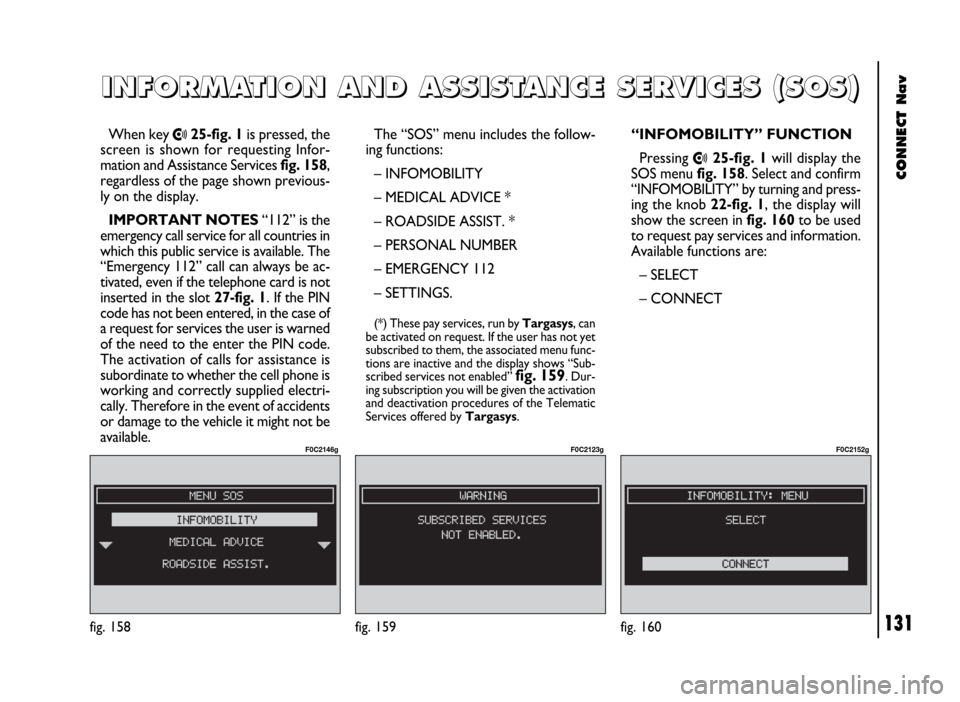
When key •25-fig. 1is pressed, the
screen is shown for requesting Infor-
mation and Assistance Services fig. 158,
regardless of the page shown previous-
ly on the display.
IMPORTANT NOTES“112” is the
emergency call service for all countries in
which this public service is available. The
“Emergency 112” call can always be ac-
tivated, even if the telephone card is not
inserted in the slot 27-fig. 1. If the PIN
code has not been entered, in the case of
a request for services the user is warned
of the need to the enter the PIN code.
The activation of calls for assistance is
subordinate to whether the cell phone is
working and correctly supplied electri-
cally. Therefore in the event of accidents
or damage to the vehicle it might not be
available.The “SOS” menu includes the follow-
ing functions:
– INFOMOBILITY
– MEDICAL ADVICE *
– ROADSIDE ASSIST. *
– PERSONAL NUMBER
– EMERGENCY 112
– SETTINGS.
(*) These pay services, run by Targasys, can
be activated on request. If the user has not yet
subscribed to them, the associated menu func-
tions are inactive and the display shows “Sub-
scribed services not enabled”
fig. 159. Dur-
ing subscription you will be given the activation
and deactivation procedures of the Telematic
Services offered by Targasys.
I I
N N
F F
O O
R R
M M
A A
T T
I I
O O
N N
A A
N N
D D
A A
S S
S S
I I
S S
T T
A A
N N
C C
E E
S S
E E
R R
V V
I I
C C
E E
S S
( (
S S
O O
S S
) )
fig. 158
F0C2146g
“INFOMOBILITY” FUNCTION
Pressing
•25-fig. 1will display the
SOS menu fig. 158. Select and confirm
“INFOMOBILITY” by turning and press-
ing the knob 22-fig. 1, the display will
show the screen in fig. 160to be used
to request pay services and information.
Available functions are:
– SELECT
– CONNECT
fig. 160
F0C2152g
fig. 159
F0C2123g
Page 133 of 246
CONNECT Nav
132
Services are available only upon sub-
scription. If the user hasn’t subscribed
yet of if Targasys subscription expired,
pressing
•25-fig. 1the display
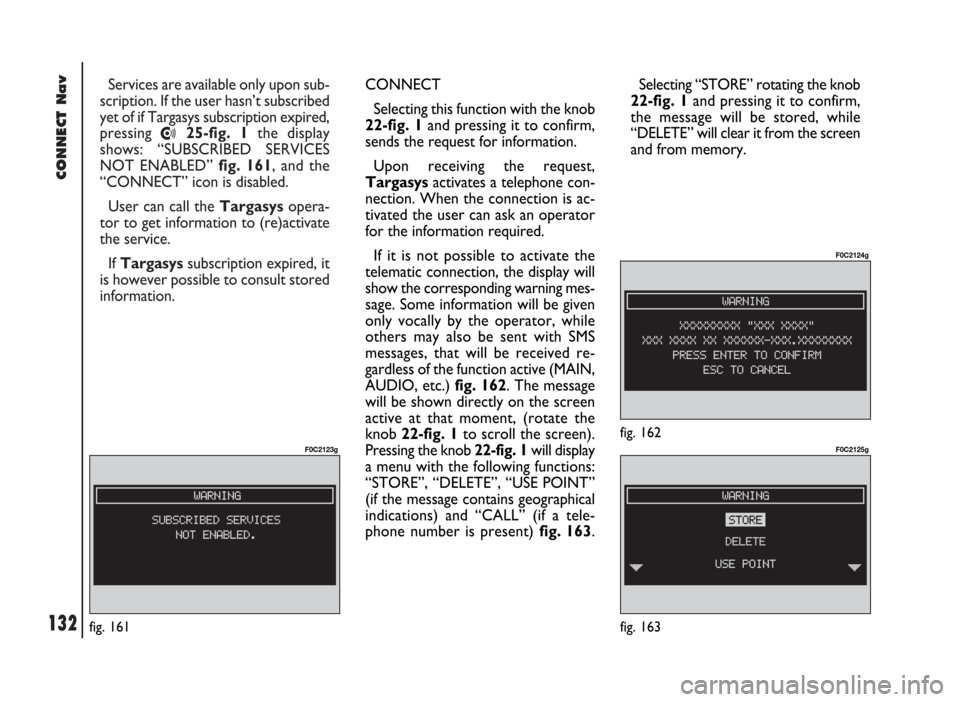
shows: “SUBSCRIBED SERVICES
NOT ENABLED” fig. 161, and the
“CONNECT” icon is disabled.
User can call the Targasysopera-
tor to get information to (re)activate
the service.
If Targasyssubscription expired, it
is however possible to consult stored
information.
fig. 161
F0C2123g
CONNECT
Selecting this function with the knob
22-fig. 1and pressing it to confirm,
sends the request for information.
Upon receiving the request,
Targasysactivates a telephone con-
nection. When the connection is ac-
tivated the user can ask an operator
for the information required.
If it is not possible to activate the
telematic connection, the display will
show the corresponding warning mes-
sage. Some information will be given
only vocally by the operator, while
others may also be sent with SMS
messages, that will be received re-
gardless of the function active (MAIN,
AUDIO, etc.) fig. 162. The message
will be shown directly on the screen
active at that moment, (rotate the
knob 22-fig. 1to scroll the screen).
Pressing the knob 22-fig. 1 will display
a menu with the following functions:
“STORE”, “DELETE”, “USE POINT”
(if the message contains geographical
indications) and “CALL” (if a tele-
phone number is present) fig. 163. Selecting “STORE” rotating the knob
22-fig. 1and pressing it to confirm,
the message will be stored, while
“DELETE” will clear it from the screen
and from memory.
fig. 162
F0C2124g
fig. 163
F0C2125g
Page 134 of 246
CONNECT Nav
133
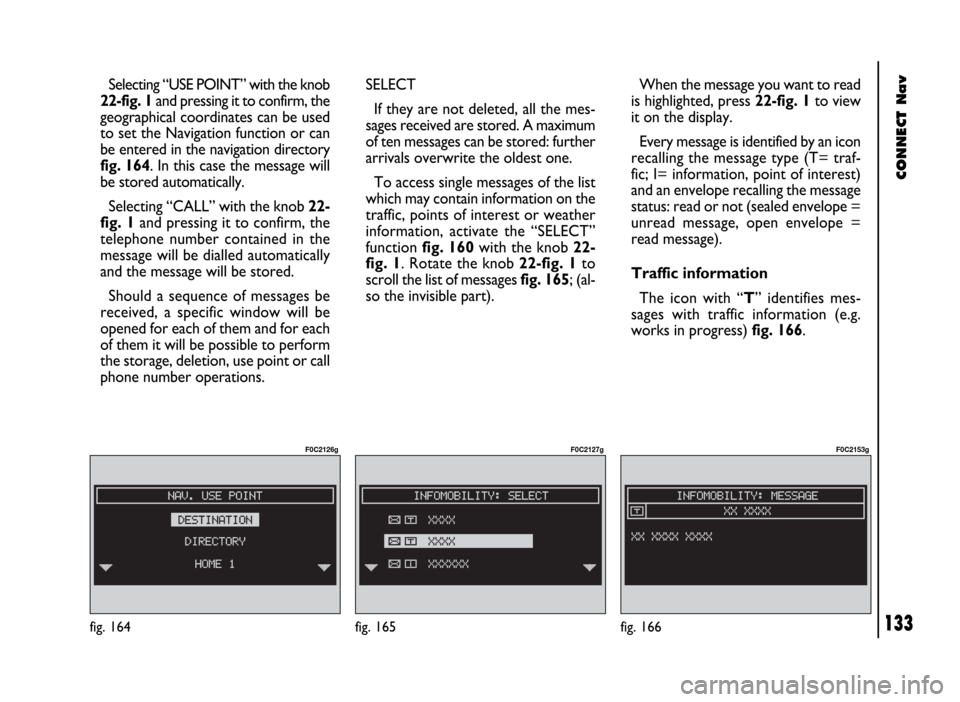
Selecting “USE POINT” with the knob
22-fig. 1and pressing it to confirm, the
geographical coordinates can be used
to set the Navigation function or can
be entered in the navigation directory
fig. 164. In this case the message will
be stored automatically.
Selecting “CALL” with the knob 22-
fig. 1and pressing it to confirm, the
telephone number contained in the
message will be dialled automatically
and the message will be stored.
Should a sequence of messages be
received, a specific window will be
opened for each of them and for each
of them it will be possible to perform
the storage, deletion, use point or call
phone number operations.
fig. 164
F0C2126g
SELECT
If they are not deleted, all the mes-
sages received are stored. A maximum
of ten messages can be stored: further
arrivals overwrite the oldest one.
To access single messages of the list
which may contain information on the
traffic, points of interest or weather
information, activate the “SELECT”
function fig. 160with the knob 22-
fig. 1. Rotate the knob 22-fig. 1to
scroll the list of messages fig. 165; (al-
so the invisible part).When the message you want to read
is highlighted, press 22-fig. 1to view
it on the display.
Every message is identified by an icon
recalling the message type (T= traf-
fic; I= information, point of interest)
and an envelope recalling the message
status: read or not (sealed envelope =
unread message, open envelope =
read message).
Traffic information
The icon with “T” identifies mes-
sages with traffic information (e.g.
works in progress) fig. 166.
fig. 165
F0C2127g
fig. 166
F0C2153g
Page 135 of 246
CONNECT Nav
134
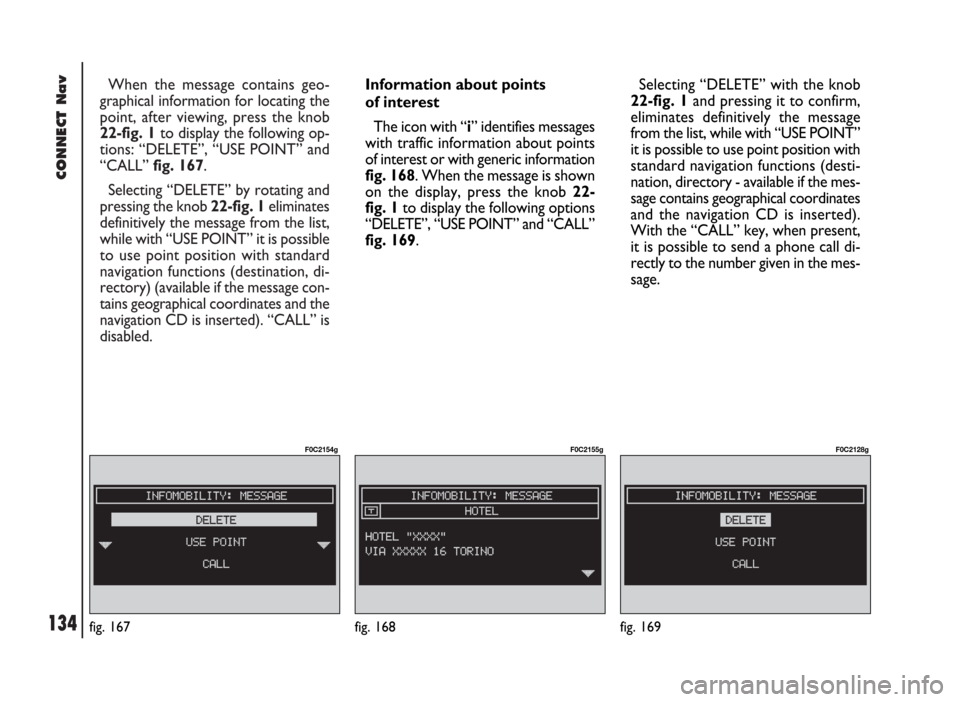
When the message contains geo-
graphical information for locating the
point, after viewing, press the knob
22-fig. 1to display the following op-
tions: “DELETE”, “USE POINT” and
“CALL” fig. 167.
Selecting “DELETE” by rotating and
pressing the knob 22-fig. 1eliminates
definitively the message from the list,
while with “USE POINT” it is possible
to use point position with standard
navigation functions (destination, di-
rectory) (available if the message con-
tains geographical coordinates and the
navigation CD is inserted). “CALL” is
disabled.
fig. 167
F0C2154g
Information about points
of interest
The icon with “i” identifies messages
with traffic information about points
of interest or with generic information
fig. 168. When the message is shown
on the display, press the knob 22-
fig. 1to display the following options
“DELETE”, “USE POINT” and “CALL”
fig. 169.Selecting “DELETE” with the knob
22-fig. 1and pressing it to confirm,
eliminates definitively the message
from the list, while with “USE POINT”
it is possible to use point position with
standard navigation functions (desti-
nation, directory - available if the mes-
sage contains geographical coordinates
and the navigation CD is inserted).
With the “CALL” key, when present,
it is possible to send a phone call di-
rectly to the number given in the mes-
sage.
fig. 168
F0C2155g
fig. 169
F0C2128g
Page 137 of 246
CONNECT Nav
136fig. 172
F0C2148g
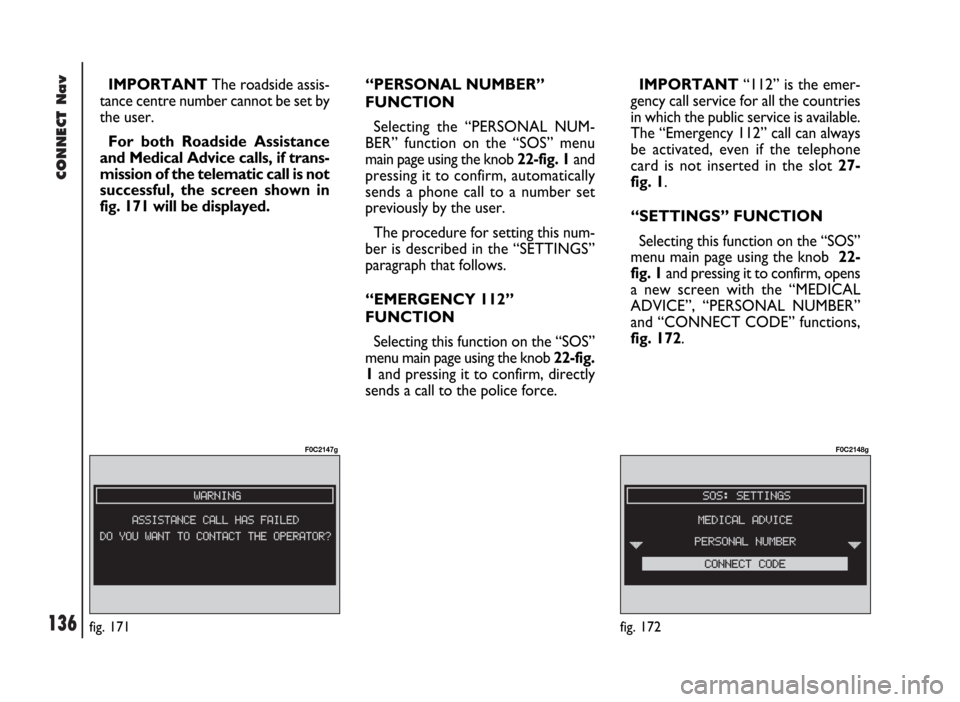
IMPORTANTThe roadside assis-
tance centre number cannot be set by
the user.
For both Roadside Assistance
and Medical Advice calls, if trans-
mission of the telematic call is not
successful, the screen shown in
fig. 171 will be displayed.“PERSONAL NUMBER”
FUNCTION
Selecting the “PERSONAL NUM-
BER” function on the “SOS” menu
main page using the knob 22-fig. 1and
pressing it to confirm, automatically
sends a phone call to a number set
previously by the user.
The procedure for setting this num-
ber is described in the “SETTINGS”
paragraph that follows.
“EMERGENCY 112”
FUNCTION
Selecting this function on the “SOS”
menu main page using the knob 22-fig.
1and pressing it to confirm, directly
sends a call to the police force.IMPORTANT“112” is the emer-
gency call service for all the countries
in which the public service is available.
The “Emergency 112” call can always
be activated, even if the telephone
card is not inserted in the slot 27-
fig. 1.
“SETTINGS” FUNCTION
Selecting this function on the “SOS”
menu main page using the knob 22-
fig. 1and pressing it to confirm, opens
a new screen with the “MEDICAL
ADVICE”, “PERSONAL NUMBER”
and “CONNECT CODE” functions,
fig. 172.
fig. 171
F0C2147g
Page 138 of 246
CONNECT Nav
137
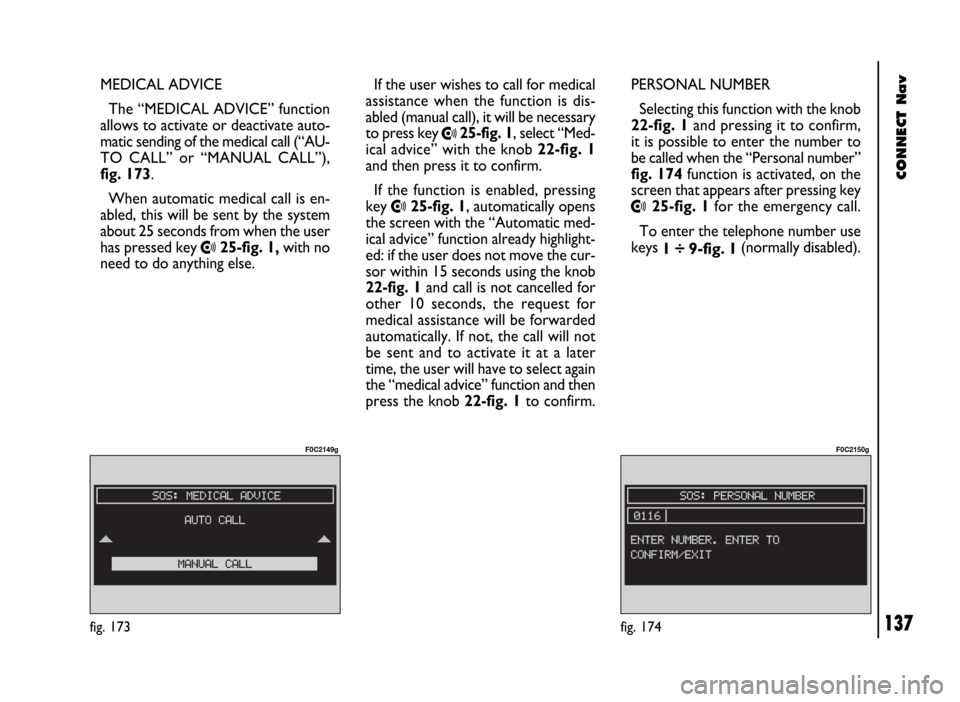
MEDICAL ADVICE
The “MEDICAL ADVICE” function
allows to activate or deactivate auto-
matic sending of the medical call (“AU-
TO CALL” or “MANUAL CALL”),
fig. 173.
When automatic medical call is en-
abled, this will be sent by the system
about 25 seconds from when the user
has pressed key
•25-fig. 1,with no
need to do anything else.If the user wishes to call for medical
assistance when the function is dis-
abled (manual call), it will be necessary
to press key
•25-fig. 1, select “Med-
ical advice” with the knob 22-fig. 1
and then press it to confirm.
If the function is enabled, pressing
key
•25-fig. 1, automatically opens
the screen with the “Automatic med-
ical advice” function already highlight-
ed: if the user does not move the cur-
sor within 15 seconds using the knob
22-fig. 1and call is not cancelled for
other 10 seconds, the request for
medical assistance will be forwarded
automatically. If not, the call will not
be sent and to activate it at a later
time, the user will have to select again
the “medical advice” function and then
press the knob 22-fig. 1to confirm.PERSONAL NUMBER
Selecting this function with the knob
22-fig. 1and pressing it to confirm,
it is possible to enter the number to
be called when the “Personal number”
fig. 174function is activated, on the
screen that appears after pressing key•25-fig. 1for the emergency call.
To enter the telephone number use
keys
1 ÷ 9-fig. 1(normally disabled).
fig. 173
F0C2149g
fig. 174
F0C2150g
Page 139 of 246
CONNECT Nav
138
When entering the phone number,
briefly press “ESC” 23-fig. 1to
delete the last entered digit and
press it longer to delete the entire
string.
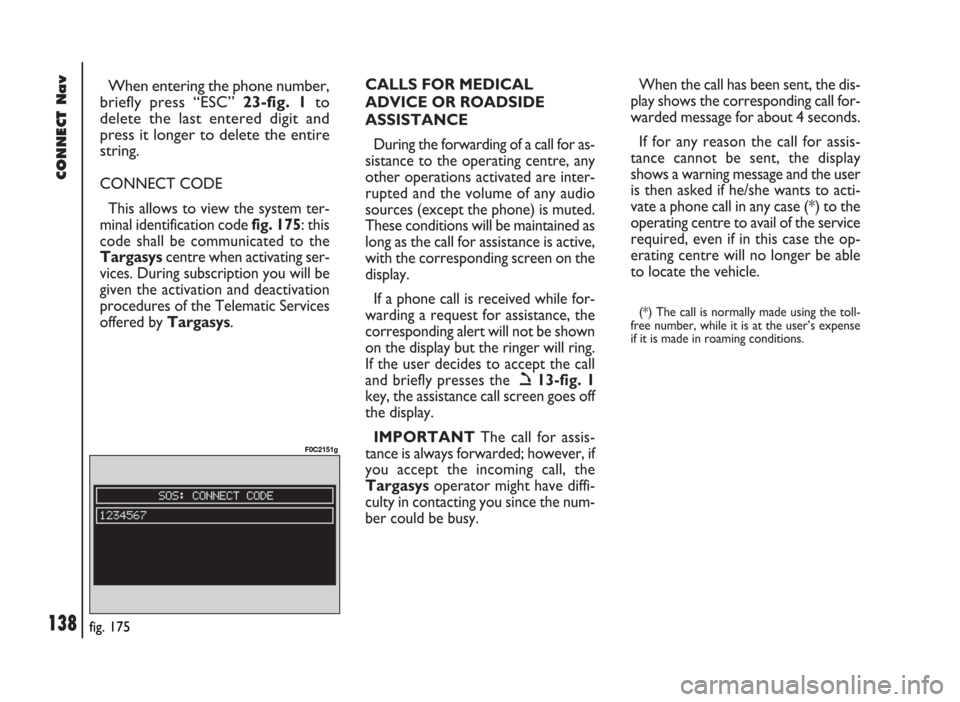
CONNECT CODE
This allows to view the system ter-
minal identification code fig. 175: this
code shall be communicated to the
Targasyscentre when activating ser-
vices. During subscription you will be
given the activation and deactivation
procedures of the Telematic Services
offered by Targasys.CALLS FOR MEDICAL
ADVICE OR ROADSIDE
ASSISTANCE
During the forwarding of a call for as-
sistance to the operating centre, any
other operations activated are inter-
rupted and the volume of any audio
sources (except the phone) is muted.
These conditions will be maintained as
long as the call for assistance is active,
with the corresponding screen on the
display.
If a phone call is received while for-
warding a request for assistance, the
corresponding alert will not be shown
on the display but the ringer will ring.
If the user decides to accept the call
and briefly presses the ò13-fig. 1
key, the assistance call screen goes off
the display.
IMPORTANTThe call for assis-
tance is always forwarded; however, if
you accept the incoming call, the
Targasysoperator might have diffi-
culty in contacting you since the num-
ber could be busy. When the call has been sent, the dis-
play shows the corresponding call for-
warded message for about 4 seconds.
If for any reason the call for assis-
tance cannot be sent, the display
shows a warning message and the user
is then asked if he/she wants to acti-
vate a phone call in any case (*) to the
operating centre to avail of the service
required, even if in this case the op-
erating centre will no longer be able
to locate the vehicle.
(*) The call is normally made using the toll-
free number, while it is at the user’s expense
if it is made in roaming conditions.
fig. 175
F0C2151g