lock FIAT FREEMONT 2012 Owner handbook (in English)
[x] Cancel search | Manufacturer: FIAT, Model Year: 2012, Model line: FREEMONT, Model: FIAT FREEMONT 2012Pages: 332, PDF Size: 5.61 MB
Page 34 of 332
Units (for versions/markets, where provided)
Press the Units soft-key to change this display. When in
this display you may select to have the EVIC, odometer,
and navigation system (for versions/markets, where
provided) changed between US and Metric units of
measure. Press US or Metric followed by pressing the
arrow back soft-key. Then, as you continue, the infor-
mation will display in the selected units of measure.
Voice Response (for versions/markets, whereprovided)
Press the Voice Response soft-key to change this dis-
play. When in this display you may change the Voice
Response Length settings. To change the Voice Re-
sponse Length press and release the Brief or Long
soft-key followed by pressing the arrow back soft-key.
Touch Screen Beep (for versions/markets, where provided)
Press the Touch Screen Beep soft-key to change this
display. When in this display you may turn on or shut off
the sound heard when a touch screen button (soft-key)
is pressed. To change the Touch Screen Beep setting
press and release the On or Off soft-key followed by
pressing the arrow back soft-key. Clock
Set Time (for versions/markets, where provided)
Press the Set Time soft-key to change this display.
When in this display you may select the time display
settings. To make your selection, press the Set Time soft-key, adjust the hours and minutes using the up and
down soft-keys, select AM or PM, select 12 hr or 24 hr
followed by pressing the arrow back soft-key when all
selections are complete.
Show Time Status (for versions/markets, where
provided)
Press the Show Time Status soft-key to change this
display. When in this display you may turn on or shut off
the digital clock in the status bar. To change the Show
Time Status setting press and release the On or Off
soft-key followed by pressing the arrow back soft-key.
Sync Time (for versions/markets, where provided)
Press the Sync Time soft-key to change this display.
When in this display you may automatically have the
radio set the time. To change the Sync Time setting
press and release the On or Off soft-key followed by
pressing the arrow back soft-key.
Safety / Assistance
Park Assist (for versions/markets, where provided)
Press the Park Assist soft-key to change this display.
The Rear Park Assist system will scan for objects
behind the vehicle when the transmission shift lever is
in REVERSE and the vehicle speed is less than 18 km/h.
The system can be enabled with Sound Only, Sound
and Display, or turned OFF. To change the Park Assist
status press and release the Off, Sound Only or Sounds
28
KNOWING YOUR
VEHICLE
SAFETY
STARTING AND
DRIVING
WARNING LIGHTSAND
MESSAGES
IN AN
EMERGENCY
SERVICING AND
CARETECHNICAL
SPECIFICATIONSCONTENTS
Page 35 of 332
and Display button followed by pressing the arrow back
soft-key.
Hill Start Assist (for versions/markets, whereprovided)
Press the Hill Start Assist soft-key to change this
display. When this feature is selected, the Hill Start
Assist (HSA) system is active. Refer to “Electronic
Brake Control System” in “Starting And Driving” for
system function and operating information. To make
your selection, press the Hill Start Assist soft-key,
select On or Off followed by pressing the arrow back
soft-key.
Lights
Headlight Off Delay (for versions/markets, where provided)
Press the Headlight Off Delay soft-key to change this
display. When this feature is selected, the driver can
choose to have the headlights remain on for 0, 30, 60,
or 90 seconds when exiting the vehicle. To change the
Headlight Off Delay status press the 0, 30, 60 or 90
soft-key followed by pressing the arrow back soft-key.
Illuminated Approach (for versions/markets, where provided)
Press the Illuminated Approach soft-key to change this
display. When this feature is selected, the headlights
will activate and remain on for 0, 30, 60, or 90 seconds
when the doors are unlocked with the RKE transmit-
ter. To change the Illuminated Approach status press the 0, 30, 60 or 90 soft-key followed by pressing the
arrow back soft-key.
Headlights with Wipers (for versions/markets,
where provided)
Press the Headlights with Wipers soft-key to change
this display. When this feature is selected, and the
headlight switch is in the AUTO position, the head-
lights will turn on approximately 10 seconds after the
wipers are turned on. The headlights will also turn off
when the wipers are turned off if they were turned on
by this feature. To make your selection, press the
Headlights with Wipers soft-key, select On or Off
followed by pressing the arrow back soft-key.
Auto High Beams (for versions/markets, where provided)
Press the Auto High Beams soft-key to change this
display. When this feature is selected, the high beam
headlights will deactivate automatically under certain
conditions. To make your selection, press the Auto
High Beams soft-key, select ON or OFF followed by
pressing the arrow back soft-key. Refer to “Lights/
SmartBeam™ (for versions/markets, where provided)”
in “Knowing Your Vehicle” for further information.
Flash Headlights with Lock (for versions/ markets, where provided)
Press the Flash Headlights with Lock soft-key to change
this display. When this feature is selected, the front and
rear turn signals will flash when the doors are locked or
unlocked with the RKE transmitter. To make your
29
KNOWING
YOURVEHICLESAFETY
STARTING ANDDRIVING
WARNING LIGHTSAND
MESSAGES
IN AN
EMERGENCY
SERVICING AND
CARETECHNICAL
SPECIFICATIONSCONTENTS
Page 36 of 332
selection, press the Flash Headlights with Lock soft-
key, select On or Off followed by pressing the arrow
back soft-key.
Doors & Locks
Auto Unlock on Exit (for versions/markets,where provided)
Press the Auto Unlock on Exit soft-key to change this
display. When this feature is selected, all doors will
unlock when the vehicle is stopped and the transmis-
sion is in the PARK or NEUTRAL position and the
driver's door is opened. To make your selection, press
the Auto Unlock on Exit soft-key, select On or Off
followed by pressing the arrow back soft-key.
Flash Lights with Lock (for versions/markets,
where provided)
Press the Flash Lights with Lock soft-key to change this
display. When this feature is selected, the front and
rear turn signals will flash when the doors are locked or
unlocked with the RKE transmitter. To make your
selection, press the Flash Lights with Lock soft-key,
select On or Off followed by pressing the arrow back
soft-key.
Remote Door Unlock Order (for versions/ markets, where provided)
Press the Remote Door Unlock Order soft-key to
change this display. When Unlock Driver Door Only
On 1st Press is selected, only the driver's door will
unlock on the first press of the RKE transmitter UN- LOCK button. When Driver Door 1st Press is se-
lected, you must press the RKE transmitter UNLOCK
button twice to unlock the passenger's doors. When
Unlock All Doors On 1st Press
is selected, all of the
doors will unlock on the first press of the RKE trans-
mitter UNLOCK button.
NOTE: If the vehicle is equipped with Keyless Enter-
N-Go (Passive Entry) and the EVIC is programmed to
Unlock All Doors 1st Press, all doors will unlock no
matter which Passive Entry equipped door handle is
grasped. If Driver Door 1st Press is programmed, only
the driver’s door will unlock when the driver’s door is
grasped. With Passive Entry, if Driver Door 1st Press is
programmed touching the handle more than once will
only result in the driver’s door opening. If driver door
first is selected, once the driver door is opened, the
interior door lock/unlock switch can be used to unlock
all doors (or use RKE transmitter).
Passive Entry (Keyless Enter-N-Go) (for versions/markets, where provided)
Press the Passive Entry soft-key to change this display.
This feature allows you to lock and unlock the vehicle’s
door(s) without having to press the RKE transmitter
lock or unlock buttons. To make your selection, press
the Passive Entry soft-key, select ON or OFF followed
by pressing the arrow back soft-key. Refer to “Keyless
Enter-N-Go” in “Knowing Your Vehicle”.
30
KNOWING YOUR
VEHICLE
SAFETY
STARTING AND
DRIVING
WARNING LIGHTSAND
MESSAGES
IN AN
EMERGENCY
SERVICING AND
CARETECHNICAL
SPECIFICATIONSCONTENTS
Page 39 of 332
Audio
Equalizer (for versions/markets, where provided)
Press the Equalizer soft-key to change this display.
When in this display you may adjust the Bass, Mid and
Treble settings. Adjust the settings with the + and –
setting soft-keys or by selecting any point on the scale
in between the + and – soft-keys followed by pressing
the arrow back soft-key.
NOTE:Bass/mid/treble allow the you to simply slide
your finger up/down to change the setting as well as
press directly on the desired setting.
Balance / Fade (for versions/markets, where provided)
Press the Balance / Fade soft-key to change this display.
When in this display you may adjust the Balance and
Fade settings.
Speed Adjusted Volume (for versions/markets,
where provided)
Press the Speed Adjusted Volume soft-key to change
this display. Decreases volume relative to vehicle
speed. To change the Speed Adjusted Volume press the
Off, 1, 2 or 3 soft-key followed by pressing the arrow
back soft-key.
Surround Sound (for versions/markets, where
provided)
Press the Surround Sound soft-key to change this
display. Provides simulated surround sound mode. To
make your selection, press the Surround Sound soft- key, select ON or OFF followed by pressing the arrow
back soft-key.
Phone / Bluetooth
Paired Devices (for versions/markets, where
provided)
This feature shows which phones are paired to the
Phone/Bluetooth system. For further information, re-
fer to the Uconnect Touch™ Supplement.
CUSTOMER PROGRAMMABLE FEATURES
— Uconnect Touch™ SYSTEM 8.4 SETTINGS
In this mode the Uconnect Touch™ system allows you
to access programmable features that may be equipped
such as Display, Clock, Safety/Assistance, Lights, Doors
& Locks, Auto-On Comfort , Engine Off Operation,
Compass Settings, Audio and Phone/Bluetooth set-tings.
NOTE: Only one touchscreen area may be selected
at a time. (fig. 14)
When making a selection, scroll up or down until the
preferred setting is highlighted, then press and release
the preferred setting until a check-mark appears next
to the setting, showing that setting has been selected.
Display
Display Mode (for versions/markets, where provided)
When in this display you may select one of the auto
display settings. To change Mode status press and
33
KNOWING
YOURVEHICLESAFETY
STARTING ANDDRIVING
WARNING LIGHTSAND
MESSAGES
IN AN
EMERGENCY
SERVICING AND
CARETECHNICAL
SPECIFICATIONSCONTENTS
Page 41 of 332
Touchscreen Beep (for versions/markets, whereprovided)
When in this display you may turn on or shut off the
sound heard when a touch screen button (soft-key) is
pressed. To change the Touch Screen Beep setting
press and release the On or Off soft-key followed by
pressing the arrow back soft-key.
Navigation Turn-By-Turn in Cluster (for
versions/markets, where provided)
When this feature is selected, the turn-by-turn direc-
tions will appear in the display as the vehicle ap-
proaches a designated turn within a programmed
route. To make your selection, press the Navigation
Turn-By-Turn in Cluster soft-key, select On or Off
followed by pressing the arrow back soft-key. Clock
Sync Time with GPS (for versions/markets, where provided)
When in this display you may automatically have the
radio set the time. To change the Sync Time setting
press and release the On or Off soft-key followed by
pressing the arrow back soft-key.
Set Time Hours (for versions/markets, where provided)
When in this display you may select the time display
settings. To make your selection, press the Set Time
soft-key, adjust the hours using the up and down soft-keys, followed by pressing the arrow back soft-key
when all selections are complete.
Set Time Minutes (for versions/markets, where
provided)
When in this display you may select the time display
settings. To make your selection, press the Set Time
soft-key, adjust the minutes using the up and down
soft-keys, followed by pressing the arrow back soft-key
when all selections are complete.
Time Format (for versions/markets, where provided)
When in this display you may select the time display
settings. To make your selection, press the Set Time
soft-key, select 12 hr or 24 hr followed by pressing the
arrow back soft-key when all selections are complete.
Show Time in Status Bar (for versions/markets, where provided)
When in this display you may turn on or shut off the
digital clock in the status bar. To change the Show Time
Status setting press and release the On or Off soft-key
followed by pressing the arrow back soft-key.
Safety / Assistance
Park Assist (for versions/markets, where provided)
The Rear Park Assist system will scan for objects
behind the vehicle when the transmission shift lever is
in REVERSE and the vehicle speed is less than 18 km/h.
The system can be enabled with Sound Only, Sound
35
KNOWING
YOURVEHICLESAFETY
STARTING ANDDRIVING
WARNING LIGHTSAND
MESSAGES
IN AN
EMERGENCY
SERVICING AND
CARETECHNICAL
SPECIFICATIONSCONTENTS
Page 42 of 332
and Display, or turned OFF. To change the Park Assist
status press and release the Off, Sound Only or Sounds
and Display button followed by pressing the arrow back
soft-key.
Parkview Backup Camera (for versions/markets,where provided)
Your vehicle may be equipped with the ParkView
®
Rear Back Up Camera that allows you to see an
on-screen image of the rear surroundings of your
vehicle whenever the shift lever is put into REVERSE.
The image will be displayed on the radio touchscreen
display along with a caution note to “check entire
surroundings” across the top of the screen. After five
seconds this note will disappear. The ParkView
®cam-
era is located on the rear of the vehicle above the rear
License plate. To make your selection, press the Park-
view Backup Camera soft-key, select On or Off fol-
lowed by pressing the arrow back soft-key.
Hill Start Assist (for versions/markets, where provided)
When this feature is selected, the Hill Start Assist
(HSA) system is active. Refer to “Electronic Brake
Control System” in “Starting And Driving” for system
function and operating information. To make your
selection, press the Hill Start Assist soft-key, select On
or Off followed by pressing the arrow back soft-key. Lights
Headlight Off Delay (for versions/markets,
where provided)
When this feature is selected, the driver can choose to
have the headlights remain on for 0, 30, 60, or 90 sec-
onds when exiting the vehicle. To change the Headlight
Off Delay status press the 0, 30, 60 or 90 soft-key
followed by pressing the arrow back soft-key.
Headlight Illumination on Approach (for versions/markets, where provided)
When this feature is selected, the headlights will acti-
vate and remain on for 0, 30, 60, or 90 seconds when
the doors are unlocked with the RKE transmitter. To
change the Illuminated Approach status press the 0, 30,
60 or 90 soft-key followed by pressing the arrow back
soft-key.
Headlights with Wipers (for versions/markets, where provided)
When this feature is selected, and the headlight switch
is in the AUTO position, the headlights will turn on
approximately 10 seconds after the wipers are turned
on. The headlights will also turn off when the wipers
are turned off if they were turned on by this feature. To
make your selection, press the Headlights with Wipers
soft-key, select On or Off followed by pressing the
arrow back soft-key.
36
KNOWING YOUR
VEHICLE
SAFETY
STARTING AND
DRIVING
WARNING LIGHTSAND
MESSAGES
IN AN
EMERGENCY
SERVICING AND
CARETECHNICAL
SPECIFICATIONSCONTENTS
Page 43 of 332
Auto Dim High Beams (for versions/markets,where provided)
When this feature is selected, the high beam headlights
will deactivate automatically under certain conditions.
To make your selection, press the Auto High Beams
soft-key, select ON or OFF followed by pressing the
arrow back soft-key. Refer to “Lights/SmartBeam™
(for versions/markets, where provided)” in “Knowing
Your Vehicle” for further information.
Headlight Dip (Traffic Changeover) (for versions/markets, where provided)
Low beam headlights have more control of upward
light and direct most of their light downward and either
to the right for right hand drive countries or to the left
for left hand drive countries to provide safe forward
visibility without excessive glare.
Flash Headlights With Lock (for versions/ markets, where provided)
When this feature is selected, the front and rear turn
signals will flash when the doors are locked or unlocked
with the RKE transmitter. To make your selection,
press the Flash Headlights with Lock soft-key, select
On or Off followed by pressing the arrow back soft-key.
Doors & Locks
Auto Unlock on Exit (for versions/markets, where provided)
When this feature is selected, all doors will unlock
when the vehicle is stopped and the transmission is in the PARK or NEUTRAL position and the driver's door
is opened. To make your selection, press the Auto
Unlock on Exit soft-key, select On or Off followed by
pressing the arrow back soft-key.
Flash Headlight with Lock (for versions/markets,
where provided)
When this feature is selected, the front and rear turn
signals will flash when the doors are locked or unlocked
with the RKE transmitter. To make your selection,
press the Flash Lights with Lock soft-key, select On or
Off followed by pressing the arrow back soft-key.
1st Press of Key Fob Unlocks (for versions/markets, where provided)
When Unlock Driver Door Only On 1st Press is
selected, only the driver's door will unlock on the first
press of the RKE transmitter UNLOCK button. When
Driver Door 1st Press is selected, you must press the
RKE transmitter UNLOCK button twice to unlock the
passenger's doors. When Unlock All Doors On 1st
Press is selected, all of the doors will unlock on the
first press of the RKE transmitter UNLOCK button.
NOTE: If the vehicle is equipped with Keyless Enter-
N-Go (Passive Entry) and the EVIC is programmed to
Unlock All Doors 1st Press, all doors will unlock no
matter which Passive Entry equipped door handle is
grasped. If Driver Door 1st Press is programmed, only
the driver’s door will unlock when the driver’s door is
grasped. With Passive Entry, if Driver Door 1st Press is
programmed touching the handle more than once will
37
KNOWING
YOURVEHICLESAFETY
STARTING ANDDRIVING
WARNING LIGHTSAND
MESSAGES
IN AN
EMERGENCY
SERVICING AND
CARETECHNICAL
SPECIFICATIONSCONTENTS
Page 44 of 332
only result in the driver’s door opening. If driver door
first is selected, once the driver door is opened, the
interior door lock/unlock switch can be used to unlock
all doors (or use RKE transmitter).
Passive Entry (for versions/markets, whereprovided)
This feature allows you to lock and unlock the vehicle’s
door(s) without having to press the RKE transmitter
lock or unlock buttons. To make your selection, press
the Passive Entry soft-key, select ON or OFF followed
by pressing the arrow back soft-key. Refer to “Keyless
Enter-N-Go” in “Knowing Your Vehicle”.
Engine Off Options
Engine Off Power Delay (for versions/markets,
where provided)
When this feature is selected, the power window
switches, radio, Uconnect™ phone system (for
versions/markets, where provided), DVD video system
(for versions/markets, where provided), power sunroof
(for versions/markets, where provided), and power
outlets will remain active for up to 10 minutes after the
ignition is cycled OFF. Opening either front vehicle
door will cancel this feature. To change the Engine Off
Power Delay status press the 0 seconds, 45 seconds,
5 minutes or 10 minutes soft-key followed by pressing
the arrow back soft-key. Headlight Off Delay (for versions/markets,
where provided)
When this feature is selected, the driver can choose to
have the headlights remain on for 0, 30, 60, or 90 sec-
onds when exiting the vehicle. To change the Headlight
Off Delay status press the 0, 30, 60 or 90 soft-key
followed by pressing the arrow back soft-key.
Compass Settings
Variance (for versions/markets, where provided)
Compass Variance is the difference between Magnetic
North and Geographic North. To compensate for the
differences the variance should be set for the zone
where the vehicle is driven, per the zone map. Once
properly set, the compass will automatically compen-
sate for the differences, and provide the most accurate
compass heading.
NOTE: Keep magnetic materials away from the top
of the instrument panel, such as iPod's, Mobile Phones,
Laptops and Radar Detectors. This is where the com-
pass module is located, and it can cause interference
with the compass sensor, and it may give false readings.
(fig. 15)
38
KNOWING YOUR
VEHICLE
SAFETY
STARTING AND
DRIVING
WARNING LIGHTSAND
MESSAGES
IN AN
EMERGENCY
SERVICING AND
CARETECHNICAL
SPECIFICATIONSCONTENTS
Page 55 of 332
WARNING!
Do not allow a passenger to sit in a third
row seat without having the head re-
straint unfolded and locked in place. Failure to
follow this warning may result in personal injury
to the passenger in the event of a collision.
60/40 SPLIT SECOND-ROW PASSENGER
SEATS
To provide additional storage area, each second-row
passenger seat can be folded flat. This allows for ex-
tended cargo space and still maintains some seating
room if needed.
NOTE: Prior to folding the second-row passenger
seat, make sure the front seatback is not in a reclined
position. This will allow the second-row seat to fold
easily.
WARNING!
It is extremely dangerous to ride in a
cargo area, inside or outside of a vehicle.
In a collision, people riding in these areas are
more likely to be seriously injured or killed.
Do not allow people to ride in any area of your
vehicle that is not equipped with seats and seat
belts.
Be sure everyone in your vehicle is in a seat and
using a seat belt properly.
On seven passenger models, do not allow a
passenger to sit in a third row seat with the
second row seatback(s) folded flat . In a collision,
the passenger could slide underneath the seat
belt and be seriously or even fatally injured.
To Fold The Seat
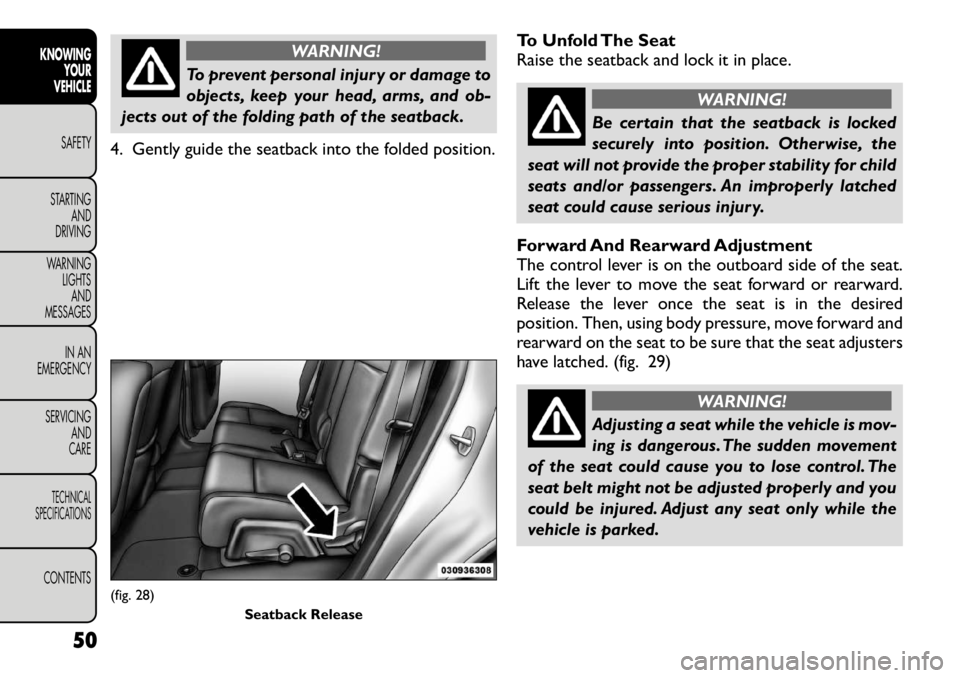
1. Locate the control lever on the lower outboard side of the seat. (fig. 28)
2. Place one hand on the seatback and apply a gentle pressure.
3. Lift the control lever with the other hand, allow the seatback to move forward slightly, and then release
the lever.
49
KNOWING
YOURVEHICLESAFETY
STARTING ANDDRIVING
WARNING LIGHTSAND
MESSAGES
IN AN
EMERGENCY
SERVICING AND
CARETECHNICAL
SPECIFICATIONSCONTENTS
Page 56 of 332
WARNING!
To prevent personal injury or damage to
objects, keep your head, arms, and ob-
jects out of the folding path of the seatback.
4. Gently guide the seatback into the folded position. To Unfold The Seat
Raise the seatback and lock it in place.
WARNING!
Be certain that the seatback is locked
securely into position. Otherwise, the
seat will not provide the proper stability for child
seats and/or passengers. An improperly latched
seat could cause serious injury.
Forward And Rearward Adjustment
The control lever is on the outboard side of the seat.
Lift the lever to move the seat forward or rearward.
Release the lever once the seat is in the desired
position. Then, using body pressure, move forward and
rearward on the seat to be sure that the seat adjusters
have latched. (fig. 29)
WARNING!
Adjusting a seat while the vehicle is mov-
ing is dangerous. The sudden movement
of the seat could cause you to lose control. The
seat belt might not be adjusted properly and you
could be injured. Adjust any seat only while the
vehicle is parked.
(fig. 28) Seatback Release
50
KNOWING YOUR
VEHICLE
SAFETY
STARTING AND
DRIVING
WARNING LIGHTSAND
MESSAGES
IN AN
EMERGENCY
SERVICING AND
CARETECHNICAL
SPECIFICATIONSCONTENTS