air FORD B MAX 2012 1.G Workshop Manual
[x] Cancel search | Manufacturer: FORD, Model Year: 2012, Model line: B MAX, Model: FORD B MAX 2012 1.GPages: 256, PDF Size: 19.67 MB
Page 162 of 256
Downloaded from www.Manualslib.com manuals search engine Apart from a too low tyre pressure or adamaged tyre, the following situations canaffect the rolling circumference:
•Vehicle load is uneven.
•When using a trailer or travelling up anddown an incline.
•Using snow chains.
•Driving on soft surfaces such as snowor mud.
Note:The system will still functioncorrectly, but there may be an increaseddetection time.
System Reset
Note:Do not reset the system when yourvehicle is moving.
Note:You should reset the systemfollowing any adjustment to the tyrepressures or any changing of tyres.
1.Switch the ignition on.
2.Using the information display control,navigate to Menu > Vehicle settings> Deflation detection.
3.Press and hold the OK button untilconfirmation appears.
CHANGING A ROAD WHEEL
Wheel Nuts
You can obtain a replacement lockingwheel nut key and replacement lockingwheel nuts from your dealer using thereference number certificate.
Vehicles With a Spare Wheel
If the spare wheel is exactly the same typeand size as the other fitted road wheels,you can replace the existing road wheelwith the spare wheel and continue to drivein the normal manner.
If the spare wheel is different to the otherroad wheels, it will carry a yellow label withthe appropriate speed limit.
Refer to the following information beforechanging the road wheel.
WARNINGS
Drive the shortest possible distances.
Do not fit more than one spare wheelon your vehicle at any one time.
Do not carry out any tyre repairs ona spare wheel.
Do not drive through an automaticcar wash.
If you are unsure what type of sparewheel you have do not exceed 80km/h (50 mph).
Only fit snow chains to specifiedtyres. See TechnicalSpecifications (page 164).
The ground clearance of your vehiclemay be reduced. Take care whenparking next to a kerb.
Note:Your vehicle may exhibit someunusual driving characteristics.
Vehicle Jack
WARNINGS
The vehicle jack supplied with yourvehicle should only be used whenchanging a wheel in emergencysituations.
Before using the vehicle jack, checkthat it is not damaged or deformedand that the thread is lubricated andfree from foreign matter.
Never place anything between thejack and the ground, or the jack andyour vehicle.
160Wheels and Tyres
Page 178 of 256
Downloaded from www.Manualslib.com manuals search engine 1.Press the MENU button and selectAUDIO or AUDIO SETTINGS.
2.Select AVC LEVEL or ADAPTIVEVOL.
3.Use the left or right arrow button toadjust the setting.
4.Press the OK button to confirm yourselection.
5.Press the MENU button to return.
News Broadcasts
Your audio unit may interrupt normalreception to broadcast news bulletins fromstations on the FM waveband, radio datasystem or other enhanced network linkedstations.
The display will indicate there is anincoming announcement, during newsbroadcasts. When the audio unit interruptsfor a news broadcast the preset volumelevel will be the same as trafficannouncements.
1.Press the MENU button.
2.Select AUDIO or AUDIO SETTINGS.
3.Scroll to NEWS and turn on or off withthe OK button.
4.Press the MENU button to return.
Alternative Frequencies
The majority of programs that broadcaston the FM waveband have a programidentification code, it can be recognised byaudio units.
When your vehicle moves from onetransmission area to another with thealternative frequencies tuning switchedon, this function will search for thestrongest station signal.
Under certain conditions, alternativefrequencies tuning may temporarily disruptnormal reception.
When selected, the unit continuallyevaluates signal strength and if a bettersignal becomes available, the unit willswitch to that alternative. It mutes whileit checks a list of alternative frequenciesand if necessary, it will search once acrossthe selected waveband for a genuinealternative frequency.
It will restore radio reception when it findsone or if one is not found, the unit willreturn to the original stored frequency.
When selected,AF will be shown in thedisplay.
1.Press the MENU button.
2.Select AUDIO or AUDIO SETTINGS.
3.Scroll to ALTERNAT FREQ orALTERNATIVE FREQ and turn on oroff with the OK button.
4.Press the MENU button to return.
Regional Mode
Regional mode controls the behavior ofalternative frequencies switching betweenregionally related networks of a parentbroadcaster. A broadcaster may run a fairlylarge network across a large part of thecountry. At various times of the day thislarge network may be broken down into anumber of smaller regional networks,typically centred on major towns or cities.When the network is not split into regionalvariants, the whole network caries thesame programming.
Regional mode ON: This prevents randomalternative frequency switches whenneighbouring regional networks are notcarrying the same programming.
Regional mode OFF: This allows a largercoverage area if neighbouring regionalnetworks are carrying the sameprogramming, but can cause randomalternative frequency switches if they arenot.
1.Press the MENU button.
176Audio System
Page 183 of 256
Downloaded from www.Manualslib.com manuals search engine 5.Press the MENU button to return.
News Broadcasts
Your audio unit may interrupt normalreception to broadcast news bulletins fromstations on the FM waveband, radio datasystem or other enhanced network linkedstations.
The display will indicate there is anincoming announcement, during newsbroadcasts. When the audio unit interruptsfor a news broadcast the preset volumelevel will be the same as trafficannouncements.
1.Press the MENU button.
2.Select AUDIO or AUDIO SETTINGS.
3.Scroll to NEWS and turn on or off withthe OK button.
4.Press the MENU button to return.
Alternative Frequencies
The majority of programs that broadcaston the FM waveband have a programidentification code, it can be recognised byaudio units.
When your vehicle moves from onetransmission area to another with thealternative frequencies tuning switchedon, this function will search for thestrongest station signal.
Under certain conditions, alternativefrequencies tuning may temporarily disruptnormal reception.
When selected, the unit continuallyevaluates signal strength and, if a bettersignal becomes available, the unit willswitch to that alternative. It mutes whileit checks a list of alternative frequenciesand if necessary, it will search once acrossthe selected waveband for a genuinealternative frequency.
It will restore radio reception when it findsone or if one is not found, the unit willreturn to the original stored frequency.
When selected, AF will be shown in thedisplay.
1.Press the MENU button.
2.Select AUDIO or AUDIO SETTINGS.
3.Scroll to ALTERNAT FREQ. orALTERNATIVE FREQ. and turn on oroff with the OK button.
4.Press the MENU button to return.
Regional Mode
Regional mode controls the behaviour ofalternative frequencies switching betweenregionally related networks of a parentbroadcaster. A broadcaster may run a fairlylarge network across a large part of thecountry. At various times of the day thislarge network may be broken down into anumber of smaller regional networks,typically centred on major towns or cities.When the network is not split into regionalvariants, the whole network caries thesame programming.
Regional mode ON: This prevents randomalternative frequency switches whenneighbouring regional networks are notcarrying the same programming.
Regional mode OFF: This allows a largercoverage area if neighbouring regionalnetworks are carrying the sameprogramming, but can cause randomalternative frequency switches if they arenot.
1.Press the MENU button.
2.Select AUDIO or AUDIO SETTINGS.
3.Scroll to RDS REGIONAL and turn onor off with the OK button.
4.Press the MENU button to return.
181Audio System
Page 189 of 256
Downloaded from www.Manualslib.com manuals search engine When selected, AF will be shown in thedisplay.
1.Press the MENU button.
2.Select AUDIO or AUDIO SETTINGS.
3.Scroll to ALTERNAT FREQ. orALTERNATIVE FREQ. and turn on oroff with the OK button.
4.Press the MENU button to return.
Regional Mode
Regional mode controls the behaviour ofalternative frequencies switching betweenregionally related networks of a parentbroadcaster. A broadcaster may run a fairlylarge network across a large part of thecountry. At various times of the day thislarge network may be broken down into anumber of smaller regional networks,typically centred on major towns or cities.When the network is not split into regionalvariants, the whole network caries thesame programming.
Regional mode ON: This prevents randomalternative frequency switches whenneighbouring regional networks are notcarrying the same programming.
Regional mode OFF: This allows a largercoverage area if neighbouring regionalnetworks are carrying the sameprogramming, but can cause 'random'alternative frequency switches if they arenot.
1.Press the MENU button.
2.Select AUDIO or AUDIO SETTINGS.
3.Scroll to RDS REGIONAL and turn onor off with the OK button.
4.Press the MENU button to return.
AUDIO SYSTEM SECURITY
Each unit incorporates a unique code thatis linked to the vehicle identificationnumber. The system will automaticallycheck that the audio unit and vehiclematch before allowing operation.
If a security code message appears, see anauthorised dealer.
COMPACT DISC PLAYER -
VEHICLES WITH: AM/FM/CD
Compact Disc Playback
Note:During playback, the display indicatesthe disc, track and time that has elapsedsince the start of the track.
During radio reception, press the CD buttononce to start CD playback.
After a disc is loaded, playback will startimmediately.
Track Selection
•Press the seek down button once toreplay the current track. If pressedwithin two seconds of the start of atrack, the previous track will beselected.
•Press the up or down arrow buttons toselect the required track, then pressthe OK button.
Fast Forward and Reverse
Press and hold the seek down or upbuttons to search backward or forwardwithin the tracks on the disc.
Shuffle and Random
Random track playback, also known asshuffle, plays all tracks on the CD inrandom order.
187Audio System
Page 199 of 256
Downloaded from www.Manualslib.com manuals search engine Safety Information
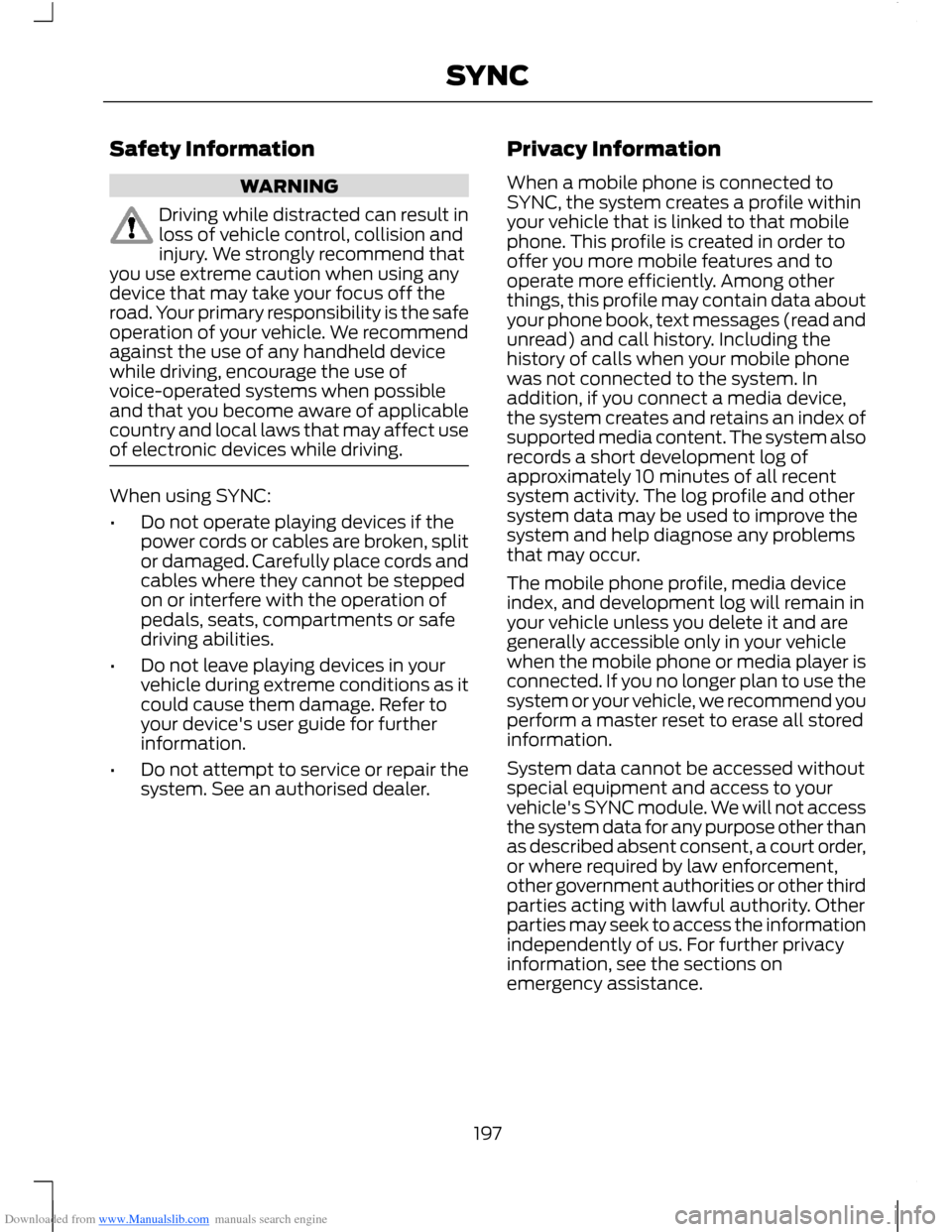
WARNING
Driving while distracted can result inloss of vehicle control, collision andinjury. We strongly recommend thatyou use extreme caution when using anydevice that may take your focus off theroad. Your primary responsibility is the safeoperation of your vehicle. We recommendagainst the use of any handheld devicewhile driving, encourage the use ofvoice-operated systems when possibleand that you become aware of applicablecountry and local laws that may affect useof electronic devices while driving.
When using SYNC:
•Do not operate playing devices if thepower cords or cables are broken, splitor damaged. Carefully place cords andcables where they cannot be steppedon or interfere with the operation ofpedals, seats, compartments or safedriving abilities.
•Do not leave playing devices in yourvehicle during extreme conditions as itcould cause them damage. Refer toyour device's user guide for furtherinformation.
•Do not attempt to service or repair thesystem. See an authorised dealer.
Privacy Information
When a mobile phone is connected toSYNC, the system creates a profile withinyour vehicle that is linked to that mobilephone. This profile is created in order tooffer you more mobile features and tooperate more efficiently. Among otherthings, this profile may contain data aboutyour phone book, text messages (read andunread) and call history. Including thehistory of calls when your mobile phonewas not connected to the system. Inaddition, if you connect a media device,the system creates and retains an index ofsupported media content. The system alsorecords a short development log ofapproximately 10 minutes of all recentsystem activity. The log profile and othersystem data may be used to improve thesystem and help diagnose any problemsthat may occur.
The mobile phone profile, media deviceindex, and development log will remain inyour vehicle unless you delete it and aregenerally accessible only in your vehiclewhen the mobile phone or media player isconnected. If you no longer plan to use thesystem or your vehicle, we recommend youperform a master reset to erase all storedinformation.
System data cannot be accessed withoutspecial equipment and access to yourvehicle's SYNC module. We will not accessthe system data for any purpose other thanas described absent consent, a court order,or where required by law enforcement,other government authorities or other thirdparties acting with lawful authority. Otherparties may seek to access the informationindependently of us. For further privacyinformation, see the sections onemergency assistance.
197SYNC
Page 202 of 256
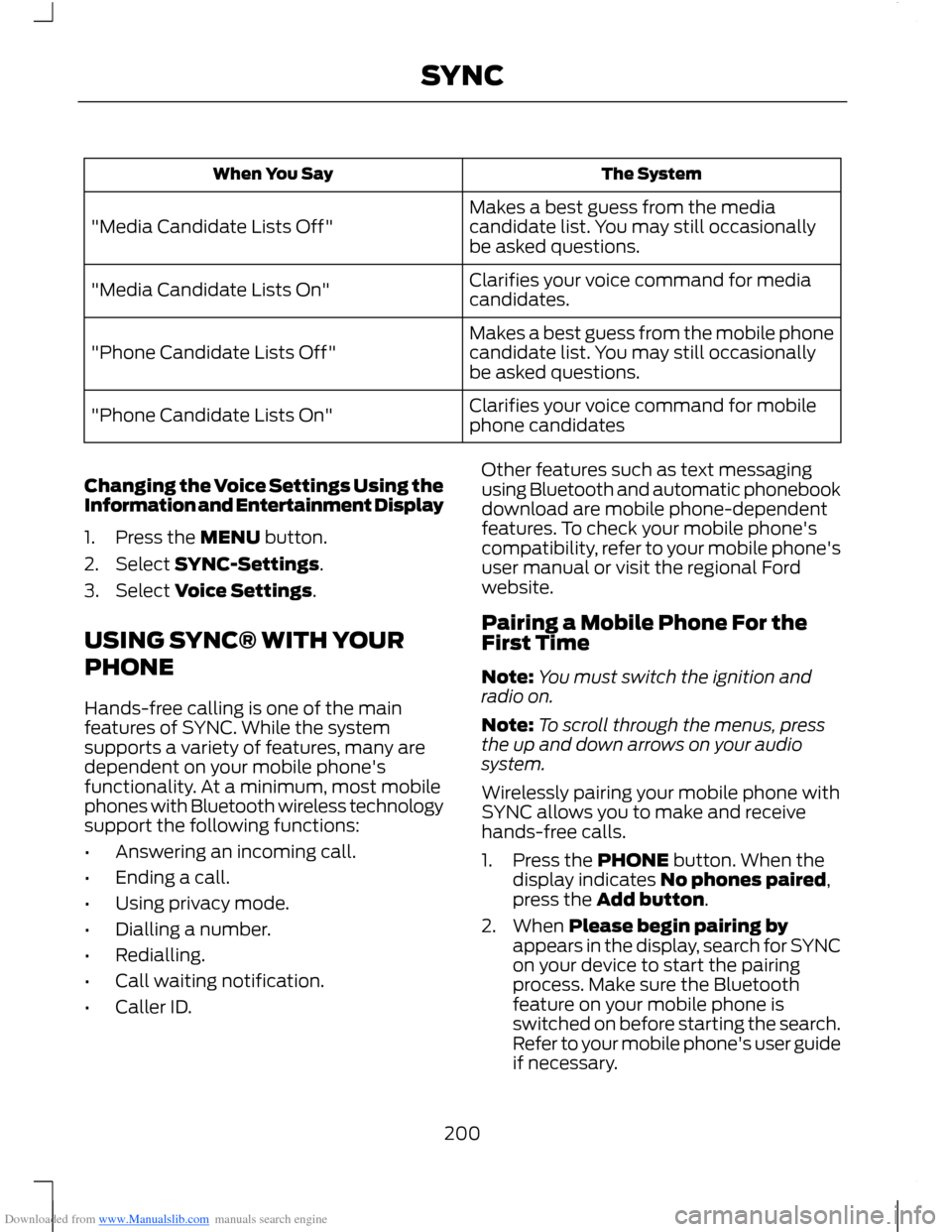
Downloaded from www.Manualslib.com manuals search engine The SystemWhen You Say
Makes a best guess from the mediacandidate list. You may still occasionallybe asked questions."Media Candidate Lists Off"
Clarifies your voice command for mediacandidates."Media Candidate Lists On"
Makes a best guess from the mobile phonecandidate list. You may still occasionallybe asked questions."Phone Candidate Lists Off"
Clarifies your voice command for mobilephone candidates"Phone Candidate Lists On"
Changing the Voice Settings Using theInformation and Entertainment Display
1.Press the MENU button.
2.Select SYNC-Settings.
3.Select Voice Settings.
USING SYNC® WITH YOUR
PHONE
Hands-free calling is one of the mainfeatures of SYNC. While the systemsupports a variety of features, many aredependent on your mobile phone'sfunctionality. At a minimum, most mobilephones with Bluetooth wireless technologysupport the following functions:
•Answering an incoming call.
•Ending a call.
•Using privacy mode.
•Dialling a number.
•Redialling.
•Call waiting notification.
•Caller ID.
Other features such as text messagingusing Bluetooth and automatic phonebookdownload are mobile phone-dependentfeatures. To check your mobile phone'scompatibility, refer to your mobile phone'suser manual or visit the regional Fordwebsite.
Pairing a Mobile Phone For theFirst Time
Note:You must switch the ignition andradio on.
Note:To scroll through the menus, pressthe up and down arrows on your audiosystem.
Wirelessly pairing your mobile phone withSYNC allows you to make and receivehands-free calls.
1.Press the PHONE button. When thedisplay indicates No phones paired,press the Add button.
2.When Please begin pairing byappears in the display, search for SYNCon your device to start the pairingprocess. Make sure the Bluetoothfeature on your mobile phone isswitched on before starting the search.Refer to your mobile phone's user guideif necessary.
200SYNC
Page 203 of 256
Downloaded from www.Manualslib.com manuals search engine 3.When prompted on your mobilephone's display, enter the six-digit PINprovided by SYNC in the display. Thedisplay indicates when the pairing issuccessful
Depending on your mobile phone'scapability and your market, the systemmay prompt you with questions such assetting the current mobile phone as theprimary phone (the mobile phone SYNCautomatically tries to connect with firstupon vehicle start-up), downloading yourmobile phone book, etc.
Pairing Subsequent Mobile Phones
Note:Make sure the radio is switched on.
Note:To scroll through the menus, pressthe up and down arrows on your audiosystem.
1.Press the PHONE button.
2.Scroll to and select BT Devices.
3.Press the OK button.
4.Press the Add button to start thepairing process.
5.When Please begin pairing byappears in the display, search for SYNCon your device to start the pairingprocess. Refer to your mobile phone'suser guide if necessary.
6.When prompted on your mobilephone's display, enter the six-digit PINprovided by SYNC in the audio display.The display indicates when the pairingis successful.
The system then prompts with questionssuch as would you like to set the currentmobile phone as the primary mobile phone(the mobile phone SYNC automaticallytries to connect with first upon vehiclestart-up), download your mobile phonebook, etc.
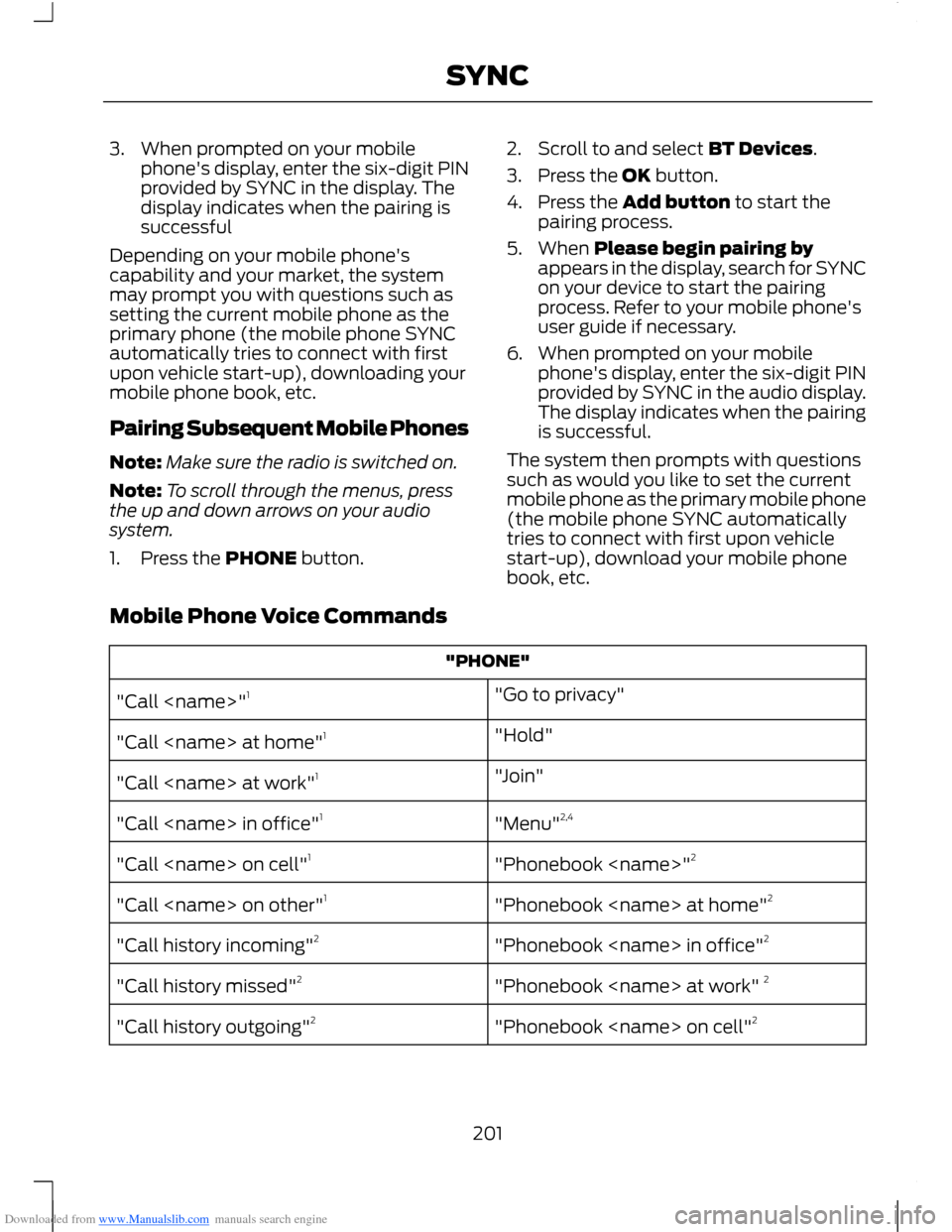
Mobile Phone Voice Commands
"PHONE"
"Go to privacy""Call
"Hold""Call
"Join""Call
"Menu"2,4"Call
"Phonebook
"Phonebook
"Phonebook
"Phonebook
"Phonebook
201SYNC
Page 209 of 256
Downloaded from www.Manualslib.com manuals search engine •Thanks!.
•Too funny :-).
•Miss you.
•I love you.
•Send directions.
•Call me.
•Where are you?
•Why?
To send the message:
1.Press Send when the desired selectionis highlighted in the display.
2.Press Yes when the contact appearsand press OK again to confirm whenthe system asks if you would like tosend the message. Each text messageis sent with the following signature:This message was sent from my Ford.
Note:You can send text messages eitherby choosing a contact from the phonebookand selecting the text option from thedisplay or by replying to a received messagein the inbox.
Accessing Your Mobile PhoneSettings
These are mobile phone dependentfeatures. Your mobile phone settings allowyou to access and adjust features such asyour ring tone, text message notification,modify your phonebook and also set upautomatic download.
1.Press the PHONE button.
2.Scroll until Phone Settings appears,then press OK.
3.Scroll to select from the followingoptions:
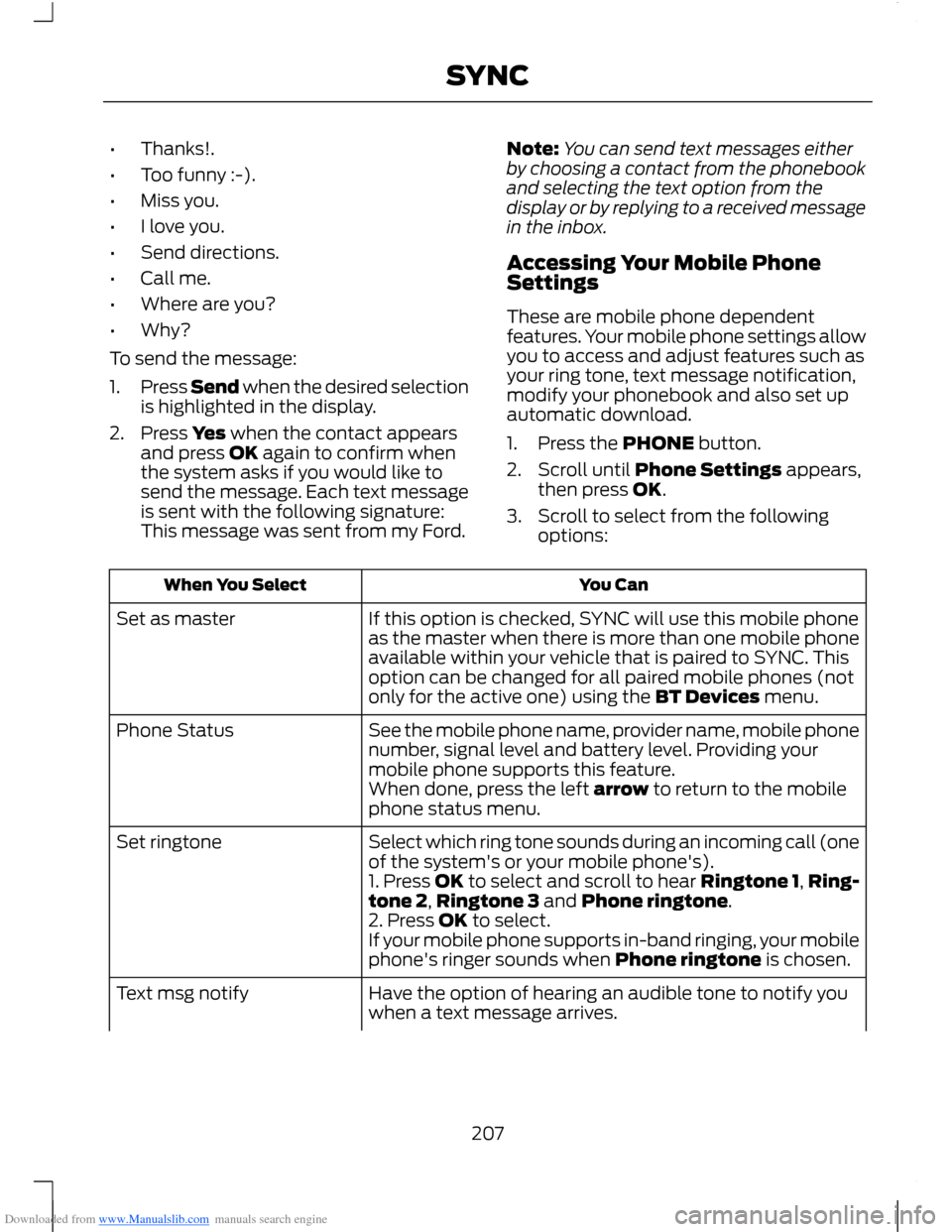
You CanWhen You Select
If this option is checked, SYNC will use this mobile phoneas the master when there is more than one mobile phoneavailable within your vehicle that is paired to SYNC. Thisoption can be changed for all paired mobile phones (notonly for the active one) using the BT Devices menu.
Set as master
See the mobile phone name, provider name, mobile phonenumber, signal level and battery level. Providing yourmobile phone supports this feature.
Phone Status
When done, press the left arrow to return to the mobilephone status menu.
Select which ring tone sounds during an incoming call (oneof the system's or your mobile phone's).Set ringtone
1. Press OK to select and scroll to hear Ringtone 1,Ring-tone 2,Ringtone 3 and Phone ringtone.2. Press OK to select.If your mobile phone supports in-band ringing, your mobilephone's ringer sounds when Phone ringtone is chosen.
Have the option of hearing an audible tone to notify youwhen a text message arrives.Text msg notify
207SYNC
Page 210 of 256
Downloaded from www.Manualslib.com manuals search engine You CanWhen You Select
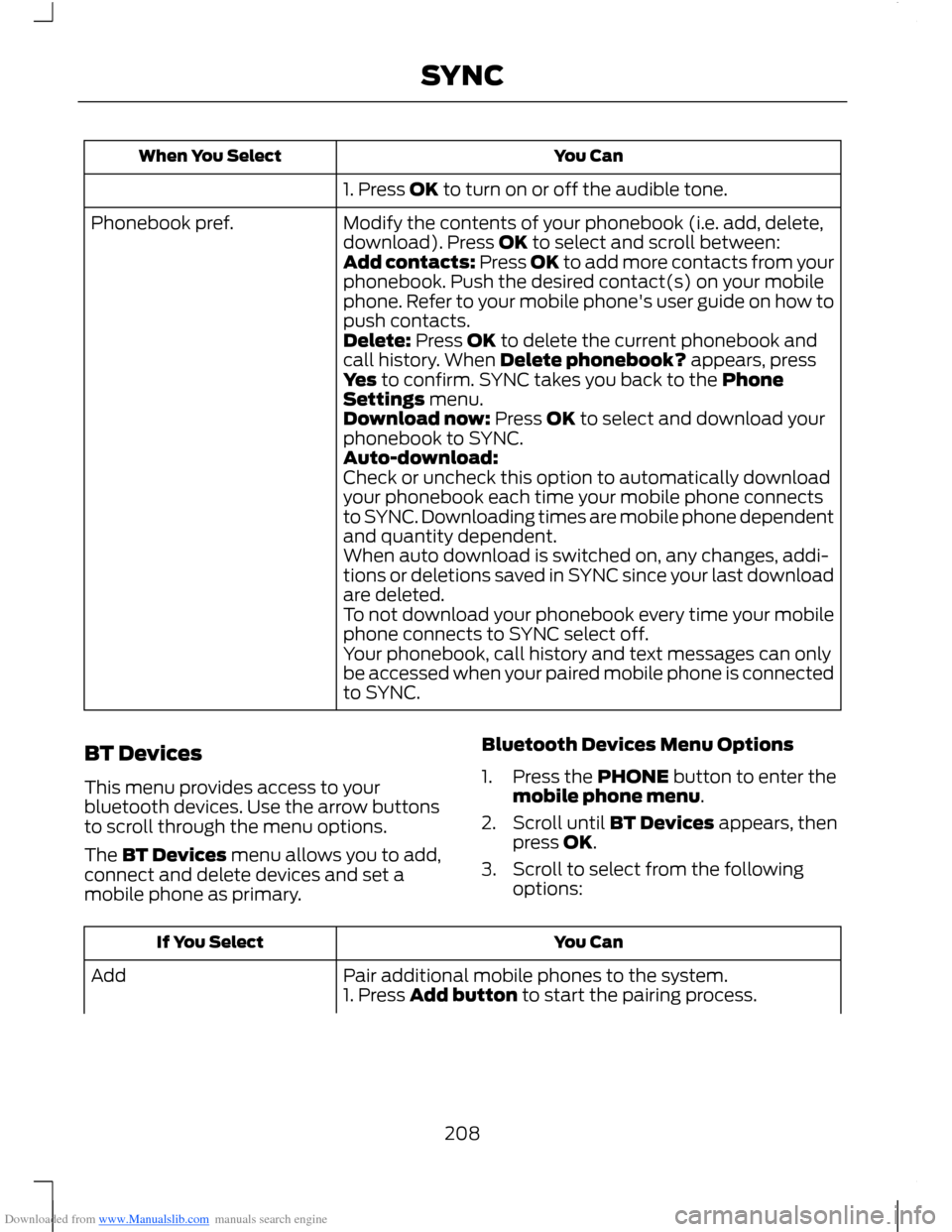
1. Press OK to turn on or off the audible tone.
Modify the contents of your phonebook (i.e. add, delete,download). Press OK to select and scroll between:Phonebook pref.
Add contacts: Press OK to add more contacts from yourphonebook. Push the desired contact(s) on your mobilephone. Refer to your mobile phone's user guide on how topush contacts.Delete: Press OK to delete the current phonebook andcall history. When Delete phonebook? appears, pressYes to confirm. SYNC takes you back to the PhoneSettings menu.Download now: Press OK to select and download yourphonebook to SYNC.Auto-download:Check or uncheck this option to automatically downloadyour phonebook each time your mobile phone connectsto SYNC. Downloading times are mobile phone dependentand quantity dependent.When auto download is switched on, any changes, addi-tions or deletions saved in SYNC since your last downloadare deleted.To not download your phonebook every time your mobilephone connects to SYNC select off.Your phonebook, call history and text messages can onlybe accessed when your paired mobile phone is connectedto SYNC.
BT Devices
This menu provides access to yourbluetooth devices. Use the arrow buttonsto scroll through the menu options.
The BT Devices menu allows you to add,connect and delete devices and set amobile phone as primary.
Bluetooth Devices Menu Options
1.Press the PHONE button to enter themobile phone menu.
2.Scroll until BT Devices appears, thenpress OK.
3.Scroll to select from the followingoptions:
You CanIf You Select
Pair additional mobile phones to the system.Add1. Press Add button to start the pairing process.
208SYNC
Page 211 of 256
Downloaded from www.Manualslib.com manuals search engine You CanIf You Select
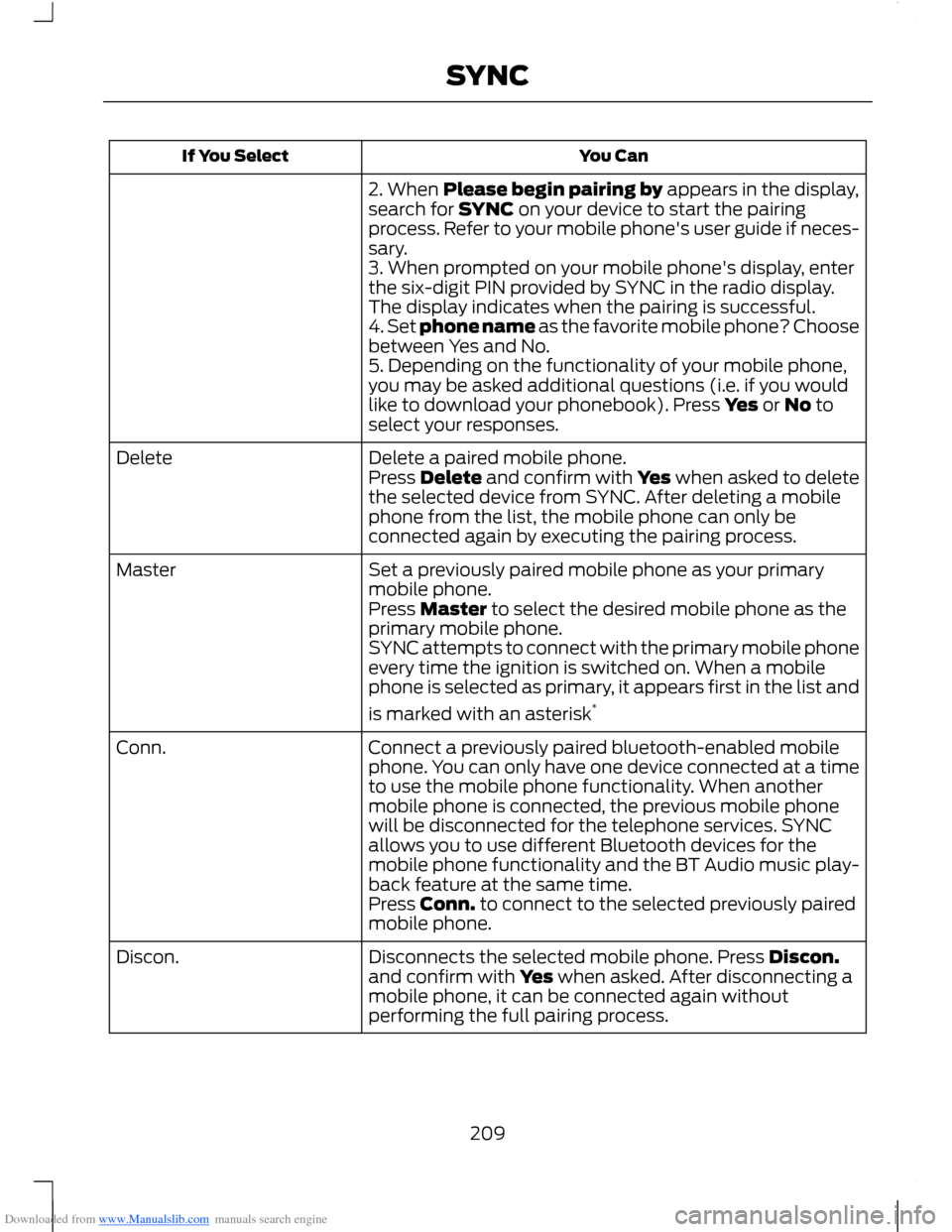
2. When Please begin pairing by appears in the display,search for SYNC on your device to start the pairingprocess. Refer to your mobile phone's user guide if neces-sary.3. When prompted on your mobile phone's display, enterthe six-digit PIN provided by SYNC in the radio display.The display indicates when the pairing is successful.4. Set phone name as the favorite mobile phone? Choosebetween Yes and No.5. Depending on the functionality of your mobile phone,you may be asked additional questions (i.e. if you wouldlike to download your phonebook). Press Yes or No toselect your responses.
Delete a paired mobile phone.DeletePress Delete and confirm with Yes when asked to deletethe selected device from SYNC. After deleting a mobilephone from the list, the mobile phone can only beconnected again by executing the pairing process.
Set a previously paired mobile phone as your primarymobile phone.Master
Press Master to select the desired mobile phone as theprimary mobile phone.SYNC attempts to connect with the primary mobile phoneevery time the ignition is switched on. When a mobilephone is selected as primary, it appears first in the list and
is marked with an asterisk*
Connect a previously paired bluetooth-enabled mobilephone. You can only have one device connected at a timeto use the mobile phone functionality. When anothermobile phone is connected, the previous mobile phonewill be disconnected for the telephone services. SYNCallows you to use different Bluetooth devices for themobile phone functionality and the BT Audio music play-back feature at the same time.
Conn.
Press Conn. to connect to the selected previously pairedmobile phone.
Disconnects the selected mobile phone. Press Discon.and confirm with Yes when asked. After disconnecting amobile phone, it can be connected again withoutperforming the full pairing process.
Discon.
209SYNC