phone FORD ESCAPE 2013 3.G Service Manual
[x] Cancel search | Manufacturer: FORD, Model Year: 2013, Model line: ESCAPE, Model: FORD ESCAPE 2013 3.GPages: 423, PDF Size: 4.59 MB
Page 308 of 423
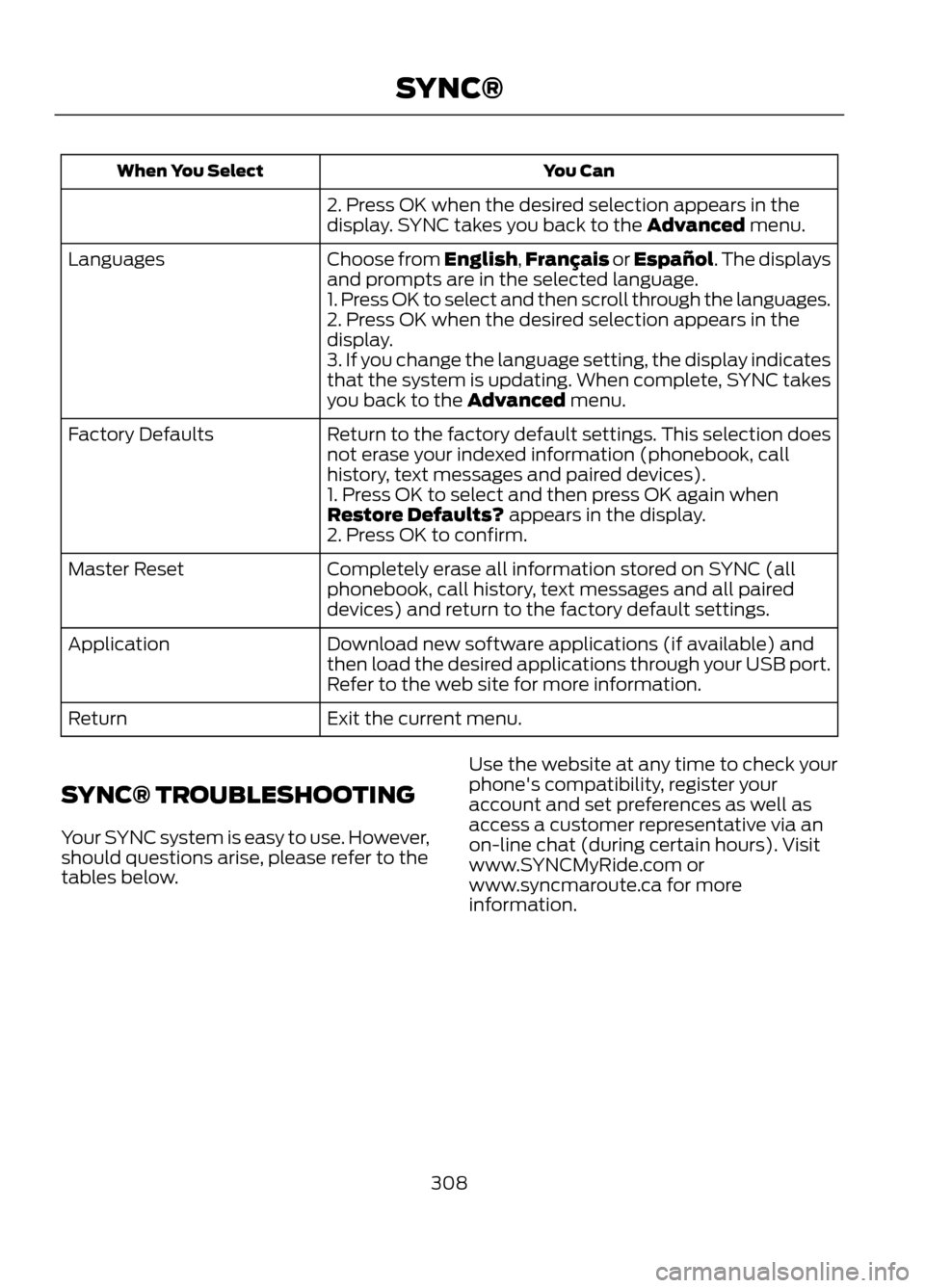
You Can
When You Select
2. Press OK when the desired selection appears in the
display. SYNC takes you back to the Advanced menu.
Choose from English,Français or Español. The displays
and prompts are in the selected language.
Languages
1. Press OK to select and then scroll through the languages.
2. Press OK when the desired selection appears in the
display.
3. If you change the language setting, the display indicates
that the system is updating. When complete, SYNC takes
you back to the Advanced menu.
Return to the factory default settings. This selection does
not erase your indexed information (phonebook, call
history, text messages and paired devices).
Factory Defaults
1. Press OK to select and then press OK again when
Restore Defaults? appears in the display.
2. Press OK to confirm.
Completely erase all information stored on SYNC (all
phonebook, call history, text messages and all paired
devices) and return to the factory default settings.
Master Reset
Download new software applications (if available) and
then load the desired applications through your USB port.
Refer to the web site for more information.
Application
Exit the current menu.
Return
SYNC® TROUBLESHOOTING
Your SYNC system is easy to use. However,
should questions arise, please refer to the
tables below. Use the website at any time to check your
phone's compatibility, register your
account and set preferences as well as
access a customer representative via an
on-line chat (during certain hours). Visit
www.SYNCMyRide.com or
www.syncmaroute.ca for more
information.
308
SYNC®
Page 309 of 423
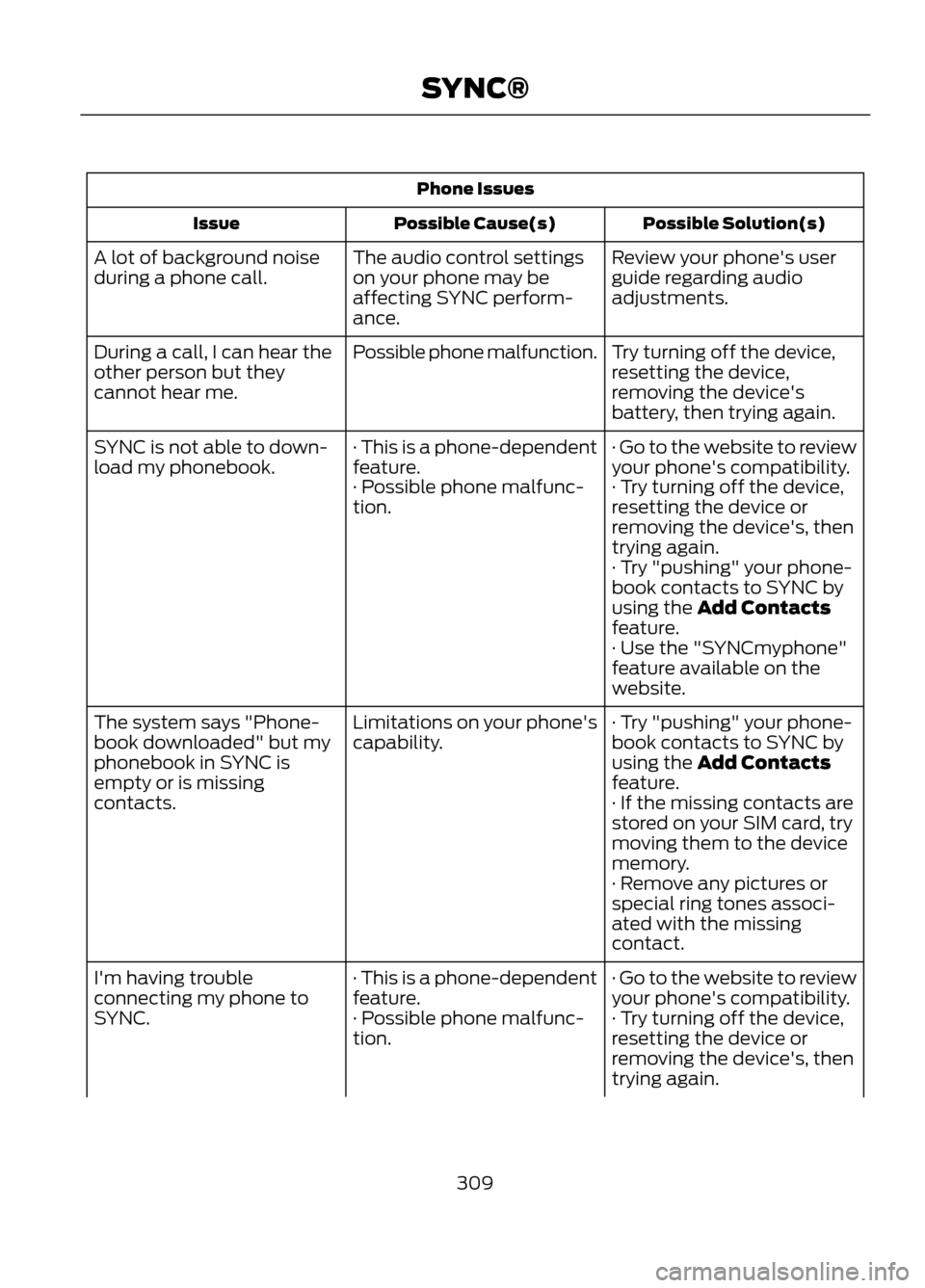
Phone IssuesPossible Solution(s)
Possible Cause(s)
Issue
Review your phone's user
guide regarding audio
adjustments.
The audio control settings
on your phone may be
affecting SYNC perform-
ance.
A lot of background noise
during a phone call.
Try turning off the device,
resetting the device,
removing the device's
battery, then trying again.
Possible phone malfunction.
During a call, I can hear the
other person but they
cannot hear me.
· Go to the website to review
your phone's compatibility.
· This is a phone-dependent
feature.
SYNC is not able to down-
load my phonebook.
· Try turning off the device,
resetting the device or
removing the device's, then
trying again.
· Possible phone malfunc-
tion.
· Try "pushing" your phone-
book contacts to SYNC by
using the Add Contacts
feature.
· Use the "SYNCmyphone"
feature available on the
website.
· Try "pushing" your phone-
book contacts to SYNC by
using the Add Contacts
feature.
Limitations on your phone's
capability.
The system says "Phone-
book downloaded" but my
phonebook in SYNC is
empty or is missing
contacts.
· If the missing contacts are
stored on your SIM card, try
moving them to the device
memory.
· Remove any pictures or
special ring tones associ-
ated with the missing
contact.
· Go to the website to review
your phone's compatibility.
· This is a phone-dependent
feature.
I'm having trouble
connecting my phone to
SYNC.
· Try turning off the device,
resetting the device or
removing the device's, then
trying again.
· Possible phone malfunc-
tion.
309
SYNC®
Page 310 of 423
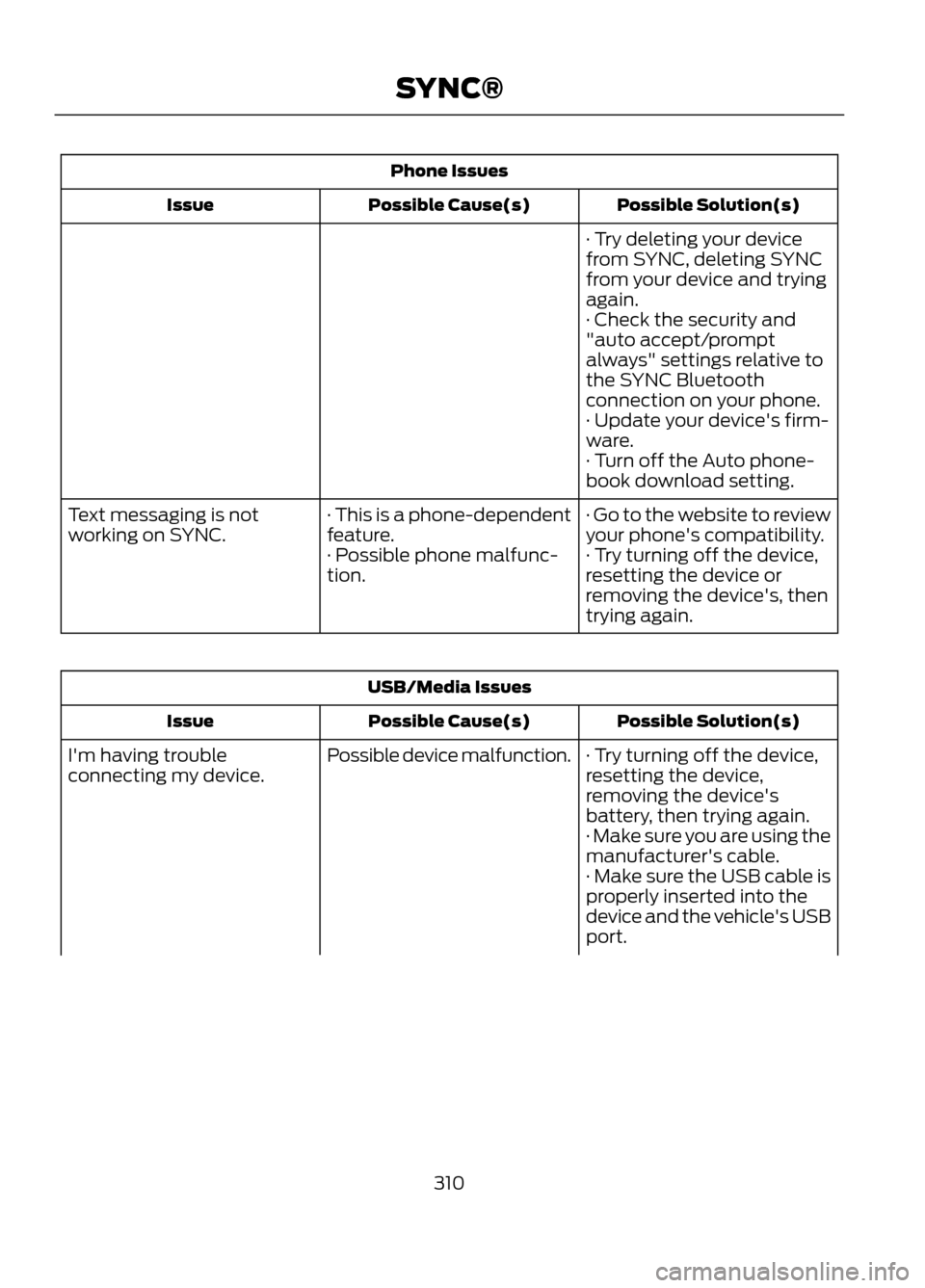
Phone IssuesPossible Solution(s)
Possible Cause(s)
Issue
· Try deleting your device
from SYNC, deleting SYNC
from your device and trying
again.
· Check the security and
"auto accept/prompt
always" settings relative to
the SYNC Bluetooth
connection on your phone.
· Update your device's firm-
ware.
· Turn off the Auto phone-
book download setting.
· Go to the website to review
your phone's compatibility.
· This is a phone-dependent
feature.
Text messaging is not
working on SYNC.
· Try turning off the device,
resetting the device or
removing the device's, then
trying again.
· Possible phone malfunc-
tion.
USB/Media Issues
Possible Solution(s)
Possible Cause(s)
Issue
· Try turning off the device,
resetting the device,
removing the device's
battery, then trying again.
Possible device malfunction.
I'm having trouble
connecting my device.
· Make sure you are using the
manufacturer's cable.
· Make sure the USB cable is
properly inserted into the
device and the vehicle's USB
port.
310
SYNC®
Page 311 of 423
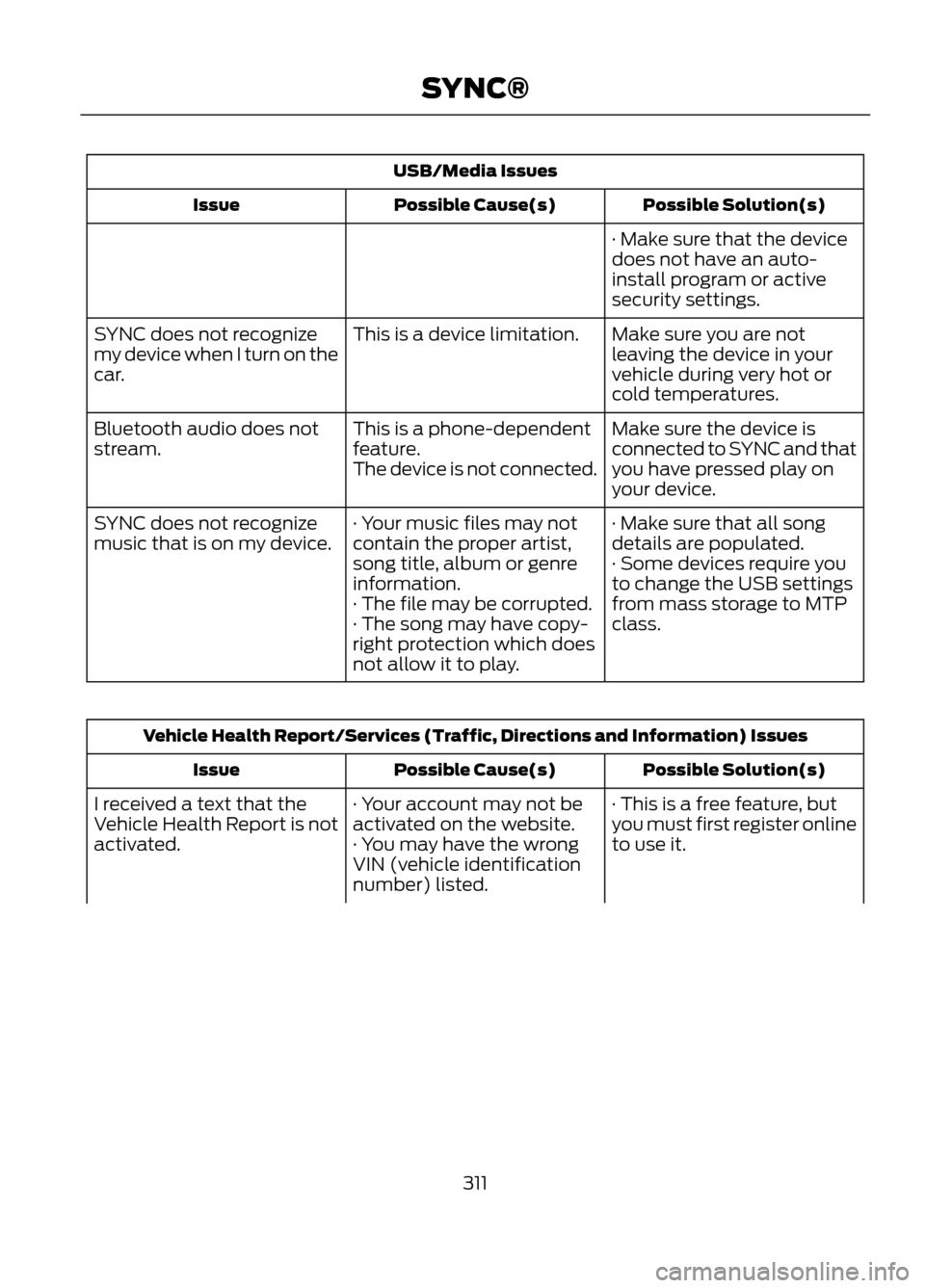
USB/Media IssuesPossible Solution(s)
Possible Cause(s)
Issue
· Make sure that the device
does not have an auto-
install program or active
security settings.
Make sure you are not
leaving the device in your
vehicle during very hot or
cold temperatures.
This is a device limitation.
SYNC does not recognize
my device when I turn on the
car.
Make sure the device is
connected to SYNC and that
you have pressed play on
your device.
This is a phone-dependent
feature.
The device is not connected.
Bluetooth audio does not
stream.
· Make sure that all song
details are populated.
· Your music files may not
contain the proper artist,
song title, album or genre
information.
SYNC does not recognize
music that is on my device.
· Some devices require you
to change the USB settings
from mass storage to MTP
class.
· The file may be corrupted.
· The song may have copy-
right protection which does
not allow it to play.
Vehicle Health Report/Services (Traffic, Directions and Information) Issues
Possible Solution(s)
Possible Cause(s)
Issue
· This is a free feature, but
you must first register online
to use it.
· Your account may not be
activated on the website.
· You may have the wrong
VIN (vehicle identification
number) listed.
I received a text that the
Vehicle Health Report is not
activated.
311
SYNC®
Page 312 of 423
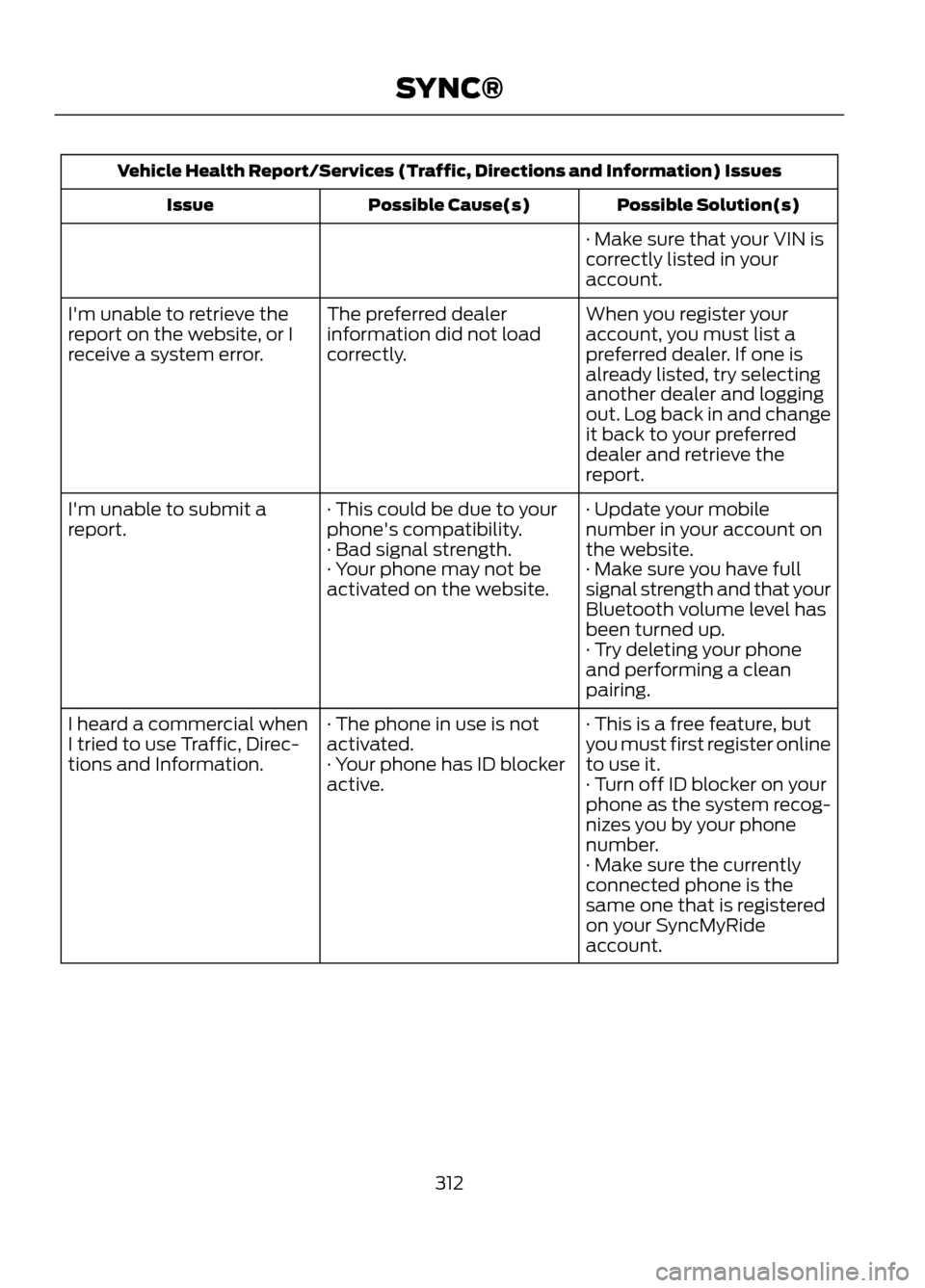
Vehicle Health Report/Services (Traffic, Directions and Information) IssuesPossible Solution(s)
Possible Cause(s)
Issue
· Make sure that your VIN is
correctly listed in your
account.
When you register your
account, you must list a
preferred dealer. If one is
already listed, try selecting
another dealer and logging
out. Log back in and change
it back to your preferred
dealer and retrieve the
report.
The preferred dealer
information did not load
correctly.
I'm unable to retrieve the
report on the website, or I
receive a system error.
· Update your mobile
number in your account on
the website.
· This could be due to your
phone's compatibility.
· Bad signal strength.
I'm unable to submit a
report.
· Make sure you have full
signal strength and that your
Bluetooth volume level has
been turned up.
· Your phone may not be
activated on the website.
· Try deleting your phone
and performing a clean
pairing.
· This is a free feature, but
you must first register online
to use it.
· The phone in use is not
activated.
· Your phone has ID blocker
active.
I heard a commercial when
I tried to use Traffic, Direc-
tions and Information.
· Turn off ID blocker on your
phone as the system recog-
nizes you by your phone
number.
· Make sure the currently
connected phone is the
same one that is registered
on your SyncMyRide
account.
312
SYNC®
Page 313 of 423
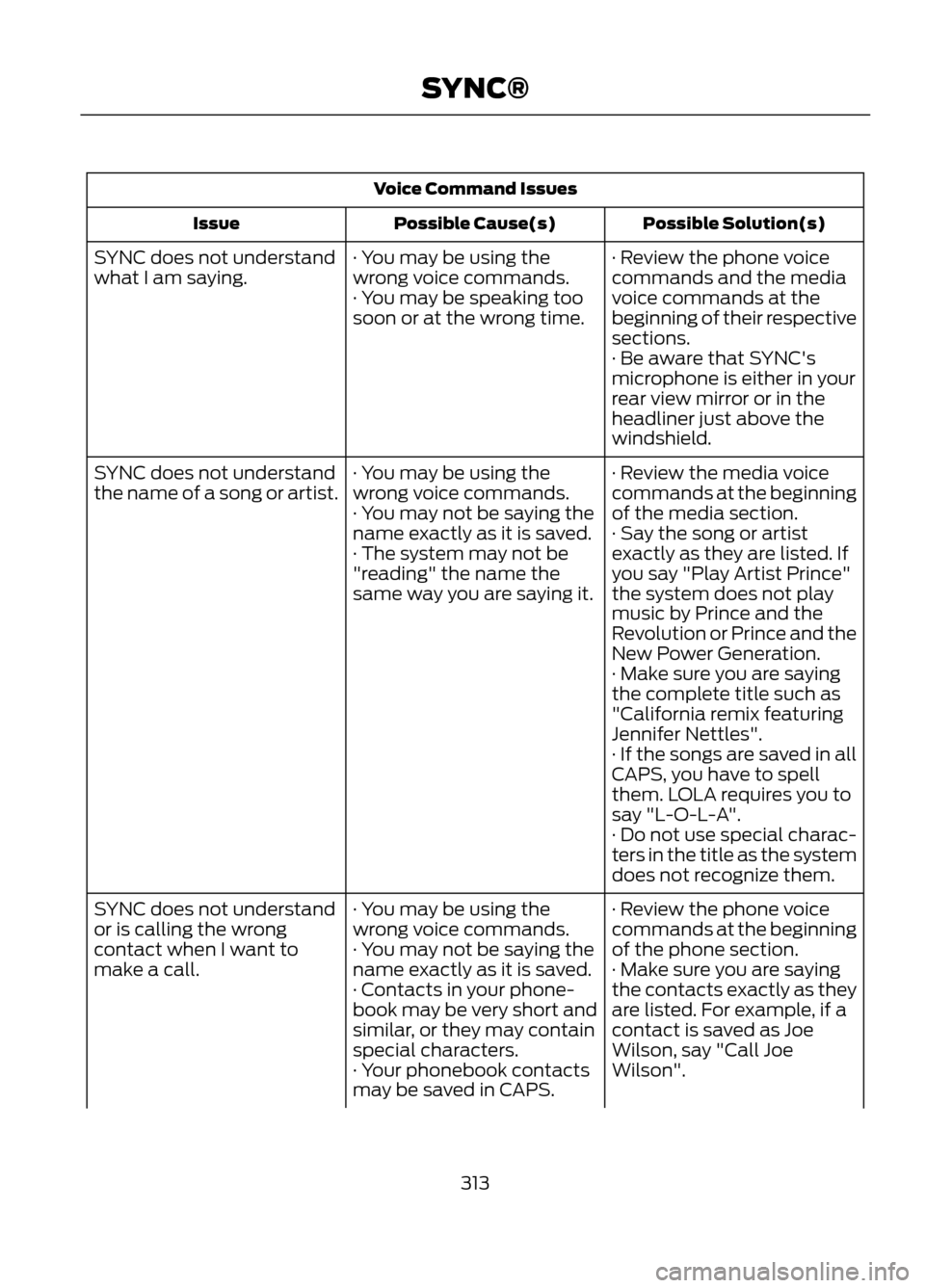
Voice Command IssuesPossible Solution(s)
Possible Cause(s)
Issue
· Review the phone voice
commands and the media
voice commands at the
beginning of their respective
sections.
· You may be using the
wrong voice commands.
· You may be speaking too
soon or at the wrong time.
SYNC does not understand
what I am saying.
· Be aware that SYNC's
microphone is either in your
rear view mirror or in the
headliner just above the
windshield.
· Review the media voice
commands at the beginning
of the media section.
· You may be using the
wrong voice commands.
· You may not be saying the
name exactly as it is saved.
SYNC does not understand
the name of a song or artist.
· Say the song or artist
exactly as they are listed. If
you say "Play Artist Prince"
the system does not play
music by Prince and the
Revolution or Prince and the
New Power Generation.
· The system may not be
"reading" the name the
same way you are saying it.
· Make sure you are saying
the complete title such as
"California remix featuring
Jennifer Nettles".
· If the songs are saved in all
CAPS, you have to spell
them. LOLA requires you to
say "L-O-L-A".
· Do not use special charac-
ters in the title as the system
does not recognize them.
· Review the phone voice
commands at the beginning
of the phone section.
· You may be using the
wrong voice commands.
· You may not be saying the
name exactly as it is saved.
SYNC does not understand
or is calling the wrong
contact when I want to
make a call.
· Make sure you are saying
the contacts exactly as they
are listed. For example, if a
contact is saved as Joe
Wilson, say "Call Joe
Wilson".
· Contacts in your phone-
book may be very short and
similar, or they may contain
special characters.
· Your phonebook contacts
may be saved in CAPS.
313
SYNC®
Page 315 of 423
GENERAL INFORMATION
WARNING
Driving while distracted can result in
loss of vehicle control, accident and
injury. Ford strongly recommends
that drivers use extreme caution when
using any device or feature that may take
their focus off the road. Your primary
responsibility is the safe operation of the
vehicle. We recommend against the use
of any handheld device while driving,
encourage the use of voice-operated
systems when possible and that you
become aware of applicable state and
local laws that may affect use of electronic
devices while driving.
Note: Some features are not available while
the vehicle is moving.
Note: You can also directly access the
Home screen and Information screen by
pressing the Home ("house" icon) and
Information ("i" icon) buttons on your
steering wheel controls.
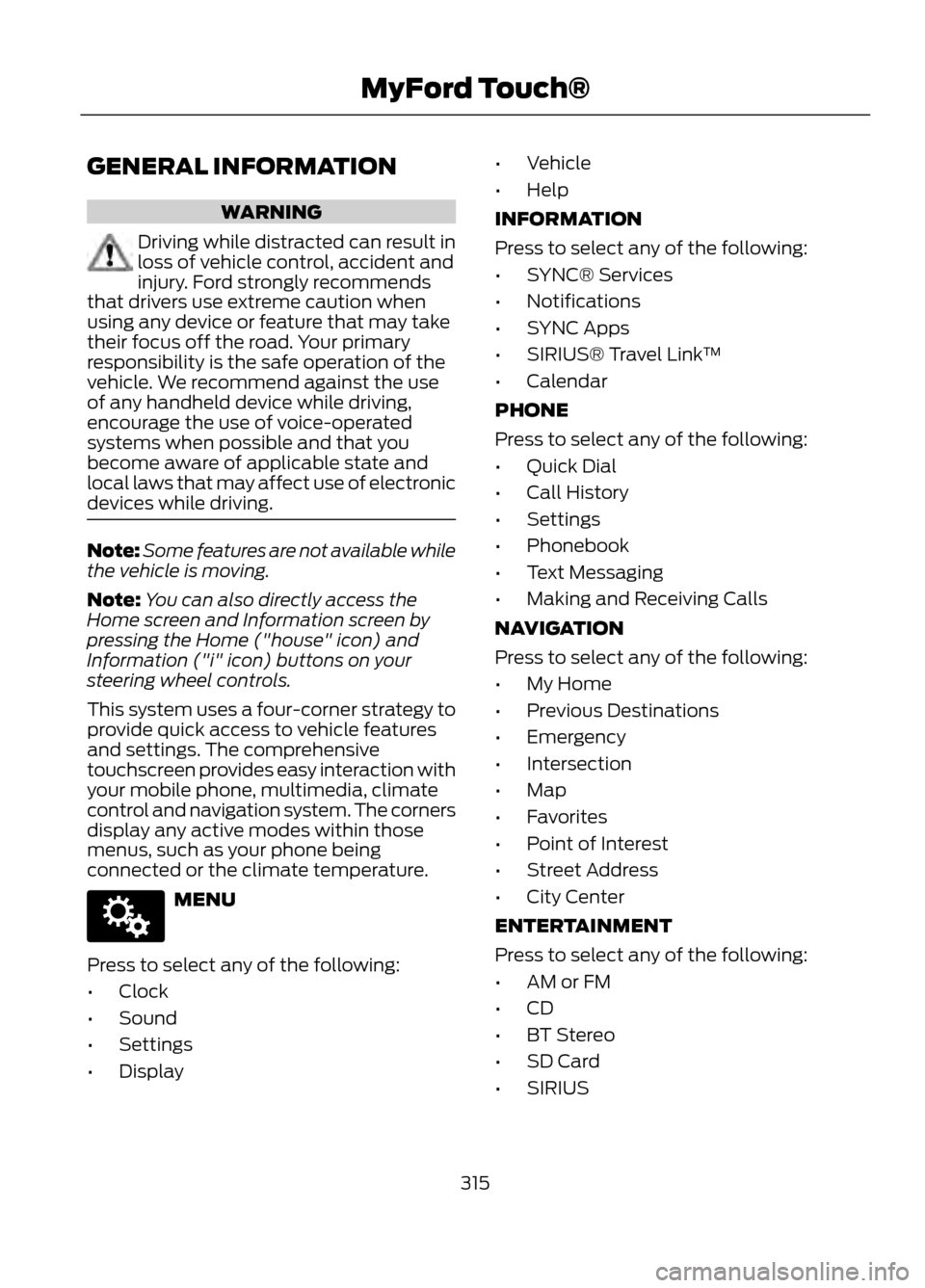
This system uses a four-corner strategy to
provide quick access to vehicle features
and settings. The comprehensive
touchscreen provides easy interaction with
your mobile phone, multimedia, climate
control and navigation system. The corners
display any active modes within those
menus, such as your phone being
connected or the climate temperature.
MENU
Press to select any of the following:
• Clock
• Sound
• Settings
• Display •
Vehicle
• Help
INFORMATION
Press to select any of the following:
• SYNC® Services
• Notifications
• SYNC Apps
• SIRIUS® Travel Link ™
• Calendar
PHONE
Press to select any of the following:
• Quick Dial
• Call History
• Settings
• Phonebook
• Text Messaging
• Making and Receiving Calls
NAVIGATION
Press to select any of the following:
• My Home
• Previous Destinations
• Emergency
• Intersection
• Map
• Favorites
• Point of Interest
• Street Address
• City Center
ENTERTAINMENT
Press to select any of the following:
• AM or FM
• CD
• BT Stereo
• SD Card
• SIRIUS
315
MyFord Touch®
E142607
Page 317 of 423
Times are subject to change due to
holidays.
Safety Information
WARNING
Driving while distracted can result in
loss of vehicle control, accident and
injury. Ford strongly recommends
that drivers use extreme caution when
using any device or feature that may take
their focus off the road. Your primary
responsibility is the safe operation of the
vehicle. We recommend against the use
of any handheld device while driving,
encourage the use of voice-operated
systems when possible and that you
become aware of applicable state and
local laws that may affect use of electronic
devices while driving.
When using SYNC:
• Do not operate playing devices if the
power cords or cables are broken, split
or damaged. Carefully place cords and
cables where they cannot be stepped
on or interfere with the operation of
pedals, seats, compartments or safe
driving abilities.
• Do not leave playing devices in the
vehicle during extreme conditions as it
could cause them damage. Refer to
your device's user guide for further
information. •
Do not attempt to service or repair the
system. See your authorized dealer.
• For your safety, some SYNC functions
are speed-dependent and cannot be
performed when the vehicle is traveling
at speeds greater than 3 mph (5 km/h).
Make sure that you review your device's
user guide before using it with SYNC.
Speed-Restricted Features
Some features of this system may be too
difficult to use while the vehicle is in
motion so they're restricted from being
modified unless the vehicle is not moving.
Some examples of these are listed below:
• Screens that are too crowded with
information, such as Point of Interest
(POI) reviews and ratings, SIRIUS
Travel Link sports scores, movie times,
ski conditions, etc.
• Any action that requires using a
keyboard, such as entering a navigation
destination or editing information
• All lists are limited so the user can view
fewer entries (e.g. phone contacts,
recent phone call entries)
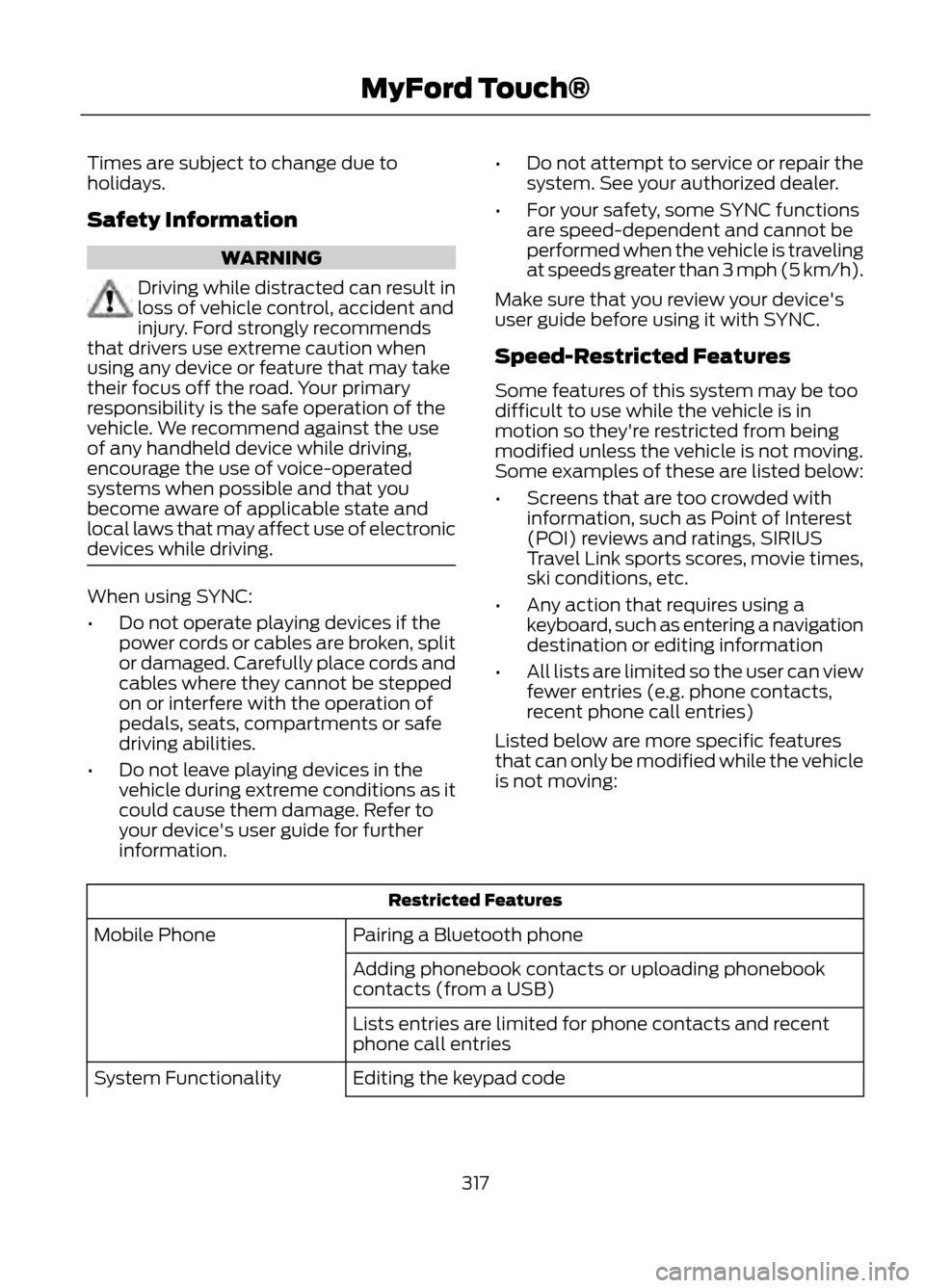
Listed below are more specific features
that can only be modified while the vehicle
is not moving:
Restricted Features
Pairing a Bluetooth phone
Mobile Phone
Adding phonebook contacts or uploading phonebook
contacts (from a USB)
Lists entries are limited for phone contacts and recent
phone call entries
Editing the keypad code
System Functionality
317
MyFord Touch®
Page 318 of 423
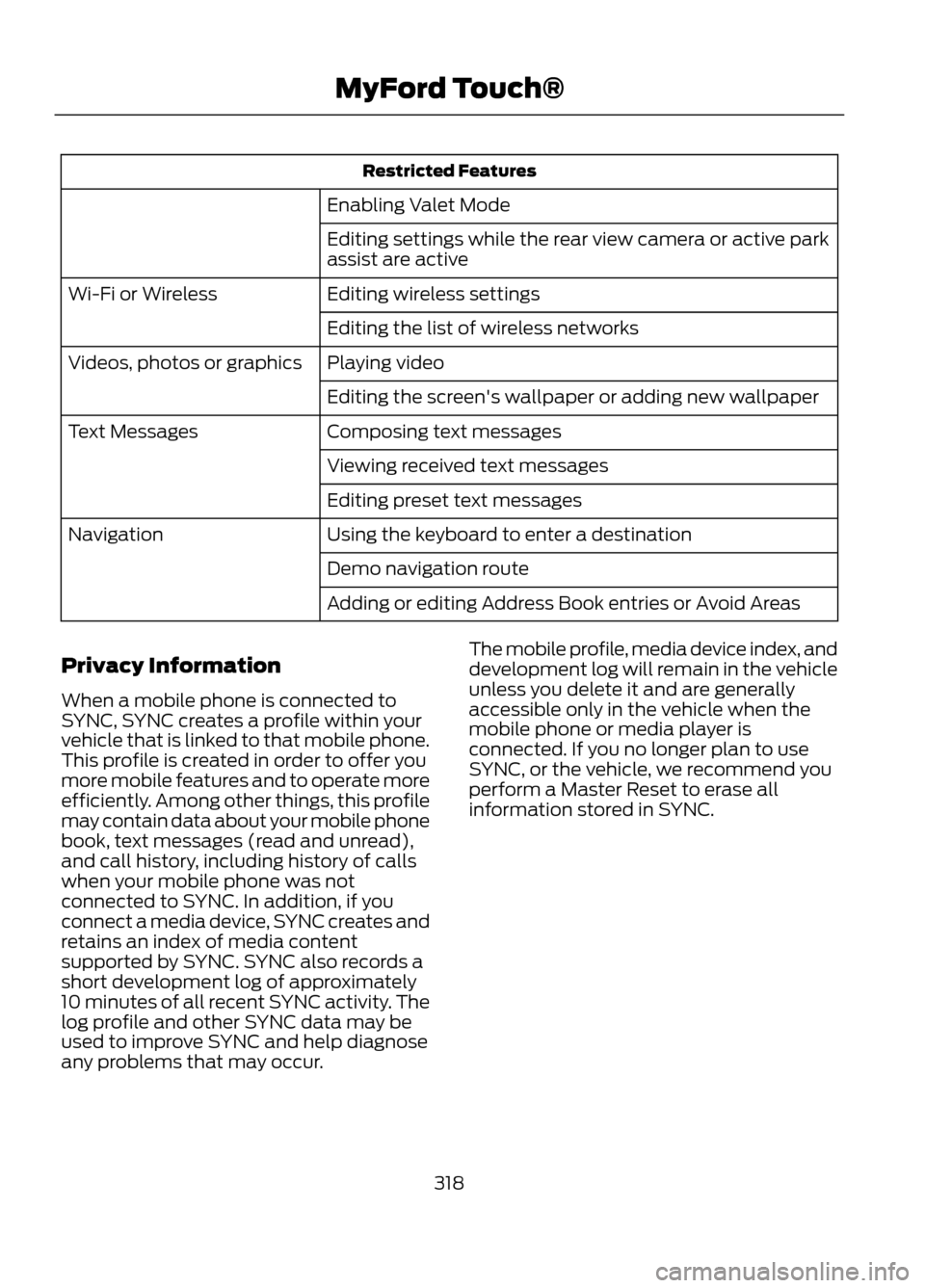
Restricted Features
Enabling Valet Mode
Editing settings while the rear view camera or active park
assist are active
Editing wireless settings
Wi-Fi or Wireless
Editing the list of wireless networks
Playing video
Videos, photos or graphics
Editing the screen's wallpaper or adding new wallpaper
Composing text messages
Text Messages
Viewing received text messages
Editing preset text messages
Using the keyboard to enter a destination
Navigation
Demo navigation route
Adding or editing Address Book entries or Avoid Areas
Privacy Information
When a mobile phone is connected to
SYNC, SYNC creates a profile within your
vehicle that is linked to that mobile phone.
This profile is created in order to offer you
more mobile features and to operate more
efficiently. Among other things, this profile
may contain data about your mobile phone
book, text messages (read and unread),
and call history, including history of calls
when your mobile phone was not
connected to SYNC. In addition, if you
connect a media device, SYNC creates and
retains an index of media content
supported by SYNC. SYNC also records a
short development log of approximately
10 minutes of all recent SYNC activity. The
log profile and other SYNC data may be
used to improve SYNC and help diagnose
any problems that may occur. The mobile profile, media device index, and
development log will remain in the vehicle
unless you delete it and are generally
accessible only in the vehicle when the
mobile phone or media player is
connected. If you no longer plan to use
SYNC, or the vehicle, we recommend you
perform a Master Reset to erase all
information stored in SYNC.
318
MyFord Touch®
Page 321 of 423
Helpful Hints
•Make sure the interior of the vehicle is
as quiet as possible. Wind noise from
open windows and road vibrations may
prevent the system from correctly
recognizing spoken commands. •
After pressing the voice icon, wait until
after the tone sounds and "Listening"
appears before saying a command. Any
command spoken before this does not
register with the system.
• Speak naturally, without long pauses
between words.
• At any time you can interrupt the
system while it is speaking by pressing
the voice icon.
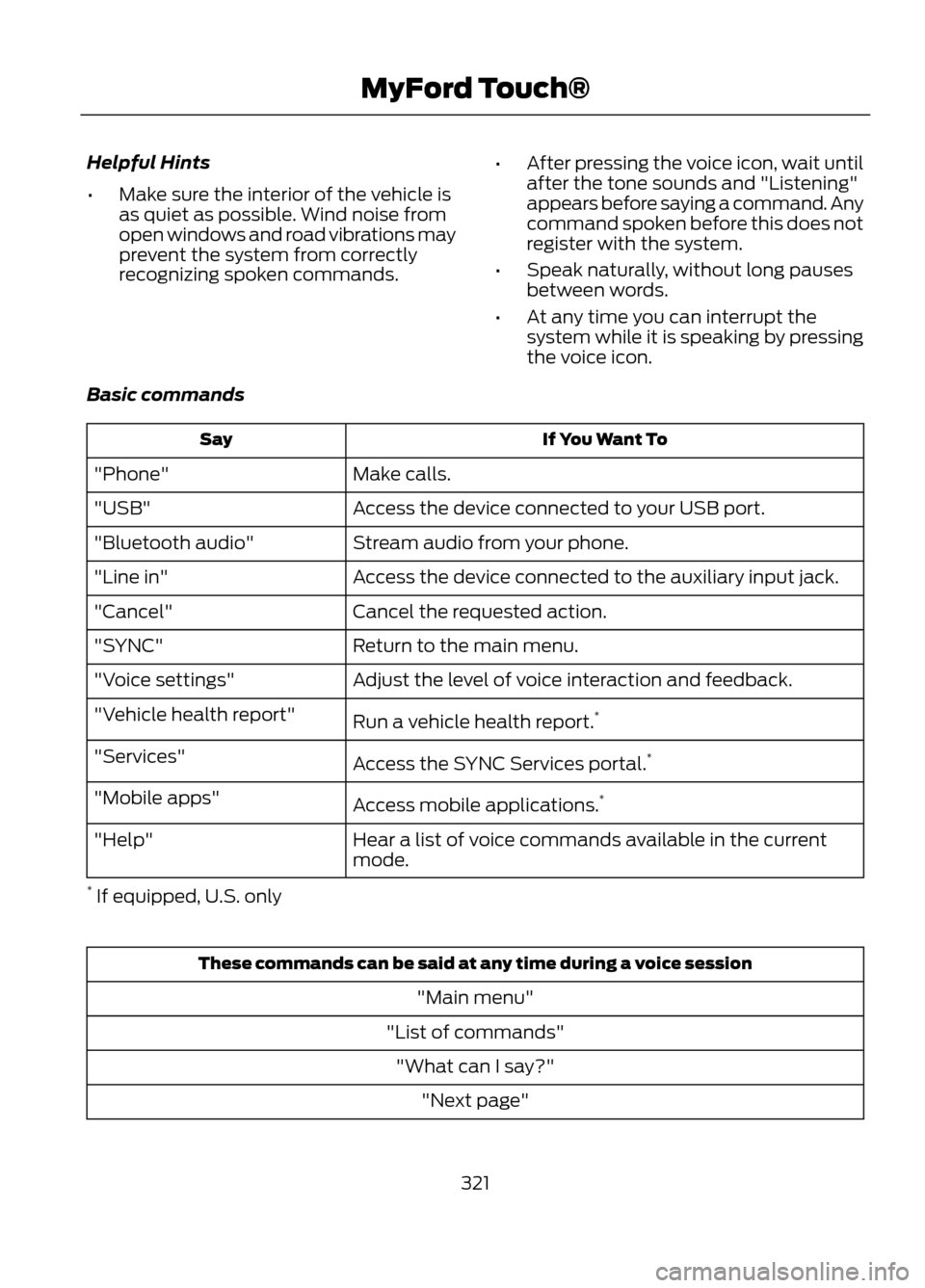
Basic commands
If You Want To
Say
Make calls.
"Phone"
Access the device connected to your USB port.
"USB"
Stream audio from your phone.
"Bluetooth audio"
Access the device connected to the auxiliary input jack.
"Line in"
Cancel the requested action.
"Cancel"
Return to the main menu.
"SYNC"
Adjust the level of voice interaction and feedback.
"Voice settings"
Run a vehicle health report.*
"Vehicle health report"
Access the SYNC Services portal. *
"Services"
Access mobile applications.*
"Mobile apps"
Hear a list of voice commands available in the current
mode.
"Help"
* If equipped, U.S. only
These commands can be said at any time during a voice session
"Main menu"
"List of commands" "What can I say?" "Next page"
321
MyFord Touch®