phone FORD ESCAPE 2013 3.G Owners Manual
[x] Cancel search | Manufacturer: FORD, Model Year: 2013, Model line: ESCAPE, Model: FORD ESCAPE 2013 3.GPages: 423, PDF Size: 4.59 MB
Page 5 of 423
Accessories
Accessories....................................................274
Ford Extended Service Plan(ESP)
Ford Extended Service Plan (ESP).......276
SYNC®
General Information...................................279
Using Voice Recognition............................281
Using SYNC® With Your Phone.............283
SYNC® Applications and Services.......295
Using SYNC® With Your Media Player............................................................301
SYNC® Troubleshooting..........................308
MyFord Touch®
General Information....................................315
Menu.................................................................326
Entertainment...............................................332
Phone...............................................................352
Information....................................................358
Climate............................................................367
Navigation........................................................371
Appendices
End User License Agreement.................380
Scheduled Maintenance
Scheduled Maintenance..........................396
5
Table of Contents
The information contained in this publication was correct at the time of going to print. In the interest of
continuous development, we reserve the right to change specifications, design or equipment at any time
without notice or obligation. No part of this publication may be reproduced, transmitted, stored in a
retrieval system or translated into any language in any form by any means without our written permission.
Errors and omissions excepted.
© Ford Motor Company 2012
All rights reserved.
Part Number: 20120308005357
Page 10 of 423
To read data recorded by an event data
recorder, special equipment is required,
and access to the vehicle or the event
data recorder is needed. In addition to
the vehicle manufacturer, other
parties, such as law enforcement, that
have such special equipment, can read
the information if they have access to
the vehicle or the event data recorder.
Ford Motor Company and Ford of
Canada do not access event data
recorder information without obtaining
consent, unless pursuant to court order
or where required by law enforcement,
other government authorities or other
third parties acting with lawful
authority. Other parties may seek to
access the information independently
of Ford Motor Company and Ford of
Canada.
Note:Including to the extent that any
law pertaining to Event Data Recorders
applies to SYNC or its features, please
note the following: Once 911 Assist (if
equipped) is enabled (set ON), 911 Assist
may, through any paired and connected
cell phone, disclose to emergency
services that the vehicle has been in a
crash involving the deployment of an
airbag or, in certain vehicles, the
activation of the fuel pump shut-off.
Certain versions or updates to 911 Assist
may also be capable of being used to
electronically or verbally provide to 911
operators the vehicle location (such as
latitude and longitude), and/or other
details about the vehicle or crash or
personal information about the
occupants to assist 911 operators to
provide the most appropriate emergency
services. If you do not want to disclose
this information, do not activate the 911
Assist feature. See SYNC® (page 279). Additionally, when you connect to
Traffic, Directions and Information (if
equipped, U.S. only), the service uses
GPS technology and advanced vehicle
sensors to collect the vehicle
’s current
location, travel direction, and speed
(“ vehicle travel information ”), only to
help provide you with the directions,
traffic reports, or business searches
that you request. If you do not want
Ford or its vendors to receive this
information, do not activate the
service. Ford Motor Company and the
vendors it uses to provide you with this
information do not store your vehicle
travel information. For more
information, see Traffic, Directions and
Information, Terms and Conditions.
See SYNC® (page 279).
CALIFORNIA PROPOSITION 65
WARNING
Some constituents of engine
exhaust, certain vehicle components,
certain fluids contained in vehicles
and certain products of component wear
contain or emit chemicals known to the
State of California to cause cancer and
birth defects or other reproductive harm.
PERCHLORATE
Certain components in your vehicle such
as airbag modules, safety belt
pretensioners and remote control batteries
may contain perchlorate material. Special
handling may apply for service or vehicle
end of life disposal. See
www.dtsc.ca.gov/hazardouswaste/perchlorate
for more information.
10
Introduction
Page 11 of 423
FORD CREDIT
(U.S. Only)
Ford Credit offers a full range of financing
and lease plans to help you acquire your
vehicle. If you have financed or leased your
vehicle through Ford Credit, thank you for
your business.
For your convenience we offer a number
of ways to contact us, as well as help
manage your account.
Phone: 1-800-727-7000
For more information regarding Ford Credit,
as well as access Account Manager, please
go to www.fordcredit.com.
REPLACEMENT PARTS
RECOMMENDATION
Your vehicle has been built to the highest
standards using quality parts. We
recommend that you demand the use of
genuine Ford and Motorcraft parts
whenever your vehicle requires scheduled
maintenance or repair. You can clearly
identify genuine Ford and Motorcraft parts
by looking for the Ford, FoMoCo or
Motorcraft branding on the parts or their
packaging.
Scheduled Maintenance and
Mechanical Repairs
One of the best ways for you to make sure
that your vehicle provides years of service
is to have it maintained in line with our
recommendations using parts that
conform to the specifications detailed in
this Owner’s Manual. Genuine Ford and
Motorcraft parts meet or exceed these
specifications. Collision Repairs
We hope that you never experience a
collision but, accidents do happen. Genuine
Ford replacement collision parts meet our
stringent requirements for fit, finish,
structural integrity, corrosion protection
and dent resistance. During vehicle
development we validate these parts
deliver the intended level of protection as
a whole system. A great way to know for
sure you are getting this level of protection
is to use genuine Ford replacement
collision parts.
Warranty on Replacement Parts
Genuine Ford and Motorcraft replacement
parts are the only replacement parts that
benefit from a Ford Warranty. Damage
caused to your vehicle as a result of the
failure of non-Ford parts may not be
covered by the Ford Warranty. For
additional information, refer to the terms
and conditions of the Ford Warranty.
SPECIAL NOTICES
New Vehicle Limited Warranty
For a detailed description of what is
covered and what is not covered by your
vehicle
’s New Vehicle Limited Warranty,
refer to the Warranty Manual that is
provided to you along with your Owner ’s
Manual.
Special Instructions
For your added safety, your vehicle is fitted
with sophisticated electronic controls.
WARNINGS
Failure to follow the specific
warnings and instructions could
result in personal injury. See
Supplementary Restraints System
(page 35).
11
Introduction
Page 12 of 423

WARNINGS
Front seat mounted rear-facing child
or infant seats should NEVER be
placed in front of an active
passenger airbag.
Notice to Owners of Pickup Trucks
and Utility Type Vehicles
WARNING
Utility vehicles have a significantly
higher rollover rate than other types
of vehicles.
Before you drive your vehicle, please read
this Owner ’s Guide carefully. Your vehicle
is not a passenger car. As with other
vehicles of this type, failure to operate this
vehicle correctly may result in loss of
vehicle control, vehicle rollover, personal
injury or death.
Using Your Vehicle With a
Snowplow
Do not use this vehicle for
snowplowing.
Your vehicle is not equipped with a
snowplowing package.
Using Your Vehicle as an
Ambulance
Do not use this vehicle as an
ambulance.
Your vehicle is not equipped with the Ford
Ambulance Preparation Package. MOBILE COMMUNICATIONS
EQUIPMENT
Using mobile communications equipment
is becoming increasingly important in the
conduct of business and personal affairs.
However, you must not compromise your
own or others’
safety when using such
equipment. Mobile communications can
enhance personal safety and security when
appropriately used, particularly in
emergency situations. Safety must be
paramount when using mobile
communications equipment to avoid
negating these benefits. Mobile
communication equipment includes, but
is not limited to, cellular phones, pagers,
portable email devices, text messaging
devices and portable two-way radios.
WARNING
Driving while distracted can result in
loss of vehicle control, accident and
injury. We strongly recommend that
you use extreme caution when using any
device or feature that may take your focus
off the road. Your primary responsibility is
the safe operation of your vehicle. We
recommend against the use of any
handheld device while driving and that you
comply with all applicable laws.
12
Introduction
Page 101 of 423
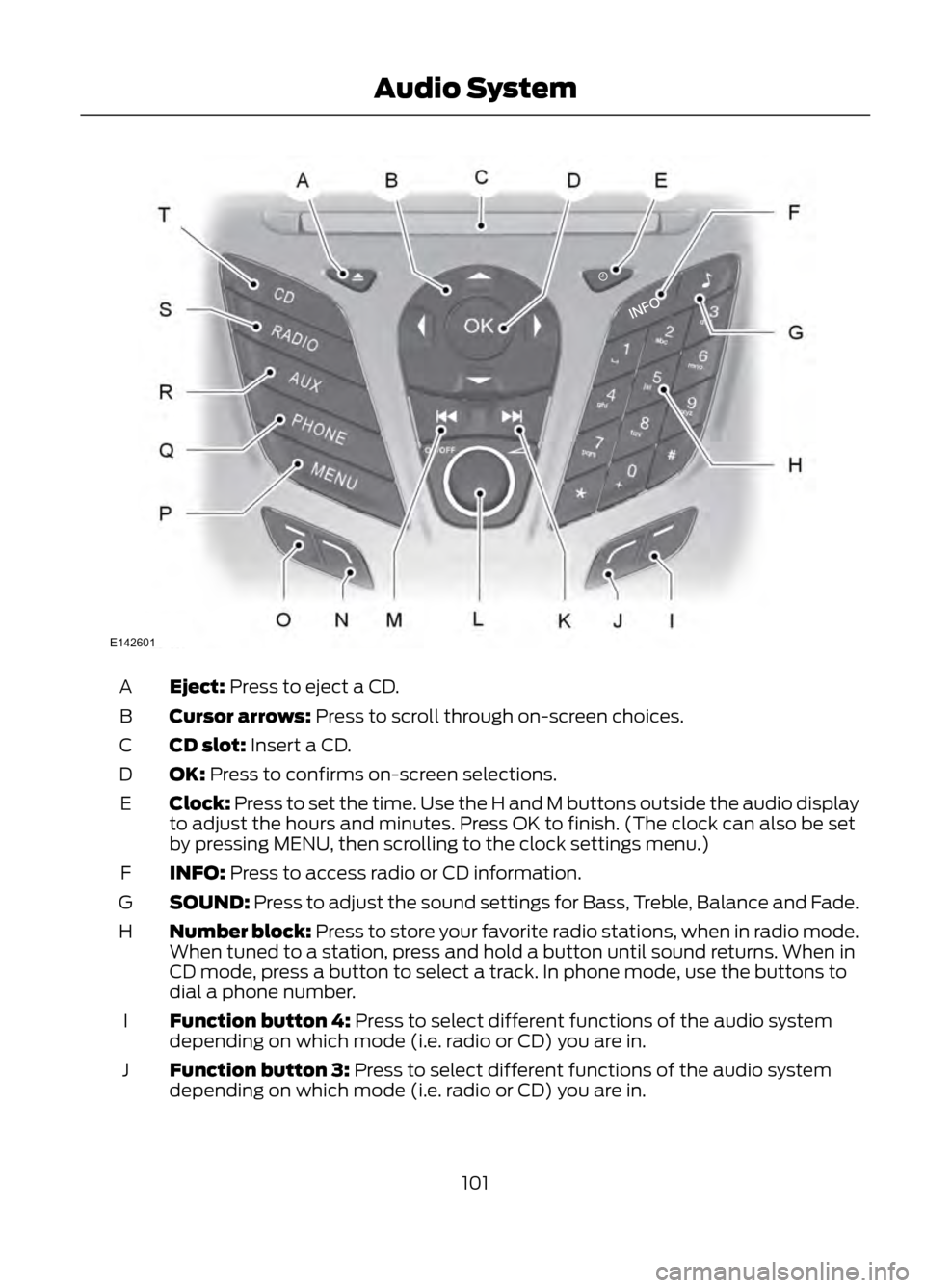
Eject: Press to eject a CD.
A
Cursor arrows: Press to scroll through on-screen choices.
B
CD slot: Insert a CD.
C
OK: Press to confirms on-screen selections.
D
Clock: Press to set the time. Use the H and M buttons outside the audio display
to adjust the hours and minutes. Press OK to finish. (The clock can also be set
by pressing MENU, then scrolling to the clock settings menu.)
E
INFO: Press to access radio or CD information.
F
SOUND: Press to adjust the sound settings for Bass, Treble, Balance and Fade.
G
Number block: Press to store your favorite radio stations, when in radio mode.
When tuned to a station, press and hold a button until sound returns. When in
CD mode, press a button to select a track. In phone mode, use the buttons to
dial a phone number.
H
Function button 4: Press to select different functions of the audio system
depending on which mode (i.e. radio or CD) you are in.
I
Function button 3: Press to select different functions of the audio system
depending on which mode (i.e. radio or CD) you are in.
J
101
Audio System
E142601
Page 102 of 423
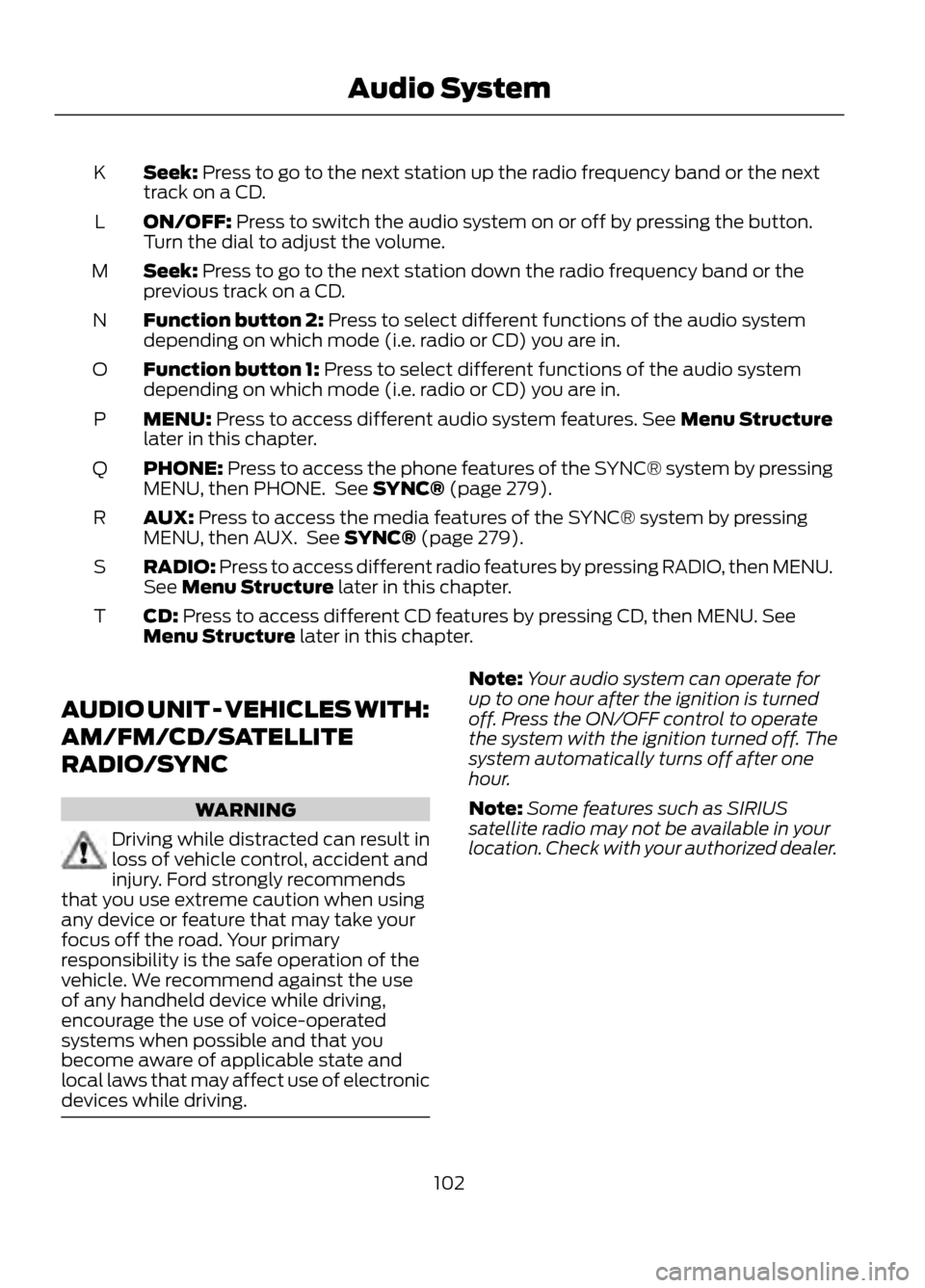
Seek: Press to go to the next station up the radio frequency band or the next
track on a CD.
K
ON/OFF: Press to switch the audio system on or off by pressing the button.
Turn the dial to adjust the volume.
L
Seek: Press to go to the next station down the radio frequency band or the
previous track on a CD.
M
Function button 2: Press to select different functions of the audio system
depending on which mode (i.e. radio or CD) you are in.
N
Function button 1: Press to select different functions of the audio system
depending on which mode (i.e. radio or CD) you are in.
O
MENU: Press to access different audio system features. See Menu Structure
later in this chapter.
P
PHONE: Press to access the phone features of the SYNC® system by pressing
MENU, then PHONE. See SYNC® (page 279).
Q
AUX: Press to access the media features of the SYNC® system by pressing
MENU, then AUX. See SYNC® (page 279).
R
RADIO: Press to access different radio features by pressing RADIO, then MENU.
See Menu Structure later in this chapter.
S
CD: Press to access different CD features by pressing CD, then MENU. See
Menu Structure later in this chapter.
T
AUDIO UNIT - VEHICLES WITH:
AM/FM/CD/SATELLITE
RADIO/SYNC
WARNING
Driving while distracted can result in
loss of vehicle control, accident and
injury. Ford strongly recommends
that you use extreme caution when using
any device or feature that may take your
focus off the road. Your primary
responsibility is the safe operation of the
vehicle. We recommend against the use
of any handheld device while driving,
encourage the use of voice-operated
systems when possible and that you
become aware of applicable state and
local laws that may affect use of electronic
devices while driving.
Note: Your audio system can operate for
up to one hour after the ignition is turned
off. Press the ON/OFF control to operate
the system with the ignition turned off. The
system automatically turns off after one
hour.
Note: Some features such as SIRIUS
satellite radio may not be available in your
location. Check with your authorized dealer.
102
Audio System
Page 103 of 423
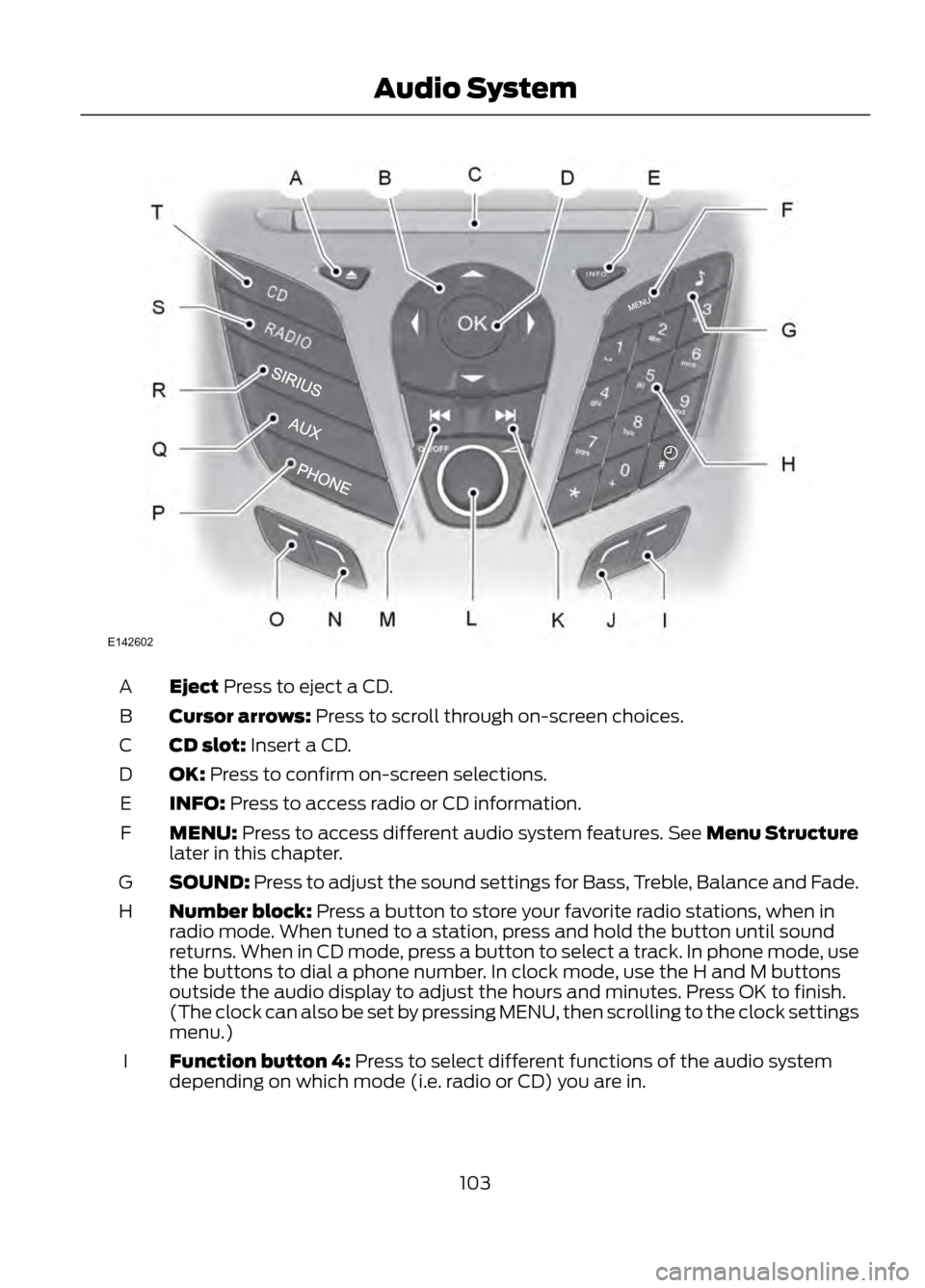
Eject Press to eject a CD.
A
Cursor arrows: Press to scroll through on-screen choices.
B
CD slot: Insert a CD.
C
OK: Press to confirm on-screen selections.
D
INFO: Press to access radio or CD information.
E
MENU: Press to access different audio system features. See Menu Structure
later in this chapter.
F
SOUND: Press to adjust the sound settings for Bass, Treble, Balance and Fade.
G
Number block: Press a button to store your favorite radio stations, when in
radio mode. When tuned to a station, press and hold the button until sound
returns. When in CD mode, press a button to select a track. In phone mode, use
the buttons to dial a phone number. In clock mode, use the H and M buttons
outside the audio display to adjust the hours and minutes. Press OK to finish.
(The clock can also be set by pressing MENU, then scrolling to the clock settings
menu.)
H
Function button 4: Press to select different functions of the audio system
depending on which mode (i.e. radio or CD) you are in.
I
103
Audio System
E142602
Page 104 of 423
Function button 3: Press to select different functions of the audio system
depending on which mode (i.e. radio or CD) you are in.
J
Seek: Press to go to the next station up the radio frequency band or the next
track on a CD.
K
ON/OFF: Press to switch the audio system on or off by pressing the button.
Turn to adjust the volume.
L
Seek: Press to go to the next station down the radio frequency band or the
previous track on a CD.
M
Function button 2: Press to select different functions of the audio system
depending on which mode (i.e. radio or CD) you are in.
N
Function button 1: Press to select different functions of the audio system
depending on which mode (i.e. radio or CD) you are in.
O
PHONE: Press to access the phone features of the SYNC® system by pressing
MENU, then PHONE. See SYNC® (page 279).
P
AUX: Press to access the media features of the SYNC® system by pressing
MENU, then AUX. See SYNC® (page 279).
Q
SIRIUS: Press to access different satellite radio features by pressing SIRIUS,
then MENU. See Menu Structure later in this chapter.
R
RADIO: Press to access different radio features by pressing RADIO, then MENU.
See Menu Structure later in this chapter.
S
CD: Press to access different CD features by pressing CD, then MENU. See
Menu Structure later in this chapter.
T
104
Audio System
Page 110 of 423
The auxiliary input jack (AIJ) allows you to
connect and play music from your portable
music player through the vehicle speakers.
You can use any portable music player
designed for use with headphones. Your
audio extension cable must have male
one-eighth inch (three and one-half
millimeter) connectors at each end.
1. Make sure the vehicle, radio andportable music player are turned off
and the transmission is in position P.
2. Plug the extension cable from the portable music player into the AIJ.
3. Turn on the radio. Select either a tuned
FM station or a CD.
4. Adjust the volume as desired.
5. Turn on your portable music player and
adjust its volume to half its maximum
level.
6. Press AUX until LINE or LINE IN appears in the display. You should hear
music from your device even if it is low.
7. Adjust the volume on your portable music player until it reaches the volume
level of the FM station or CD. Do this
by switching back and forth between
the AUX and FM or CD controls.
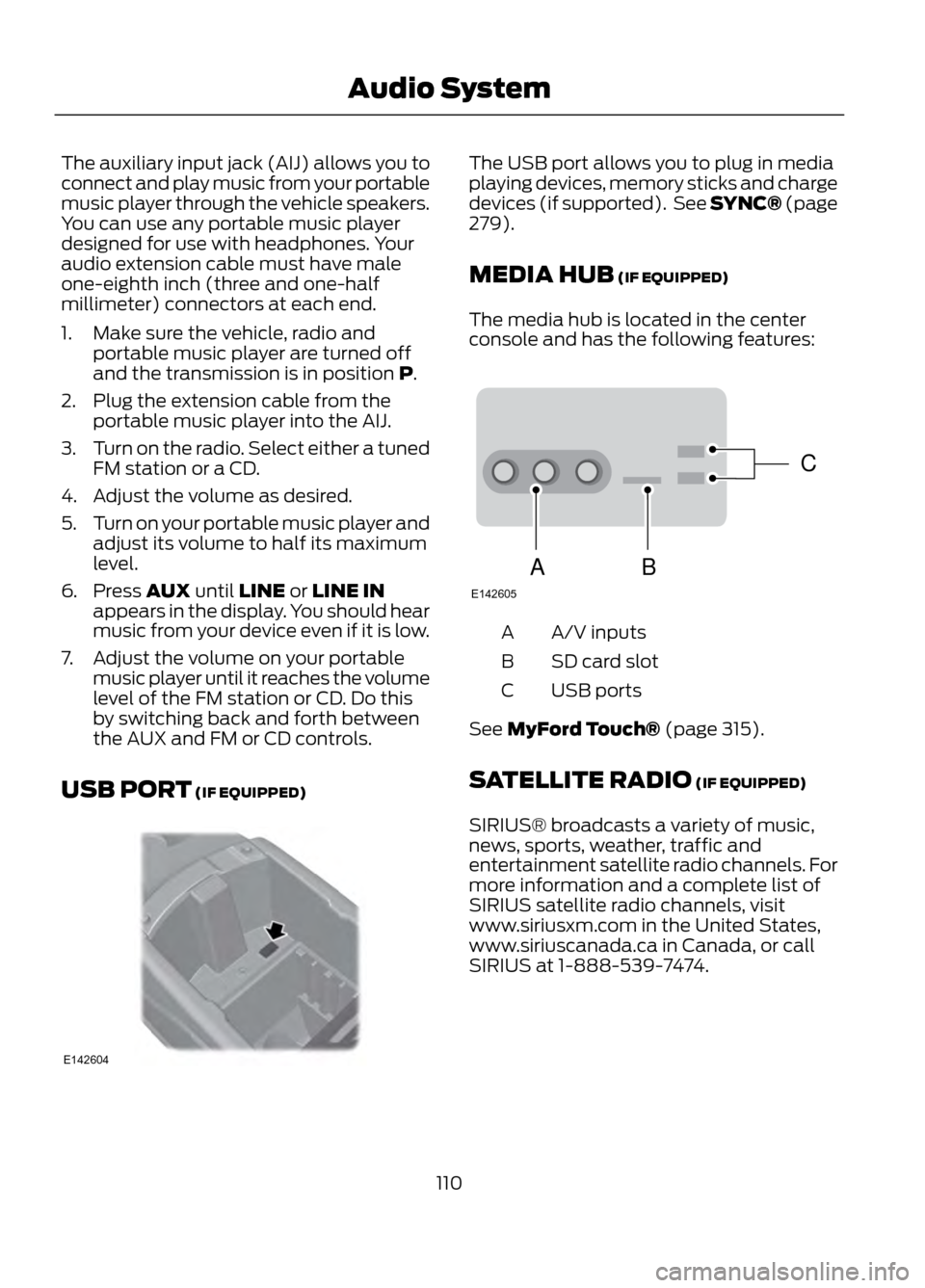
USB PORT (IF EQUIPPED)The USB port allows you to plug in media
playing devices, memory sticks and charge
devices (if supported). See SYNC® (page
279).
MEDIA HUB (IF EQUIPPED)
The media hub is located in the center
console and has the following features:
A/V inputs
A
SD card slot
B
USB ports
C
See MyFord Touch® (page 315).
SATELLITE RADIO (IF EQUIPPED)
SIRIUS® broadcasts a variety of music,
news, sports, weather, traffic and
entertainment satellite radio channels. For
more information and a complete list of
SIRIUS satellite radio channels, visit
www.siriusxm.com in the United States,
www.siriuscanada.ca in Canada, or call
SIRIUS at 1-888-539-7474.
110
Audio System
E142604
C
BA
E142605
Page 135 of 423
GENERAL INFORMATION
If you disconnect the battery, your vehicle
may exhibit some unusual driving
characteristics for approximately 5 miles
(8 kilometers) after you reconnect it. This
is because the engine management system
must realign itself with the engine. You can
disregard any unusual driving
characteristics during this period.
WARNINGS
Extended idling at high engine
speeds can produce very high
temperatures in the engine and
exhaust system, creating the risk of fire or
other damage.
Do not park, idle or drive your vehicle
on dry grass or other dry ground
cover. The emission system heats up
the engine compartment and exhaust
system, creating the risk of fire.
Do not start the engine in a closed
garage or in other enclosed areas.
Exhaust fumes can be toxic. Always
open the garage door before you start the
engine.
If you smell exhaust fumes inside
your vehicle, have your vehicle
checked by your authorized dealer
immediately. Do not drive your vehicle if
you smell exhaust fumes.
This system meets all Canadian
interference-causing equipment standard
requirements regulating the impulse
electrical field or radio noise.
When you start the engine, avoid pressing
the accelerator pedal before and during
operation. Only use the accelerator pedal
when you have difficulty starting the
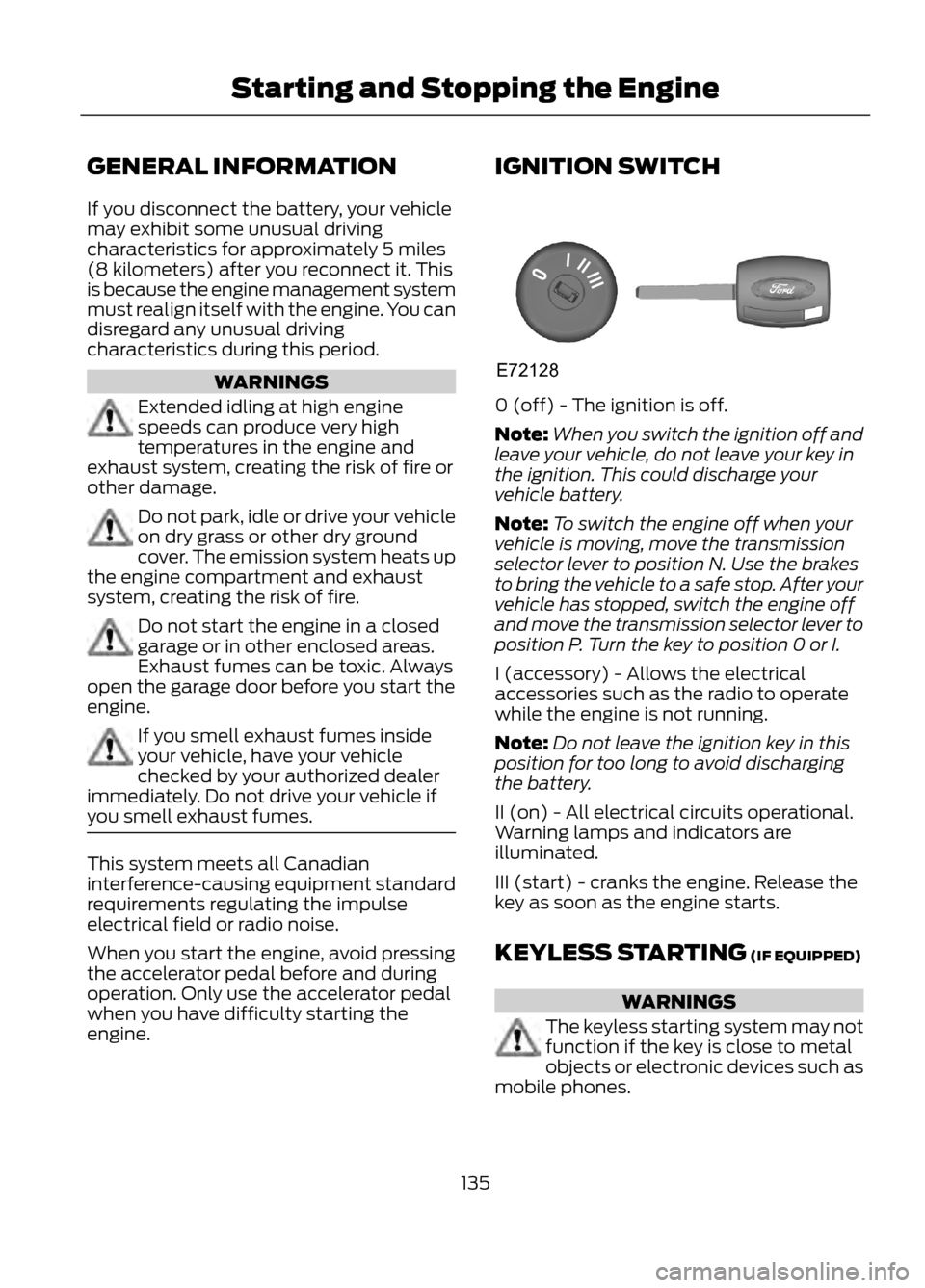
engine. IGNITION SWITCH
0 (off) - The ignition is off.
Note:
When you switch the ignition off and
leave your vehicle, do not leave your key in
the ignition. This could discharge your
vehicle battery.
Note: To switch the engine off when your
vehicle is moving, move the transmission
selector lever to position N. Use the brakes
to bring the vehicle to a safe stop. After your
vehicle has stopped, switch the engine off
and move the transmission selector lever to
position P. Turn the key to position 0 or I.
I (accessory) - Allows the electrical
accessories such as the radio to operate
while the engine is not running.
Note: Do not leave the ignition key in this
position for too long to avoid discharging
the battery.
II (on) - All electrical circuits operational.
Warning lamps and indicators are
illuminated.
III (start) - cranks the engine. Release the
key as soon as the engine starts.
KEYLESS STARTING (IF EQUIPPED)
WARNINGS
The keyless starting system may not
function if the key is close to metal
objects or electronic devices such as
mobile phones.
135
Starting and Stopping the Engine
E72128