touch screen FORD ESCAPE 2022 Service Manual
[x] Cancel search | Manufacturer: FORD, Model Year: 2022, Model line: ESCAPE, Model: FORD ESCAPE 2022Pages: 585, PDF Size: 6.15 MB
Page 281 of 585
SWITCHING DISTANCE
INDICATION ON AND OFF
To switch the system on or off, use the
touchscreen:
1. Press Settings on the touchscreen.
2. Press Driver Assistance.
3. Press Pre-Collision Assist.
4. Press Distance Indication .
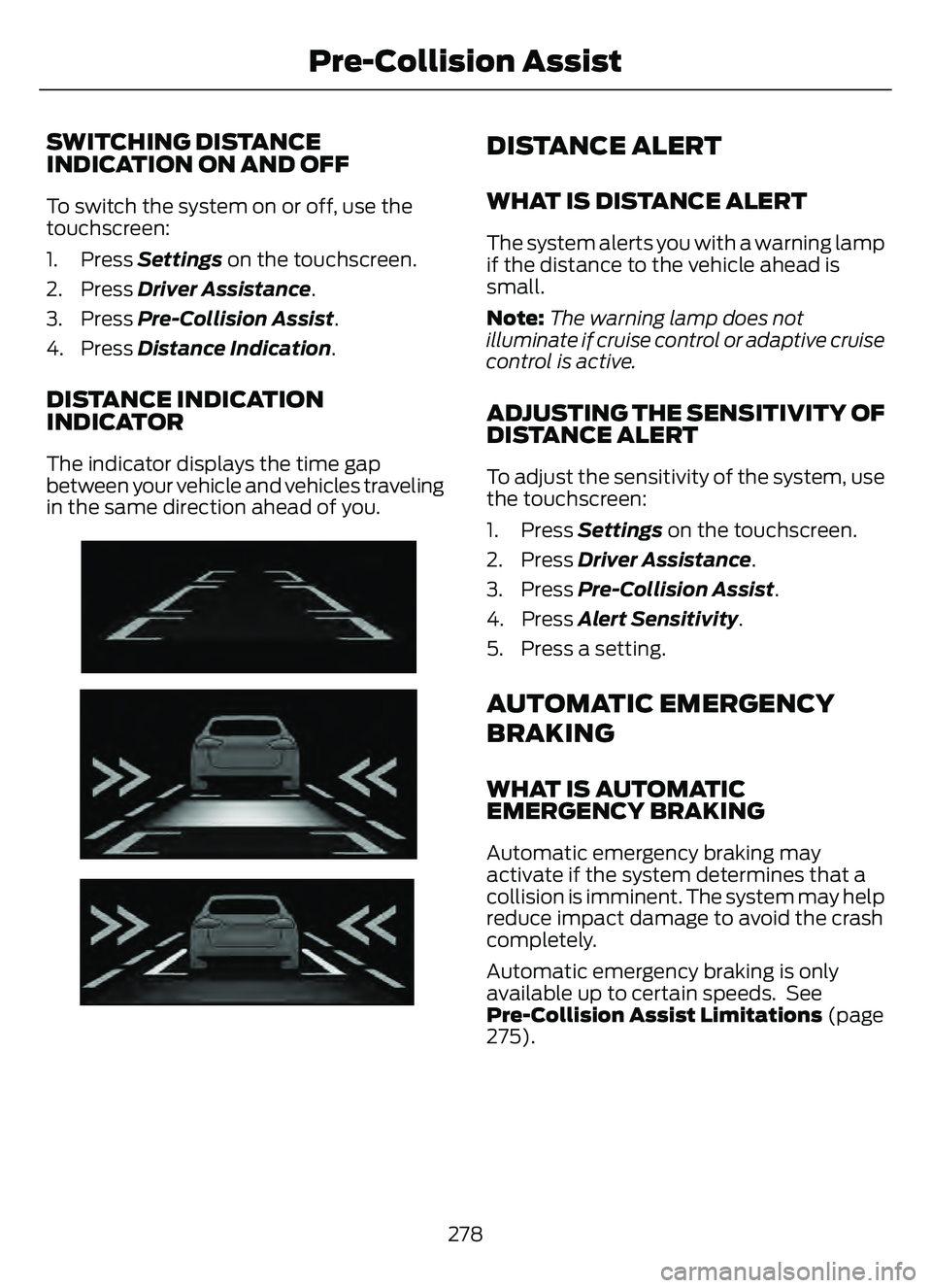
DISTANCE INDICATION
INDICATOR
The indicator displays the time gap
between your vehicle and vehicles traveling
in the same direction ahead of you.
E254791E254791
DISTANCE ALERT
WHAT IS DISTANCE ALERT
The system alerts you with a warning lamp
if the distance to the vehicle ahead is
small.
Note:The warning lamp does not
illuminate if cruise control or adaptive cruise
control is active.
ADJUSTING THE SENSITIVITY OF
DISTANCE ALERT
To adjust the sensitivity of the system, use
the touchscreen:
1. Press Settings on the touchscreen.
2. Press Driver Assistance.
3. Press Pre-Collision Assist.
4. Press Alert Sensitivity.
5. Press a setting.
AUTOMATIC EMERGENCY
BRAKING
WHAT IS AUTOMATIC
EMERGENCY BRAKING
Automatic emergency braking may
activate if the system determines that a
collision is imminent. The system may help
reduce impact damage to avoid the crash
completely.
Automatic emergency braking is only
available up to certain speeds. See
Pre-Collision Assist Limitations (page
275).
278
Pre-Collision Assist
Page 282 of 585
SWITCHING AUTOMATIC
EMERGENCY BRAKING ON AND
OFF
To switch the system on or off, use the
touchscreen:
1. Press Settings on the touchscreen.
2. Press Driver Assistance.
3. Press Pre-Collision Assist.
4. Press Active Braking.
5. Switch the feature on or off.
EVASIVE STEERING ASSIST (IF
EQUIPPED)
WHAT IS EVASIVE STEERING
ASSIST
If your vehicle is rapidly approaching a road
user, evasive steering assist helps you steer
around the road user.
After you turn the steering wheel in an
attempt to avoid a crash with the road
user, the system applies additional steering
torque to help you steer around the road
user. After you pass the road user, the
system applies steering torque when you
turn the steering wheel to steer back into
the lane. The system deactivates after you
fully pass the road user.
Note: Road users are defined as another
stationary vehicle in the same lane or a
vehicle traveling in the same lane in the
same direction as you. See Pre-Collision
Assist Precautions (page 274).
EVASIVE STEERING ASSIST
LIMITATIONS
Evasive steering assist only activates when
all the following occur:
• Automatic emergency braking and evasive steering assist are on.
• The system detects a road user ahead and starts to apply the brakes.
• You significantly turn the steering wheel to steer around a road user.
Note: Evasive steering assist does not
automatically steer around a road user. If
you do not turn the steering wheel, evasive
steering assist does not activate.
Note: Evasive steering assist does not
activate if the distance to the road user
ahead is too small and the system cannot
avoid a crash.
Note: Evasive steering does not activate
with cyclists or pedestrians.
SWITCHING EVASIVE STEERING
ASSIST ON AND OFF
To switch the system on or off, use the
touchscreen:
1. Press Settings on the touchscreen.
2. Press Driver Assistance.
3. Press Pre-Collision Assist.
4. Press Evasive Steering.
5. Switch the feature on or off.
Note: If you switch automatic emergency
braking off, evasive steering assist turns off.
Note: Automatic emergency braking and
evasive steering assist turn on every time
you switch the ignition on.
279
Pre-Collision Assist
Page 285 of 585
WHAT IS DRIVER ALERT
Driver alert alerts you if it determines that
you are becoming drowsy or if your driving
deteriorates.
HOW DOES DRIVER ALERT
WORK
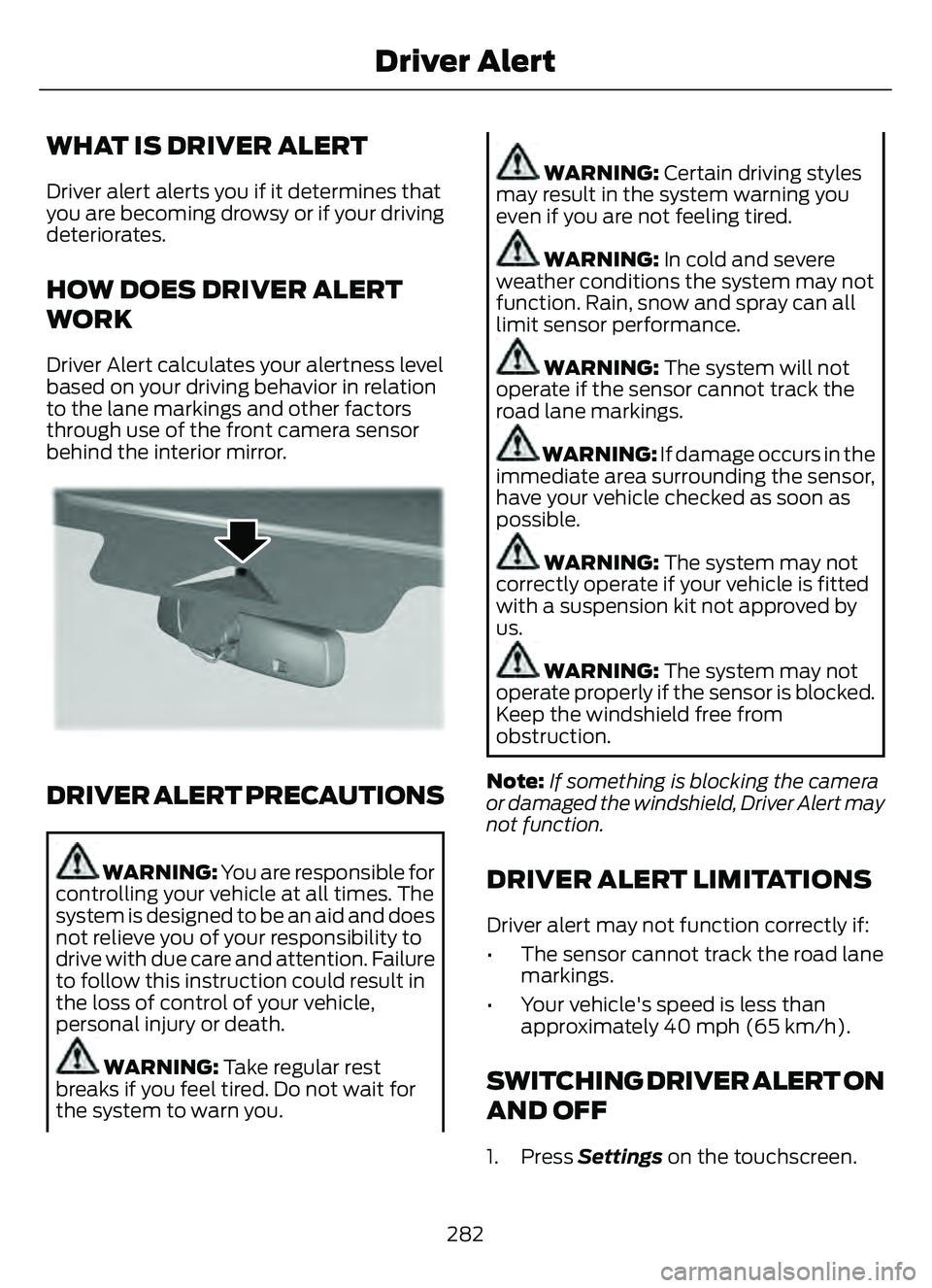
Driver Alert calculates your alertness level
based on your driving behavior in relation
to the lane markings and other factors
through use of the front camera sensor
behind the interior mirror.
E309385E309385E309385
DRIVER ALERT PRECAUTIONS
WARNING: You are responsible for
controlling your vehicle at all times. The
system is designed to be an aid and does
not relieve you of your responsibility to
drive with due care and attention. Failure
to follow this instruction could result in
the loss of control of your vehicle,
personal injury or death.
WARNING: Take regular rest
breaks if you feel tired. Do not wait for
the system to warn you.
WARNING: Certain driving styles
may result in the system warning you
even if you are not feeling tired.
WARNING: In cold and severe
weather conditions the system may not
function. Rain, snow and spray can all
limit sensor performance.
WARNING: The system will not
operate if the sensor cannot track the
road lane markings.
WARNING: If damage occurs in the
immediate area surrounding the sensor,
have your vehicle checked as soon as
possible.
WARNING: The system may not
correctly operate if your vehicle is fitted
with a suspension kit not approved by
us.
WARNING: The system may not
operate properly if the sensor is blocked.
Keep the windshield free from
obstruction.
Note: If something is blocking the camera
or damaged the windshield, Driver Alert may
not function.
DRIVER ALERT LIMITATIONS
Driver alert may not function correctly if:
• The sensor cannot track the road lane markings.
• Your vehicle's speed is less than approximately 40 mph (65 km/h).
SWITCHING DRIVER ALERT ON
AND OFF
1. Press Settings on the touchscreen.
282
Driver Alert
Page 288 of 585
SETTING THE SPEED SIGN
RECOGNITION SPEED
WARNING
To set the speed warning, use the
touchscreen.
1. Press Settings on the touchscreen.
2. Press Driver Assistance.
3. Press Speed Sign Recognition .
4. Switch the feature on or off.
SETTING THE SPEED SIGN
RECOGNITION SPEED
TOLERANCE
To set the tolerance of the speed warning,
use the touchscreen.
1. Press Settings on the touchscreen.
2. Press Driver Assistance.
3. Press Speed Sign Recognition .
4. Press Tolerance.
5. Use + and - to set the tolerance.
SPEED SIGN RECOGNITION – TROUBLESHOOTING
SPEED SIGN RECOGNITION – INFORMATION MESSAGES
Action
Message
The traffic sign data provided by the navig-
ation system is unavailable due to weak or
no signal. Wait for a short period of time for the signal to improve. If the message
continues to appear, have the system checked as soon as possible.
Traffic Sign Reduced Performance See
Manual
285
Speed Sign Recognition (If Equipped)
Page 306 of 585
HOW DOES TRAILER SWAY
CONTROL WORK
The system applies the brakes to the
individual wheels and reduces engine
torque to aid vehicle stability.
If the trailer begins to sway, the stability
control lamp flashes and the message
Trailer Sway Reduce Speed appears in
the information display.
Stop your vehicle as soon as it is safe to
do so. Check the vertical weight on the
tow ball and trailer load distribution.
TRAILER SWAY CONTROL
PRECAUTIONS
WARNING: Turning off trailer sway
control increases the risk of loss of
vehicle control, serious injury or death.
Ford does not recommend disabling this
feature except in situations where speed
reduction may be detrimental (such as
hill climbing), the driver has significant
trailer towing experience, and can control
trailer sway and maintain safe operation.
Note: This feature only activates when
significant trailer sway occurs.
Note: This feature does not prevent trailer
sway, but reduces it once it begins.
Note: This feature cannot stop all trailers
from swaying.
Note: In some cases, if vehicle speed is too
high, the system may activate multiple
times, gradually reducing vehicle speed.
SWITCHING TRAILER SWAY
CONTROL ON AND OFF
1. Press Features on the touchscreen. 2. Press Towing.
3. Switch Trailer Sway Control
on or off.
The system turns on each time you start
your vehicle.
303
Trailer Sway Control
Page 355 of 585
CLEANING DISPLAYS AND
SCREENS
We recommend that you only use a
microfiber cloth in a circular motion to
clean off the fingerprint or dust.
If dirt or fingerprints are still on the screen,
apply a small amount of alcohol to the
cloth and try to clean it again.
Note:Do not pour or spray alcohol onto the
touchscreen.
Note: Do not use detergent or any type of
solvent to clean the touchscreen.
CLEANING LEATHER AND VINYL
We recommend that you only clean the
leather and vinyl surfaces in the following
way:
1. Remove dust and loose dirt with a vacuum cleaner.
2. Wipe the surface with a soft, damp cloth and a mild soap and water
solution. Dry the area with a clean, soft
cloth.
3. Make sure the leather is dry, then apply a small amount of conditioner to a
clean, dry cloth.
4. Rub the conditioner into the leather until it disappears. Allow the
conditioner to dry, then repeat the
process for the entire interior. If a film
appears, wipe it off with a dry, clean
cloth.
5. For additional information and assistance, we recommend that you
contact an authorized dealer.
CLEANING FABRIC SEATS AND
HEADLINERS
WARNING: On vehicles equipped
with seat-mounted airbags, do not use
chemical solvents or strong detergents.
Such products could contaminate the
side airbag system and affect
performance of the side airbag in a crash.
We recommend that you only clean the
fabric seats and headliners in the following
way:
1. Remove dust and loose dirt with a vacuum cleaner.
2. Wipe the surface with a soft, damp cloth and a mild soap and water
solution. Dry the area with a clean, soft
cloth.
3. For additional information and assistance, we recommend that you
contact an authorized dealer.
For heavy stains, spot clean the area. If a
ring forms on the fabric, clean the entire
area immediately, but do not oversaturate
or the ring could set.
CLEANING CARPETS AND FLOOR
MATS
We recommend that you only clean your
carpets in the following way:
1. Remove dust and loose dirt with a vacuum cleaner.
2. Wipe the surface with a soft, damp cloth and a mild soap and water
solution. Dry the area with a clean, soft
cloth.
3. For additional information and assistance, we recommend that you
contact an authorized dealer.
352
Vehicle Care
Page 383 of 585
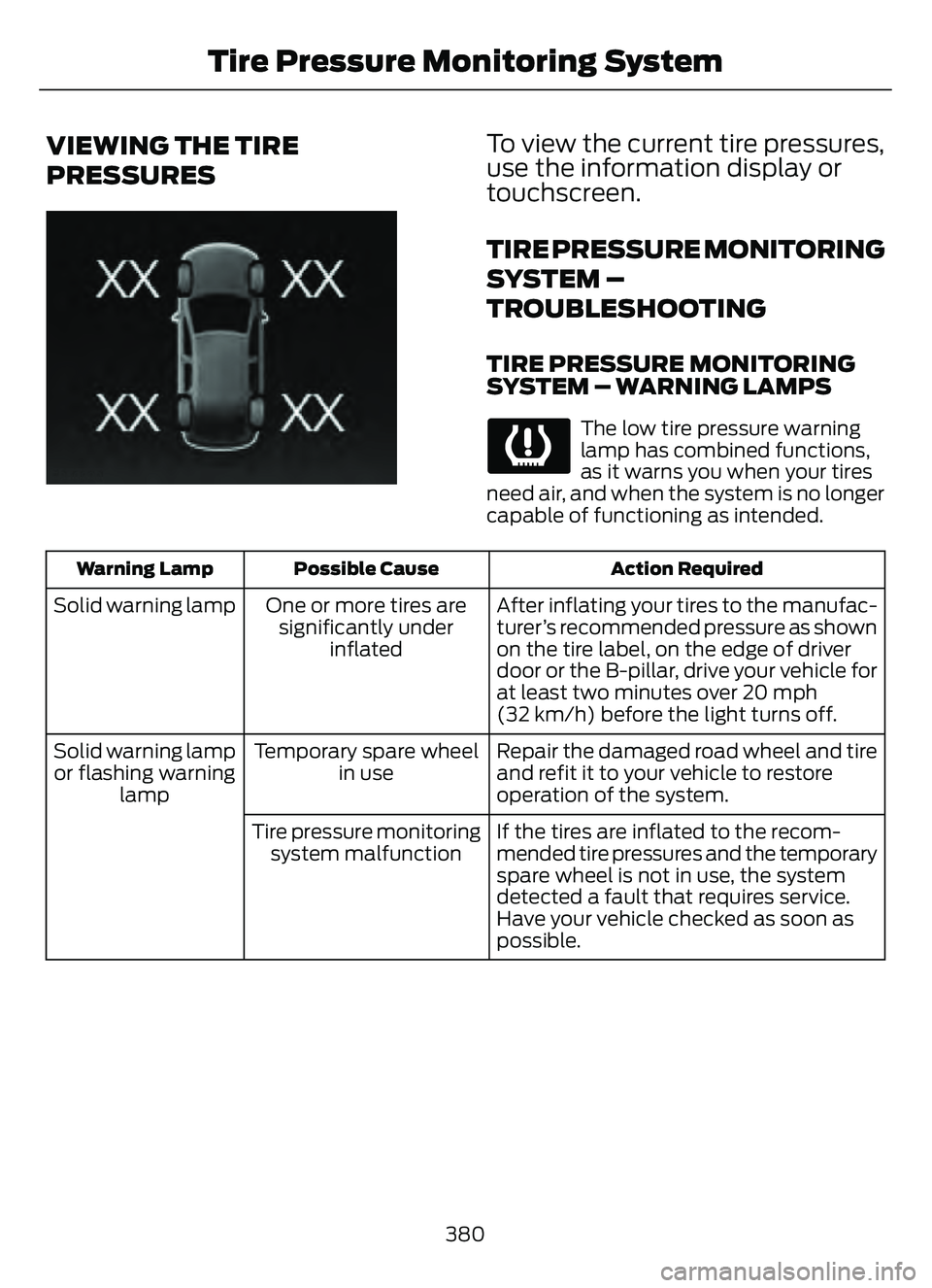
VIEWING THE TIRE
PRESSURES
E250820E250820
To view the current tire pressures,
use the information display or
touchscreen.
TIRE PRESSURE MONITORING
SYSTEM –
TROUBLESHOOTING
TIRE PRESSURE MONITORING
SYSTEM – WARNING LAMPS
The low tire pressure warning
lamp has combined functions,
as it warns you when your tires
need air, and when the system is no longer
capable of functioning as intended.
Action Required
Possible Cause
Warning Lamp
After inflating your tires to the manufac-
turer’s recommended pressure as shown
on the tire label, on the edge of driver
door or the B-pillar, drive your vehicle for
at least two minutes over 20 mph
(32 km/h) before the light turns off.
One or more tires are
significantly under inflated
Solid warning lamp
Repair the damaged road wheel and tire
and refit it to your vehicle to restore
operation of the system.
Temporary spare wheel
in use
Solid warning lamp
or flashing warning lamp
If the tires are inflated to the recom-
mended tire pressures and the temporary
spare wheel is not in use, the system
detected a fault that requires service.
Have your vehicle checked as soon as
possible.
Tire pressure monitoring
system malfunction
380
Tire Pressure Monitoring System
Page 413 of 585
AUDIO SYSTEM
PRECAUTIONS
WARNING: Driving while distracted
can result in loss of vehicle control, crash
and injury. We strongly recommend that
you use extreme caution when using any
device that may take your focus off the
road. Your primary responsibility is the
safe operation of your vehicle. We
recommend against the use of any
hand-held device while driving and
encourage the use of voice-operated
systems when possible. Make sure you
are aware of all applicable local laws
that may affect the use of electronic
devices while driving.
Listening to loud audio for long periods of
time could damage your hearing.
SWITCHING THE AUDIO UNIT
ON AND OFF
Press the button on the volume
control.
SELECTING THE AUDIO
SOURCE
1. Press your preferred audio source.
Note: Available audio sources are listed
along the top of the radio screen.
PLAYING OR PAUSING THE
AUDIO SOURCE
Press to pause playback. Press
again to resume playback.
Note: Not all sources can be paused.
ADJUSTING THE VOLUME
E2265373E2265373265373
Turn to adjust the volume.
SWITCHING SHUFFLE MODE
ON AND OFF
Press the button on the
touchscreen to switch shuffle
mode on or off.
Note: Not all sources have shuffle mode.
SWITCHING REPEAT MODE ON
AND OFF
Press the button on the
touchscreen to switch repeat
mode on or off.
Note: Not all sources have repeat mode.
SETTING A MEMORY PRESET
1. Select a station or channel.
2. Press and hold a memory preset button
on the touchscreen.
410
Audio System
Page 414 of 585
Note:The audio mutes briefly while the
system saves the preset and returns once it
is stored.
Note: You can save presets from multiple
sources to the memory preset bar.
MUTING THE AUDIO
Press the button on the steering
wheel to mute the audio.
Press to mute the signal. Press
again to restore the signal.
ADJUSTING THE SOUND
SETTINGS
Balance and Fade (If Equipped)
1. Access the vehicle drawer on the touchscreen.
2. Press SETTINGS.
3. Press Sound.
4. Press Balance / Fade.
5. Press the arrows to adjust the settings.
Tone Settings
1. Access the vehicle drawer on the touchscreen.
2. Press SETTINGS.
3. Press Sound.
4. Press Tone Settings .
5. Use the slider bar to adjust the settings.
Speed Compensated Volume
1. Access the vehicle drawer on the touchscreen.
2. Press SETTINGS.
3. Press Sound.
4. Press Speed Compensated Volume .5. Press a setting.
Occupancy Mode (If Equipped)
1. Access the vehicle drawer on the
touchscreen.
2. Press SETTINGS.
3. Press Sound.
4. Press Occupancy Mode .
5. Press a setting.
Sound Mode (If Equipped)
1. Access the vehicle drawer on the touchscreen.
2. Press SETTINGS.
3. Press Sound.
4. Press Sound Mode .
5. Press a setting.
SETTING THE CLOCK AND
DATE
1. Access the vehicle drawer on the touchscreen.
2. Press SETTINGS.
3. Press Clock.
4. Set the time.
Note: The AM and PM options are not
available if 24-hour mode is on.
5. Press the arrows to adjust the settings.
Switching Automatic Time
Updates On and Off
1. Access the vehicle drawer on the touchscreen.
2. Press SETTINGS.
3. Press Clock.
4. Switch Automatic time zone update on or off.
411
Audio System
Page 416 of 585
HD1 signifies the main programming status
and is available in both analog and digital
broadcasts. Other multicast stations are
only available digitally and could contain
new or different content.
Note:When the system first receives an
HD1 station, it plays the station in the analog
version until it verifies the station is an HD
Radio station. Then it shifts to the digital
version.
Note: There is an audio mute delay when
switching to an HD2 or HD3 station because
the system has to reacquire and decode the
digital signal.
DIGITAL RADIO LIMITATIONS
If you are outside the reception area, the
system could not work.
If you are on the fringe of the reception
area, the station could mute due to weak
signal strength.
Note: If you are listening to HD1, the system
changes back to the analog broadcast until
the digital broadcast is available again. If
you are listening to any other multicast
channels, the station mutes and stays
muted unless it is able to connect to the
digital signal again.
Depending on the station quality, you could
hear a slight sound change when the
station changes between analog and
digital audio.
You cannot access a saved HD station if
your vehicle is outside the station’s
reception area.
SWITCHING DIGITAL RADIO
RECEPTION ON AND OFF
1. Access the vehicle drawer on the touchscreen.
2. Press SETTINGS.
3. Press Radio. 4. Switch HD Radio on or off.
DIGITAL RADIO INDICATORS
HD Radio Indicator
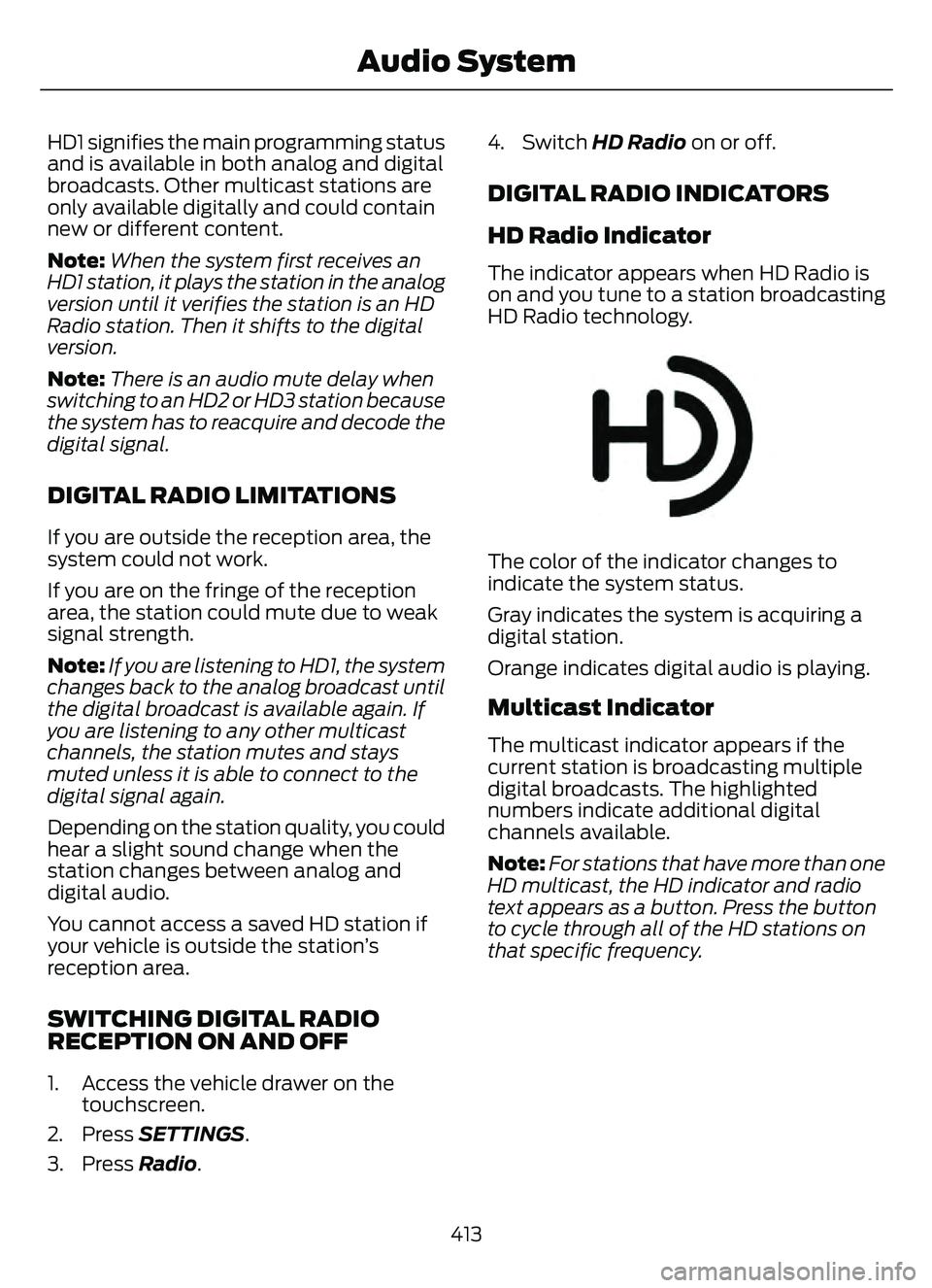
The indicator appears when HD Radio is
on and you tune to a station broadcasting
HD Radio technology.
E142616
The color of the indicator changes to
indicate the system status.
Gray indicates the system is acquiring a
digital station.
Orange indicates digital audio is playing.
Multicast Indicator
The multicast indicator appears if the
current station is broadcasting multiple
digital broadcasts. The highlighted
numbers indicate additional digital
channels available.
Note:
For stations that have more than one
HD multicast, the HD indicator and radio
text appears as a button. Press the button
to cycle through all of the HD stations on
that specific frequency.
413
Audio System