touch screen FORD ESCAPE 2022 Workshop Manual
[x] Cancel search | Manufacturer: FORD, Model Year: 2022, Model line: ESCAPE, Model: FORD ESCAPE 2022Pages: 585, PDF Size: 6.15 MB
Page 434 of 585
GENERAL INFORMATION
WARNING: Driving while distracted
can result in loss of vehicle control, crash
and injury. We strongly recommend that
you use extreme caution when using any
device that may take your focus off the
road. Your primary responsibility is the
safe operation of your vehicle. We
recommend against the use of any
hand-held device while driving and
encourage the use of voice-operated
systems when possible. Make sure you
are aware of all applicable local laws
that may affect the use of electronic
devices while driving.
About SYNC
The system allows you to interact with the
entertainment, information and
communication systems on your vehicle
using voice commands and a touchscreen.
The system provides easy interaction with
audio, phone, navigation, mobile apps and
settings.
Note: You can switch the system on and
use it for up to an hour without switching
the ignition on.
Note: You can use the system after you
switch the ignition off for up to 10 minutes
or until you open a door.
Note: For your safety, some features are
speed-dependent. Their use is limited to
when your vehicle speed is less than 3 mph
(5 km/h).
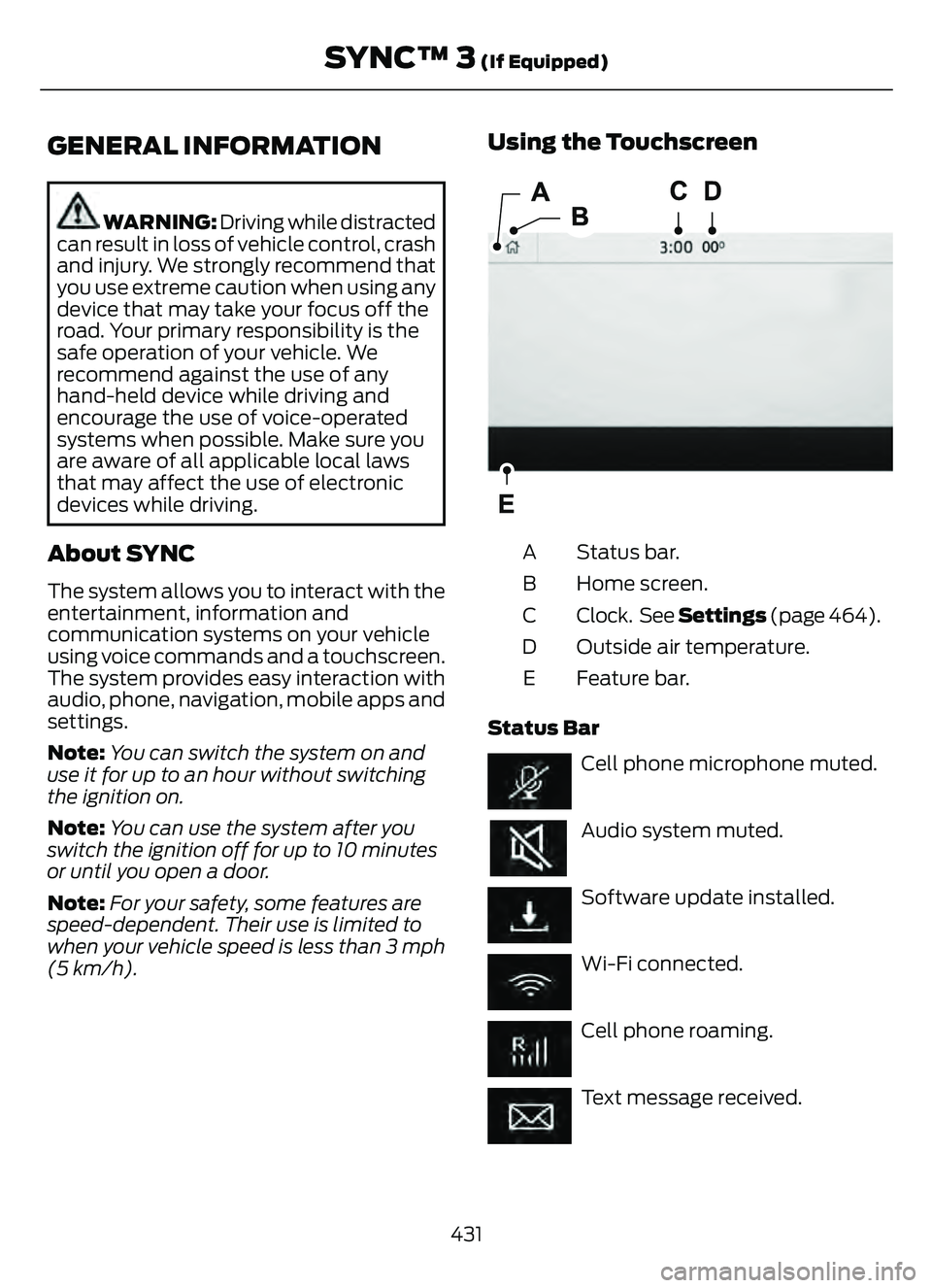
Using the Touchscreen
E293823E293823
Status bar.
A
Home screen.
B
Clock. See Settings (page 464).
C
Outside air temperature.
D
Feature bar.
E
Status Bar
Cell phone microphone muted.
Audio system muted.
Software update installed.
Wi-Fi connected.
Cell phone roaming.
Text message received.
431
SYNC™ 3 (If Equipped)
Page 435 of 585
Automatic crash notification
system off.
Cell phone network signal
strength.
Vehicle data sharing on.
Vehicle location sharing on.
Vehicle data and vehicle location
sharing on.
Wireless charger active.
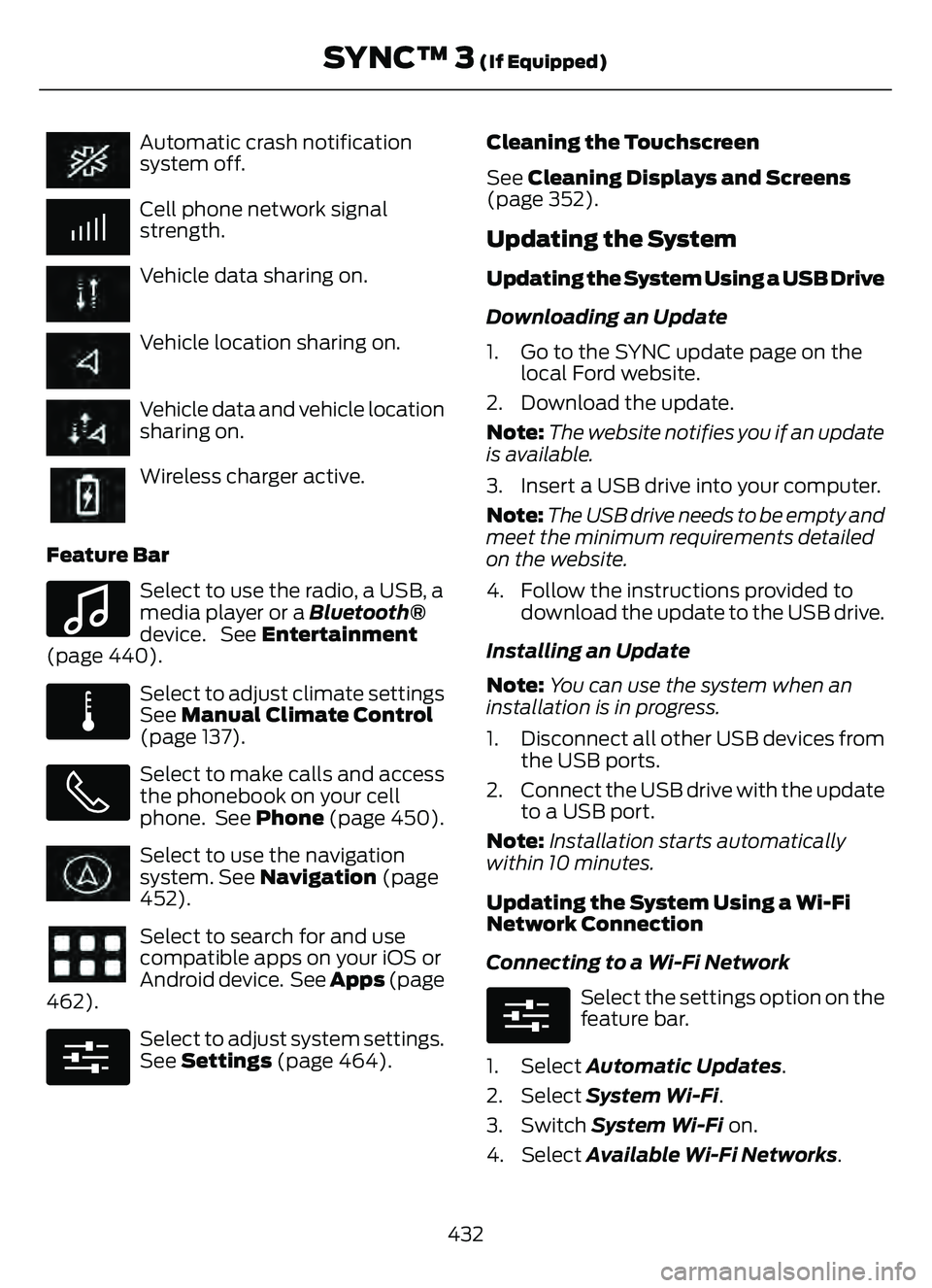
Feature Bar
E100027
Select to use the radio, a USB, a
media player or a Bluetooth®
device. See Entertainment
(page 440).
E283811
Select to adjust climate settings
See Manual Climate Control
(page 137).
Select to make calls and access
the phonebook on your cell
phone. See Phone (page 450).
Select to use the navigation
system. See Navigation (page
452).
Select to search for and use
compatible apps on your iOS or
Android device. See Apps (page
462).
E280315
Select to adjust system settings.
See Settings (page 464). Cleaning the Touchscreen
See
Cleaning Displays and Screens
(page 352).
Updating the System
Updating the System Using a USB Drive
Downloading an Update
1. Go to the SYNC update page on the local Ford website.
2. Download the update.
Note: The website notifies you if an update
is available.
3. Insert a USB drive into your computer.
Note: The USB drive needs to be empty and
meet the minimum requirements detailed
on the website.
4. Follow the instructions provided to download the update to the USB drive.
Installing an Update
Note: You can use the system when an
installation is in progress.
1. Disconnect all other USB devices from the USB ports.
2. Connect the USB drive with the update to a USB port.
Note: Installation starts automatically
within 10 minutes.
Updating the System Using a Wi-Fi
Network Connection
Connecting to a Wi-Fi Network
E280315
Select the settings option on the
feature bar.
1. Select Automatic Updates.
2. Select System Wi-Fi.
3. Switch System Wi-Fi on.
4. Select Available Wi-Fi Networks.
432
SYNC™ 3 (If Equipped)
Page 443 of 585
Description
Voice Command
The system does not confirm before placing a call.
Phone Confirmation Off
The system displays a short list of available commands.
Voice Command Lists On
The system does not display the list of commands.
Voice Command Lists Off
You can use the volume control to adjust
the volume of the system voice prompts.
While prompt is active, adjust the volume
control up or down to your desired setting.
Note: Depending on the current climate
control settings, the fan speed may
automatically go down while issuing voice
commands or while making and receiving
phone calls via SYNC to reduce the amount
of background noise in the vehicle. The fan
speed will automatically return to normal
operation once the voice session ends. You
can adjust the fan speed during a voice
session, simply press the fan buttons (or
turn the fan knob) to increase or decrease
the fan speed to the setting you prefer.
To disable this automatic fan speed
reduction feature during voice sessions,
press and hold the climate control AC and
Recirculated air buttons simultaneously,
release and then increase fan speed within
2 seconds. To re-enable this feature, repeat
the above sequence.
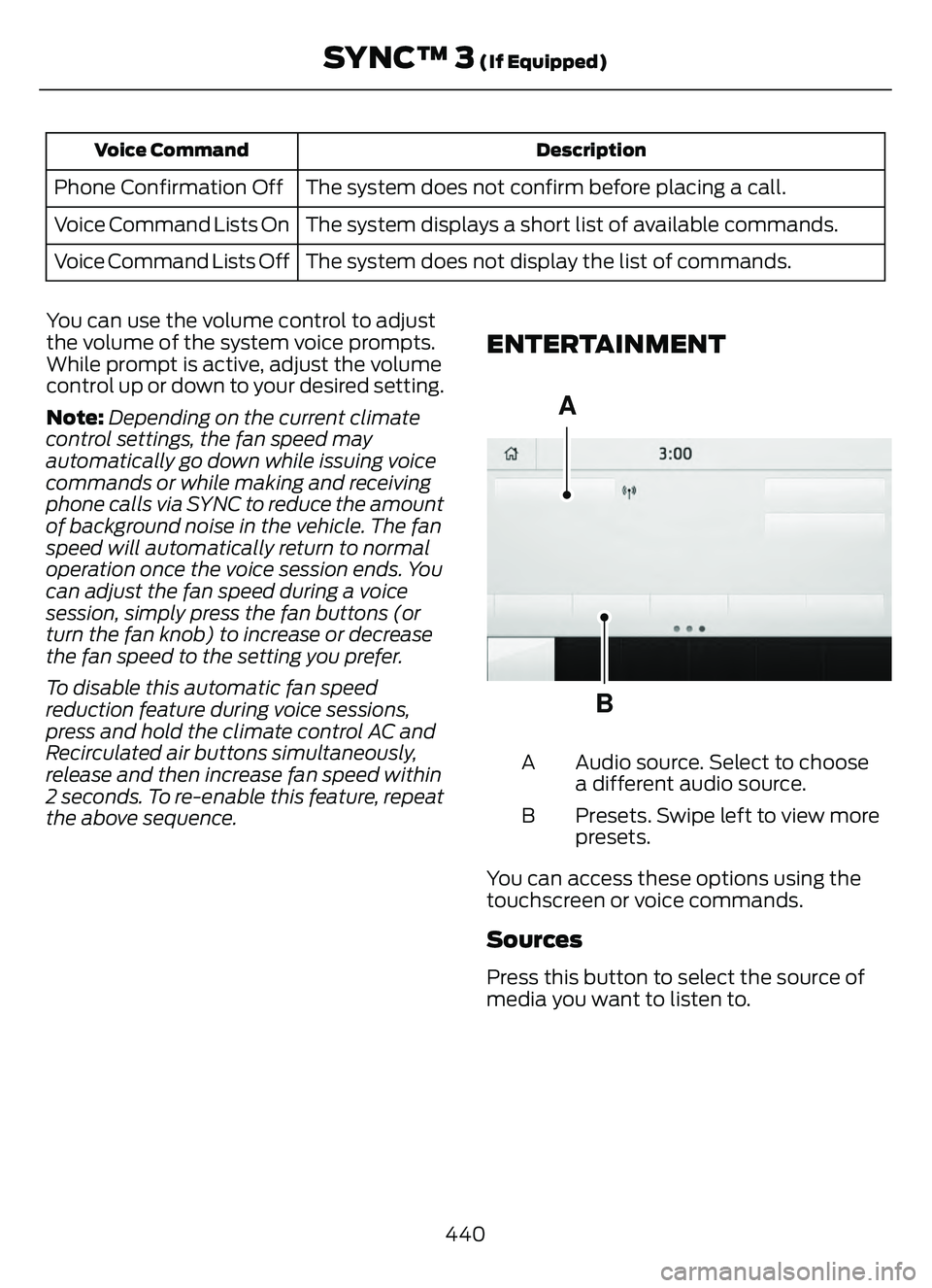
ENTERTAINMENT
A
B93 9E293491
Audio source. Select to choose
a different audio source.
A
Presets. Swipe left to view more
presets.
B
You can access these options using the
touchscreen or voice commands.
Sources
Press this button to select the source of
media you want to listen to.
440
SYNC™ 3 (If Equipped)
Page 444 of 585
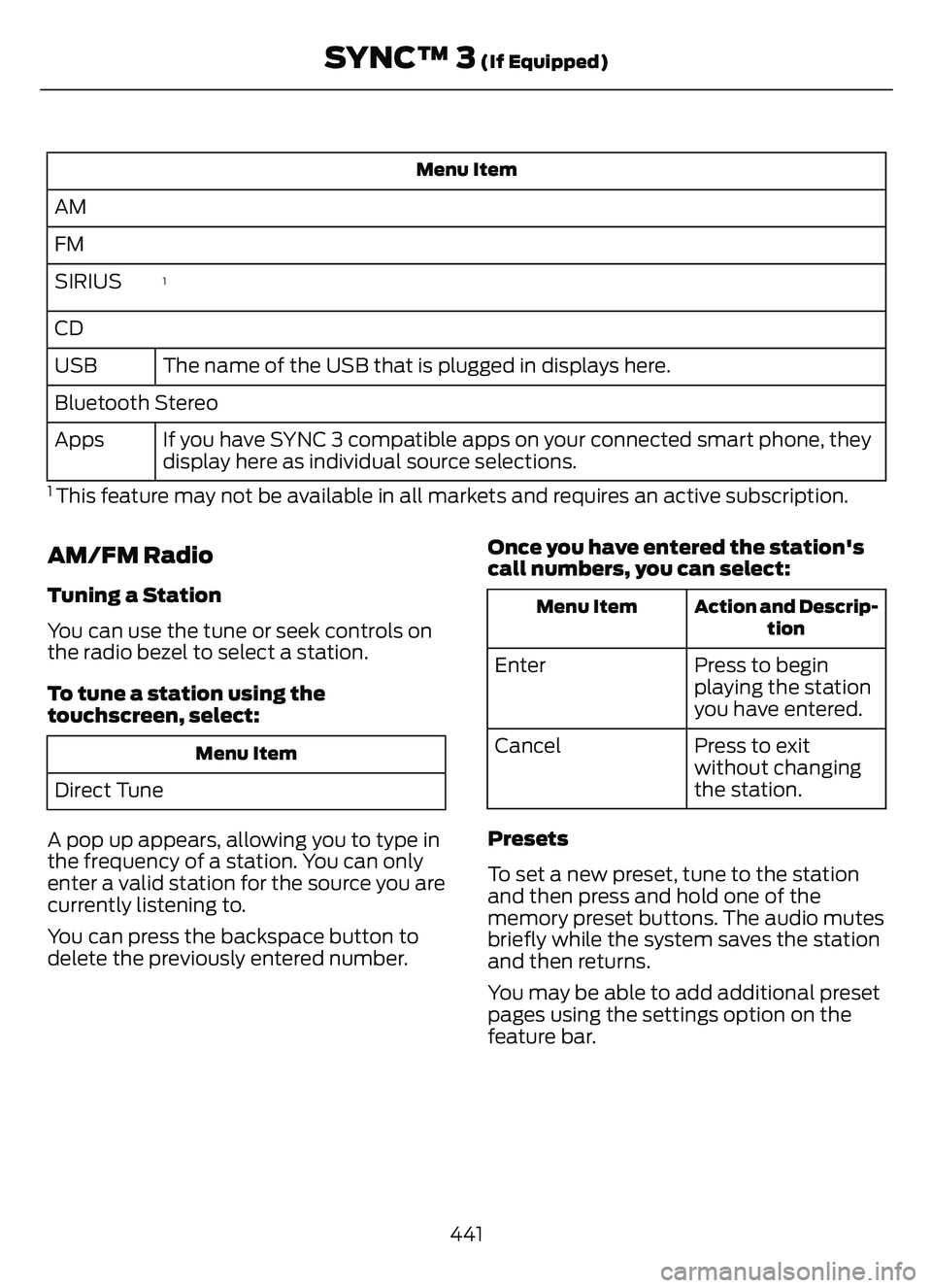
Menu Item
AM
FM
1SIRIUS
CDThe name of the USB that is plugged in displays here.
USB
Bluetooth Stereo
If you have SYNC 3 compatible apps on your connected smart phone, they
display here as individual source selections.
Apps
1 This feature may not be available in all markets and requires an active subscription.
AM/FM Radio
Tuning a Station
You can use the tune or seek controls on
the radio bezel to select a station.
To tune a station using the
touchscreen, select:
Menu Item
Direct Tune
A pop up appears, allowing you to type in
the frequency of a station. You can only
enter a valid station for the source you are
currently listening to.
You can press the backspace button to
delete the previously entered number. Once you have entered the station's
call numbers, you can select:
Action and Descrip-
tion
Menu Item
Press to begin
playing the station
you have entered.
Enter
Press to exit
without changing
the station.
Cancel
Presets
To set a new preset, tune to the station
and then press and hold one of the
memory preset buttons. The audio mutes
briefly while the system saves the station
and then returns.
You may be able to add additional preset
pages using the settings option on the
feature bar.
441
SYNC™ 3 (If Equipped)
Page 448 of 585
HD Radio technology is the digital
evolution of analog AM/FM radio. Your
system has a special receiver that allows
it to receive digital broadcasts (where
available) in addition to the analog
broadcasts, it already receives. Digital
broadcasts provide a better sound quality
than analog broadcasts with free,
crystal-clear audio and no static or
distortion. For more information, and a
guide to available stations and
programming, please visit:
Website
www.hdradio.com
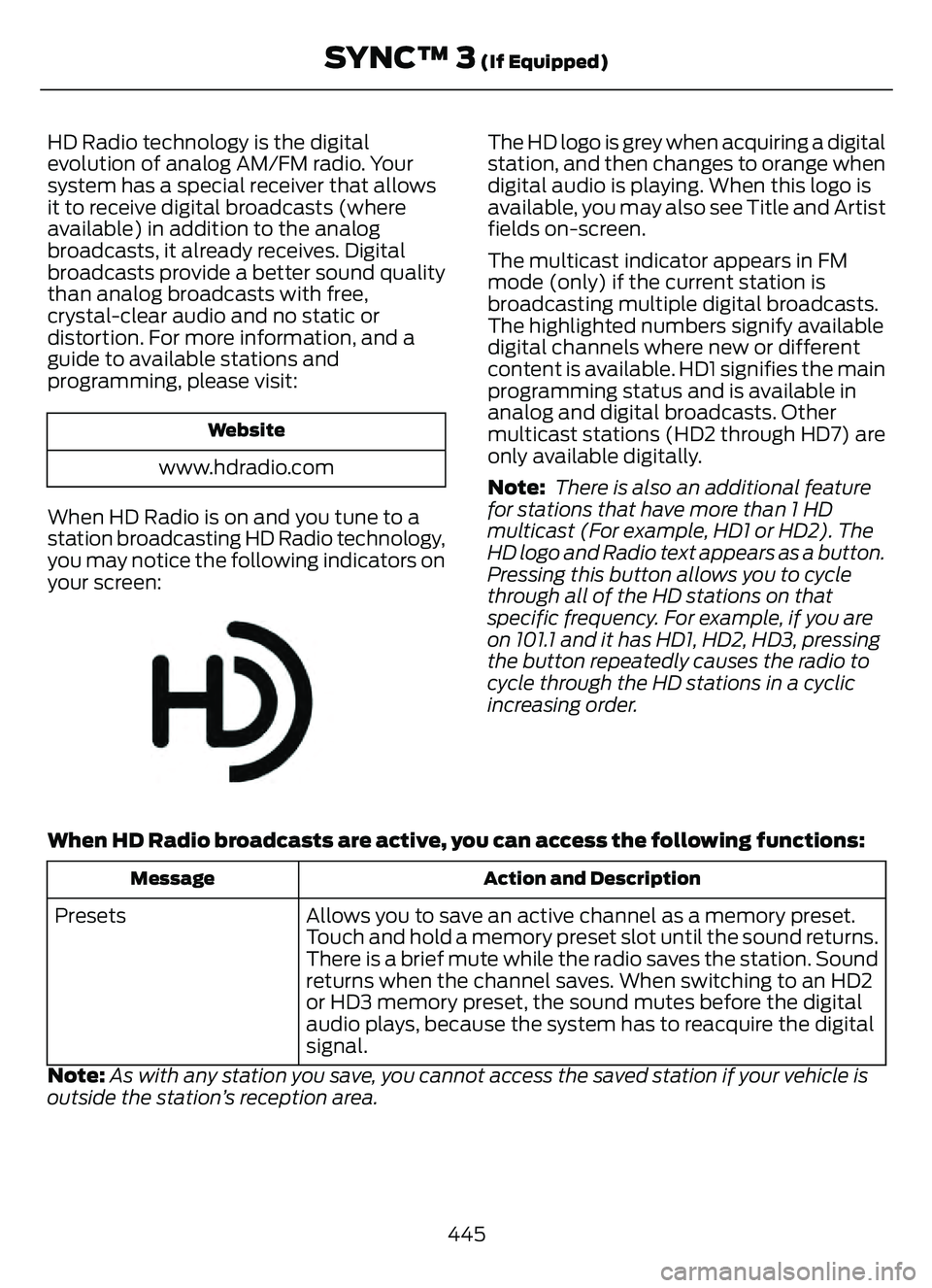
When HD Radio is on and you tune to a
station broadcasting HD Radio technology,
you may notice the following indicators on
your screen:
E142616
The HD logo is grey when acquiring a digital
station, and then changes to orange when
digital audio is playing. When this logo is
available, you may also see Title and Artist
fields on-screen.
The multicast indicator appears in FM
mode (only) if the current station is
broadcasting multiple digital broadcasts.
The highlighted numbers signify available
digital channels where new or different
content is available. HD1 signifies the main
programming status and is available in
analog and digital broadcasts. Other
multicast stations (HD2 through HD7) are
only available digitally.
Note: There is also an additional feature
for stations that have more than 1 HD
multicast (For example, HD1 or HD2). The
HD logo and Radio text appears as a button.
Pressing this button allows you to cycle
through all of the HD stations on that
specific frequency. For example, if you are
on 101.1 and it has HD1, HD2, HD3, pressing
the button repeatedly causes the radio to
cycle through the HD stations in a cyclic
increasing order.
When HD Radio broadcasts are active, you can access the following functions:
Action and Description
Message
Allows you to save an active channel as a memory preset.
Touch and hold a memory preset slot until the sound returns.
There is a brief mute while the radio saves the station. Sound
returns when the channel saves. When switching to an HD2
or HD3 memory preset, the sound mutes before the digital
audio plays, because the system has to reacquire the digital
signal.
Presets
Note: As with any station you save, you cannot access the saved station if your vehicle is
outside the station’s reception area.
445
SYNC™ 3 (If Equipped)
Page 453 of 585
SYNC 3 is also able to organize the media
from your USB device by metadata tags.
Metadata tags, which are descriptive
software identifiers embedded in the
media files, provide information about the
file.
If your indexed media files contain no
information embedded in these metadata
tags, SYNC 3 may classify the empty
metadata tags as unknown.
SYNC 3 is capable of indexing up to
50,000 songs per USB device, for up to 10
devices.
PHONE
WARNING: Driving while distracted
can result in loss of vehicle control, crash
and injury. We strongly recommend that
you use extreme caution when using any
device that may take your focus off the
road. Your primary responsibility is the
safe operation of your vehicle. We
recommend against the use of any
hand-held device while driving and
encourage the use of voice-operated
systems when possible. Make sure you
are aware of all applicable local laws
that may affect the use of electronic
devices while driving.
Check the compatibility of your device on
the regional website.
Pairing Your Cell Phone for the
First Time
Go to the settings menu on your cell phone
and switch Bluetooth on.
Select the phone option on the
feature bar.
1. Select Add Phone. Note:
A prompt alerts you to search for your
vehicle on your cell phone.
2. Select your vehicle on your cell phone.
Note: A number appears on your cell phone
and on the touchscreen.
3. Confirm that the number on your cell phone matches the number on the
touchscreen.
Note: The touchscreen indicates that you
have successfully paired your cell phone.
4. Download the phonebook from your cell phone when you are prompted.
Note: If you pair more than one cell phone,
use the phone settings to specify the
primary phone. You can change this setting
at any time.
Using Your Cell Phone
Recent Call List
Display and select an entry from a list of
previous calls.
Contacts
Display a smart search form to look up your
contacts. Use the List button to
alphabetically sort your contacts.
Favorites
Display and select an entry from the list of
favorite contacts that are set up on your
phone.
Messaging
Displays the list of text messages to read,
listen to, or respond to.
Email
Displays the list of emails to read, listen to,
or respond to.
450
SYNC™ 3 (If Equipped)
Page 454 of 585
Phone List
Display the list of paired or connected
devices that you can select.
Note:Up to 12 devices can be stored.
Do Not Disturb
Reject incoming calls and switch ring tones
and alerts off.
Phone Keypad
Directly dial a number.
Text Messaging
Setting Text Message Notification
iOS
1. Go to the settings menu on your cell phone. 2. Select Bluetooth.
3. Select the information icon to the right
of your vehicle.
4. Switch text message notification on.
Android
1. Go to the settings menu on your cell phone.
2. Select Bluetooth.
3. Select the profiles option.
4. Select the phone profile.
5. Switch text message notification on.
Using Text Messaging
Description
Menu Item
Hear the text message.
Hear It
View the text message.
View
Call the sender.
Call
Reply to the text message with a standard text message.
Reply
Apple CarPlay (If Equipped)
1. Connect your device to a USB port.
2. Follow the instructions on the
touchscreen.
Note: Certain features of the system are
not available when you are using Apple
CarPlay.
Switching Apple CarPlay Off
Select the settings option on the
feature bar. 1. Select Apple CarPlay Preferences.
2. Switch Apple CarPlay
off.
Android Auto (If Equipped)
1. Connect your device to a USB port.
2. Follow the instructions on the
touchscreen.
Note: You might need to enable Android
Auto from the settings menu.
Note: Certain features of the system are
not available when you are using Android
Auto.
451
SYNC™ 3 (If Equipped)
Page 463 of 585
Description and Action
Charging Status
A charging coupler is plugged into the
vehicle but there is no connection with a charging power source.
Charge station not detected.
Your vehicle is plugged in but cannot
communicate with the charging station. Contact the station provider.
Incompatible charge station.
Your vehicle is plugged in and charging ispaused at the charge station.
Charge station paused.
Charging Time Information
Displays estimates of how long your
vehicle will take to fully charge when
plugged into a high or low power charger.
• High power estimate: The minimum time to a 100% charge using a high
power charger.
• Low power estimate: The longest time to a 100% charge using a low power
charger.
When charging, the start and estimated
end time are displayed. When your vehicle
is not plugged in and at a location with
Charge Times enabled, the start and end
times display based on known charging
power.
Note: Charging durations and end times are
only estimates. Certain conditions may
result in longer charging times. See Vehicle
Charging Status (page 128).
High Voltage Battery State of Charge
Displays the remaining charge percentage
with 100% representing the total amount
of energy you can get from an external
charge.
Plug and Charging Status
Displays the plug and charging status
icons.
E304458
Not plugged in.
E304459
Plugged in and not currently
charging.
E304460
Plugged in and charging.
E304461
Plugged in and waiting to charge
based on charge time settings.
Charge Preferences
Touch the button to access Charge Time
and Departure Time settings. Once set up,
additional information and settings are
displayed on the charge settings screen.
Charge Times On and Off Switch
This switch is visible when your vehicle is
at a saved Charge Times location. Use the
switch to turn your charge time settings on
and off for this location.
Charge Times Location Name and
Charging Time Information
The location name displays when your
vehicle is at a saved Charge Times location.
The charging start time is displayed along
with the charging end time and associated
charge level.
460
SYNC™ 3 (If Equipped)
Page 465 of 585
Note:Cabin conditioning can perform
differently depending on if you plug in with
the included convenience cord or a higher
power charging station. The power available
for conditioning is limited to the charging
station power available.
Note: Your vehicle may not always reach
the set cabin temperature due to charging
and ambient temperature conditions. This
is normal operation.
APPS
The system allows you interact with select
mobile apps while keeping your eyes on
the road. Voice commands, your steering
wheel buttons, or a quick tap on your
touchscreen give you advanced control of
compatible mobile apps. You can also
stream your favorite music or podcasts,
share your time of arrival with friends, and
keep connected safely.
When you start an app through the system
for the first time, you could be asked to
grant certain permissions. You can review
and change the permissions that you have
granted at any time when your vehicle is
not moving. We recommend that you
check your data plan before using your
apps through the system. Using them
could result in additional charges. We also
recommend that you check the app
provider's terms and conditions and
privacy policy before using their app. Make
sure that you have an active account for
apps that you want to use through the
system. Some apps will work with no
setup. Others require you to configure
some personal settings before you can use
them.
Note: For more information about available
apps, visit catalog.ford.com.
Using Apps on an iOS Device
Select the apps option on the
feature bar.
1. If your device is connected via USB, switch Apple CarPlay off. See Phone
(page 450).
2. Connect your device to a USB port or pair and connect using Bluetooth.
3. If prompted to enable CarPlay, select Disable.
4. Start the apps on your device that you want to use through SYNC.
Note: If you close the apps on your device,
you will not be able to use them through the
system.
5. Select the app that you want to use on the touchscreen.
Note: Connect your device to a USB port if
you want to use a navigation app. When
using a navigation app, keep your device
unlocked and the app open.
Using Apps on an Android Device
Select the apps option on the
feature bar.
1. If your device is connected via USB, switch Android Auto off. See Phone
(page 450).
2. Pair your device. See Phone (page 450).
3. Start the apps on your device that you want to use through SYNC.
Note: If you close the apps on your device,
you will not be able to use them through the
system.
4. Select Find Mobile Apps.
Note: The system searches and connects
to compatible apps that are running on your
device.
5. Select the app that you want to use on the touchscreen.
462
SYNC™ 3 (If Equipped)
Page 466 of 585
Note:Mobile Apps on your device use the
USB port to establish a connection with
SYNC. Some devices may lose the ability to
play music over USB when Mobile Apps are
enabled.
Using Mobile Navigation on an
Android Device
1. Connect your device to a USB port.
2. Switch Android Auto off. See Phone (page 450).
3. Switch on Enable Mobile Apps via USB in the Mobile Apps Settings tile.
4. Select the apps option on the feature bar.
5. Select the navigation app that you want to use on the touchscreen.
Note: When using a navigation app, keep
your device unlocked and the app open.
SiriusXM Traffic and T ravel Link (If
Equipped)
WARNING: Driving while distracted
can result in loss of vehicle control, crash
and injury. We strongly recommend that
you use extreme caution when using any
device that may take your focus off the
road. Your primary responsibility is the
safe operation of your vehicle. We
recommend against the use of any
hand-held device while driving and
encourage the use of voice-operated
systems when possible. Make sure you
are aware of all applicable local laws
that may affect the use of electronic
devices while driving.
Note: SiriusXM Traffic and Travel Link may
not be available in all markets.
Note: In order to use SiriusXM Traffic and
Travel Link, your vehicle must have
navigation.
Note: A paid subscription is required to
access and use these features. Go to
www.siriusxm.com/travellink for more
information.
Note: Visit www.siriusxm.com/traffic and
click on Coverage map and details for a
complete listing of all traffic areas covered
by SiriusXM Traffic and Travel Link.
Note: Neither Sirius nor Ford is responsible
for any errors or inaccuracies in the SiriusXM
Traffic and Travel Link services or its use in
vehicles.
When you subscribe to SiriusXM Traffic
and Travel Link, it can help you locate the
best gas prices, find movie listings, get
current traffic alerts, view the current
weather map, get accurate ski conditions
and see scores to current sports games.
Action and Description
Menu Item
Touch these buttons to identify traffic incidents on your route,
near your vehicle’s current location or near any of your favorite
places, if programmed.
Traffic on Route
Traffic Nearby
Touch this button to view fuel prices at stations close to your
vehicle’s location or on an active navigation route.
Fuel Prices
Touch this button to view nearby movie theaters and their
show times, if available.
Movie Listings
463
SYNC™ 3 (If Equipped)