key FORD F450 SUPER DUTY 2017 Manual PDF
[x] Cancel search | Manufacturer: FORD, Model Year: 2017, Model line: F450 SUPER DUTY, Model: FORD F450 SUPER DUTY 2017Pages: 642, PDF Size: 12.35 MB
Page 403 of 642
11.Set all four tires to the recommendedair pressure as indicated on theSafety Compliance CertificationLabel (affixed to either the door hingepillar, door-latch post, or the dooredge that meets the door-latch post,next to the driver's seating position)or Tire Label located on the B-Pillaror the edge of the driver's door.
Performing the System Reset Procedure(Dual Rear Wheel)
For further information seeUnderstanding Your Tire PressureMonitoring System and refer to DualRear Wheel, earlier in this section.
Read the entire procedure beforeattempting.
1. Drive the vehicle above 20 mph(32 km/h) for at least two minutes,then park in a safe location where youcan easily get to all four tires and haveaccess to an air pump.
2.Place the ignition in the off position andkeep the key in the ignition.
3. Cycle the ignition to the on positionwith the engine off.
4. Turn the hazard flashers on then offthree times. You must accomplish thiswithin 10 seconds. If the reset modehas been entered successfully, the hornwill sound once, the system indicatorwill flash and a message is shown inthe information display. If this does notoccur, please try again starting at Step2. If after repeated attempts to enterthe reset mode, the horn does notsound, the system indicator does notflash and no message is shown in theinformation display, seek service fromyour authorized dealer.
5. Train the tire pressure monitoringsystem sensors in the tires using thefollowing system reset sequencestarting with the left front tire in thefollowing order: Left front (driver's sidefront tire), Right front (passenger's sidefront tire), Right outer rear (passenger'sside rear outer tire), Right inner rear(passenger's side rear inner tire), Leftouter rear (driver's side rear outer tire),Left inner rear (driver's side rear innertire).
6. Remove the valve cap from the valvestem on the left front tire. Decrease theair pressure until the horn sounds.
Note:The single horn chirp confirms thatthe sensor identification code has beenlearned by the module for this position. If adouble horn is heard, the reset procedurewas unsuccessful, and you must repeat it.
7. Remove the valve cap from the valvestem on the right front tire. Decreasethe air pressure until the horn sounds.
8. Remove the valve cap from the valvestem on the right outer rear tire.Decrease the air pressure until the hornsounds.
9. Remove the valve cap from the valvestem on the right inner rear tire.Decrease the air pressure until the hornsounds.
10.Remove the valve cap from the valvestem on the left outer rear tire.Decrease the air pressure until thehorn sounds.
11.Remove the valve cap from the valvestem on the left inner rear tire.Decrease the air pressure until thehorn sounds. Training is completeafter the horn sounds for the last tiretrained, the system indicator stopsflashing, and a message is shown inthe information display.
400
Super Duty (TFE) Canada/United States of America, enUSA, Edition date: 201710, Second Printing
Wheels and Tires
Page 416 of 642
7.Repeat this tightness check procedurewhen servicing the spare tire pressure(every six months, per scheduledmaintenance information), or at anytime that the spare tire is disturbed
through service of other components.
8. If removed, install the spare tire lockinto the bumper drive tube with thespare tire lock key and jack handle.
TECHNICAL SPECIFICATIONS
Wheel Lug Nut Torque Specifications
WARNING
When a wheel is installed, always remove any corrosion, dirt or foreign materialspresent on the mounting surfaces of the wheel or the surface of the wheel hub,brake drum or brake disc that contacts the wheel. Make sure that any fastenersthat attach the rotor to the hub are secured so they do not interfere with the mountingsurfaces of the wheel. Installing wheels without correct metal-to-metal contact at thewheel mounting surfaces can cause the wheel nuts to loosen and the wheel to come offwhile the vehicle is in motion, resulting in loss of control.
lb.ft (Nm)Bolt size
165 lb.ft (224 Nm)M14 x 1.5
*Torque specifications are for nut and bolt threads free of dirt and rust. Use only Fordrecommended replacement fasteners.
On vehicles equipped with single rear wheels, retighten the lug nuts to the specified torqueat 100 miles (160 kilometers) after any wheel disturbance (such as tire rotation, changinga flat tire, wheel removal).
On vehicles equipped with dual rear wheels, retighten the wheel lug nuts to the specifiedtorque at 100 miles (160 kilometers), and again at 500 miles (800 kilometers) of newvehicle operation and after any wheel disturbance (such as tire rotation, changing a flattire, wheel removal).
It is important to follow the proper wheel mounting and lug nut torque procedures.
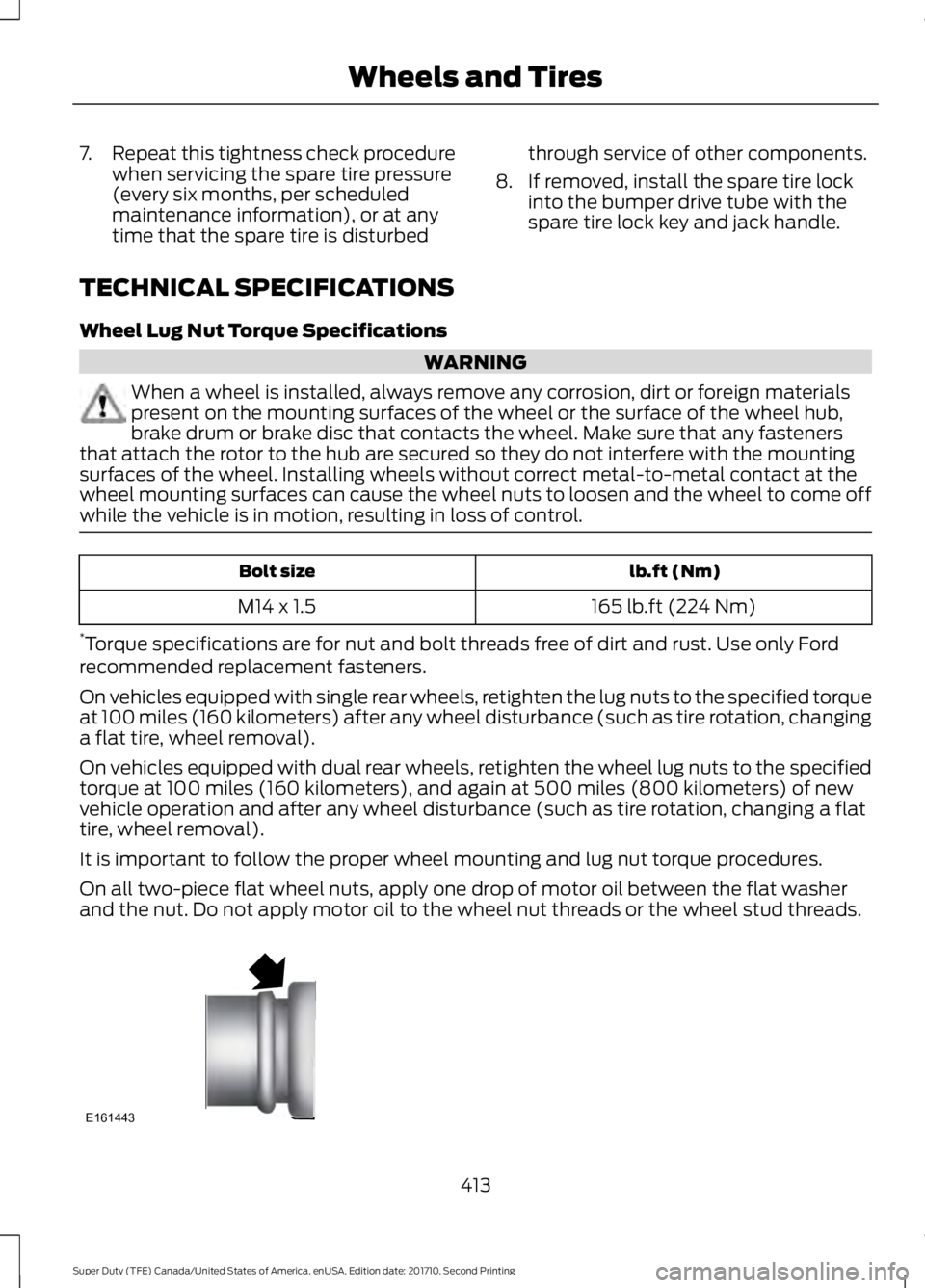
On all two-piece flat wheel nuts, apply one drop of motor oil between the flat washerand the nut. Do not apply motor oil to the wheel nut threads or the wheel stud threads.
413
Super Duty (TFE) Canada/United States of America, enUSA, Edition date: 201710, Second Printing
Wheels and TiresE161443
Page 447 of 642
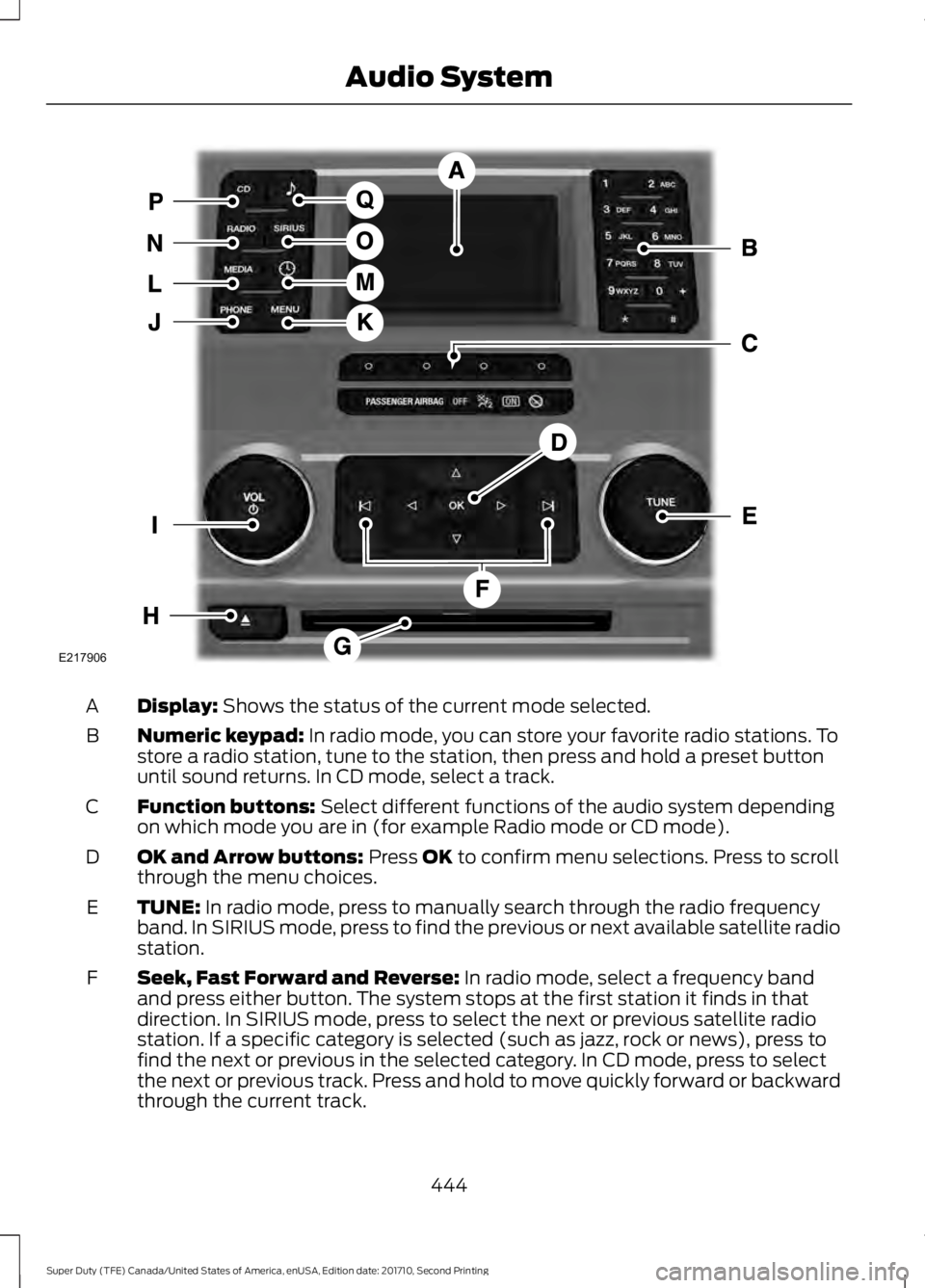
Display: Shows the status of the current mode selected.A
Numeric keypad: In radio mode, you can store your favorite radio stations. Tostore a radio station, tune to the station, then press and hold a preset buttonuntil sound returns. In CD mode, select a track.
B
Function buttons: Select different functions of the audio system dependingon which mode you are in (for example Radio mode or CD mode).C
OK and Arrow buttons: Press OK to confirm menu selections. Press to scrollthrough the menu choices.D
TUNE: In radio mode, press to manually search through the radio frequencyband. In SIRIUS mode, press to find the previous or next available satellite radiostation.
E
Seek, Fast Forward and Reverse: In radio mode, select a frequency bandand press either button. The system stops at the first station it finds in thatdirection. In SIRIUS mode, press to select the next or previous satellite radiostation. If a specific category is selected (such as jazz, rock or news), press tofind the next or previous in the selected category. In CD mode, press to selectthe next or previous track. Press and hold to move quickly forward or backwardthrough the current track.
F
444
Super Duty (TFE) Canada/United States of America, enUSA, Edition date: 201710, Second Printing
Audio SystemE217906
Page 456 of 642
Troubleshooting
ActionConditionMessage
No action required. Thismessage should disappearshortly.
Radio requires more thantwo seconds to produceaudio for the selectedchannel.
Acquiring…
If this message does notclear shortly, or with an igni-tion key cycle, your receivermay have a fault. See anauthorized dealer for service.
There is an internal moduleor system failure present.Satellite antenna fault
SIRIUS system failure
Tune to another channel orchoose another preset.The channel is no longeravailable.Invalid Channel
Contact SIRIUS at 1-888-539-7474 to subscribe tothe channel, or tune toanother channel.
Your subscription does notinclude this channel.Unsubscribed Channel
The signal is blocked. Whenyou move into an open area,the signal should return.
The signal is lost from theSIRIUS satellite or SIRIUStower to your vehicleantenna.
No Signal
No action required. Theprocess may take up tothree minutes.
Update of channelprogramming in progress.Updating…
Contact SIRIUS at 1-888-539-7474 to resolvesubscription issues.
Your satellite service is nolonger available.Questions? Call
1-888-539-7474
Use the channel guide toturn off the Lock or Skipfunction on that station.
All the channels in theselected category are eitherskipped or locked.
None found
Check Channel Guide
No action required.SIRIUS has updated thechannels available for yourvehicle.
Subscription Updated
453
Super Duty (TFE) Canada/United States of America, enUSA, Edition date: 201710, Second Printing
Audio System
Page 467 of 642
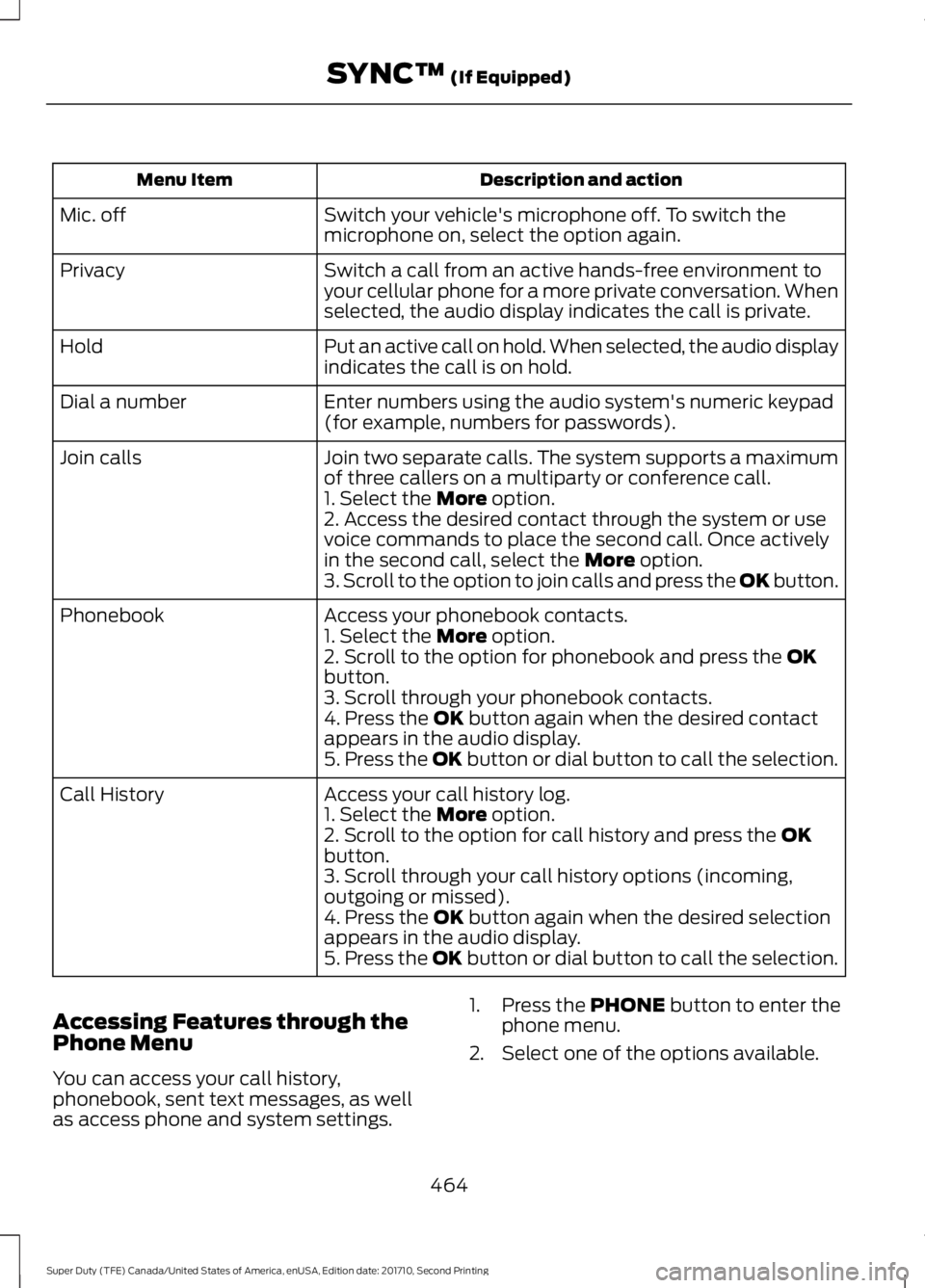
Description and actionMenu Item
Switch your vehicle's microphone off. To switch themicrophone on, select the option again.Mic. off
Switch a call from an active hands-free environment toyour cellular phone for a more private conversation. Whenselected, the audio display indicates the call is private.
Privacy
Put an active call on hold. When selected, the audio displayindicates the call is on hold.Hold
Enter numbers using the audio system's numeric keypad(for example, numbers for passwords).Dial a number
Join two separate calls. The system supports a maximumof three callers on a multiparty or conference call.Join calls
1. Select the More option.2. Access the desired contact through the system or usevoice commands to place the second call. Once activelyin the second call, select the More option.3. Scroll to the option to join calls and press the OK button.
Access your phonebook contacts.Phonebook1. Select the More option.2. Scroll to the option for phonebook and press the OKbutton.3. Scroll through your phonebook contacts.4. Press the OK button again when the desired contactappears in the audio display.5. Press the OK button or dial button to call the selection.
Access your call history log.Call History1. Select the More option.2. Scroll to the option for call history and press the OKbutton.3. Scroll through your call history options (incoming,outgoing or missed).4. Press the OK button again when the desired selectionappears in the audio display.5. Press the OK button or dial button to call the selection.
Accessing Features through thePhone Menu
You can access your call history,phonebook, sent text messages, as wellas access phone and system settings.
1. Press the PHONE button to enter thephone menu.
2. Select one of the options available.
464
Super Duty (TFE) Canada/United States of America, enUSA, Edition date: 201710, Second Printing
SYNC™ (If Equipped)
Page 468 of 642
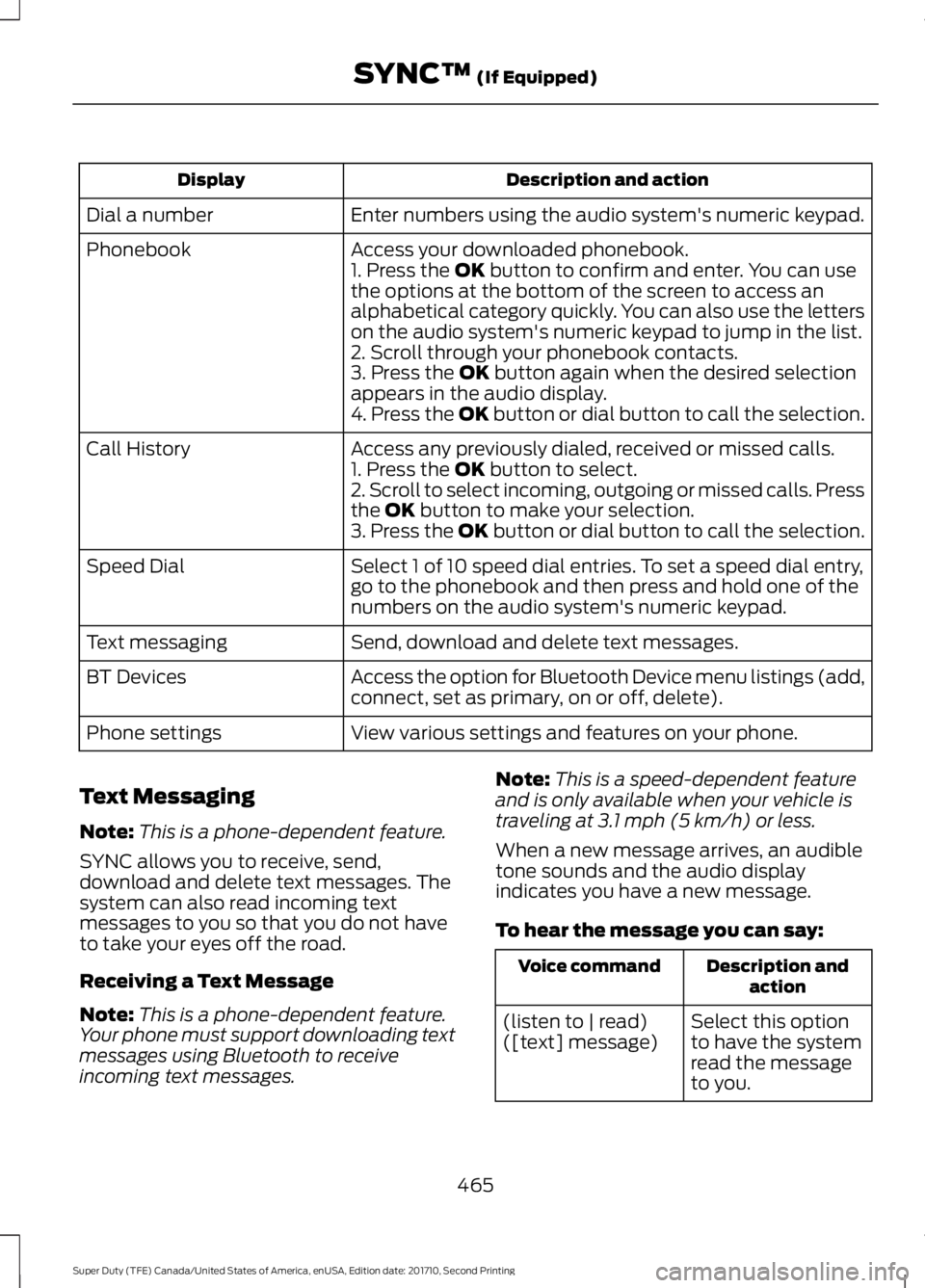
Description and actionDisplay
Enter numbers using the audio system's numeric keypad.Dial a number
Access your downloaded phonebook.Phonebook1. Press the OK button to confirm and enter. You can usethe options at the bottom of the screen to access analphabetical category quickly. You can also use the letterson the audio system's numeric keypad to jump in the list.2. Scroll through your phonebook contacts.3. Press the OK button again when the desired selectionappears in the audio display.4. Press the OK button or dial button to call the selection.
Access any previously dialed, received or missed calls.Call History1. Press the OK button to select.2. Scroll to select incoming, outgoing or missed calls. Pressthe OK button to make your selection.3. Press the OK button or dial button to call the selection.
Select 1 of 10 speed dial entries. To set a speed dial entry,go to the phonebook and then press and hold one of thenumbers on the audio system's numeric keypad.
Speed Dial
Send, download and delete text messages.Text messaging
Access the option for Bluetooth Device menu listings (add,connect, set as primary, on or off, delete).BT Devices
View various settings and features on your phone.Phone settings
Text Messaging
Note:This is a phone-dependent feature.
SYNC allows you to receive, send,download and delete text messages. Thesystem can also read incoming textmessages to you so that you do not haveto take your eyes off the road.
Receiving a Text Message
Note:This is a phone-dependent feature.Your phone must support downloading textmessages using Bluetooth to receiveincoming text messages.
Note:This is a speed-dependent featureand is only available when your vehicle istraveling at 3.1 mph (5 km/h) or less.
When a new message arrives, an audibletone sounds and the audio displayindicates you have a new message.
To hear the message you can say:
Description andactionVoice command
Select this optionto have the systemread the messageto you.
(listen to | read)([text] message)
465
Super Duty (TFE) Canada/United States of America, enUSA, Edition date: 201710, Second Printing
SYNC™ (If Equipped)
Page 477 of 642
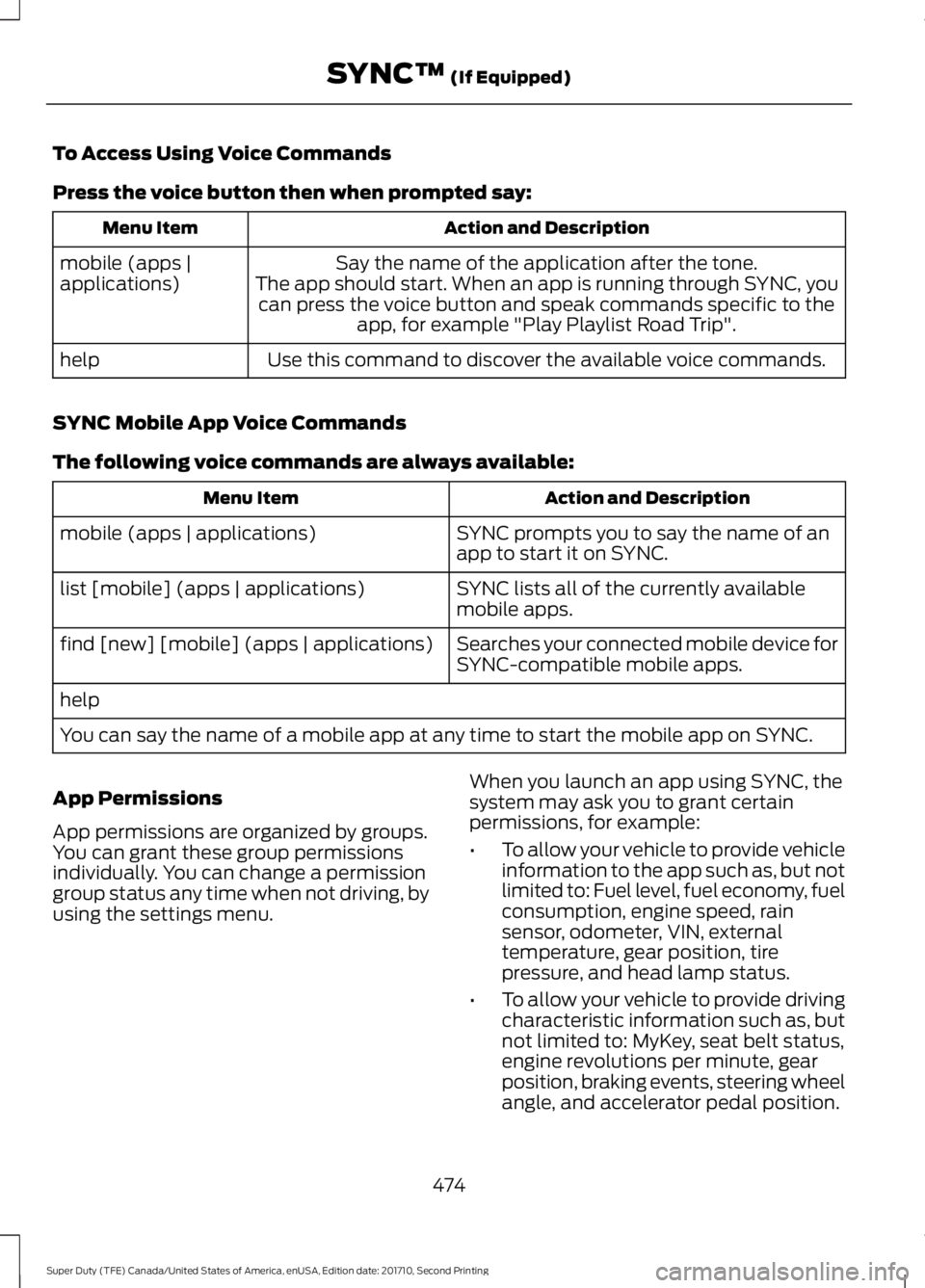
To Access Using Voice Commands
Press the voice button then when prompted say:
Action and DescriptionMenu Item
Say the name of the application after the tone.The app should start. When an app is running through SYNC, youcan press the voice button and speak commands specific to theapp, for example "Play Playlist Road Trip".
mobile (apps |applications)
Use this command to discover the available voice commands.help
SYNC Mobile App Voice Commands
The following voice commands are always available:
Action and DescriptionMenu Item
SYNC prompts you to say the name of anapp to start it on SYNC.mobile (apps | applications)
SYNC lists all of the currently availablemobile apps.list [mobile] (apps | applications)
Searches your connected mobile device forSYNC-compatible mobile apps.find [new] [mobile] (apps | applications)
help
You can say the name of a mobile app at any time to start the mobile app on SYNC.
App Permissions
App permissions are organized by groups.You can grant these group permissionsindividually. You can change a permissiongroup status any time when not driving, byusing the settings menu.
When you launch an app using SYNC, thesystem may ask you to grant certainpermissions, for example:
•To allow your vehicle to provide vehicleinformation to the app such as, but notlimited to: Fuel level, fuel economy, fuelconsumption, engine speed, rainsensor, odometer, VIN, externaltemperature, gear position, tirepressure, and head lamp status.
•To allow your vehicle to provide drivingcharacteristic information such as, butnot limited to: MyKey, seat belt status,engine revolutions per minute, gearposition, braking events, steering wheelangle, and accelerator pedal position.
474
Super Duty (TFE) Canada/United States of America, enUSA, Edition date: 201710, Second Printing
SYNC™ (If Equipped)
Page 485 of 642
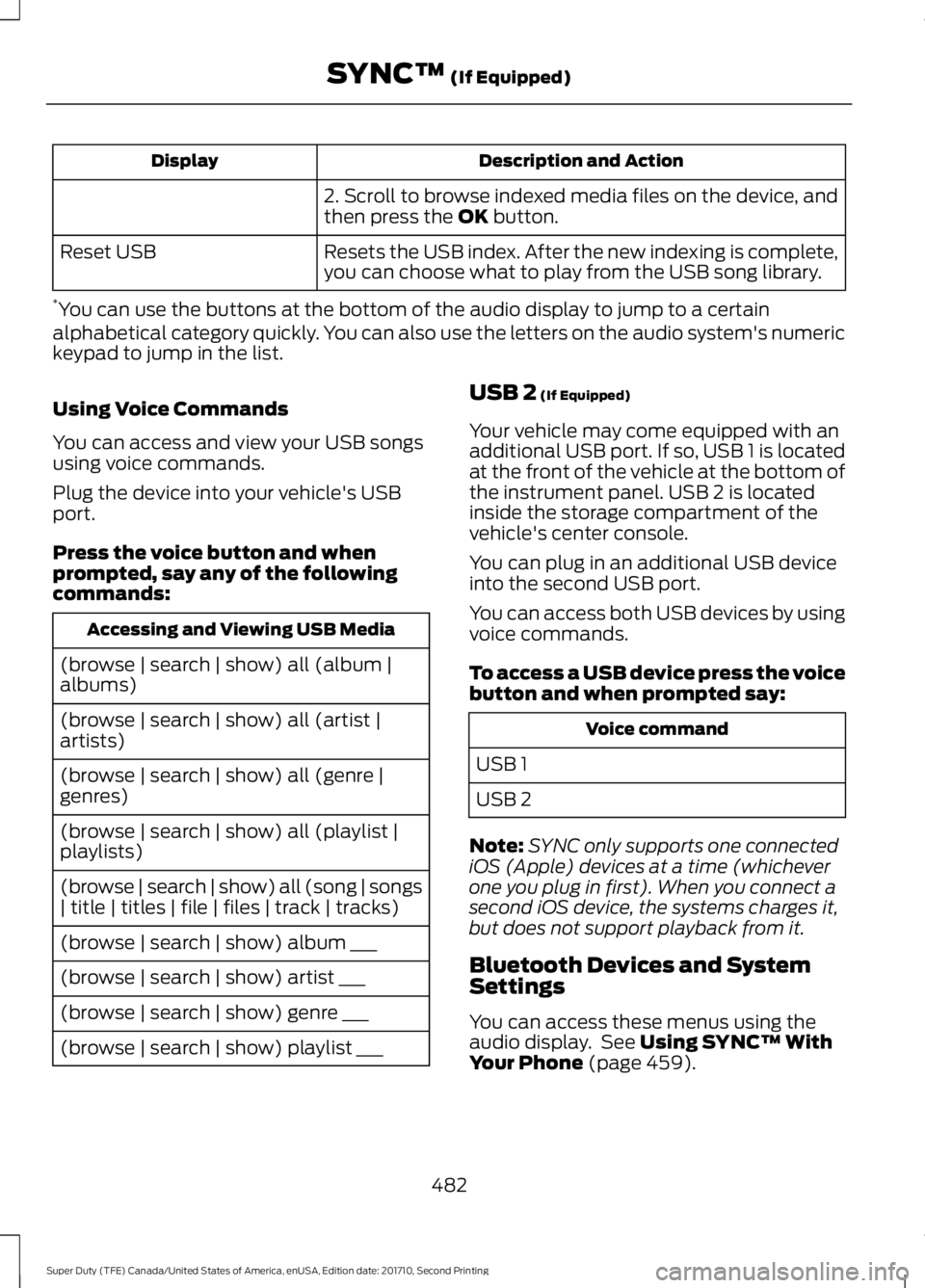
Description and ActionDisplay
2. Scroll to browse indexed media files on the device, andthen press the OK button.
Resets the USB index. After the new indexing is complete,you can choose what to play from the USB song library.Reset USB
*You can use the buttons at the bottom of the audio display to jump to a certainalphabetical category quickly. You can also use the letters on the audio system's numerickeypad to jump in the list.
Using Voice Commands
You can access and view your USB songsusing voice commands.
Plug the device into your vehicle's USBport.
Press the voice button and whenprompted, say any of the followingcommands:
Accessing and Viewing USB Media
(browse | search | show) all (album |albums)
(browse | search | show) all (artist |artists)
(browse | search | show) all (genre |genres)
(browse | search | show) all (playlist |playlists)
(browse | search | show) all (song | songs| title | titles | file | files | track | tracks)
(browse | search | show) album ___
(browse | search | show) artist ___
(browse | search | show) genre ___
(browse | search | show) playlist ___
USB 2 (If Equipped)
Your vehicle may come equipped with anadditional USB port. If so, USB 1 is locatedat the front of the vehicle at the bottom ofthe instrument panel. USB 2 is locatedinside the storage compartment of thevehicle's center console.
You can plug in an additional USB deviceinto the second USB port.
You can access both USB devices by usingvoice commands.
To access a USB device press the voicebutton and when prompted say:
Voice command
USB 1
USB 2
Note:SYNC only supports one connectediOS (Apple) devices at a time (whicheverone you plug in first). When you connect asecond iOS device, the systems charges it,but does not support playback from it.
Bluetooth Devices and SystemSettings
You can access these menus using theaudio display. See Using SYNC™ WithYour Phone (page 459).
482
Super Duty (TFE) Canada/United States of America, enUSA, Edition date: 201710, Second Printing
SYNC™ (If Equipped)
Page 503 of 642
911 Assist May Not Work If
•Your cellular phone or 911 Assisthardware sustains damage in a crash.
•The vehicle's battery or the SYNCsystem has no power.
•The phone(s) thrown from your vehicleare the ones paired and connected tothe system.
911 Assist Privacy Notice
When you switch on 911 Assist, it maydisclose to emergency services that yourvehicle has been in a crash involving thedeployment of an airbag or activation ofthe fuel pump shut-off. Certain versions orupdates to 911 Assist may also be capableof electronically or verbally disclosing to911 operators your vehicle location or otherdetails about your vehicle or crash to assist911 operators to provide the mostappropriate emergency services. If you donot want to disclose this information, donot switch the feature on.
Safety Information
WARNING
Driving while distracted can result inloss of vehicle control, crash andinjury. We strongly recommend thatyou use extreme caution when using anydevice that may take your focus off theroad. Your primary responsibility is the safeoperation of your vehicle. We recommendagainst the use of any hand-held devicewhile driving and encourage the use ofvoice-operated systems when possible.Make sure you are aware of all applicablelocal laws that may affect the use ofelectronic devices while driving.
•Do not attempt to service or repair thesystem. Have an authorized dealercheck your vehicle.
•Do not operate playing devices if thepower cords or cables are broken, splitor damaged. Place cords and cablesout of the way, so they do not interferewith the operation of pedals, seats,compartments or safe driving abilities.
•Do not leave playing devices in yourvehicle during extreme conditions as itcould cause them damage. See yourdevice's user guide for furtherinformation.
•For your safety, some SYNC 3 functionsare speed-dependent. Their use islimited to when your vehicle is travelingat speeds under 3 mph (5 km/h). Makesure that you review your device'smanual before using it with SYNC 3.
Speed-restricted Features
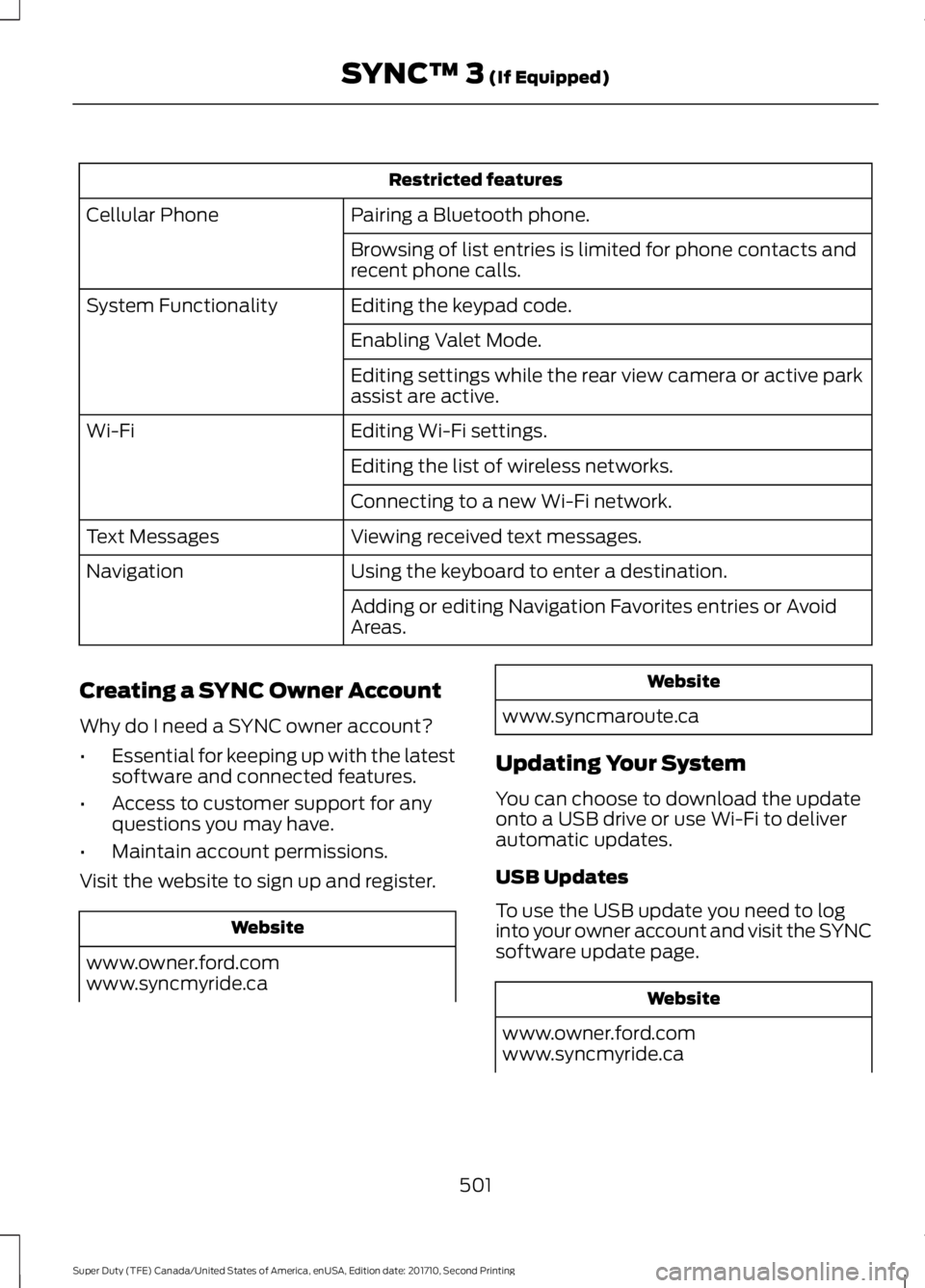
Some features of this system may be toodifficult to use while your vehicle is movingso they are restricted from use unless yourvehicle is stationary.
•Screens crowded with information,such as Point of Interest reviews andratings, SiriusXM Traffic and Travel Linksports scores, movie times or skiconditions.
•Any action that requires you to use akeyboard is restricted, such as enteringa navigation destination or editinginformation.
•All lists are limited so the user can viewfewer entries (such as phone contactsor recent phone call entries).
See the following chart for more specificexamples.
500
Super Duty (TFE) Canada/United States of America, enUSA, Edition date: 201710, Second Printing
SYNC™ 3 (If Equipped)
Page 504 of 642
Restricted features
Pairing a Bluetooth phone.Cellular Phone
Browsing of list entries is limited for phone contacts andrecent phone calls.
Editing the keypad code.System Functionality
Enabling Valet Mode.
Editing settings while the rear view camera or active parkassist are active.
Editing Wi-Fi settings.Wi-Fi
Editing the list of wireless networks.
Connecting to a new Wi-Fi network.
Viewing received text messages.Text Messages
Using the keyboard to enter a destination.Navigation
Adding or editing Navigation Favorites entries or AvoidAreas.
Creating a SYNC Owner Account
Why do I need a SYNC owner account?
•Essential for keeping up with the latestsoftware and connected features.
•Access to customer support for anyquestions you may have.
•Maintain account permissions.
Visit the website to sign up and register.
Website
www.owner.ford.comwww.syncmyride.ca
Website
www.syncmaroute.ca
Updating Your System
You can choose to download the updateonto a USB drive or use Wi-Fi to deliverautomatic updates.
USB Updates
To use the USB update you need to loginto your owner account and visit the SYNCsoftware update page.
Website
www.owner.ford.comwww.syncmyride.ca
501
Super Duty (TFE) Canada/United States of America, enUSA, Edition date: 201710, Second Printing
SYNC™ 3 (If Equipped)