buttons FORD FOCUS 2014 3.G Owner's Manual
[x] Cancel search | Manufacturer: FORD, Model Year: 2014, Model line: FOCUS, Model: FORD FOCUS 2014 3.GPages: 492, PDF Size: 7.2 MB
Page 375 of 492
Using the Touch-sensitive Controls on Your System
To turn a feature on and off, just touch the graphic with your finger.
To get the best performance from the touch-sensitive controls:
•Do not press hard on the controls. They are sensitive to light touch.
•Use your bare finger to touch the center of a touch-control graphic.
Touching off-center of the graphic may affect operation of a nearby
control.
•Make sure your hands are clean and dry.
•Keep metal and other conductive material away from the surface
of the touchscreen as this may cause electronic interference
(for example, inadvertently turning on a feature other than the one
you meant to turn on).
Depending on your vehicle and option package, you may also have these
controls on your bezel:
•Power: Switch the media or climate features off and on.
•VOL:Control the volume of playing media.
•Fan: Control the speed of the climate system fan.
•Seek and Tune buttons: Use as you normally would in media modes.
•Eject: Eject a CD from the entertainment system.
•SOURCE:Touch the word repeatedly to see all available media
modes. The screen does not change, but you see the media change
in the lower left status bar.
•SOUND:Touch the word to access the Sound menu where you can
adjust settings such as: Bass, Treble, Midrange, Balance and Fade,
THX Deep Note Demo, DSP (Digital Signal Processing), Occupancy
Mode and Speed Compensated Volume. (Your vehicle may not have
all of these sound options.)
•Hazard flasher: Switch the hazard flashers off and on.
Cleaning the Touchscreen Display
Use a clean, soft cloth such as one used for cleaning glasses. If dirt or
fingerprints are still visible, apply a small amount of alcohol to the cloth.
Do not pour or spray alcohol onto the display. Do not use detergent or
any type of solvent to clean the display.
374MyFord Touch® (If Equipped)
2014 Focus(foc)
Owners Guide gf, 1st Printing, October 2012
USA(fus)
Page 382 of 492
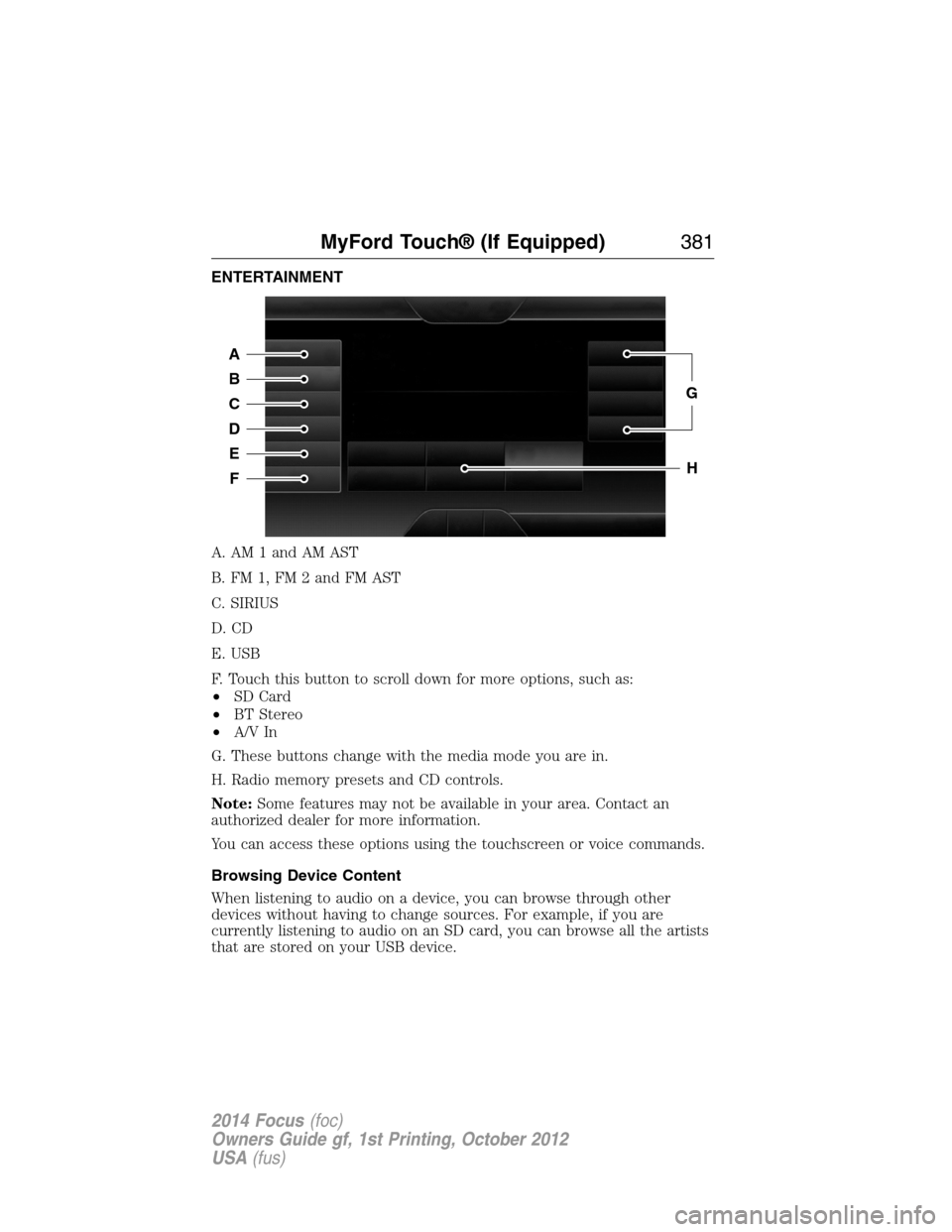
ENTERTAINMENT
A. AM 1 and AM AST
B. FM 1, FM 2 and FM AST
C. SIRIUS
D. CD
E. USB
F. Touch this button to scroll down for more options, such as:
•SD Card
•BT Stereo
•A/V In
G. These buttons change with the media mode you are in.
H. Radio memory presets and CD controls.
Note:Some features may not be available in your area. Contact an
authorized dealer for more information.
You can access these options using the touchscreen or voice commands.
Browsing Device Content
When listening to audio on a device, you can browse through other
devices without having to change sources. For example, if you are
currently listening to audio on an SD card, you can browse all the artists
that are stored on your USB device.
A
B
C
D
E
F
G
H
MyFord Touch® (If Equipped)381
2014 Focus(foc)
Owners Guide gf, 1st Printing, October 2012
USA(fus)
Page 390 of 492
HD Radio Technology manufactured under license from iBiquity Digital
Corp. U.S. and foreign patents. HD Radio and the HD and HD Radio
logos are proprietary trademarks of iBiquity Digital Corp. Ford Motor
Company and iBiquity Digital Corp. are not responsible for the content
sent using HD Radio technology. Content may be changed, added or
deleted at any time at the station owner’s discretion.
Sirius Satellite Radio (If Activated)
Press the lower left corner of the touchscreen, then select the
SIRIUStab.
Presets
Save a channel by pressing and holding one of the memory preset areas.
There is a brief mute while the radio saves the channel. Sound returns
when finished.
ALERT
Save the current song, artist, or team as a favorite. The system alerts
you when it plays again on any channel.
Replay
Replay audio on the current channel. You can replay approximately
45 minutes of audio as long as you have remained tuned to the current
station. Changing stations erases the previous audio.
While in replay mode:
•Press and release the seek buttons to hear the previous or next song.
•Press and hold the seek buttons to reverse or fast forward in the
current track.
•Press play or pause to play or pause the audio.
•PressReplayto return to live audio if you have been using the
feature to replay audio.
Scan
Touch this button to hear a brief sampling of channels.
Options
Sound Settingsallows you to adjust settings for:
•Bass
•Midrange
•Treble
MyFord Touch® (If Equipped)389
2014 Focus(foc)
Owners Guide gf, 1st Printing, October 2012
USA(fus)
Page 416 of 492
Traffic On Route and Traffic Nearby
Touch these buttons to identify traffic incidents on your route, nearby
your vehicle’s current location or near any of your favorite places,
if programmed.
Fuel Prices
Touch this button to view fuel prices at stations close to your vehicle’s
location or on an active navigation route.
Movie Listings
Touch this button to view nearby movie theaters and their show times,
if available.
Weather
Touch this button to view the nearby weather, current weather, or the
five day forecast for the chosen area. SelectMapto see the weather
map, which can show storms, radar information, charts and winds. Select
Areato select from a listing of weather locations.
Sports Info
Touch this button to view scores and schedules from a variety of sports.
You can also save up to 10 favorite teams for easier access. The score
automatically refreshes when a game is in progress.
Ski Conditions
Touch this button to view ski conditions for a specific area.
Sirius Travel Link Voice Commands
Note:In order to use Sirius Travel Link, your vehicle must be equipped
with navigation and your navigation SD card must be in the SD card slot.
Press the voice button on the steering wheel controls and, when
prompted, say any of the following:
Travel Link voice commands
“5–day weather forecast” “Sports scores”*
“Fuel prices” “Traffic”
“Movie listings” “Travel Link”**
“Sports headlines”*“Weather”
“Sports schedule”*“Weather map”
MyFord Touch® (If Equipped)415
2014 Focus(foc)
Owners Guide gf, 1st Printing, October 2012
USA(fus)
Page 433 of 492
Help
Press the Settings icon >Help,then select from the following:
Help
Where Am I?View your vehicle’s current location, if your
vehicle is equipped with navigation. If your
vehicle is not equipped with navigation,
nothing displays.
System InformationTouchscreen system serial number.
Your vehicle identification number (VIN).
Touchscreen system software version.
Navigation system version.
Map database version.
Sirius satellite radio electronic serial number
(ESN).
Gracenote Database Information and Library
version.
Software LicensesView the licenses for any software and
applications installed on your system.
Driving RestrictionsCertain features are not accessible when your
vehicle is moving.
911 AssistTurn on and turn off the 911 Assist feature.
See911 Assistin theSYNC applications
and servicessection.
In Case of Emergency (ICE) Speed Dial
allows you to save up to two numbers as ICE
contacts for quick access if there is an
emergency. SelectEditto access your
phonebook and then select the desired
contacts. The numbers then appear as options
on this screen for the ICE 1 and ICE 2
buttons. The ICE contacts you select appear
at the end of the 911 Assist call process.
Voice Command ListView categorized lists of voice commands.
432MyFord Touch® (If Equipped)
2014 Focus(foc)
Owners Guide gf, 1st Printing, October 2012
USA(fus)
Page 444 of 492
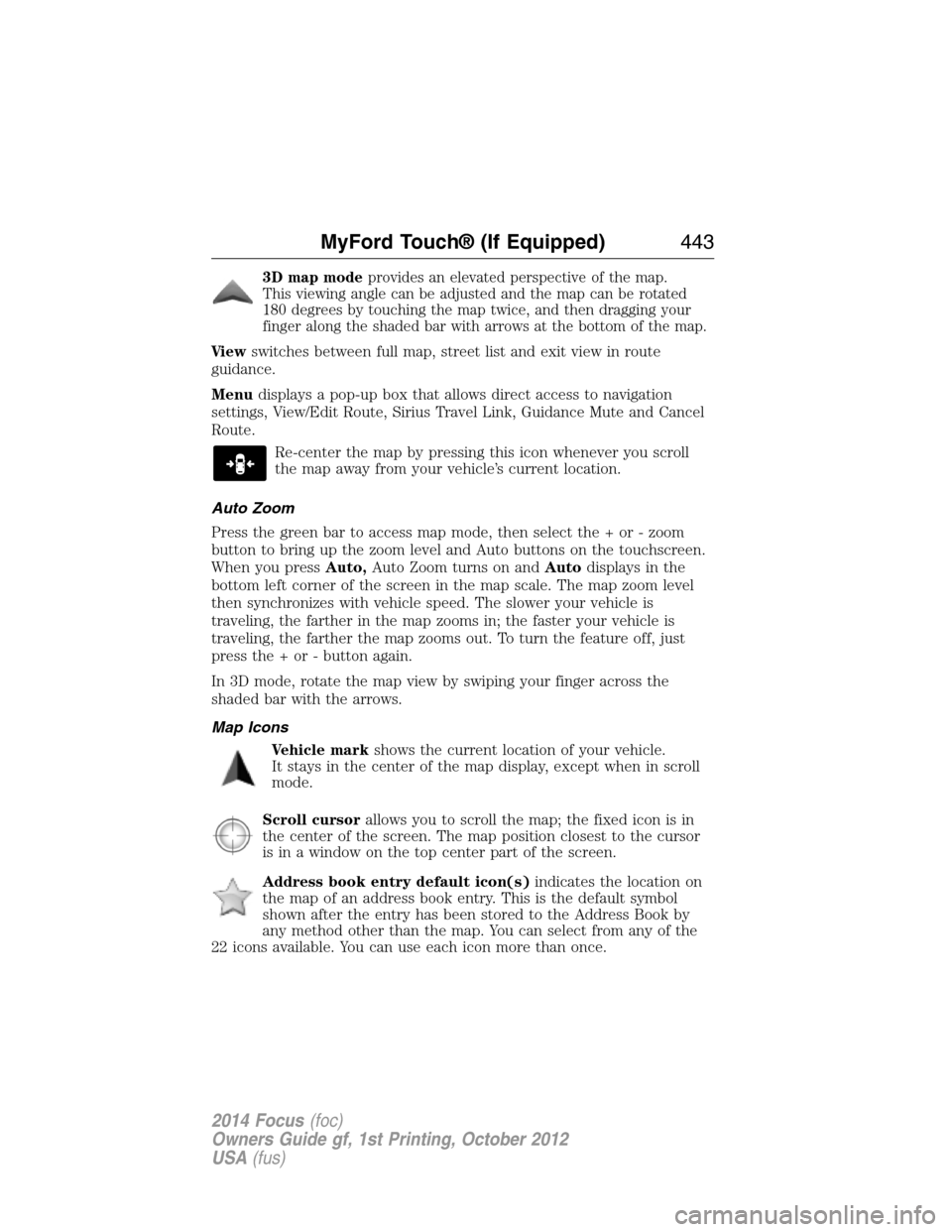
3D map modeprovides an elevated perspective of the map.
This viewing angle can be adjusted and the map can be rotated
180 degrees by touching the map twice, and then dragging your
finger along the shaded bar with arrows at the bottom of the map.
Vi e wswitches between full map, street list and exit view in route
guidance.
Menudisplays a pop-up box that allows direct access to navigation
settings, View/Edit Route, Sirius Travel Link, Guidance Mute and Cancel
Route.
Re-center the map by pressing this icon whenever you scroll
the map away from your vehicle’s current location.
Auto Zoom
Press the green bar to access map mode, then select the + or - zoom
button to bring up the zoom level and Auto buttons on the touchscreen.
When you pressAuto,Auto Zoom turns on andAutodisplays in the
bottom left corner of the screen in the map scale. The map zoom level
then synchronizes with vehicle speed. The slower your vehicle is
traveling, the farther in the map zooms in; the faster your vehicle is
traveling, the farther the map zooms out. To turn the feature off, just
press the + or - button again.
In 3D mode, rotate the map view by swiping your finger across the
shaded bar with the arrows.
Map Icons
Vehicle markshows the current location of your vehicle.
It stays in the center of the map display, except when in scroll
mode.
Scroll cursorallows you to scroll the map; the fixed icon is in
the center of the screen. The map position closest to the cursor
is in a window on the top center part of the screen.
Address book entry default icon(s)indicates the location on
the map of an address book entry. This is the default symbol
shown after the entry has been stored to the Address Book by
any method other than the map. You can select from any of the
22 icons available. You can use each icon more than once.
MyFord Touch® (If Equipped)443
2014 Focus(foc)
Owners Guide gf, 1st Printing, October 2012
USA(fus)
Page 445 of 492
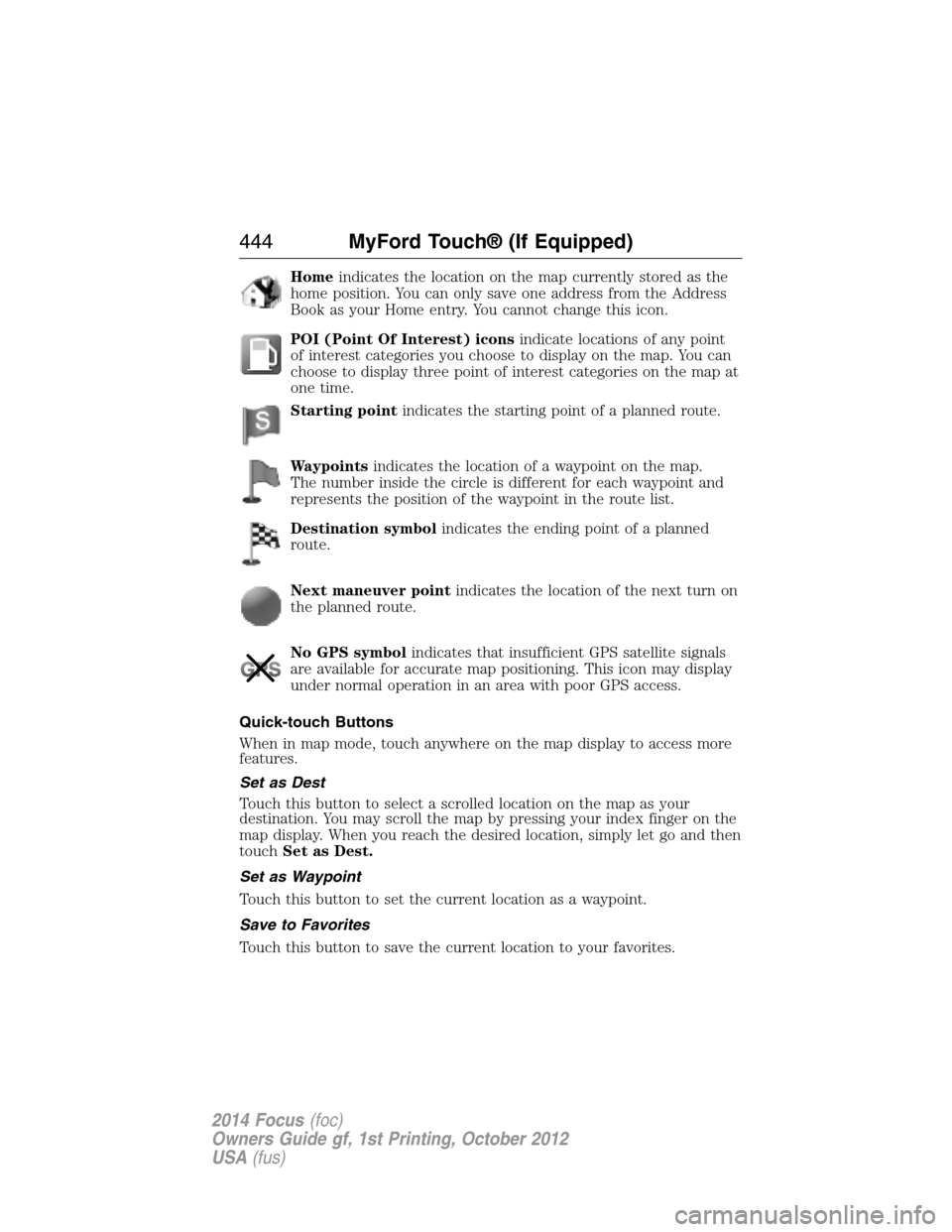
Homeindicates the location on the map currently stored as the
home position. You can only save one address from the Address
Book as your Home entry. You cannot change this icon.
POI (Point Of Interest) iconsindicate locations of any point
of interest categories you choose to display on the map. You can
choose to display three point of interest categories on the map at
one time.
Starting pointindicates the starting point of a planned route.
Waypointsindicates the location of a waypoint on the map.
The number inside the circle is different for each waypoint and
represents the position of the waypoint in the route list.
Destination symbolindicates the ending point of a planned
route.
Next maneuver pointindicates the location of the next turn on
the planned route.
No GPS symbolindicates that insufficient GPS satellite signals
are available for accurate map positioning. This icon may display
under normal operation in an area with poor GPS access.
Quick-touch Buttons
When in map mode, touch anywhere on the map display to access more
features.
Set as Dest
Touch this button to select a scrolled location on the map as your
destination. You may scroll the map by pressing your index finger on the
map display. When you reach the desired location, simply let go and then
touchSet as Dest.
Set as Waypoint
Touch this button to set the current location as a waypoint.
Save to Favorites
Touch this button to save the current location to your favorites.
444MyFord Touch® (If Equipped)
2014 Focus(foc)
Owners Guide gf, 1st Printing, October 2012
USA(fus)
Page 489 of 492
Message center .........................109
warning messages ...................113
Mirrors .................................98, 100
fold away ...................................98
side view mirrors (power) .......98
Moon roof ..................................101
Motorcraft® parts .............253, 293
MyFord Touch™ system ..........371
MyKey ..........................................66
N
Navigation features ...................436
Navigation voice commands ....445
Notifications ..............................417
O
Octane rating ............................153
P
Pairing other phones ........329, 404
Pairing your phone ...................403
Pairing your phone for the
first time ............................328, 403
Parental MyKey programming....66
Park Assist ................................179
Parking brake ............................172
Parts (see Motorcraft® parts) 293
Phone Bluetooth menu options
(adding, connecting, deleting,
turning on/off) ..........................340
Phone redial ..............................334
Phone settings ..................407, 428
Phone voice commands ............409Playing music (by artist,
album, genre, playlist, tracks,
similar) ......................................359
POI categories ...........................438
Point of Interest (POI) .............438
Power distribution box
(see Fuses) ...............................222
Power door locks ........................73
Power mirrors .............................98
Powerpoint ................................142
Power steering ..........................191
fluid, checking and adding ....239
fluid, refill capacity ................290
fluid, specifications .................290
Power Windows ...........................96
Privacy information ..........325, 377
Push button start system .........145
Putting a call on/off hold .........332
Q
Quick touch buttons .................444
R
Radio ..................303, 305, 307, 309
AM/FM .....................................383
Single CD ........303, 305, 307, 309
Radio reception .........................301
Radio voice commands .............384
Rear view camera display 184, 424
Rear window defroster .....122, 124
Receiving a text
message .............................336, 407
488Index
2014 Focus(foc)
Owners Guide gf, 1st Printing, October 2012
USA(fus)