display FORD FOCUS 2014 3.G Manual PDF
[x] Cancel search | Manufacturer: FORD, Model Year: 2014, Model line: FOCUS, Model: FORD FOCUS 2014 3.GPages: 492, PDF Size: 7.2 MB
Page 353 of 492
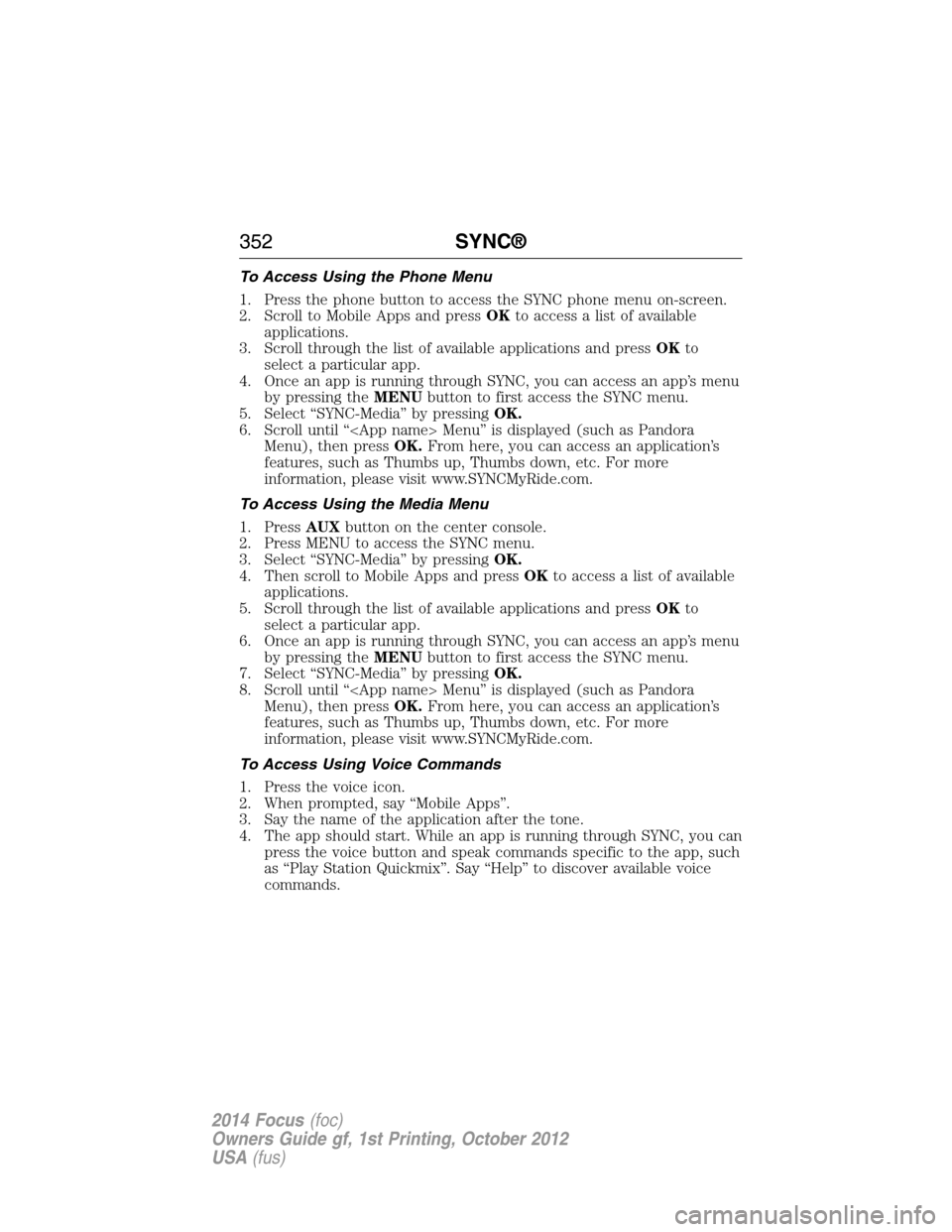
To Access Using the Phone Menu
1. Press the phone button to access the SYNC phone menu on-screen.
2. Scroll to Mobile Apps and pressOKto access a list of available
applications.
3. Scroll through the list of available applications and pressOKto
select a particular app.
4. Once an app is running through SYNC, you can access an app’s menu
by pressing theMENUbutton to first access the SYNC menu.
5. Select “SYNC-Media” by pressingOK.
6. Scroll until “
Menu), then pressOK.From here, you can access an application’s
features, such as Thumbs up, Thumbs down, etc. For more
information, please visit www.SYNCMyRide.com.
To Access Using the Media Menu
1. PressAUXbutton on the center console.
2. Press MENU to access the SYNC menu.
3. Select “SYNC-Media” by pressingOK.
4. Then scroll to Mobile Apps and pressOKto access a list of available
applications.
5. Scroll through the list of available applications and pressOKto
select a particular app.
6. Once an app is running through SYNC, you can access an app’s menu
by pressing theMENUbutton to first access the SYNC menu.
7. Select “SYNC-Media” by pressingOK.
8. Scroll until “
Menu), then pressOK.From here, you can access an application’s
features, such as Thumbs up, Thumbs down, etc. For more
information, please visit www.SYNCMyRide.com.
To Access Using Voice Commands
1. Press the voice icon.
2. When prompted, say “Mobile Apps”.
3. Say the name of the application after the tone.
4. The app should start. While an app is running through SYNC, you can
press the voice button and speak commands specific to the app, such
as “Play Station Quickmix”. Say “Help” to discover available voice
commands.
352SYNC®
2014 Focus(foc)
Owners Guide gf, 1st Printing, October 2012
USA(fus)
Page 354 of 492
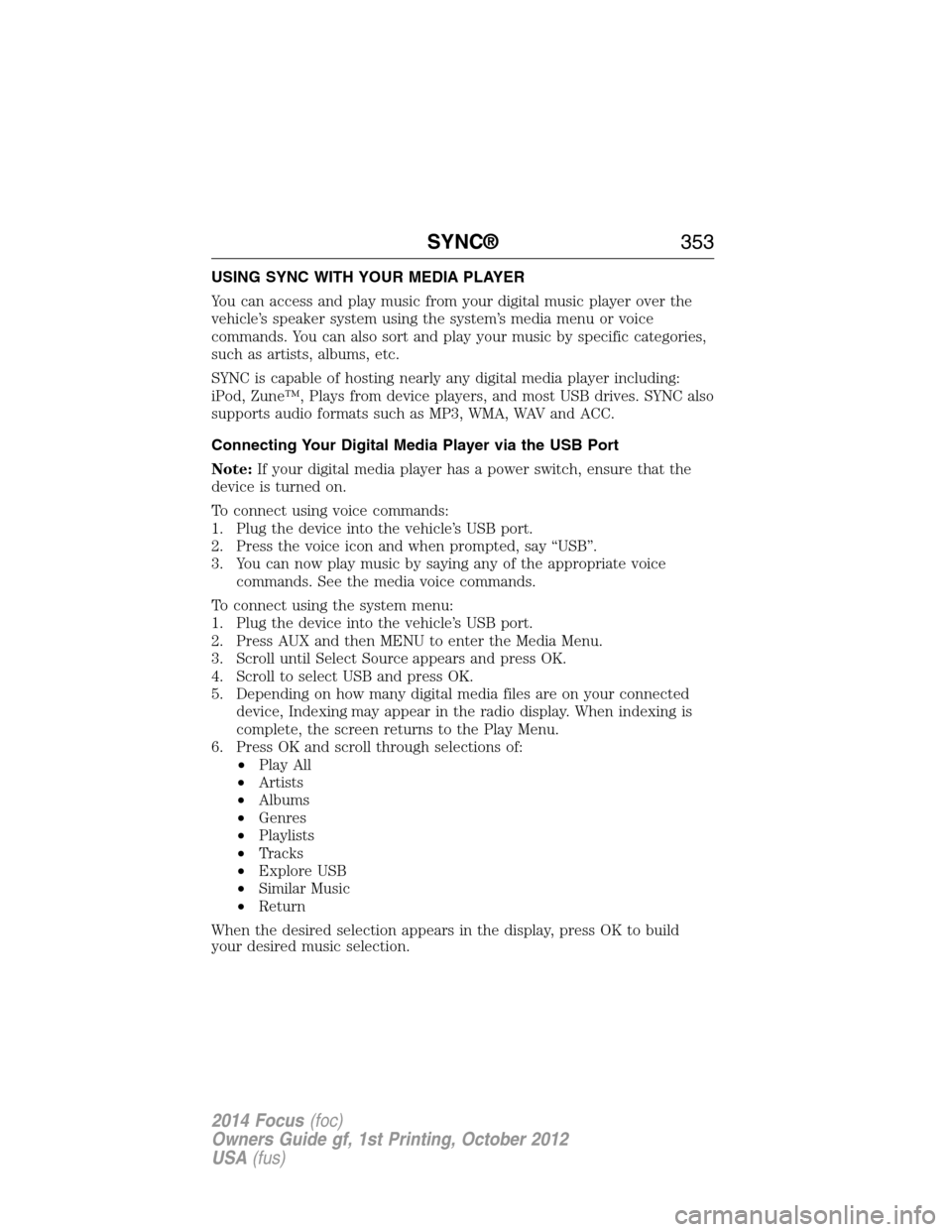
USING SYNC WITH YOUR MEDIA PLAYER
You can access and play music from your digital music player over the
vehicle’s speaker system using the system’s media menu or voice
commands. You can also sort and play your music by specific categories,
such as artists, albums, etc.
SYNC is capable of hosting nearly any digital media player including:
iPod, Zune™, Plays from device players, and most USB drives. SYNC also
supports audio formats such as MP3, WMA, WAV and ACC.
Connecting Your Digital Media Player via the USB Port
Note:If your digital media player has a power switch, ensure that the
device is turned on.
To connect using voice commands:
1. Plug the device into the vehicle’s USB port.
2. Press the voice icon and when prompted, say “USB”.
3. You can now play music by saying any of the appropriate voice
commands. See the media voice commands.
To connect using the system menu:
1. Plug the device into the vehicle’s USB port.
2. Press AUX and then MENU to enter the Media Menu.
3. Scroll until Select Source appears and press OK.
4. Scroll to select USB and press OK.
5. Depending on how many digital media files are on your connected
device, Indexing may appear in the radio display. When indexing is
complete, the screen returns to the Play Menu.
6. Press OK and scroll through selections of:
•Play All
•Artists
•Albums
•Genres
•Playlists
•Tracks
•Explore USB
•Similar Music
•Return
When the desired selection appears in the display, press OK to build
your desired music selection.
SYNC®353
2014 Focus(foc)
Owners Guide gf, 1st Printing, October 2012
USA(fus)
Page 360 of 492
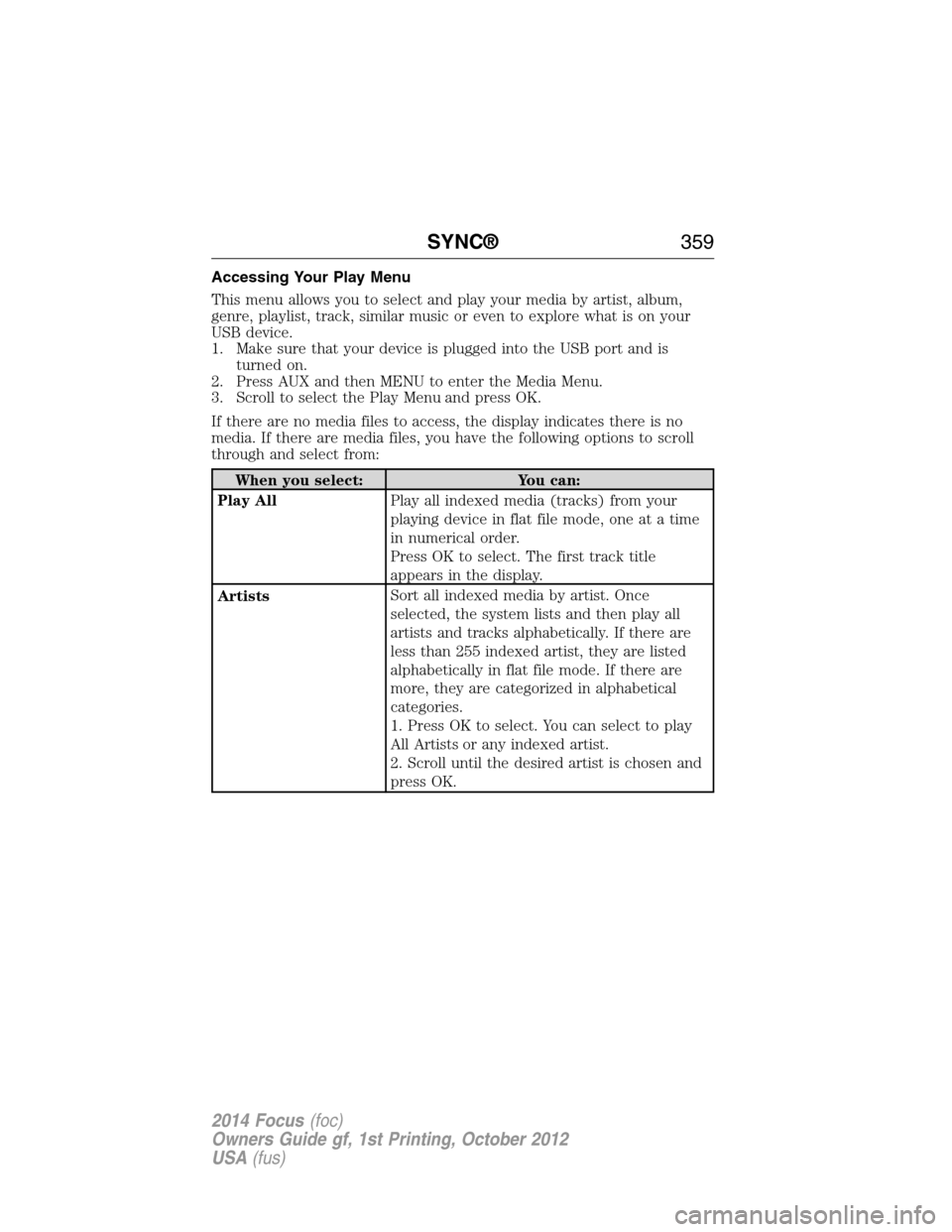
Accessing Your Play Menu
This menu allows you to select and play your media by artist, album,
genre, playlist, track, similar music or even to explore what is on your
USB device.
1. Make sure that your device is plugged into the USB port and is
turned on.
2. Press AUX and then MENU to enter the Media Menu.
3. Scroll to select the Play Menu and press OK.
If there are no media files to access, the display indicates there is no
media. If there are media files, you have the following options to scroll
through and select from:
When you select: You can:
Play AllPlay all indexed media (tracks) from your
playing device in flat file mode, one at a time
in numerical order.
Press OK to select. The first track title
appears in the display.
ArtistsSort all indexed media by artist. Once
selected, the system lists and then play all
artists and tracks alphabetically. If there are
less than 255 indexed artist, they are listed
alphabetically in flat file mode. If there are
more, they are categorized in alphabetical
categories.
1. Press OK to select. You can select to play
All Artists or any indexed artist.
2. Scroll until the desired artist is chosen and
press OK.
SYNC®359
2014 Focus(foc)
Owners Guide gf, 1st Printing, October 2012
USA(fus)
Page 363 of 492
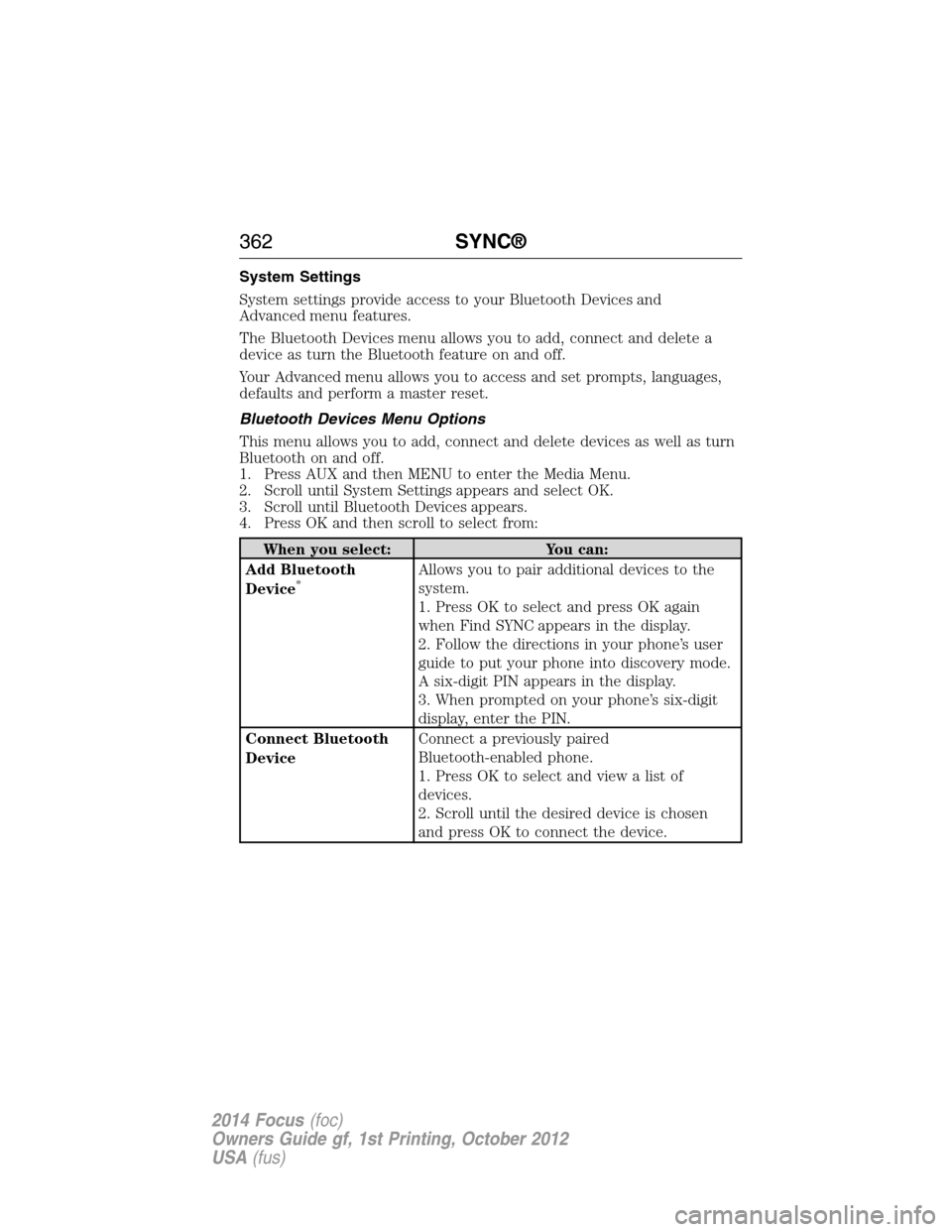
System Settings
System settings provide access to your Bluetooth Devices and
Advanced menu features.
The Bluetooth Devices menu allows you to add, connect and delete a
device as turn the Bluetooth feature on and off.
Your Advanced menu allows you to access and set prompts, languages,
defaults and perform a master reset.
Bluetooth Devices Menu Options
This menu allows you to add, connect and delete devices as well as turn
Bluetooth on and off.
1. Press AUX and then MENU to enter the Media Menu.
2. Scroll until System Settings appears and select OK.
3. Scroll until Bluetooth Devices appears.
4. Press OK and then scroll to select from:
When you select: You can:
Add Bluetooth
Device
*Allows you to pair additional devices to the
system.
1. Press OK to select and press OK again
when Find SYNC appears in the display.
2. Follow the directions in your phone’s user
guide to put your phone into discovery mode.
A six-digit PIN appears in the display.
3. When prompted on your phone’s six-digit
display, enter the PIN.
Connect Bluetooth
DeviceConnect a previously paired
Bluetooth-enabled phone.
1. Press OK to select and view a list of
devices.
2. Scroll until the desired device is chosen
and press OK to connect the device.
362SYNC®
2014 Focus(foc)
Owners Guide gf, 1st Printing, October 2012
USA(fus)
Page 364 of 492
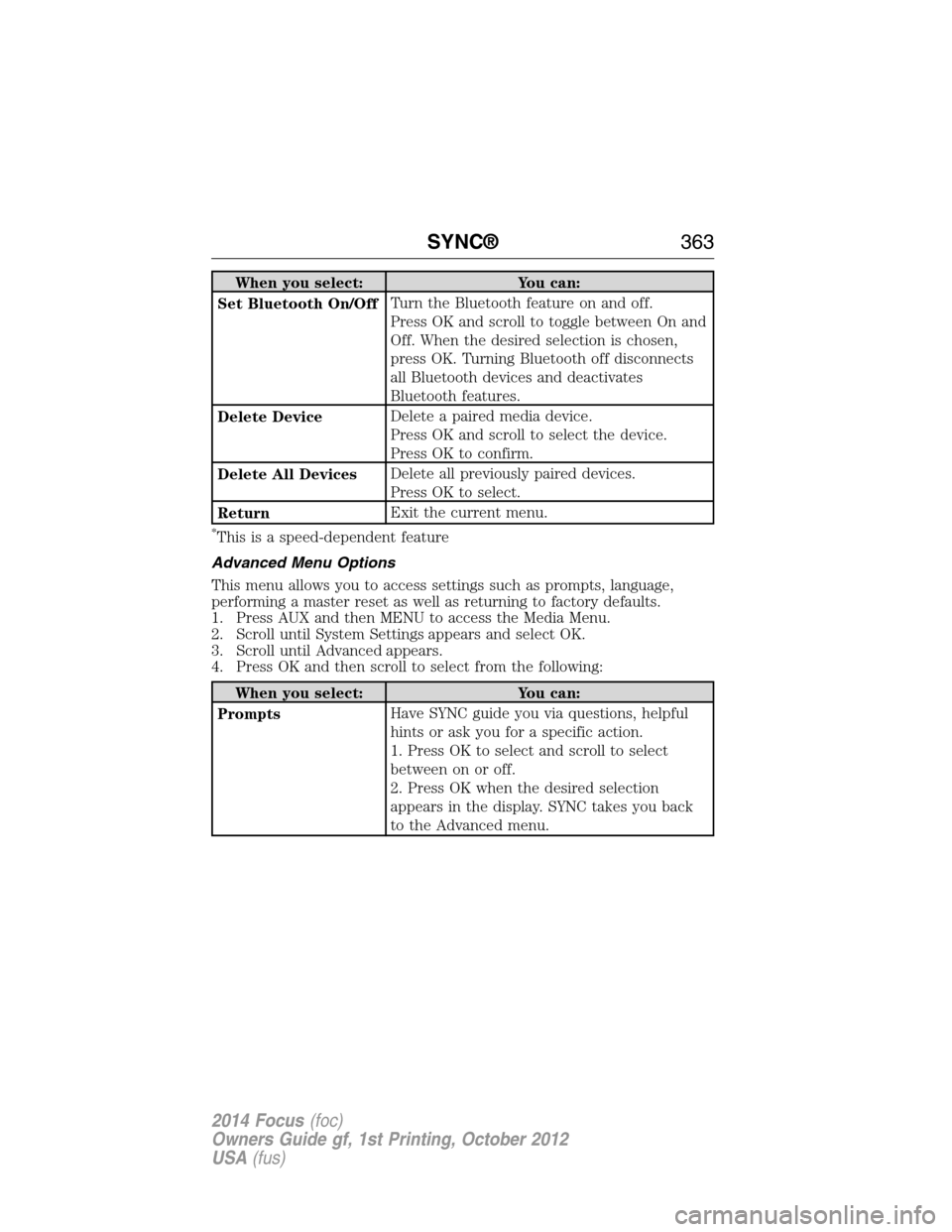
When you select: You can:
Set Bluetooth On/OffTurn the Bluetooth feature on and off.
Press OK and scroll to toggle between On and
Off. When the desired selection is chosen,
press OK. Turning Bluetooth off disconnects
all Bluetooth devices and deactivates
Bluetooth features.
Delete DeviceDelete a paired media device.
Press OK and scroll to select the device.
Press OK to confirm.
Delete All DevicesDelete all previously paired devices.
Press OK to select.
ReturnExit the current menu.
*This is a speed-dependent feature
Advanced Menu Options
This menu allows you to access settings such as prompts, language,
performing a master reset as well as returning to factory defaults.
1. Press AUX and then MENU to access the Media Menu.
2. Scroll until System Settings appears and select OK.
3. Scroll until Advanced appears.
4. Press OK and then scroll to select from the following:
When you select: You can:
PromptsHave SYNC guide you via questions, helpful
hints or ask you for a specific action.
1. Press OK to select and scroll to select
between on or off.
2. Press OK when the desired selection
appears in the display. SYNC takes you back
to the Advanced menu.
SYNC®363
2014 Focus(foc)
Owners Guide gf, 1st Printing, October 2012
USA(fus)
Page 365 of 492
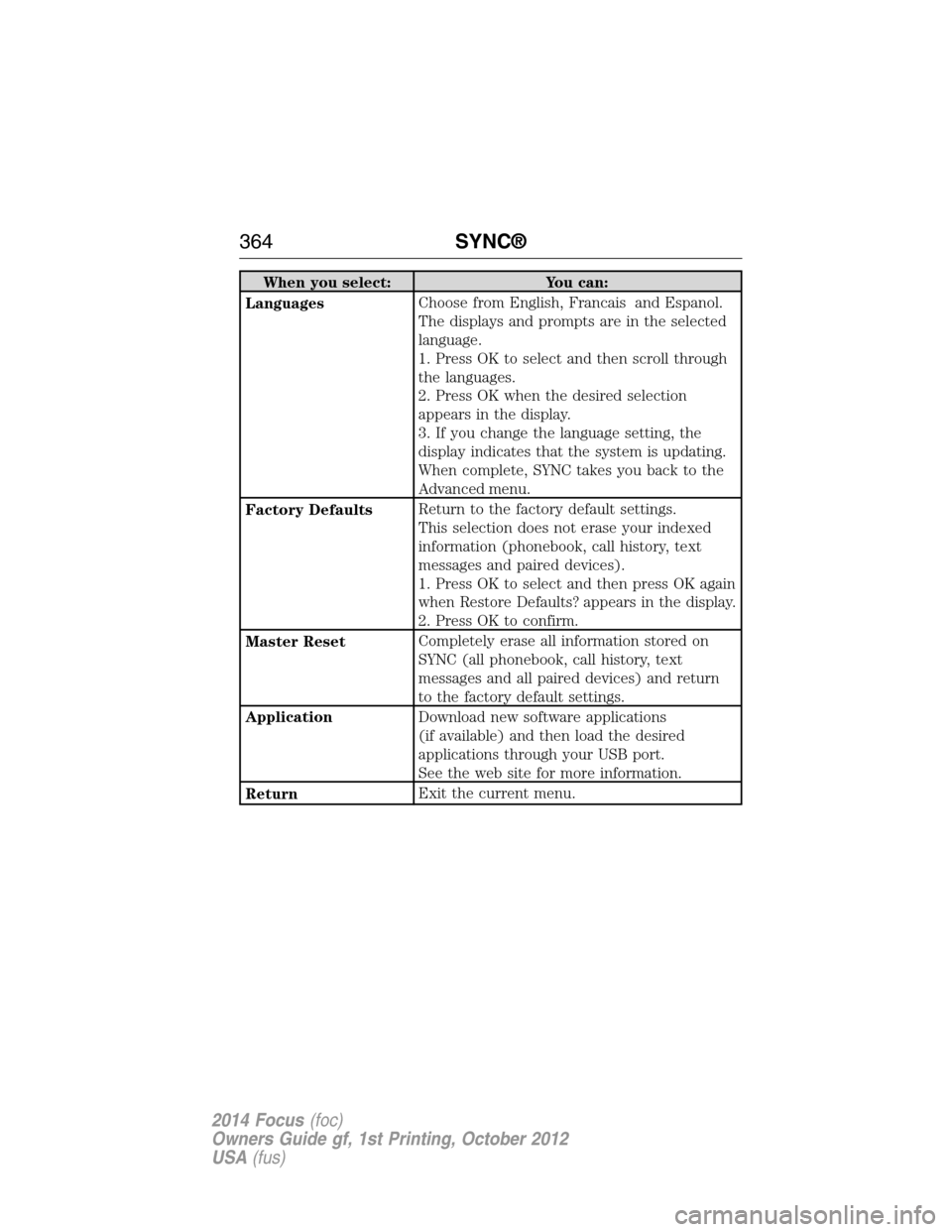
When you select: You can:
LanguagesChoose from English, Francais and Espanol.
The displays and prompts are in the selected
language.
1. Press OK to select and then scroll through
the languages.
2. Press OK when the desired selection
appears in the display.
3. If you change the language setting, the
display indicates that the system is updating.
When complete, SYNC takes you back to the
Advanced menu.
Factory DefaultsReturn to the factory default settings.
This selection does not erase your indexed
information (phonebook, call history, text
messages and paired devices).
1. Press OK to select and then press OK again
when Restore Defaults? appears in the display.
2. Press OK to confirm.
Master ResetCompletely erase all information stored on
SYNC (all phonebook, call history, text
messages and all paired devices) and return
to the factory default settings.
ApplicationDownload new software applications
(if available) and then load the desired
applications through your USB port.
See the web site for more information.
ReturnExit the current menu.
364SYNC®
2014 Focus(foc)
Owners Guide gf, 1st Printing, October 2012
USA(fus)
Page 373 of 492
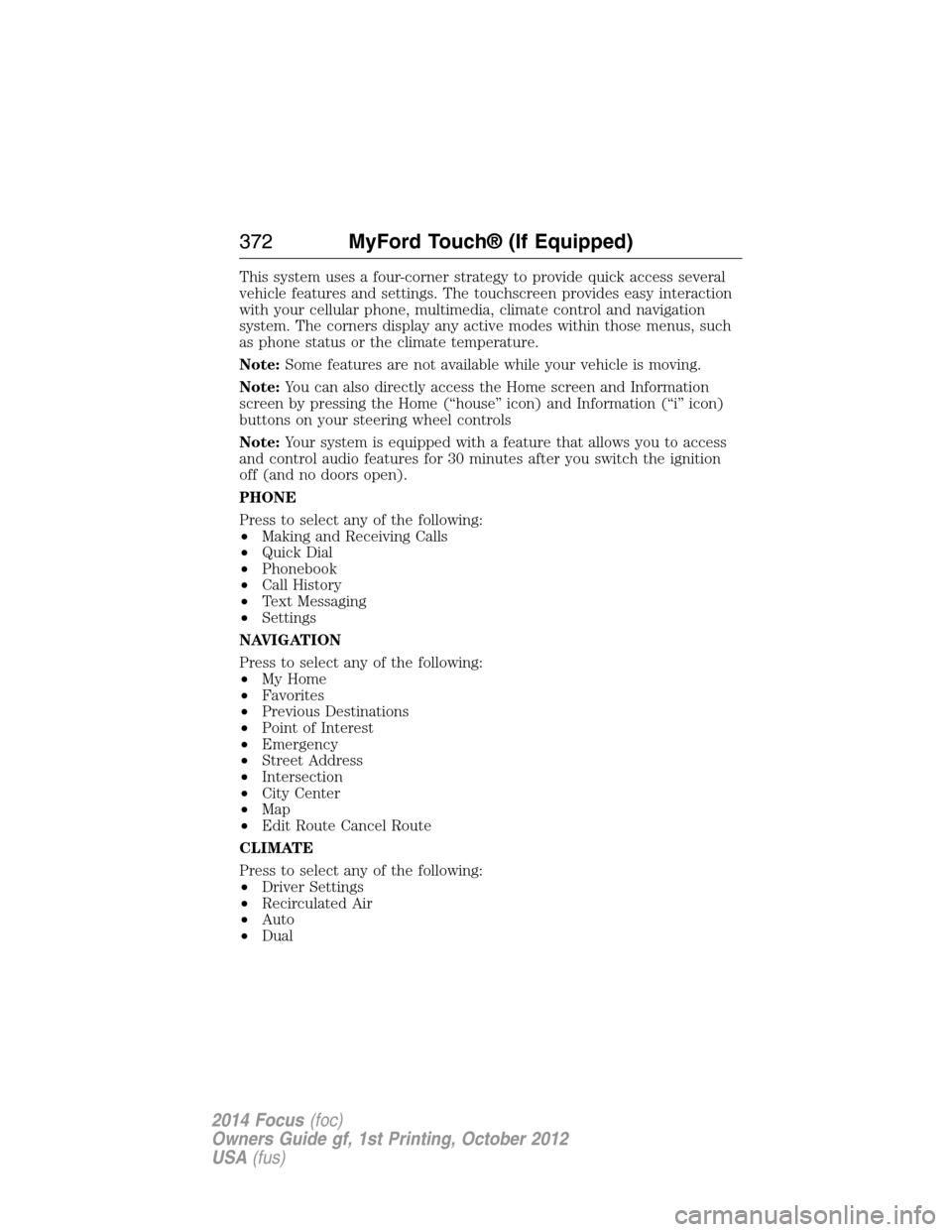
This system uses a four-corner strategy to provide quick access several
vehicle features and settings. The touchscreen provides easy interaction
with your cellular phone, multimedia, climate control and navigation
system. The corners display any active modes within those menus, such
as phone status or the climate temperature.
Note:Some features are not available while your vehicle is moving.
Note:You can also directly access the Home screen and Information
screen by pressing the Home (“house” icon) and Information (“i” icon)
buttons on your steering wheel controls
Note:Your system is equipped with a feature that allows you to access
and control audio features for 30 minutes after you switch the ignition
off (and no doors open).
PHONE
Press to select any of the following:
•Making and Receiving Calls
•Quick Dial
•Phonebook
•Call History
•Text Messaging
•Settings
NAVIGATION
Press to select any of the following:
•My Home
•Favorites
•Previous Destinations
•Point of Interest
•Emergency
•Street Address
•Intersection
•City Center
•Map
•Edit Route Cancel Route
CLIMATE
Press to select any of the following:
•Driver Settings
•Recirculated Air
•Auto
•Dual
372MyFord Touch® (If Equipped)
2014 Focus(foc)
Owners Guide gf, 1st Printing, October 2012
USA(fus)
Page 374 of 492
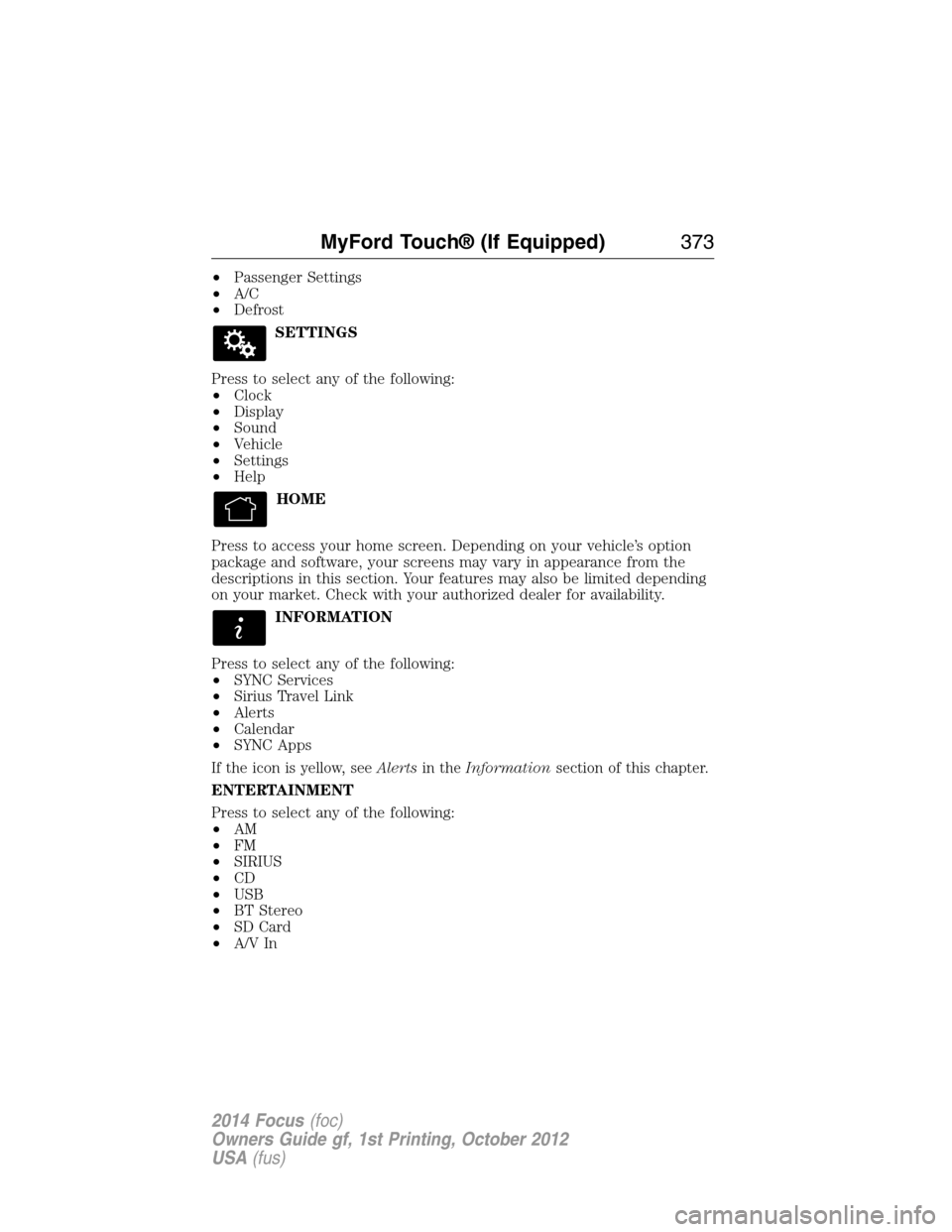
•Passenger Settings
•A/C
•Defrost
SETTINGS
Press to select any of the following:
•Clock
•Display
•Sound
•Vehicle
•Settings
•Help
HOME
Press to access your home screen. Depending on your vehicle’s option
package and software, your screens may vary in appearance from the
descriptions in this section. Your features may also be limited depending
on your market. Check with your authorized dealer for availability.
INFORMATION
Press to select any of the following:
•SYNC Services
•Sirius Travel Link
•Alerts
•Calendar
•SYNC Apps
If the icon is yellow, seeAlertsin theInformationsection of this chapter.
ENTERTAINMENT
Press to select any of the following:
•AM
•FM
•SIRIUS
•CD
•USB
•BT Stereo
•SD Card
•A/V In
MyFord Touch® (If Equipped)373
2014 Focus(foc)
Owners Guide gf, 1st Printing, October 2012
USA(fus)
Page 375 of 492
Using the Touch-sensitive Controls on Your System
To turn a feature on and off, just touch the graphic with your finger.
To get the best performance from the touch-sensitive controls:
•Do not press hard on the controls. They are sensitive to light touch.
•Use your bare finger to touch the center of a touch-control graphic.
Touching off-center of the graphic may affect operation of a nearby
control.
•Make sure your hands are clean and dry.
•Keep metal and other conductive material away from the surface
of the touchscreen as this may cause electronic interference
(for example, inadvertently turning on a feature other than the one
you meant to turn on).
Depending on your vehicle and option package, you may also have these
controls on your bezel:
•Power: Switch the media or climate features off and on.
•VOL:Control the volume of playing media.
•Fan: Control the speed of the climate system fan.
•Seek and Tune buttons: Use as you normally would in media modes.
•Eject: Eject a CD from the entertainment system.
•SOURCE:Touch the word repeatedly to see all available media
modes. The screen does not change, but you see the media change
in the lower left status bar.
•SOUND:Touch the word to access the Sound menu where you can
adjust settings such as: Bass, Treble, Midrange, Balance and Fade,
THX Deep Note Demo, DSP (Digital Signal Processing), Occupancy
Mode and Speed Compensated Volume. (Your vehicle may not have
all of these sound options.)
•Hazard flasher: Switch the hazard flashers off and on.
Cleaning the Touchscreen Display
Use a clean, soft cloth such as one used for cleaning glasses. If dirt or
fingerprints are still visible, apply a small amount of alcohol to the cloth.
Do not pour or spray alcohol onto the display. Do not use detergent or
any type of solvent to clean the display.
374MyFord Touch® (If Equipped)
2014 Focus(foc)
Owners Guide gf, 1st Printing, October 2012
USA(fus)
Page 381 of 492
Confirmation Prompts:The system uses these short questions to
confirm your voice request. If turned off, the system simply makes a best
guess as to what you requested. The system may still occasionally ask
you to confirm settings.
Phone/Media Candidate Lists:Candidate lists are lists of possible
results from your voice commands. The system creates these lists when
it has the same confidence level of several options based on your voice
command.
To access these settings using the touchscreen:
1. Press theSettings icon >Settings>Voice Control.
2. Select from:
•Interaction Mode
•Confirmation Prompts
•Media Candidate Lists
•Phone Candidate Lists
•Voice Control Volume.
To access these settings using voice commands:
Press the voice icon. Wait for the prompt “Please say a command”.
Another tone sounds to let you know the system is listening.
Voice settings using voice commands
“Interaction Mode Novice”
“Interaction Mode Advanced”
“Confirmation Prompts On”
“Confirmation Prompts Off”
“Phone Candidate Lists On”
“Phone Candidate Lists Off”
“Media Candidate Lists On”
“Media Candidate Lists Off”
“Help”
Using Voice Commands with the Touchscreen Options
Your voice system has a dual mode feature which allows you to switch
between using voice commands and making on-screen selections. This is
available only when the system displays a list of candidates generated
during a voice session. For example, when entering in a street address or
trying to call a contact from the phone you paired to the system.
380MyFord Touch® (If Equipped)
2014 Focus(foc)
Owners Guide gf, 1st Printing, October 2012
USA(fus)