turn signal FORD MUSTANG 2015 6.G User Guide
[x] Cancel search | Manufacturer: FORD, Model Year: 2015, Model line: MUSTANG, Model: FORD MUSTANG 2015 6.GPages: 441, PDF Size: 6.98 MB
Page 308 of 441
Sending a Text Message
Note:
You can only send a text message to
one recipient at a time.
1. Select the send option when the desired selection highlights in the audio
display.
2. Select the confirmation option when the contact appears.
3. Press the OK button again to confirm when the system asks if you want to
send the message. A pre-defined
signature appears on each text
message. Note:
You can send text messages either
by choosing a contact from the phonebook
and selecting the text option from the audio
display or by replying to a received message
in the inbox.
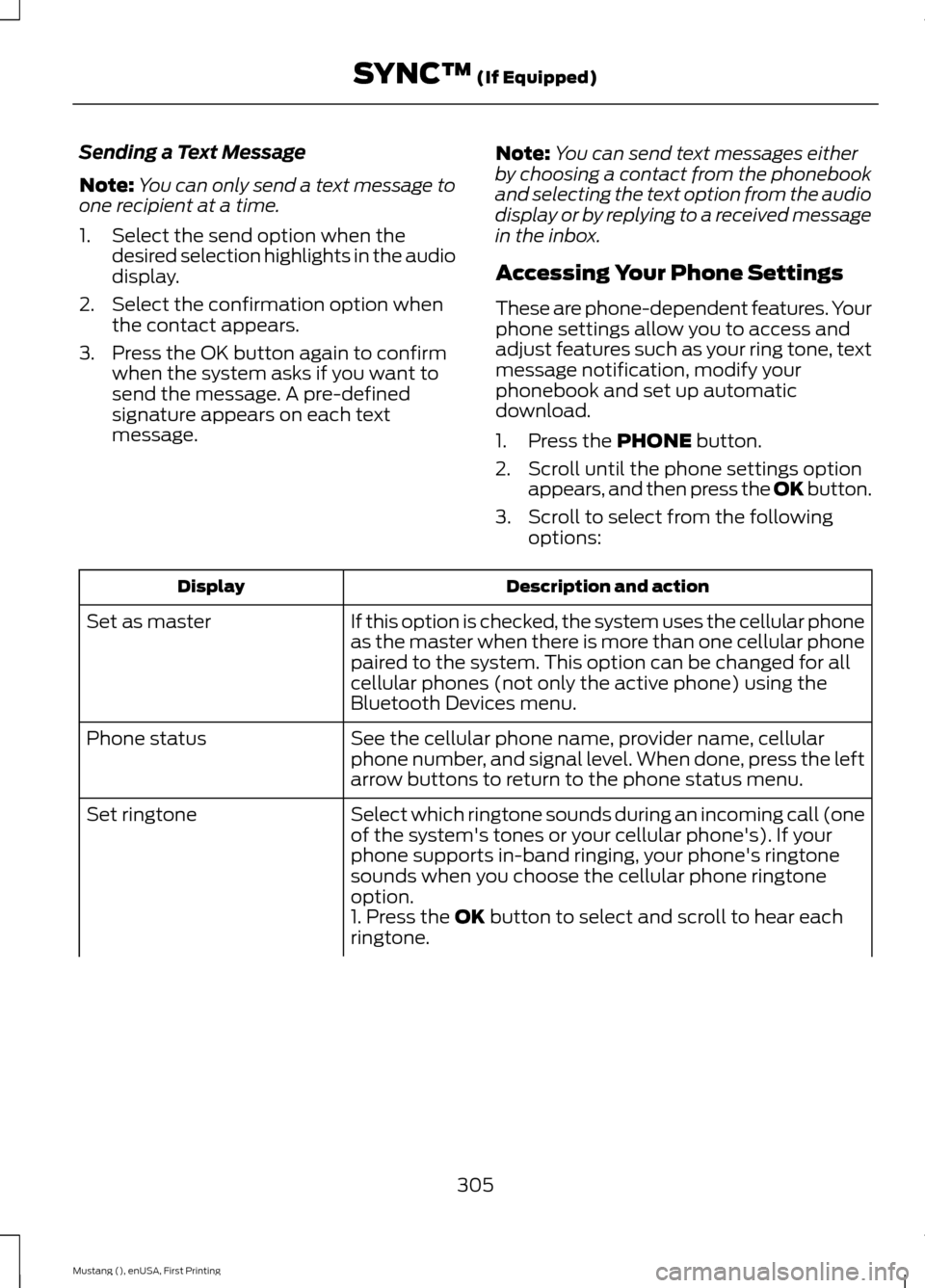
Accessing Your Phone Settings
These are phone-dependent features. Your
phone settings allow you to access and
adjust features such as your ring tone, text
message notification, modify your
phonebook and set up automatic
download.
1. Press the PHONE button.
2. Scroll until the phone settings option appears, and then press the OK button.
3. Scroll to select from the following options: Description and action
Display
If this option is checked, the system uses the cellular phone
as the master when there is more than one cellular phone
paired to the system. This option can be changed for all
cellular phones (not only the active phone) using the
Bluetooth Devices menu.
Set as master
See the cellular phone name, provider name, cellular
phone number, and signal level. When done, press the left
arrow buttons to return to the phone status menu.
Phone status
Select which ringtone sounds during an incoming call (one
of the system's tones or your cellular phone's). If your
phone supports in-band ringing, your phone's ringtone
sounds when you choose the cellular phone ringtone
option.
Set ringtone
1. Press the
OK button to select and scroll to hear each
ringtone.
305
Mustang (), enUSA, First Printing SYNC™
(If Equipped)
Page 331 of 441
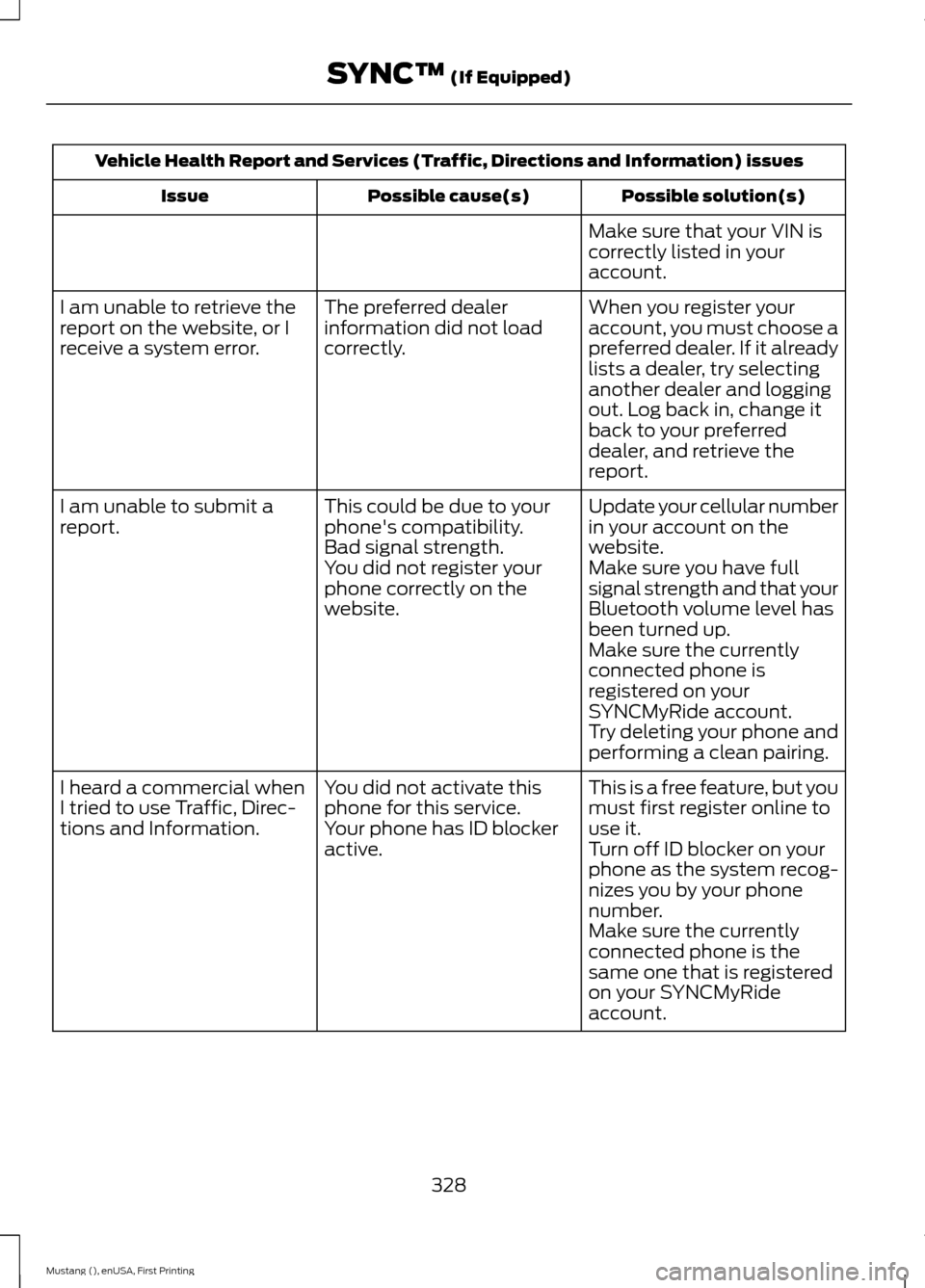
Vehicle Health Report and Services (Traffic, Directions and Information) issues
Possible solution(s)
Possible cause(s)
Issue
Make sure that your VIN is
correctly listed in your
account.
When you register your
account, you must choose a
preferred dealer. If it already
lists a dealer, try selecting
another dealer and logging
out. Log back in, change it
back to your preferred
dealer, and retrieve the
report.
The preferred dealer
information did not load
correctly.
I am unable to retrieve the
report on the website, or I
receive a system error.
Update your cellular number
in your account on the
website.
This could be due to your
phone's compatibility.
Bad signal strength.
I am unable to submit a
report.
Make sure you have full
signal strength and that your
Bluetooth volume level has
been turned up.
You did not register your
phone correctly on the
website.
Make sure the currently
connected phone is
registered on your
SYNCMyRide account.
Try deleting your phone and
performing a clean pairing.
This is a free feature, but you
must first register online to
use it.
You did not activate this
phone for this service.
Your phone has ID blocker
active.
I heard a commercial when
I tried to use Traffic, Direc-
tions and Information.
Turn off ID blocker on your
phone as the system recog-
nizes you by your phone
number.
Make sure the currently
connected phone is the
same one that is registered
on your SYNCMyRide
account.
328
Mustang (), enUSA, First Printing SYNC™ (If Equipped)
Page 352 of 441
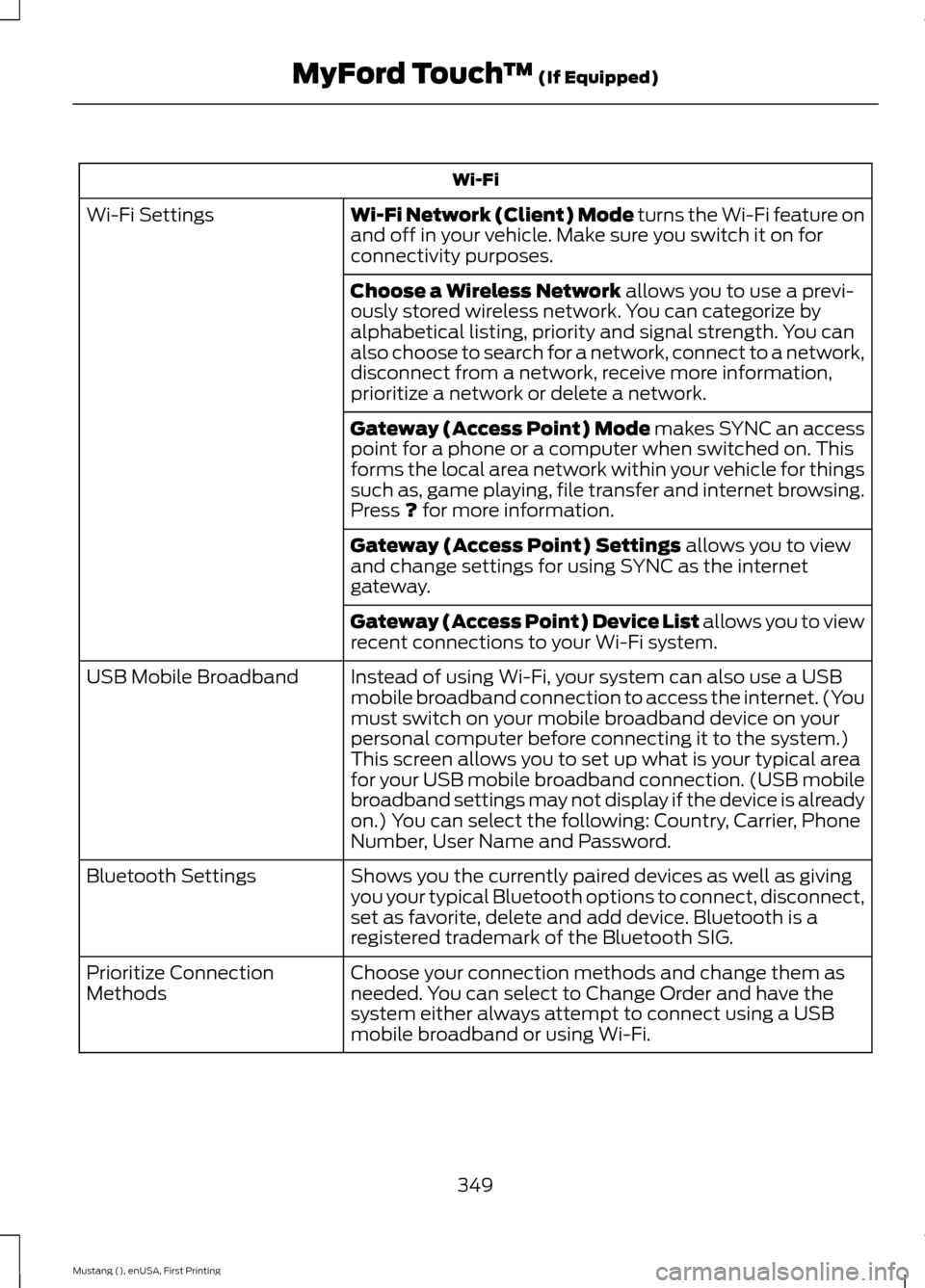
Wi-Fi
Wi-Fi Network (Client) Mode turns the Wi-Fi feature on
and off in your vehicle. Make sure you switch it on for
connectivity purposes.
Wi-Fi Settings
Choose a Wireless Network
allows you to use a previ-
ously stored wireless network. You can categorize by
alphabetical listing, priority and signal strength. You can
also choose to search for a network, connect to a network,
disconnect from a network, receive more information,
prioritize a network or delete a network.
Gateway (Access Point) Mode makes SYNC an access
point for a phone or a computer when switched on. This
forms the local area network within your vehicle for things
such as, game playing, file transfer and internet browsing.
Press
? for more information.
Gateway (Access Point) Settings
allows you to view
and change settings for using SYNC as the internet
gateway.
Gateway (Access Point) Device List allows you to view
recent connections to your Wi-Fi system.
Instead of using Wi-Fi, your system can also use a USB
mobile broadband connection to access the internet. (You
must switch on your mobile broadband device on your
personal computer before connecting it to the system.)
This screen allows you to set up what is your typical area
for your USB mobile broadband connection. (USB mobile
broadband settings may not display if the device is already
on.) You can select the following: Country, Carrier, Phone
Number, User Name and Password.
USB Mobile Broadband
Shows you the currently paired devices as well as giving
you your typical Bluetooth options to connect, disconnect,
set as favorite, delete and add device. Bluetooth is a
registered trademark of the Bluetooth SIG.
Bluetooth Settings
Choose your connection methods and change them as
needed. You can select to Change Order and have the
system either always attempt to connect using a USB
mobile broadband or using Wi-Fi.
Prioritize Connection
Methods
349
Mustang (), enUSA, First Printing MyFord Touch
™
(If Equipped)
Page 356 of 441
![FORD MUSTANG 2015 6.G User Guide Sample commands
"Sirius <0-223>" *
"Sports games" *
* This command is only usable if you have
an active subscription to Sirius satellite
radio.
** The commands that have [ ] around the
word means th](/img/11/5246/w960_5246-355.png "FORD MUSTANG 2015 6.G User Guide Sample commands
\"Sirius <0-223>\" *
\"Sports games\" *
* This command is only usable if you have
an active subscription to Sirius satellite
radio.
** The commands that have [ ] around the
word means th")
Sample commands
"Sirius <0-223>" *
"Sports games" *
* This command is only usable if you have
an active subscription to Sirius satellite
radio.
** The commands that have [ ] around the
word means that the word is optional. For
example, if you say, "Play Metallica", this
is the same as the voice command, "Play
[artist]
AM/FM Radio Touch the AM or FM tab to listen
to the radio.
To change between AM and FM presets,
just touch the AM or FM tab.
Memory Presets
Save a station by pressing and holding one
of the memory preset areas. There is a brief
mute while the radio saves the station.
Sound returns when finished.
HD Radio
Touch this button to turn HD Radio on. The
light on the button illuminates when the
feature is on. HD Radio allows you to
receive radio broadcasts digitally, where
available, providing free, crystal-clear
sound. See HD Radio information later in
this chapter.
Scan
Touch this button to go to the next strong
AM or FM radio station. The light on the
button illuminates when the feature is on. Options
Sound Settings
Touch this button to adjust settings for:
•
Bass.
• Midrange.
• Treble.
• Balance and Fade.
• DSP (Digital Signal Processing).
• Occupancy Mode.
• Speed Compensated Volume.
Note: Your vehicle may not have all these
sound settings.
Set PTY for Seek/Scan
This allows you to select a category of
music you would like to search for. You can
then choose to either seek or scan for the
stations playing that category.
RDS Text Display
This allows you to view the information
broadcast by FM stations.
AST
AST (Autostore) allows you to have the
system automatically store the six
strongest stations in your current location.
TAG Button
This feature is available when HD Radio is
on, and allows you to tag a song to
download later. When you select On, TAG
appears on-screen when HD Radio is
active. You can touch
TAG to save the
information of the song that is playing.
When you plug in your portable music
player, the information transfers, if
supported by your device. When you are
connected to iTunes, the tags appear to
remind you of the songs you would like to
download. See HD Radio information later
in this chapter.
353
Mustang (), enUSA, First Printing MyFord Touch
™
(If Equipped)E142611
Page 358 of 441
When HD Radio broadcasts are active, you
can access the following functions:
•
Scan allows you to hear a brief
sampling of all available stations. This
feature still works when HD Radio
reception is on, although it does not
scan for HD2-HD7 channels. You may
see the HD logo appear if the station
has a digital broadcast. •
Memory presets
allow you to save an
active channel as a memory preset.
Touch and hold a memory preset slot
until the sound returns. There is a brief
mute while the radio saves the station.
Sound returns when finished. When
switching to an HD2 or HD3 memory
preset, the sound mutes before the
digital audio plays, because the system
has to reacquire the digital signal.
Note: As with any saved radio station, you
cannot access the saved station if your
vehicle is outside the station ’s reception
area.
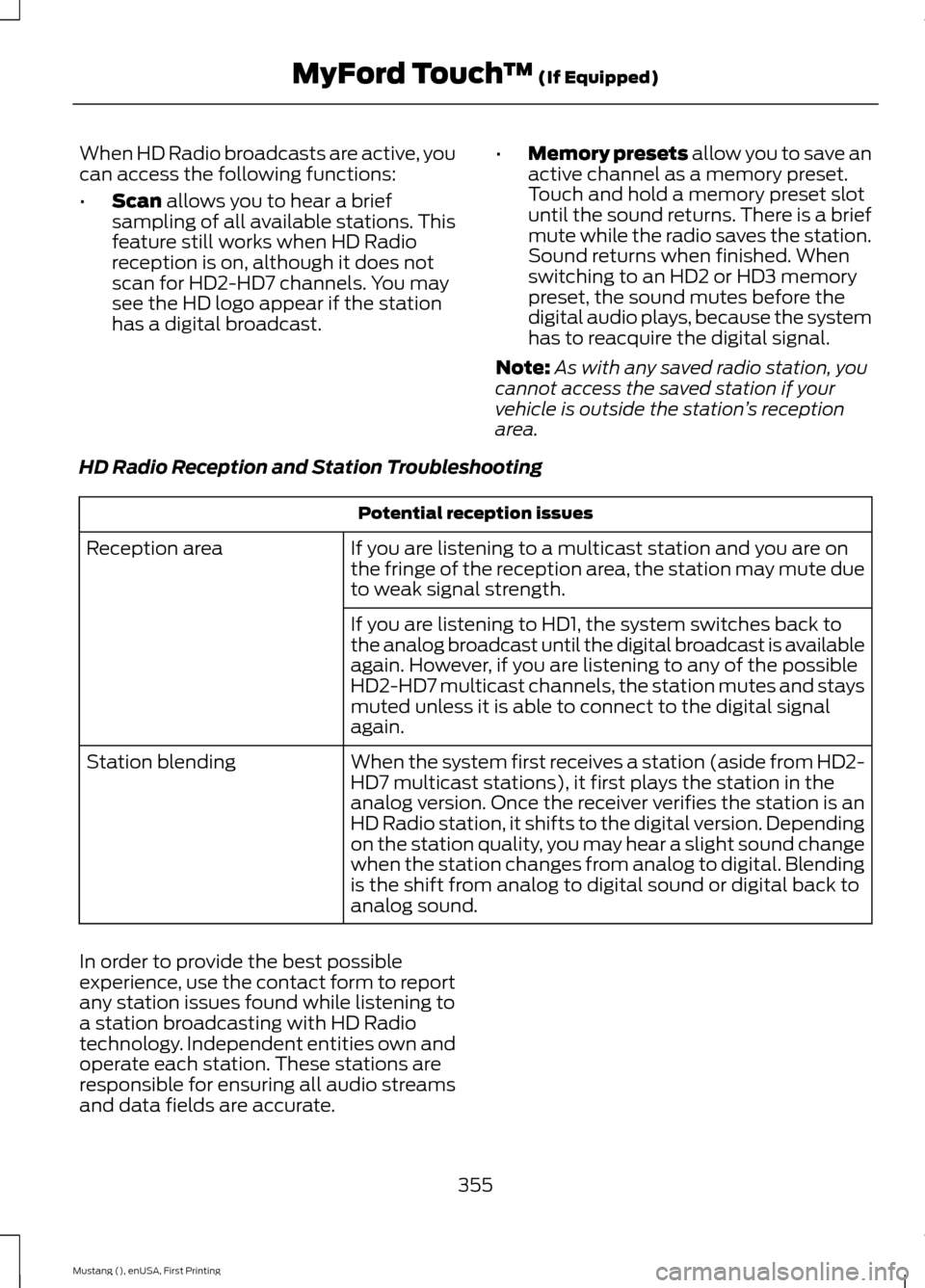
HD Radio Reception and Station Troubleshooting Potential reception issues
If you are listening to a multicast station and you are on
the fringe of the reception area, the station may mute due
to weak signal strength.
Reception area
If you are listening to HD1, the system switches back to
the analog broadcast until the digital broadcast is available
again. However, if you are listening to any of the possible
HD2-HD7 multicast channels, the station mutes and stays
muted unless it is able to connect to the digital signal
again.
When the system first receives a station (aside from HD2-
HD7 multicast stations), it first plays the station in the
analog version. Once the receiver verifies the station is an
HD Radio station, it shifts to the digital version. Depending
on the station quality, you may hear a slight sound change
when the station changes from analog to digital. Blending
is the shift from analog to digital sound or digital back to
analog sound.
Station blending
In order to provide the best possible
experience, use the contact form to report
any station issues found while listening to
a station broadcasting with HD Radio
technology. Independent entities own and
operate each station. These stations are
responsible for ensuring all audio streams
and data fields are accurate. 355
Mustang (), enUSA, First Printing MyFord Touch
™
(If Equipped)
Page 361 of 441
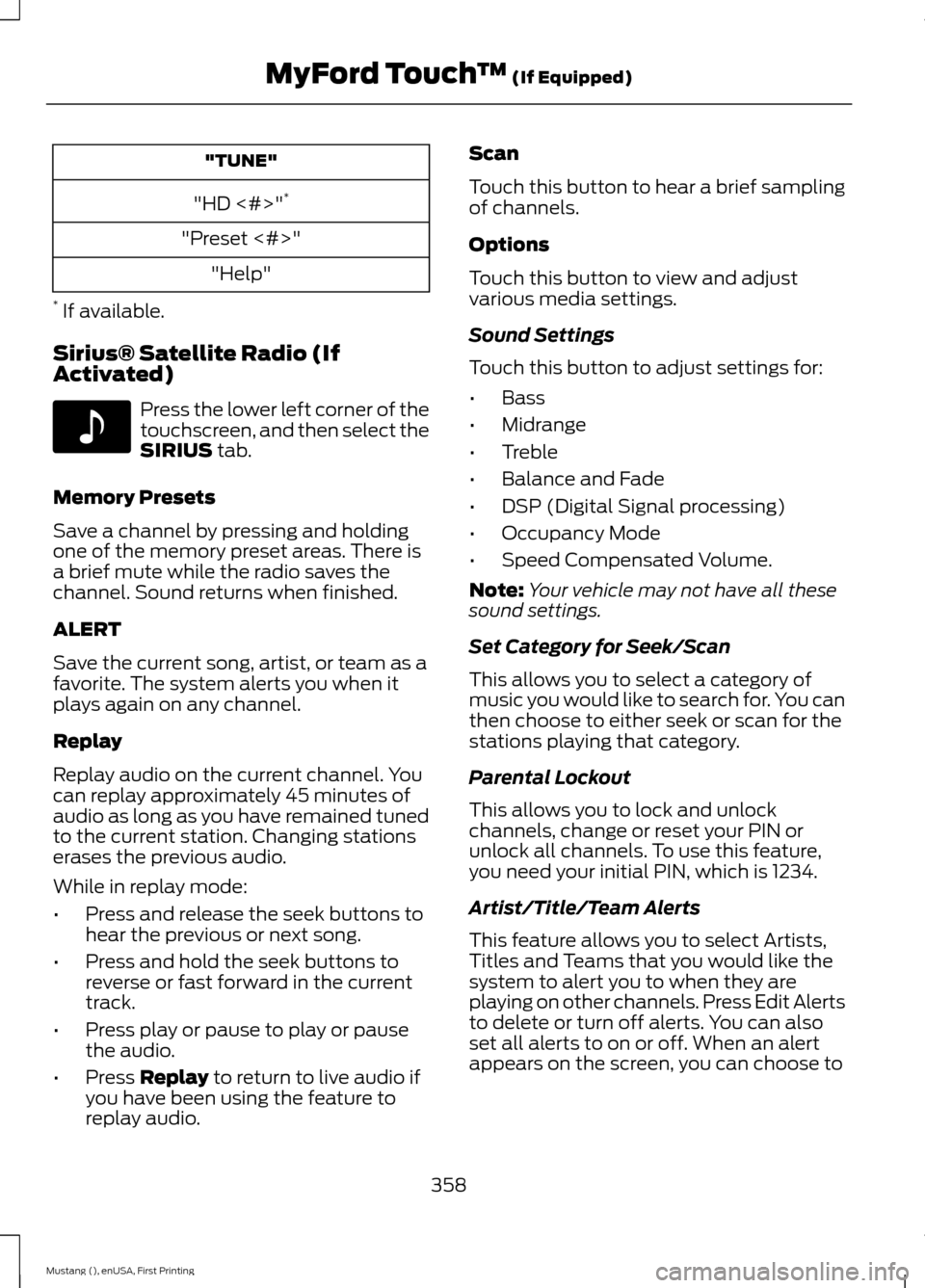
"TUNE"
"HD <#>" *
"Preset <#>" "Help"
* If available.
Sirius® Satellite Radio (If
Activated) Press the lower left corner of the
touchscreen, and then select the
SIRIUS tab.
Memory Presets
Save a channel by pressing and holding
one of the memory preset areas. There is
a brief mute while the radio saves the
channel. Sound returns when finished.
ALERT
Save the current song, artist, or team as a
favorite. The system alerts you when it
plays again on any channel.
Replay
Replay audio on the current channel. You
can replay approximately 45 minutes of
audio as long as you have remained tuned
to the current station. Changing stations
erases the previous audio.
While in replay mode:
• Press and release the seek buttons to
hear the previous or next song.
• Press and hold the seek buttons to
reverse or fast forward in the current
track.
• Press play or pause to play or pause
the audio.
• Press
Replay to return to live audio if
you have been using the feature to
replay audio. Scan
Touch this button to hear a brief sampling
of channels.
Options
Touch this button to view and adjust
various media settings.
Sound Settings
Touch this button to adjust settings for:
•
Bass
• Midrange
• Treble
• Balance and Fade
• DSP (Digital Signal processing)
• Occupancy Mode
• Speed Compensated Volume.
Note: Your vehicle may not have all these
sound settings.
Set Category for Seek/Scan
This allows you to select a category of
music you would like to search for. You can
then choose to either seek or scan for the
stations playing that category.
Parental Lockout
This allows you to lock and unlock
channels, change or reset your PIN or
unlock all channels. To use this feature,
you need your initial PIN, which is 1234.
Artist/Title/Team Alerts
This feature allows you to select Artists,
Titles and Teams that you would like the
system to alert you to when they are
playing on other channels. Press Edit Alerts
to delete or turn off alerts. You can also
set all alerts to on or off. When an alert
appears on the screen, you can choose to
358
Mustang (), enUSA, First Printing MyFord Touch
™
(If Equipped)E142611
Page 363 of 441
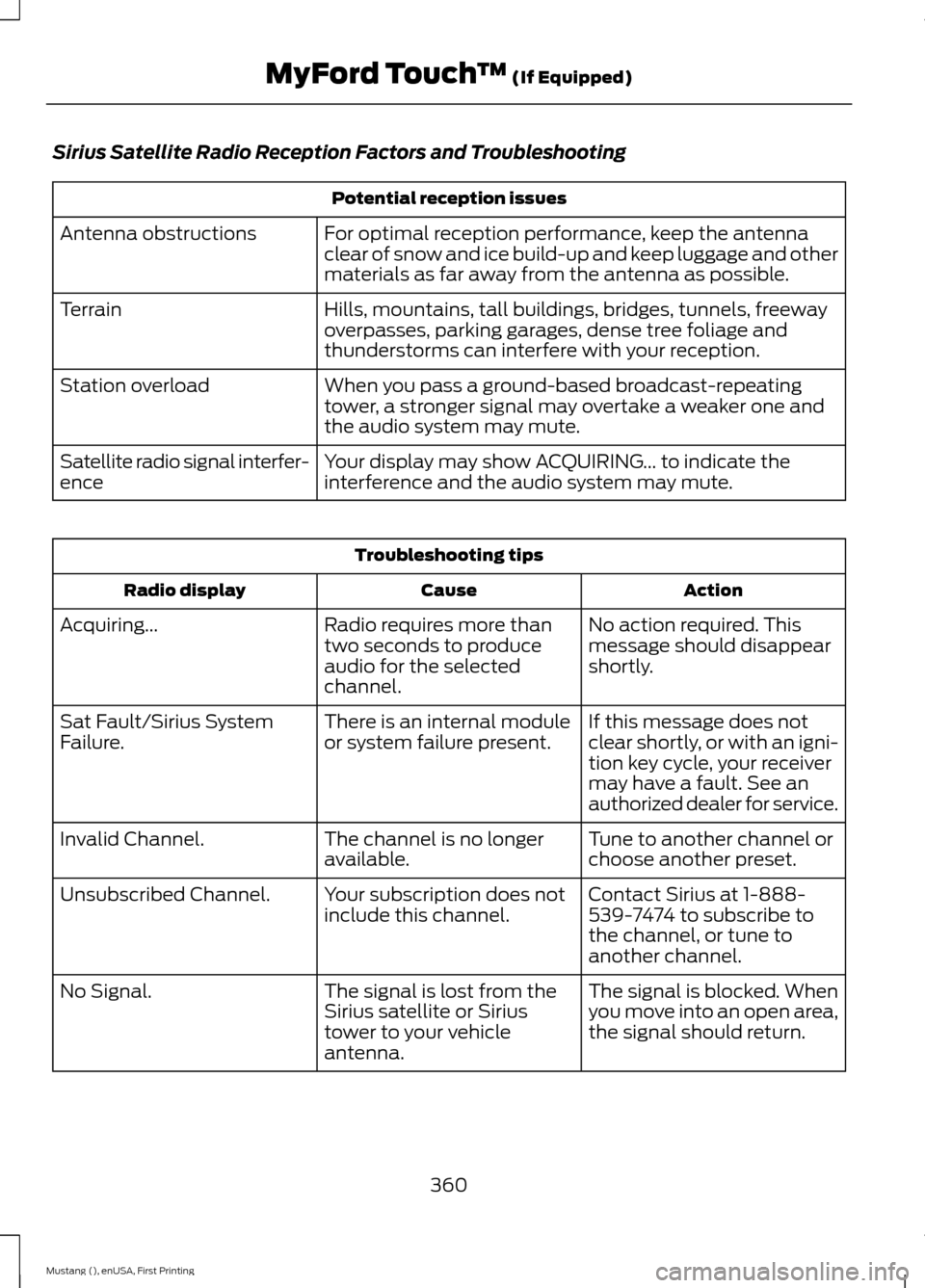
Sirius Satellite Radio Reception Factors and Troubleshooting
Potential reception issues
For optimal reception performance, keep the antenna
clear of snow and ice build-up and keep luggage and other
materials as far away from the antenna as possible.
Antenna obstructions
Hills, mountains, tall buildings, bridges, tunnels, freeway
overpasses, parking garages, dense tree foliage and
thunderstorms can interfere with your reception.
Terrain
When you pass a ground-based broadcast-repeating
tower, a stronger signal may overtake a weaker one and
the audio system may mute.
Station overload
Your display may show ACQUIRING... to indicate the
interference and the audio system may mute.
Satellite radio signal interfer-
ence Troubleshooting tips
Action
Cause
Radio display
No action required. This
message should disappear
shortly.
Radio requires more than
two seconds to produce
audio for the selected
channel.
Acquiring...
If this message does not
clear shortly, or with an igni-
tion key cycle, your receiver
may have a fault. See an
authorized dealer for service.
There is an internal module
or system failure present.
Sat Fault/Sirius System
Failure.
Tune to another channel or
choose another preset.
The channel is no longer
available.
Invalid Channel.
Contact Sirius at 1-888-
539-7474 to subscribe to
the channel, or tune to
another channel.
Your subscription does not
include this channel.
Unsubscribed Channel.
The signal is blocked. When
you move into an open area,
the signal should return.
The signal is lost from the
Sirius satellite or Sirius
tower to your vehicle
antenna.
No Signal.
360
Mustang (), enUSA, First Printing MyFord Touch
™ (If Equipped)
Page 365 of 441
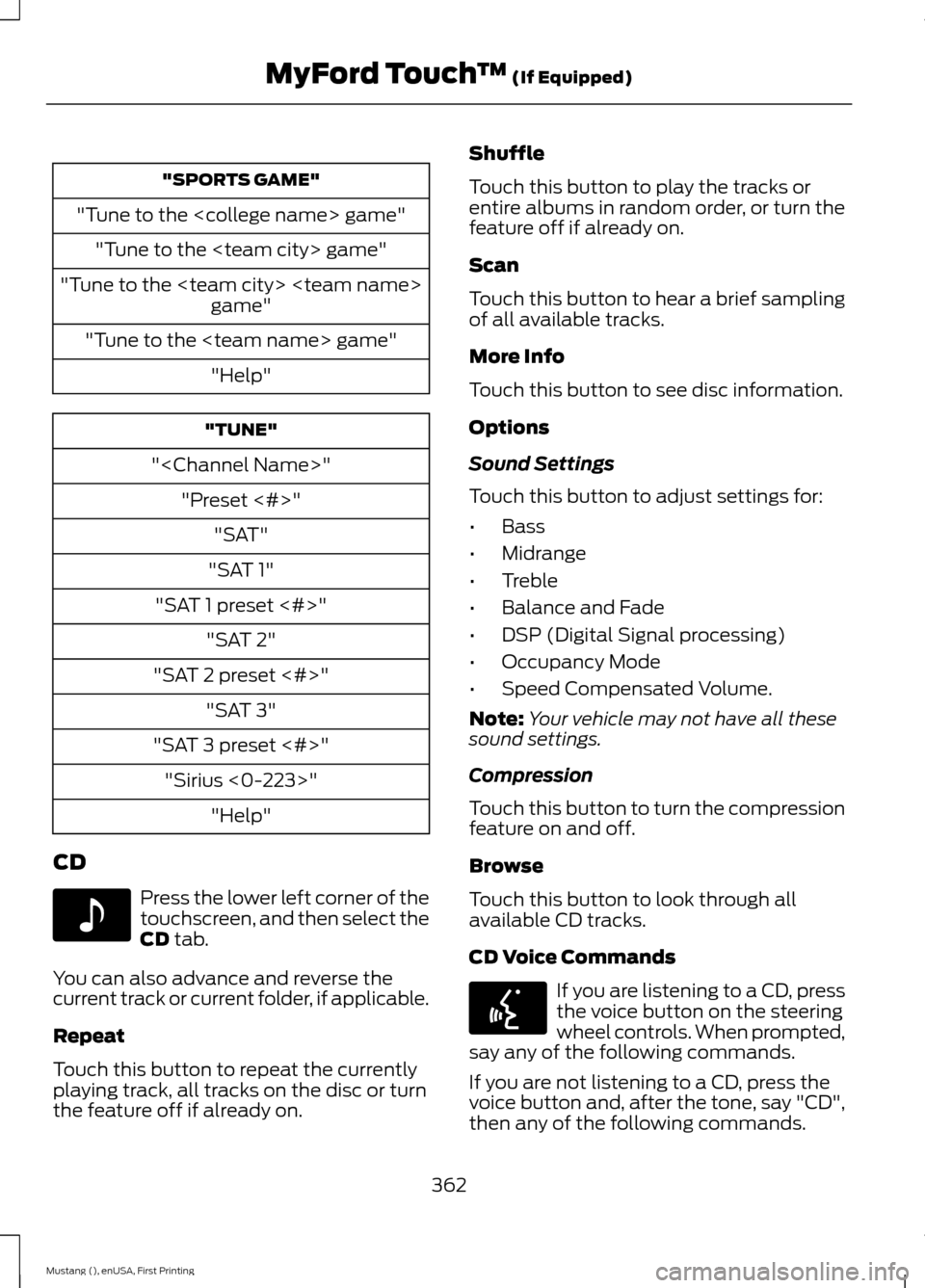
"SPORTS GAME"
"Tune to the
"Tune to the
"Tune to the
"
"SAT 1"
"SAT 1 preset <#>" "SAT 2"
"SAT 2 preset <#>" "SAT 3"
"SAT 3 preset <#>" "Sirius <0-223>" "Help"
CD Press the lower left corner of the
touchscreen, and then select the
CD tab.
You can also advance and reverse the
current track or current folder, if applicable.
Repeat
Touch this button to repeat the currently
playing track, all tracks on the disc or turn
the feature off if already on. Shuffle
Touch this button to play the tracks or
entire albums in random order, or turn the
feature off if already on.
Scan
Touch this button to hear a brief sampling
of all available tracks.
More Info
Touch this button to see disc information.
Options
Sound Settings
Touch this button to adjust settings for:
•
Bass
• Midrange
• Treble
• Balance and Fade
• DSP (Digital Signal processing)
• Occupancy Mode
• Speed Compensated Volume.
Note: Your vehicle may not have all these
sound settings.
Compression
Touch this button to turn the compression
feature on and off.
Browse
Touch this button to look through all
available CD tracks.
CD Voice Commands If you are listening to a CD, press
the voice button on the steering
wheel controls. When prompted,
say any of the following commands.
If you are not listening to a CD, press the
voice button and, after the tone, say "CD",
then any of the following commands.
362
Mustang (), enUSA, First Printing MyFord Touch
™
(If Equipped)E142611 E142599
Page 395 of 441
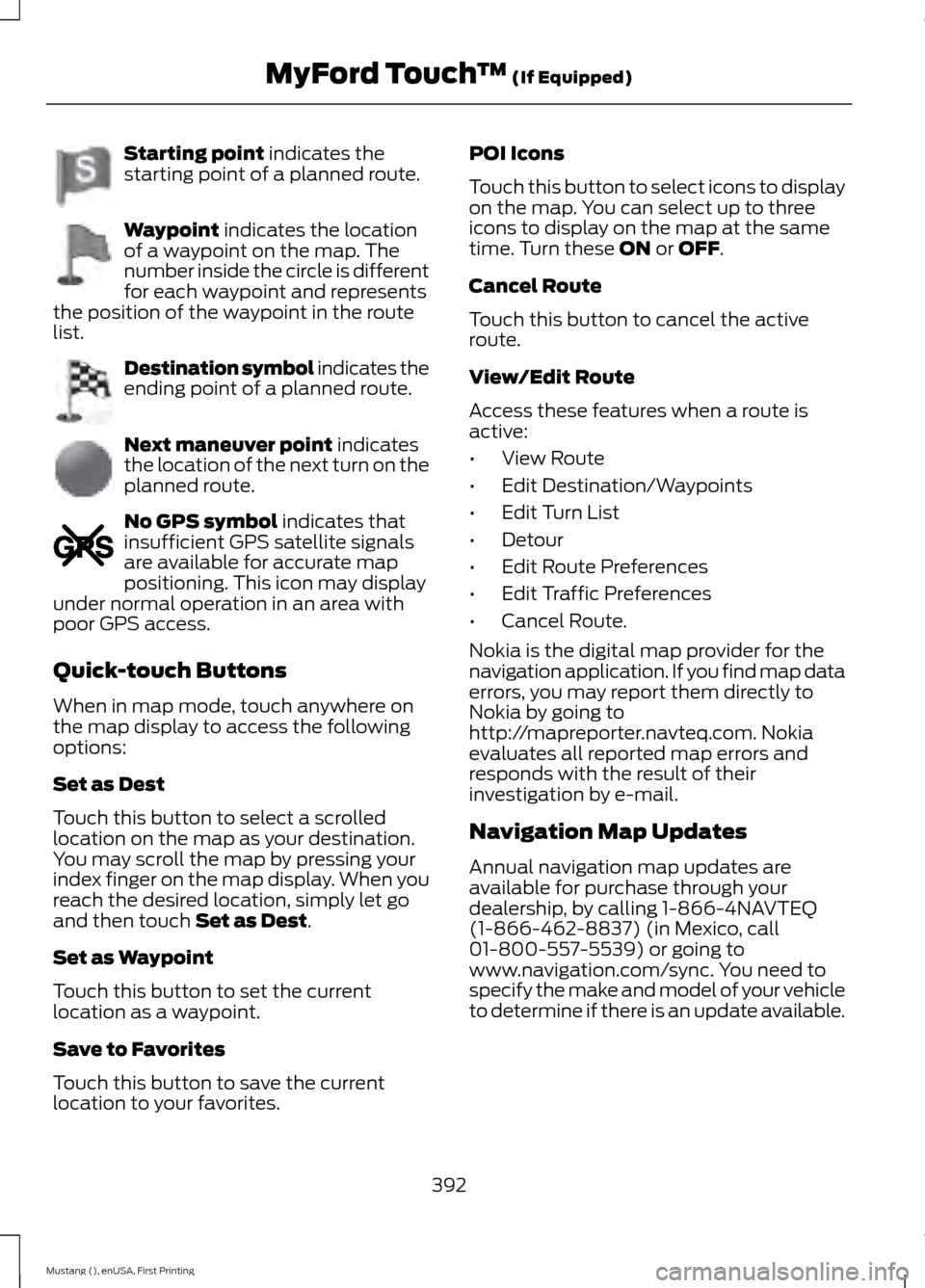
Starting point indicates the
starting point of a planned route. Waypoint
indicates the location
of a waypoint on the map. The
number inside the circle is different
for each waypoint and represents
the position of the waypoint in the route
list. Destination symbol indicates the
ending point of a planned route.
Next maneuver point
indicates
the location of the next turn on the
planned route. No GPS symbol
indicates that
insufficient GPS satellite signals
are available for accurate map
positioning. This icon may display
under normal operation in an area with
poor GPS access.
Quick-touch Buttons
When in map mode, touch anywhere on
the map display to access the following
options:
Set as Dest
Touch this button to select a scrolled
location on the map as your destination.
You may scroll the map by pressing your
index finger on the map display. When you
reach the desired location, simply let go
and then touch
Set as Dest.
Set as Waypoint
Touch this button to set the current
location as a waypoint.
Save to Favorites
Touch this button to save the current
location to your favorites. POI Icons
Touch this button to select icons to display
on the map. You can select up to three
icons to display on the map at the same
time. Turn these
ON or OFF.
Cancel Route
Touch this button to cancel the active
route.
View/Edit Route
Access these features when a route is
active:
• View Route
• Edit Destination/Waypoints
• Edit Turn List
• Detour
• Edit Route Preferences
• Edit Traffic Preferences
• Cancel Route.
Nokia is the digital map provider for the
navigation application. If you find map data
errors, you may report them directly to
Nokia by going to
http://mapreporter.navteq.com. Nokia
evaluates all reported map errors and
responds with the result of their
investigation by e-mail.
Navigation Map Updates
Annual navigation map updates are
available for purchase through your
dealership, by calling 1-866-4NAVTEQ
(1-866-462-8837) (in Mexico, call
01-800-557-5539) or going to
www.navigation.com/sync. You need to
specify the make and model of your vehicle
to determine if there is an update available.
392
Mustang (), enUSA, First Printing MyFord Touch
™
(If Equipped)E142651 E142652 E142653 E142654 E142655
Page 405 of 441
WARNING
Operating certain parts of this
system while driving can distract
your attention away from the road,
and possibly cause an accident or other
serious consequences. Do not change
system settings or enter data non-verbally
(using your hands) while driving. Stop the
vehicle in a safe and legal manner before
attempting these operations. This is
important since while setting up or
changing some functions you might be
required to distract your attention away
from the road and remove your hands from
the wheel. General Operation
Voice Command Control: Functions
within the Windows Automotive-based
system may be accomplished using only
voice commands. Using voice commands
while driving allows you to operate the
system without removing your hands from
the wheel.
Prolonged Views of Screen:
Do not
access any function requiring a prolonged
view of the screen while you are driving.
Pull over in a safe and legal manner before
attempting to access a function of the
system requiring prolonged attention. Even
occasional short scans to the screen may
be hazardous if your attention has been
diverted away from your driving task at a
critical time.
Volume Setting: Do not raise the volume
excessively. Keep the volume at a level
where you can still hear outside traffic and
emergency signals while driving. Driving
while unable to hear these sounds could
cause an accident. Use of Speech Recognition Functions:
Speech recognition software is inherently
a statistical process which is subject to
errors. It is your responsibility to monitor
any speech recognition functions included
in the system and address any errors.
Navigation Features:
Any navigation
features included in the system are
intended to provide turn by turn
instructions to get you to a desired
destination. Please make certain all
persons using this system carefully read
and follow instructions and safety
information fully.
Distraction Hazard:
Any navigation
features may require manual (non-verbal)
setup. Attempting to perform such set-up
or insert data while driving can seriously
distract your attention and could cause an
accident or other serious consequences.
Stop the vehicle in a safe and legal manner
before attempting these operations.
Let Your Judgment Prevail:
Any
navigation features are provided only as
an aid. Make your driving decisions based
on your observations of local conditions
and existing traffic regulations. Any such
feature is not a substitute for your personal
judgment. Any route suggestions made by
this system should never replace any local
traffic regulations or your personal
judgment or knowledge of safe driving
practices.
Route Safety:
Do not follow the route
suggestions if doing so would result in an
unsafe or illegal maneuver, if you would be
placed in an unsafe situation, or if you
would be directed into an area that you
consider unsafe. The driver is ultimately
responsible for the safe operation of the
vehicle and therefore, must evaluate
whether it is safe to follow the suggested
directions.
402
Mustang (), enUSA, First Printing Appendices