change time FORD MUSTANG 2015 6.G Owners Manual
[x] Cancel search | Manufacturer: FORD, Model Year: 2015, Model line: MUSTANG, Model: FORD MUSTANG 2015 6.GPages: 441, PDF Size: 6.98 MB
Page 2 of 441

The information contained in this publication was correct at the time of going to print. In the interest of
continuous development, we reserve the right to change specifications, design or equipment at any time
without notice or obligation. No part of this publication may be reproduced, transmitted, stored in a
retrieval system or translated into any language in any form by any means without our written permission.
Errors and omissions excepted.
© Ford Motor Company 2014
All rights reserved.
Part Number: 20140625163230
Page 53 of 441
PRINCIPLE OF OPERATION
MyKey allows you to program keys with
restricted driving modes to promote good
driving habits. All but one of the keys
programmed to the vehicle can be
activated with these restricted modes.
Any keys that have not been programmed
are referred to as administrator keys or
admin keys. These can be used to:
•
Create a MyKey.
• Program configurable MyKey settings.
• Clear all MyKey features.
When you have programmed a MyKey, you
can access the following information using
the information display:
• How many admin keys and MyKeys are
programmed to your vehicle.
• The total distance your vehicle has
traveled using a MyKey.
Note: All MyKeys are programmed to the
same settings. You cannot program them
individually.
Note: For vehicles with intelligent access
with push-button start, when both a MyKey
and an admin intelligent access key fob are
present, the admin fob will be recognized
by the vehicle while switching the ignition
on to start the vehicle.
Non-configurable Settings
The following settings cannot be changed
by an admin key user:
• Belt-Minder. You cannot disable this
feature. The audio system will mute
when the front seat occupants’ safety
belts are not fastened.
• Early low fuel. The low-fuel warning
activates earlier, giving the MyKey user
more time to refuel. •
Driver assist features, if equipped on
your vehicle, are forced on: parking aid,
blind spot information system (BLIS)
with cross traffic alert, lane departure
warning and forward collision warning
system.
• Track Mode, if your vehicle is equipped
with this feature, will be disabled.
Configurable Settings
With an admin key, you can configure
certain MyKey settings when you first
create a MyKey and before you recycle the
key or restart the vehicle. You can also
change the settings afterward with an
admin key.
• A vehicle speed limit can be set.
Warnings will be shown in the display
followed by an audible tone when your
vehicle reaches the set speed. You
cannot override the set speed by fully
depressing the accelerator pedal or by
setting cruise control.
• Vehicle speed minders of 45 mph
(75 km/h), 55 mph (90 km/h) or
65 mph (105 km/h). Once you select
a speed, it will be shown in the display,
followed by an audible tone when the
preselected vehicle speed is exceeded.
• Audio system maximum volume of
45%. A message will be shown in the
display when you attempt to exceed
the limited volume. Also, the
speed-sensitive or compensated
automatic volume control will be
disabled.
• Always on setting. When this is
selected, you will not be able to turn
off Advance Trac, Emergency Assist
and Do Not Disturb (if your vehicle is
equipped with these features), and
Sport Mode will not be available to
MyKey drivers.
50
Mustang (), enUSA, First Printing MyKey
™
Page 54 of 441
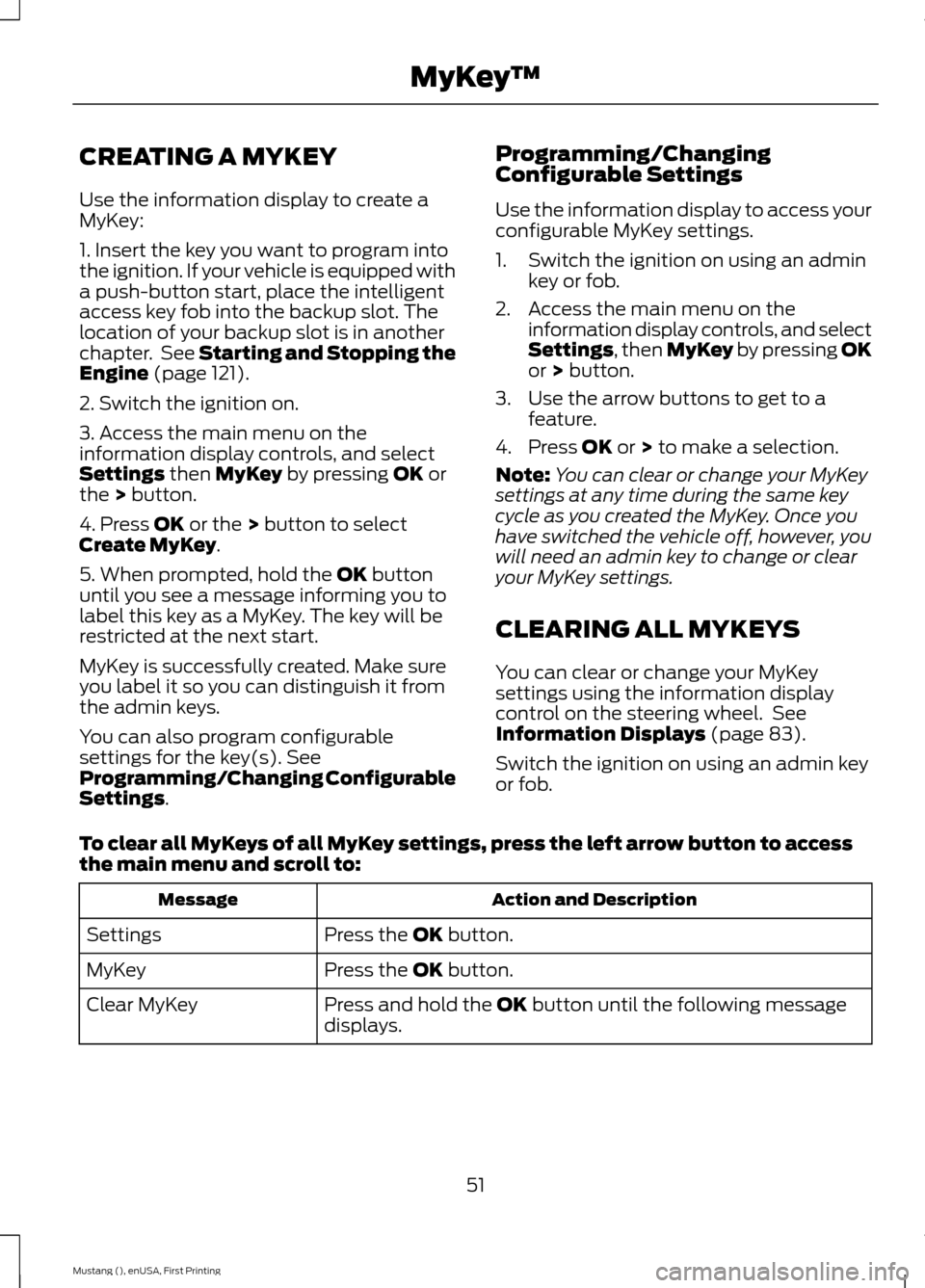
CREATING A MYKEY
Use the information display to create a
MyKey:
1. Insert the key you want to program into
the ignition. If your vehicle is equipped with
a push-button start, place the intelligent
access key fob into the backup slot. The
location of your backup slot is in another
chapter. See Starting and Stopping the
Engine (page 121).
2. Switch the ignition on.
3. Access the main menu on the
information display controls, and select
Settings
then MyKey by pressing OK or
the > button.
4. Press
OK or the > button to select
Create MyKey.
5. When prompted, hold the
OK button
until you see a message informing you to
label this key as a MyKey. The key will be
restricted at the next start.
MyKey is successfully created. Make sure
you label it so you can distinguish it from
the admin keys.
You can also program configurable
settings for the key(s). See
Programming/Changing Configurable
Settings
. Programming/Changing
Configurable Settings
Use the information display to access your
configurable MyKey settings.
1. Switch the ignition on using an admin
key or fob.
2. Access the main menu on the information display controls, and select
Settings
, then MyKey by pressing OK
or > button.
3. Use the arrow buttons to get to a feature.
4. Press
OK or > to make a selection.
Note: You can clear or change your MyKey
settings at any time during the same key
cycle as you created the MyKey. Once you
have switched the vehicle off, however, you
will need an admin key to change or clear
your MyKey settings.
CLEARING ALL MYKEYS
You can clear or change your MyKey
settings using the information display
control on the steering wheel. See
Information Displays
(page 83).
Switch the ignition on using an admin key
or fob.
To clear all MyKeys of all MyKey settings, press the left arrow button to access
the main menu and scroll to: Action and Description
Message
Press the
OK button.
Settings
Press the
OK button.
MyKey
Press and hold the
OK button until the following message
displays.
Clear MyKey
51
Mustang (), enUSA, First Printing MyKey
™
Page 59 of 441
LOCKING AND UNLOCKING
You can use the power door lock control
or the remote control to lock and unlock
your vehicle.
Power Door Locks
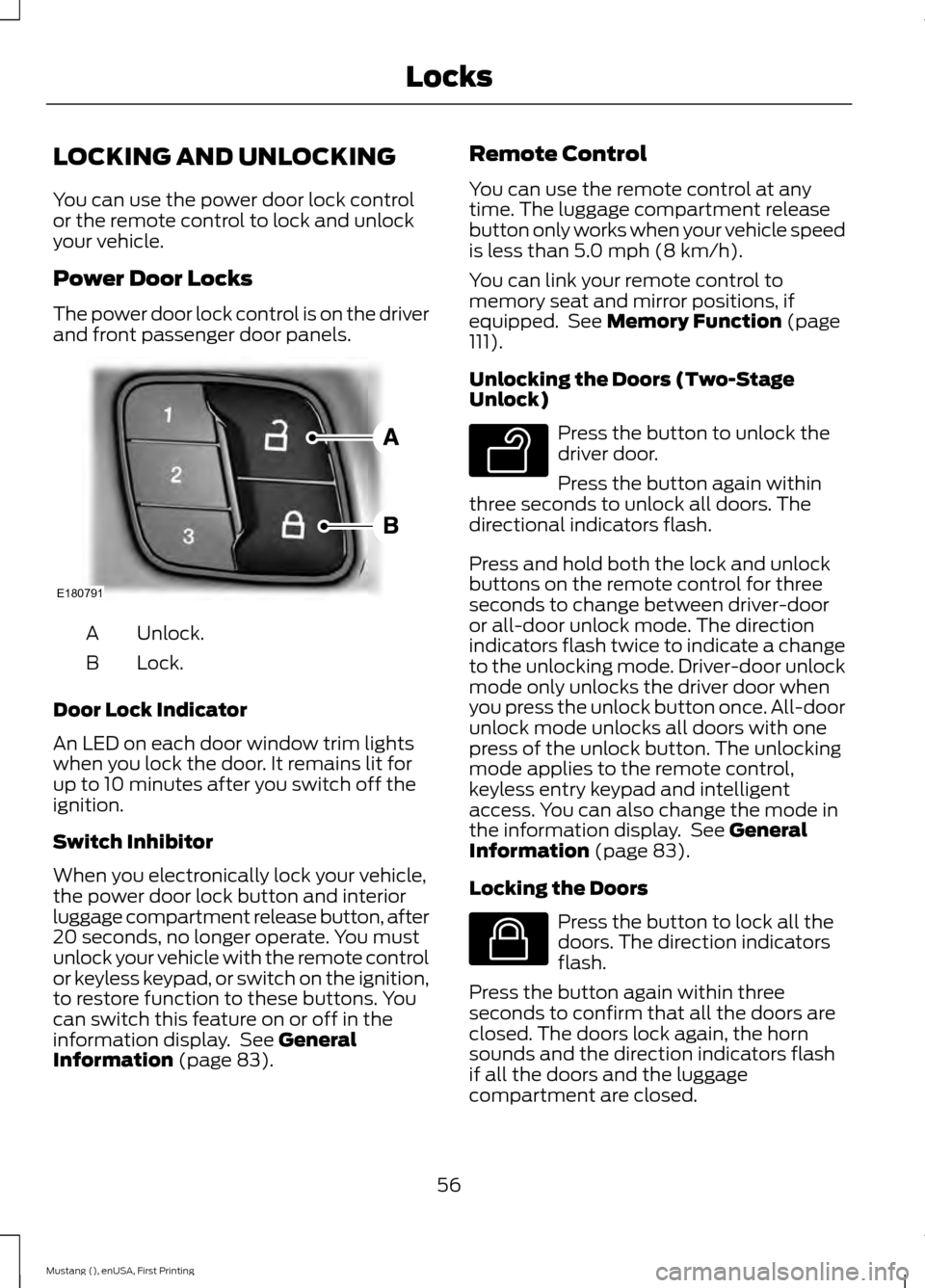
The power door lock control is on the driver
and front passenger door panels.
Unlock.
A
Lock.
B
Door Lock Indicator
An LED on each door window trim lights
when you lock the door. It remains lit for
up to 10 minutes after you switch off the
ignition.
Switch Inhibitor
When you electronically lock your vehicle,
the power door lock button and interior
luggage compartment release button, after
20 seconds, no longer operate. You must
unlock your vehicle with the remote control
or keyless keypad, or switch on the ignition,
to restore function to these buttons. You
can switch this feature on or off in the
information display. See General
Information (page 83). Remote Control
You can use the remote control at any
time. The luggage compartment release
button only works when your vehicle speed
is less than
5.0 mph (8 km/h).
You can link your remote control to
memory seat and mirror positions, if
equipped. See
Memory Function (page
111).
Unlocking the Doors (Two-Stage
Unlock) Press the button to unlock the
driver door.
Press the button again within
three seconds to unlock all doors. The
directional indicators flash.
Press and hold both the lock and unlock
buttons on the remote control for three
seconds to change between driver-door
or all-door unlock mode. The direction
indicators flash twice to indicate a change
to the unlocking mode. Driver-door unlock
mode only unlocks the driver door when
you press the unlock button once. All-door
unlock mode unlocks all doors with one
press of the unlock button. The unlocking
mode applies to the remote control,
keyless entry keypad and intelligent
access. You can also change the mode in
the information display. See
General
Information (page 83).
Locking the Doors Press the button to lock all the
doors. The direction indicators
flash.
Press the button again within three
seconds to confirm that all the doors are
closed. The doors lock again, the horn
sounds and the direction indicators flash
if all the doors and the luggage
compartment are closed.
56
Mustang (), enUSA, First Printing LocksE180791 E138629 E138623
Page 74 of 441
FRONT FOG LAMPS (If Equipped)
Press the control to switch the fog lamps
on or off.
You can switch the fog lamps on when the
lighting control is in any position except
Off and the high beams are not on.
DIRECTION INDICATORS
Push the lever up or down to use the
direction indicators.
Note:
Tap the lever up or down to make the
direction indicators flash three times to
indicate a lane change. WELCOME LIGHTING (If Equipped)
Pony Projection Lights
The pony projection lights are on the
bottom of the exterior mirror housings.
They will project an image onto the ground
a short distance from your vehicle when
welcome lighting or lighted entry turns on.
Note: Moisture, frost and ice build-up or
other types of contamination on the surface
of the light lens can cause non-permanent
distortion or reduced brightness of the
image. Do not use abrasive materials to
clean the lens.
INTERIOR LAMPS
The lamps turn on when:
• You open any door.
• You press a remote control button.
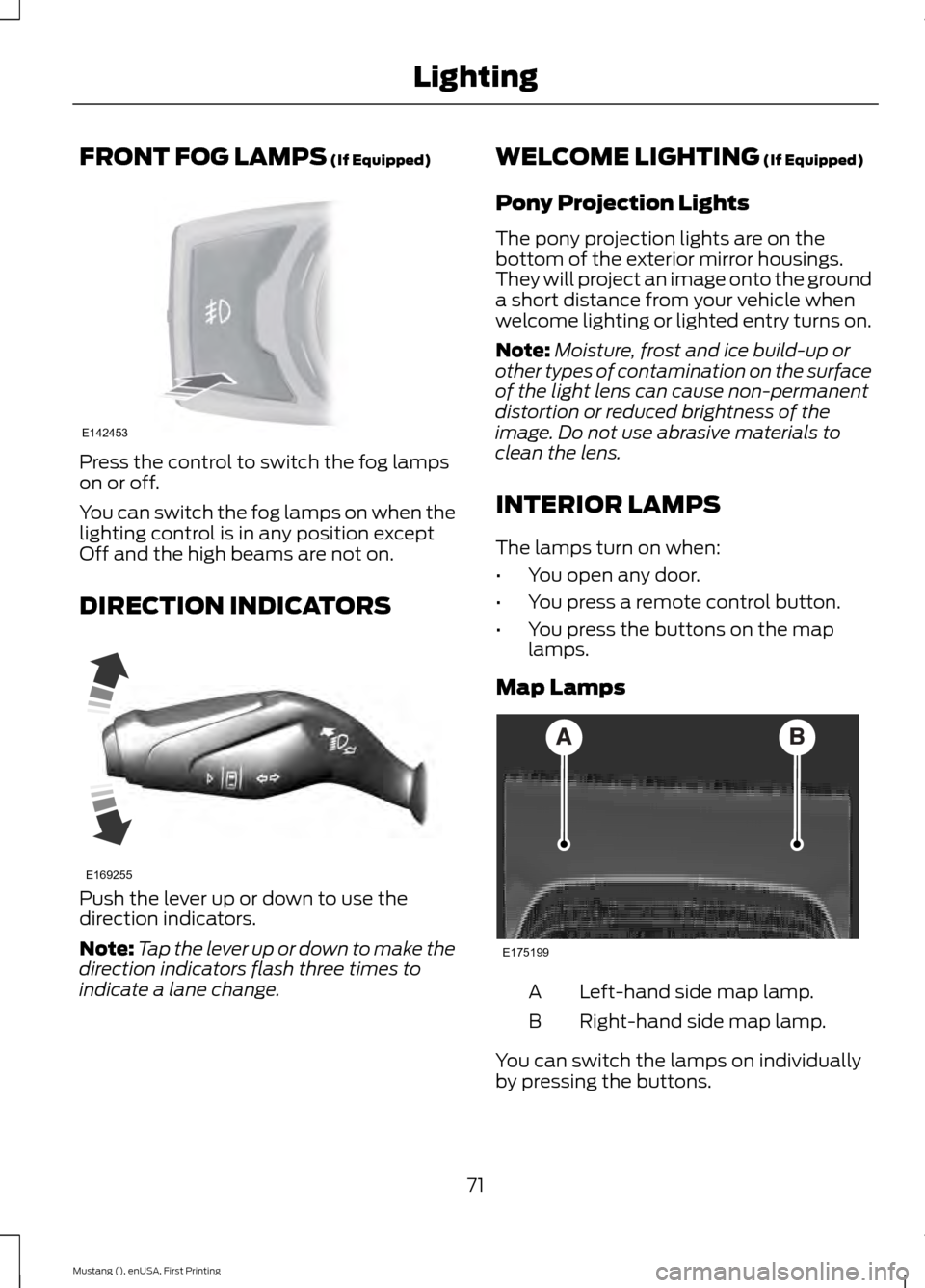
• You press the buttons on the map
lamps.
Map Lamps Left-hand side map lamp.
A
Right-hand side map lamp.
B
You can switch the lamps on individually
by pressing the buttons.
71
Mustang (), enUSA, First Printing LightingE142453 E169255 E175199
Page 119 of 441
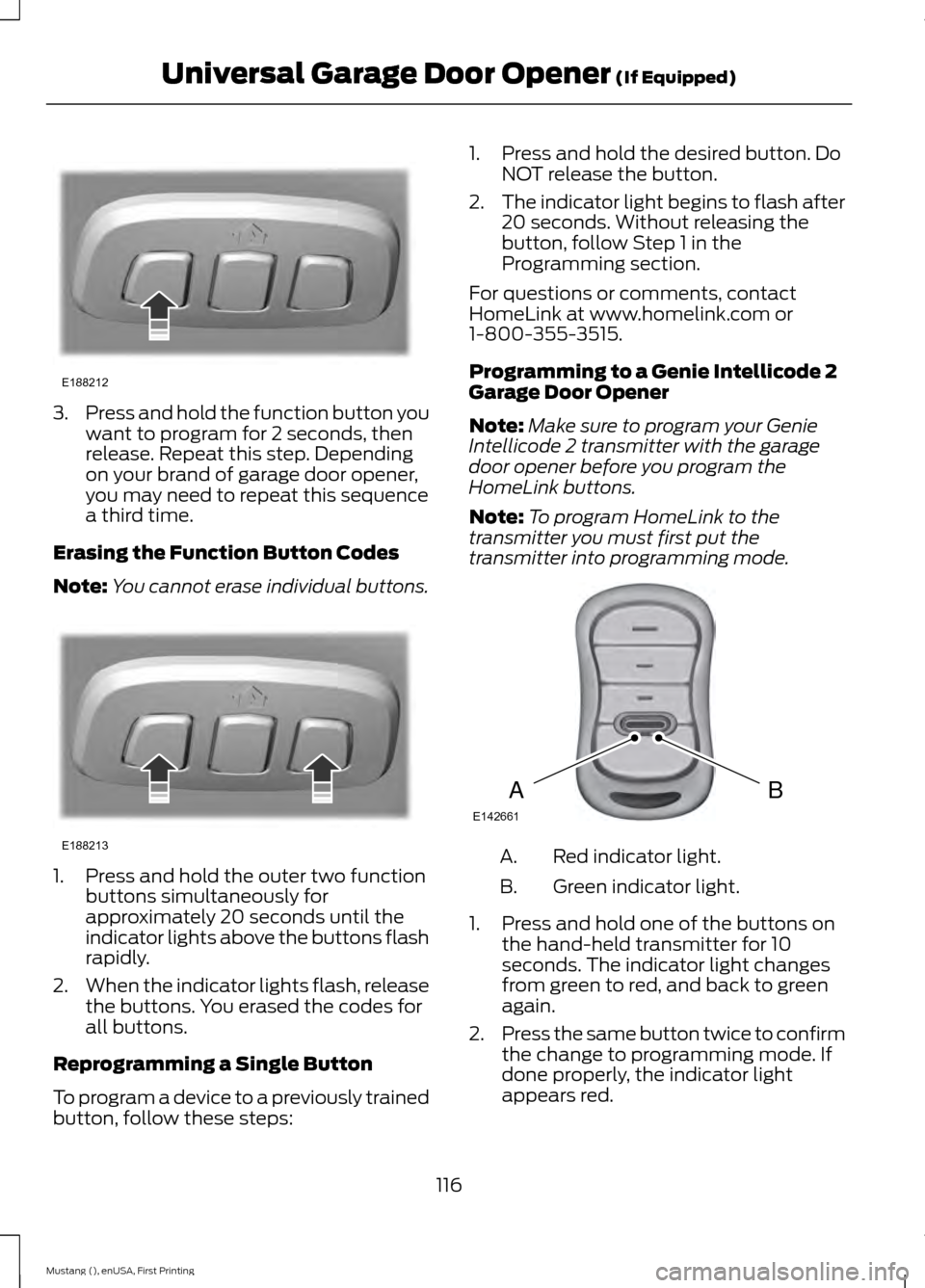
3.
Press and hold the function button you
want to program for 2 seconds, then
release. Repeat this step. Depending
on your brand of garage door opener,
you may need to repeat this sequence
a third time.
Erasing the Function Button Codes
Note: You cannot erase individual buttons.1. Press and hold the outer two function
buttons simultaneously for
approximately 20 seconds until the
indicator lights above the buttons flash
rapidly.
2. When the indicator lights flash, release
the buttons. You erased the codes for
all buttons.
Reprogramming a Single Button
To program a device to a previously trained
button, follow these steps: 1. Press and hold the desired button. Do
NOT release the button.
2. The indicator light begins to flash after
20 seconds. Without releasing the
button, follow Step 1 in the
Programming section.
For questions or comments, contact
HomeLink at www.homelink.com or
1-800-355-3515.
Programming to a Genie Intellicode 2
Garage Door Opener
Note: Make sure to program your Genie
Intellicode 2 transmitter with the garage
door opener before you program the
HomeLink buttons.
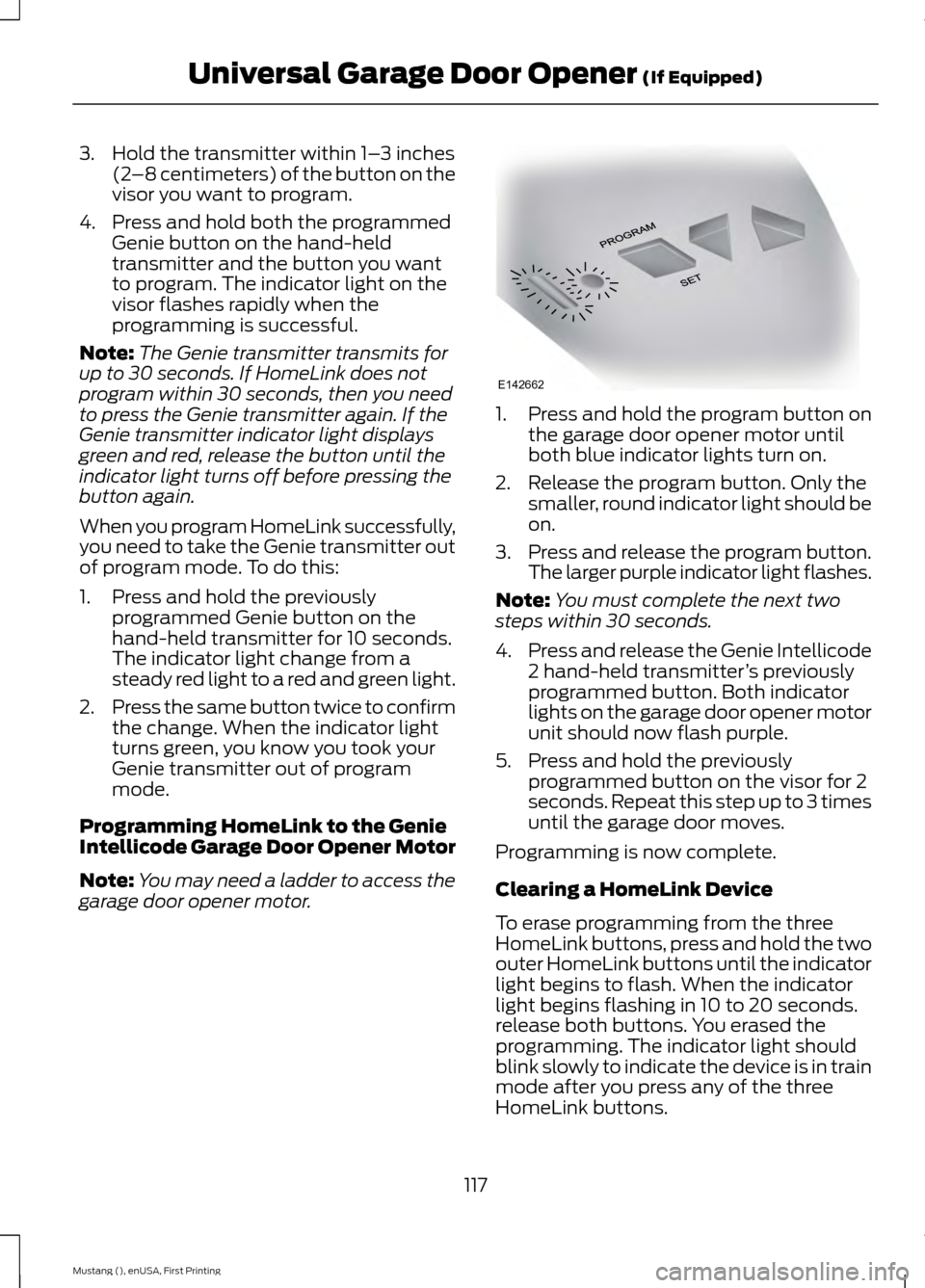
Note: To program HomeLink to the
transmitter you must first put the
transmitter into programming mode. Red indicator light.
A.
Green indicator light.
B.
1. Press and hold one of the buttons on the hand-held transmitter for 10
seconds. The indicator light changes
from green to red, and back to green
again.
2. Press the same button twice to confirm
the change to programming mode. If
done properly, the indicator light
appears red.
116
Mustang (), enUSA, First Printing Universal Garage Door Opener (If Equipped)E188212 E188213 BAE142661
Page 120 of 441
3. Hold the transmitter within 1–
3 inches
(2 –8 centimeters) of the button on the
visor you want to program.
4. Press and hold both the programmed Genie button on the hand-held
transmitter and the button you want
to program. The indicator light on the
visor flashes rapidly when the
programming is successful.
Note: The Genie transmitter transmits for
up to 30 seconds. If HomeLink does not
program within 30 seconds, then you need
to press the Genie transmitter again. If the
Genie transmitter indicator light displays
green and red, release the button until the
indicator light turns off before pressing the
button again.
When you program HomeLink successfully,
you need to take the Genie transmitter out
of program mode. To do this:
1. Press and hold the previously programmed Genie button on the
hand-held transmitter for 10 seconds.
The indicator light change from a
steady red light to a red and green light.
2. Press the same button twice to confirm
the change. When the indicator light
turns green, you know you took your
Genie transmitter out of program
mode.
Programming HomeLink to the Genie
Intellicode Garage Door Opener Motor
Note: You may need a ladder to access the
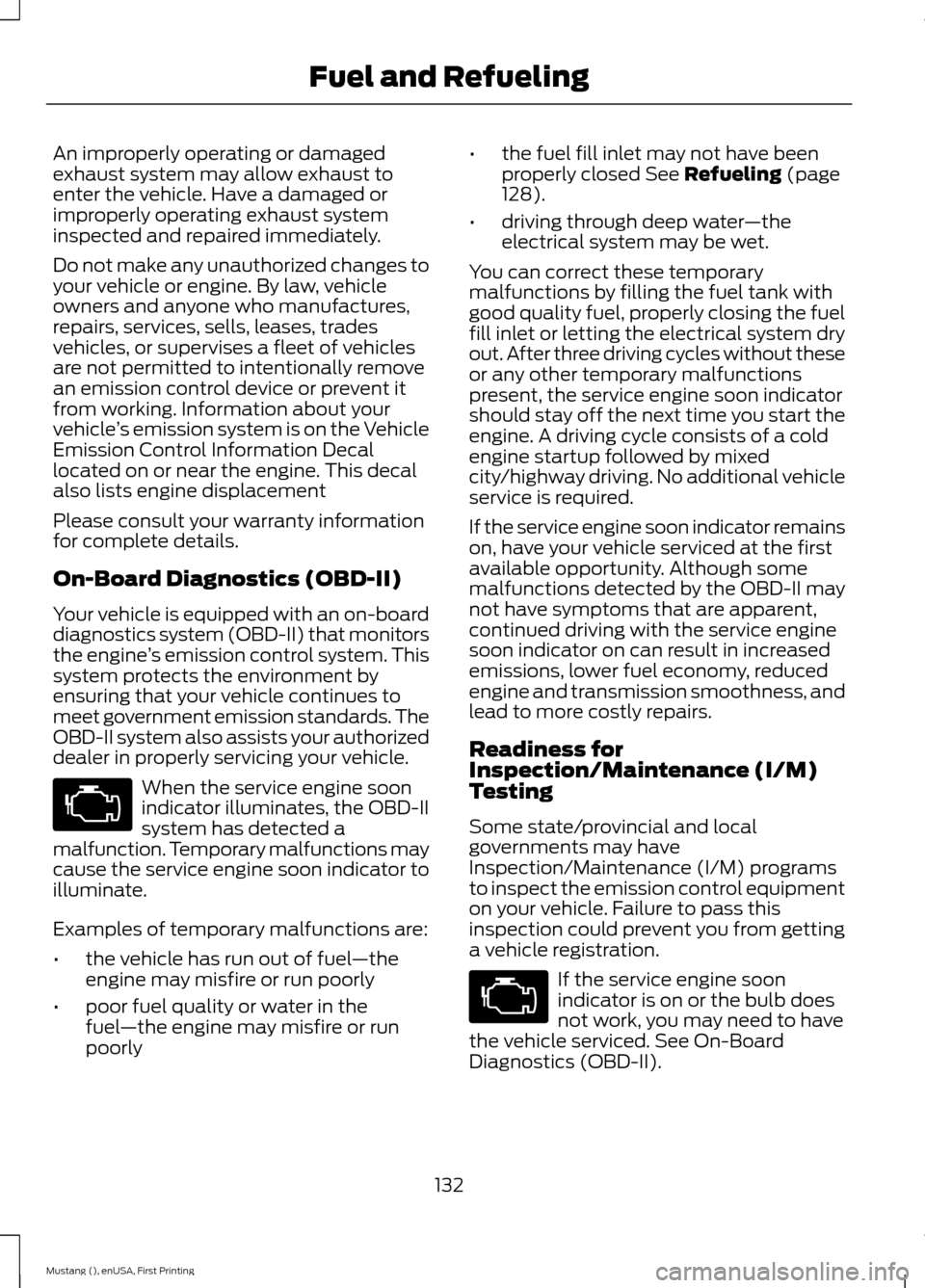
garage door opener motor. 1. Press and hold the program button on
the garage door opener motor until
both blue indicator lights turn on.
2. Release the program button. Only the smaller, round indicator light should be
on.
3. Press and release the program button.
The larger purple indicator light flashes.
Note: You must complete the next two
steps within 30 seconds.
4. Press and release the Genie Intellicode
2 hand-held transmitter ’s previously
programmed button. Both indicator
lights on the garage door opener motor
unit should now flash purple.
5. Press and hold the previously programmed button on the visor for 2
seconds. Repeat this step up to 3 times
until the garage door moves.
Programming is now complete.
Clearing a HomeLink Device
To erase programming from the three
HomeLink buttons, press and hold the two
outer HomeLink buttons until the indicator
light begins to flash. When the indicator
light begins flashing in 10 to 20 seconds.
release both buttons. You erased the
programming. The indicator light should
blink slowly to indicate the device is in train
mode after you press any of the three
HomeLink buttons.
117
Mustang (), enUSA, First Printing Universal Garage Door Opener (If Equipped)E142662
Page 135 of 441
An improperly operating or damaged
exhaust system may allow exhaust to
enter the vehicle. Have a damaged or
improperly operating exhaust system
inspected and repaired immediately.
Do not make any unauthorized changes to
your vehicle or engine. By law, vehicle
owners and anyone who manufactures,
repairs, services, sells, leases, trades
vehicles, or supervises a fleet of vehicles
are not permitted to intentionally remove
an emission control device or prevent it
from working. Information about your
vehicle
’s emission system is on the Vehicle
Emission Control Information Decal
located on or near the engine. This decal
also lists engine displacement
Please consult your warranty information
for complete details.
On-Board Diagnostics (OBD-II)
Your vehicle is equipped with an on-board
diagnostics system (OBD-II) that monitors
the engine ’s emission control system. This
system protects the environment by
ensuring that your vehicle continues to
meet government emission standards. The
OBD-II system also assists your authorized
dealer in properly servicing your vehicle. When the service engine soon
indicator illuminates, the OBD-II
system has detected a
malfunction. Temporary malfunctions may
cause the service engine soon indicator to
illuminate.
Examples of temporary malfunctions are:
• the vehicle has run out of fuel —the
engine may misfire or run poorly
• poor fuel quality or water in the
fuel —the engine may misfire or run
poorly •
the fuel fill inlet may not have been
properly closed See Refueling (page
128).
• driving through deep water —the
electrical system may be wet.
You can correct these temporary
malfunctions by filling the fuel tank with
good quality fuel, properly closing the fuel
fill inlet or letting the electrical system dry
out. After three driving cycles without these
or any other temporary malfunctions
present, the service engine soon indicator
should stay off the next time you start the
engine. A driving cycle consists of a cold
engine startup followed by mixed
city/highway driving. No additional vehicle
service is required.
If the service engine soon indicator remains
on, have your vehicle serviced at the first
available opportunity. Although some
malfunctions detected by the OBD-II may
not have symptoms that are apparent,
continued driving with the service engine
soon indicator on can result in increased
emissions, lower fuel economy, reduced
engine and transmission smoothness, and
lead to more costly repairs.
Readiness for
Inspection/Maintenance (I/M)
Testing
Some state/provincial and local
governments may have
Inspection/Maintenance (I/M) programs
to inspect the emission control equipment
on your vehicle. Failure to pass this
inspection could prevent you from getting
a vehicle registration. If the service engine soon
indicator is on or the bulb does
not work, you may need to have
the vehicle serviced. See On-Board
Diagnostics (OBD-II).
132
Mustang (), enUSA, First Printing Fuel and Refueling
Page 159 of 441
Disengaging the System
Press the brake pedal, press CNCL, or
press the clutch pedal (if equipped). The
last set speed displays in grey but will not
erase.
Overriding the System WARNING
Whenever the driver is overriding the
system by pressing the accelerator
pedal, the system will not
automatically apply the brakes to maintain
separation from any vehicle ahead. You can override the set speed and gap
distance by pressing the accelerator pedal.
When you override the system,
the green indicator light
illuminates and the lead vehicle
graphic does not show in the
information display.
The system will resume operation when
you release the accelerator pedal. The
vehicle speed will decrease to the set
speed, or a lower speed if following a
slower vehicle.
Changing the Set Speed
• Accelerate or brake to the desired
speed, then press and release
SET+.
• Press and hold SET+ or SET- until the
desired set speed shows on the
information display. The vehicle speed
will gradually change to the selected
speed.
• Press and release
SET+ or SET-. The
set speed will change in approximately
1 mph (2 km/h) increments.
The system may apply the brakes to slow
the vehicle to the new set speed. The set
speed will display continuously in the
information display while the system is
active. Resuming the Set Speed
Note:
Only use resume if you are aware of
the set speed and intend to return to it.
Press and release
RES. The vehicle will
return to the previously set speed. The set
speed will display continuously in the
information display while the system is
active.
Automatic Cancellation
The system is not functional at vehicle
speeds below 12 mph (20 km/h). An
audible alarm will sound and the
automatic braking releases if the vehicle
drops below this speed. The system will
cancel at low speeds if you switch off
electronic stability control.
Hilly Condition Usage
Note: An audible alarm will sound and the
system will shut down if it is applying brakes
for an extended period of time. This allows
the brakes to cool down. The system will
function normally again when the brakes
have cooled down.
You should select a lower gear position
when the system is active in situations
such as prolonged downhill driving on
steep grades, for example in mountainous
areas. The system needs additional engine
braking in these situations to reduce the
load on the vehicle ’s regular brake system
to prevent them from overheating.
Switching the System Off
Note: The set speed memory erases when
you switch off the system.
Press and release
OFF or turn off the
ignition.
156
Mustang (), enUSA, First Printing Cruise ControlE144529
Page 161 of 441
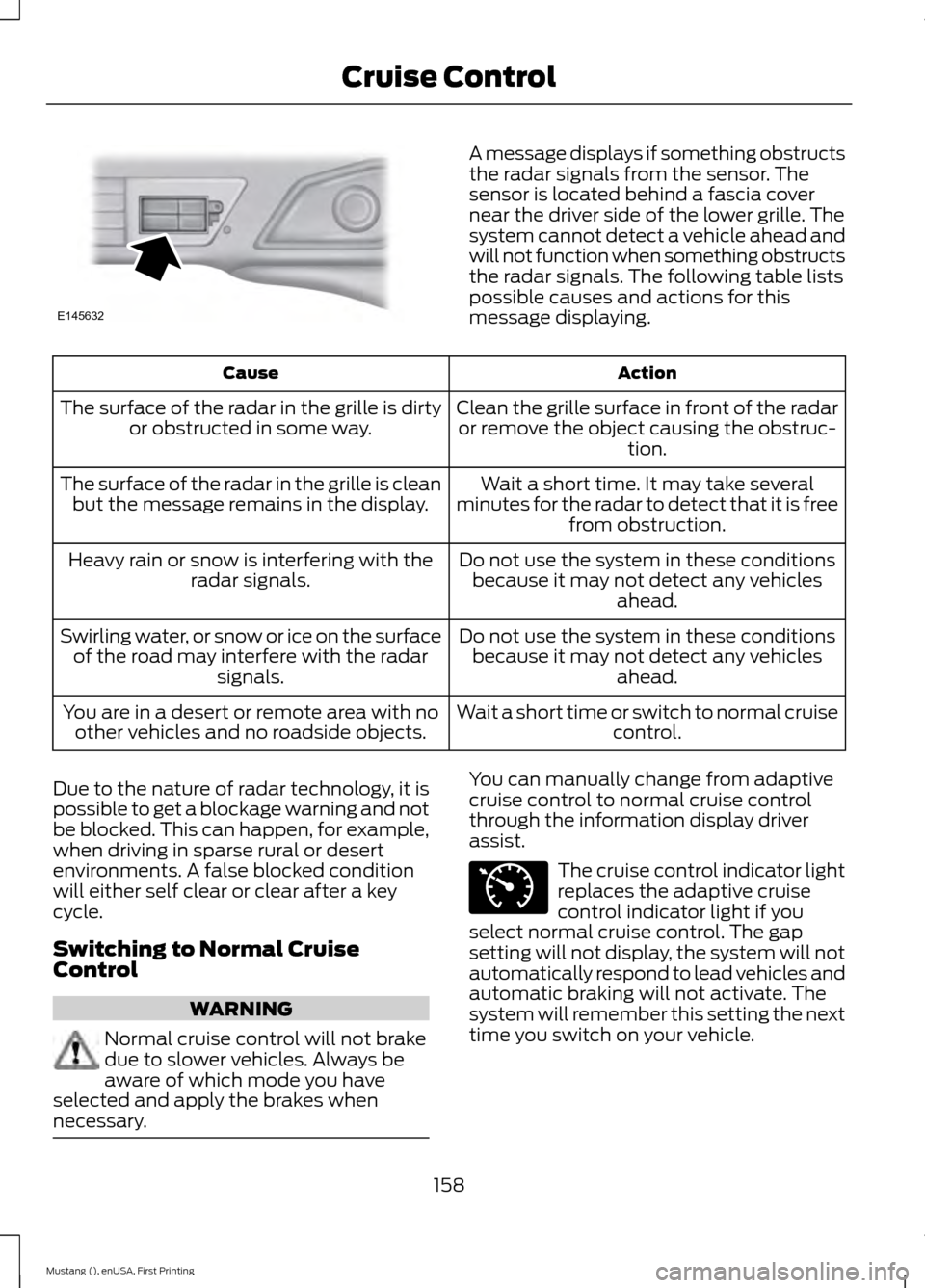
A message displays if something obstructs
the radar signals from the sensor. The
sensor is located behind a fascia cover
near the driver side of the lower grille. The
system cannot detect a vehicle ahead and
will not function when something obstructs
the radar signals. The following table lists
possible causes and actions for this
message displaying.
Action
Cause
Clean the grille surface in front of the radaror remove the object causing the obstruc- tion.
The surface of the radar in the grille is dirty
or obstructed in some way.
Wait a short time. It may take several
minutes for the radar to detect that it is free from obstruction.
The surface of the radar in the grille is clean
but the message remains in the display.
Do not use the system in these conditionsbecause it may not detect any vehicles ahead.
Heavy rain or snow is interfering with the
radar signals.
Do not use the system in these conditionsbecause it may not detect any vehicles ahead.
Swirling water, or snow or ice on the surface
of the road may interfere with the radar signals.
Wait a short time or switch to normal cruisecontrol.
You are in a desert or remote area with no
other vehicles and no roadside objects.
Due to the nature of radar technology, it is
possible to get a blockage warning and not
be blocked. This can happen, for example,
when driving in sparse rural or desert
environments. A false blocked condition
will either self clear or clear after a key
cycle.
Switching to Normal Cruise
Control WARNING
Normal cruise control will not brake
due to slower vehicles. Always be
aware of which mode you have
selected and apply the brakes when
necessary. You can manually change from adaptive
cruise control to normal cruise control
through the information display driver
assist.
The cruise control indicator light
replaces the adaptive cruise
control indicator light if you
select normal cruise control. The gap
setting will not display, the system will not
automatically respond to lead vehicles and
automatic braking will not activate. The
system will remember this setting the next
time you switch on your vehicle.
158
Mustang (), enUSA, First Printing Cruise ControlE145632 E71340