display FORD SUPER DUTY 2023 Owners Manual
[x] Cancel search | Manufacturer: FORD, Model Year: 2023, Model line: SUPER DUTY, Model: FORD SUPER DUTY 2023Pages: 738, PDF Size: 18.49 MB
Page 534 of 738
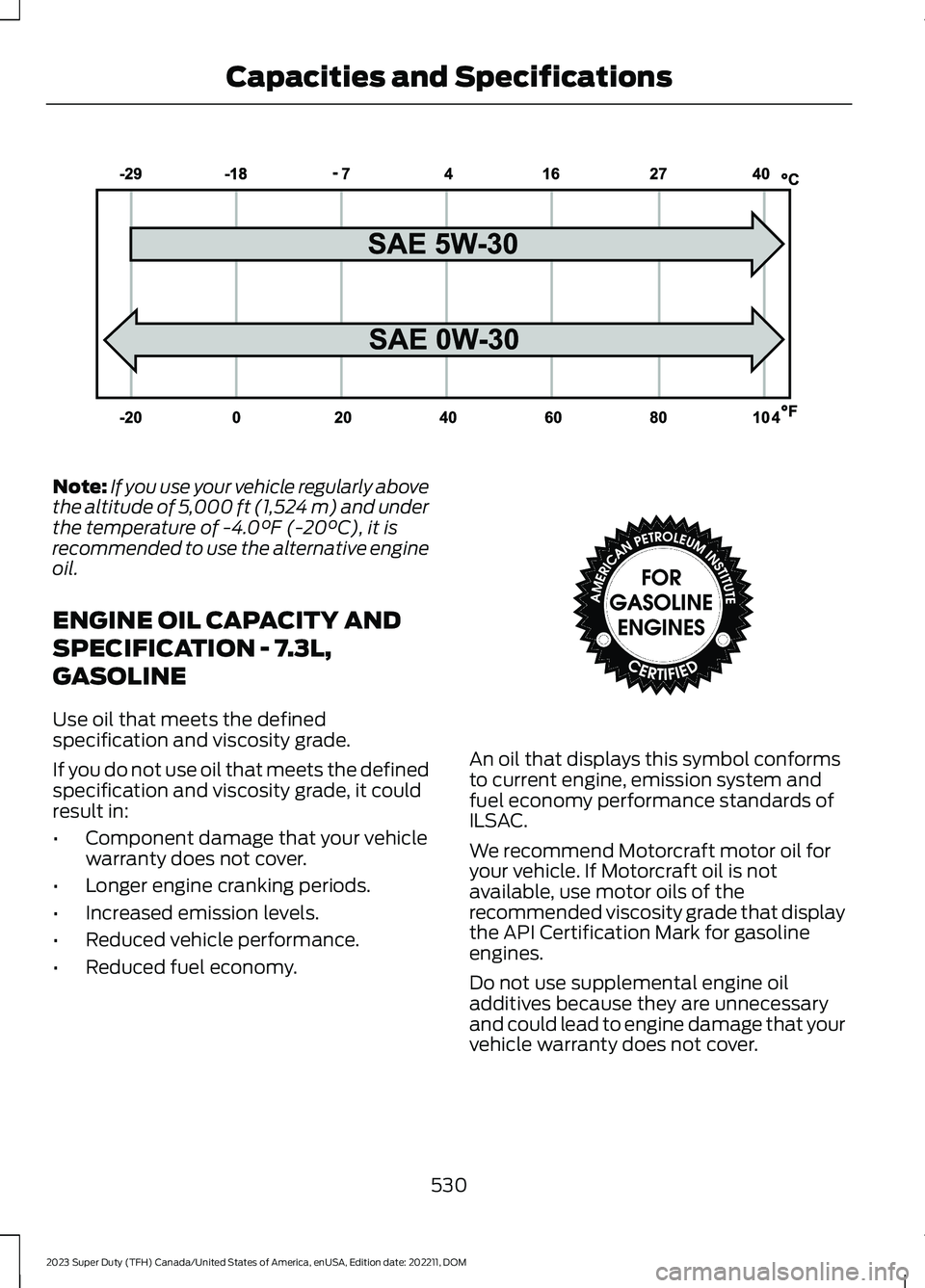
Note:If you use your vehicle regularly abovethe altitude of 5,000 ft (1,524 m) and underthe temperature of -4.0°F (-20°C), it isrecommended to use the alternative engineoil.
ENGINE OIL CAPACITY AND
SPECIFICATION - 7.3L,
GASOLINE
Use oil that meets the definedspecification and viscosity grade.
If you do not use oil that meets the definedspecification and viscosity grade, it couldresult in:
•Component damage that your vehiclewarranty does not cover.
•Longer engine cranking periods.
•Increased emission levels.
•Reduced vehicle performance.
•Reduced fuel economy.
An oil that displays this symbol conformsto current engine, emission system andfuel economy performance standards ofILSAC.
We recommend Motorcraft motor oil foryour vehicle. If Motorcraft oil is notavailable, use motor oils of therecommended viscosity grade that displaythe API Certification Mark for gasolineengines.
Do not use supplemental engine oiladditives because they are unnecessaryand could lead to engine damage that yourvehicle warranty does not cover.
530
2023 Super Duty (TFH) Canada/United States of America, enUSA, Edition date: 202211, DOMCapacities and SpecificationsE240523 E142732
Page 560 of 738
Using the Station List
1.Press Browse.
Note:Available on FM radio only.
2.Press a station.
SWITCHING THE DISPLAY ON
AND OFF
Audio Unit
Press the button.
Touchscreen
To switch the display off:
1.Press Settings on the touchscreen.
2.Press Display Settings.
3.Press Display Off.
Note:The display defaults to on each timeyou switch your vehicle on.
To switch the display on, press anywhereon the touchscreen.
DIGITAL RADIO
WHAT IS DIGITAL RADIO
HD Radio™ technology is the digitalevolution of analog AM/FM radio.
For additional information, visitwww.HDRadio.com.
HD Radio Technology is manufacturedunder license from iBiquity DigitalCorporation and foreign patents. HD Radioand the HD and HD Radio logos areproprietary trademarks of XPERI. Thevehicle manufacturer and XPERI are notresponsible for the content sent using HDRadio technology. Content may bechanged, added or deleted at any time atthe station owner's discretion.
HOW DOES DIGITAL RADIO WORK
Your system has a special receiver thatallows it to receive digital broadcasts inaddition to analog broadcasts.
HD1 signifies the main programming statusand is available in both analog and digitalbroadcasts. Other multicast stations areonly available digitally and could containnew or different content.
Note:When the system first receives anHD1 station, it plays the station in the analogversion until it verifies the station is an HDRadio station. Then it shifts to the digitalversion.
Note:There is an audio mute delay whenswitching to an HD2 or HD3 station becausethe system has to reacquire and decode thedigital signal.
DIGITAL RADIO LIMITATIONS
If you are outside the reception area, thesystem could not work.
If you are on the fringe of the receptionarea, the station could mute due to weaksignal strength.
Note:If you are listening to HD1, the systemchanges back to the analog broadcast untilthe digital broadcast is available again. Ifyou are listening to any other multicastchannels, the station mutes and staysmuted unless it is able to connect to thedigital signal again.
556
2023 Super Duty (TFH) Canada/United States of America, enUSA, Edition date: 202211, DOMAudio SystemE272035
Page 562 of 738
Hills, mountains, tall buildings, bridges,tunnels, freeway overpasses, parkinggarages, dense tree foliage andthunderstorms can interfere with yourreception.
When you pass a ground-basedbroadcast-repeating tower, a strongersignal may overtake a weaker one andcould result in the audio system muting.Your display could show an error messageto indicate the interference.
LOCATING THE SATELLITE RADIOIDENTIFICATION NUMBER
1.Select SiriusXM as the audio source.
2.Tune to channel 0.
SELECTING A CHANNEL
Manually Selecting a Channel
Press the button to find theprevious or next available radiochannel.
Linear Tuner
The linear tuner is displayed whenmanually selecting a channel. You canswipe left or right on the linear tunercarousel to navigate through the channellist. Tap on a channel title to listen to it.
Using Direct Tune
1.Press the channel up or down buttonto open the linear tuner screen.
2.Press Direct Tune to open the numberpad.
3.Enter the channel you prefer.
Using Browse
1.Press Browse.
2.Select a channel.
SATELLITE RADIO SETTINGS
Subscription
Your subscription status is displayed. Youcan subscribe or manage your subscriptiondirectly from the touchscreen.
SiriusXM Favorites
While you are listening to SiriusXM, you cansave favorites by:
•Tapping the currently tuned channelor show logo on the SiriusXM audioscreen.
•Tuning to a channel or show you wantto save as a favorite. Navigate to theSiriusXM Favorites screen and pressthe Add Current button. The currentlytuned channel or show is saved as afavorite.
•Saving a radio preset. This saves thecurrently tuned SiriusXM channel orshow as a favorite
Note:Requires a trial or active subscriptionto use.
Listening History
Listening history is a list of recently listenedto SiriusXM content. You can view, manageand reset the listening history using thecontrols on the touchscreen.
Note:Requires a trial or active subscriptionto use.
Help and Support
You can contact SiriusXM Customer Caredirectly from SYNC and view informationrequired to manage your SiriusXM account.
558
2023 Super Duty (TFH) Canada/United States of America, enUSA, Edition date: 202211, DOMAudio SystemE328569 E328570
Page 563 of 738
AUDIO SYSTEM – TROUBLESHOOTING
AUDIO SYSTEM – INFORMATION MESSAGES
Satellite Radio Troubleshooting
Recommended ActionPotential EffectsError Message
Internet connectivity isturned off. See ConnectedVehicle (page 548).
Internet streaming and OnDemand shows are unavail-able and some SiriusXMfeatures are disabled.
Connectivity Disabled
SYNC attempts to connect.See Satellite Radio Limit-ations (page 557).Switch toa satellite connection for thecurrent channel if the optionis available.
Audio system may mute.Switch to Satellite buttonmay be displayed on theSiriusXM audio screen if thechannel is also available viasatellite.
No Internet
Antenna may be obstructedor satellite reception is weakin your location. See Satel-lite Radio Limitations(page 557).Switch to aninternet connection for thecurrent channel if the optionis available.
Audio system may mute.Switch to Internet buttonmay be displayed on theSiriusXM audio screen if thechannel is also available viastreaming.
No Satellite Signal
Allow some time for theaudio to load or tune to adifferent channel.
Audio system may mutewhile the audio attempts toload.
Slow Network Connection
A temporary update may bein progress. Allow some timebefore retrying to tune to thechannel. If the issuecontinues, the channel mayno longer be available.
Audio system may mute.Radio may tune to adifferent channel.
Channel Unavailable
A temporary update may bein progress. Allow some timebefore retrying to play theepisode. If the issuecontinues, the episode mayno longer be available.
Audio system may mute.Radio may tune to adifferent channel.
Episode Unavailable
559
2023 Super Duty (TFH) Canada/United States of America, enUSA, Edition date: 202211, DOMAudio System
Page 565 of 738
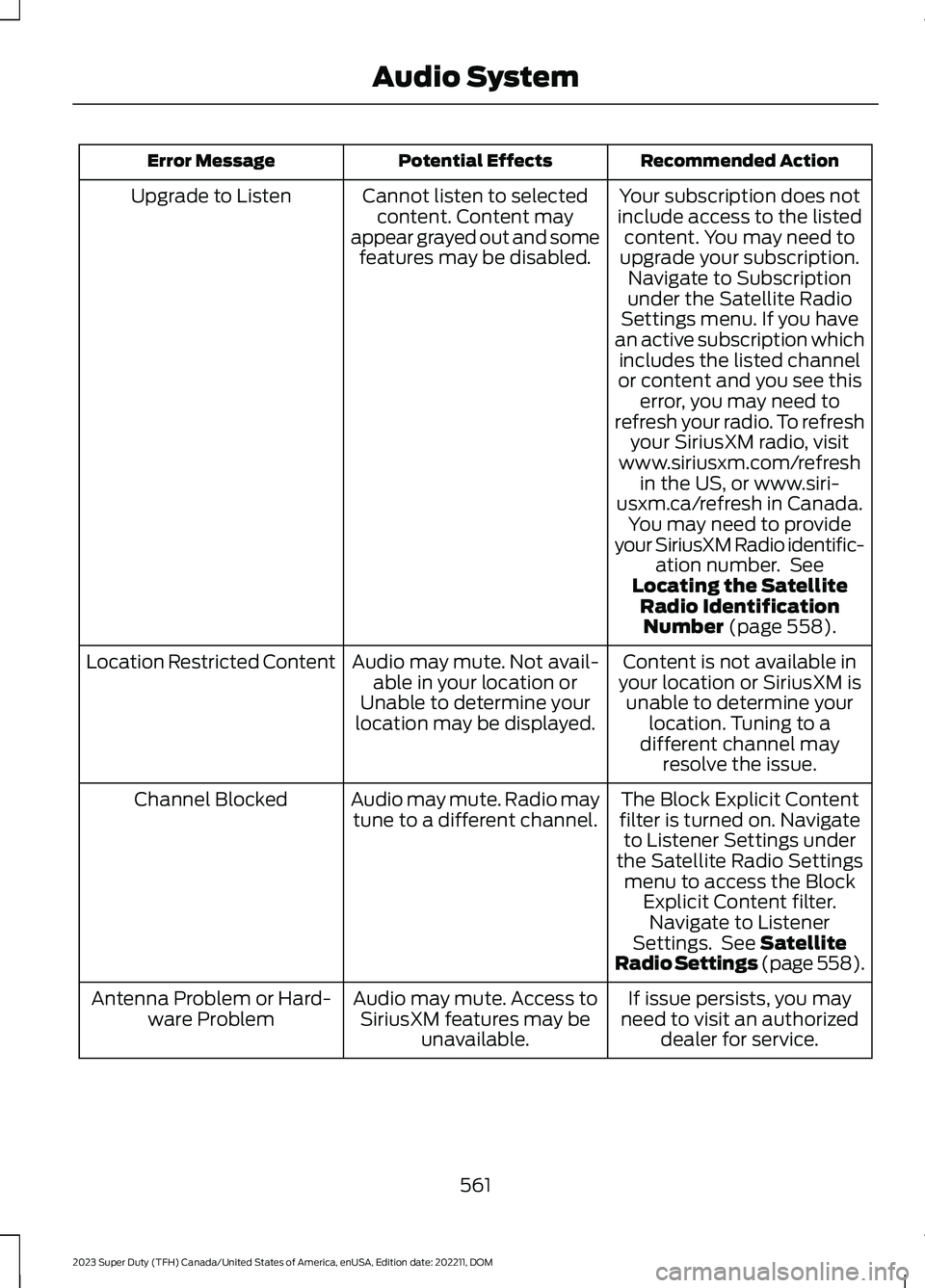
Recommended ActionPotential EffectsError Message
Your subscription does notinclude access to the listedcontent. You may need toupgrade your subscription.Navigate to Subscriptionunder the Satellite RadioSettings menu. If you havean active subscription whichincludes the listed channelor content and you see thiserror, you may need torefresh your radio. To refreshyour SiriusXM radio, visitwww.siriusxm.com/refreshin the US, or www.siri-usxm.ca/refresh in Canada.You may need to provideyour SiriusXM Radio identific-ation number. SeeLocating the SatelliteRadio IdentificationNumber (page 558).
Cannot listen to selectedcontent. Content mayappear grayed out and somefeatures may be disabled.
Upgrade to Listen
Content is not available inyour location or SiriusXM isunable to determine yourlocation. Tuning to adifferent channel mayresolve the issue.
Audio may mute. Not avail-able in your location orUnable to determine yourlocation may be displayed.
Location Restricted Content
The Block Explicit Contentfilter is turned on. Navigateto Listener Settings underthe Satellite Radio Settingsmenu to access the BlockExplicit Content filter.Navigate to ListenerSettings. See SatelliteRadio Settings (page 558).
Audio may mute. Radio maytune to a different channel.Channel Blocked
If issue persists, you mayneed to visit an authorizeddealer for service.
Audio may mute. Access toSiriusXM features may beunavailable.
Antenna Problem or Hard-ware Problem
561
2023 Super Duty (TFH) Canada/United States of America, enUSA, Edition date: 202211, DOMAudio System
Page 567 of 738
CENTER DISPLAY
PRECAUTIONS
WARNING: Driving while distractedcan result in loss of vehicle control, crashand injury. We strongly recommend thatyou use extreme caution when using anydevice that may take your focus off theroad. Your primary responsibility is thesafe operation of your vehicle. Werecommend against the use of anyhand-held device while driving andencourage the use of voice-operatedsystems when possible. Make sure youare aware of all applicable local lawsthat may affect the use of electronicdevices while driving.
CENTER DISPLAY
LIMITATIONS
Speed-restricted Features
For your safety, features that are notcritical while driving are not available whenthe vehicle is moving at or above 5 mph(8 km/h).
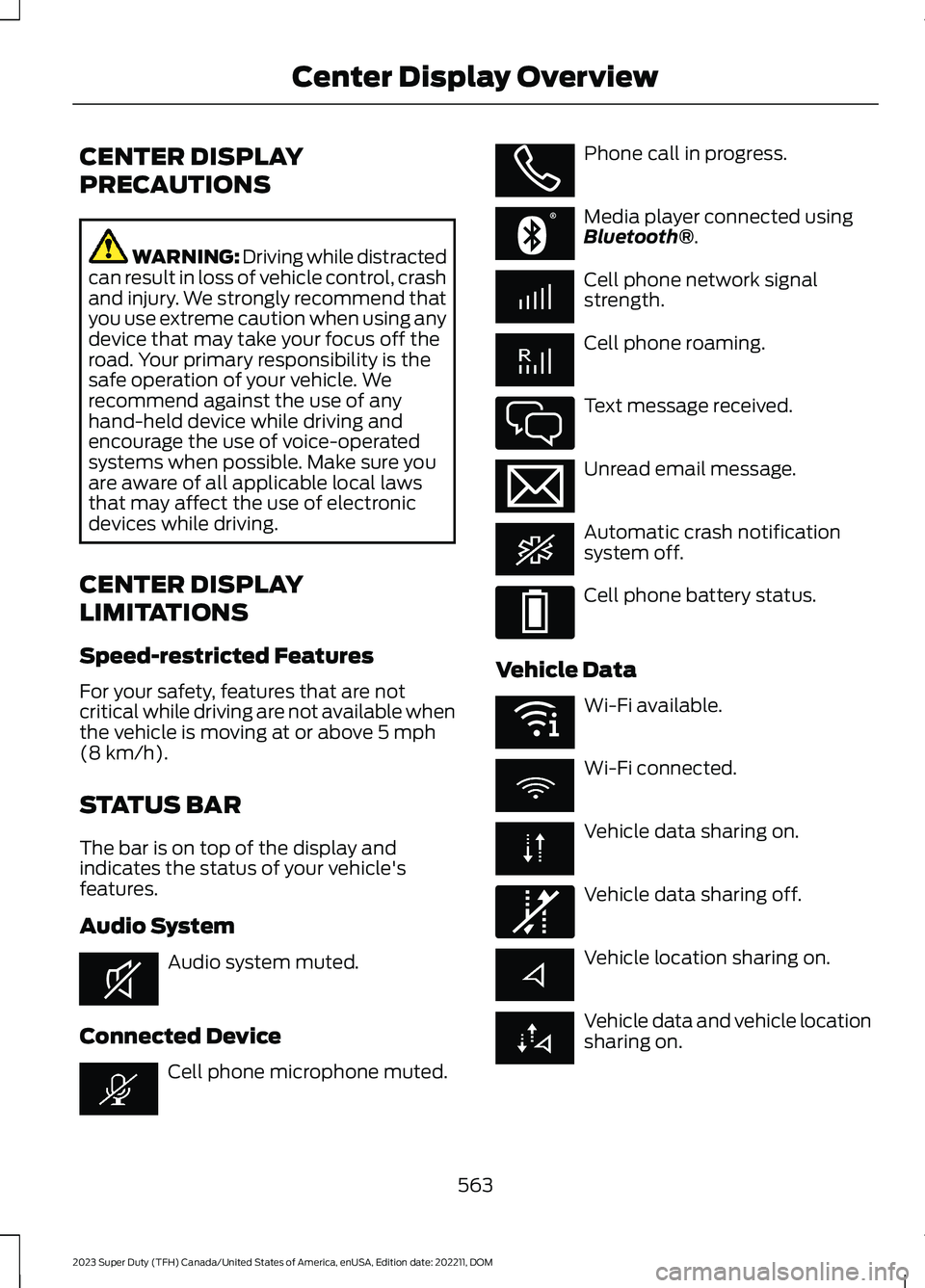
STATUS BAR
The bar is on top of the display andindicates the status of your vehicle'sfeatures.
Audio System
Audio system muted.
Connected Device
Cell phone microphone muted.
Phone call in progress.
Media player connected usingBluetooth®.
Cell phone network signalstrength.
Cell phone roaming.
Text message received.
Unread email message.
Automatic crash notificationsystem off.
Cell phone battery status.
Vehicle Data
Wi-Fi available.
Wi-Fi connected.
Vehicle data sharing on.
Vehicle data sharing off.
Vehicle location sharing on.
Vehicle data and vehicle locationsharing on.
563
2023 Super Duty (TFH) Canada/United States of America, enUSA, Edition date: 202211, DOMCenter Display OverviewE353221 E353213 E353208 E335295 E353216 E335293 E353219 E335292
Page 568 of 738
Vehicle Software Update
See Software Update Indicators (page583).
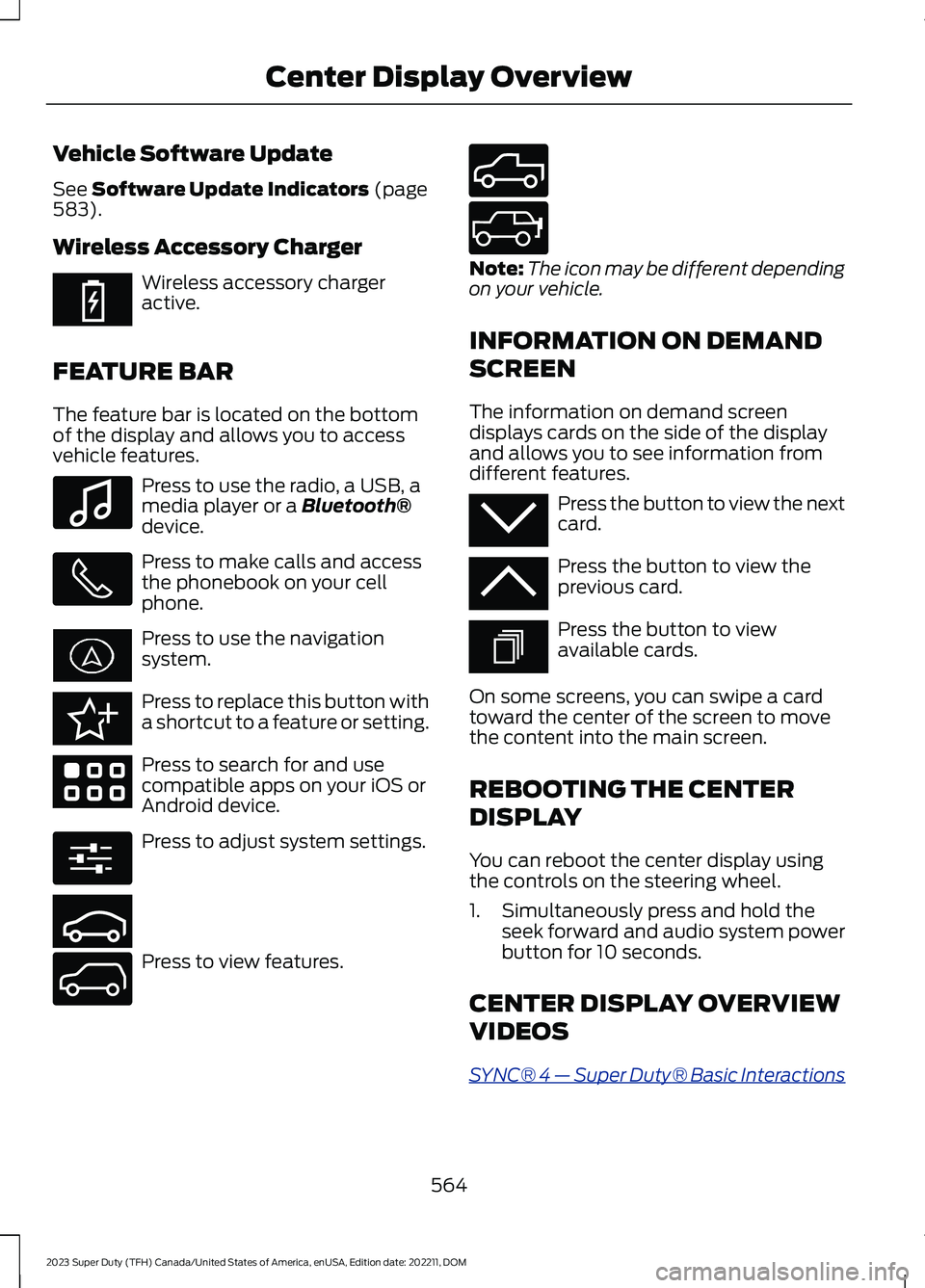
Wireless Accessory Charger
Wireless accessory chargeractive.
FEATURE BAR
The feature bar is located on the bottomof the display and allows you to accessvehicle features.
Press to use the radio, a USB, amedia player or a Bluetooth®device.
Press to make calls and accessthe phonebook on your cellphone.
Press to use the navigationsystem.
Press to replace this button witha shortcut to a feature or setting.
Press to search for and usecompatible apps on your iOS orAndroid device.
Press to adjust system settings.
Press to view features.
Note:The icon may be different dependingon your vehicle.
INFORMATION ON DEMAND
SCREEN
The information on demand screendisplays cards on the side of the displayand allows you to see information fromdifferent features.
Press the button to view the nextcard.
Press the button to view theprevious card.
Press the button to viewavailable cards.
On some screens, you can swipe a cardtoward the center of the screen to movethe content into the main screen.
REBOOTING THE CENTER
DISPLAY
You can reboot the center display usingthe controls on the steering wheel.
1.Simultaneously press and hold theseek forward and audio system powerbutton for 10 seconds.
CENTER DISPLAY OVERVIEW
VIDEOS
SYNC® 4 — Super Duty® Basic Interactions
564
2023 Super Duty (TFH) Canada/United States of America, enUSA, Edition date: 202211, DOMCenter Display OverviewE353214 E100027 E358432 E353220 E280315 E353210 E335299 E335300 E347104 E353212 E353211 E353209
Page 571 of 738
WHAT IS ALEXA BUILT-IN
Allows you to use Alexa in your vehicle forauto specific use cases on the road andgives you access to an ever evolvingnumber of skills that help to make your lifemore productive, entertaining, andconnected while using your vehicle.
ALEXA BUILT-IN
REQUIREMENTS
To use Alexa, all of the following mustoccur:
•Your vehicle modem is enabled.
•You are logged into an existing Amazonaccount.
•Vehicle location services are enabled.
•Vehicle connectivity and vehicle datasharing is enabled.
SIGNING INTO YOUR
ACCOUNT
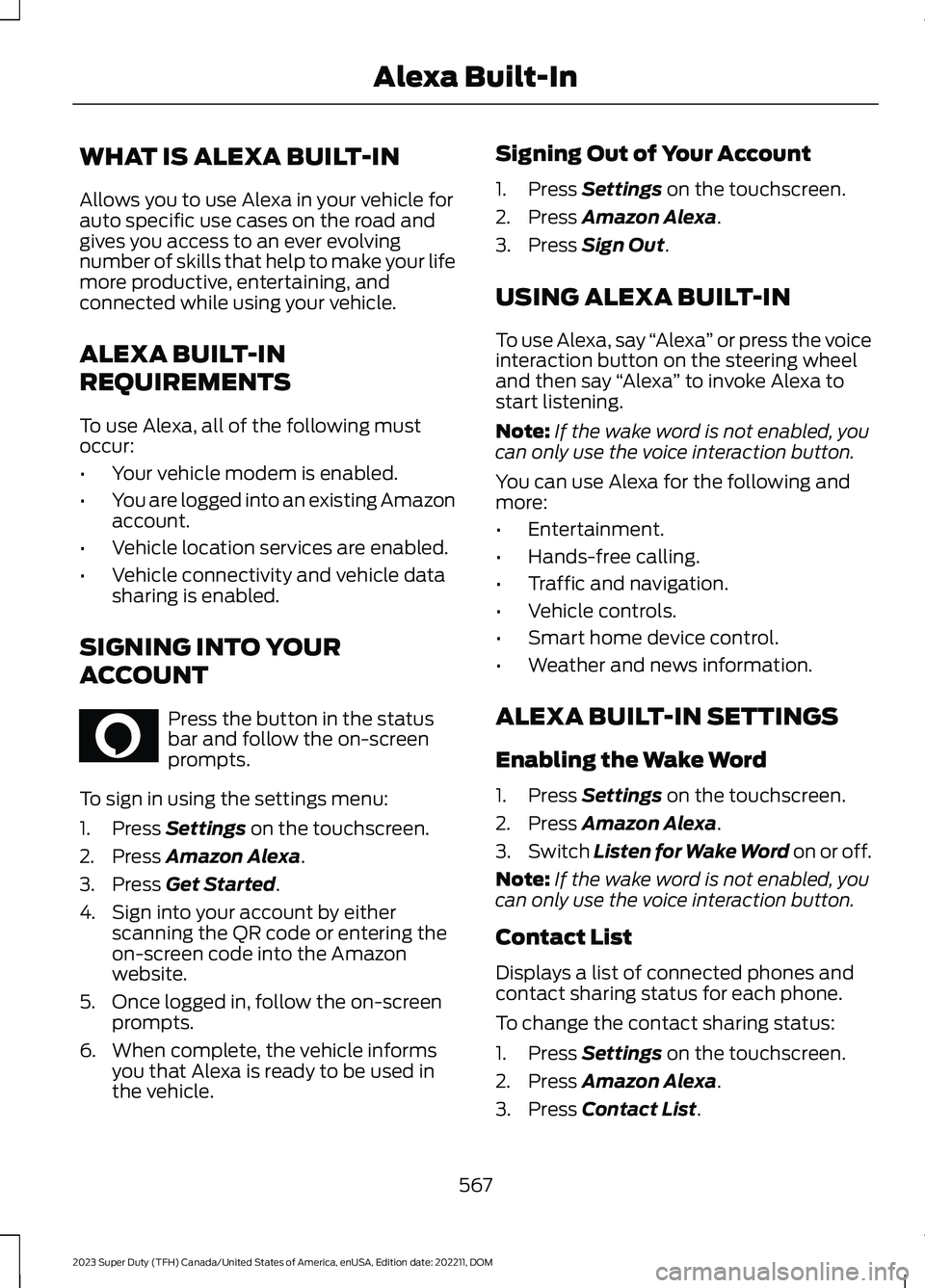
Press the button in the statusbar and follow the on-screenprompts.
To sign in using the settings menu:
1.Press Settings on the touchscreen.
2.Press Amazon Alexa.
3.Press Get Started.
4.Sign into your account by eitherscanning the QR code or entering theon-screen code into the Amazonwebsite.
5.Once logged in, follow the on-screenprompts.
6.When complete, the vehicle informsyou that Alexa is ready to be used inthe vehicle.
Signing Out of Your Account
1.Press Settings on the touchscreen.
2.Press Amazon Alexa.
3.Press Sign Out.
USING ALEXA BUILT-IN
To use Alexa, say “Alexa” or press the voiceinteraction button on the steering wheeland then say “Alexa” to invoke Alexa tostart listening.
Note:If the wake word is not enabled, youcan only use the voice interaction button.
You can use Alexa for the following andmore:
•Entertainment.
•Hands-free calling.
•Traffic and navigation.
•Vehicle controls.
•Smart home device control.
•Weather and news information.
ALEXA BUILT-IN SETTINGS
Enabling the Wake Word
1.Press Settings on the touchscreen.
2.Press Amazon Alexa.
3.Switch Listen for Wake Word on or off.
Note:If the wake word is not enabled, youcan only use the voice interaction button.
Contact List
Displays a list of connected phones andcontact sharing status for each phone.
To change the contact sharing status:
1.Press Settings on the touchscreen.
2.Press Amazon Alexa.
3.Press Contact List.
567
2023 Super Duty (TFH) Canada/United States of America, enUSA, Edition date: 202211, DOMAlexa Built-InE368039
Page 573 of 738
PHONE PRECAUTIONS
WARNING: Driving while distractedcan result in loss of vehicle control, crashand injury. We strongly recommend thatyou use extreme caution when using anydevice that may take your focus off theroad. Your primary responsibility is thesafe operation of your vehicle. Werecommend against the use of anyhand-held device while driving andencourage the use of voice-operatedsystems when possible. Make sure youare aware of all applicable local lawsthat may affect the use of electronicdevices while driving.
CONNECTING YOUR PHONE
Go to the settings menu on your device andswitch Bluetooth® on.
Press the phone option on thefeature bar.
1.Press Add Phone.
Note:A prompt alerts you to search for yourvehicle on your cell phone.
2.Select your vehicle on your cell phone.
Note:A number appears on your cell phoneand on the touchscreen.
3.Confirm the number on your cell phonematches the number on thetouchscreen.
Note:The touchscreen indicates that youhave successfully paired your cell phone.
4.Approve phonebook download requeston your cell phone.
PHONE MENU
This menu becomes available after pairinga phone.
Recent Call List
Display and select an entry from a list ofprevious calls.
Contacts
Display a smart search form to look up yourcontacts. Use the List button toalphabetically sort your contacts.
Favorites
Display the list of favorite contacts thatare set up on your phone.
Messaging
Displays the list of text messages to read,listen to, or respond to.
Email
Displays the list of emails to read, listen to,or respond to.
Phone List
Display the list of paired or connecteddevices that you can select.
Note:Up to 12 devices can be stored.
Do Not Disturb
Reject incoming calls and switch ring tonesand alerts off.
Phone Keypad
Directly dial a number.
569
2023 Super Duty (TFH) Canada/United States of America, enUSA, Edition date: 202211, DOMPhone
Page 575 of 738
MAKING AND RECEIVING A
PHONE CALL
Making Calls
To call a number in your contacts,select:
Action and DescriptionMenu Item
You can then select thename of the contact youwant to call. Any numbersstored for that contactdisplay along with anystored contact photos. Youcan then select thenumber that you want tocall. The system begins thecall.
Contacts
To call a number from your recent calls,select:
Action and DescriptionMenu Item
You can then select anentry that you want to call.The system begins the call.
Recent CallList
To call a number from your favorites,select:
Action and DescriptionMenu Item
You can then select anentry that you want to call.The system begins the call.
Favorites
To call a number that is not stored inyour phone, select:
Action and DescriptionMenu Item
Select the digits of thenumber you wish to call.PhoneKeypad
The system begins the call.Call
Pressing the backspace button deletes thelast digit you typed.
Receiving Calls
During an incoming call, an audible tonesounds. Caller information appears in thedisplay if it is available.
To accept the call, select:
Menu Item
Accept
Note:You can also accept the call bypressing the phone button on the steeringwheel.
To reject the call, select:
Menu Item
Reject
Ignore the call by doing nothing. Thesystem logs it as a missed call.
During a Phone Call
During a phone call, the contacts nameand number display on the screen alongwith the call duration.
The phone status items are also visible:
•Signal Strength.
•Battery.
You can select any of the following duringan active phone call:
571
2023 Super Duty (TFH) Canada/United States of America, enUSA, Edition date: 202211, DOMPhone