reset FORD TRANSIT 2021 Owner's Guide
[x] Cancel search | Manufacturer: FORD, Model Year: 2021, Model line: TRANSIT, Model: FORD TRANSIT 2021Pages: 509, PDF Size: 8.21 MB
Page 342 of 509
Tire Pressure Monitoring System
Reset Procedure
Overview
WARNING: To determine the
required pressure(s) for your vehicle, see
the Safety Compliance Certification
Label (on the door hinge pillar,
door-latch post or the door edge that
meets the door-latch post, next to the
driver seat) or the Tire Label on the
B-Pillar or the edge of the driver door.
You must carry out the system reset
procedure after each tire replacement or
adjustment of the tire pressures. To maintain your vehicle load carrying
capability, your vehicle requires different
tire pressures in the front tires compared
to the rear tires.
The system illuminates the warning lamp
at different pressures for the front and rear
tires.
If the tires are rotated, the Tire Pressure
Monitoring System needs to be reset to
relearn the new tire pressures. It does not
know which sensor is where and assumes
you have set the pressures correctly.
Carrying Out the System Reset
Procedure
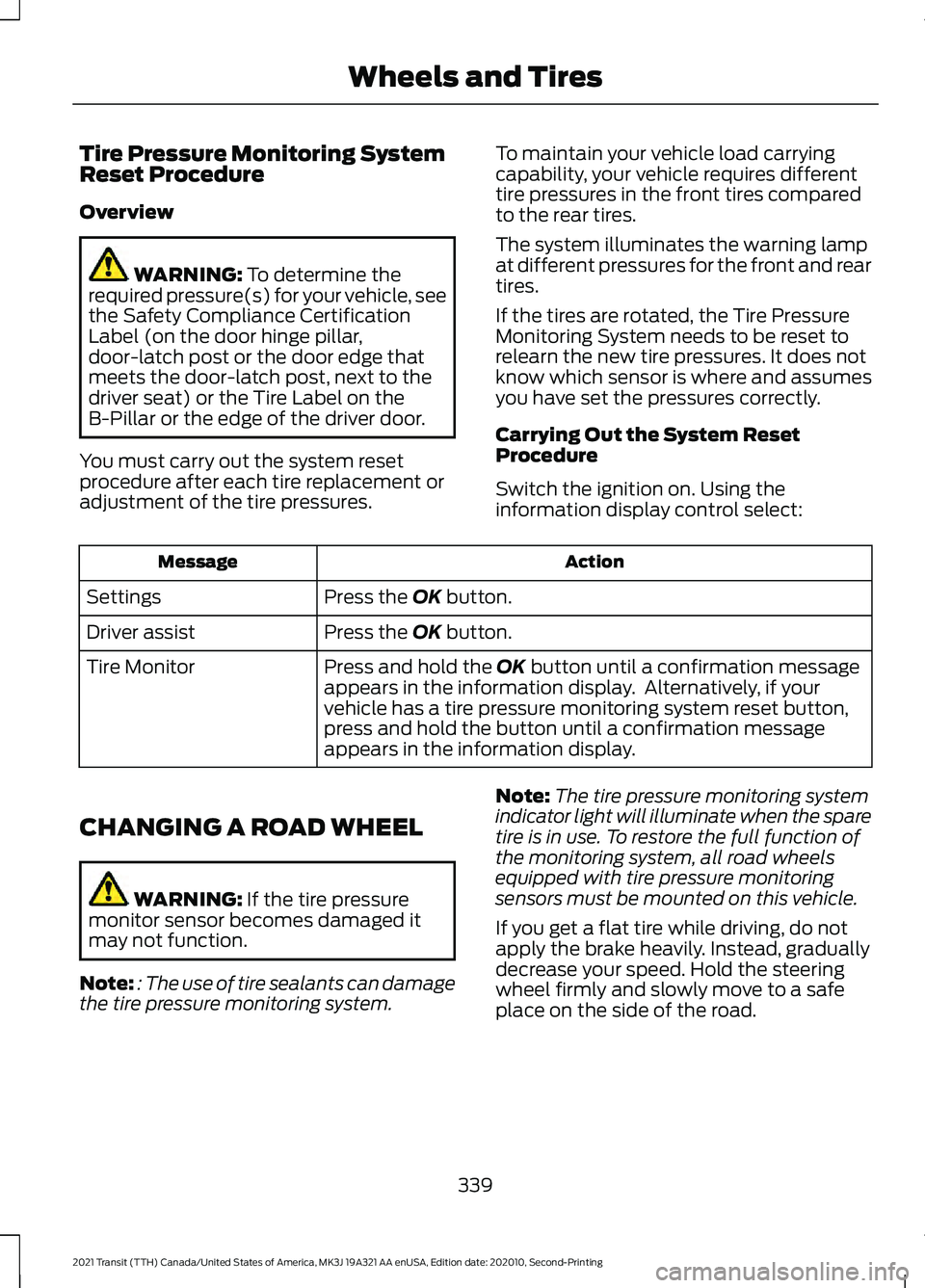
Switch the ignition on. Using the
information display control select: Action
Message
Press the
OK button.
Settings
Press the
OK button.
Driver assist
Press and hold the
OK button until a confirmation message
appears in the information display. Alternatively, if your
vehicle has a tire pressure monitoring system reset button,
press and hold the button until a confirmation message
appears in the information display.
Tire Monitor
CHANGING A ROAD WHEEL WARNING:
If the tire pressure
monitor sensor becomes damaged it
may not function.
Note: : The use of tire sealants can damage
the tire pressure monitoring system. Note:
The tire pressure monitoring system
indicator light will illuminate when the spare
tire is in use. To restore the full function of
the monitoring system, all road wheels
equipped with tire pressure monitoring
sensors must be mounted on this vehicle.
If you get a flat tire while driving, do not
apply the brake heavily. Instead, gradually
decrease your speed. Hold the steering
wheel firmly and slowly move to a safe
place on the side of the road.
339
2021 Transit (TTH) Canada/United States of America, MK3J 19A321 AA enUSA, Edition date: 202010, Second-Printing Wheels and Tires
Page 378 of 509
CREATING A VEHICLE WI-FI
HOTSPOT
You can create a Wi-Fi hotspot in your
vehicle and allow devices to connect to it
for access to the Internet.
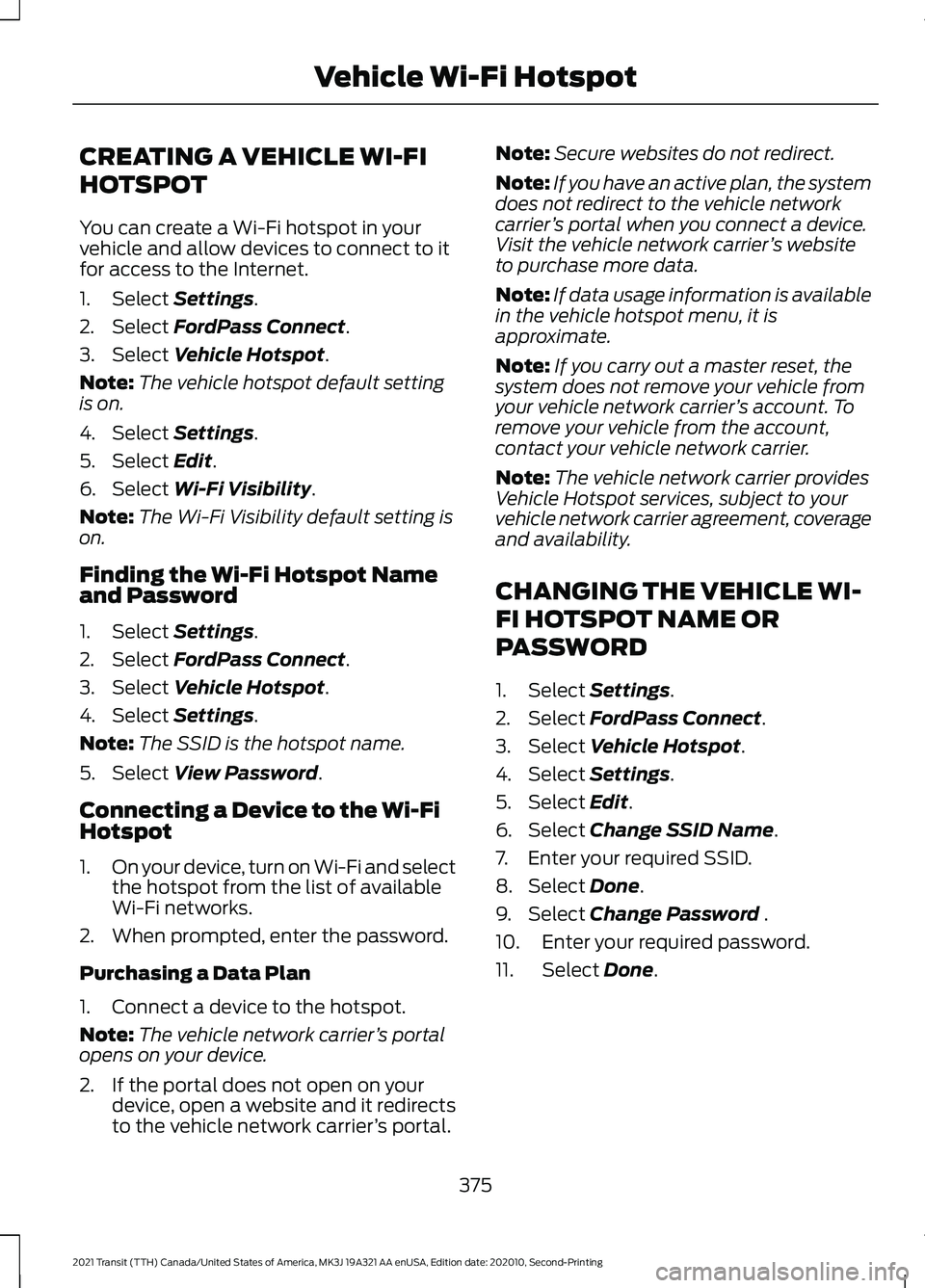
1. Select Settings.
2. Select
FordPass Connect.
3. Select
Vehicle Hotspot.
Note: The vehicle hotspot default setting
is on.
4. Select
Settings.
5. Select
Edit.
6. Select
Wi-Fi Visibility.
Note: The Wi-Fi Visibility default setting is
on.
Finding the Wi-Fi Hotspot Name
and Password
1. Select
Settings.
2. Select
FordPass Connect.
3. Select
Vehicle Hotspot.
4. Select
Settings.
Note: The SSID is the hotspot name.
5. Select
View Password.
Connecting a Device to the Wi-Fi
Hotspot
1. On your device, turn on Wi-Fi and select
the hotspot from the list of available
Wi-Fi networks.
2. When prompted, enter the password.
Purchasing a Data Plan
1. Connect a device to the hotspot.
Note: The vehicle network carrier ’s portal
opens on your device.
2. If the portal does not open on your device, open a website and it redirects
to the vehicle network carrier ’s portal. Note:
Secure websites do not redirect.
Note: If you have an active plan, the system
does not redirect to the vehicle network
carrier ’s portal when you connect a device.
Visit the vehicle network carrier ’s website
to purchase more data.
Note: If data usage information is available
in the vehicle hotspot menu, it is
approximate.
Note: If you carry out a master reset, the
system does not remove your vehicle from
your vehicle network carrier ’s account. To
remove your vehicle from the account,
contact your vehicle network carrier.
Note: The vehicle network carrier provides
Vehicle Hotspot services, subject to your
vehicle network carrier agreement, coverage
and availability.
CHANGING THE VEHICLE WI-
FI HOTSPOT NAME OR
PASSWORD
1. Select
Settings.
2. Select
FordPass Connect.
3. Select
Vehicle Hotspot.
4. Select
Settings.
5. Select
Edit.
6. Select
Change SSID Name.
7. Enter your required SSID.
8. Select
Done.
9. Select
Change Password .
10. Enter your required password.
11. Select
Done.
375
2021 Transit (TTH) Canada/United States of America, MK3J 19A321 AA enUSA, Edition date: 202010, Second-Printing Vehicle Wi-Fi Hotspot
Page 380 of 509
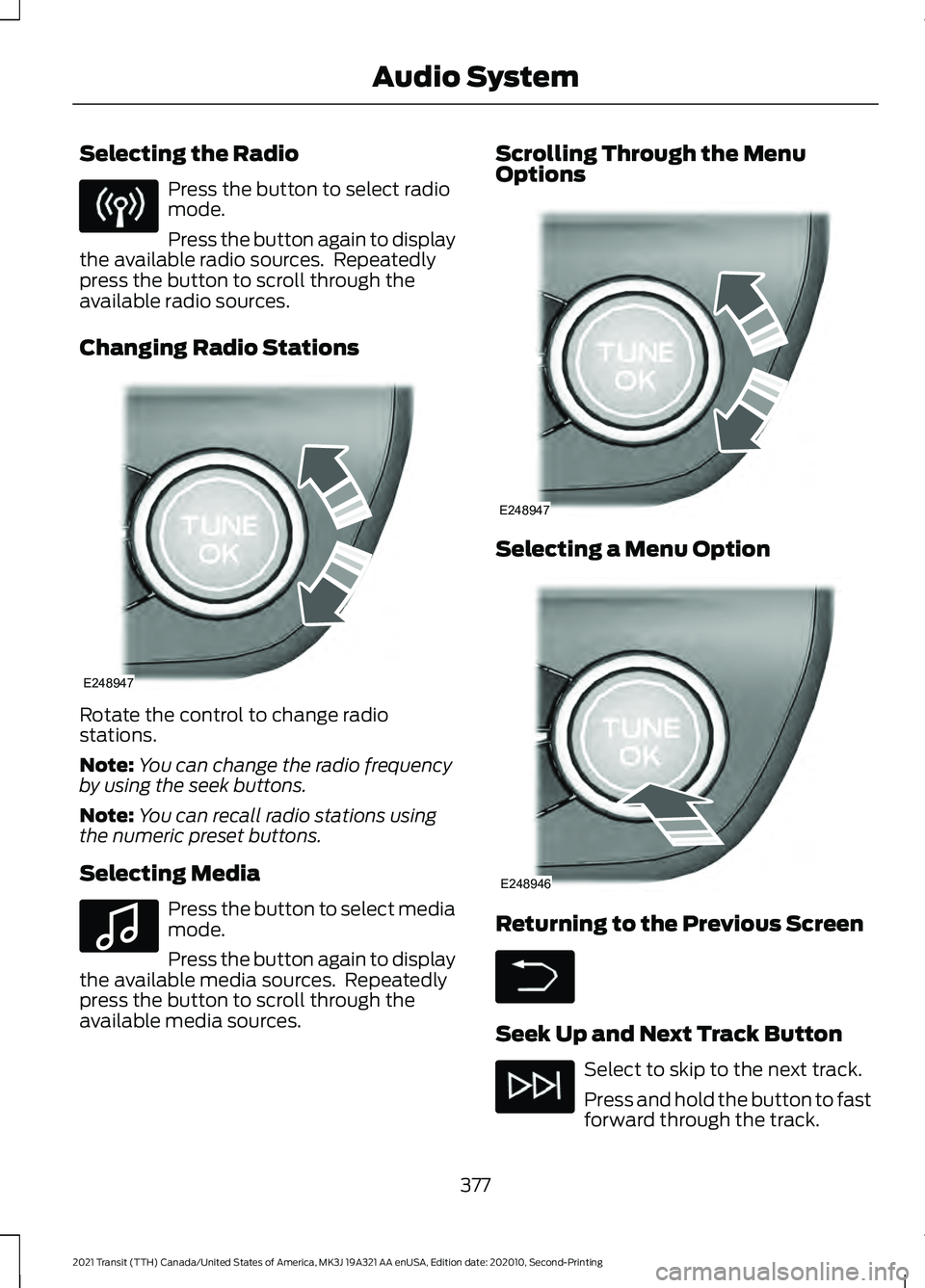
Selecting the Radio
Press the button to select radio
mode.
Press the button again to display
the available radio sources. Repeatedly
press the button to scroll through the
available radio sources.
Changing Radio Stations Rotate the control to change radio
stations.
Note:
You can change the radio frequency
by using the seek buttons.
Note: You can recall radio stations using
the numeric preset buttons.
Selecting Media Press the button to select media
mode.
Press the button again to display
the available media sources. Repeatedly
press the button to scroll through the
available media sources. Scrolling Through the Menu
Options
Selecting a Menu Option
Returning to the Previous Screen
Seek Up and Next Track Button
Select to skip to the next track.
Press and hold the button to fast
forward through the track.
377
2021 Transit (TTH) Canada/United States of America, MK3J 19A321 AA enUSA, Edition date: 202010, Second-Printing Audio System E248947 E100027 E248947 E248946
Page 382 of 509
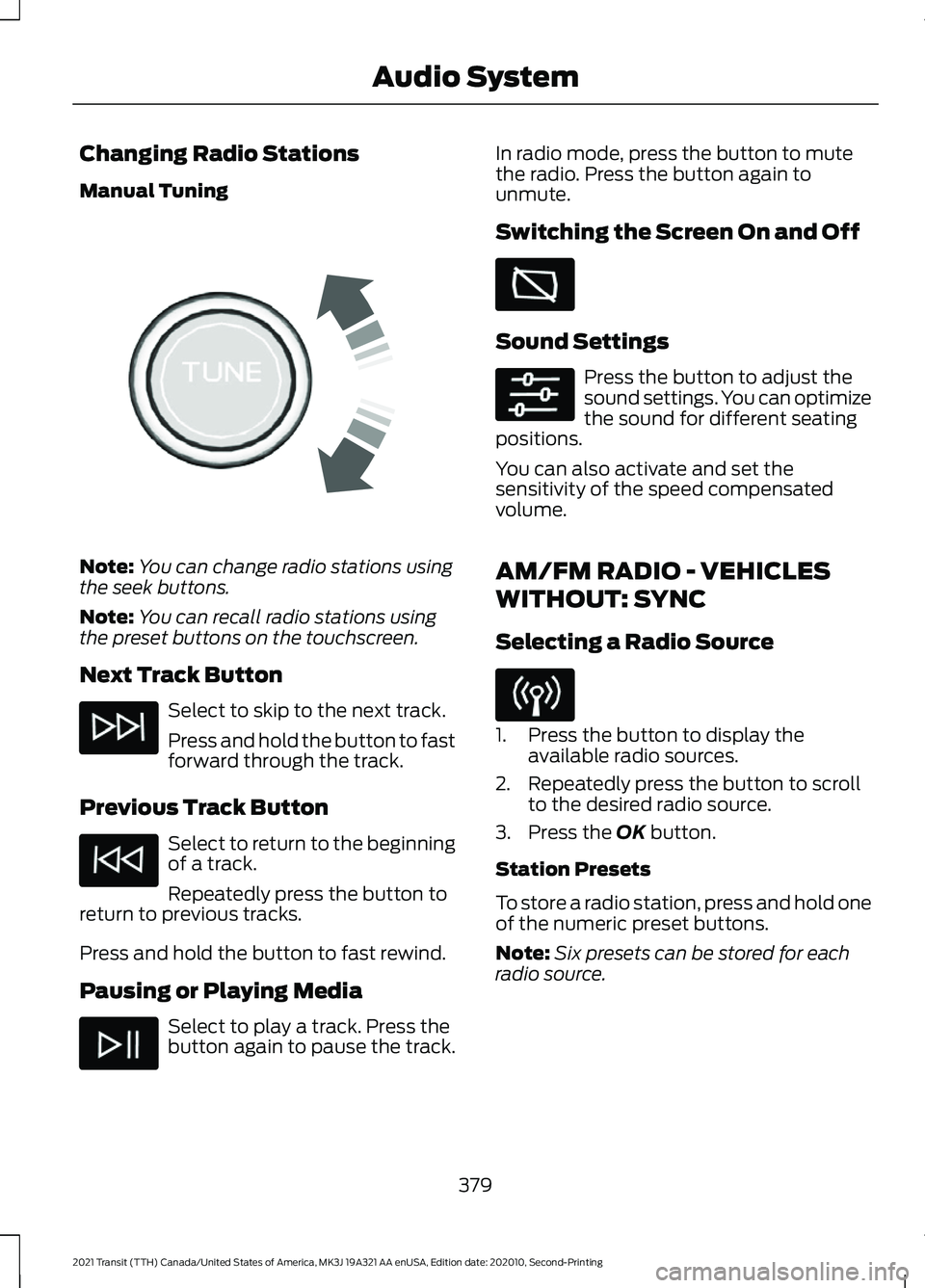
Changing Radio Stations
Manual Tuning
Note:
You can change radio stations using
the seek buttons.
Note: You can recall radio stations using
the preset buttons on the touchscreen.
Next Track Button Select to skip to the next track.
Press and hold the button to fast
forward through the track.
Previous Track Button Select to return to the beginning
of a track.
Repeatedly press the button to
return to previous tracks.
Press and hold the button to fast rewind.
Pausing or Playing Media Select to play a track. Press the
button again to pause the track. In radio mode, press the button to mute
the radio. Press the button again to
unmute.
Switching the Screen On and Off
Sound Settings
Press the button to adjust the
sound settings. You can optimize
the sound for different seating
positions.
You can also activate and set the
sensitivity of the speed compensated
volume.
AM/FM RADIO - VEHICLES
WITHOUT: SYNC
Selecting a Radio Source 1. Press the button to display the
available radio sources.
2. Repeatedly press the button to scroll to the desired radio source.
3. Press the OK button.
Station Presets
To store a radio station, press and hold one
of the numeric preset buttons.
Note: Six presets can be stored for each
radio source.
379
2021 Transit (TTH) Canada/United States of America, MK3J 19A321 AA enUSA, Edition date: 202010, Second-Printing Audio SystemE270235
Page 387 of 509
(read and unread), and call history,
including history of calls when your cellular
phone was not connected to the system.
In addition, if you connect a media device,
the system creates and retains an index of
supported media content. The system also
records a short development log of
approximately 10 minutes of all recent
system activity. The log profile and other
system data may be used to improve the
system and help diagnose any problems
that may occur.
The cellular profile, media device index,
and development log will remain in the
vehicle unless you delete them and are
generally accessible only in the vehicle
when you connect the cellular phone or
media player. If you no longer plan to use
the system or the vehicle, we recommend
you perform a Master Reset to erase all
stored information.
No one can access system data without
special equipment and access to the
vehicle's SYNC module. Ford Motor
Company and Ford of Canada will not
access the system data for any purpose
other than as described absent consent, a
court order, or where required by law
enforcement, other government
authorities, or other third parties acting
with lawful authority. Other parties may
seek to access the information
independently of Ford Motor Company and
Ford of Canada. For further privacy
information, see the section on 911 Assist.
See SYNC™ Applications and Services
(page 387).
USING VOICE RECOGNITION
This system helps you control many
features using voice commands. This
allows you to keep your hands on the
wheel and focus on what is around you.
Initiating a Voice Session Press the voice button. A list of
available voice commands
appears in the display.
Global Voice Commands
These voice commands are always
available. You can say them at any time. Global voice commands
Gives you available commands you can use
on the current screen.
Help
Gives you a list of possible voice
commands.
List of Commands
This command ends the voice session. You
can also cancel a session by pressing seek
up, seek down, or holding the voice button
for two or more seconds.
Cancel
384
2021 Transit (TTH) Canada/United States of America, MK3J 19A321 AA enUSA, Edition date: 202010, Second-Printing SYNC™E142599
Page 394 of 509
Audio Voice Commands
Press the voice button. You can
do things like play a specific song
or album, or tune to a radio
station. When prompted, say a command.
See the following table for example
commands. Not all commands may be
available on your vehicle. Command
___ List of Commands Help
Pause Play
AM ___ FM ___
CD Player Command
Sirius Channel ___ USB
Bluetooth Audio
__ is a dynamic listing, meaning that it
could be the name of anything, such as an
artist, station, or media source.
SYNC™ TROUBLESHOOTING
Your SYNC system is easy to use. However,
should questions arise, see the tables
below.
Use your local Ford website at any time to
check your phone's compatibility, register
your account and set preferences as well
as access a customer representative via
an online chat (during certain hours). Website(s)
Market
www.SYNCMyRide.com
North America
www.SYNCMyRide.cawww.syncmaroute.ca Phone Issues
Possible Solution(s)
Possible Cause(s)
Issue
Review your phone's manualabout audio adjustments.
The audio control settings
on your phone may be
affecting SYNC perform- ance.
There is excessive back-
ground noise during a phone call.
Try turning off the device,resetting the device,
removing the device's
battery, then trying again.
This may be a possible
phone malfunction.
During a call, I can hear the
other person but theycannot hear me.
Go to the website to reviewyour phone's compatibility.
This is a phone-dependent
feature.
SYNC is not able to down-
load my phonebook.
391
2021 Transit (TTH) Canada/United States of America, MK3J 19A321 AA enUSA, Edition date: 202010, Second-Printing SYNC™E142599
Page 395 of 509
Phone Issues
Possible Solution(s)
Possible Cause(s)
Issue
Try turning off the device,resetting the device orremoving the device's
battery, then trying again.
Try pushing your phonebook contacts to SYNC by usingthe Add Contacts feature.
This may be a possible
phone malfunction. Use the SYNCmyphone
feature available on the website.
Try pushing your phonebook contacts to SYNC by usingthe Add Contacts feature.
This may be a limitation on your phone's capability.
The system says Phonebook
Downloaded but the
phonebook in SYNC is
empty or missing contacts. If the missing contacts are
stored on your SIM card, try moving them to the device memory.
Remove any pictures or
special ring tones associ- ated with the missing contact.
Depending upon your phone,
you may have to grant SYNC permission to access your
phonebook contacts. Make sure to confirm when
prompted by your phone during the phonebook download.
Go to the website to review your phone's compatibility.
This is a phone-dependent feature.
I am having trouble
connecting my phone to SYNC. Try turning off the device,
resetting the device orremoving the device's
battery, then trying again.
392
2021 Transit (TTH) Canada/United States of America, MK3J 19A321 AA enUSA, Edition date: 202010, Second-Printing SYNC™
Page 396 of 509
Phone Issues
Possible Solution(s)
Possible Cause(s)
Issue
Try deleting your device
from SYNC, deleting SYNC
from your device and trying again.
Check the security and auto accept and prompt always
settings relative to the SYNC Bluetooth® connection on
your phone.
This may be a possible
phone malfunction. Update your device's firm-
ware.
Turn off the Auto phone- book download setting.
Go to the website to review your phone's compatibility.
This is a phone-dependent
feature.
Text messaging is not working on SYNC. Try turning off the device,
resetting the device orremoving the device's
battery, then trying again.
This may be a possible
phone malfunction.
Press the Phone button to
return to the Phone menu.
You are on the Select a
Character screen.
I cannot return to the Phone
menu when selecting a contact. USB and Media Issues
Possible Solution(s)
Possible Cause(s)
Issue
Try turning off the device,resetting the device,
removing the device's
battery, then trying again.
This may be a possible device malfunction.
I am having trouble
connecting my device. Make sure you are using the
manufacturer's cable.
Make sure you insert the
USB cable correctly into the device and the USB port.
393
2021 Transit (TTH) Canada/United States of America, MK3J 19A321 AA enUSA, Edition date: 202010, Second-Printing SYNC™
Page 401 of 509
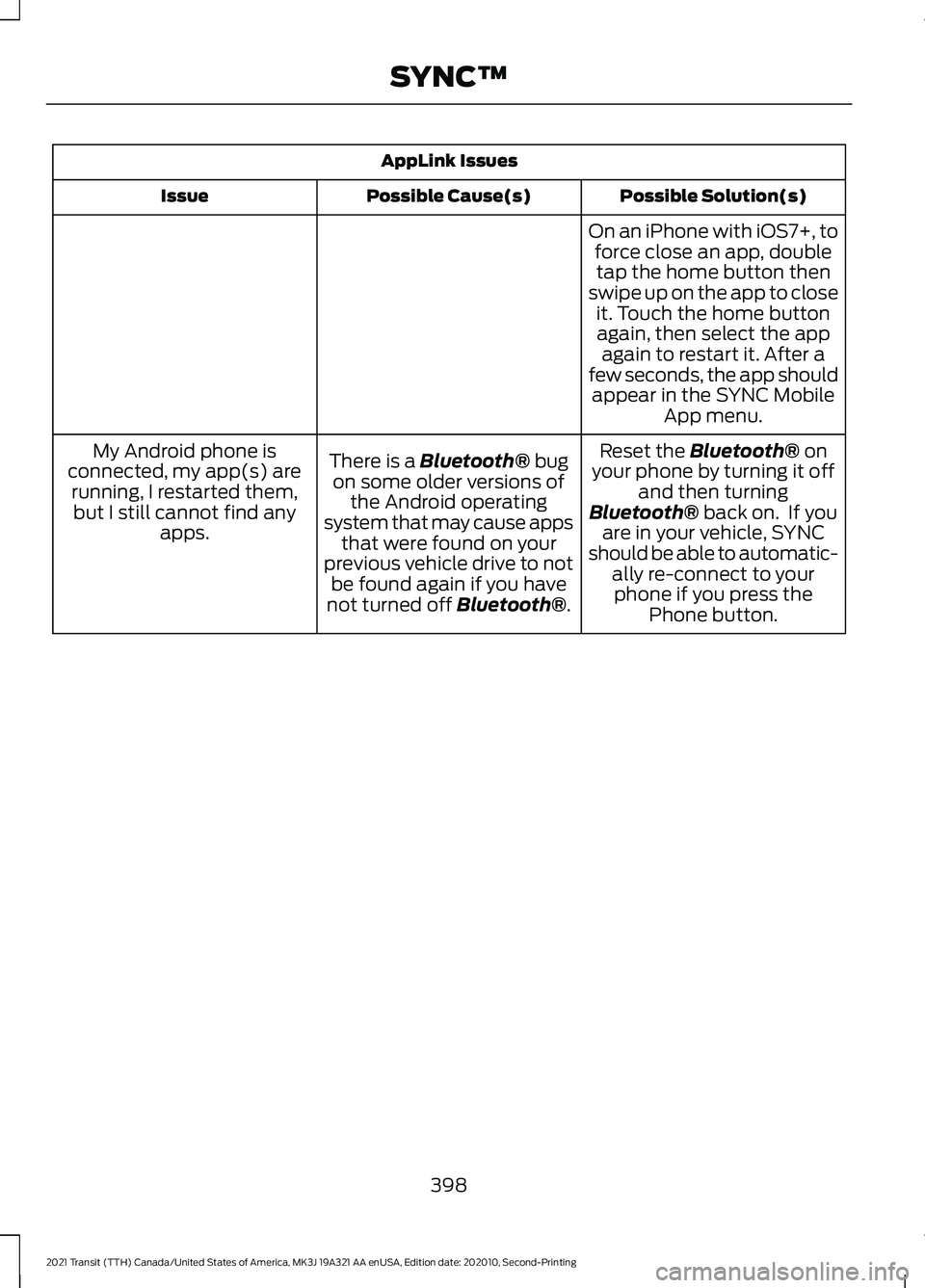
AppLink Issues
Possible Solution(s)
Possible Cause(s)
Issue
On an iPhone with iOS7+, toforce close an app, doubletap the home button then
swipe up on the app to close it. Touch the home buttonagain, then select the app again to restart it. After a
few seconds, the app should appear in the SYNC Mobile App menu.
Reset the Bluetooth® on
your phone by turning it off and then turning
Bluetooth®
back on. If you
are in your vehicle, SYNC
should be able to automatic- ally re-connect to yourphone if you press the Phone button.
There is a
Bluetooth® bug
on some older versions of the Android operating
system that may cause apps that were found on your
previous vehicle drive to not be found again if you have
not turned off
Bluetooth®.
My Android phone is
connected, my app(s) are running, I restarted them,but I still cannot find any apps.
398
2021 Transit (TTH) Canada/United States of America, MK3J 19A321 AA enUSA, Edition date: 202010, Second-Printing SYNC™
Page 402 of 509
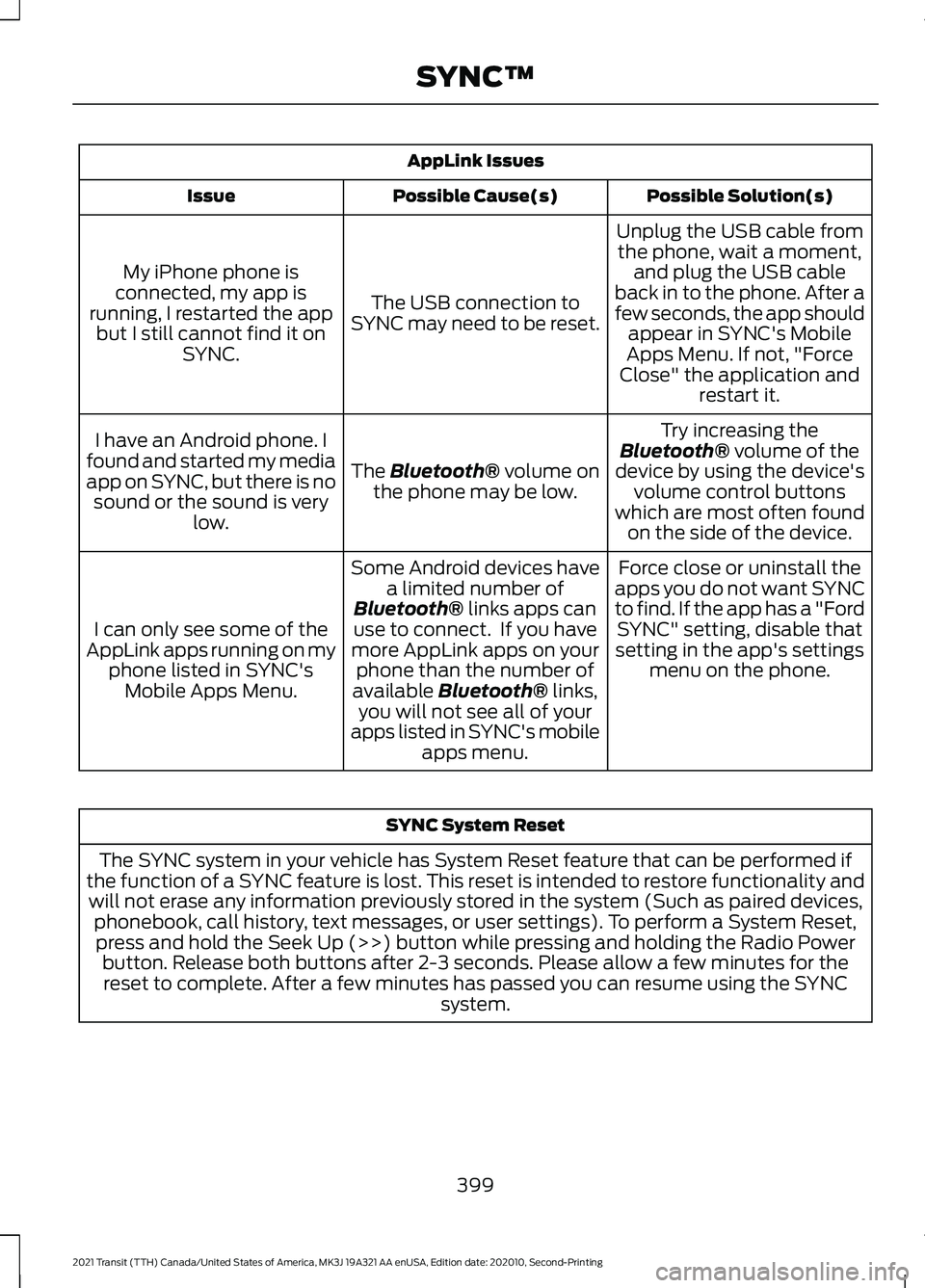
AppLink Issues
Possible Solution(s)
Possible Cause(s)
Issue
Unplug the USB cable fromthe phone, wait a moment, and plug the USB cable
back in to the phone. After a
few seconds, the app should appear in SYNC's Mobile
Apps Menu. If not, "Force
Close" the application and restart it.
The USB connection to
SYNC may need to be reset.
My iPhone phone is
connected, my app is
running, I restarted the app but I still cannot find it on SYNC.
Try increasing the
Bluetooth® volume of the
device by using the device's volume control buttons
which are most often found on the side of the device.
The Bluetooth® volume on
the phone may be low.
I have an Android phone. I
found and started my media
app on SYNC, but there is no sound or the sound is very low.
Force close or uninstall the
apps you do not want SYNC
to find. If the app has a "Ford SYNC" setting, disable that
setting in the app's settings menu on the phone.
Some Android devices have
a limited number of
Bluetooth®
links apps can
use to connect. If you have
more AppLink apps on your phone than the number of
available
Bluetooth® links,
you will not see all of your
apps listed in SYNC's mobile apps menu.
I can only see some of the
AppLink apps running on my phone listed in SYNC'sMobile Apps Menu. SYNC System Reset
The SYNC system in your vehicle has System Reset feature that can be performed if
the function of a SYNC feature is lost. This reset is intended to restore functionality and will not erase any information previously stored in the system (Such as paired devices, phonebook, call history, text messages, or user settings). To perform a System Reset,press and hold the Seek Up (>>) button while pressing and holding the Radio Power button. Release both buttons after 2-3 seconds. Please allow a few minutes for thereset to complete. After a few minutes has passed you can resume using the SYNC system.
399
2021 Transit (TTH) Canada/United States of America, MK3J 19A321 AA enUSA, Edition date: 202010, Second-Printing SYNC™