phone FORD TRANSIT CONNECT 2015 2.G Owner's Manual
[x] Cancel search | Manufacturer: FORD, Model Year: 2015, Model line: TRANSIT CONNECT, Model: FORD TRANSIT CONNECT 2015 2.GPages: 428, PDF Size: 6.27 MB
Page 274 of 428
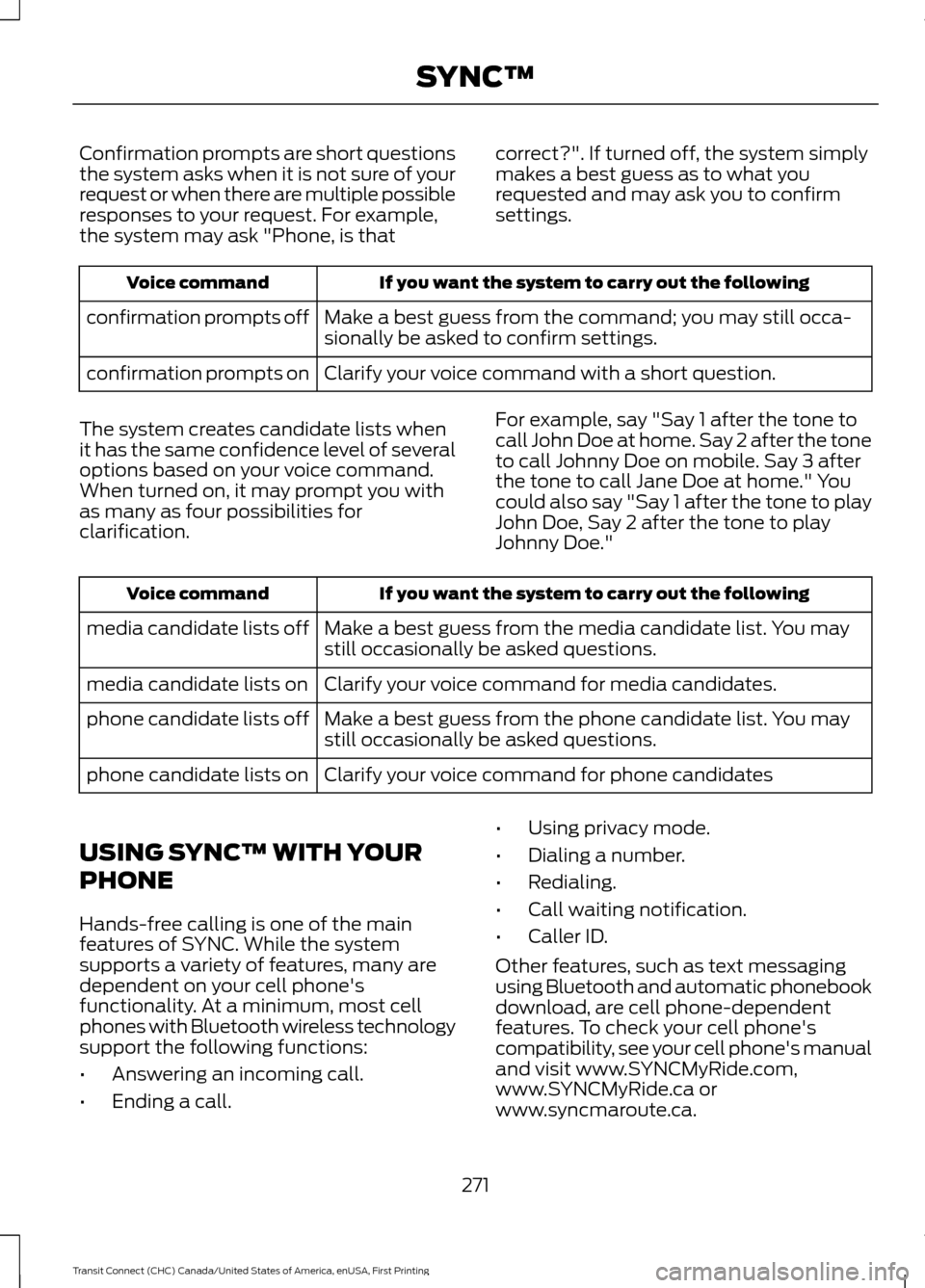
Confirmation prompts are short questions
the system asks when it is not sure of your
request or when there are multiple possible
responses to your request. For example,
the system may ask "Phone, is that
correct?". If turned off, the system simply
makes a best guess as to what you
requested and may ask you to confirm
settings.If you want the system to carry out the following
Voice command
Make a best guess from the command; you may still occa-
sionally be asked to confirm settings.
confirmation prompts off
Clarify your voice command with a short question.
confirmation prompts on
The system creates candidate lists when
it has the same confidence level of several
options based on your voice command.
When turned on, it may prompt you with
as many as four possibilities for
clarification. For example, say "Say 1 after the tone to
call John Doe at home. Say 2 after the tone
to call Johnny Doe on mobile. Say 3 after
the tone to call Jane Doe at home." You
could also say "Say 1 after the tone to play
John Doe, Say 2 after the tone to play
Johnny Doe."If you want the system to carry out the following
Voice command
Make a best guess from the media candidate list. You may
still occasionally be asked questions.
media candidate lists off
Clarify your voice command for media candidates.
media candidate lists on
Make a best guess from the phone candidate list. You may
still occasionally be asked questions.
phone candidate lists off
Clarify your voice command for phone candidates
phone candidate lists on
USING SYNC™ WITH YOUR
PHONE
Hands-free calling is one of the main
features of SYNC. While the system
supports a variety of features, many are
dependent on your cell phone's
functionality. At a minimum, most cell
phones with Bluetooth wireless technology
support the following functions:
• Answering an incoming call.
• Ending a call. •
Using privacy mode.
• Dialing a number.
• Redialing.
• Call waiting notification.
• Caller ID.
Other features, such as text messaging
using Bluetooth and automatic phonebook
download, are cell phone-dependent
features. To check your cell phone's
compatibility, see your cell phone's manual
and visit www.SYNCMyRide.com,
www.SYNCMyRide.ca or
www.syncmaroute.ca.
271
Transit Connect (CHC) Canada/United States of America, enUSA, First Printing SYNC™
Page 275 of 428
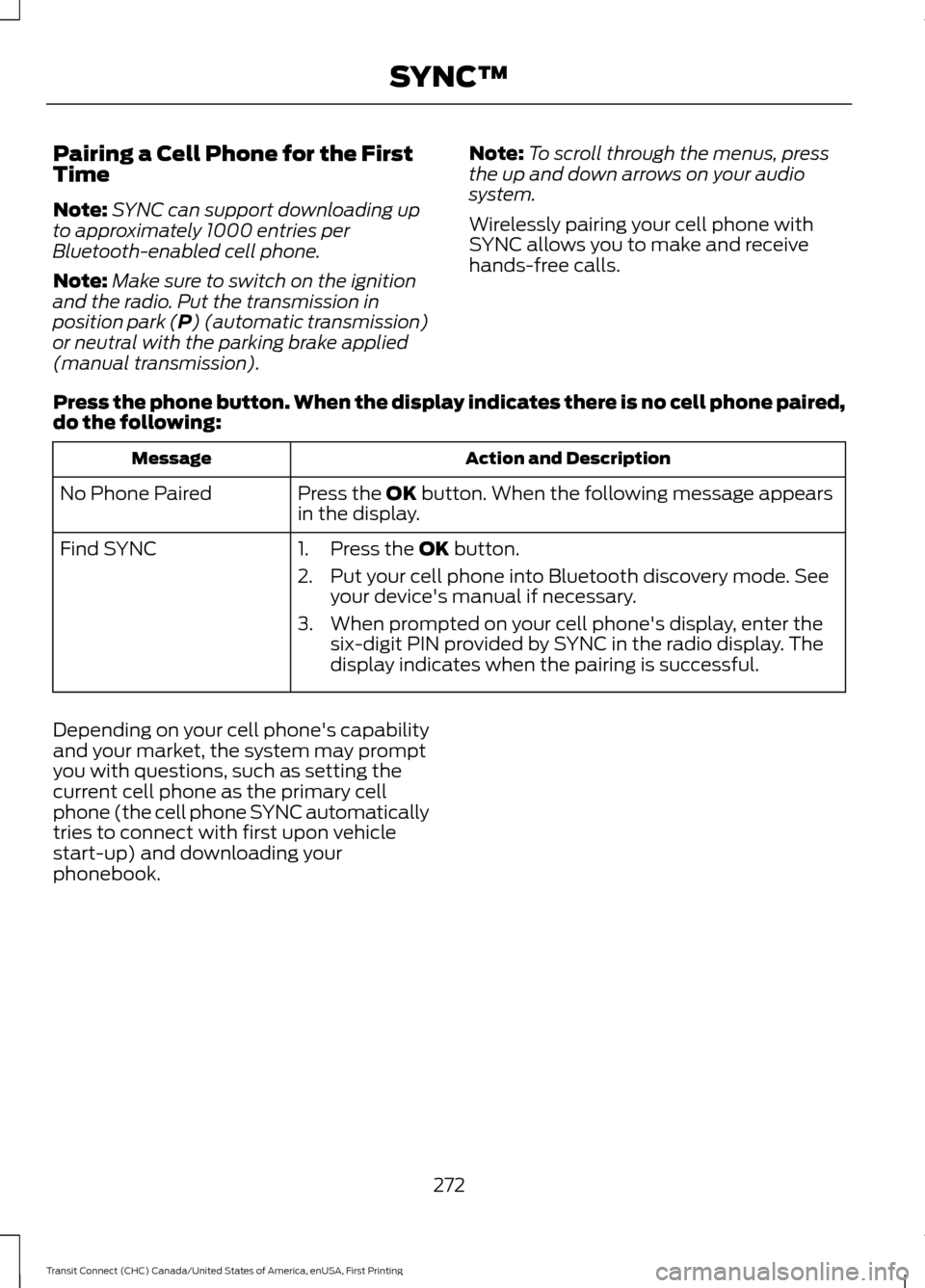
Pairing a Cell Phone for the First
Time
Note:
SYNC can support downloading up
to approximately 1000 entries per
Bluetooth-enabled cell phone.
Note: Make sure to switch on the ignition
and the radio. Put the transmission in
position park (P) (automatic transmission)
or neutral with the parking brake applied
(manual transmission). Note:
To scroll through the menus, press
the up and down arrows on your audio
system.
Wirelessly pairing your cell phone with
SYNC allows you to make and receive
hands-free calls.
Press the phone button. When the display indicates there is no cell phone paired,
do the following: Action and Description
Message
Press the
OK button. When the following message appears
in the display.
No Phone Paired
Find SYNC
1. Press the
OK button.
2. Put your cell phone into Bluetooth discovery mode. See your device's manual if necessary.
3. When prompted on your cell phone's display, enter the six-digit PIN provided by SYNC in the radio display. The
display indicates when the pairing is successful.
Depending on your cell phone's capability
and your market, the system may prompt
you with questions, such as setting the
current cell phone as the primary cell
phone (the cell phone SYNC automatically
tries to connect with first upon vehicle
start-up) and downloading your
phonebook.
272
Transit Connect (CHC) Canada/United States of America, enUSA, First Printing SYNC™
Page 276 of 428
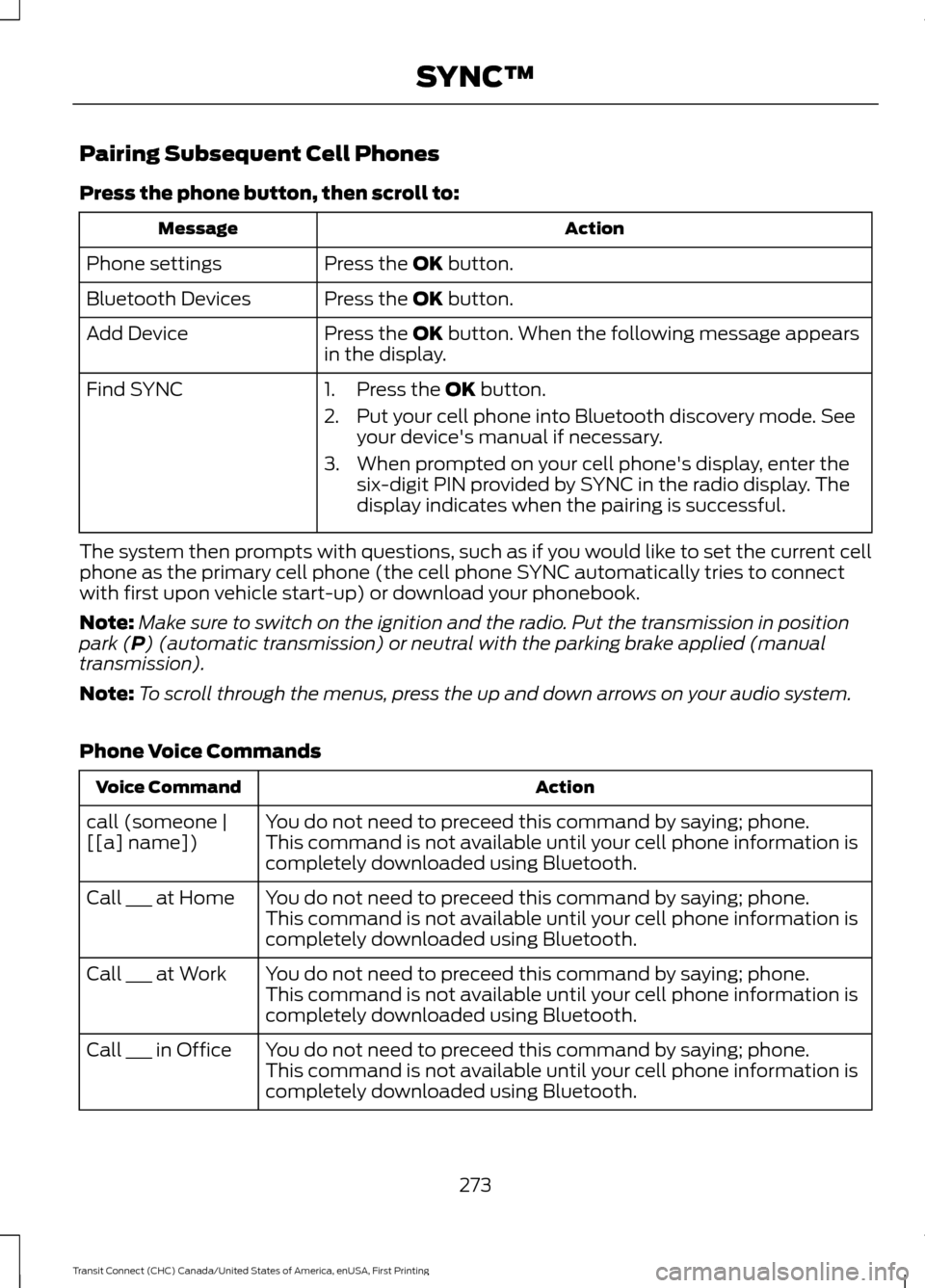
Pairing Subsequent Cell Phones
Press the phone button, then scroll to:
Action
Message
Press the OK button.
Phone settings
Press the
OK button.
Bluetooth Devices
Press the
OK button. When the following message appears
in the display.
Add Device
Find SYNC
1. Press the
OK button.
2. Put your cell phone into Bluetooth discovery mode. See your device's manual if necessary.
3. When prompted on your cell phone's display, enter the six-digit PIN provided by SYNC in the radio display. The
display indicates when the pairing is successful.
The system then prompts with questions, such as if you would like to set the current cell
phone as the primary cell phone (the cell phone SYNC automatically tries to connect
with first upon vehicle start-up) or download your phonebook.
Note: Make sure to switch on the ignition and the radio. Put the transmission in position
park (
P) (automatic transmission) or neutral with the parking brake applied (manual
transmission).
Note: To scroll through the menus, press the up and down arrows on your audio system.
Phone Voice Commands Action
Voice Command
You do not need to preceed this command by saying; phone.
call (someone |
[[a] name]) This command is not available until your cell phone information is
completely downloaded using Bluetooth.
You do not need to preceed this command by saying; phone.
Call ___ at Home
This command is not available until your cell phone information is
completely downloaded using Bluetooth.
You do not need to preceed this command by saying; phone.
Call ___ at Work
This command is not available until your cell phone information is
completely downloaded using Bluetooth.
You do not need to preceed this command by saying; phone.
Call ___ in Office
This command is not available until your cell phone information is
completely downloaded using Bluetooth.
273
Transit Connect (CHC) Canada/United States of America, enUSA, First Printing SYNC™
Page 277 of 428
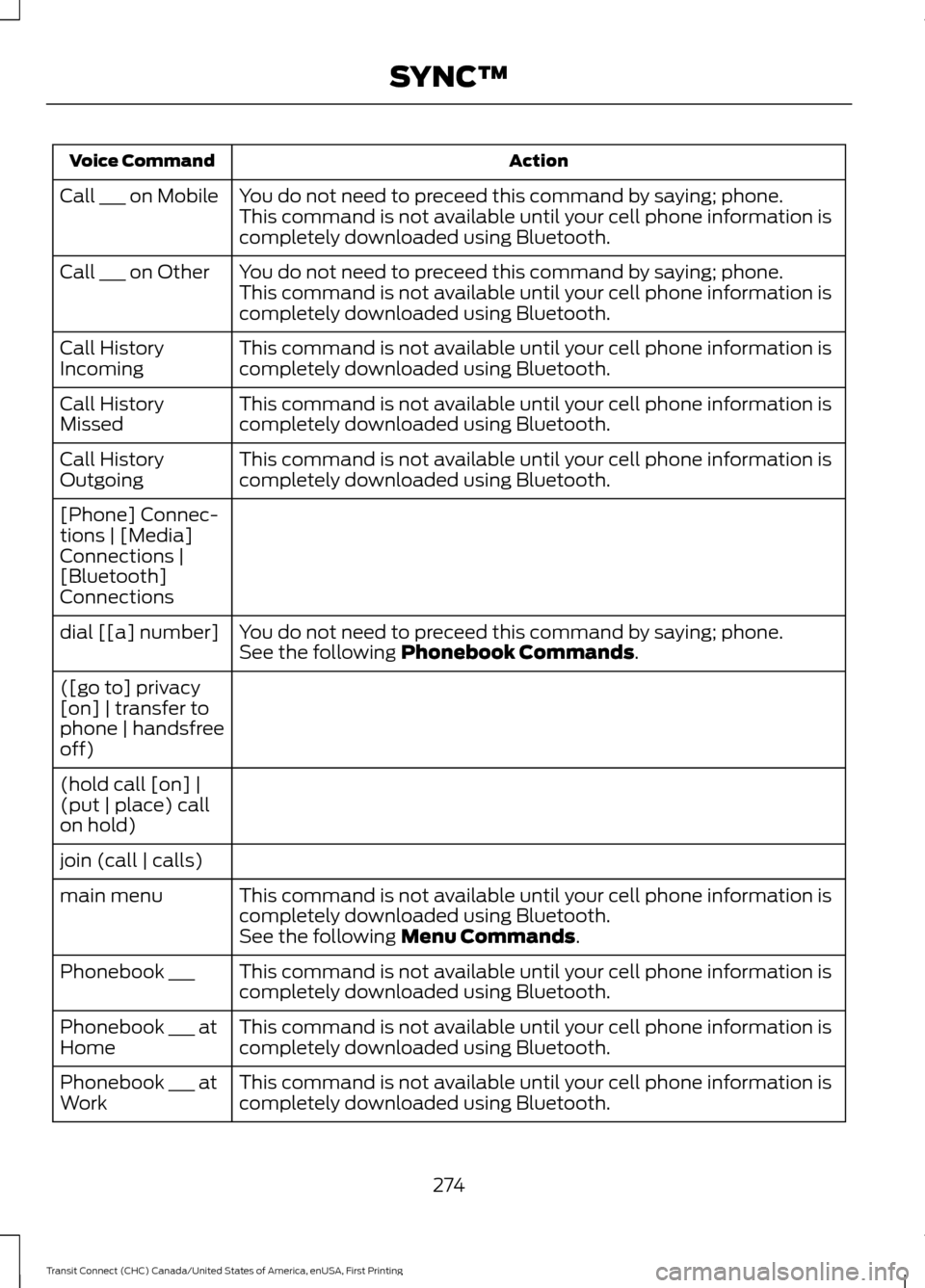
Action
Voice Command
You do not need to preceed this command by saying; phone.
Call ___ on Mobile
This command is not available until your cell phone information is
completely downloaded using Bluetooth.
You do not need to preceed this command by saying; phone.
Call ___ on Other
This command is not available until your cell phone information is
completely downloaded using Bluetooth.
This command is not available until your cell phone information is
completely downloaded using Bluetooth.
Call History
Incoming
This command is not available until your cell phone information is
completely downloaded using Bluetooth.
Call History
Missed
This command is not available until your cell phone information is
completely downloaded using Bluetooth.
Call History
Outgoing
[Phone] Connec-
tions | [Media]
Connections |
[Bluetooth]
Connections
You do not need to preceed this command by saying; phone.
dial [[a] number]
See the following Phonebook Commands.
([go to] privacy
[on] | transfer to
phone | handsfree
off)
(hold call [on] |
(put | place) call
on hold)
join (call | calls) This command is not available until your cell phone information is
completely downloaded using Bluetooth.
main menu
See the following
Menu Commands.
This command is not available until your cell phone information is
completely downloaded using Bluetooth.
Phonebook ___
This command is not available until your cell phone information is
completely downloaded using Bluetooth.
Phonebook ___ at
Home
This command is not available until your cell phone information is
completely downloaded using Bluetooth.
Phonebook ___ at
Work
274
Transit Connect (CHC) Canada/United States of America, enUSA, First Printing SYNC™
Page 278 of 428
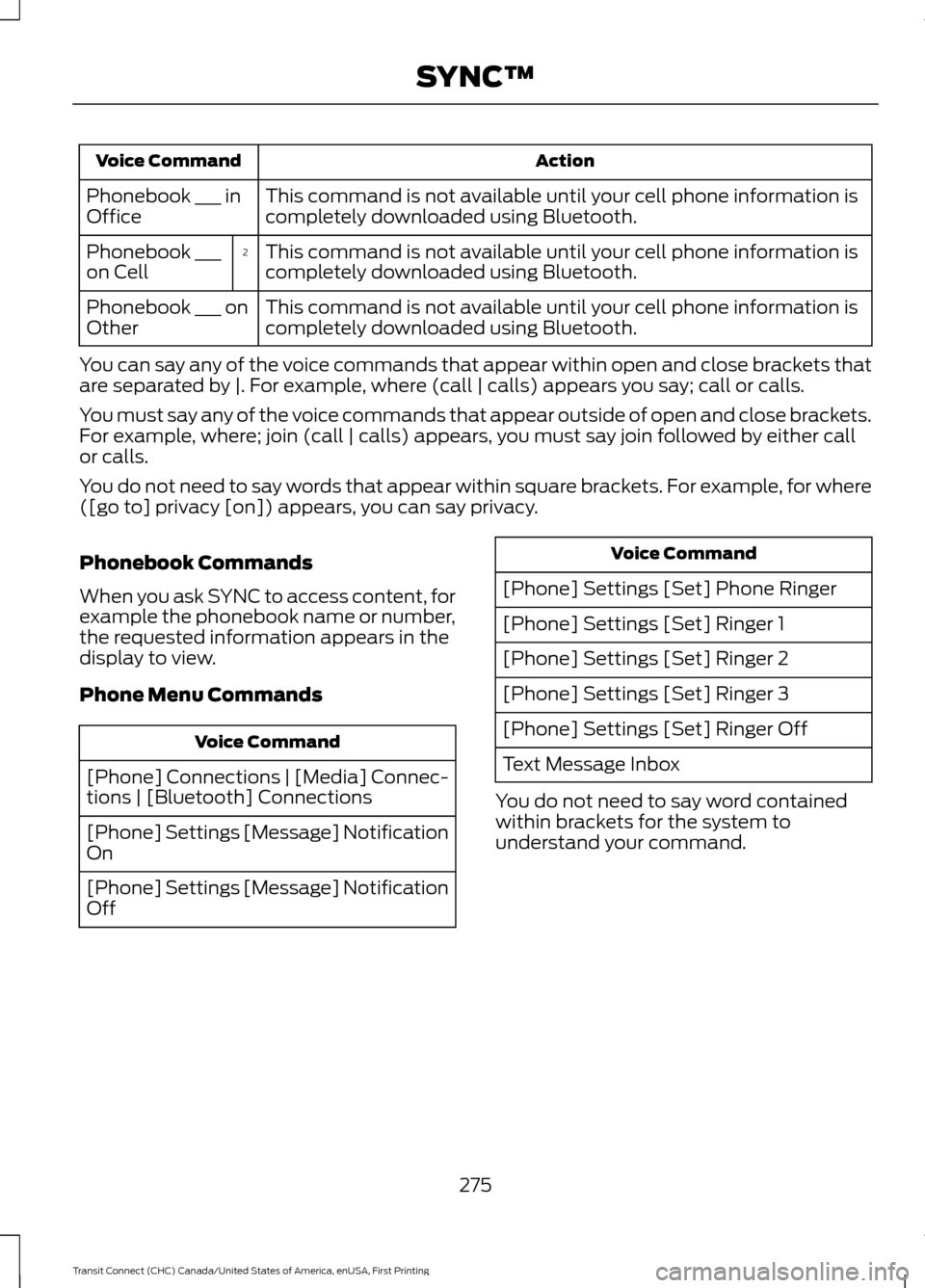
Action
Voice Command
This command is not available until your cell phone information is
completely downloaded using Bluetooth.
Phonebook ___ in
Office
This command is not available until your cell phone information is
completely downloaded using Bluetooth.
2
Phonebook ___
on Cell
This command is not available until your cell phone information is
completely downloaded using Bluetooth.
Phonebook ___ on
Other
You can say any of the voice commands that appear within open and close brackets that
are separated by |. For example, where (call | calls) appears you say; call or calls.
You must say any of the voice commands that appear outside of open and close brackets.
For example, where; join (call | calls) appears, you must say join followed by either call
or calls.
You do not need to say words that appear within square brackets. For example, for where
([go to] privacy [on]) appears, you can say privacy.
Phonebook Commands
When you ask SYNC to access content, for
example the phonebook name or number,
the requested information appears in the
display to view.
Phone Menu Commands Voice Command
[Phone] Connections | [Media] Connec-
tions | [Bluetooth] Connections
[Phone] Settings [Message] Notification
On
[Phone] Settings [Message] Notification
Off Voice Command
[Phone] Settings [Set] Phone Ringer
[Phone] Settings [Set] Ringer 1
[Phone] Settings [Set] Ringer 2
[Phone] Settings [Set] Ringer 3
[Phone] Settings [Set] Ringer Off
Text Message Inbox
You do not need to say word contained
within brackets for the system to
understand your command.
275
Transit Connect (CHC) Canada/United States of America, enUSA, First Printing SYNC™
Page 279 of 428
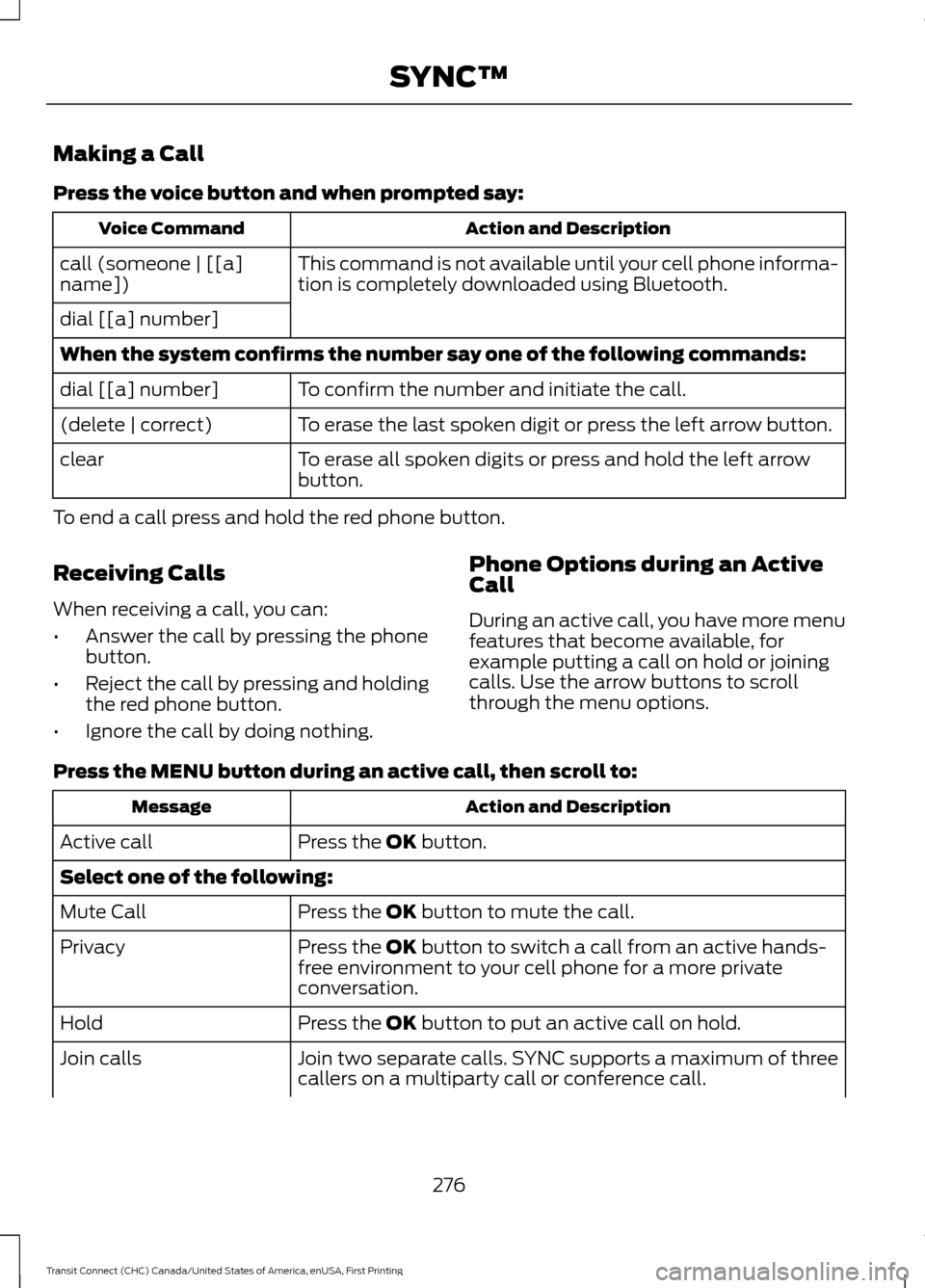
Making a Call
Press the voice button and when prompted say:
Action and Description
Voice Command
This command is not available until your cell phone informa-
tion is completely downloaded using Bluetooth.
call (someone | [[a]
name])
dial [[a] number]
When the system confirms the number say one of the following commands:
To confirm the number and initiate the call.
dial [[a] number]
To erase the last spoken digit or press the left arrow button.
(delete | correct)
To erase all spoken digits or press and hold the left arrow
button.
clear
To end a call press and hold the red phone button.
Receiving Calls
When receiving a call, you can:
• Answer the call by pressing the phone
button.
• Reject the call by pressing and holding
the red phone button.
• Ignore the call by doing nothing. Phone Options during an Active
Call
During an active call, you have more menu
features that become available, for
example putting a call on hold or joining
calls. Use the arrow buttons to scroll
through the menu options.
Press the MENU button during an active call, then scroll to: Action and Description
Message
Press the
OK button.
Active call
Select one of the following:
Press the
OK button to mute the call.
Mute Call
Press the
OK button to switch a call from an active hands-
free environment to your cell phone for a more private
conversation.
Privacy
Press the
OK button to put an active call on hold.
Hold
Join two separate calls. SYNC supports a maximum of three
callers on a multiparty call or conference call.
Join calls
276
Transit Connect (CHC) Canada/United States of America, enUSA, First Printing SYNC™
Page 280 of 428
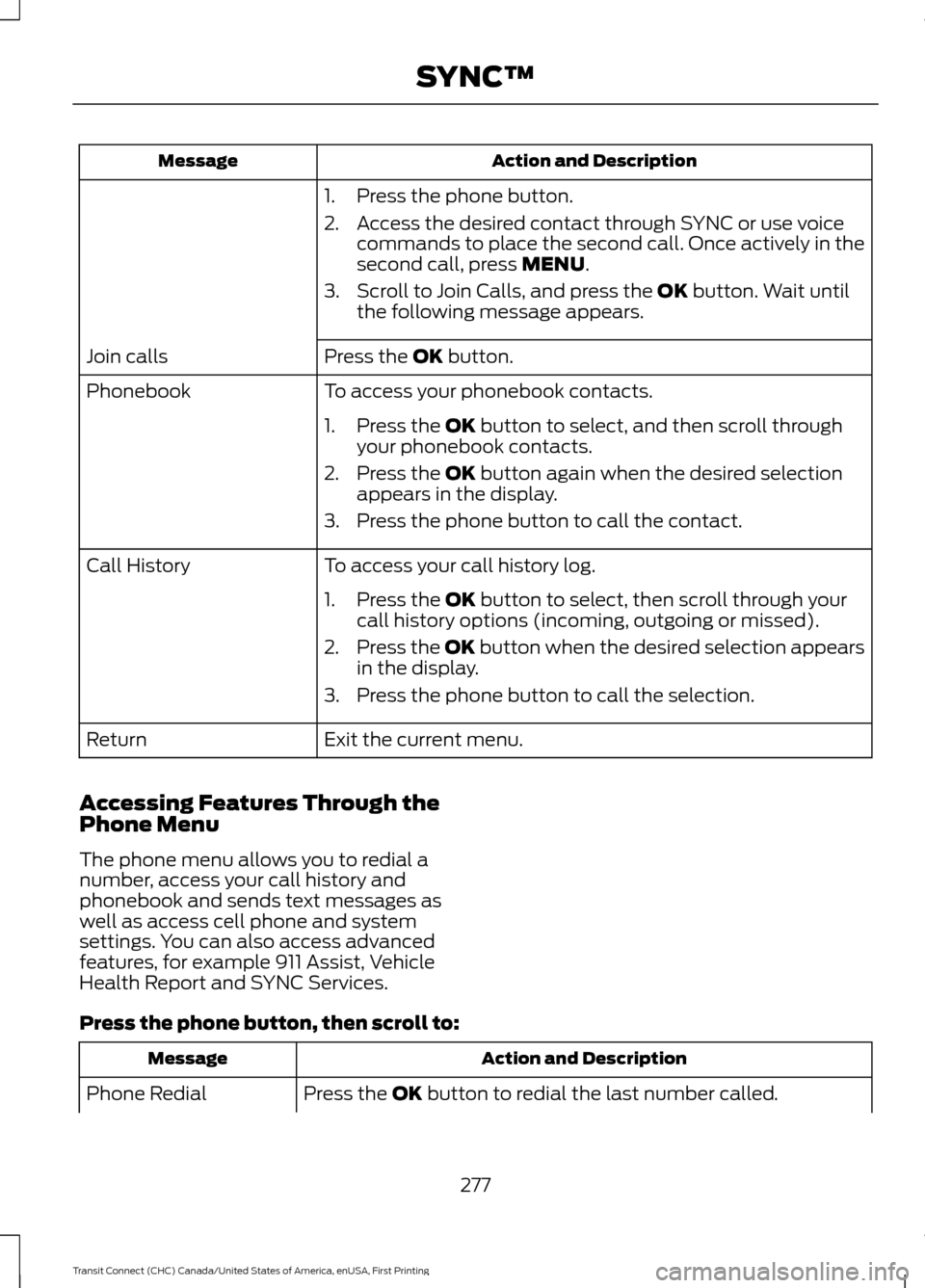
Action and Description
Message
1. Press the phone button.
2. Access the desired contact through SYNC or use voicecommands to place the second call. Once actively in the
second call, press MENU.
3. Scroll to Join Calls, and press the
OK button. Wait until
the following message appears.
Press the
OK button.
Join calls
To access your phonebook contacts.
Phonebook
1. Press the
OK button to select, and then scroll through
your phonebook contacts.
2. Press the
OK button again when the desired selection
appears in the display.
3. Press the phone button to call the contact.
To access your call history log.
Call History
1. Press the
OK button to select, then scroll through your
call history options (incoming, outgoing or missed).
2. Press the
OK button when the desired selection appears
in the display.
3. Press the phone button to call the selection.
Exit the current menu.
Return
Accessing Features Through the
Phone Menu
The phone menu allows you to redial a
number, access your call history and
phonebook and sends text messages as
well as access cell phone and system
settings. You can also access advanced
features, for example 911 Assist, Vehicle
Health Report and SYNC Services.
Press the phone button, then scroll to: Action and Description
Message
Press the
OK button to redial the last number called.
Phone Redial
277
Transit Connect (CHC) Canada/United States of America, enUSA, First Printing SYNC™
Page 281 of 428
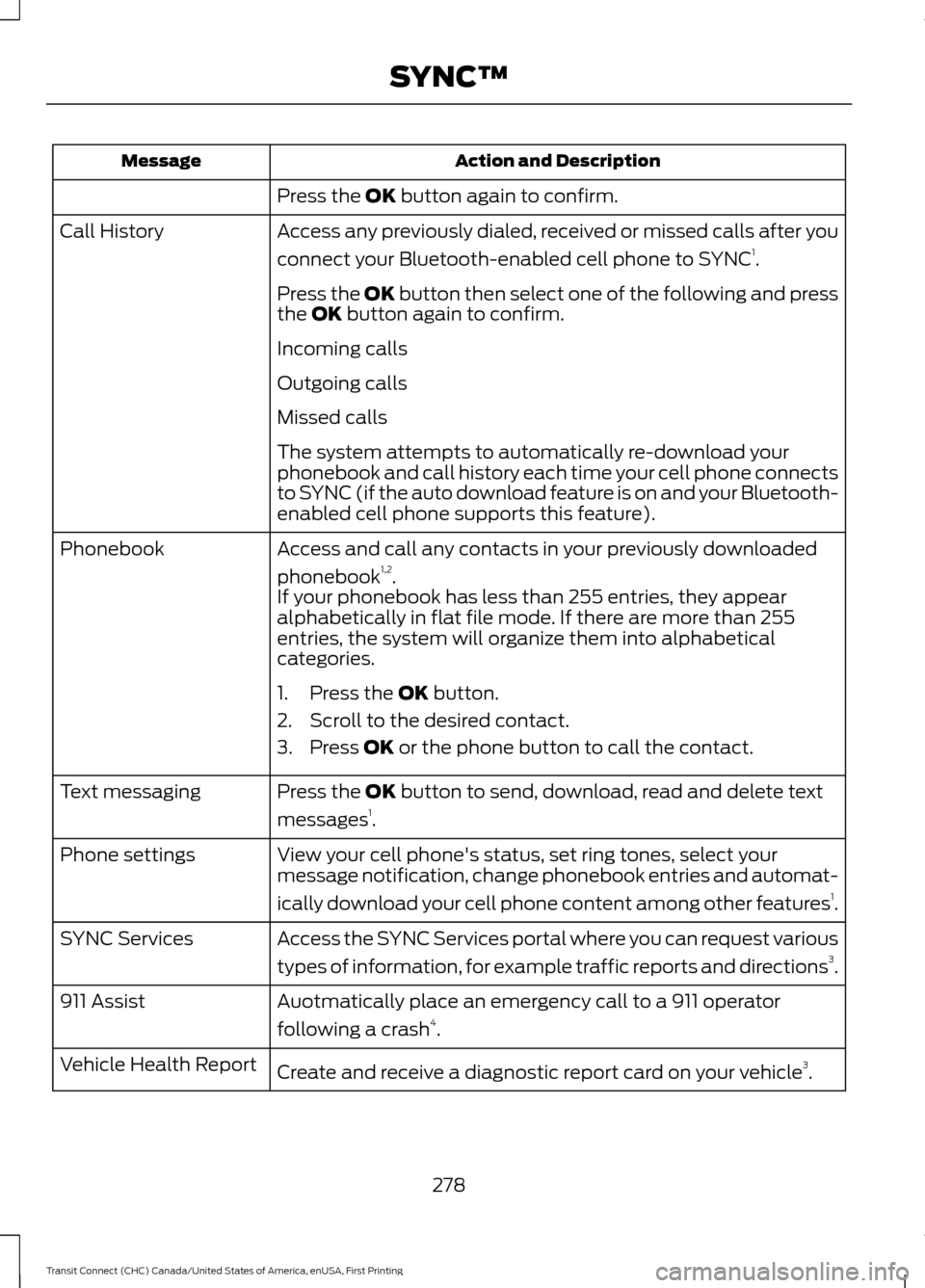
Action and Description
Message
Press the OK button again to confirm.
Access any previously dialed, received or missed calls after you
connect your Bluetooth-enabled cell phone to SYNC 1
.
Call History
Press the OK button then select one of the following and press
the
OK button again to confirm.
Incoming calls
Outgoing calls
Missed calls
The system attempts to automatically re-download your
phonebook and call history each time your cell phone connects
to SYNC (if the auto download feature is on and your Bluetooth-
enabled cell phone supports this feature).
Access and call any contacts in your previously downloaded
phonebook 1,2
.
Phonebook
If your phonebook has less than 255 entries, they appear
alphabetically in flat file mode. If there are more than 255
entries, the system will organize them into alphabetical
categories.
1. Press the
OK button.
2. Scroll to the desired contact.
3. Press
OK or the phone button to call the contact.
Press the
OK button to send, download, read and delete text
messages 1
.
Text messaging
View your cell phone's status, set ring tones, select your
message notification, change phonebook entries and automat-
ically download your cell phone content among other features 1
.
Phone settings
Access the SYNC Services portal where you can request various
types of information, for example traffic reports and directions 3
.
SYNC Services
Auotmatically place an emergency call to a 911 operator
following a crash4
.
911 Assist
Create and receive a diagnostic report card on your vehicle 3
.
Vehicle Health Report
278
Transit Connect (CHC) Canada/United States of America, enUSA, First Printing SYNC™
Page 282 of 428
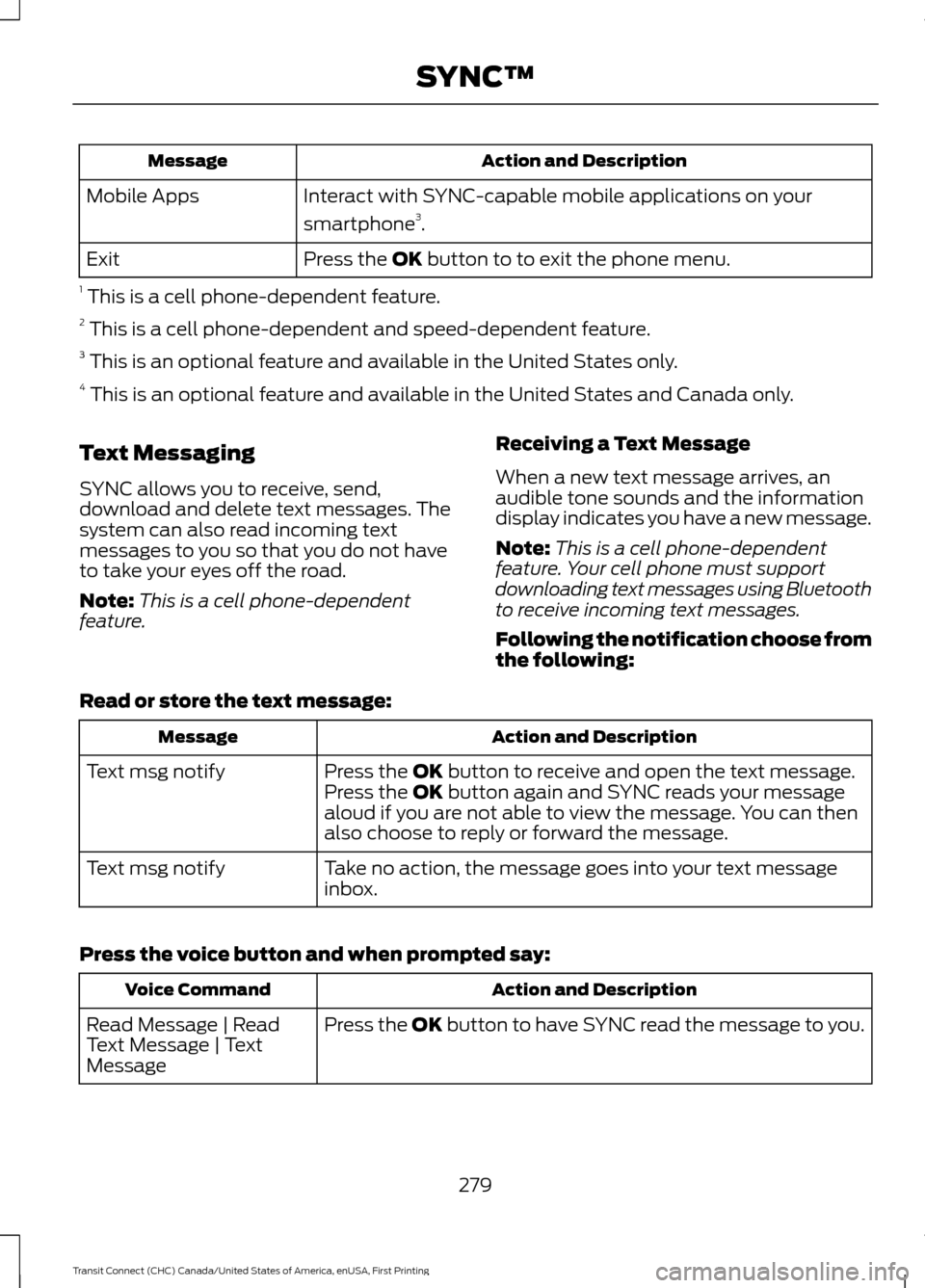
Action and Description
Message
Interact with SYNC-capable mobile applications on your
smartphone3
.
Mobile Apps
Press the OK button to to exit the phone menu.
Exit
1 This is a cell phone-dependent feature.
2 This is a cell phone-dependent and speed-dependent feature.
3 This is an optional feature and available in the United States only.
4 This is an optional feature and available in the United States and Canada only.
Text Messaging
SYNC allows you to receive, send,
download and delete text messages. The
system can also read incoming text
messages to you so that you do not have
to take your eyes off the road.
Note: This is a cell phone-dependent
feature. Receiving a Text Message
When a new text message arrives, an
audible tone sounds and the information
display indicates you have a new message.
Note:
This is a cell phone-dependent
feature. Your cell phone must support
downloading text messages using Bluetooth
to receive incoming text messages.
Following the notification choose from
the following:
Read or store the text message: Action and Description
Message
Press the
OK button to receive and open the text message.
Press the OK button again and SYNC reads your message
aloud if you are not able to view the message. You can then
also choose to reply or forward the message.
Text msg notify
Take no action, the message goes into your text message
inbox.
Text msg notify
Press the voice button and when prompted say: Action and Description
Voice Command
Press the
OK button to have SYNC read the message to you.
Read Message | Read
Text Message | Text
Message
279
Transit Connect (CHC) Canada/United States of America, enUSA, First Printing SYNC™
Page 283 of 428
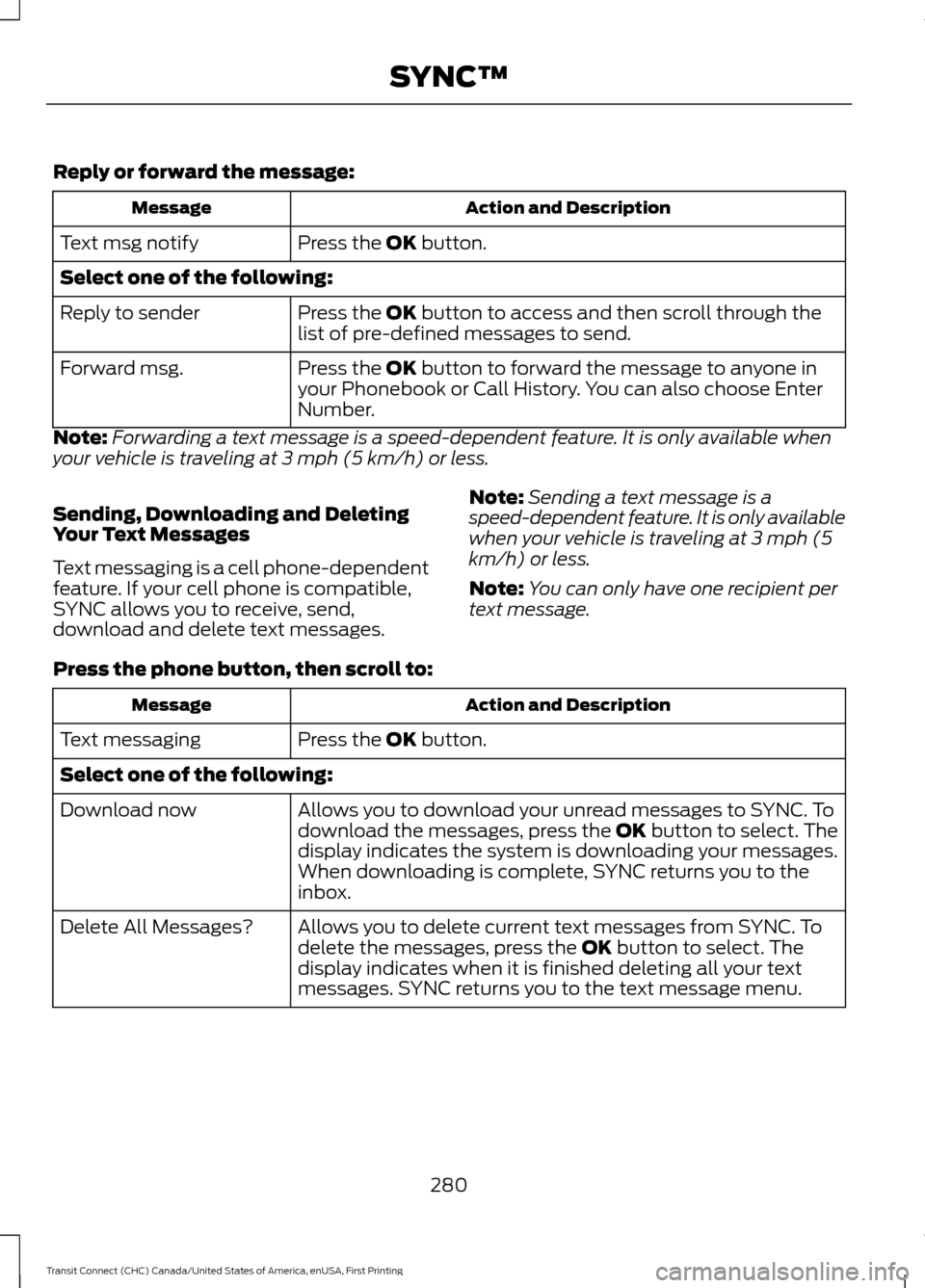
Reply or forward the message:
Action and Description
Message
Press the OK button.
Text msg notify
Select one of the following:
Press the
OK button to access and then scroll through the
list of pre-defined messages to send.
Reply to sender
Press the
OK button to forward the message to anyone in
your Phonebook or Call History. You can also choose Enter
Number.
Forward msg.
Note: Forwarding a text message is a speed-dependent feature. It is only available when
your vehicle is traveling at 3 mph (5 km/h) or less.
Sending, Downloading and Deleting
Your Text Messages
Text messaging is a cell phone-dependent
feature. If your cell phone is compatible,
SYNC allows you to receive, send,
download and delete text messages. Note:
Sending a text message is a
speed-dependent feature. It is only available
when your vehicle is traveling at 3 mph (5
km/h) or less.
Note: You can only have one recipient per
text message.
Press the phone button, then scroll to: Action and Description
Message
Press the
OK button.
Text messaging
Select one of the following:
Allows you to download your unread messages to SYNC. To
download the messages, press the
OK button to select. The
display indicates the system is downloading your messages.
When downloading is complete, SYNC returns you to the
inbox.
Download now
Allows you to delete current text messages from SYNC. To
delete the messages, press the
OK button to select. The
display indicates when it is finished deleting all your text
messages. SYNC returns you to the text message menu.
Delete All Messages?
280
Transit Connect (CHC) Canada/United States of America, enUSA, First Printing SYNC™