GENESIS GV70 2023 Owners Manual
Manufacturer: GENESIS, Model Year: 2023, Model line: GV70, Model: GENESIS GV70 2023Pages: 637
Page 511 of 637
Driver Assistance System
7-160
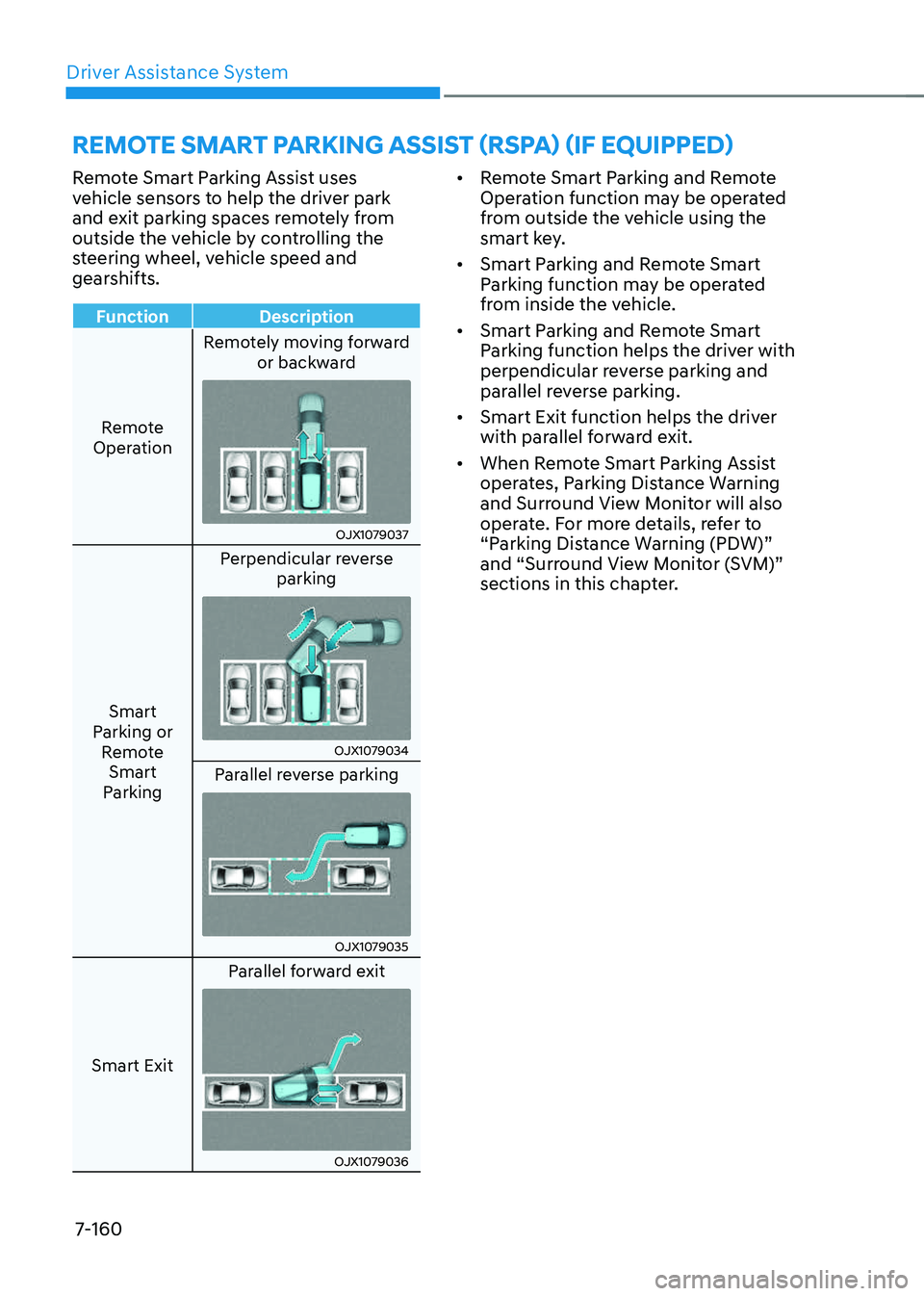
Remote Smart Parking Assist uses
vehicle sensors to help the driver park
and exit parking spaces remotely from
outside the vehicle by controlling the
steering wheel, vehicle speed and
gearshifts.
FunctionDescription
Remote
Operation Remotely moving forward
or backward
OJX1079037OJX1079037
Smart
Parking or Remote Smart
Parking Perpendicular reverse
parking
OJX1079034OJX1079034
Parallel reverse parking
OJX1079035OJX1079035
Smart Exit Parallel forward exit
OJX1079036OJX1079036
• Remote Smart Parking and Remote
Operation function may be operated
from outside the vehicle using the
smart key.
• Smart Parking and Remote Smart
Parking function may be operated
from inside the vehicle.
• Smart Parking and Remote Smart
Parking function helps the driver with
perpendicular reverse parking and
parallel reverse parking.
• Smart Exit function helps the driver
with parallel forward exit.
• When Remote Smart Parking Assist
operates, Parking Distance Warning
and Surround View Monitor will also
operate. For more details, refer to
“Parking Distance Warning (PDW)”
and “Surround View Monitor (SVM)”
sections in this chapter.
REMOTE SMART PARKING ASSIST (RSPA) (IF EQUIPPED)
Page 512 of 637
![GENESIS GV70 2023 Owners Manual 07
7-161
Detecting sensors
OJK071228NOJK071228N
OJK071229NOJK071229N[1] : Front ultrasonic sensors,
[2] : Front corner ultrasonic sensors,
[3] : Rear corner ultrasonic sensors,
[4] : Rear ultrasonic s](/img/46/58827/w960_58827-511.png "GENESIS GV70 2023 Owners Manual 07
7-161
Detecting sensors
OJK071228NOJK071228N
OJK071229NOJK071229N[1] : Front ultrasonic sensors,
[2] : Front corner ultrasonic sensors,
[3] : Rear corner ultrasonic sensors,
[4] : Rear ultrasonic s")
07
7-161
Detecting sensors
OJK071228NOJK071228N
OJK071229NOJK071229N[1] : Front ultrasonic sensors,
[2] : Front corner ultrasonic sensors,
[3] : Rear corner ultrasonic sensors,
[4] : Rear ultrasonic sensors
Refer to the picture above for the
detailed location of the detecting
sensors.
CAUTION
Take the following precautions to
maintain optimal performance of the
detecting sensors:
• Never disassemble the detecting
sensor or sensor assembly, or cause
any damage to it.
• If the detecting sensors need repair,
have the vehicle inspected by
an authorized retailer of Genesis
Branded products.
• Remote Smart Parking Assist
may malfunction if the vehicle
bumper height or ultrasonic sensor
installation has been modified
or damaged. Any non-factory
installed equipment or accessories
may also interfere with the sensor
performance.
• When the ultrasonic sensor is frozen
or stained with snow, dirt, or water,
the sensor may not operate until the
stains are removed using a soft cloth.
• Do not push, scratch or strike the
ultrasonic sensor. Sensor damage
could occur.
• Do not spray the ultrasonic sensors
or its surrounding area directly with
a high pressure washer.
Remote Smart Parking Assist
Settings
Settings features
OJK071003N OJK071003N
Warning Volume
With the engine on, select ‘Driver
Assistance → Warning Volume’ from the
Settings menu to change the Warning
Volume to ‘High’, ‘Medium’, ‘Low’ or ‘Off’
for Remote Smart Parking Assist.
However, even if ‘Off’ is selected, the
volume will not turn off but the volume
will sound as ‘Low’.
If you change the Warning Volume,
the warning volume of other Driver
Assistance systems may change.
Page 513 of 637
Driver Assistance System
7-162
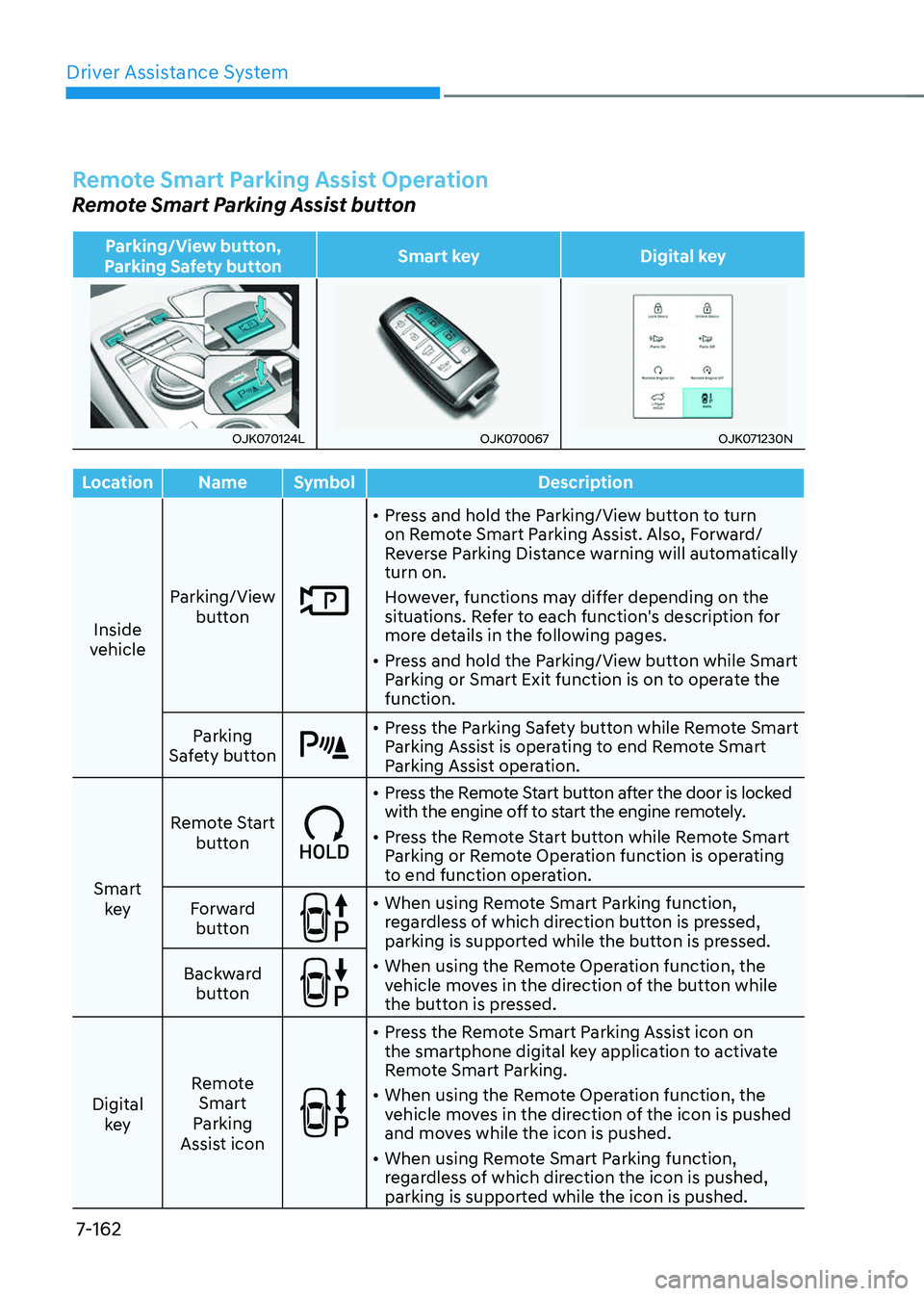
Remote Smart Parking Assist Operation
Remote Smart Parking Assist button
Parking/View button,
Parking Safety button Smart key
Digital key
OJK070124LOJK070124LOJK070067OJK070067OJK071230NOJK071230N
LocationNameSymbol Description
Inside
vehicle Parking/View
button
• Press and hold the Parking/View button to turn
on Remote Smart Parking Assist. Also, Forward/
Reverse Parking Distance warning will automatically
turn on.
However, functions may differ depending on the
situations. Refer to each function's description for
more details in the following pages.
• Press and hold the Parking/View button while Smart
Parking or Smart Exit function is on to operate the
function.
Parking
Safety button
• Press the Parking Safety button while Remote Smart
Parking Assist is operating to end Remote Smart
Parking Assist operation.
Smart key Remote Start
button
• Press the Remote Start button after the door is locked
with the engine off to start the engine remotely.
• Press the Remote Start button while Remote Smart
Parking or Remote Operation function is operating
to end function operation.
Forward button
• When using Remote Smart Parking function,
regardless of which direction button is pressed,
parking is supported while the button is pressed.
• When using the Remote Operation function, the
vehicle moves in the direction of the button while
the button is pressed.
Backward
button
Digital key Remote
Smart
Parking
Assist icon
• Press the Remote Smart Parking Assist icon on
the smartphone digital key application to activate
Remote Smart Parking.
• When using the Remote Operation function, the
vehicle moves in the direction of the icon is pushed
and moves while the icon is pushed.
• When using Remote Smart Parking function,
regardless of which direction the icon is pushed,
parking is supported while the icon is pushed.
Page 514 of 637
07
7-163
Remote Operation
Operating order
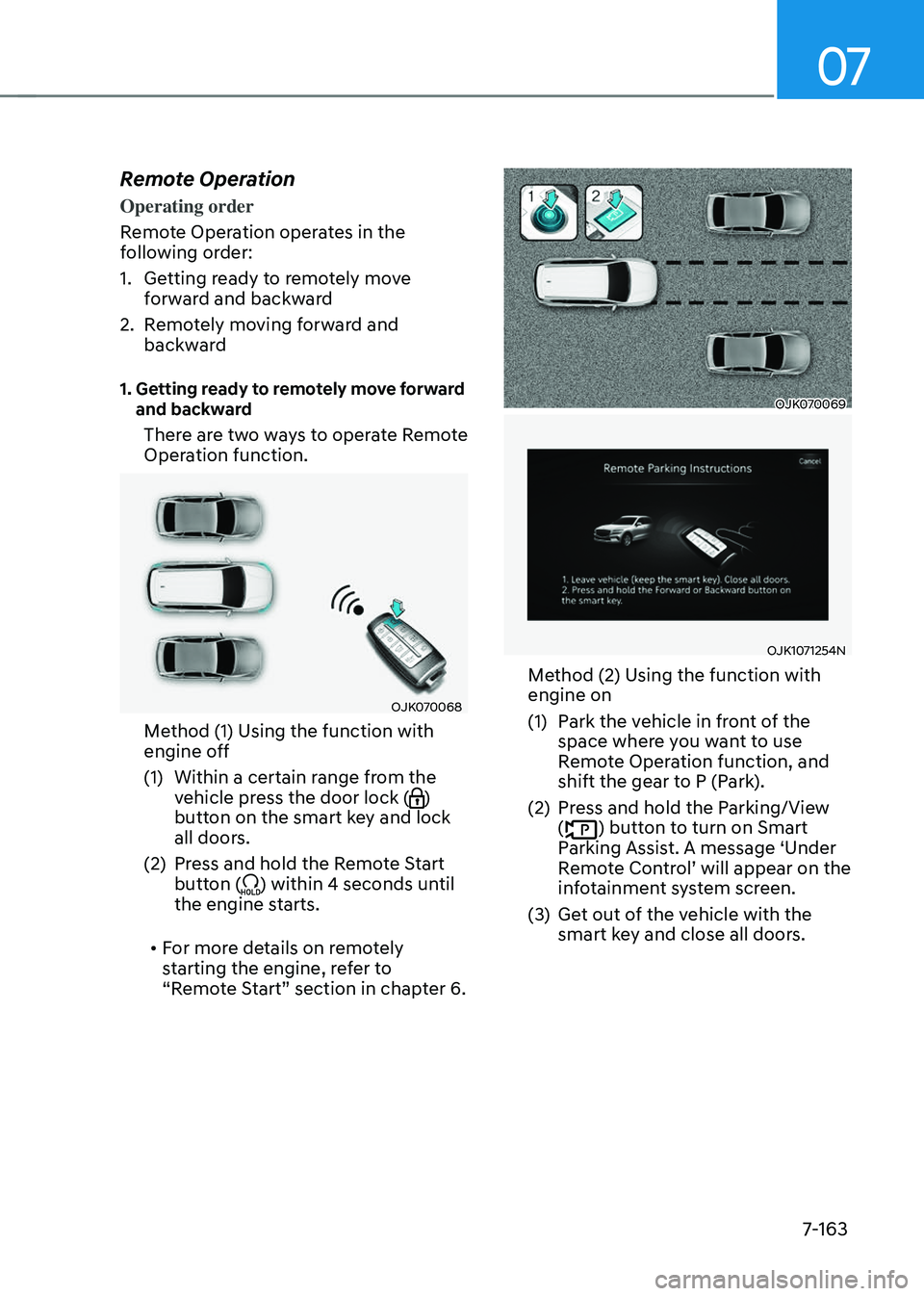
Remote Operation operates in the
following order:
1. Getting ready to remotely move
forward and backward
2. Remotely moving forward and
backward
1. Getting ready to remotely move forward and backward
There are two ways to operate Remote
Operation function.
OJK070068OJK070068
Method (1) Using the function with
engine off
(1) Within a certain range from the
vehicle press the door lock ()
button on the smart key and lock
all doors.
(2) Press and hold the Remote Start
button () within 4 seconds until
the engine starts.
• For more details on remotely
starting the engine, refer to
“Remote Start” section in chapter 6.
OJK070069OJK070069
OJK1071254NOJK1071254N
Method (2) Using the function with
engine on
(1) Park the vehicle in front of the
space where you want to use
Remote Operation function, and
shift the gear to P (Park).
(2) Press and hold the Parking/View
() button to turn on Smart
Parking Assist. A message ‘Under
Remote Control’ will appear on the
infotainment system screen.
(3) Get out of the vehicle with the
smart key and close all doors.
Page 515 of 637
Driver Assistance System
7-164
• 'Agree' must be selected on the
infotainment system screen and the
infotainment system has to operate
properly to use Remote Operation
function.
• Method (2) can be used after the
vehicle has been driven above 3
mph (5 km/h).
• If the function is turned on again
after parallel parking is completed
by Remote Smart Parking Assist,
Remote Operation function can be
used with Method (2).
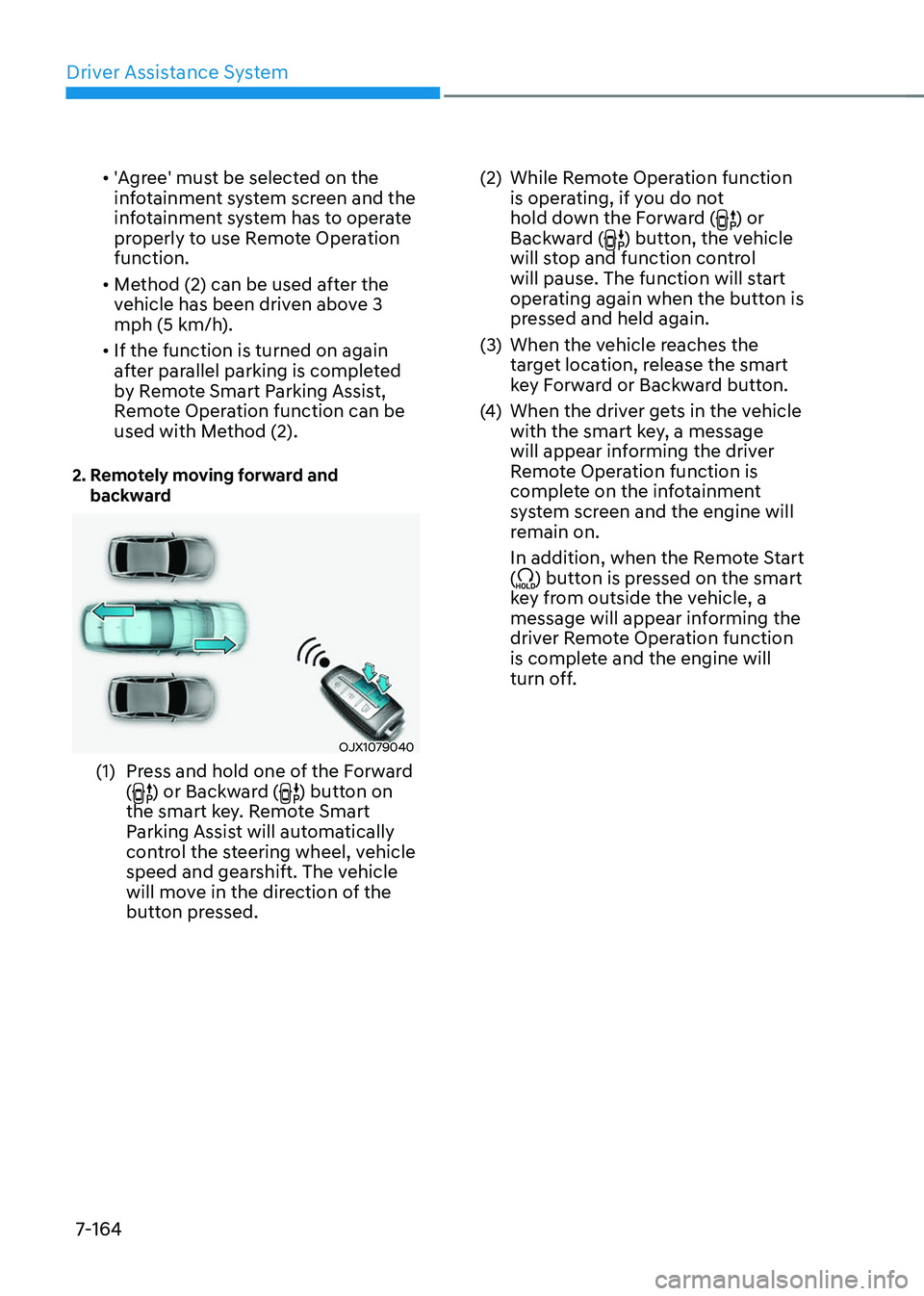
2. Remotely moving forward and backward
OJX1079040 OJX1079040
(1) Press and hold one of the Forward
() or Backward () button on
the smart key. Remote Smart
Parking Assist will automatically
control the steering wheel, vehicle
speed and gearshift. The vehicle
will move in the direction of the
button pressed.
(2) While Remote Operation function
is operating, if you do not
hold down the Forward (
) or
Backward () button, the vehicle
will stop and function control
will pause. The function will start
operating again when the button is
pressed and held again.
(3) When the vehicle reaches the
target location, release the smart
key Forward or Backward button.
(4) When the driver gets in the vehicle
with the smart key, a message
will appear informing the driver
Remote Operation function is
complete on the infotainment
system screen and the engine will
remain on.
In addition, when the Remote Start
(
) button is pressed on the smart
key from outside the vehicle, a
message will appear informing the
driver Remote Operation function
is complete and the engine will
turn off.
Page 516 of 637
07
7-165
• Check that all smart keys are
outside the vehicle when using
Remote Operation function.
• Remote Operation function will
operate only when the smart key is
within 13 ft. (4 m) from the vehicle. If
there is no vehicle movement even
when the Forward or Backward
button is pressed on the smart key,
check the distance to the vehicle
and press the button again.
• The detecting range of the smart
key may vary depending on the
surroundings that are affected by
radio waves such as transmission
tower, broadcast station, etc.
• When remotely moving forward
using method (1), it is recognized
as an exit situation, and the
vehicle moves 13 ft. (4 m) to
check for pedestrians, animals or
objects around the vehicle. After
confirmation, the steering wheel
is controlled according to the
condition ahead.
• When remotely moving forward
using method (2), it is recognized
as a parking situation, and will
immediately control the steering
wheel according to the condition
ahead to assist with entering the
parking space and aligning the
vehicle. However, performance
may reduce depending on the
pedestrians, animals, shape of
objects, location, etc., around the
vehicle.
• For moving remotely backward,
both method (1) and (2) aligns the
steering wheel first, and then will
only move the vehicle straight.
• When remotely moving forward or
backward is completed, the vehicle
will automatically shift to P (Park)
and engage EPB (Electronic Parking
Brake).
CAUTION
• When using Remote Operation
function, make sure that all
passengers have gotten out of the
vehicle.
• If the vehicle’s battery is discharged
or Remote Smart Parking Assist
malfunctions when parked in a
narrow parking space, Remote
Operation function will not operate.
Always park your vehicle in a space
wide enough for you to get in or out
of your vehicle.
• Please note that depending on the
parking space, you may not be able
to exit from the space you have
entered by using Remote Operation
function.
• After parking, the surrounding may
change due to the movement of
surrounding vehicles. If this occurs,
Remote Operation function may not
operate.
• Before leaving the vehicle, close
windows and sunroofs, and make
sure the engine is off before locking
the doors.
• When using Remote Operation
function with the digital key, the
smart key should be within 13 ft. (4
m) from the vehicle.
Page 517 of 637
Driver Assistance System
7-166
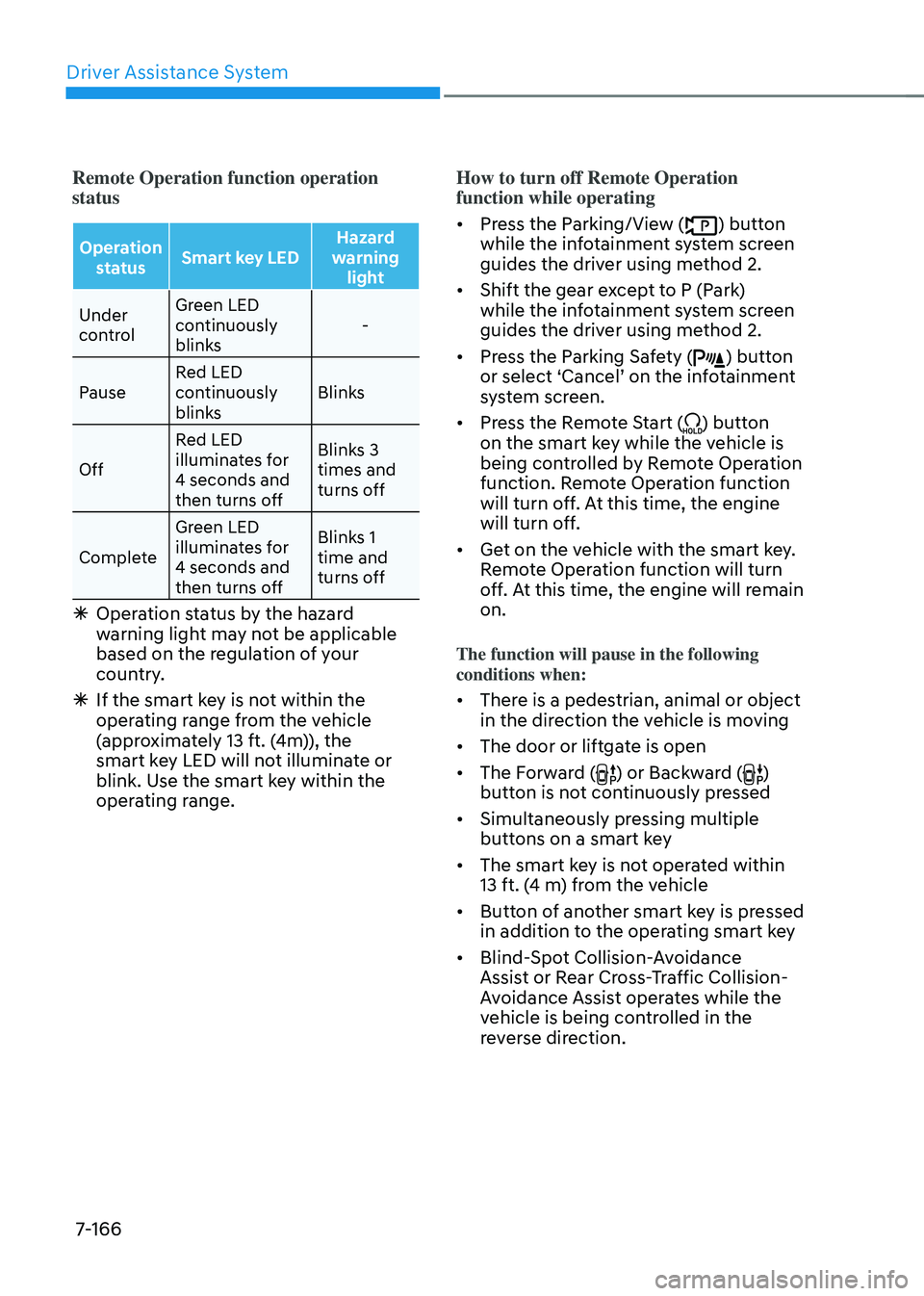
Remote Operation function operation
status
Operation status Smart key LED Hazard
warning light
Under
control Green LED
continuously
blinks
-
Pause Red LED
continuously
blinks Blinks
Off Red LED
illuminates for
4 seconds and
then turns off Blinks 3
times and
turns off
Complete Green LED
illuminates for
4 seconds and
then turns off Blinks 1
time and
turns off
Ã
Operation status by the hazard
warning light may not be applicable
based on the regulation of your
country.
ÃIf the smart key is not within the
operating range from the vehicle
(approximately 13 ft. (4m)), the
smart key LED will not illuminate or
blink. Use the smart key within the
operating range. How to turn off Remote Operation
function while operating
• Press the Parking/View () button
while the infotainment system screen
guides the driver using method 2.
• Shift the gear except to P (Park)
while the infotainment system screen
guides the driver using method 2.
• Press the Parking Safety () button
or select ‘Cancel’ on the infotainment
system screen.
• Press the Remote Start () button
on the smart key while the vehicle is
being controlled by Remote Operation
function. Remote Operation function
will turn off. At this time, the engine
will turn off.
• Get on the vehicle with the smart key.
Remote Operation function will turn
off. At this time, the engine will remain
on.
The function will pause in the following
conditions when:
• There is a pedestrian, animal or object
in the direction the vehicle is moving
• The door or liftgate is open
• The Forward () or Backward ()
button is not continuously pressed
• Simultaneously pressing multiple
buttons on a smart key
• The smart key is not operated within 13 ft. (4 m) from the vehicle
• Button of another smart key is pressed
in addition to the operating smart key
• Blind-Spot Collision-Avoidance
Assist or Rear Cross-Traffic Collision-
Avoidance Assist operates while the
vehicle is being controlled in the
reverse direction.
Page 518 of 637
07
7-167
• The vehicle moves 22 ft. (7 m) while
the smart key is pressed with Remote
Operation function (maximum travel
distance per button press)
When Remote Operation function is
paused, the vehicle will stop. If the
condition that made the function to
pause disappears, the function may
operate again.
The function will cancel in the following
conditions when:
• The steering wheel is steered
• The gear is shifted while the vehicle is
moving
• Operating EPB while the vehicle is
moving
• The engine hood is open
• The brake pedal or accelerator pedal
is depressed when all the doors are
closed
• The smart key is outside the vehicle
when the brake pedal is depressed
while the driver's door is open
• Rapid acceleration occurs
• Vehicle skid occurs
• The wheel is stuck by an obstacle and
cannot move
• Approximately 3 minutes and 50
seconds has passed after Remote
Operation function has started to
operate
• The slope of the road exceeds the
operational range
• The function is paused for more than
1 minute
• The total travel distance of the vehicle
has exceeded 45 ft. (14 m) after
Remote Operation function operation
• The steering wheel, gearshift, braking,
and drive controls are not working
properly
• There is a problem with the smart key
or the smart key battery is low
• ABS, TCS or ESC system operates due
to slippery road conditions
• The alarm of the Theft Alarm System
sounds
When Remote Operation function is
canceled, the vehicle will automatically
stop, shift the gear to P (Park) and
engage EPB (Electronic Parking Brake).
Page 519 of 637
Driver Assistance System
7-168
Smart Parking, Remote Smart
Parking
Operating order
Parking function operates in the
following order:
1. Getting ready for parking
2. Searching for parking space
3. Select parking type and operating
mode
4. Smart Parking
5. Remote Smart Parking
• Parking function includes Smart
Parking and Remote Smart Parking.
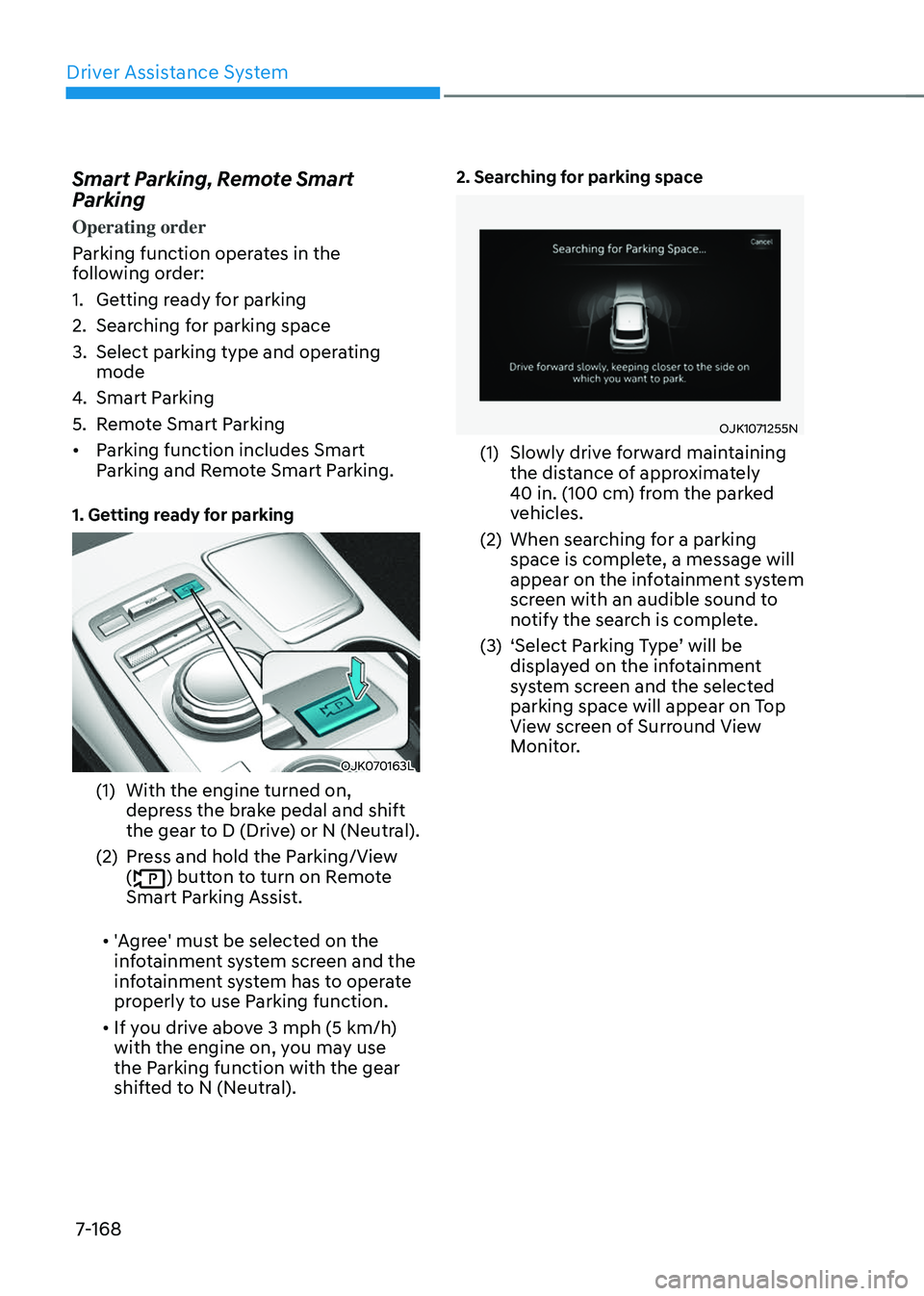
1. Getting ready for parking
OJK070163LOJK070163L
(1) With the engine turned on,
depress the brake pedal and shift
the gear to D (Drive) or N (Neutral).
(2) Press and hold the Parking/View
() button to turn on Remote
Smart Parking Assist.
• 'Agree' must be selected on the
infotainment system screen and the
infotainment system has to operate
properly to use Parking function.
• If you drive above 3 mph (5 km/h)
with the engine on, you may use
the Parking function with the gear
shifted to N (Neutral).
2. Searching for parking space
OJK1071255NOJK1071255N
(1) Slowly drive forward maintaining
the distance of approximately
40 in. (100 cm) from the parked
vehicles.
(2) When searching for a parking
space is complete, a message will
appear on the infotainment system
screen with an audible sound to
notify the search is complete.
(3) ‘Select Parking Type’ will be
displayed on the infotainment
system screen and the selected
parking space will appear on Top
View screen of Surround View
Monitor.
Page 520 of 637
07
7-169
• Remote Smart Parking Assist
searches for parking spaces that are
next to parked vehicles, or parking
spaces with parked vehicles in front
or rear.
• While searching for a parking space,
when vehicle speed is above 12 mph
(20 km/h), a message will appear
on the infotainment system screen
informing you to slow down. When
vehicle speed is above 18 mph (30
km/h), Parking function will turn off.
• Searching for a parking space will
be completed when there is enough
space to move the vehicle in
addition to the parking space.
• Even if an audible sound is heard
to notify that searching for a
parking space is complete, search
completion can be canceled
immediately depending on
surroundings.
Information
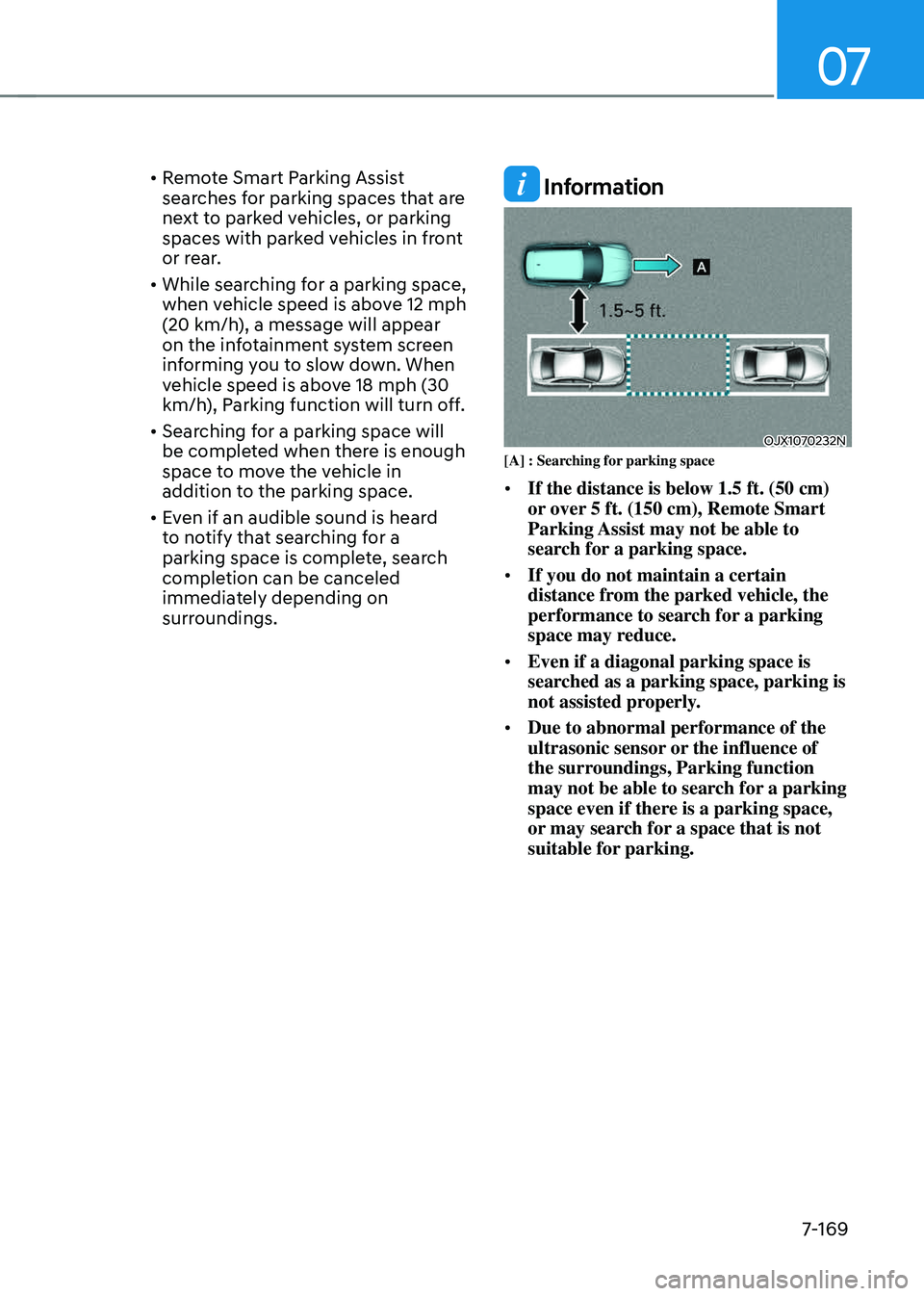
OJX1070232NOJX1070232N[A] : Searching for parking space
• If the distance is below 1.5 ft. (50 cm)
or over 5 ft. (150 cm), Remote Smart
Parking Assist may not be able to
search for a parking space.
• If you do not maintain a certain
distance from the parked vehicle, the
performance to search for a parking
space may reduce.
• Even if a diagonal parking space is
searched as a parking space, parking is
not assisted properly.
• Due to abnormal performance of the
ultrasonic sensor or the influence of
the surroundings, Parking function
may not be able to search for a parking
space even if there is a parking space,
or may search for a space that is not
suitable for parking.