ignition GMC YUKON DENALI 2003 Owner's Guide
[x] Cancel search | Manufacturer: GMC, Model Year: 2003, Model line: YUKON DENALI, Model: GMC YUKON DENALI 2003Pages: 447, PDF Size: 21.97 MB
Page 178 of 447
w,
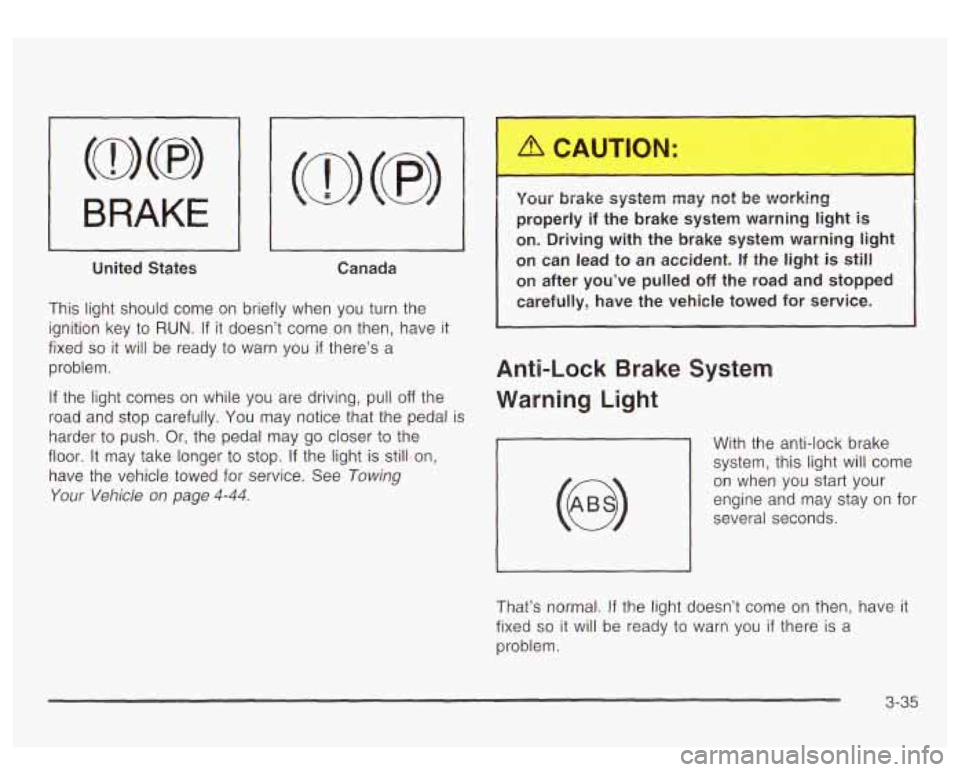
United States Canada
This light should come on briefly when you turn the
ignition key to
RUN. If it doesn’t come on then, have it
fixed
so it will be ready to warn you if there’s a
problem.
If the light comes on while you are driving, pull off the
road and stop carefully. You may notice that the pedal
is
harder to push. Or, the pedal may go closer to the
floor.
It may take longer to stop. If the light is still on,
have
the vehicle towed for service. See Towing
Your Vehicle on page 4-44.
Your brake system may not be working
properly
if the brake system warning light is
on. Driving with the brake system warning light
on can lead to an accident.
If the light is still
on after you’ve pulled off the road and stopped
carefully, have the vehicle towed for service.
Anti-Lock Brake System
Warning Light
With the anti-lock brake
system, this light will come
on when you start your
engine and may stay on for
several seconds.
That’s normal. If the light doesn’t come on then, have
it
fixed so it will be ready to warn you if there is a
problem.
3-35
Page 179 of 447
If the light stays on, or comes on when you’re driving,
your vehicle needs service. You will also hear a
chime sound when the light is on steady.
If the regular
brake system warning light isn’t on, you still have
brakes, but you don’t have anti-lock brakes.
If the
regular brake system warning light is also on you don’t
have anti-lock brakes and there’s a problem with
your regular brakes. In addition to both lights, you will
also hear a chime sound on the first occurrence of
a problem and each time the car is shut off and then
restarted. See Brake System Warning Light on
page
3-34.
Traction Off Light
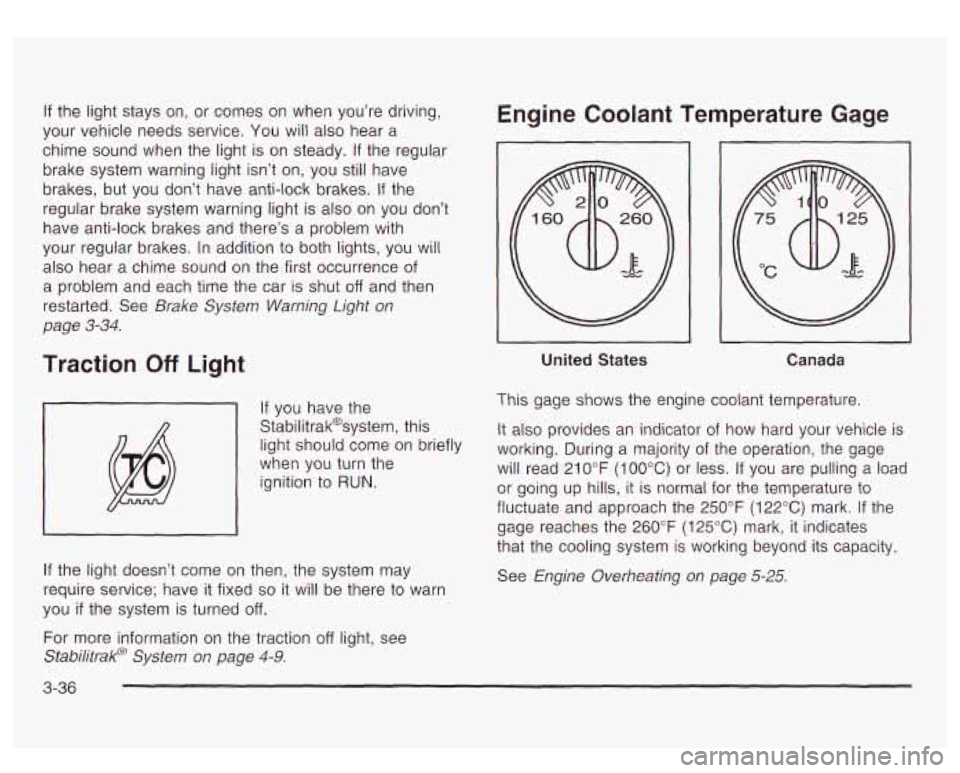
If you have the
Stabilitrak@system, this
light should come on briefly
when you turn the
ignition to
RUN.
If the light doesn’t come on then, the system may
require service; have it fixed
so it will be there to warn
you
if the system is turned off.
For more information on the traction off light, see
Stabilitrak@
System on page 4-9.
3-36
Engine Coolant Temperature Gage
~~ ~
United States
I I
Canada
This gage shows the engine coolant temperature.
It also provides an indicator
of how hard your vehicle is
working. During a majority of the operation, the gage
will read 21
0°F (100°C) or less. If you are pulling a load
or going up hills, it is normal for the temperature to
fluctuate and approach the 250°F (122°C) mark.
If the
gage reaches the 260°F
(125°C) mark, it indicates
that the cooling system
is working beyond its capacity.
See Engine Overheating on page
5-25.
Page 180 of 447
Transmission Temperature Gage
--
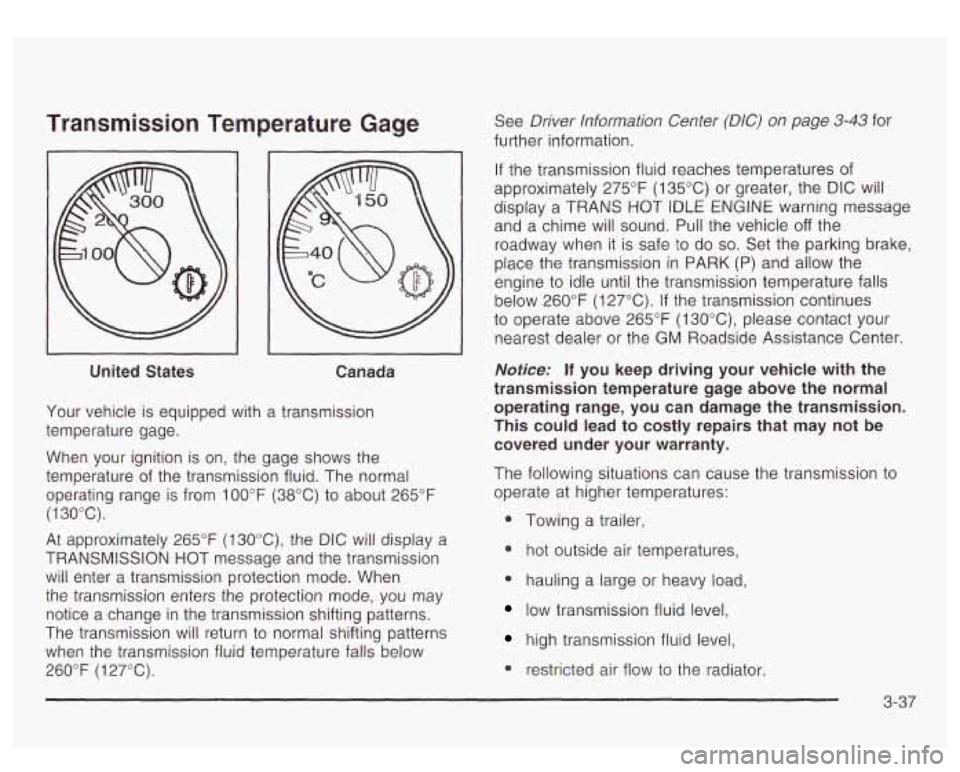
United States Canada
Your vehicle is equipped with a transmission
temperature gage.
When your ignition is on, the gage shows the
temperature of the transmission fluid. The normal
operating range is from
100°F (38°C) to about 265°F
(1 30°C).
At approximately 265°F (130°C), the DIC will display a
TRANSMISSION HOT message and the transmission
will enter a transmission protection mode. When
the transmission enters the protection mode, you may
notice a change in the transmission shifting patterns.
The transmission will return to normal shifting patterns
when the transmission fluid temperature falls below
260°F
(1 27°C). See
Driver Information
Center (DIC) on page 3-43 for
further information.
If the transmission fluid reaches temperatures of
approximately 275°F (135°C) or greater, the DIC will
display a TRANS
HOT tDLE ENGtNE warning message
and a chime will sound. Pull the vehicle
off the
roadway when it is safe
to do so. Set the parking brake,
place the transmission in PARK
(P) and allow the
engine to idle until the transmission temperature falls
below 260°F (127°C).
If the transmission continues
to operate above 265°F
(1 30"C), please contact your
nearest dealer or the
GM Roadside Assistance Center.
Notice: If you keep driving your vehicle with the
transmission temperature gage above the normal
operating range, you can damage the transmission.
This could lead to costly repairs that may not be
covered under your warranty.
The following situations can cause the transmission to
operate at higher temperatures:
0 Towing a trailer,
* hot outside air temperatures,
0 hauling a large or heavy load,
low transmission fluid level,
high transmission fluid level,
0 restricted air flow to the radiator.
Page 181 of 447
A temporary solution to hotter transmission operating
temperatures may be
to let the transmission cool down.
If the transmission is operated at higher temperatures
on a frequent basis, see
Scheduled Maintenance
on page
6-5 for the proper transmission maintenance
intervals.
Malfunction Indicator Lamp
Check Engine Light
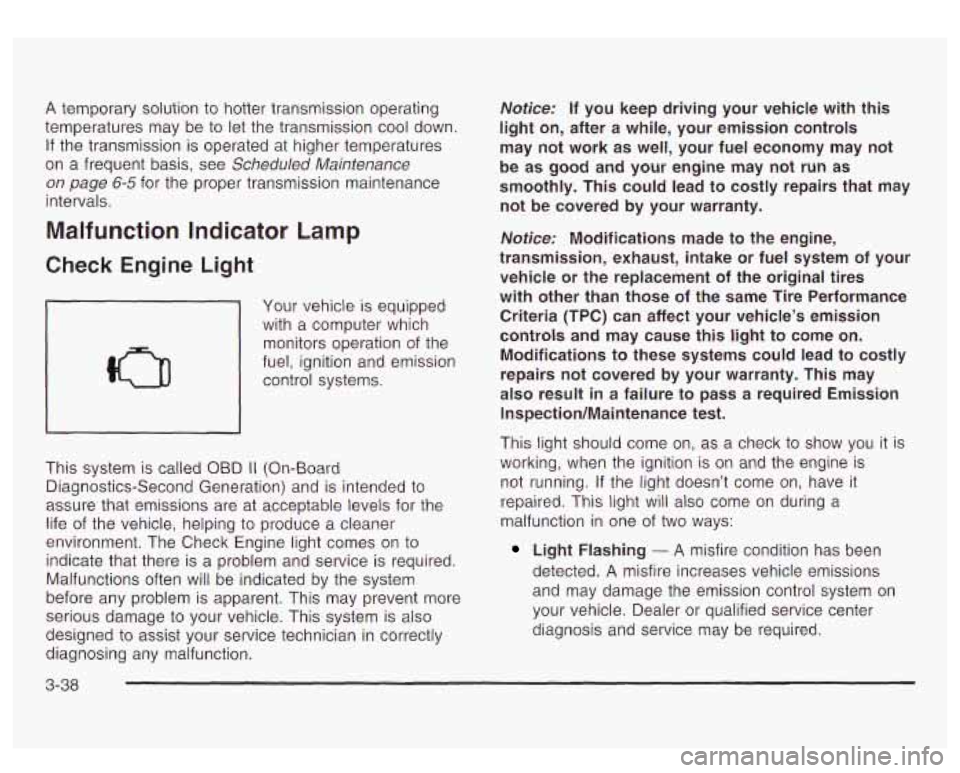
Your vehicle is equipped
with
a computer which
monitors operation of the
fuel, ignition and emission
control systems.
This system is called OBD
II (On-Board
Diagnostics-Second Generation) and is intended to
assure that emissions are at acceptable levels for the
life of the vehicle, helping
to produce a cleaner
environment. The Check Engine light comes on
to
indicate that there is a problem and service is required.
Malfunctions often will be indicated by the system
before any problem is apparent. This may prevent more
serious damage
to your vehicle. This system is also
designed to
assist your service technician in correctly
diagnosing any malfunction.
Notice: If you keep driving your vehicle with this
light on, after a while, your emission controls
may not work as well, your fuel economy may not
be as good and your engine may not run as
smoothly. This could lead to costly repairs that may
not be covered by your warranty.
Notice: Modifications made to the engine,
transmission, exhaust, intake or fuel system of your
vehicle or the replacement of the original tires
with other than those of the same Tire Performance
Criteria (TPC) can affect your vehicle’s emission
controls and may cause this light to come on.
Modifications to these systems could lead to costly
repairs not covered by your warranty. This may
also result
in a failure to pass a required Emission
Inspection/Maintenance test.
This light should come on, as a check to show you it is
working, when the ignition is on and the engine is
not running. If the light doesn’t come on, have it
repaired. This light will also come on during
a
malfunction in one of two ways:
Light Flashing - A misfire condition has been
detected.
A misfire increases vehicle emissions
and may damage the emission control system on
your vehicle. Dealer or qualified service center
diagnosis and service may be required.
3-38
Page 185 of 447
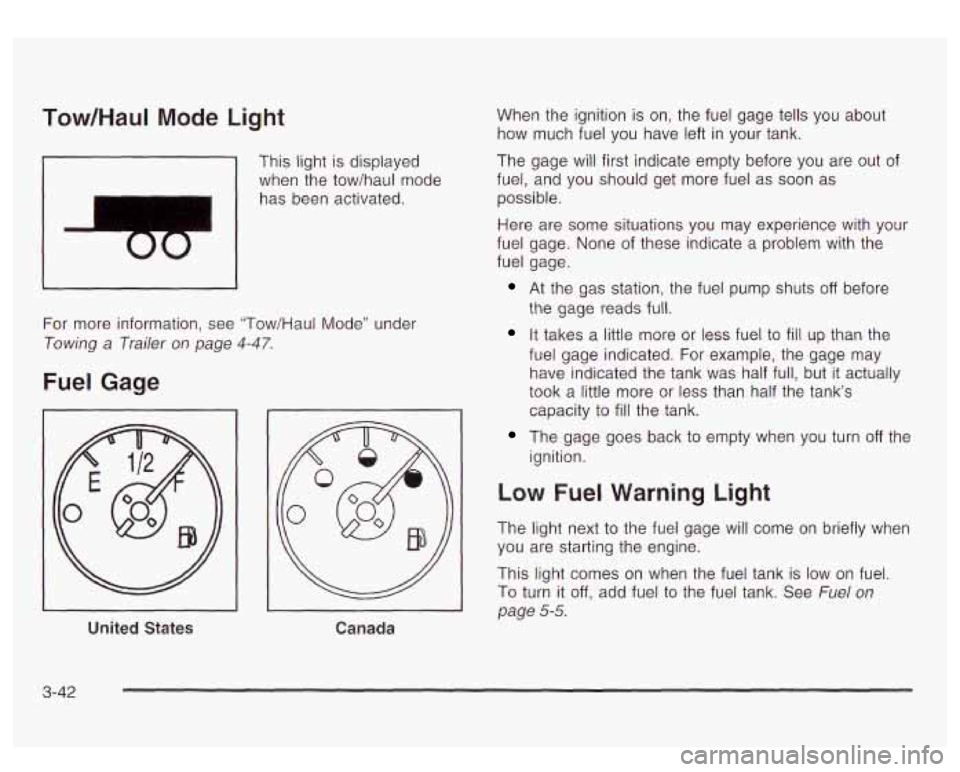
Tow/HauI Mode Light
I
This light is displayed
when the tow/haul mode
has been activated.
For more information, see "Tow/Haul Mode" under
Towing a Trailer on page 4-47.
Fuel Gage
United States
Canada
When the ignition is on, the fuel gage tells you about
how much fuel you have left in your tank.
The gage will first indicate empty before you are out of
fuel, and you should get more fuel as
soon as
possible.
Here are some situations you may experience with your
fuel gage. None of these indicate a problem with the
fuel gage.
At the gas station, the fuel pump shuts off before
the gage reads full.
It takes a little more or less fuel to fill up than the
fuel gage indicated. For example, the gage may
have indicated the tank was half full, but
it actually
took a little more or less than half the tank's
capacity to
fill the tank.
The gage goes back to empty when you turn off the
ignition.
Low Fuel Warning Light
The light next to the fuel gage will come on briefly when
you are starting the engine.
This light comes on when the fuel tank is
low on fuel.
To turn it off, add fuel to the fuel tank. See Fuel on
page 5-5.
3-42
Page 186 of 447
Driver Information Center (DIC)
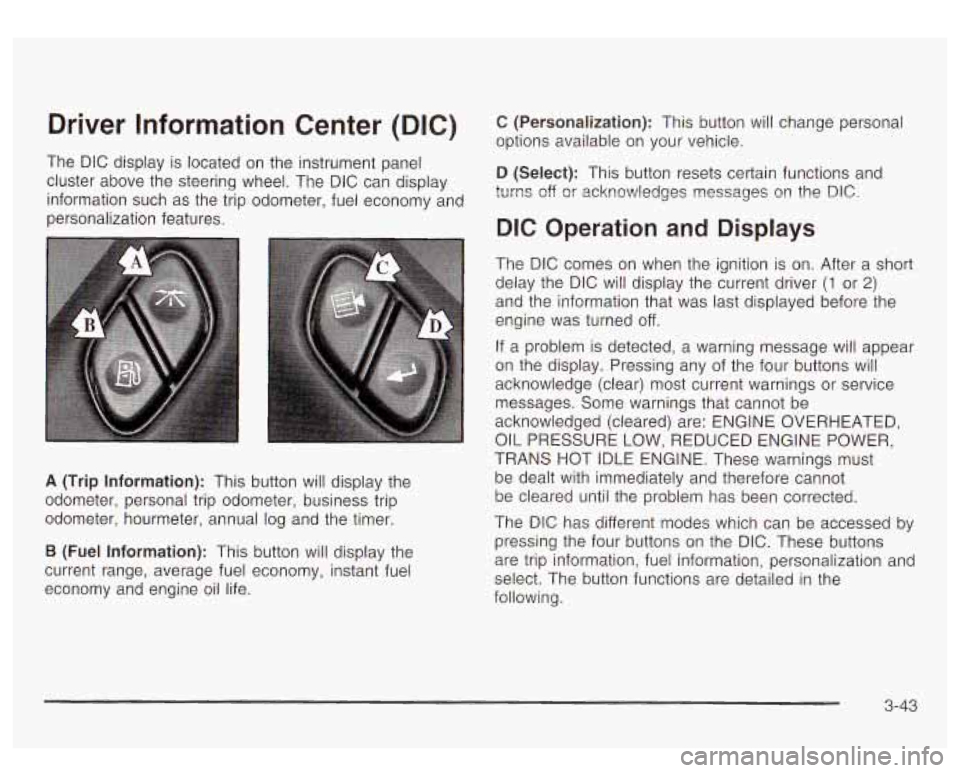
The DIC display is located on the instrument panel
cluster above the steering wheel. The DIC can display
information such as the trip odometer, fuel economy and
personalization features.
A (Trip Information): This button will display the
odometer, personal trip odometer, business trip
odometer, hourmeter, annual log and the timer.
B (Fuel Information): This button will display the
current range, average fuel economy, instant fuel
economy and engine oil life.
C (Personalization): This button will change personal
options available on your vehicle.
D (Select): This button resets certain functions and
turns off
or acknowledges nessages on the DIC.
DIC Operation and Displays
The DIC comes on when the ignition is on. After a short
delay the DIC will display the current driver
(1 or 2)
and the information that was last displayed before the
engine was turned off.
If a problem is detected, a warning message will appear
on the display. Pressing any of the four buttons will
acknowledge (clear) most current warnings or service
messages. Some warnings that cannot be
acknowledged (cleared) are: ENGINE OVERHEATED,
OIL PRESSURE LOW, REDUCED ENGINE POWER,
TRANS HOT IDLE ENGINE. These warnings must
be dealt with immediately and therefore cannot
be cleared until the problem has been corrected.
The DIC has different modes which can be accessed
by
pressing the four buttons on the DIC. These buttons
are trip information, fuel information, personalization and
select. The button functions are detailed in the
following.
3-43
Page 187 of 447
Select Button
The select button is used to reset certain functions and
turn
off or acknowledge messages on the DIC display.
The select button also toggles through the options available in each personalization menu. For example, this
button will reset the trip odometers, turn
off the FUEL
LEVEL LOW message, and toggle through the languages
you can select the DIC
to display information in.
Trip Information Button
Use the trip information button to scroll through the
SEASON ODOMETER, PERSONAL TRIP ON/OFF,
BUSINESS TRIP ON/OFF, HOURMETER, ANNUAL
LOG and TIMER.
If the personal trip and/or the business
trip are set
to ON, you will also be able to scroll
through more messages. See Personal Trip and
Business Trip next for more information.
Personal Trip
If the PERSONAL TRIP is on (turn it on or off by
pressing the select button) you will also be able to scroll
through the following:
e PERSONAL: XX MI - This shows the current
distance traveled since the last reset for the
personal trip odometer in either miles or kilometers.
PERSONAL: XX.X MPG - This shows the amount
of fuel used for the personal trip.
3-44
PERSONAL: AVG ECONOMY - This shows how
many miles per gallon of fuel your vehicle
is
getting for the personal trip based on current and
past driving conditions.
PERSONAL: AVG MPH - This shows the vehicle’s
average speed for the personal trip.
PERSONAL: % ANNUAL - This shows the ratio of
personal trip miles
to annual miles as a percent.
You can also reset the PERSONAL:
XX MI while it is
displayed by pressing the reset stem on the cluster.
If you press and hold the reset stem or select button for
four seconds, the display will show the distance
traveled since the last ignition cycle for the personal trip.
Business Trip
If the BUSINESS TRIP is on (turn it on or off by
pressing the select button) you will also
be able to scroll
through the following:
BUSINESS: XX MI - This shows the current
distance traveled since the last reset for the
business trip odometer in either miles or kilometers.
of fuel used for the business trip.
BUSINESS: AVG ECONOMY - This shows how
many miles per gallon of fuel your vehicle
is
getting for the business trip based on current and
past driving conditions.
BUSINESS: XX.X MPG - This shows the amount
Page 188 of 447
BUSINESS: AVG MPH - This shows the vehicle’s
average speed for the business trip.
BUSINESS: Yo ANNUAL - This shows the ratio GI
busifless trip miles to ar,nual miles as a percent.
To reset the personal or business trip information, do
the following: press and hold the select button for
two seconds while in one of the personal or business
trip modes. This will reset all of the information for
the personal or business trip.
You can also reset the BUSINESS:
XX MI while it is
displayed by pressing the reset stem on the cluster. If
you press and hold the reset stem or select button
for four seconds, the display will show the distance
traveled since the last ignition cycle for the business trip.
Season Odometer
Press the trip information button until SEASON
ODOMETER appears on the display. This shows the
total distance the vehicle has been driven in either miles
or kilometers. Pressing the reset stem located on the
instrument cluster with the vehicle
off will also display
the season odometer.
Hourmeter
Press the trip button to scroll to the hourmeter. The
hourmeter shows the total number of hours the engine
has run. Pressing the reset stem on the instrument
cluster will also display the hourmeter after the season
odometer is displayed.
Annual Log
Press the trip button to scroll to the annual log. The
annual log shows the mileage accumulated since it was
iasi reset. io reset the anntial log, press and hold
the select button for two seconds.
Timer
The DIC can be used as a stopwatch. Press the select
button while TIMER is displayed
to start the timer.
The display will show the amount of time that has
passed since the timer was last reset (not including time
the ignition is
off). Time will continue to be counted as
long as the ignition is on, even
if another display is being
shown on the DIC. The timer will record up
to 99 hours,
59 minutes and 59 seconds (99:59:59) after which
the display will roll back to zero.
To stop the counting of time, press the select button
briefly while TIMER is displayed.
To reset the timer to zero, press and hold the select
button while TIMER is displayed.
Fuel Information Button
Use the fuel information button to scroll through the
range, average fuel economy, instant fuel economy and
the
GM Oil Life System.
3-45
Page 191 of 447
Automatic Locking
Press the personalization button until AUTOMATIC
LOCKING appears in the display. To select your
personalization for automatic locking, press the select
button while AUTOMATIC LOCKING is displayed on the
DIC. Pressing the select button will scroll through the
following choices:
LOCK DOORS OUT OF PARK (default): The doors
will lock when the vehicle is shifted out of PARK (P).
LOCK DOORS MANUALLY: The doors will not
be locked automatically.
LOCK DOORS WITH SPEED: The doors will lock
when the vehicle speed is above
8 mph (13 km/h) for
three seconds.
Choose one of the three options and press the
personalization button while it is displayed on the DIC to
select it and move on to the next feature.
For more
information on automatic door locks see Programmable
Automatic
Door Locks on page 2- 10.
Automatic Unlocking
Press the personalization button until AUTOMATIC
UNLOCKING appears in the display.
To select
your personalization for automatic unlocking, press the
select button while AUTOMATIC UNLOCKING is
displayed on the DIC. Pressing the select button will
scroll through the following choices:
3-48
UNLOCK ALL IN PARK (default): All of the doors will
unlock when the vehicle is shifted into PARK
(P).
UNLOCK ALL AT KEY OUT: All of the doors will
unlock when the key is taken out of the ignition.
UNLOCK DOORS MANUALLY: The doors will not be
unlocked automatically.
UNLOCK DRIVER IN PARK: The driver’s door will be
unlocked when the vehicle is shifted into PARK
(P).
Choose one of the four options and press the
personalization button while it is displayed on the DIC to
select it and move on to the next feature. For more
information on automatic door locks see Programmable
Automatic Door
Locks on page 2- 10.
Seat Position Recall
Press the personalization button until SEAT POSITION
RECALL appears in the display. To select your
personalization for seat position recall, press the select
button while SEAT POSITION RECALL is displayed
on the DIC. Pressing the select button will scroll through
the following choices:
SEAT POSITION RECALL OFF (default): The memory
seat position you saved will only be recalled when the
memory button
1 or 2 is pressed.
SEAT POSITION RECALL AT KEY IN: The memory
seat position you saved will be recalled when you
put the key in the ignition.
Page 194 of 447
Curb View Assist
Press the personalization button until CURB VIEW
ASSIST appears in the display. To select your
personalization for curb view assist, press the select
button while CURB VIEW ASSIST is displayed on
the DIC. Pressing the select button will scroll through
the following choices:
CURB VIEW: OFF (default): Neither outside mirror will
be tilted down when the vehicle is shifted into
REVERSE
(R).
CURB VIEW: PASSE@NGER: The passenger’s outside
mirror will be tilted down when the vehicle is shifted
into REVERSE
(R).
CURB VIEW: DRIVER: The driver’s outside mirror will
be tilted down when the vehicle is shifted into
REVERSE (R).
CURB VIEW: BOTH: The driver’s and passenger’s
outside mirror will be tilted down when the vehicle
is shifted into REVERSE
(R).
Choose one of the four options and press the
personalization button while it is displayed on the DIC
to
select it and move on to the next feature. For more
information on tilt mirror in reverse see Outside
Automatic Dimming Mirror with Curb View Assist
on
page 2-35.
Easy Exit Seat
Press the personalization button until EASY EXIT SEAT
appears in the display. To select your personalization
for seat position exit, press the select button while SEAT
POSITION EXIT is displayed on the DIC. Pressing
the select button will scroll through the following choices:
SEAT POSITION EXIT OFF (default): No seat exit
recall will occur.
SEAT POSITION EXIT ON: The driver’s seat will move
to the exit position when the key is removed from the
ignition.
Choose one of the two options and press the
personalization button while it is displayed on the DIC
to
select it and move on to the next feature. For more
information on seat position exit see Memory Seat on
page
2-47.
Display Units (ENG/MET)
Press the personalization button until DISPLAY UNITS
appears in the display. To select English or metric,
press the select button while DISPLAY UNITS is
displayed on the DIC. Pressing the select button will
scroll through the following choices:
UNITS: ENGLISH
UNITS: METRIC
3-51