light GMC YUKON DENALI 2003 Workshop Manual
[x] Cancel search | Manufacturer: GMC, Model Year: 2003, Model line: YUKON DENALI, Model: GMC YUKON DENALI 2003Pages: 447, PDF Size: 21.97 MB
Page 185 of 447
Tow/HauI Mode Light
I
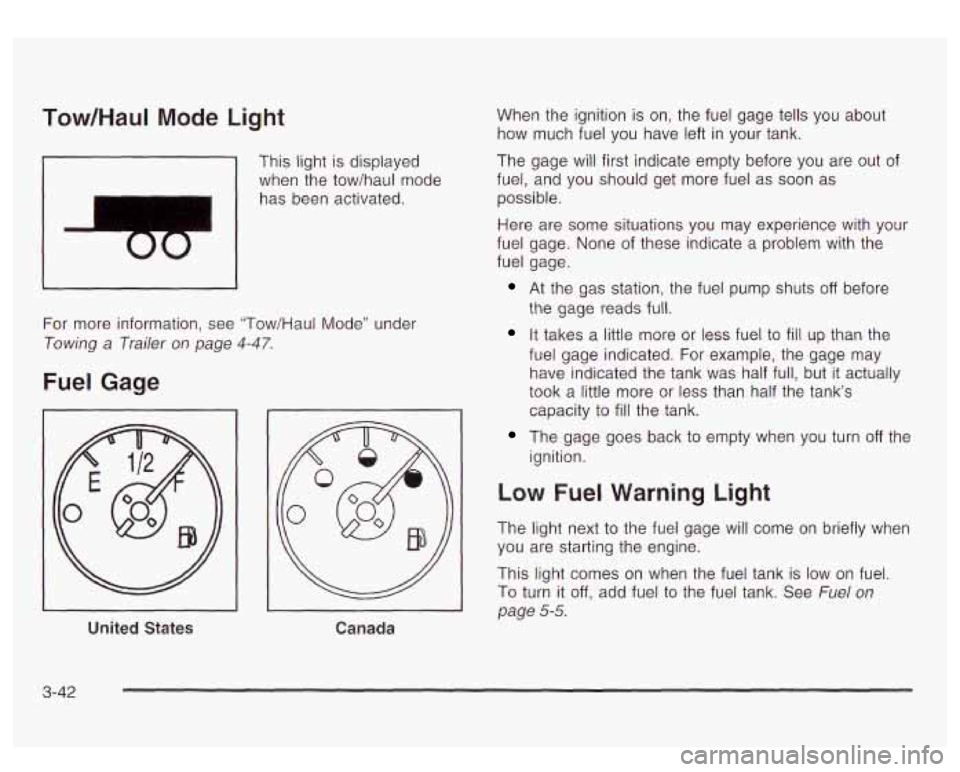
This light is displayed
when the tow/haul mode
has been activated.
For more information, see "Tow/Haul Mode" under
Towing a Trailer on page 4-47.
Fuel Gage
United States
Canada
When the ignition is on, the fuel gage tells you about
how much fuel you have left in your tank.
The gage will first indicate empty before you are out of
fuel, and you should get more fuel as
soon as
possible.
Here are some situations you may experience with your
fuel gage. None of these indicate a problem with the
fuel gage.
At the gas station, the fuel pump shuts off before
the gage reads full.
It takes a little more or less fuel to fill up than the
fuel gage indicated. For example, the gage may
have indicated the tank was half full, but
it actually
took a little more or less than half the tank's
capacity to
fill the tank.
The gage goes back to empty when you turn off the
ignition.
Low Fuel Warning Light
The light next to the fuel gage will come on briefly when
you are starting the engine.
This light comes on when the fuel tank is
low on fuel.
To turn it off, add fuel to the fuel tank. See Fuel on
page 5-5.
3-42
Page 190 of 447
Personalization Button
You can program certain features to a preferred setting
for up to two people. Press the personalization button
to scroll through the following personalization features.
All of the personalization options may not be available
on your vehicle. Only the options available will be
displayed on your DIC.
ALARM WARNING TYPE
AUTOMATIC LOCKING
AUTOMATIC UNLOCKING SEAT POSITION RECALL
PERIMETER LIGHTING
REMOTE LOCK FEEDBACK
REMOTE UNLOCK FEEDBACK
HEADLAMPS ON AT EXIT
CURB VIEW ASSIST EASY EXIT SEAT
DISPLAY UNITS (E/M)
DISPLAY LANGUAGE
The default options for the above features were set
when your vehicle left the factory. The default options
are noted in the text following, but may have been
changed from their default state since then. The driver’s preferences can
be recalled by pressing the
unlock button on the remote keyless entry transmitter
labeled
1 or 2 or by pressing the appropriate memory
button
1 or 2 located on the driver’s door.
Alarm Warning Type
Press the personalization button until ALARM
WARNING TYPE appears in the display. To select your
personalization for alarm warning type, press the
select button while ALARM WARNING TYPE is
displayed
on the DIC. Pressing the select button will
scroll through the following choices:
ALARM WARNING: BOTH (default): The headlamps
will flash and the horn will chirp when the alarm is
active.
ALARM WARNING: OFF: There will be no alarm
warning on activation.
ALARM WARNING: HORN: The horn will chirp when
the alarm is active.
ALARM WARNING: LAMPS: The headlamps will flash
when the alarm is active.
Choose one of the four options and press the
personalization button while your choice is displayed on
the DIC to select
it and move on to the next feature.
For more information on alarm warning type see
Content
Theft-Deterrent on page 2- 16.
3-4i
Page 192 of 447
SEAT POSITION RECALL ON REMOTE: The memory
seat position you saved will be recalled when you
unlock the vehicle with the remote keyless entry
transmitter.
Choose one of the three options and press the
personalization button while it is displayed on the DIC to
select it and move on to the next feature. For more
information on seat position recall see Memory Seat
on
page 2-47.
Perimeter Lighting
Press the personalization button until PERIMETER
LIGHTING appears in the display. To select your
personalization for perimeter lighting, press the select
button while PERIMETER LIGHTING is displayed on the
DIC. Pressing the select button will scroll through the
following choices:
PERIMETER LIGHTING ON (default): The headlamps
and back-up lamps will come on for
40 seconds, if it
is dark enough outside, when you unlock the vehicle
with the remote keyless entry transmitter.
PERIMETER LIGHTING OFF: The perimeter lights will
not come on when you unlock the vehicle with the
remote keyless entry transmitter.
Choose one of the two options and press the
personalization button while it is displayed on the DIC
to
select it and move on to the next feature.
Remote Lock Feedback
Press the personalization button until REMOTE LOCK
FEEDBACK appears in the display. To select your
personalization fsr the feedback you will receive when
locking the vehicle with the remote keyless entry
transmitter, press the select button while REMOTE LOCK FEEDBACK is displayed on the DIC. Pressing
the select button will scroll through the following choices:
LOCK FEEDBACK: BOTH (default): The parking
lamps will flash each time you press the button with the lock symbol on the remote keyless entry transmitter
and the horn will chirp the second time you press the
lock button.
LOCK FEEDBACK: OFF: There will be no feedback
when locking the vehicle.
LOCK FEEDBACK: HORN: The horn will chirp the
second time you press the button with the lock symbol
on the remote keyless entry transmitter.
LOCK FEEDBACK: LAMPS: The parking lamps will
flash each time you press the button with the lock
symbol on the remote keyless entry transmitter.
Choose one of the four options and press the
personalization button while it is displayed on the DIC to
select
it and move on to the next feature.
3-49
Page 198 of 447

FUEL LEVEL LOW
If the fuel level is low, this message will appear on the
DIC and you will hear a chime. Refuel as soon as
possible. Pressing the select button will acknowledge
this message immediately and clear it from the DIC
display. It will also clear itself after
10 seconds until the
next ignition cycle. The low fuel light near the fuel
gage will still remain on in either case.
CHECK WASHER FLUID
If the washer fluid level is low, this message will appear
on the DIC. Adding washer fluid will clear the message.
Pressing the select button will acknowledge this
message and clear it from the DIC display. This
message will clear itself after
10 seconds until the next
igntion cycle.
TRANSMISSION HOT
If the transmission fluid temperature becomes high, the
message center will display this message.
When the transmission enters the protection mode, you
may notice a change in the transmission shifting
patterns. When the transmission fluid temperature
returns
to normal, the display will turn off and the
transmission shifting patterns will return
to normal.
Notice: If you keep driving your vehicle with the
transmission
TRANS FLUID HOT message
displayed, you can damage the transmission. This
could lead to costly repairs that may not be covered
under your warranty.
The following situations can cause the transmission to
operate at higher temperatures:
Towing a trailer
@ Hot outside air temperatures
Hauling a large or heavy load
Low transmission fluid level
High transmission fluid level
Restricted air flow to the radiator.
A temporary solution
to hotter transmission operating
temperatures may be
to let the transmission cool down.
If the transmission is operated at higher temperatures
on a frequent basis, see Scheduled Maintenance
on page 6-5 for the proper transmission maintenance
intervals.
TRANS HOT IDLE ENGINE
If the transmission fluid in the vehicle gets hot, this
message will appear on the DIC along with a continuous
chime. Driving with the transmission fluid temperature
high can cause damage
to the vehicle.
3-55
Page 200 of 447
When the system activates, you may hear a noise or
feel a vibration in the brake pedal. This is normal. When
the STABILITY SYS ACTIVE message is on, you
should continue
to steer in the direction you want to go.
The system is designed
to help you in bad weather
or other difficult driving situations by making the most of
whatever road conditions will permit.
SERVICE STABILITY
If you ever see the SERVICE STABILITY message, it
means there may be a problem with your
StabiIitrak@system. If you see this message
try to reset
the system (stop; turn
off the engine; then start the
engine again). If the SERVICE STABILITY message still
comes on, it means there is a problem. You should
see your dealer for service. The vehicle is safe to drive,
however, you do not have the benefit of Stabilitrak@,
so reduce your speed and drive accordingly.
STABILITY SYS DISABLED
The STABILITY SYS DISABLED message will turn on
when you press the Stabilitrak@button, or when the
stability control has been automatically disabled. To limit
wheel spin and realize the full benefits of the stability
enhancement system, you should normally leave
Stabilitrak@on. However, you should turn Stabilitrak@off
if your vehicle gets stuck in sand, mud, ice or snow and you want to “rock”
your vehicle
to attempt to free it,
or if you are driving in extreme off-road conditions
and require more wheel spin. See If
You Are Stuck: In
Sand, Mud, Ice or
Snow on page 4-41. To turn the
Stabilitrak@system back on press the Stabilitrak@button
again. There are four conditions that can cause this
message
to appear. One condition is overheating, which
could occur
if Stabilitrak@activates continuously for an
extended period of time. The message will
also be
displayed
if the brake system warning light is on. See
Brake System Warning Light
on page 3-34. The
message could be displayed
if the stability system takes
longer than usual to complete its diagnostic checks
due to driving conditions. Also,
if an engine or vehicle
related problem has been detected, and the vehicle
needs service, the message will appear.
The message will turn off as soon as the conditions that
caused the message to be displayed are no longer
present.
TRACTION ACTIVE
When the traction control system has detected that any
of the vehicle’s wheels are slipping, the traction
control system will activate and this message will appear
on the DIC. See StabiIitrakO System
on page 4-9 for
more information.
3-57
Page 217 of 447
Stopping and Resume Playback
To stop a disc, press and release the stop button on the
DVD player or the remote control. To resume playback,
press the play/pause button on the DVD player or
the remote control.
As long as the disc has not been
ejected and the stop button has not been pressed twice,
the movie should resume play from where it was last
stopped.
If the disc has been ejected, or if the stop
button has been pressed twice, the disc will resume play
at the beginning.
Ejecting a Disc
Press the eject button on the DVD player to eject
the disc.
If a disc is ejected from the player, but is not removed,
the DVD player will reload the disc within
25 to 30
seconds. The disc will then be stored in the DVD player.
The DVD player will not resume play of this disc
automatically.
DVD Messages
The following errors may be displayed on the video
screen:
0 Disc Format Error: This message will be displayed
if a disc is inserted upside down, if the disc is not
able
to be read or if the disc format is not
compatible with the DVD player.
the disc is not properly loaded or ejected.
Load/Eject Error: This message will be displayed if
a
0
0
Disc Play Error: This message will be displayed if
the DVD player can not play the disc. Severely
damaged discs will cause this error.
Region Code Error: This message will be
displayed
if the region code of the DVD is not
compatible with the DVD player.
No Disc: This message will be displayed if the
PLAY button is pressed and no disc is in the player.
Parental Control Button: This button is located on the
front of the DVD console, behind the video screen,
near the driver of the vehicle. Press this button while a
DVD or
CD is playing to freeze the video and mute
the audio. The video screen will display Parental Control
ON and the power indicator light on the DVD player
will flash.
It will also disable all other button operations
from the remote control and the DVD player, with
the exception of the eject button. The driver will then be
able
to gain the attention of the rear seat passengers.
Press this button again
to restore normal operation
of the DVD player.
This button may also be used
to turn the DVD player
power on and automatically resume play
if the vehicle is
in an enabled power mode.
3-74
Page 218 of 447
Video Screen
The video screen is located in the overhead console. To
use the video screen, push forward on the release
latch ana the screen
will fold down. Adjirsi the screerfs
position as desired. When the video screen is not in
use, push it up into its latched position.
The DVD player and display will continue
to operate
when the screen is in either the up or the down position.
The video screen contains the infrared transmitters for
the wireless headphones and the infrared receiver
for the remote control. If the screen is in the closed
position, the infrared signals will not be available for the
operation of the headphones and the remote control.
Notice: Avoid directly touching the video screen, as
damage may occur. See “Cleaning the Video
Screen” in the Index for more information.
Remote Control
To use the remote control, aim it at the infrared window
below the video screen and press the desired button.
Direct sunlight or very bright light may affect the ability of
the entertainment system
to receive signals from the
remote control. If the remote control does not seem to
be working, the batteries may need
to be replaced.
See “Battery Replacement” later in this section.
Objects blocking the line of sight may also affect the
function of the remote control.
Remote Control Buttons
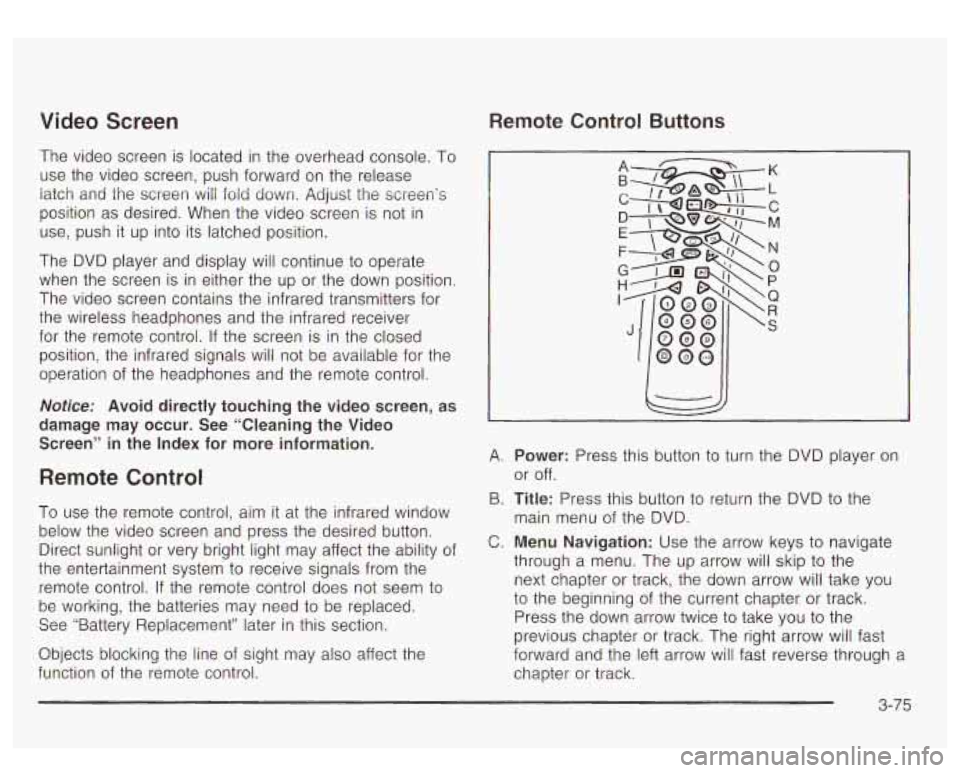
A. Power: Press this button to turn the DVD player on
or off.
B.
Title: Press this button to return the DVD to the
main menu of the DVD.
C. Menu Navigation: Use the arrow keys to navigate
through a menu. The up arrow will skip
to the
next chapter or track, the down arrow will take you
to the beginning of the current chapter or track.
Press the down arrow twice
to take you to the
previous chapter or track. The right arrow will fast
forward and the left arrow will fast reverse through a
chapter or track.
3-75
Page 219 of 447
D.
E.
F.
G.
H.
I.
Display Menu: Press this button to modify the video
screen display characteristics.
Audio: Press this button to call-up a menu that will
operate only when a DVD is being played. The
format and content of this function is defined by the
disc and is dependent of the disc.
Fast Reverse: Press this button to fast reverse the
DVD or CD. To stop fast reversing, press this
button again. This button may
not work when the
DVD is playing the copyright or the previews.
Source: Press this button to toggle between the
DVD player and an auxiliary source.
Stop: Press this button to stop the play of a DVD or
CD. Press this button twice
to return to the
beginning of the DVD.
Previous TracWChapter: Press this button to return
to the start of the current track or chapter. Press
this button again
to return to the previous track
or chapter. This button may "not work when the DVD
is playing the copyright or the previews.
Numeric Key Pad: The remote control numeric
keypad provides you with the capability of direct
chapter, title and track number selection.
Press the button, located on the bottom left
of the
numeric key pad, within
3 seconds of inputting
a numeric selection to clear all numeric inputs.
Press the button, located on the bottom left of the
numeric key pad,
to select chapter, title, and
track numbers greater than
9.
K.
L.
M.
N.
0.
P.
Q.
R.
S.
Illumination: Press this button to turn the remote
control backlight on.
Menu: Press this button to access the DVD menu
(this button only operates with
a DVD).
Enter: Press this button to select items within a
menu.
Return: Press this button to exit the current active
menu and return
to the previous menu. This
button will operate only when a DVD is being played
and a menu is active.
Angle: Press this button to call-up a menu that will
operate only when a DVD is being played. The
format and content of this function is defined by the
disc and is dependent
of the disc.
Subtitle: Press this button to call-up a menu that will
operate only when a DVD is being played. The
format and content of this function is defined by the
disc and is dependent of the disc.
Fast Forward: Press this button to fast forward the
DVD or CD. To stop fast forwarding, press this
button again. This button may not work when the
DVD is playing the copyright or the previews.
Play/Pause: Press this button to turn the DVD player
on,
to start play of a DVD or CD and to toggle
between play and pause
of a DVD or CD.
Next TracWChapter: Press this button to advance
to the beginning of the next track or chapter.
This button may not work when the DVD is playing
the copyright or the previews.
3-76
Page 220 of 447
Battery Replacement
To change the batteries, do the following:
1.
2.
3.
Remove the battery compartment door located on
the bottom of
the remote control.
Replace the two AA batteries in the compartment.
Make sure that they are installed correctly.
Close the battery door securely.
Notice: Do not store the remote control in heat or
direct sunlight. This could damage the remote
control and it would not be covered by your vehicles
warranty. Keep the remote control stored in a
cool, dry place.
If the remote control is to be stored for a long period of
time, remove the batteries and keep them in a cool,
dry place.
Headphones
The RSE system includes two sets of wireless infrared
headphones.
Each set
of headphones has an OWOFF control. An
indicator light will illuminate
on the headphones
when they are on. If the light does
not illuminate, the
batteries may need
to be replaced. See “Battery
Replacement” later in this section for more information.
To turn the headphones OFF activate the ON/OFF
control. Each
set of headphones has a volume knob. To adjust
the volume, adjust this knob.
The headphones will automatically turn
off if they lose
the infrared signal from the system after approximately
four minutes in order
to preserve their battery power.
The signal may be
lost if the system is turned off or if the
headphones are out
of range of the infrared signal
transmitters that are located below the video display screen.
Battery Replacement
To change the batteries, do the following:
1. Loosen the screw on the battery compartment door
located on the left side of the headphone earpiece.
2. Replace the two AAA batteries in the compartment.
3. Tighten the screws to close the compartment door.
Make sure that they are installed correctly.
Notice: Do not store the
headphones in heat or
direct sunlight. This could damage the headphones
and would not be covered by your warranty.
Keep the headphones stored in a cool place.
If the headphones are to be stored for a long period of
time, remove the batteries and keep them in a cool,
dry place.
3-77
Page 222 of 447
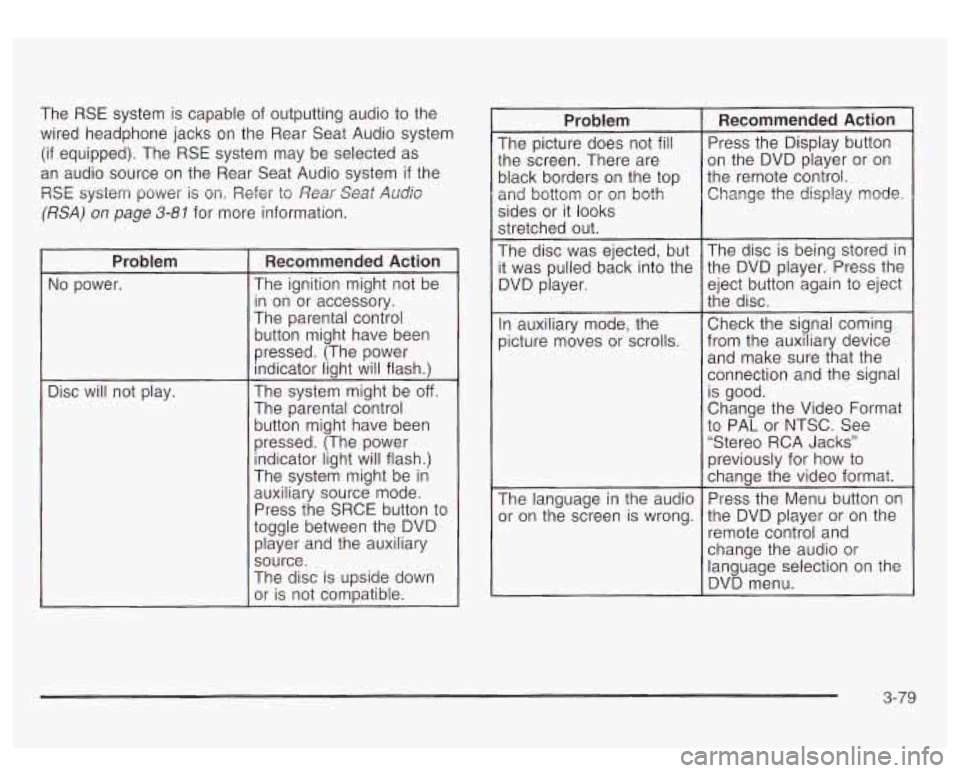
The RSE system is capable of outputting audio to the
wired headphone jacks on the Rear Seat Audio system
(if equipped). The RSE system may be selected as
an audio source on the Rear Seat Audio system
if the
RSE system power
is on. Refer to Rear Seat Audb
(RSA) on page 3-81 for more information.
~~
Problem
No power.
Disc will not play.
Recommended Action
The ignition might not be
in on or accessory.
The parental control
button might have been
pressed. (The power
indicator light will flash.)
The system might be
off.
The parental control button might have been
pressed. (The power indicator light will flash.)
The system might be
in
auxiliary source mode.
Press the SRCE button to
toggle between the DVD player and the auxiliary
source.
The disc is upside down
or is not compatible.
Problem
The picture does not fill
:he screen. There are
)lack borders on the top
2nd bottom or
or^ both
sides or it looks
stretched out.
The disc was ejected, but
t was pulled back into the
3VD player.
In auxiliary mode, the
Dicture moves
or scrolls.
The language in the audio
)r on the screen is wrong.
Recommended Action
Press the Display button
on the DVD player or on
the remote control. Change the display mode.
The disc is being stored in
the DVD player. Press the
eject button again
to eject
the disc.
Check the signal coming
from the auxiliary device and make sure that the
connection and the signal
is good.
Change the Video Format
to PAL or NTSC. See
“Stereo RCA Jacks”
previously for how to
change the video format.
Press the Menu button on
the DVD player or on the
remote control and
change the audio or
language selection on the
DVD menu.
3-79