charging HONDA ACCORD HYBRID 2019 Owners Manual
[x] Cancel search | Manufacturer: HONDA, Model Year: 2019, Model line: ACCORD HYBRID, Model: HONDA ACCORD HYBRID 2019Pages: 727, PDF Size: 24.78 MB
Page 80 of 727
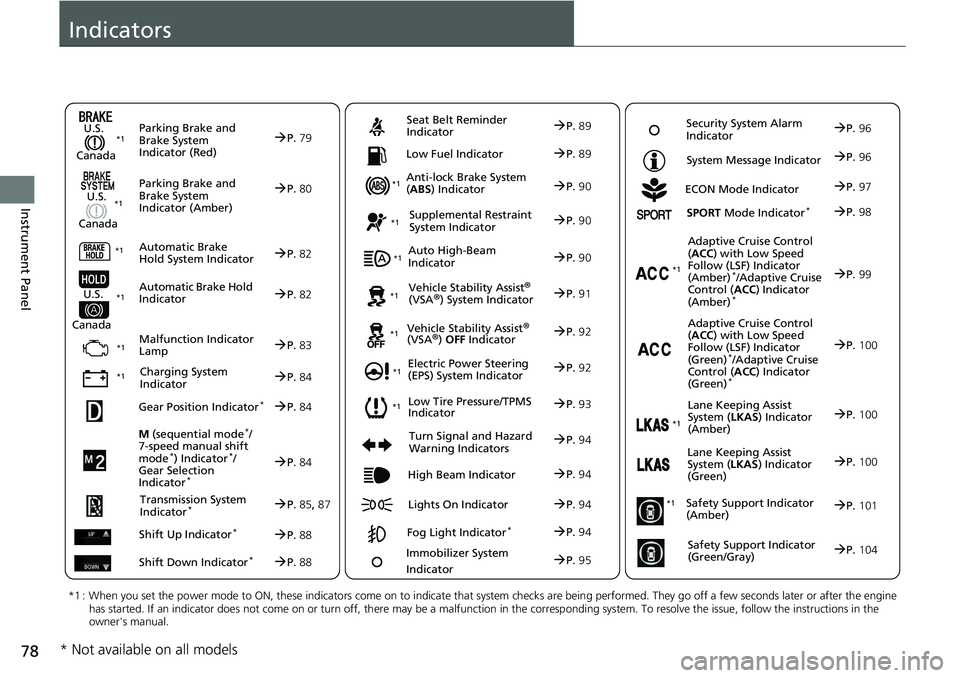
78
Instrument Panel Indicators
M (sequential mode *
/
7-speed manual shift
mode *
) Indicator *
/
Gear Selection
Indicator *
P. 84Parking Brake and
Brake System
Indicator (Red)
Parking Brake and
Brake System
Indicator (Amber)U.S.
Canada
U.S.
Canada
Automatic Brake
Hold System Indicator
Automatic Brake Hold
IndicatorU.S.
Canada
*1 : When you set the power mode to ON, these indicators come on to indicate that system checks are being perf ormed. They go off a few seconds later or after the engine
has started. If an indicator does not come on or turn off, th ere may be a malfunction in the co rresponding system. To resolve t he issue, follow the instructions in the
owner's manual. P. 79*1
Malfunction Indicator
Lamp
Charging System
Indicator Anti-lock Brake System
( ABS ) IndicatorSeat Belt Reminder
Indicator
Low Fuel Indicator
Vehicle Stability Assist
® (VSA
® ) System Indicator
Vehicle Stability Assist
® (VSA
® ) OFF IndicatorSupplemental Restraint
System Indicator
Auto High-Beam
Indicator
Low Tire Pressure/TPMS
IndicatorElectric Power Steering
(EPS) System Indicator
Turn Signal and Hazard
Warning Indicators
Lights On IndicatorHigh Beam Indicator
Fog Light Indicator *ECON Mode Indicator System Message Indicator
SPORT Mode Indicator *
Adaptive Cruise Control
( ACC ) with Low Speed
Follow (LSF) Indicator
(Amber) *
/Adaptive Cruise
Control ( ACC ) Indicator
(Amber) *
Lane Keeping Assist
System ( LKAS ) Indicator
(Amber)
Safety Support Indicator
(Amber)
Safety Support Indicator
(Green/Gray) P. 80
P. 82
P. 82
P. 83
P. 84*1
*1
*1 *1
P. 93*1
*1
Gear Position Indicator *
P. 84
Transmission System
Indicator *
P. 85 , 87
Shift Up Indicator *
P. 88
Shift Down Indicator *
P. 88 P. 89
P. 89
P. 90
P. 90
P. 90
P. 91*1
*1
*1
*1
P. 92*1
P. 92
P. 94 P. 99
*1
P. 94
P. 94 P. 97
P. 94
Immobilizer System
Indicator
P. 95 Security System Alarm
Indicator
P. 96
P. 96
P. 98
P. 100
P. 101
P. 104 *1
Adaptive Cruise Control
( ACC ) with Low Speed
Follow (LSF) Indicator
(Green) *
/Adaptive Cruise
Control ( ACC ) Indicator
(Green) *
P. 100 *1
Lane Keeping Assist
System ( LKAS ) Indicator
(Green)
P. 100 *1
* Not available on all models
Page 86 of 727
84 uu Indicators u
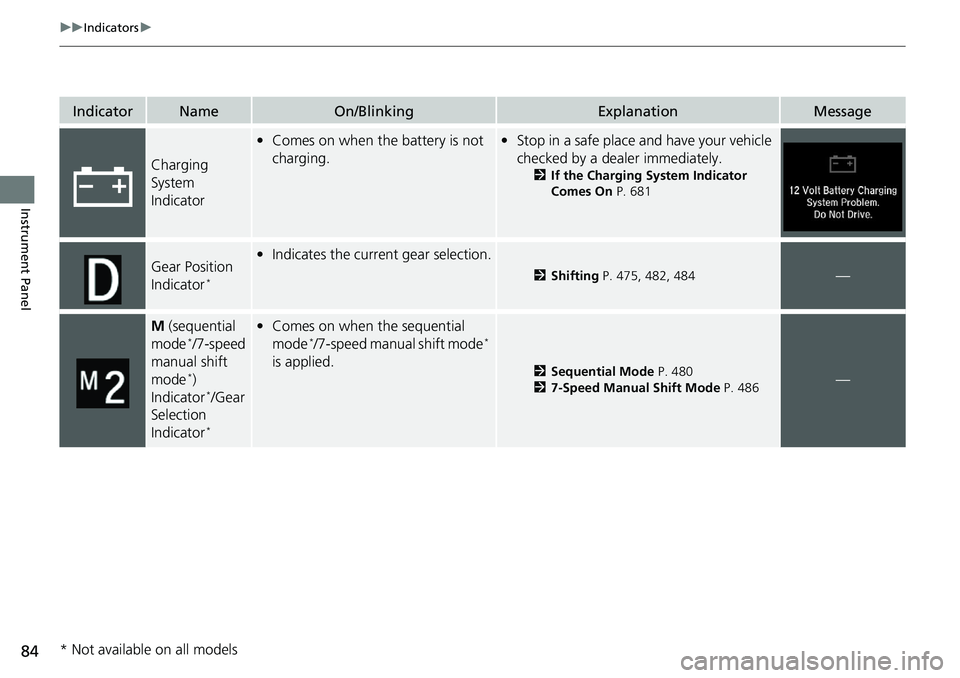
Instrument Panel Indicator Name On/Blinking Explanation Message
Charging
System
Indicator • Comes on when the battery is not
charging. • Stop in a safe place and have your vehicle
checked by a dealer immediately. 2 If the Charging System Indicator
Comes On P. 681
Gear Position
Indicator *
• Indicates the current gear selection. 2 Shifting P. 475, 482, 484
—
M (sequential
mode *
/7-speed
manual shift
mode *
)
Indicator *
/Gear
Selection
Indicator *
• Comes on when the sequential
mode *
/7-speed manual shift mode *
is applied. 2 Sequential Mode P. 480
2 7-Speed Manual Shift Mode P. 486
—
* Not available on all models
Page 109 of 727
107uu Indicators u Driver Information Interface Wa rning and Information Messages
Continued
Instrument Panel
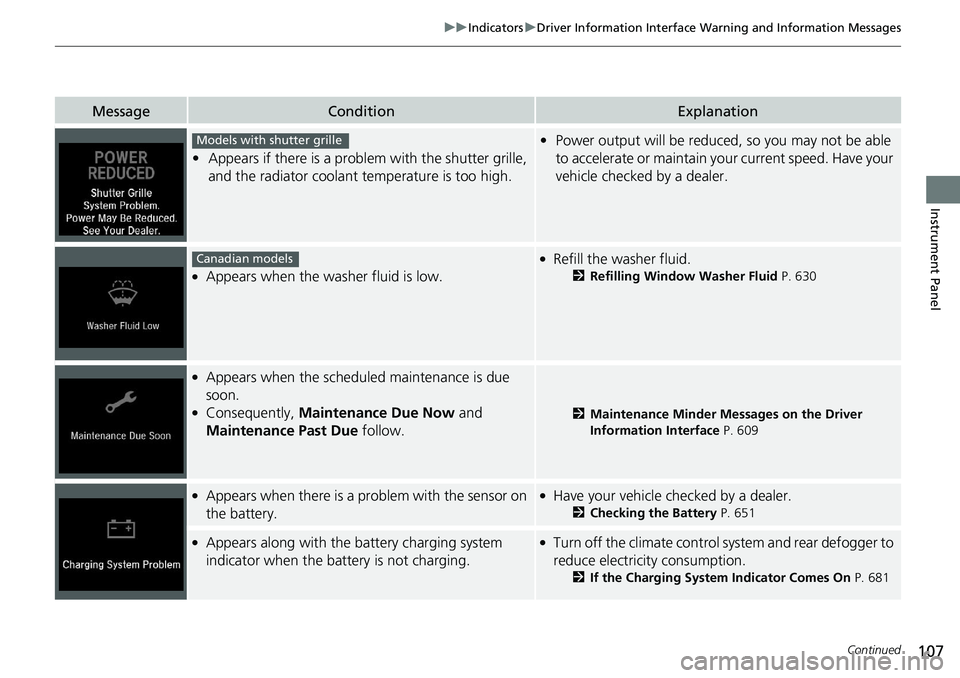
Message Condition Explanation
• Appears if there is a problem with the shutter grille,
and the radiator coolant temperature is too high. • Power output will be reduced, so you may not be able
to accelerate or maintain yo ur current speed. Have your
vehicle checked by a dealer.●
Appears when the washer fluid is low. ●
Refill the washer fluid. 2 Refilling Window Washer Fluid P. 630●
Appears when the schedul ed maintenance is due
soon. ●
Consequently, Maintenance Due Now and
Maintenance Past Due follow. 2 Maintenance Minder Messages on the Driver
Information Interface P. 609●
Appears when there is a pr oblem with the sensor on
the battery. ●
Have your vehicle checked by a dealer. 2 Checking the Battery P. 651●
Appears along with the ba ttery charging system
indicator when the battery is not charging. ●
Turn off the climate control system and rear defogger to
reduce electricity consumption.
2 If the Charging System Indicator Comes On P. 681Models with shutter grille
Canadian models
Page 232 of 727
uu Interior Lights/Interior Convenience Items u Interior Convenience Items
230
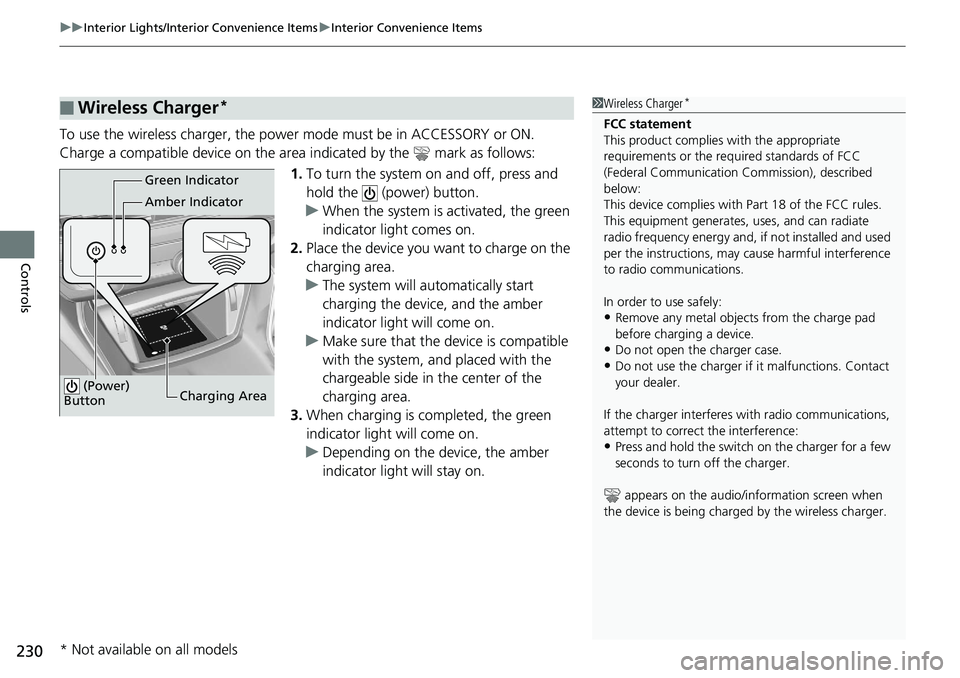
Controls To use the wireless charger, the powe r mode must be in ACCESSORY or ON.
Charge a compatible device on the ar ea indicated by the mark as follows:
1. To turn the system on and off, press and
hold the (power) button.
u When the system is activated, the green
indicator light comes on.
2. Place the device you want to charge on the
charging area.
u The system will automatically start
charging the device, and the amber
indicator light will come on.
u Make sure that the device is compatible
with the system, and placed with the
chargeable side in the center of the
charging area.
3. When charging is completed, the green
indicator light will come on.
u Depending on the device, the amber
indicator light will stay on.■ Wireless Charger * 1 Wireless Charger *
FCC statement
This product complies with the appropriate
requirements or the requ ired standards of FCC
(Federal Communication Commission), described
below:
This device complies with Part 18 of the FCC rules.
This equipment generates, uses, and can radiate
radio frequency energy and, if not installed and used
per the instructions, may cause harmful interference
to radio communications.
In order to use safely:
• Remove any metal objects from the charge pad
before charging a device.
• Do not open the charger case.
• Do not use the charger if it malfunctions. Contact
your dealer.
If the charger interferes with radio communications,
attempt to correct the interference:
• Press and hold the switch on the charger for a few
seconds to turn off the charger.
appears on the audio/information screen when
the device is being charge d by the wire less charger.Green Indicator
Amber Indicator
Charging Area (Power)
Button
* Not available on all models
Page 233 of 727
Continued
231uu Interior Lights/Interior Convenience Items u Interior Convenience Items
Controls
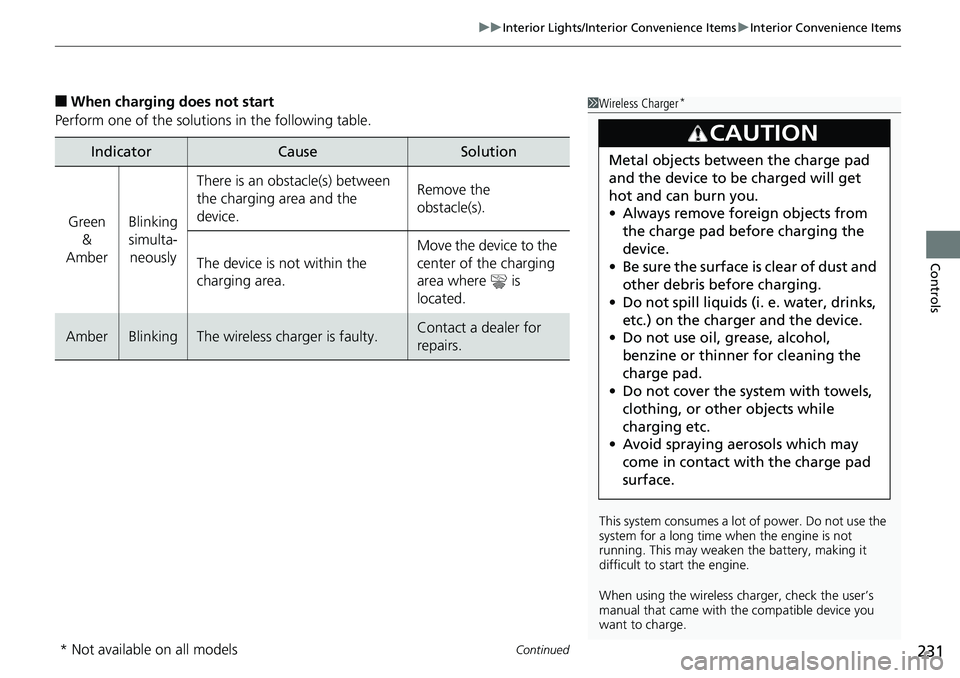
■ When charging does not start
Perform one of the solutions in the following table.
Indicator Cause Solution
Green
&
Amber Blinking
simulta-
neously There is an obstacle(s) between
the charging area and the
device. Remove the
obstacle(s).
The device is not within the
charging area. Move the device to the
center of the charging
area where is
located.
Amber Blinking The wireless charger is faulty. Contact a dealer for
repairs. 1 Wireless Charger *
This system consumes a lot of power. Do not use the
system for a long time when the engine is not
running. This may weaken the battery, making it
difficult to start the engine.
When using the wireless charger, check the user’s
manual that came with th e compatible device you
want to charge.3
CAUTION Metal objects between the charge pad
and the device to be charged will get
hot and can burn you.
• Always remove foreign objects from
the charge pad before charging the
device.
• Be sure the surface is clear of dust and
other debris before charging.
• Do not spill liquids (i. e. water, drinks,
etc.) on the charger and the device.
• Do not use oil, grease, alcohol,
benzine or thinner for cleaning the
charge pad.
• Do not cover the system with towels,
clothing, or other objects while
charging etc.
• Avoid spraying aerosols which may
come in contact with the charge pad
surface.
* Not available on all models
Page 234 of 727
uu Interior Lights/Interior Convenience Items u Interior Convenience Items
232
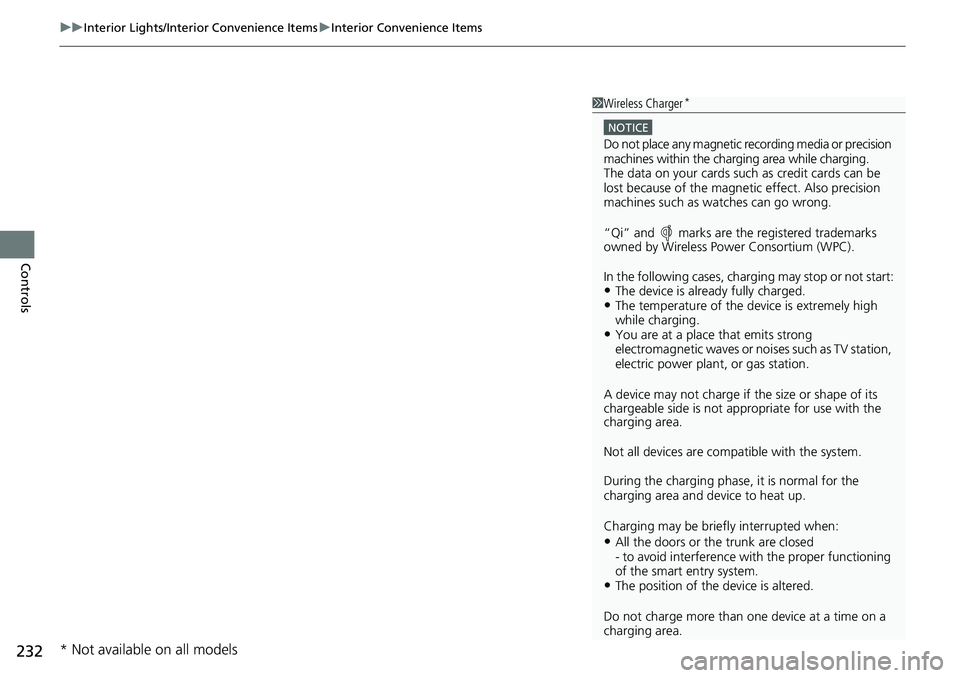
Controls 1 Wireless Charger *
NOTICE
Do not place any magnetic recording media or precision
machines within the charging area while charging.
The data on your cards such as credit cards can be
lost because of the magneti c effect. Also precision
machines such as watches can go wrong.
“Qi” and marks are the registered trademarks
owned by Wire less Power Consortium (WPC).
In the following cases, ch arging may stop or not start:
• The device is already fully charged.
• The temperature of the device is extremely high
while charging.
• You are at a place that emits strong
electromagnetic waves or nois es such as TV station,
electric power plant, or gas station.
A device may not charge if the size or shape of its
chargeable side is not a ppropriate for use with the
charging area.
Not all devices are compatible with the system.
During the charging phase, it is normal for the
charging area and de vice to heat up.
Charging may be briefl y interrupted when:
• All the doors or the trunk are closed
- to avoid interference with the proper functioning
of the smart entry system.
• The position of the device is altered.
Do not charge more than one device at a time on a
charging area.
* Not available on all models
Page 247 of 727
245 uu Audio System u USB Port(s)
Continued
Features
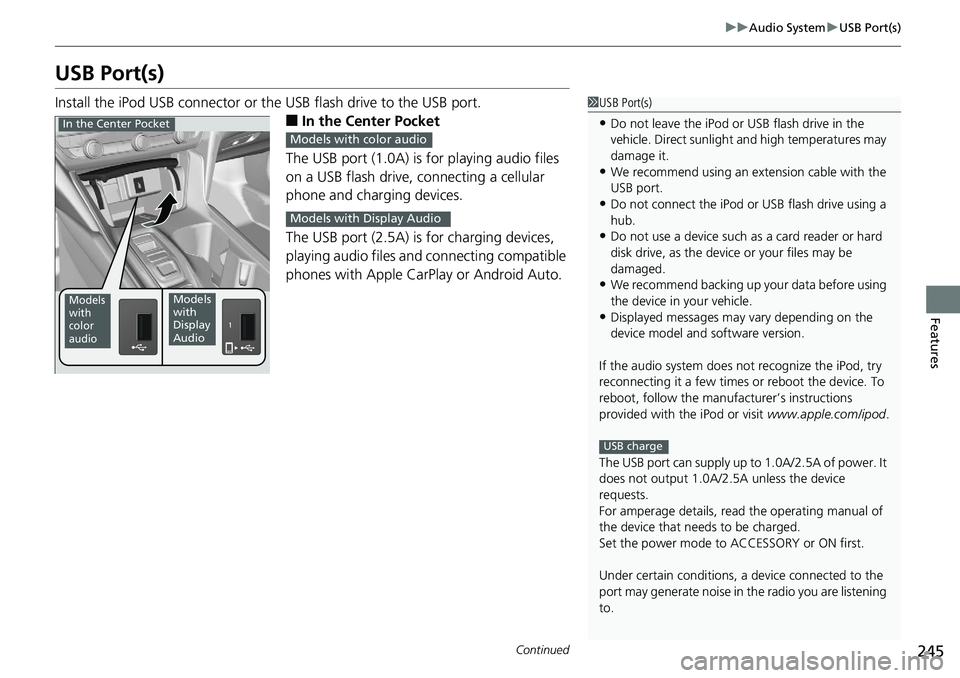
USB Port(s) Install the iPod USB connector or th e USB flash drive to the USB port.
■ In the Center Pocket
The USB port (1.0A) is for playing audio files
on a USB flash drive, connecting a cellular
phone and charging devices.
The USB port (2.5A) is for charging devices,
playing audio files and connecting compatible
phones with Apple CarPlay or Android Auto. 1 USB Port(s)
• Do not leave the iPod or USB flash drive in the
vehicle. Direct sunlight and high temperatures may
damage it.
• We recommend using an ex tension cable with the
USB port.
• Do not connect the iPod or USB flash drive using a
hub.
• Do not use a device such as a card reader or hard
disk drive, as the device or your files may be
damaged.
• We recommend backing up yo ur data before using
the device in your vehicle.
• Displayed messages may vary depending on the
device model and software version.
If the audio system does not recognize the iPod, try
reconnecting it a few times or reboot the device. To
reboot, follow the manufac turer’s instructions
provided with the iPod or visit www.apple.com/ipod .
The USB port can supply up to 1.0A/2.5A of power. It
does not output 1.0A/2.5A unless the device
requests.
For amperage details, read the operating manual of
the device that ne eds to be charged.
Set the power mode to ACCESSORY or ON first.
Under certain condi tions, a device connected to the
port may generate noise in the radio you are listening
to. USB chargeModels
with
color
audio Models
with
Display
AudioIn the Center Pocket
Models with color audio
Models with Display Audio
Page 248 of 727
uu Audio System u USB Port(s)
246
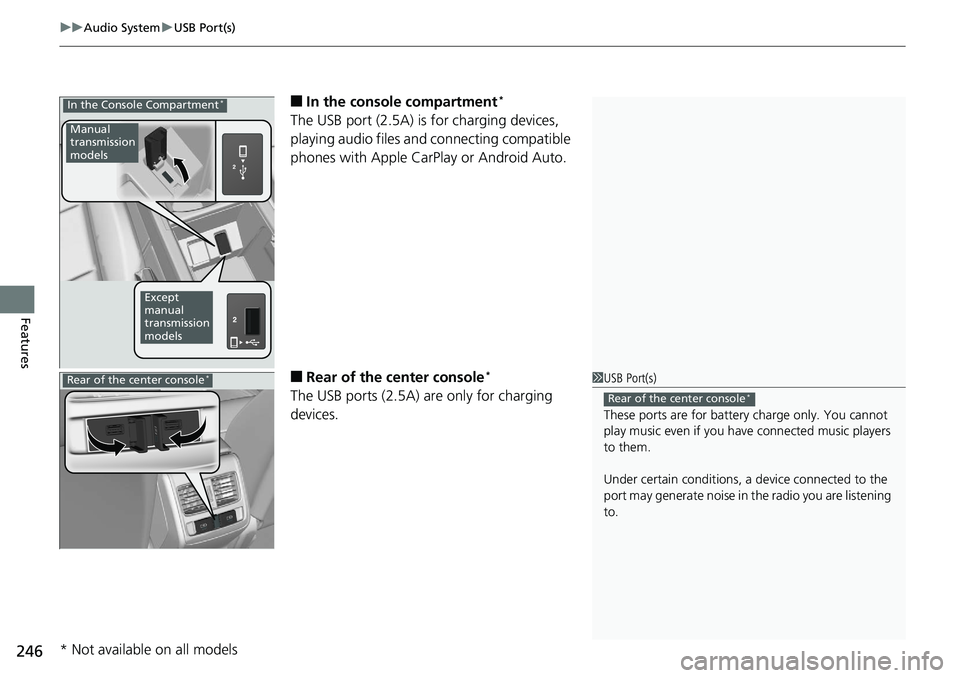
Features ■ In the consol e compartment *
The USB port (2.5A) is for charging devices,
playing audio files and connecting compatible
phones with Apple CarPlay or Android Auto.
■ Rear of the center console *
The USB ports (2.5A) are only for charging
devices.In the Console Compartment *
Manual
transmission
models
Except
manual
transmission
models
1 USB Port(s)
These ports are for battery charge only. You cannot
play music even if you ha ve connected music players
to them.
Under certain condi tions, a device connected to the
port may generate noise in the radio you are listening
to. Rear of the center console *
Rear of the center console *
* Not available on all models
Page 338 of 727
336 uu Audio System Basic Operation u Apple CarPlay ®
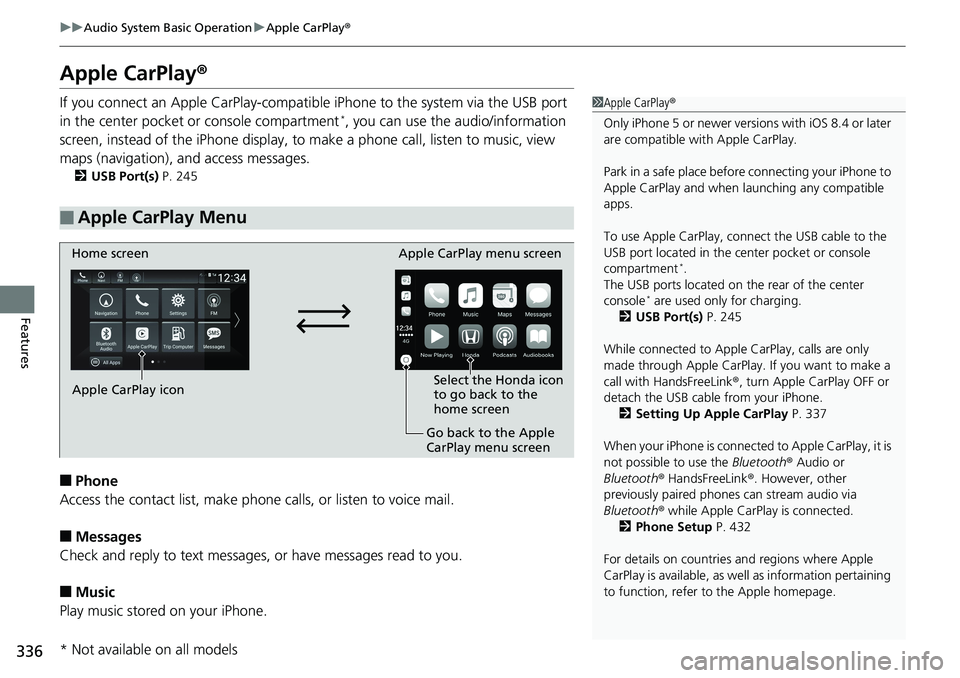
Features Apple CarPlay ®If you connect an Apple CarPlay-compatible iPhone to the system via the USB port
in the center pocket or console compartment *
, you can use the audio/information
screen, instead of the iPhone display, to make a phone ca ll, listen to music, view
maps (navigation), an d access messages.2 USB Port(s) P. 245
■ Phone
Access the contact list, make phon e calls, or listen to voice mail.
■ Messages
Check and reply to text messages , or have messages read to you.
■ Music
Play music stored on your iPhone.■ Apple CarPlay Menu 1 Apple CarPlay ®
Only iPhone 5 or newer versi ons with iOS 8.4 or later
are compatible with Apple CarPlay.
Park in a safe place before connecting your iPhone to
Apple CarPlay and when launching any compatible
apps.
To use Apple CarPlay, connect the USB cable to the
USB port located in the center pocket or console
compartment *
.
The USB ports located on the rear of the center
console *
are used only for charging.
2 USB Port(s) P. 245
While connected to Apple CarPlay, calls are only
made through Apple CarPlay. If you want to make a
call with HandsFreeLink ® , turn Apple CarPlay OFF or
detach the USB cable from your iPhone.
2 Setting Up Apple CarPlay P. 337
When your iPhone is connected to Apple CarPlay, it is
not possible to use the Bluetooth ® Audio or
Bluetooth ® HandsFreeLink ® . However, other
previously paired phones can stream audio via
Bluetooth ® while Apple CarPlay is connected.
2 Phone Setup P. 432
For details on c ountries and regions where Apple
CarPlay is available, as well as information pertaining
to function, refer to the Apple homepage.Home screen
Apple CarPlay icon Apple CarPlay menu screen
Go back to the Apple
CarPlay menu screen Select the Honda icon
to go back to the
home screen
* Not available on all models
Page 358 of 727
356 uu General Information on the Audio System u Honda App License Agreement
Features E. Information Collection and Storage
1. Information Collection , Use, Transmission and Storage of Data. Consent to Use of Data: You agree that HONDA and PROVIDERS may
collect and use your information gathered in any manner as part of product support services rela ted to the SOFTWARE or related services.
HONDA may share such information with third parties, including, wi thout limitation, PROVIDERS, th ird party software and service s
suppliers, their affiliates and/or their desi gnated agents, solely to im prove their products or to provide services or technolo gies to you.
HONDA, third party software and systems supp liers, their affiliates and/or their designat ed agent may disclose this information to others,
but not in a form that pe rsonally identifies you.
2. Information Storage.
Depending on the type of multimedia system you have in your VEHICLE, certain inform ation may be stored for ease
of use of the SOFTWARE including, without limitation, search hi story, location history in certain applications, previous and sa ved
destinations, map locations within certain applicat ions, and device numbers and contact information.
(a) Vehicle Health Information.
Your VEHICLE may remotely trans mit information regarding the stat us and health of your VEHICLE
(“VEHICLE INFORMATION”) to HONDA without notification to you. VEHICLE INFORMATIO N may contain VEHICLE maintenance and
malfunction status that is derived from VEHICLE diagnostic data and includes, but is not limited to, status of powered doors an d windows,
battery life data, battery charging data, VEHICLE speed, coolant temperat ure, air compressor revolution, output power, warning codes,
diagnostic trouble codes, fuel injection volume, and engine rotati ons per minute. VEHICLE HEALTH IN FORMATION may be used by HON DA
for research and development, to deliver HO NDA SERVICES and information to you, and to contact you, and is retained only for a period
of time necessary to fulfill these goals.
(b) VEHICLE Geolocation Data (non-navigation/map based).
If you opt-in to geolocation-based SERVICES, your vehicle’s geolocation data
(latitude and longitude) will be automatically se nt from your VEHICLE to HONDA and PROVIDERS.
(c) You understand that the inputting or uploading of information to your VEHICLE’s multimedia sy stem or the SOFTWARE or SERVIC ES is
at your own risk and that HONDA is not responsible for unauthorized access to or use of any personal or other information. All information
uploaded to the SOFTWARE and SERVICES may be stored on your VEHI CLES’s multimedia system and you understand that the security a nd
safety of your VEHICLE’s multimedia system is your sole responsibility.