clock HONDA ACCORD HYBRID 2019 Owners Manual
[x] Cancel search | Manufacturer: HONDA, Model Year: 2019, Model line: ACCORD HYBRID, Model: HONDA ACCORD HYBRID 2019Pages: 727, PDF Size: 24.78 MB
Page 4 of 727
Contents
This owner’s manual should be considered a permanent part of the
vehicle and should remain with the vehicle when it is sold.
This owner’s manual covers all models of your vehicle. You may find
descriptions of equipment and features that are not on your
particular model.
Images throughout this owner’s ma nual (including the front cover)
represent features and equipment that are available on some, but
not all, models. Your particular mo del may not have some of these
features.
This owner’s manual is for vehicles sold in the United States and
Canada.
The information and specifications in cluded in this publication were
in effect at the time of approval for printing. Honda Motor Co., Ltd.
reserves the right, however, to discontinue or change specifications
or design at any time without notice and without incurring any
obligation. 2 Safe Driving P. 33For Safe Driving P. 34 Seat Belts P. 38 Airbags P. 45
2 Instrument Panel P. 77Indicators P. 78 Gauges and Displays P. 137
2 Controls P. 163 Clock P. 164 Locking and Unlocking the Doors P. 166
Opening and Closing the Moonroof *
P. 189
Adjusting the Seats P. 210
2 Features P. 243 Audio System P. 244 Audio System Basic Operation P. 252, 273
Customized Features P. 370, 381 HomeLink ® Universal Transceiver *
P. 400
2 Driving P. 453 Before Driving P. 454 Towing a Trailer P. 459
Multi-View Rear Camera P. 594 Refueling P. 597
2 Maintenance P. 603Before Performing Maintenance P. 604 Maintenance Minder TM
P. 607
Checking and Maintaining Wiper Blades P. 639
Climate Control System Maintenance P. 654
2 Handling the Unexpected P. 663Tools P. 664 If a Tire Goes Flat P. 665
Overheating P. 679 Indicator, Coming On/Blinking P. 681
When You Cannot Op en the Trunk P. 695
2 Information P. 699Specifications P. 700 Identi fication Numbers P. 704
Emissions Testing P. 707 Warranty Coverages P. 709
Page 14 of 727
12
Quick Reference Guide Controls (P 163)
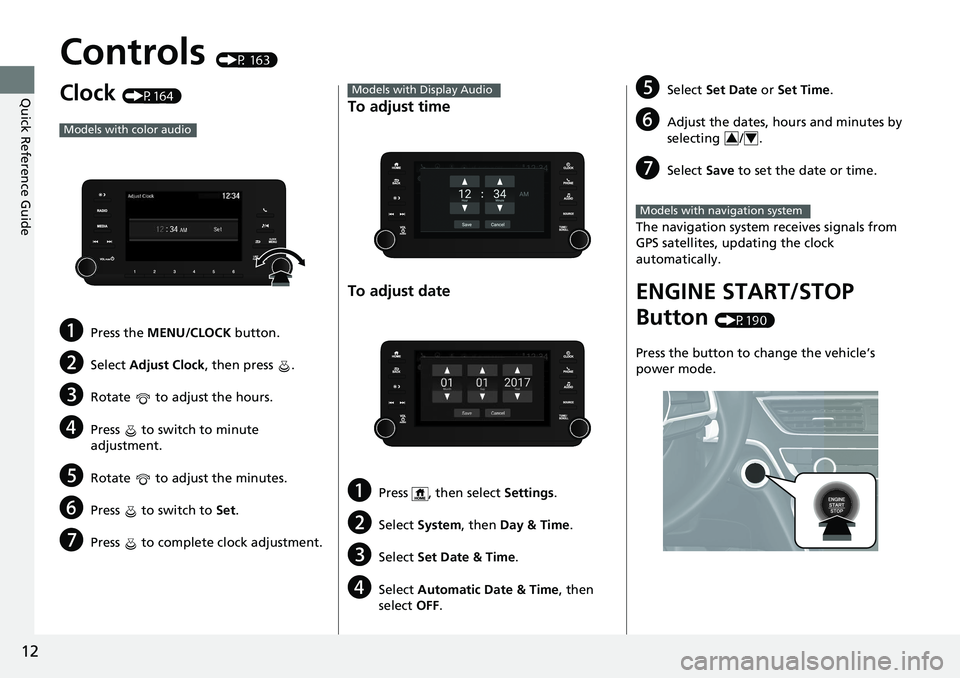
Clock (P164)
a Press the MENU/CLOCK button.
b Select Adjust Clock , then press .
c Rotate to adjust the hours.
d Press to switch to minute
adjustment.
e Rotate to adjust the minutes.
f Press to switch to Set .
g Press to complete clock adjustment.Models with color audio
To adjust time
To adjust date
a Press , then select Settings .
b Select System , then Day & Time .
c Select Set Date & Time .
d Select Automatic Date & Time , then
select OFF .Models with Display Audio
e Select Set Date or Set Time .
f Adjust the dates, hours and minutes by
selecting / .
g Select Save to set the date or time.
The navigation system receives signals from
GPS satellites, updating the clock
automatically.
ENGINE START/STOP
Button (P190)
Press the button to change the vehicle’s
power mode. 3 4
Models with navigation system
Page 20 of 727
18
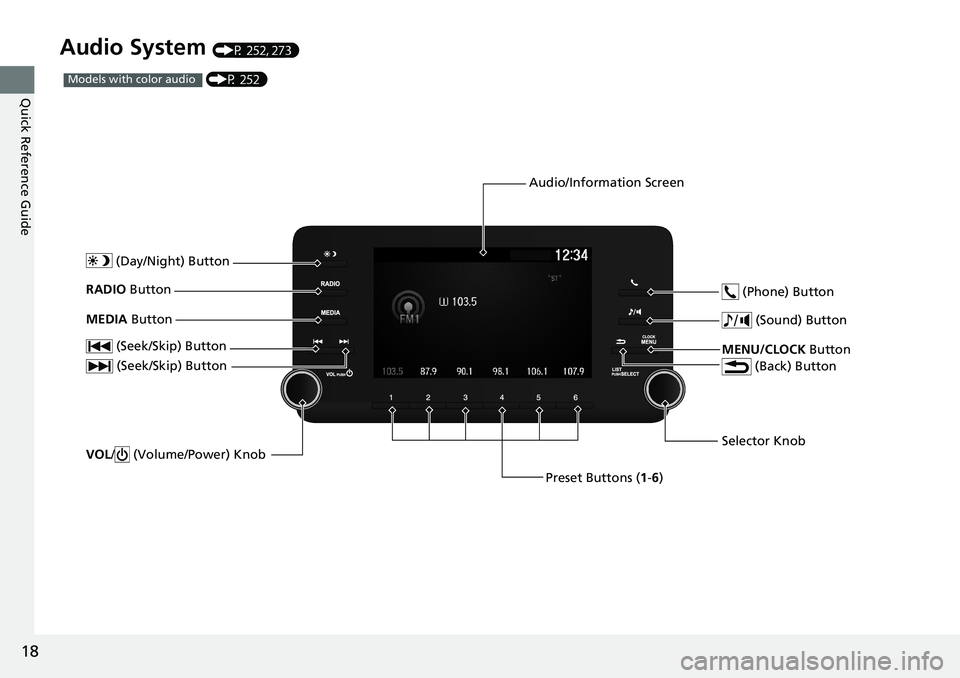
Quick Reference Guide Audio System (P 252, 273)
(P 252)Models with color audio
(Seek/Skip) Button
Selector Knob (Day/Night) Button
VOL / (Volume/Power) KnobRADIO Button
(Sound) Button
Preset Buttons ( 1 - 6 ) (Seek/Skip) ButtonMEDIA Button
MENU/CLOCK Button (Phone) Button
(Back) ButtonAudio/Information Screen
Page 21 of 727
19
Quick Reference Guide
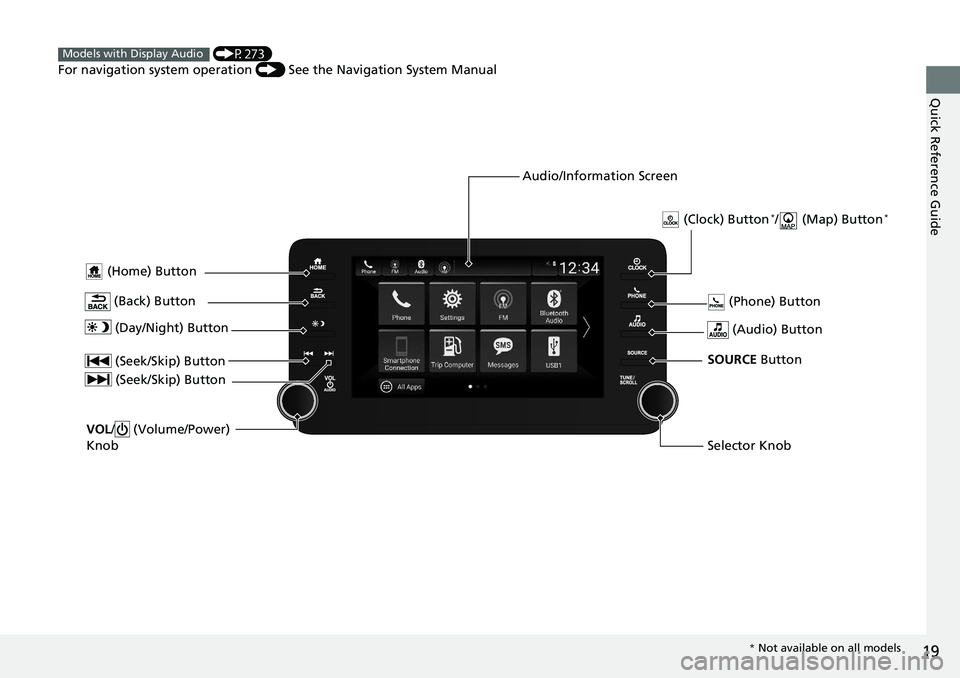
(Home) Button
(Audio) Button (Back) Button Audio/Information Screen (P273)
For navigation system operation () See the Navigation System ManualModels with Display Audio
(Phone) Button
(Day/Night) Button
(Seek/Skip) Button
(Seek/Skip) Button
VOL / (Volume/Power)
Knob
Selector KnobSOURCE Button (Clock) Button *
/ (Map) Button *
* Not available on all models
Page 165 of 727
163Controls This chapter explains how to operate th e various controls necessary for driving.
Clock .................................................. 164
Locking and Unlocking the Doors
Key Types and Functions .................. 166
Low Remote Signal Strength ............ 168
Locking/Unlocking the Doors from the
Outside .......................................... 169
Locking/Unlocking the Doors from the
Inside ............................................. 176
Childproof Door Locks ..................... 178
Auto Door Locking/Unlocking .......... 179
Opening and Closing the Trunk ....... 180
Security System
Immobilizer System .......................... 183
Security System Alarm ...................... 184
Opening and Closing the Windows ..... 186 Opening and Closing the Moonroof *
..... 189
Operating the Switches Around the
Steering Wheel
ENGINE START/STOP Button............. 190
Turn Signals ..................................... 193
Light Switches.................................. 193
Fog Lights *
...................................... 195
Daytime Running Lights ................... 196
Auto High-Beam .............................. 197
Wipers and Washers ........................ 200
Rear Defogger/Heat ed Door Mirror *
Button ........................................... 202 Heated Windshield Button ............... 202
Brightness Control ........................... 203
Driving Position Memory System *
.... 205
Adjusting the Steering Wheel .......... 207
Adjusting the Mirrors
Interior Rearview Mirror ................... 208
Power Door Mirrors ......................... 209
Adjusting the Seats .......................... 210
Interior Lights/Interior Convenience
Items ................................................ 221
Climate Control System
Using Automatic Climate Control .... 239
Automatic Climate Control Sensors ... 242 Canadian models
* Not available on all models
Page 166 of 727
164
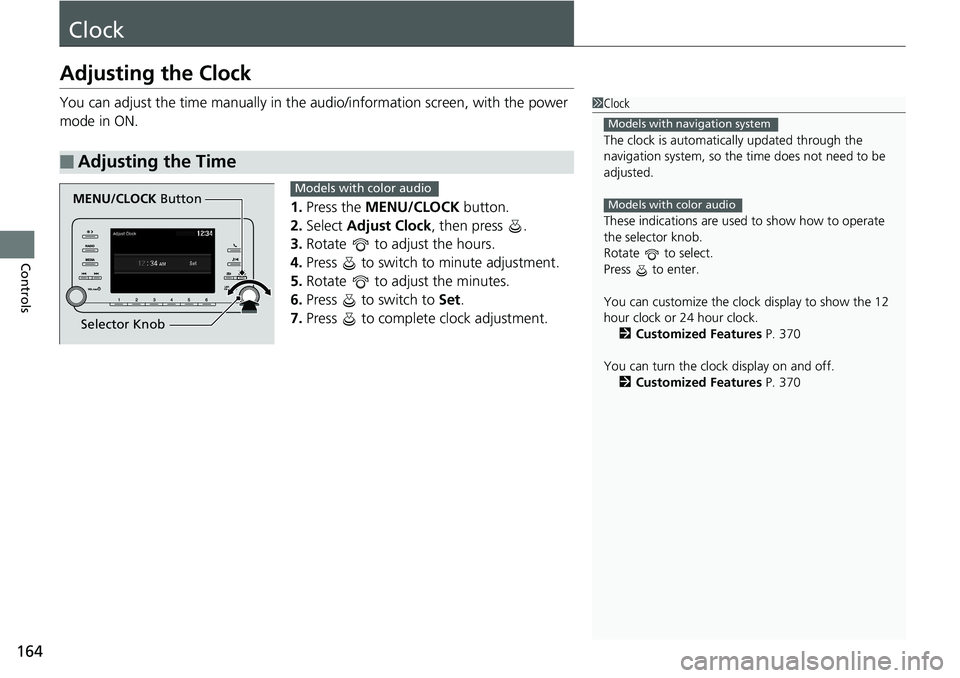
Controls ClockAdjusting the Clock You can adjust the time manually in the audio/information scr een, with the power
mode in ON.
1. Press the MENU/CLOCK button.
2. Select Adjust Clock , then press .
3. Rotate to adjust the hours.
4. Press to switch to minute adjustment.
5. Rotate to adjust the minutes.
6. Press to switch to Set .
7. Press to complete clock adjustment.■ Adjusting the Time 1 Clock
The clock is automatica lly updated through the
navigation system, so the ti me does not need to be
adjusted.
These indications are used to show how to operate
the selector knob.
Rotate to select.
Press to enter.
You can customize the clock display to show the 12
hour clock or 24 hour clock.
2 Customized Features P. 370
You can turn the clock display on and off.
2 Customized Features P. 370Models with navigation system
Models with color audio
MENU/CLOCK Button
Selector Knob Models with color audio
Page 167 of 727
165 uu Clock u Adjusting the Clock
Controls
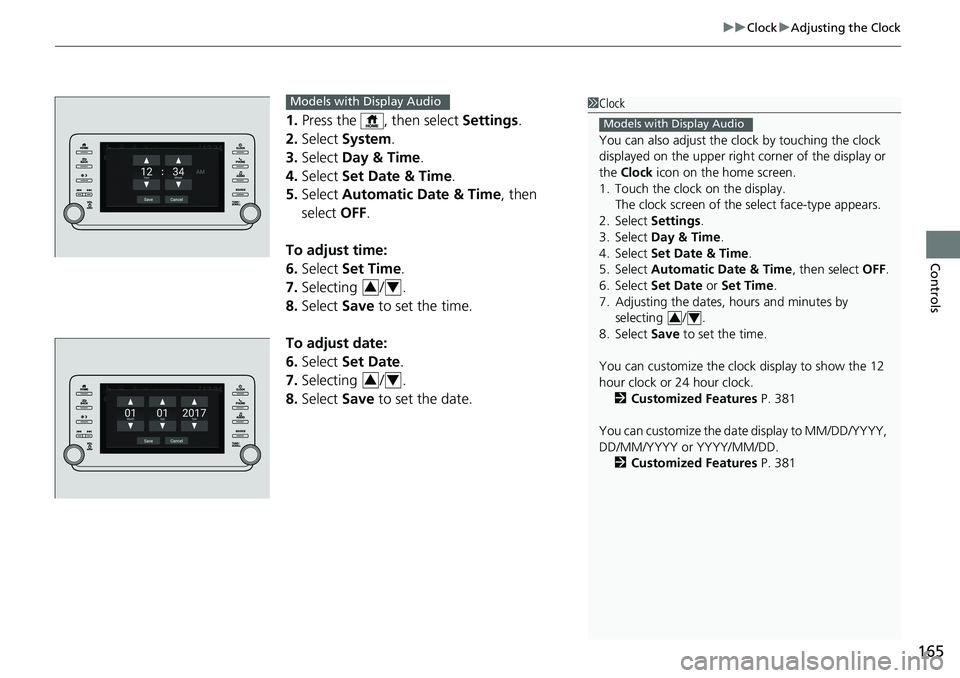
1. Press the , then select Settings .
2. Select System .
3. Select Day & Time .
4. Select Set Date & Time .
5. Select Automatic Date & Time , then
select OFF .
To adjust time:
6. Select Set Time .
7. Selecting / .
8. Select Save to set the time.
To adjust date:
6. Select Set Date .
7. Selecting / .
8. Select Save to set the date. 1 Clock
You can also adjust the clock by touching the clock
displayed on the upper right corner of the display or
the Clock icon on the home screen.
1. Touch the clock on the display.
The clock screen of the select face-type appears.
2. Select Settings .
3. Select Day & Time .
4. Select Set Date & Time .
5. Select Automatic Date & Time , then select OFF .
6. Select Set Date or Set Time .
7. Adjusting the dates, hours and minutes by
selecting / .
8. Select Save to set the time.
You can customize the clock display to show the 12
hour clock or 24 hour clock.
2 Customized Features P. 381
You can customize the date display to MM/DD/YYYY,
DD/MM/YYYY or YYYY/MM/DD.
2 Customized Features P. 381Models with Display Audio
3 4Models with Display Audio
3 4
3 4
Page 254 of 727
252
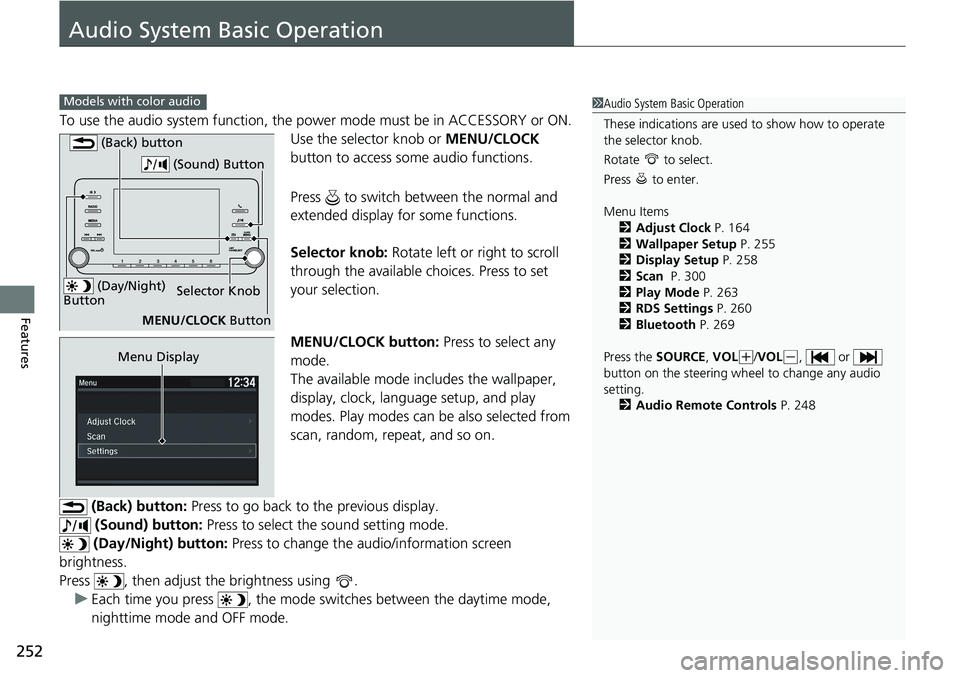
Features Audio System Basic Operation To use the audio system function, the po wer mode must be in ACCESSORY or ON.
Use the selector knob or MENU/CLOCK
button to access some audio functions.
Press to switch between the normal and
extended display fo r some functions.
Selector knob: Rotate left or right to scroll
through the available ch oices. Press to set
your selection.
MENU/CLOCK button: Press to select any
mode.
The available mode includes the wallpaper,
display, clock, langu age setup, and play
modes. Play modes can be also selected from
scan, random, repeat, and so on.
(Back) button: Press to go back to the previous display.
(Sound) button: Press to select the sound setting mode.
(Day/Night) button: Press to change the au dio/information screen
brightness.
Press , then adjust the brightness using .
u Each time you press , the mode sw itches between the daytime mode,
nighttime mode and OFF mode.Models with color audio
1 Audio System Basic Operation
These indications are used to show how to operate
the selector knob.
Rotate to select.
Press to enter.
Menu Items
2 Adjust Clock P. 164
2 Wallpaper Setup P. 255
2 Display Setup P. 258
2 Scan P. 300
2 Play Mode P. 263
2 RDS Settings P. 260
2 Bluetooth P. 269
Press the SOURCE , VOL ( +
/ VOL ( -
, or
button on the steering whee l to change any audio
setting.
2 Audio Remote Controls P. 248 (Day/Night)
Button Selector Knob
MENU/CLOCK Button (Back) button
(Sound) Button
Menu Display
Page 255 of 727
253uu Audio System Basic Operation u Audio/Information Screen
Continued
Features
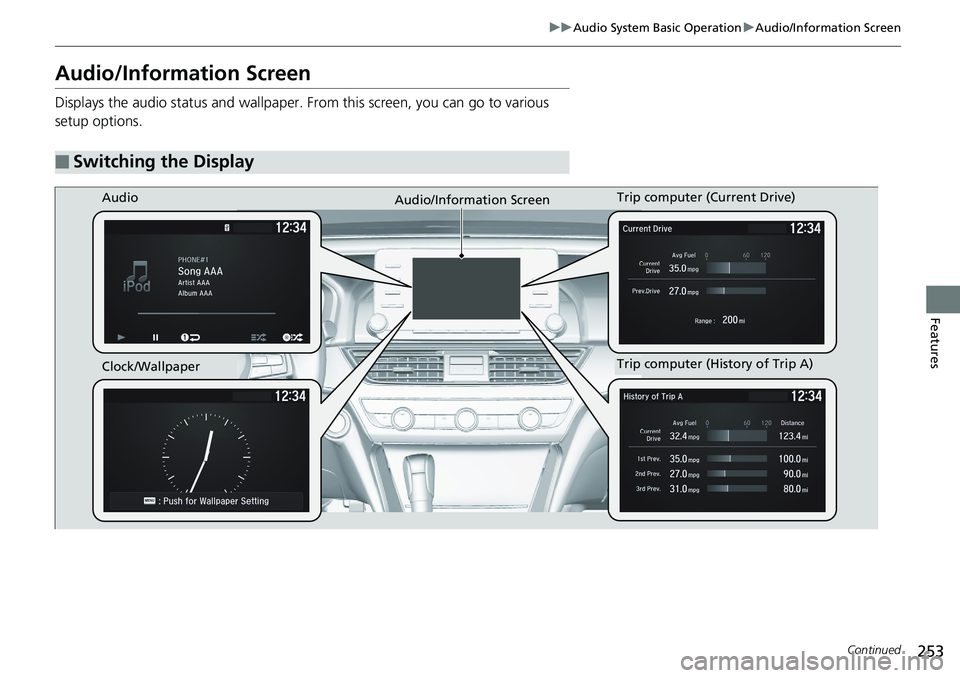
Audio/Information Screen Displays the audio status and wallpaper. From this screen, you can go to various
setup options.
■ Switching the Display Audio
Audio/Information Screen
Clock/Wallpaper Trip computer (History of Trip A)Trip computer (Current Drive)
Page 256 of 727
254 uu Audio System Basic Operation u Audio/Information Screen
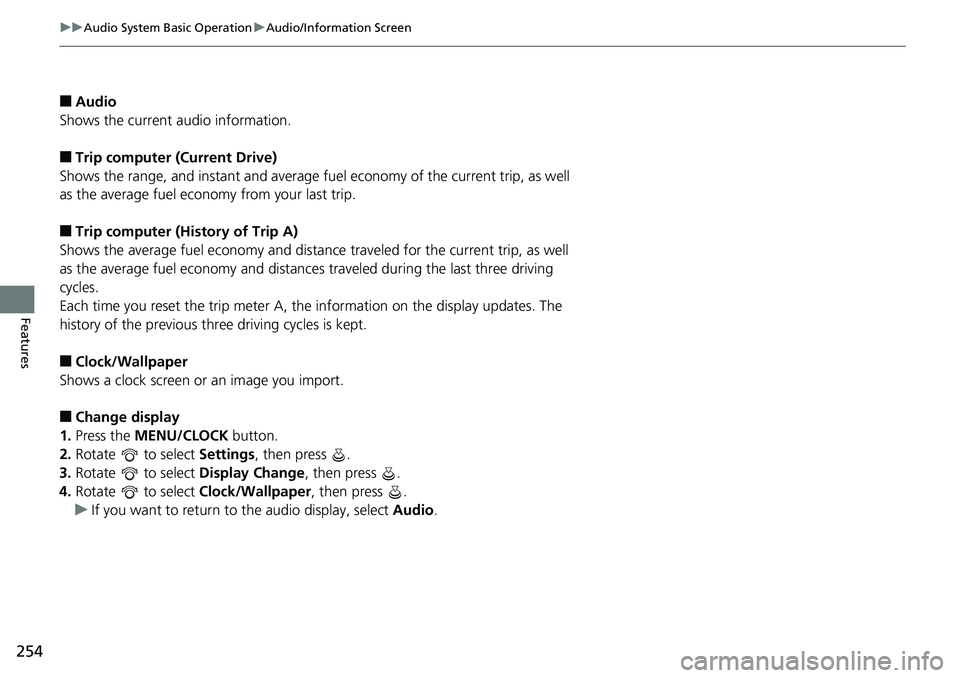
Features ■ Audio
Shows the current audio information.
■ Trip computer (Current Drive)
Shows the range, and instant and average fu el economy of the current trip, as well
as the average fuel economy from your last trip.
■ Trip computer (History of Trip A)
Shows the average fuel economy and distance traveled for the current trip, as well
as the average fuel economy and distances traveled during the last three driving
cycles.
Each time you reset the trip meter A, the information on the display updates. The
history of the previous th ree driving cycles is kept.
■ Clock/Wallpaper
Shows a clock screen or an image you import.
■ Change display
1. Press the MENU/CLOCK button.
2. Rotate to select Settings , then press .
3. Rotate to select Display Change , then press .
4. Rotate to select Clock/Wallpaper , then press .
u If you want to return to the audio display, select Audio .