ECO mode HONDA CIVIC 2022 Repair Manual
[x] Cancel search | Manufacturer: HONDA, Model Year: 2022, Model line: CIVIC, Model: HONDA CIVIC 2022Pages: 700, PDF Size: 13.98 MB
Page 303 of 700
uuAudio System Basic Operation uPlaying an iPod
302
Features
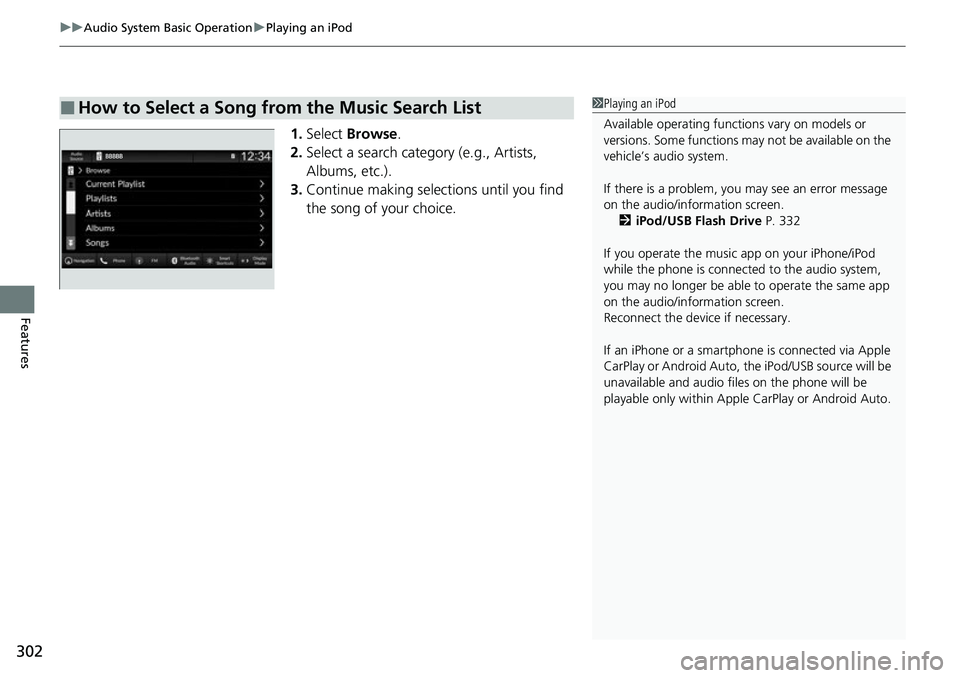
1. Select Browse .
2. Select a search catego ry (e.g., Artists,
Albums, etc.).
3. Continue making selections until you find
the song of your choice.
■How to Select a Song from the Music Search List1Playing an iPod
Available operating functi ons vary on models or
versions. Some functions ma y not be available on the
vehicle’s audio system.
If there is a problem, you may see an error message
on the audio/information screen. 2 iPod/USB Flash Drive P. 332
If you operate the musi c app on your iPhone/iPod
while the phone is connected to the audio system,
you may no longer be able to operate the same app
on the audio/information screen.
Reconnect the devi ce if necessary.
If an iPhone or a smartpho ne is connected via Apple
CarPlay or Android Auto, th e iPod/USB source will be
unavailable and a udio files on the phone will be
playable only within Appl e CarPlay or Android Auto.
Page 305 of 700
304
uuAudio System Basic Operation uPlaying a USB Flash Drive
Features
Playing a USB Flash Drive
Your audio system reads and plays sound files on a USB flash drive in either MP3,
WMA, AAC*1, FLAC, or WAV format.
Connect your USB flash drive to the USB port, then select the USB mode.
2USB Port(s) P. 231
*1:Only AAC format files recorded with iTunes are playable on this unit.
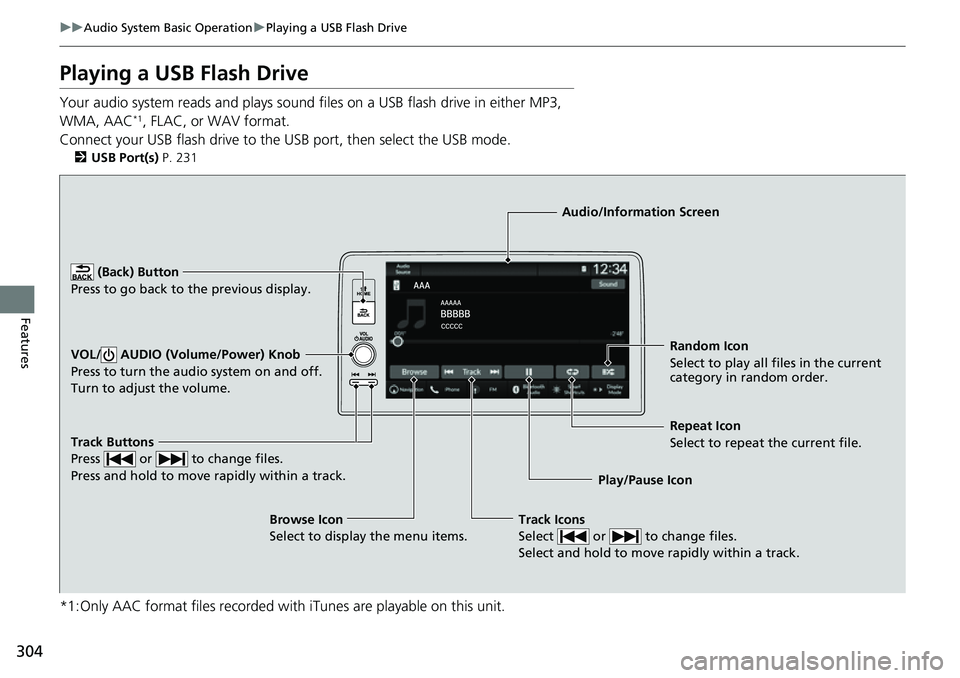
Track Buttons
Press or to change files.
Press and hold to move rapidly within a track.
Random Icon
Select to play all files in the current
category in random order.
Audio/Information Screen
Play/Pause Ico n
(Back) Bu
tton
Press to go bac
k to the previous display.
VOL/ AUDIO (Volume/Power) Knob
Press to turn the audio system on and off.
Turn to adjust the volume.
Track Icons
Select or to change files.
Select and hold to move rapidly within a track.
Repeat Icon
Select to repeat the current file.
Browse Icon
Select to display the menu items.
Page 309 of 700
uuAudio System Basic Operation uPlaying Bluetooth ® Audio
308
Features
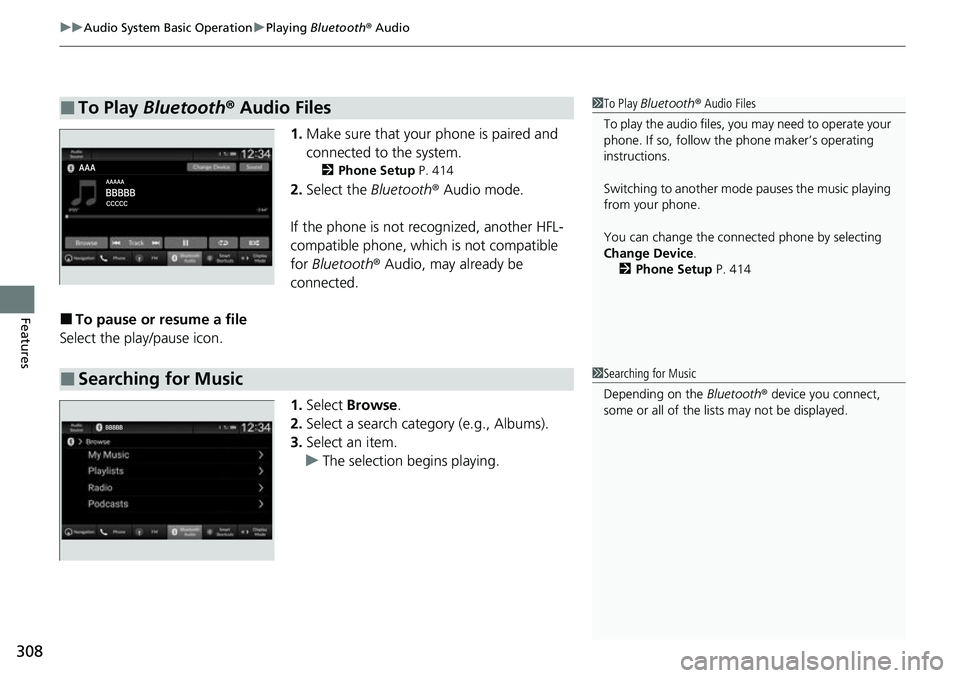
1. Make sure that your phone is paired and
connected to the system.
2 Phone Setup P. 414
2.Select the Bluetooth® Audio mode.
If the phone is not recognized, another HFL-
compatible phone, which is not compatible
for Bluetooth ® Audio, may already be
connected.
■To pause or resume a file
Select the play/pause icon.
1.Select Browse .
2. Select a search category (e.g., Albums).
3. Select an item.
u The selection begins playing.
■To Play Bluetooth ® Audio Files1 To Play Bluetooth ® Audio Files
To play the audio files, y ou may need to operate your
phone. If so, follow the phone maker’s operating
instructions.
Switching to another mode pauses the music playing
from your phone.
You can change the connected phone by selecting
Change Device .
2 Phone Setup P. 414
■Searching for Music1Searching for Music
Depending on the Bluetooth® device you connect,
some or all of the list s may not be displayed.
Page 333 of 700
332
Features
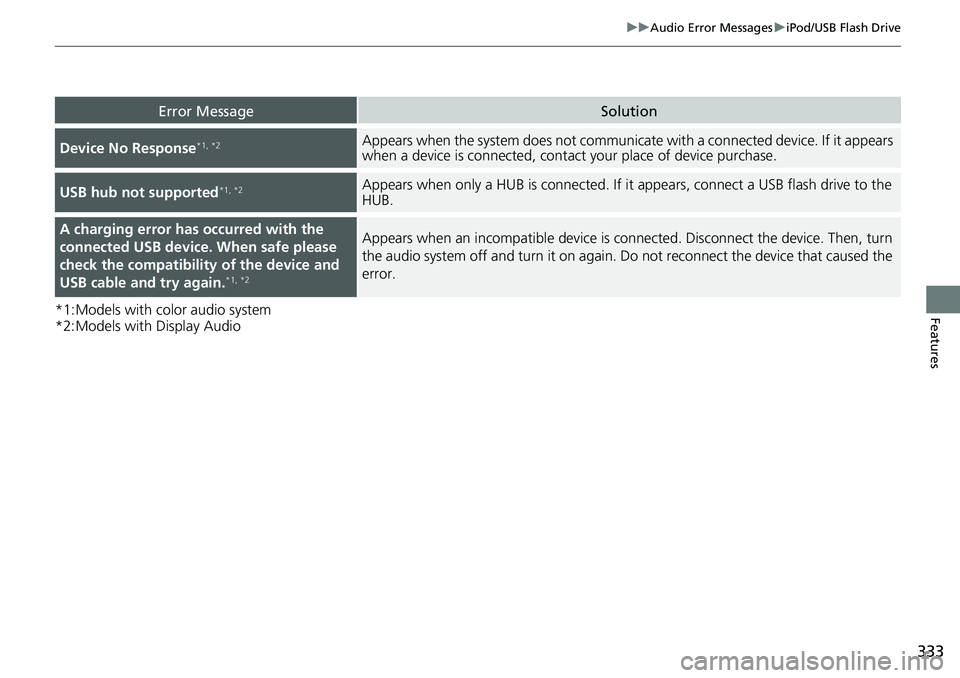
Audio Error Messages
iPod/USB Flash Drive
If an error occurs while playing an iPod or USB flash drive, you may see the following
error messages. If you cannot clear the error message, contact a dealer.
*1:Models with color audio system
*2:Models with Display Audio
Error MessageSolution
Bad USB Device
Please check owners manual*1
Appears when an incompatible device is co nnected. Disconnect the device. Then, turn
the audio system off and turn it on again. Do not reconnect the device that caused the
error.
Connect Retry*1, *2Appears when the system does not acknowledge the iPod. Reconnect the iPod.
Unplayable File*1, *2Appears when the files in the USB flash driv e are copyright protected or an unsupported
format. This error message appears for abou t a few seconds, then plays the next file.
No Data*1, *2
Appears when the iPod is empty.
Appears when the USB flash drive is empty or there are no MP3, WMA, AAC, FLAC, or
WAV files in the USB flash drive.
Check that compatible files are stored on the device.
Unsupported*1, *2Appears when an unsupported device is conn ected. If it appears when a supported
device is connected, reconnect the device.
iPod
USB flash drive
iPod and USB flash drive
Page 334 of 700
333
uuAudio Error Messages uiPod/USB Flash Drive
Features*1:Models with color audio system
*2:Models with Display Audio
Error MessageSolution
Device No Response*1, *2Appears when the system does not communicat e with a connected device. If it appears
when a device is connected, contact your place of device purchase.
USB hub not supported*1, *2Appears when only a HUB is conn ected. If it appears, connect a USB flash drive to the
HUB.
A charging error has occurred with the
connected USB device. When safe please
check the compatibility of the device and
USB cable and try again.
*1, *2
Appears when an incompatible device is co nnected. Disconnect the device. Then, turn
the audio system off and turn it on again. Do not reconnect the device that caused the
error.
Page 336 of 700
335
uuGeneral Information on the Audio System uCompatible iPod, iPhone, and USB Flash Drives
Features
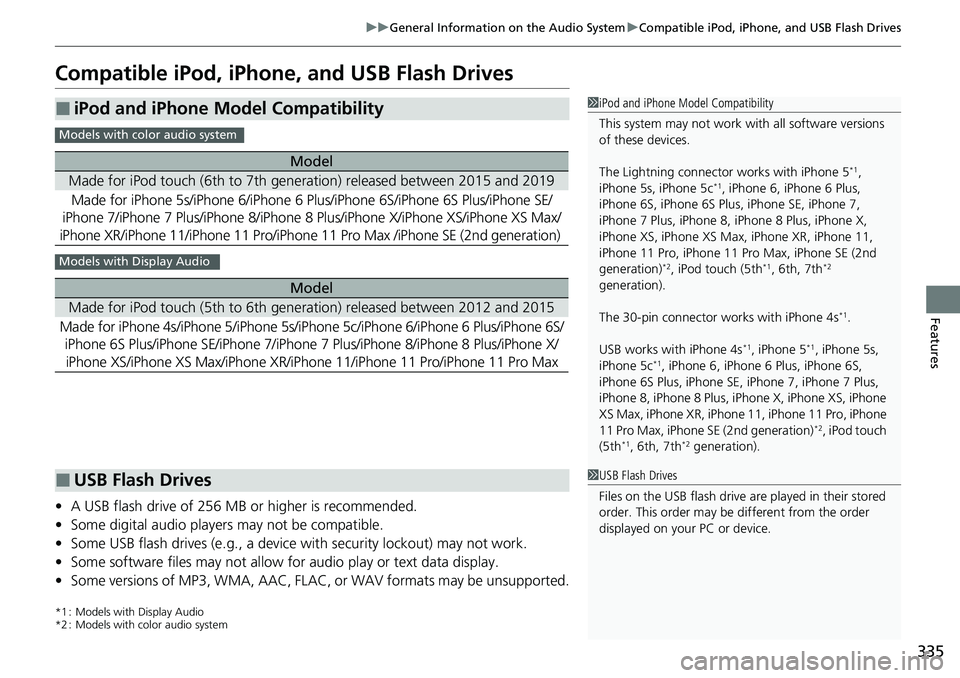
Compatible iPod, iPhone , and USB Flash Drives
•A USB flash drive of 256 MB or higher is recommended.
• Some digital audio players may not be compatible.
• Some USB flash drives (e.g., a device with security lockout) may not work.
• Some software files may not allow for audio play or text data display.
• Some versions of MP3, WMA, AAC, FLAC, or WAV formats may be unsupported.
*1 : Models with Display Audio
*2 : Models with color audio system
■iPod and iPhone Model Compatibility
Model
Made for iPod touch (6th to 7th generation) released between 2015 and 2019
Made for iPhone 5s/iPhone 6/iPhone 6 Plus/iPhone 6S/iPhone 6S Plus/iPhone SE/
iPhone 7/iPhone 7 Plus/iPhone 8/iPhone 8 Plus/iPhone X/iPhone XS/iPhone XS Max/
iPhone XR/iPhone 11/iPhone 11 Pro/iPhone 11 Pro Max /iPhone SE (2nd generation)
Model
Made for iPod touch (5th to 6th generation) released between 2012 and 2015
Made for iPhone 4s/iPhone 5/ iPhone 5s/iPhone 5c/iPhone 6/iPhone 6 Plus/iPhone 6S/
iPhone 6S Plus/iPhone SE/iPhone 7/iPhone 7 Plus/iPhone 8/iPhone 8 Plus/iPhone X/
iPhone XS/iPhone XS Max/iPhone XR/iPhone 11/iP hone 11 Pro/iPhone 11 Pro Max
1iPod and iPhone Model Compatibility
This system may not work with all software versions
of these devices.
The Lightning connector works with iPhone 5
*1,
iPhone 5s, iPhone 5c*1, iPhone 6, iPhone 6 Plus,
iPhone 6S, iPhone 6S Plus, iPhone SE, iPhone 7,
iPhone 7 Plus, iPhone 8, iPhone 8 Plus, iPhone X,
iPhone XS, iPhone XS Ma x, iPhone XR, iPhone 11,
iPhone 11 Pro, iPhone 11 Pr o Max, iPhone SE (2nd
generation)
*2, iPod touch (5th*1, 6th, 7th*2
generation).
The 30-pin connector works with iPhone 4s
*1.
USB works with iPhone 4s
*1, iPhone 5*1, iPhone 5s,
iPhone 5c*1, iPhone 6, iPhone 6 Plus, iPhone 6S,
iPhone 6S Plus, iPhone SE, iPhone 7, iPhone 7 Plus,
iPhone 8, iPhone 8 Plus, iP hone X, iPhone XS, iPhone
XS Max, iPhone XR, iPhone 11, iPhone 11 Pro, iPhone
11 Pro Max, iPhone SE (2nd generation)
*2, iPod touch
(5th*1, 6th, 7th*2 generation).
Models with color audio system
Models with Display Audio
■USB Flash Drives1 USB Flash Drives
Files on the USB flash drive are played in their stored
order. This order may be different from the order
displayed on your PC or device.
Page 366 of 700
365
uuCustomized Features u
Continued
Features
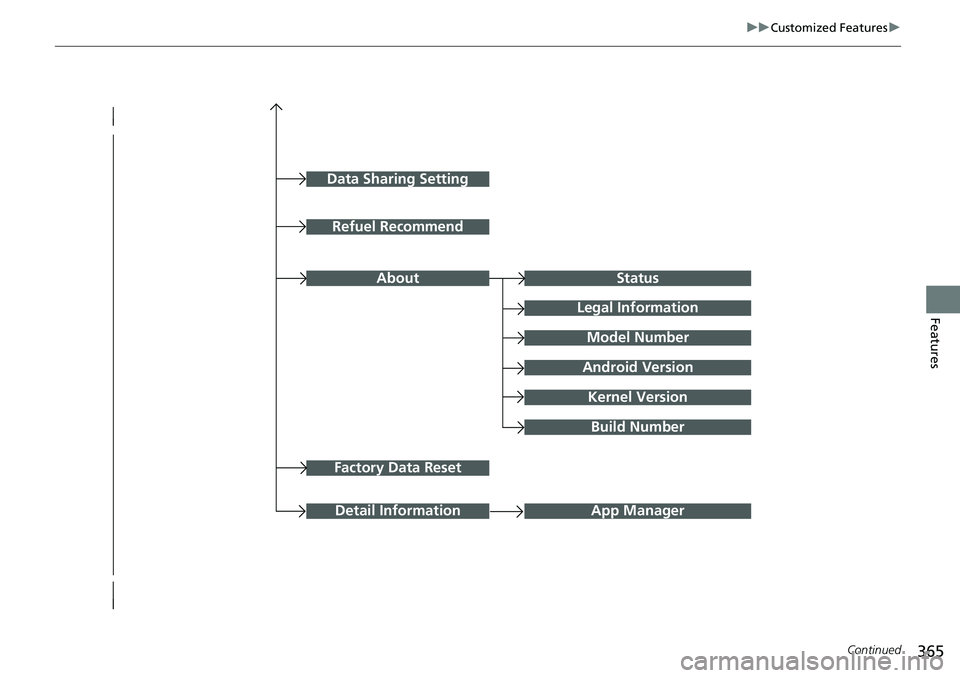
Factory Data Reset
Status
Legal Information
Build Number
Data Sharing Setting
Model Number
Android Version
Kernel Version
App ManagerDetail Information
Refuel Recommend
About
Page 377 of 700
376
uuCustomized Features u
Features
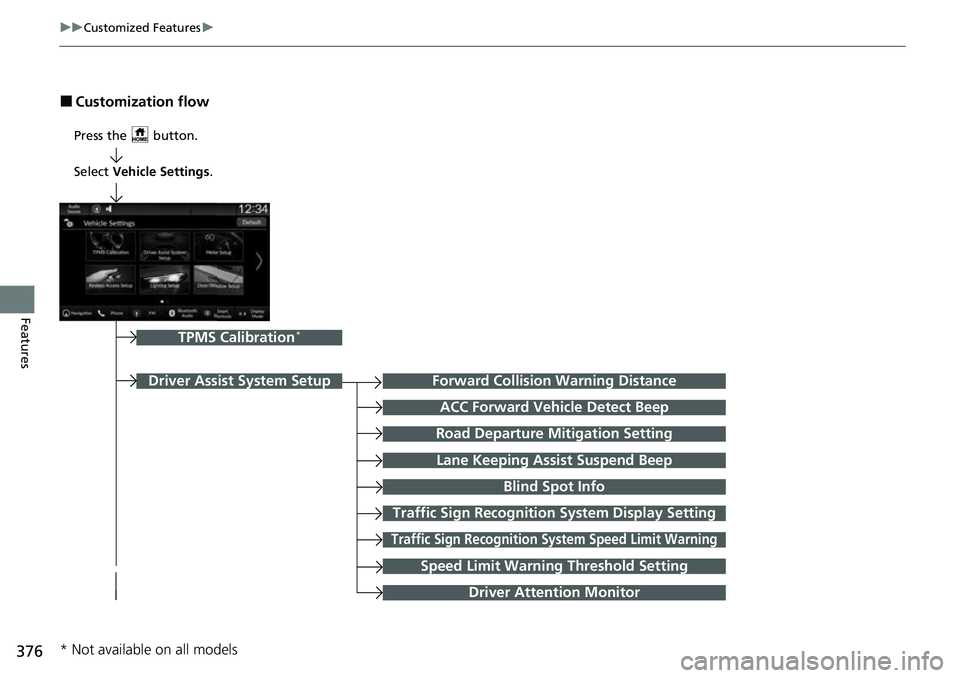
■Customization flow
Press the button.
Forward Collision Warning Distance
ACC Forward Vehicle Detect Beep
Traffic Sign Recognition System Display Setting
Road Departure Mitigation Setting
Lane Keeping Assist Suspend Beep
Blind Spot Info
Traffic Sign Recognition Sys tem Speed Limit Warning
Speed Limit Warning Threshold Setting
Driver Attention Monitor
Driver Assist System Setup
TPMS Calibration*
Select Vehicle Settings .
* Not available on all models
Page 381 of 700
380
uuCustomized Features u
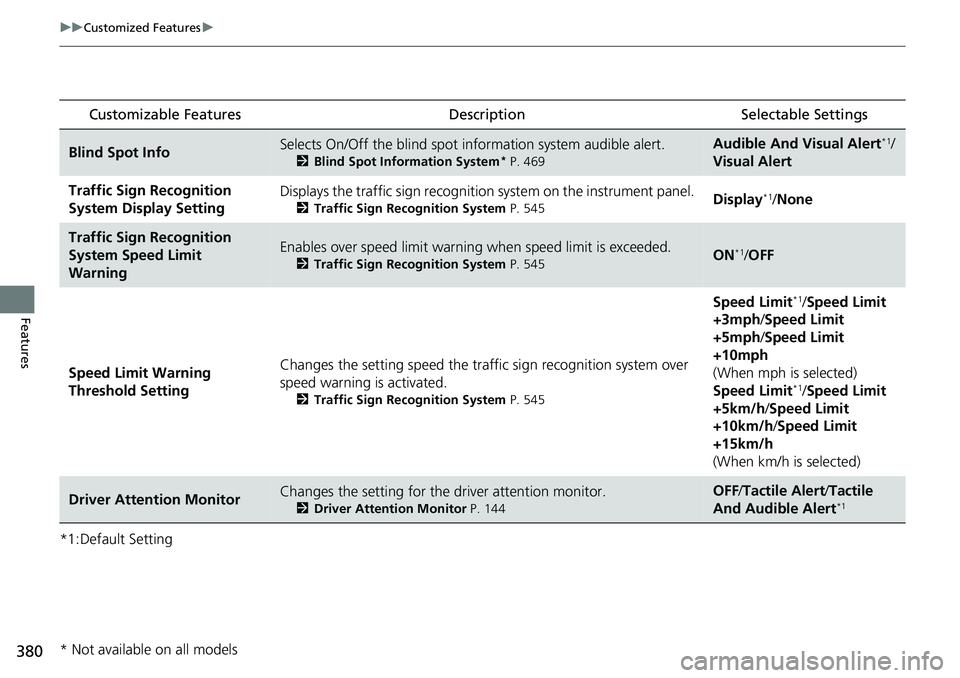
Features
*1:Default Setting
Customizable Features DescriptionSelectable Settings
Blind Spot InfoSelects On/Off the blind spot information system audible alert.
2Blind Spot Information System* P. 469
Audible And Vi sual Alert*1/
Visual Alert
Traffic Sign Recognition
System Display SettingDisplays the traffic sign recognitio n system on the instrument panel.
2Traffic Sign Recognition System P. 545Display*1/None
Traffic Sign Recognition
System Speed Limit
WarningEnables over speed limit warning when speed limit is exceeded.
2Traffic Sign Recognition System P. 545ON*1/OFF
Speed Limit Warning
Threshold Setting Changes the setting speed the traffic sign recognition system over
speed warning is activated.
2
Traffic Sign Recognition System P. 545
Speed Limit*1/Speed Limit
+3mph /Speed Limit
+5mph /Speed Limit
+10mph
(When mph is selected)
Speed Limit
*1/ Speed Limit
+5km/h /Speed Limit
+10km/h /Speed Limit
+15km/h
(When km/h is selected)
Driver Attention MonitorChanges the setting for the driver attention monitor.
2 Driver Attention Monitor P. 144
OFF /Tactile Alert /Tactile
And Audible Alert*1
* Not available on all models
Page 393 of 700
392
uuBluetooth ® HandsFreeLink ®u HFL Menus
Features
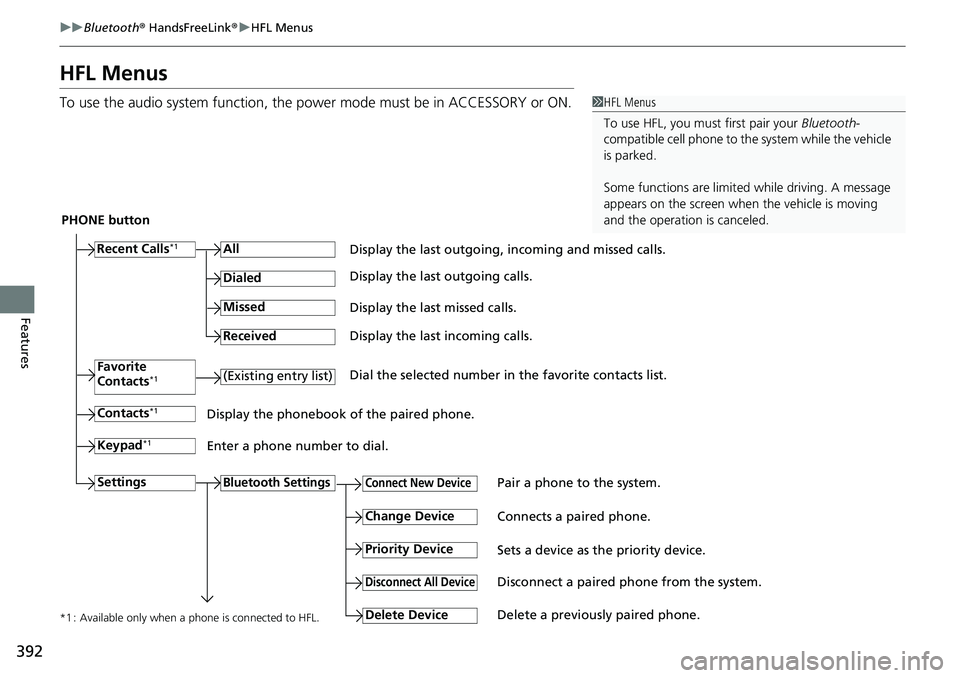
HFL Menus
To use the audio system function, the po wer mode must be in ACCESSORY or ON.1HFL Menus
To use HFL, you must first pair your Bluetooth-
compatible cell phone to th e system while the vehicle
is parked.
Some functions are limited while driving. A message
appears on the screen when the vehicle is moving
and the operation is canceled.
PHONE button
Recent Calls
*1All
Pair a phone to the system.Connect New Device
Change DeviceConnects a paired phone.
Priority Device
Sets a device as the priority device.
Bluetooth Settings
Keypad*1
Settings
Favorite
Contacts*1(Existing entry list)
Contacts*1
Dialed
Missed
Received
Display the last outgoing, incoming and missed calls.
Display the last outgoing calls.
Display the last missed calls.
Display the last incoming calls.
Dial the selected number in the favorite contacts list.
Display the phonebook of the paired phone.
Enter a phone number to dial.
Disconnect All DeviceDisconnect a paired phone from the system.
Delete Device
Delete a previously paired phone.*1 : Available only when a phone is connected to HFL.